

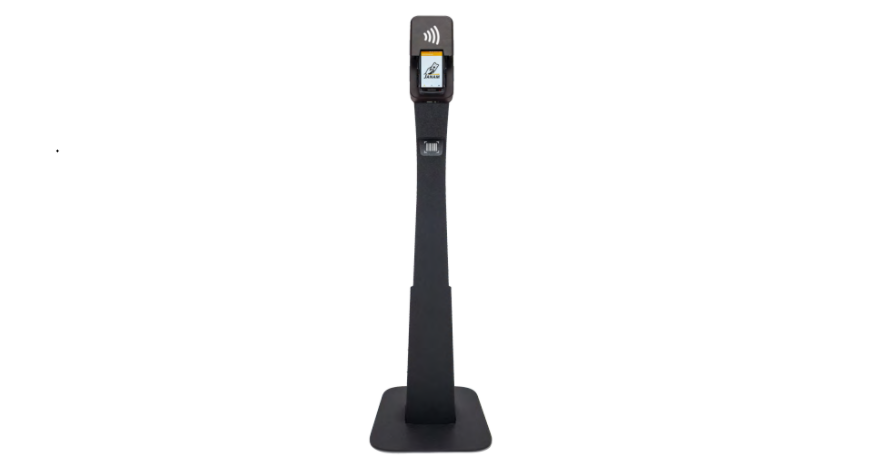

JANAM GT1 Self Mobile Entry Head Unit

Introduction
Janam’s GT1 delivers rapid, reliable, and barrier-free access control for sports, performing arts, and live entertainment venues. With state-of-the-art barcode scanning and the world’s most advanced tap-and-go NFC technology, GT1’s “plug-and-play” design elegantly transforms a Janam handheld scanner into a contactless, self-service pedestal, saving enormous cost and promoting safe “social distancing.”
By enabling guests to self-scan their entry credentials, GT1 practically eliminated direct contact between patrons and ticket takers, freeing up venue personnel for other important tasks. Powered by a large-capacity battery with over 24 hours of operating time, GT1 delivers robust, no-touch scanning of 1D/2D barcodes, RFID tags on tickets and wristbands, Apple Wallet passes, and Google Pay passes from any location in the venue. Attention-grabbing LEDs and audio alerts allow a single attendant to monitor multiple GT1 pedestals at once from a safe distance.
Key Features
- “PLUG-AND-PLAY”
Transforms an XT2+ or XT3 handheld into an automated, self-service scanning solution. For detailed instructions on using the XT3 handheld, see the Janam XT3 Series Rugged Mobile Computer Instruction Manual. - VERSATILE DESIGN
Compact and portable; fits most spaces in pedestal, countertop, or wall-mounted form.t - INDOOR & SELECT OUTDOOR
Perfect for sports stadiums, arenas, theaters, museums, and other multi-purpose facilities

- SELF-SERVICE
Visitors self-credential, enabling gate staff to perform other tasks - NO TOUCH
Reduces the spread of contagions via zero contact and safe distancing - INSTANT NOTIFICATIONS
Attention-grabbing LED lights and audio alerts confirm credential status at a distance.

- NFC “TAP-AND-GO”
Supports advanced protocols for both Apple Wallet and Google Pay on the same device - ROBUST DATA CAPTURE
Reads all 1D/2D printed and digital barcodes, RFID/NFC-enabled tickets, and wristbands - SUSTAINED CONNECTIVITY
Maintains existing network connection to backend software solution for continued stability

- PHYSICALLY UNTETHERED
High-capacity battery provides
24+ hours of continuous operation
on a single charge - SOFTWARE INTEGRATION
Integrates with virtually all third-party ticketing software - SOFTWARE INTEGRATION
Integrates with virtually all third-party ticketing software

Equipment Hardware

- High-visibility LEDs
- NFC reader
- Multi-touch capacitive screen
- 1D/2D barcode reader
- High-capacity battery
Initial Setup
Pedestal Assembly
| 1 | Upon unboxing, you’ll notice that GT1 is folded in half. |
| 2 | Remove the single screws on both sides of the pedestal while in the folded position. Raise the folded top half of GT1, bending it at the hinge until the stem of the pedestal is fully vertical. |
| 3 | At the hinge, securely fasten the top and bottom halves of GT1 by inserting the appropriate screws into the holes on the sides of the device. Reinsert the two screws so that they lock the pedestal in a standing position and tighten using the provided hex wrench. |
Battery Door
| 1 | On the back side of the pedestal, there is a small knob at the top of the battery door. Using a flathead screwdriver, turn the knob counterclockwise 90° to unlock. |
| 2 | Once unlocked, tip the door backwards and lift it up and out of place to remove. |
| To apply the battery door, reverse this process. |
Battery Insertion


Initial Setup
XT2+ / XT3 Insertion (continued)

Power On & Off
| 1 | Gently slide the NFC logo head cover up to expose the handheld holder. Slide the locking clips on each side of the handheld holder to the “up” position. |
| 2 | Flip the handheld upside-down so that the connector is facing upward and gently slide the handheld into the handheld holder. Slide upward until the handheld’s connector makes firm contact with the holder’s connector pins. |
Attachable Wheels
| 1 | Located on the back of the pedestal base, there is a long, slightly notched section with a single hole centered about an inch from the edge. Slide the attachable wheels, with the flat side facing downwards, into this notch, sandwiching the pedestal base between the lower and upper lips of the attachable wheels. If the pedestal is unstable once attachable wheels are in position, please reinstall attachable wheels with the smooth side facing downward to the floor. |
| 2 | Align the hole in the attachable wheels with the hole in the base of the pedestal. |
| 3 | Insert the attachable wheels key into the aligned holes. |
| 4 | Tilt the pedestal backwards to utilize the attachable wheels. |
Connect Battery Charger
| 1 | Locate the high-capacity battery on the back side of the pedestal.
Remove the battery door (if applicable). At the base of the battery, there is a port for the charger. |
| 2 | The battery does not need to be removed from the pedestal to charge. Connect the charger to the port. |

Product Specifications
| GT1 Pedestal | |
| Dimensions | Height: 52” / 132.08cm Base: 13” x 15” / 330mm x 381mm |
| Weight | Approximately 49lbs. / 22.2kgs |
| Battery | Li-polymer, Nominal voltage: 36V, Rated capacity: 10.4Ah, Charge current: 2A Charging mode: CC/AC, AC input: 110-240v, 50/60HZ, Max charge voltage: 36V-42V, mCycle life: ~2,000 cycles, Charging time: Approx. 6 hours |
| I/O | I/O on GT1 includes power input jacks for a wall adapter and a battery, an Ethernet port, and a USB port |
| Operating Temperature | -4º to 140ºF / -20°C to 60°C |
| Storage Temperature | -13º to 158ºF / -25°C to 70°C |
| Humidity | Non-condensing, 95% |
| Water & Dust | IP52 |
| Regulatory | FCC Class B, CE Approved |
FCC Rules
This equipment has been tested and found to comply with the limits for a Class B digital device, pursuant to part 15 of the FCC Rules. These limits are designed to provide reasonable protection against harmful interference in a residential installation.
- Reorient or relocate the receiving antenna.
- Increase the separation between the equipment and receiver.
- Consult the dealer or an experienced radio/TV technician for help.
- End-users and installers must be provided with antenna installation instructions, and consider removing the no-collocation statement. This device complies with Part 15 of the FCC Rules.
- This device contains licence-exempt transmitter(s)/receiver(s) that comply with Innovation, Science and Economic Development Canada’s licence-exempt RSS(s). This device may not cause interference.
Customer Service
- Address: ANAM TECHNOLOGIES 999 S. OYSTER BAY RD. BETHPAGE, NY 11714
- Phone: +1.877.JANAM.. 99 (+1.877.526.2699)
- Local: +1.516.677.9500
- Fax: +1.516.320.8031
- Email: inquiries@janam.com
Contact Technical Support
- NA: +1.866.915.5311
- EMEA: +44.1202.946945
- Email: janamcare@janam.com
FAQs
Q: What is the JANAM GT1 used for?
Designed for field operations, self-mobile entry, barcode scanning, and real-time data management in a variety of industries, including logistics, healthcare, and retail, the JANAM GT1 is a rugged mobile data gathering device.
Q: How do I charge the GT1?
Use the USB-C cable or charging dock that is provided. Before using the battery for the first time, fully charge it. If your model includes detachable batteries, the device is compatible with hot-swappable batteries.
Q: How do I connect the GT1 to a network?
In the settings menu, turn on cellular data or Wi-Fi. For corporate networks, adhere to IT guidelines on secure connections or VPNs.For dependable real-time data transfer, make sure the signal is strong.
Q: How do I scan barcodes or QR codes?
Use the on-screen scanning interface or press the scan button. At the suggested distance, place the scanner over the code. To verify that the scan was successful, wait for a sound or vibration.
Q: How do I adjust the screen brightness?
Go to Settings → Display. For varying lighting situations, change the brightness or turn on automatic brightness.
Q: How do I reset the GT1 to factory settings?
Navigate to Settings → System → Factory Reset → Reset Options. Resetting will remove all content, so make a backup of all crucial data first.
Q: How do I troubleshoot network connectivity issues?
Make sure mobile data or Wi-Fi is turned on. Reconnect after restarting the device. Check firewall permissions or network credentials. Update to the most recent firmware version.