

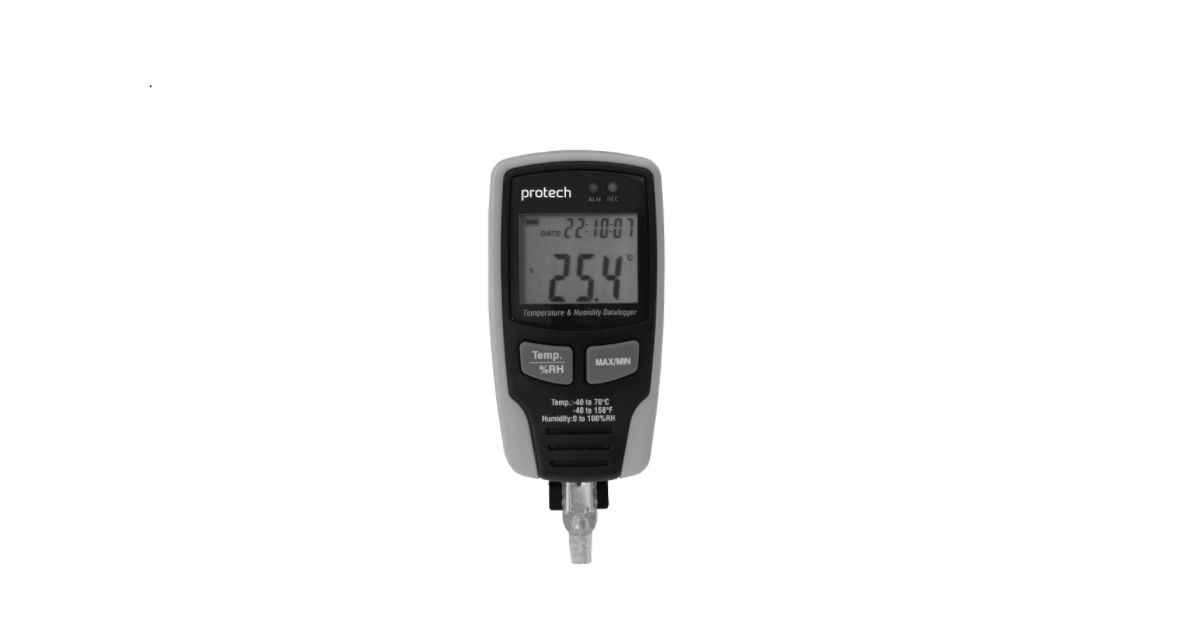

PROTECH QP6014 USB Temperature Datalogger
Introduction
The Temperature & Humidity Datalogger is designed with a high-accuracy Temperature & Humidity Sensor. This datalogger is provided with features of high accuracy, fast response, and stability. It is widely used for monitoring and collecting data on environmental temperature and humidity. Functions and Technical Specifications
Functions
You can monitor temperature and humidity values efficiently and conveniently for long time periods by using the Datalogger. For monitoring other parameters like voltage or current, you can also use the PROTECH QM1549 RMS IP67 Digital Multimeter alongside this datalogger. The readings are saved in the logger and simply read out by your PC via USB. The LCD can show current readings, MAX, MIN, TIME, DATE, and temperature or humidity values.
Features
- Memory for 32700 values;
- LCD to show some logging information easily;
- Freely selectable measurement cycle from 1 sec. to 24h;
- Download collected data through the PC’s USB;5.
- Alarm sounds if user-defined maximum/minimum values are exceeded.
- Analysis software can be used to view a graph for logging data.
Operation Instructions
- TIME current time
- DATE current date
- Date and time will swap views every 10 seconds.
- MAdisplaysthe ay maximum value during measuring
- MIN displays the minimum value during measurement
- REC this sign showing that the data logger is under recording
- FULL will show when the memory is full. When memory is full, the data logger will stop recording.
- %RH: This sign indicates that the data logger is measuring humidity
- °C Centigrade
- °F Fahrenheit
- When the MAX/MIN button is pressed, it will hold the MAX, MIN, time, and date.
- A flashing Red LED shows the temperature value exceeds the limit, while a flashing Yellow LED shows the humidity value exceeds the limit.
- There will be a “-LO-” sign displayed if the temperature/ humidity sensor is well-connected.
- At this time, please open the back cover and reinstall the sensor. Until the correct measurement value is displayed.
Software Installation
- Put the CD into the CD-ROM, There will be an installation interface pop-up after a moment. You can install the software on your PC accordingly.
- After the software is installed, keep the CD in the CD-ROM and connect the datalogger to the PC with the USB cable. Then, there will be a USB Driver installation window pop-up.
- Follow the clue, select the path of the CD driver, and you will finish the USB driver installation very soon.
Software Application
The Datalogger USB software is a program for collecting data from the DATA LOGGER when it is connected to a PC or notebook computer. The data may be displayed graphically in Excel or similar programs. The major functions are all listed in the main window.
System Required
- Windows 2000, XP, Vista, 7, 8 & 10.
Minimum Hardware Required
PC or Notebook with Pentium 90MHz or higher, 32 MB
RA: At least 7 MB byte hard disk space available to install the HT Datalogger USB software. Recommended display resolution 1024X768 with High Color(16 bit).
Main Menu 
Operation
Correct Time: If you find the DATA LOGGER time is not correct, you can click the icon to open the Correct Time Dialog: Input the correct date and correct timepiece and click the “OK” button, the DATA LOGGER time will update.
Datalogger Setup
- Click on the icon on the menu bar. The Setup window will appear as shown below; descriptions for each field in the Setup window are listed directly below the illustration.
- The Samprate Setup field instructs the DATA LOGGER to log readings at a specific rate.
- You can input specific data in the left Edit box and select the time unit in the right Combo box.
- The Alarm Setup portion allows the user to set HIGH and LOW temperature and relative humidity limits and disable the flashing of the DATA LOGGER’s LEDs, thereby conserving battery energy.
- The Circulating Record and No Circulating select buttons instruct the DLOGG to continue logging data to cover the earlier data(Circulating Record) or stop logging(No Circulating) when the DATA LOGGER is full.
Datalogger Download
To transfer the readings stored in the Logger to the PC:
- Connect the DATA LOGGER to the same USB port used when the DATALOGGER was initialized.
- Open the HT Datalogger software program if it is not still running
- Click the Download icon.
- The Window shown below will appear. Press

DOWNLOAD to begin transferring readings. The top field shows detailed information of the readings (Time, Sampling rate, data numbers, Alarm-Hi, AlarmLow, Max data, Min data, and Avg data).
Zoom In/Out
- Release the mouse button.
- Use the horizontal scrollbar to scroll through all the data. Use the left vertical scrollbar to scroll through the temperature data.
- Use the right vertical scrollbar to scroll through the relative humidity data.


Zoom out to full view by clicking Setup the Temp and RH Y Axis. Set up the background and color, grid color, Te, mp, and RH color.
Allows the user to select which data to view as a trace. Add or remove grid lines from the x and y axes. Mark Points: Places dots on the traces for the actual data points, breaking up the continuous nature of a trace. Click the list icon to get the list window. It shows specific time and data
File Save and Open
- Click the icon to open the file save dialog box.
- Name the file and save it with the default extension.

To open an existing data file for viewing on the data graph window, click on the icon. When prompted, select a .record file saved earlier.
Print the Graph and the List
Click the icon to show the data as a graph, then click to print the graph. Click the icon to show the data as a list, then click to print the list.
Specification
- Resolution 0.1%RH, 0.1℃
- Memory 32700 values
- Measuring cycles from 1s to 24h
- Analysis software 2000/XP/ Vista
Customer Support
- Email: support@whynter.com
- Website: WWW.WHYNTER.COM
- Tel: 800-443-6153