



Bose Veritas 1100BH Intelligent Mixer Amplifier
How to Start

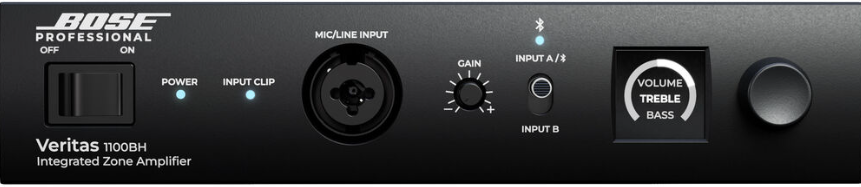
- Switch the ON/OFF toggle switch to ON to power up the amplifier.

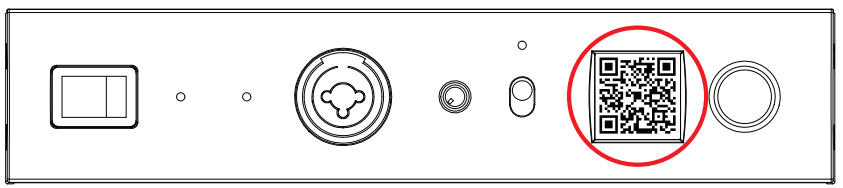
- After a few seconds, the OLED screen will automatically display a QR Code. Scan the QR Code to
easily access the Veritas product website. To bypass the QR code and access the Volume control
menu, press the rotary encoder.
Veritas Control Menu Options
Adjusting Volume, Treble, and Bass Levels
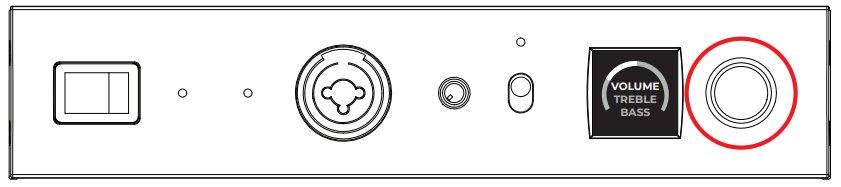
Choose between Volume, Treble, and Bass controls by pressing the rotary encoder until your desired control is highlighted.
- Volume Control: Rotate the rotary encoder to adjust the Volume to your desired level.
- Treble Control: Rotate the rotary encoder to adjust the Treble to your desired level.
- Bass Control: Rotate the rotary encoder to adjust the Bass to your desired level.
Settings and Control Options
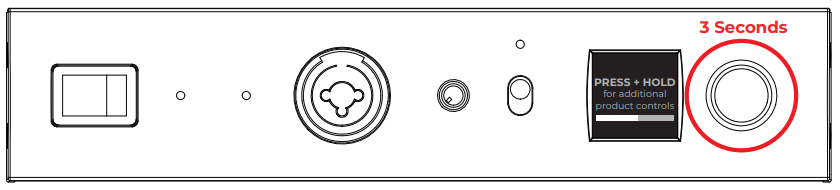
- To access additional product controls, press and hold the rotary encoder for at least 3 seconds.

- To select a menu option, rotate the rotary encoder until your desired option is highlighted and press the rotary encoder to display more settings.

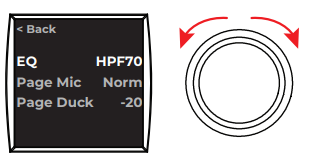
EQ
- Use the rotary encoder to select your desired EQ preset.
Output
- Select Mono for all audio signals to be summed together. Select Stereo for the audio signals to be separated. This option is available for 250BL models only.
Page Mic
- Select Norm for the Page Mic to follow the output volume. Select Bypass to increase the output volume to max.
Page Duck
- Select the level you prefer the audio to duck under the page signal when the Page is in use.
Front Mic
- Select whether the Front Mic will duck under or mix with the music source.
Aux Page
- Select Yes for the auxiliary source to allow paging. Select No to disallow paging from the auxiliary source.
Src Sel
- When a ControlCenter CC-1 zone controller is connected, select Front to re-enable source selection through the amplifier’s front toggle switch.
- When a ControlCenter CC-2 zone controller is connected, select Remote to prioritize source selection through the remote’s controls.
- When no ControlCenter zone controller is connected, the source selection is controlled by the front switch regardless of which option is selected.
Dyn EQ
- Turn Dynamic EQ On or Off. Dynamic EQ automatically adjusts bass levels based on the volume level.
Input A/BT
Select BT to prioritize a source connected via Bluetooth® wireless technology. Select A to override the Bluetooth® enabled source. A is the default source.
BT Settings
- Select Connect to put the amplifier in pairing mode and connect a Bluetooth® enabled device. The LED light will blink while in pairing mode and turn solid once a Bluetooth® enabled device is connected.
- Select Forget Device to disconnect a Bluetooth® enabled device from the amplifier and clear it from the amplifier memory.
- Select Name to choose a name to uniquely identify the amplifier’s Bluetooth® wireless connection. The default name is ZONE1. When a new Name is selected, the amplifier must be power cycled to initiate the Name change.
Scrn Lock
To set a code for unlocking the OLED screen, select Set PIN Code and enter a 4-digit PIN. 0000 is the default PIN code.
System Info
See the latest firmware version number here. Select Factory Reset to return the amplifier to factory default settings.
Started with a Veritas 2160BL or 2160BH Amplifier

- Switch the ON/OFF toggle switch to ON to power up the amplifier.

- After a few seconds, the OLED screen will automatically display a QR Code. Scan the QR Code to easily access the Veritas product website. To bypass the QR code and access the Volume control menu, press the rotary encoder.

Veritas Control Menu Options
Adjusting Volume, Treble, and Bass Levels
Choose between Volume, Treble, and Bass controls by pressing the rotary encoder until your desired control is highlighted.
- Volume Control
- Rotate the rotary encoder to adjust the Volume to your desired level.

- Rotate the rotary encoder to adjust the Volume to your desired level.
- Treble Control
- Rotate the rotary encoder to adjust the Treble to your desired level.
- Bass Control
- Rotate the rotary encoder to adjust the Bass to your desired level.

Settings and Control Options
- To access additional product controls, press and hold the rotary encoder for at least 3 seconds.

- To select a menu option, rotate the rotary encoder until your desired option is highlighted and press the rotary encoder to display more settings.


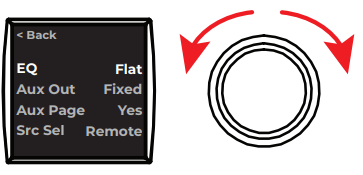
EQ
Use the rotary encoder to select your desired EQ preset. Veritas 2160BH models allow users to set two EQ presets by selecting EQ1 and EQ2 and choosing a unique preset for each, separate zone.
Aux Out
Select Fixed for the auxiliary outputs to remain fixed and unalterable by the volume level.
Select Variable to allow the volume level to control the auxiliary output level.
Aux Page
Select Yes for the auxiliary source to allow paging. Select No to disallow paging from the auxiliary source. Veritas 2160BH models allow users to set two Aux Page options for separate zones by selecting options for Aux 1 Page and Aux 2 Page.
Dyn EQ
Turn Dynamic EQ On or Off. Dynamic EQ automatically adjusts bass levels based on the volume level.
Auto Standby
Turn Auto Standby On or Off. Auto Standby automatically places the amplifier in standby mode after 20 minutes without receiving an audio signal. Auto standby will turn off once audio resumes.
Input A/BT
Select BT to prioritize a source connected via Bluetooth® wireless technology. Select A to override the Bluetooth® enabled source. A is the default source. Veritas 2160BH models allow users to select two source options for separate zones by selecting options for both A/BT1 and A/BT2.
BT Settings
- Select Connect to put the amplifier in pairing mode and connect a Bluetooth® enabled device.
- Select Forget Device to disconnect a Bluetooth® enabled device from the amplifier and clear it from the amplifier memory.
- Select Name to choose a name to uniquely identify the amplifier’s Bluetooth® wireless connection. The default name is ZONE1.
Scrn Lock
- Select Vol Active to lock all controls except volume.
- Select All Controls to lock all controls, including volume.
- Select Disable to keep the screen unlocked.
- To set a code for unlocking the OLED screen, select Set PIN Code and enter a 4-digit PIN. 0000 is the default PIN code.
Web QR
- Scan the QR code to access the Veritas product page.
- System Info: See the latest firmware version number here.
- Select Factory Reset to return the amplifier to factory default settings.
Warranty
- This product is covered by a limited warranty.
- For warranty details, visit BoseProfessional.com/warranty.
Customer Support
- Tel: 1-800-278-1083
- Website: https://support.bose.com/
MA 01748 USA Bose is a trademark of Bose Corporation. ArenaMatch is a trademark of Transom Post OpCo LLC. ©2024 Transom Post OpCo LLC.
FAQs
Q: What is the Veritas 1100BH designed for?
Paging, background music, and multi-zone sound distribution are just a few of the commercial and professional audio uses for the Bose Veritas 1100BH, an intelligent mixer amplifier. It is a single device that integrates control, mixing, and amplification.
Q: Can the Veritas 1100BH be used with other speakers?
Yes, it is compatible with standard low-impedance and 70/100 V distributed loudspeaker systems. To avoid overloading the amplifier, always make sure the impedance and wattage are compatible. For detailed installation and setup instructions of compatible speakers, see our Bose DesignMax DM2C LP In-Ceiling Loudspeaker User Guide.
Q: Can I control zones independently?
Indeed, individual zone volume control is possible with the Veritas 1100BH through front-panel knobs, optional remote controls, or an appropriate control system.
Q: Does the Veritas 1100BH support emergency paging?
Yes, the system has a priority input feature that lets specific microphones (such as those used for announcements or fire alarms) take precedence over music playback in specific areas.
Q: Where can I find full technical specifications?
See the Specifications section of the Bose Veritas 1100BH User Guide for comprehensive details, such as output power per zone, input sensitivity, impedance, and size.
Q: Can I integrate the Veritas 1100BH with existing audio systems?
Verify that the speaker loads are compatible with the amplifier’s output and that the input and output levels match.
Q: What is “automatic mixing” and how does it work?
The amplifier can balance several microphone inputs without human involvement thanks to automatic mixing.
5 Comments
Pingback: Bose 018SLRVP2B SoundLink Revolve Plus Guide & Setup
Your point of view caught my eye and was very interesting. Thanks. I have a question for you.
Can you be more specific about the content of your article? After reading it, I still have some doubts. Hope you can help me.
I don’t think the title of your article matches the content lol. Just kidding, mainly because I had some doubts after reading the article. https://accounts.binance.com/en-NG/register-person?ref=YY80CKRN
Thank you for your sharing. I am worried that I lack creative ideas. It is your article that makes me full of hope. Thank you. But, I have a question, can you help me?