



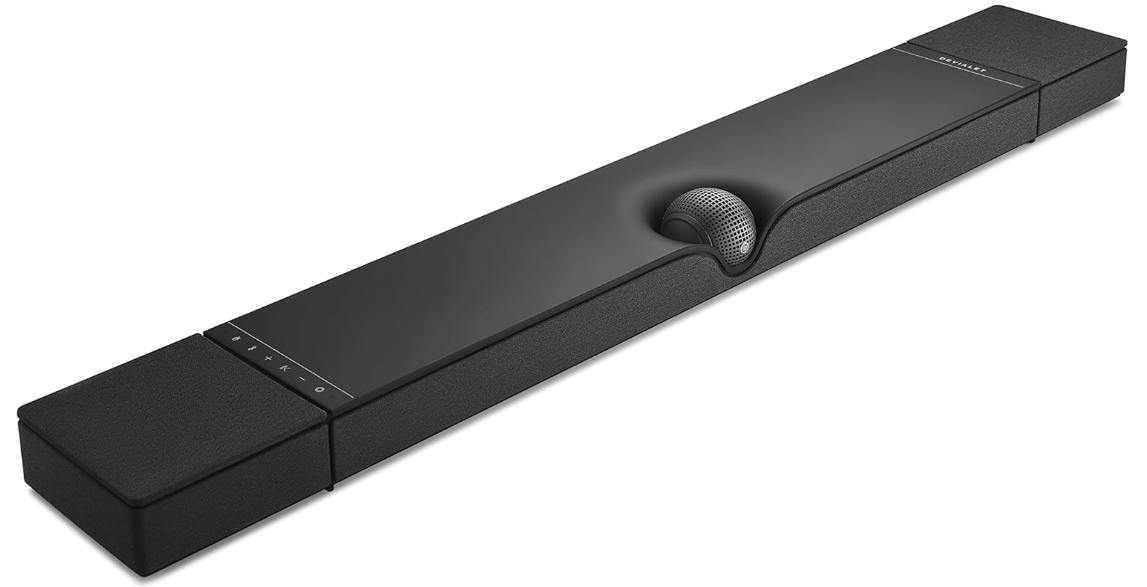
Devialet Dione White Dolby Atmos Soundbar
Preparing
Remove the product from its packaging and place the installation wedges on a flat surface.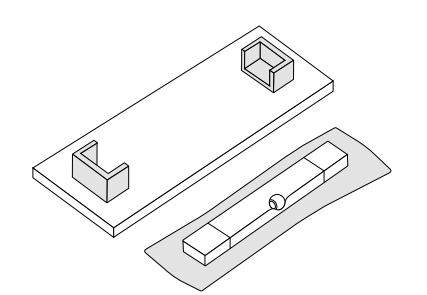

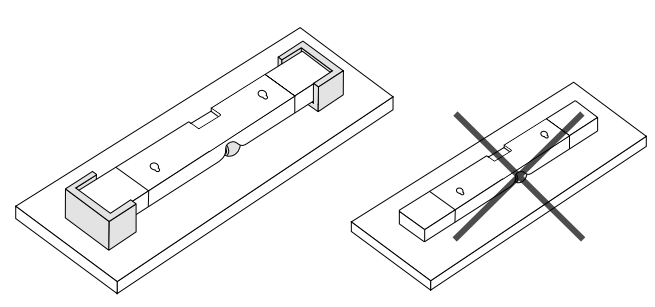
Place the Devialet Dione upside down on the installation wedges. Do not turn Devialet Dione upside down without using the installation wedges to avoid contact between the centre sphere and a hard surface.
Place on a shelf
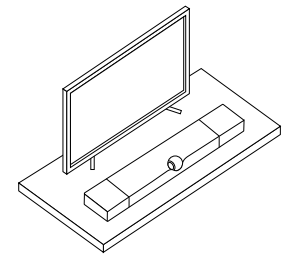
Place the Devialet Dione on a stable and flat surface next to your TV. Make sure to leave some space between the wall and Devialet Dione, avoid placing any objects on top of the soundbar, and leave the sides unobstructed.
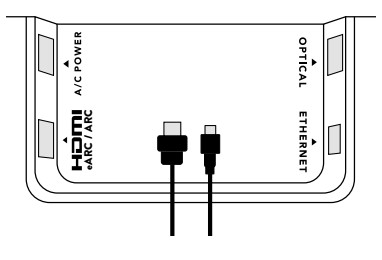
Insert the power cable into the power port, then connect the appropriate audio cable to the soundbar. Use the HDMI cable if your TV has an HDMI port labelled eARC/ARC. If your TV does not have an HDMI eARC/ARC port, use the TOSLINK optical cable.
Mount on a Wall
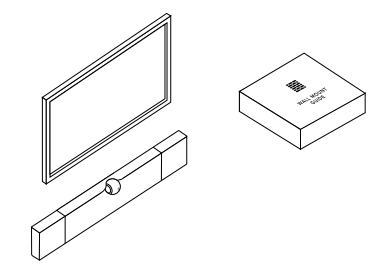
To fix the Devialet Dione on a wall, carefully read the wall-mount guide inside the cardboard box marked «Wall-mount guide»
Starting
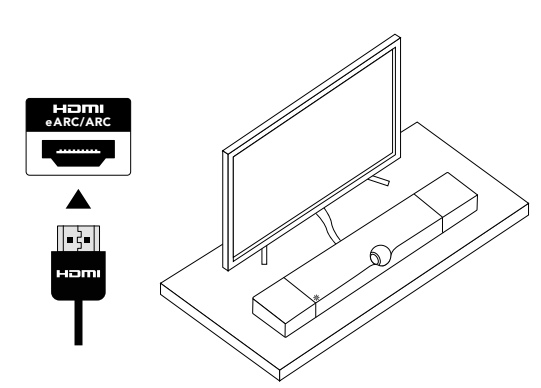
Connect the audio cable to the TV, make sure to plug the HDMI cable into the HDMI eARC/ARC port on your TV, or use an Optical cable. Then, plug Devialet Dione into a power outlet and wait until the indicator light stops flashing.
Download and launch the DEVIALET APP and follow the steps indicated on the screen to complete set-up.
Before you start listening, check your TV’s audio setting and make sure to set the audio output to HDMI eARC/ARC or to Optical, depending on which audio cable you are using to connect Devialet Dione to the TV. Enjoy Devialet Dione!
Connections
BLUETOOTH
- Press and hold the Devialet Dione Bluetooth button for 2 seconds.\ When the indicator light blinks blue. Devialet Dione is ready to be paired with a Bluetooth device.
- Open the Bluetooth settings on your device and search for «Dione-XXXX»
PLAY VIA AIRPLAY
- Connect Devialet Dione to the same Wi-FI network as your Apple device.
- Play the audio track you want to stream
- Tap the AirPlay or streaming icon
- Choose Devialet Dione as the output speaker
SPOTIFY CONNECT
- Use your phone, tablet or computer as a remote control for Spotify.
- Go to spotify.com/connect to learn how
- HDMI eARC/ARC Connect the HDMI cable to the HDMI port labelled eARC/ARC on your TV or Projector. Use an Ethernet cable for better network stability
- Optical (TOSLINK) Use a TOSLINK Optical cable if your TV or Projector does not have an HDMI eARC/ ARC port. AC power Connect to a power socket


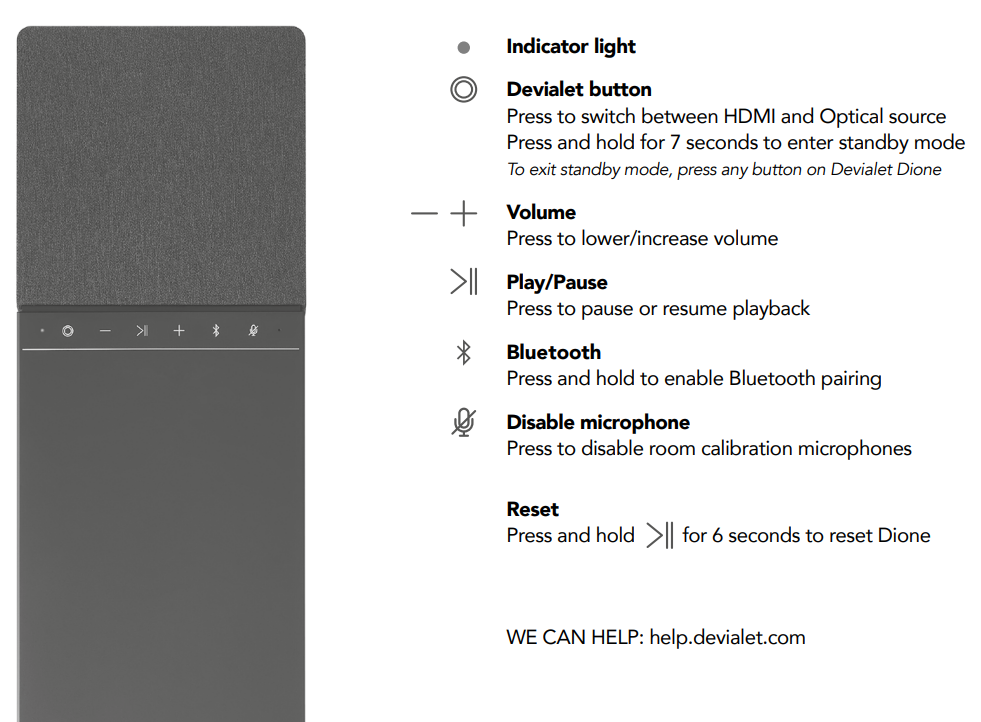
Indicator Light
Devialet button
Press to switch between the HDMI and Optical sources.Press and hold for 7 seconds to enter standby modeTo exit standby mode, press any button on Devialet Dione
Optimal Placement

Customer Support
- Website: www.devialet.com
- Ph: +33 9 75 18 67 60
FAQs
Q: What makes the Devialet Dione soundbar unique?
The Dione soundbar incorporates smart sound calibration for movie-calibre home theatre performance, offers immersive Dolby Atmos audio, and has Devialet’s exclusive Speaker Active Matching (SAM) technology.
Q: Does the Dione support wireless connections?
Indeed. Wi-Fi streaming via the Devialet app, AirPlay 2, and specific music services is supported by the soundbar. Playback of audio is not supported by Bluetooth.
Q: Can I use the Dione soundbar with other speakers?
Indeed. Although Dolby Atmos effects are tailored to the Dione’s arrangement, it can be integrated with other Devialet or comparable speakers for a multi-room or surround sound setup.
Q: Which audio formats are supported?
Dolby Atmos, Dolby Digital 5.1, Dolby TrueHD, and PCM are all supported by the Dione soundbar. When linked via HDMI eARC/ARC, Dolby Atmos is fully supported.
Q: Can I wall-mount the soundbar?
Indeed. The Dione can be mounted on the wall. For a safe installation, use the official Devialet wall mount kit; to preserve sound quality, adhere to spacing recommendations.
Q: How do I update the soundbar software?
Check for firmware updates using the Devialet app by going to Settings > System > Firmware Update. Updating the soundbar guarantees access to bug fixes and new features.
Q: Can I use the Dione with a gaming console?
Indeed. For immersive Atmos sound, connect via HDMI eARC/ARC. For optimal performance, turn on Dolby Atmos or surround sound in the console’s audio options.
Q: Can I integrate the soundbar with smart home devices?
Indeed. The Dione can be integrated with specific ecosystems, including AirPlay 2. If connected to suitable systems, voice assistants can manage playback.