

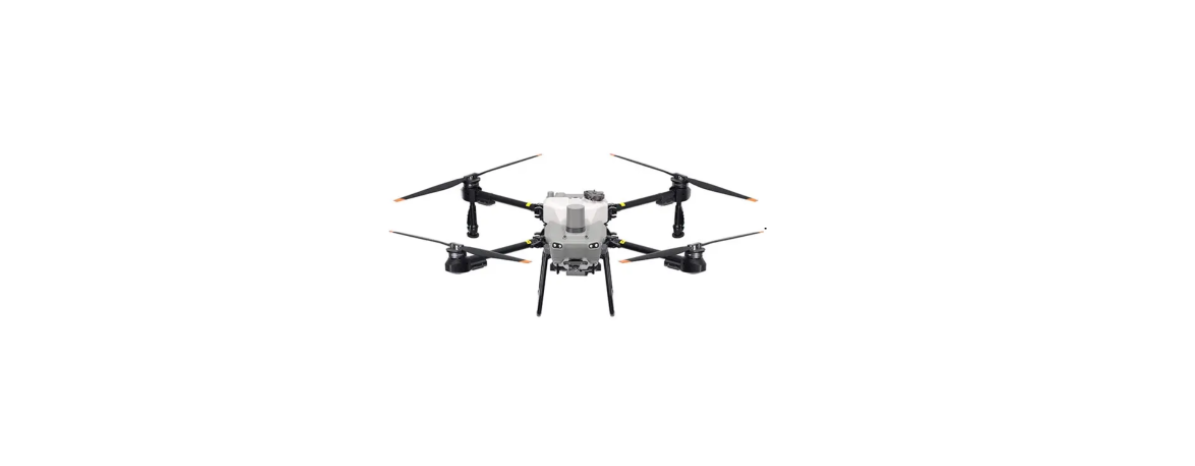

DJI AGRAS T25 Light and Flexible Drone
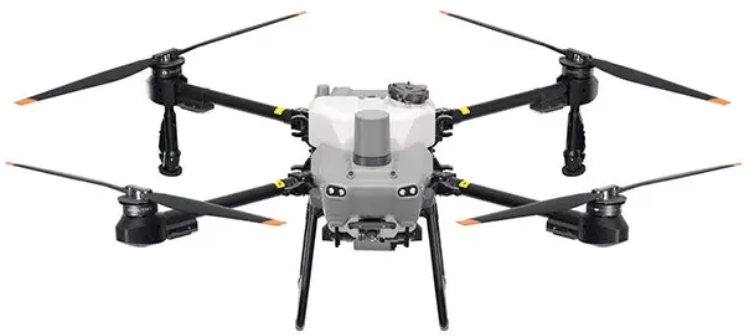
Description
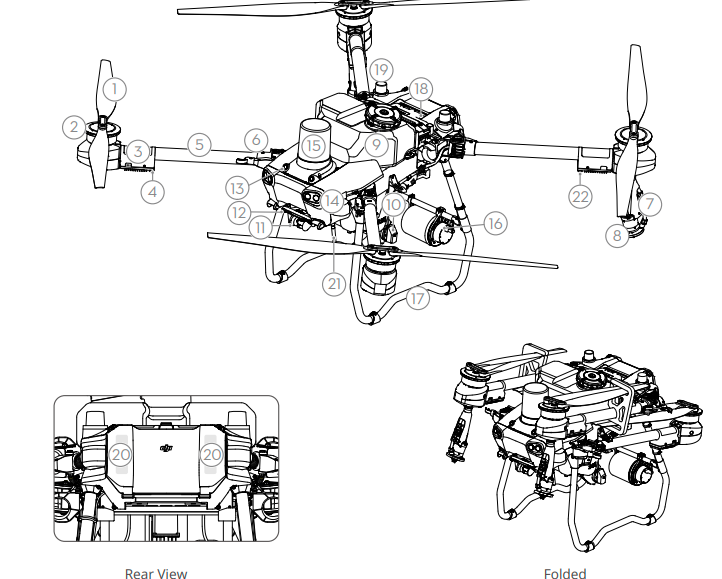
- Propellers
- Motors
- ESCs
- Aircraft Front Indicators (on two front arms)
- Frame Arms
- Folding Detection Sensors (built-in)
- Spray Lance
- Sprinklers
- Spray Tank
- Delivery Pumps
- FPV Camera
- Downward Binocular Vision
- Forward Binocular Vision
- Spotlights
- Forward Phased Array Radar
- Rear Phased Array Radar
- Landing Gear
- Intelligent Flight Battery
- Onboard D-RTKTM Antennas
- Internal OCUSYNCTM Image Transmission Antennas
- External OcuSync Image Transmission Antennas
- Aircraft Status Indicators (on two rear arms)
Overview
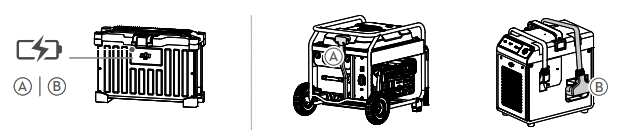
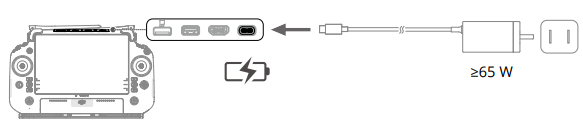
Charge the internal battery of the remote controller before using it for the first time. It is recommended to purchase the DJI 65W Portable Charger or USB PD3.0 chargers.
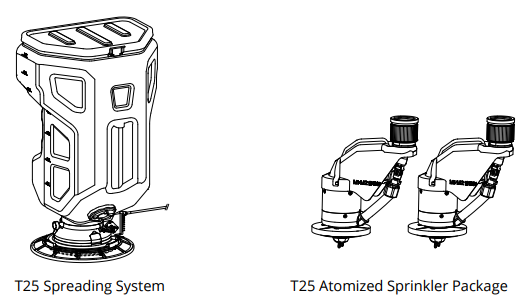
T25 Agras Drone Package
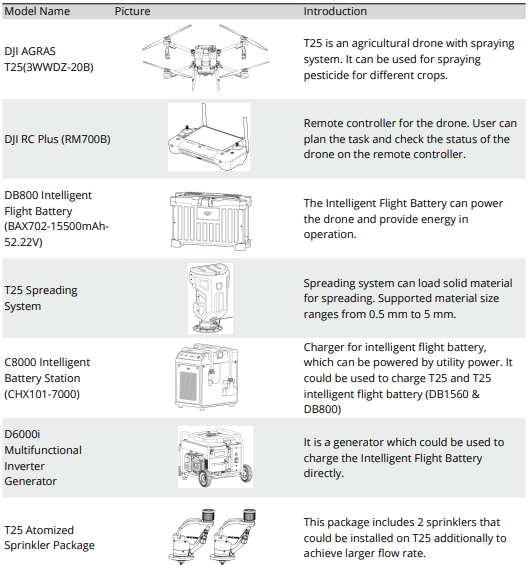


Dongle-related functions are not supported in some countries or regions. Comply with the local laws and regulations.
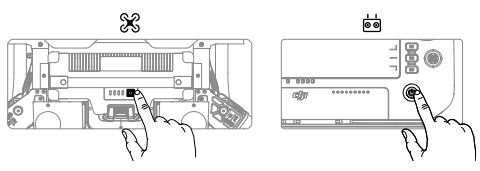
- Check battery level: press once.
- Power on/off: press and then press and hold.
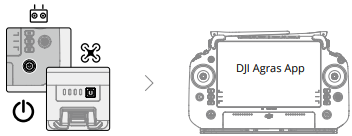
- Make sure the remote controller and aircraft are powered on. Follow the prompts to activate (internet connection is required).

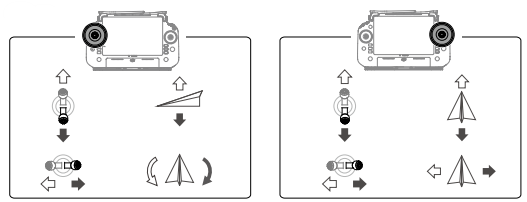
- Start/stop motors: perform a combination stick command and hold for two seconds.
- Takeoff: push the left control stick (Mode 2) up to take off.
- Landing: push the left control stick (Mode 2) down until the aircraft lands. Hold for three seconds to stop the motors.
Using the T25
Getting Ready for Takeoff
- Place the aircraft on open, flat ground with the rear of the aircraft facing toward you.
- Make sure that the propellers are securely mounted, there are no foreign objects in or on the motors and propellers, the propeller blades and arms are unfolded, and the arm locks are firmly fastened.
- Make sure that the spray tank and flight battery are firmly in place.
- Power on the remote controller, make sure that the DJITM AGRASTM app is open, and then power on the aircraft. Go to the home screen in the app and tap Start to enter Operation View.
- Make sure that there is a strong signal (the GNSS icon or RTK icon on upper right corner of the screen is white). Otherwise, the aircraft cannot take off.
- RTK positioning is recommended. In the app, go to Operation View, tap, and then RTK to select a method for receiving RTK signals.
- The DJI Cellular Dongle is recommended for internet connection. In the app, go to Operation View, tap, and select Network Diagnostics.
- The cellular dongle and SIM card are functioning properly if the status of all the devices in the network chain is displayed in green.
Starting Operations
Users can perform mapping operations in the operating area using the DJI Agras app and receive an HD map via offline reconstruction using the remote controller, then plan a field on the HD map for Route operations. DJI Agras provides multiple methods to add points. The following description uses Route Mapping and Crosshair as an example.

- Power on the remote controller and then the aircraft.
- Enter Operation View in the DJI Agras app. DJI Agras App
- Tap the mode button on the upper left and select Route Mapping on the Mapping panel in the task mode selection screen. Tap on the right screen, select Area Route or Boundary Route, then tap and select Crosshair.

- Drag the map and tap Add to add a point at the crosshair position.
- Tap to save. Tap and move the slider to take off.
- The aircraft will perform the mapping operation along the route automatically.
- Wait for the reconstruction to be completed. Tap the Plan Field to perform operations.

- Tap in the middle of the right screen to select Crosshair.
- Drag the map and tap Add to add a point on the map.
- S e t r o u t e p a r a m e t e r s, drag to adjust the flight direction of the route, and tap to save.
- Tap to use the field and set the task parameter.
- Tap, check the aircraft status and task settings, and move the slider to take off.
Maintenance
Clean all parts of the aircraft and remote controller at the end of each day of spraying after the aircraft returns to a normal temperature. DO NOT clean the aircraft immediately after operations are completed.
- Fill the spray tank with clean or soapy water and spray the water through the sprinklers until the tank is empty. Repeat this step three times.
- Remove the spray tank strainer and sprinklers to clean them and clear any blockage.
- Afterwards, immerse them in clean water for 12 hours. Make sure that the aircraft structure is completely connected so that it can be washed directly with water.
- It is recommended to use a spray washer filled with water to clean the aircraft body and wipe with a soft brush or wet cloth before removing water residue with a dry cloth.
- If there is dust or pesticide liquid on the motors, propellers, or heat sinks, wipe them with a wet cloth before cleaning the remaining water residue with a dry cloth.
- Wipe the surface and screen of the remote controller with a clean, wet cloth that has been wrung out with water.
Fly Safe
It is important to understand some basic flight guidelines, both for your protection and for the safety of those around you.
- Flying in Open Areas: pay attention to utility poles, power lines, and other obstacles. DO NOT fly near or above water, people, or animals.
- Maintain Control at All Times: keep your hands on the remote controller and maintain control of the
aircraft when it is in flight, even when using intelligent functions such as the Route and Fruit Tree modes and Smart Return to Home. - Maintain Line of Sight: maintain visual line of sight (VLOS) with your aircraft at all times and avoid flying behind buildings or other obstacles that may block your view.
- Monitor Your Altitude: for the safety of manned aircraft and other air traffic, fly at an altitude lower than 100 m (328 ft) and in accordance with all local laws and regulations.
Flying Considerations
- DO NOT use the aircraft in adverse weather conditions such as snow, fog, winds exceeding 6 m/s, or heavy rain exceeding 25 mm (0.98 in) in 12 hours. DO NOT fly more than 4.5 km (14,763 ft) above sea level.
- The DJI Agras app will intelligently recommend the payload weight of the tank according to the current status and surroundings of the aircraft. When adding material to the tank, the max weight should not exceed the recommended value.
- Otherwise, the flight safety may be affected. Make sure that there is a strong GNSS signal and the D-RTK antennas are unobstructed during operation.
Return to Home (RTH)
The aircraft will automatically return to the Home Point in the following situations:
- Smart RTH: user presses and holds the RTH button.
- Failsafe RTH *: the remote controller signal is lost.
- Low Battery RTH *: the aircraft battery level reaches the preset low battery threshold.
Pesticide Usage
- Avoid the use of powder pesticide as much as possible, and clean the spraying system after use.
- Otherwise, the service life of the spraying system may be reduced.
- Pesticides are poisonous and pose serious safety risks.
- Only use them in strict accordance with their specifications.
- Use clean water to mix the pesticide and filter the mixed liquid before pouring it into the spray tank toavoid blocking the strainer.
- Effective use of pesticides depends on pesticide density, spray rate, spray distance, aircraft speed, wind speed, wind direction, temperature, and humidity. Consider all factors when using pesticides.
- DO NOT compromise the safety of people, animals, or the environment during operation.
Aircraft
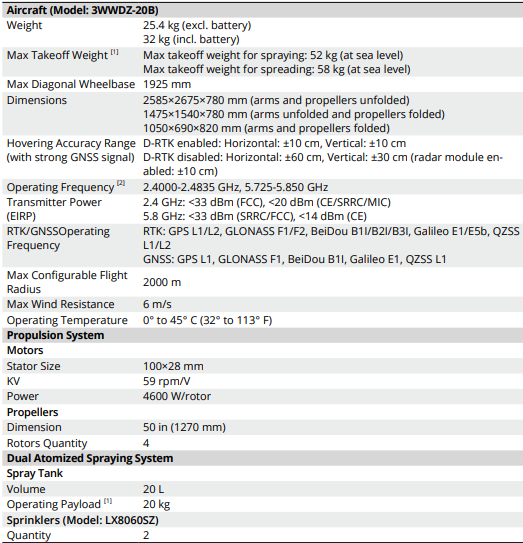
The Agras T25 features a truss-style body and pitched arms that can be folded to reduce the body size, making it easier to transport. The integrated spraying system can quickly transform into the spreading configuration.
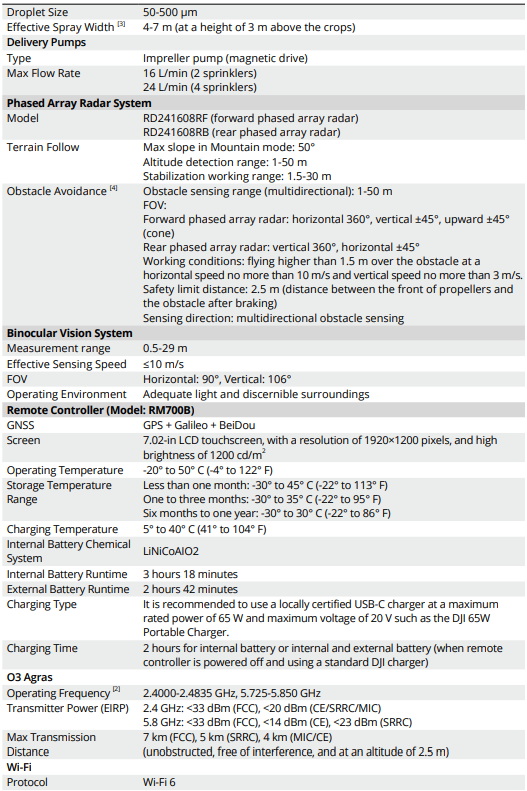
The aircraft is equipped with the phased array radar system and binocular vision system, including downward and forward binocular vision and forward and rear phased array radars. The systems provide multidirectional obstacle sensing [1] as well as terrain follow and bypass functions to ensure flight safety. Boasting an ultra-HD FPV camera with a tiltable gimbal, the aircraft can automatically collect HD field images for local offline reconstruction to assist in precise field planning. Using the DJI SmartFarm platform and the DJI MAVICTM 3M, prescription maps can be generated in order to perform variable rate fertilization.
The spraying system is equipped with magnetic drive impeller pumps, dual atomized sprinklers, and a brand-new solenoid valve to improve spraying efficiency while saving liquid pesticide. The spraying system can be expanded with two more sprinklers to meet different operation scenarios. [2] Core modules adopt potting technology, and the aircraft has a protection rating of IP67 (IEC 60529)
Remote Controller
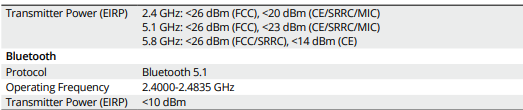
The DJI RC Plus remote controller features DJI O3 Agras image transmission technology and has a max transmission distance of up to 5 km (at an altitude of 2.5 m) [1]. The remote controller has an 8-core processor and a built-in 7.02-in high brightness touchscreen powered by the Android operating system. Users can connect to the internet via Wi-Fi or the DJI Cellular Dongle. Operations are more convenient and accurate than ever before, thanks to the revamped DJI Agras app design and a wide range of buttons on the remote controller.
With Mapping mode added to the app, users can complete offline reconstructions and perform precise field planning without the need forfortra devices. The remote controller has a maximum operating time of 3 hours and 18 min with the high-capacity internal battery. Users can also purchase an external battery separately to be used to supply power to the remote controller and fully meet the requirements for long and high-intensity operations.
Modes
Specifications
Using DJI Fly
When you connect the aircraft or remote controller to DJI Fly, you will be notified if a new firmware update is available. To start updating, connect your remote controller or mobile device to the internet and follow the onscreen instructions.
Using DJI Assistant 2 (Consumer Drones Series)
Update the aircraft and remote controller firmware separately using DJI Assistant 2 (Consumer Drones Series).
- Launch DJI Assistant 2 (Consumer Drones Series) and log in with your DJI account.
- Power on the aircraft and connect the aircraft to a computer via the USB-C port.
- Select DJI Mavic 3 and click on Firmware Updates on the left panel.
- Select the firmware version that you wish to update to.
- Wait for the firmware to download. The firmware update will start automatically.
- The aircraft will reboot automatically after the firmware update is complete.
Follow the instructions below to update the remote controller firmware through DJI Assistant 2 (Consumer Drones Series):
- Launch DJI Assistant 2 (Consumer Drones Series) and log in with your DJI account.
- Select the DJI Mavic 3 Remote Controller and click on Firmware Updates on the left panel.
- Select the firmware version that you wish to update to.
- Wait for the firmware to download. The firmware update will start automatically.
- Make sure to follow all the steps to update the firmware. Otherwise, the update may fail.
- Make sure the computer has access to the internet.
- Do not disconnect the aircraft from the computer during an update.
Firmware Update
Use DJI Fly or DJI Assistant 2 (Consumer Drones Series) to update the aircraft and the remote controller firmware.
Using DJI Fly
When connecting the aircraft or remote controller to DJI Fly, you will be notified if a new firmware update is available. To start updating, connect your remote controller or mobile device to the internet and follow the on-screen instructions.
Update the aircraft firmware.
- Select DJI Mini 3 and click Firmware Updates.
- Select the firmware version.
- Wait for the firmware to download. The firmware update will start automatically.
- Wait for the firmware update to complete.
Update the remote controller firmware.e
- Launch DJI Assistant 2 (Consumer Drones Series) on your computer and log in with your DJI account.
- Power on the remote controller and connect it to the computer via the USB-C port.
- Select the corresponding remote controller and click Firmware Updates.
- Select the firmware version.
- Wait for the firmware to download. The firmware update will start automatically.
- Wait for the firmware update to complete.
Customer Service
- Ph: +1 818 235 0789.
- Website: https://fly-safe.dji.com/nfz/nfz-query.
- Address: Lobby of T2, DJI Sky City, No. 53 Xianyuan Road, Xili Community, Xili Street, Nanshan District, Shenzhen, China, 518055.
DJI is a trademark of DJI. Copyright © 2025 DJI All Rights Reserved.