

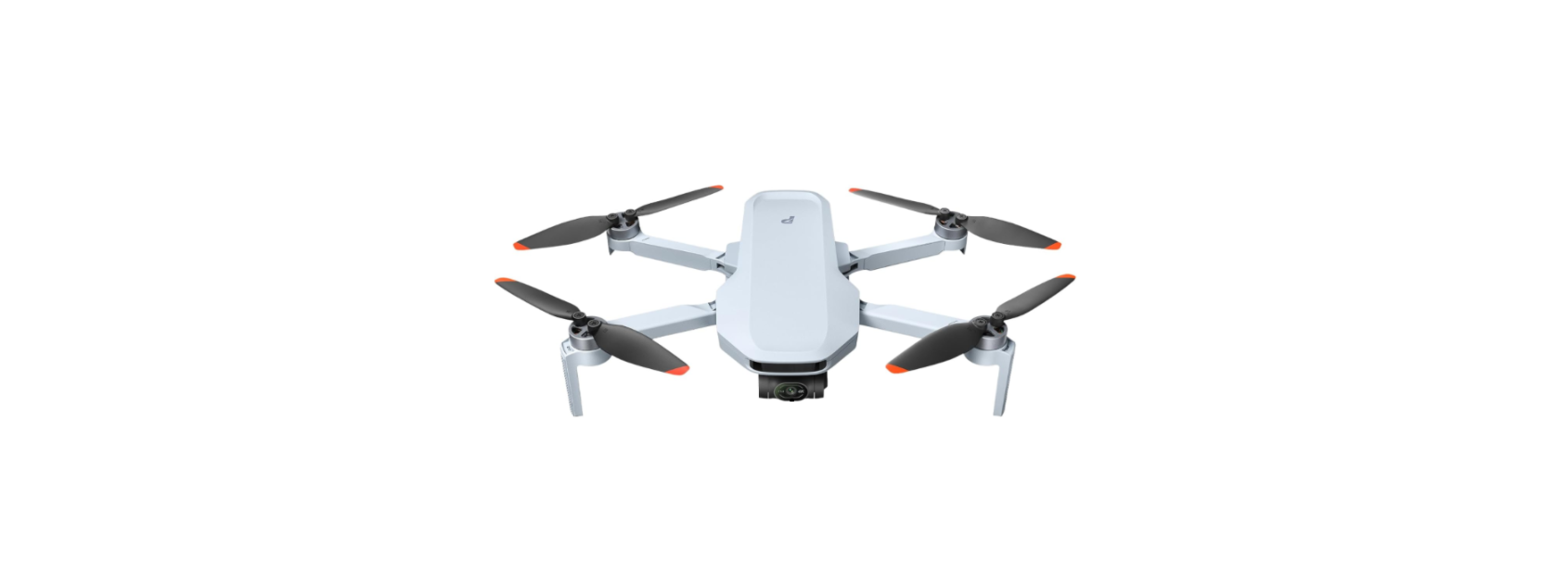

Potensic ATOM 2 AI Tracker Quick Shots Drone
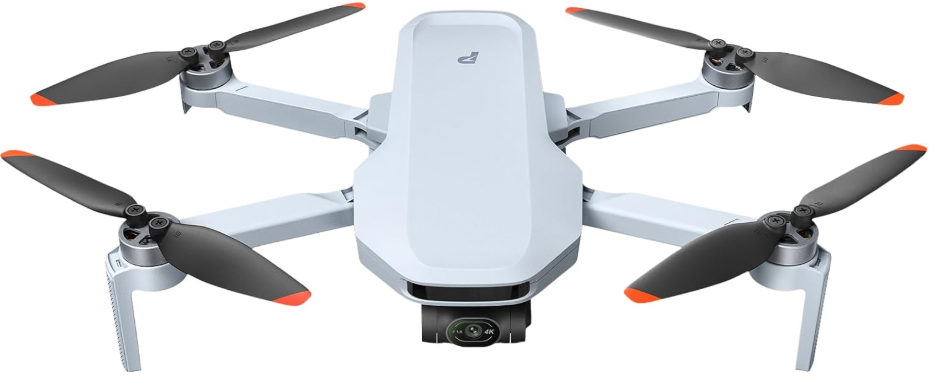
Safety Instructions
The product may be exposed to a higher risk when the user feels tired or lacks energy and experience. Please refit or repair the product with the original parts to ensure safety. While the product’s propellers are revolving at a high speed, keep it away from crowds and animals to avoid scratches or disturbance. Do not touch the spinning propellers with your hands.
- Please read and understand the relevant tips included in the package.
- The user should avoid personal and property losses when using the product.
- Debug and install the product in strict accordance with the Manual’s steps.
- Do not use the product on the road or in water to avoid an accident.
- Please recharge the intelligent battery with a USB charger that conforms to the FCC/CE standards.
- The remote controller has a built-in 3.7V lithium battery,ry which needs no replacement.
- Do not short-circuit or squeeze the battery to avoid an explosion.
- Do not place the battery in a hot place (in fire or near an electric heater).
- Please master local laws and regulations to avoid violations of regulations.
- Avoid low-altitude flight above the water surface.
- Keep it away from airports, airlines, and other no-fly zones.
- Do not use the product in places with strong magnetic fields, such as near high-voltage cables, buildingthath contain metals, automobiles, and trains; otherwise, the product can be disturbed.
Drone Diagram
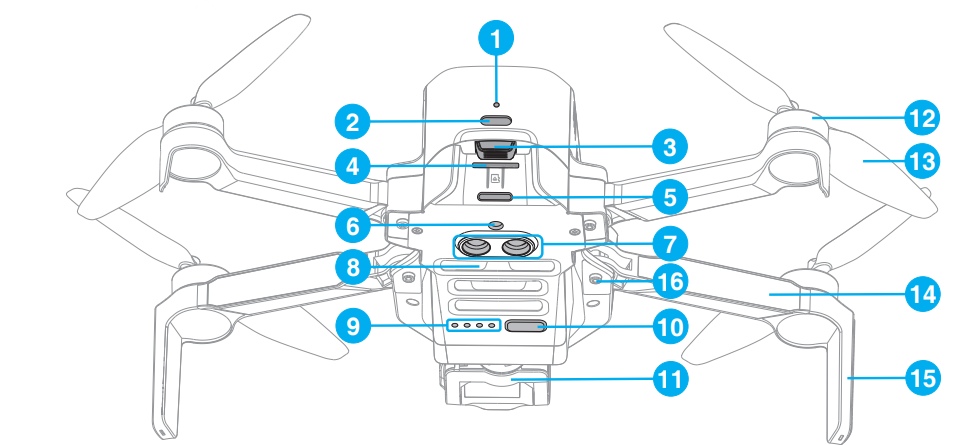
- Charging indicator
- TYPE-C charging port
- Battery buckle
- SD card slot
- Tail indicator
- Monocular visual module
- TOF module
- Bottom cooling hole
- Power indicator
- Power/frequency pairing button
- 3-axis gimbal and camera
- Brushless motor
- Propeller
- Arm
- Antenna tripod
- Arm shaft
Remote Controller Diagram
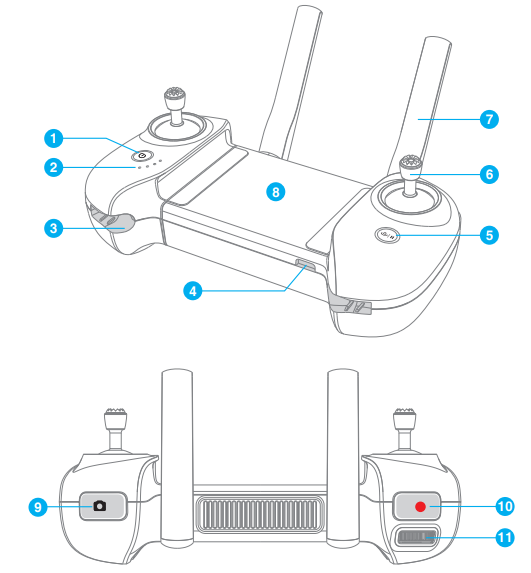
- Power button Long press it for 22 secondsto power on/off.
- Power indicator: Indicate the power level or other status of the remote controller.
- Control stick slot: One slot respectively at the left and right side, which are used to store the sticks.
- TYPE-C interfactoTo charge the remote controller/connect mobile device.
- RTH / Pause button Long press for 1s to return to the HOME point automatically. Short-press it to pause auto flight.
- Control stick
- Foldable dual antennas
- Installation position of the mobile device: To place the mobile device.
- Shoot button once to shoot one picture.
- Record button Short press it to start/stop recording.
- Gimbal dial: Use the gimbal
Preparing the Drone
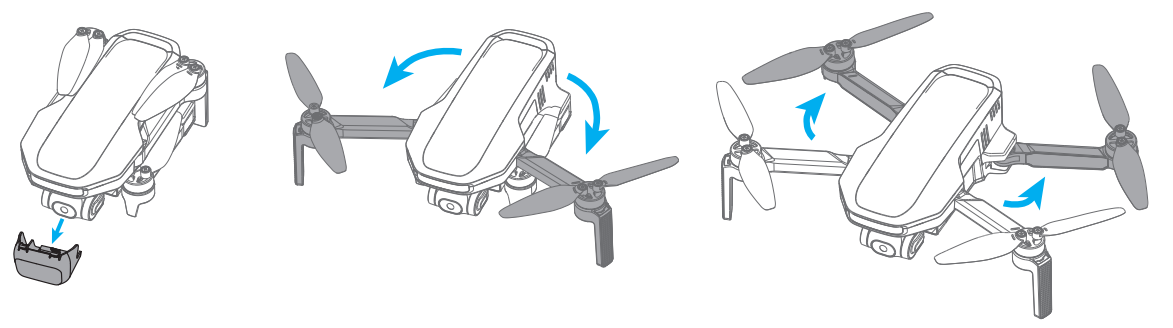
The product is delivered under a folded status. Please unfold it as follows:
- Remove the gimbal protector.
- Unfold the front arm before the rear arm.
- Unfold the propeller blades.
Preparing the Remote Controller
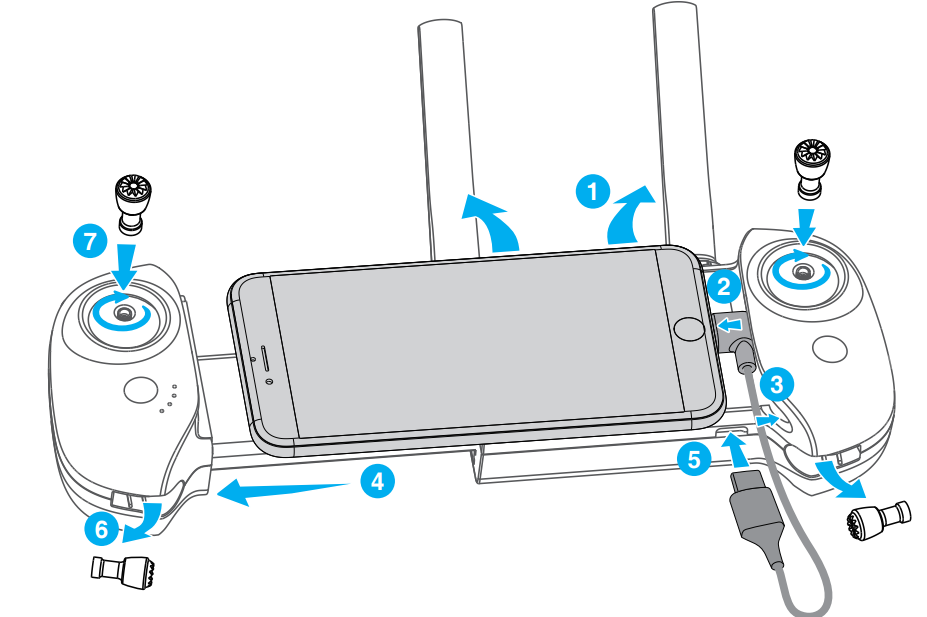
Installation of the mobile phone and the control stick
- Unfold the antenna. Connect your mobile phone to the USB cable.
- Insert the part of your mobile phone with the USB cable into the slot of the remote controller.
- Pull and open the remote controller with both hands and fix your mobile phone stably.
- Connect the other end of the USB cable to the remote controller.
- Take out the sticks. Screw in both control sticks clockwise.

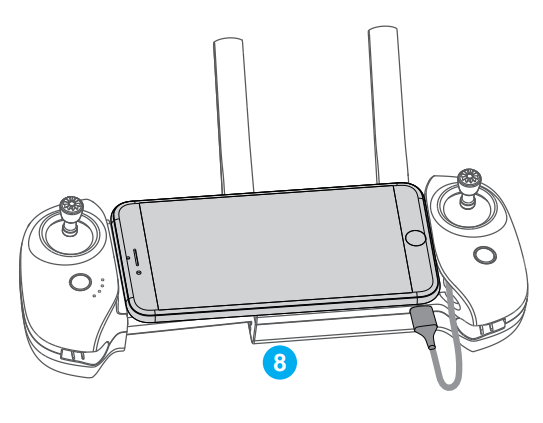
- Installation completed.

Charging / Startup and Shutdown
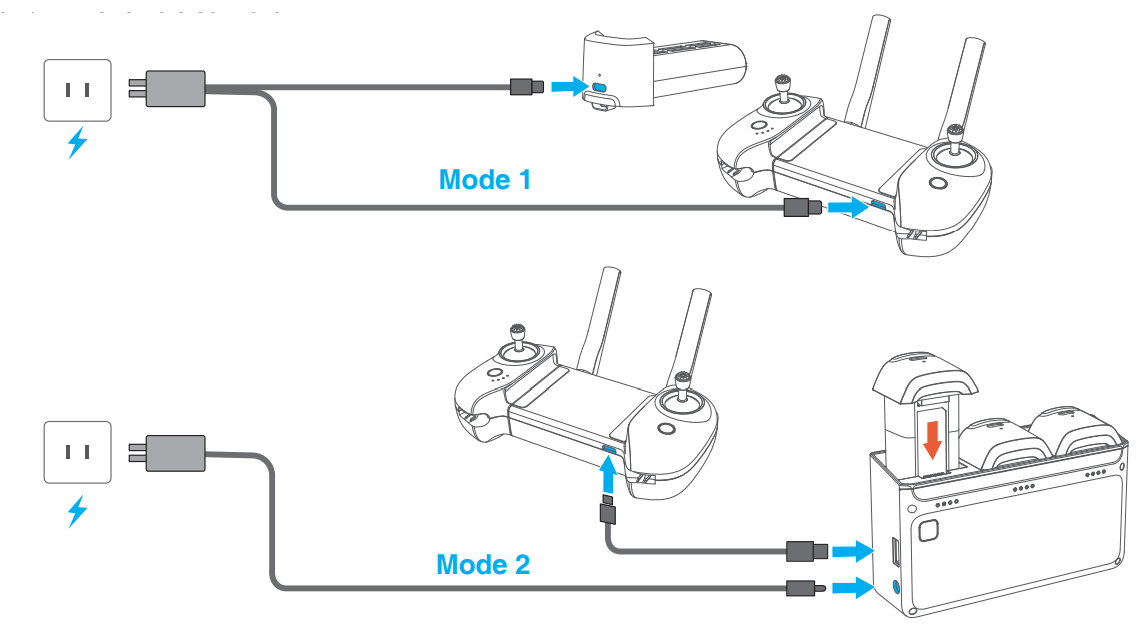
When receiving a new drone battery, it is required to charge it to wake it up; the drone won’t start. Connect the TYPE-C charging port of the battery and a USB charger to the AC power supply to finish one-time charging (USB charger is not included in the package. User can use the charger that conforms to FCC/CE specification to charge the battery). The red indicator will stay on during chargingand turn off automatically after charging is done. UsThe useran charge the battery with the Parallel Charging HUB if the fly expansion kit is purchased. For more details, please refer to the User’s Manual of Parallel Charging HUB. The Parallel Charging HUB can also charge the remote controller.
The shortest charging period is approx. 1h 25min through the type-C charging port. Make sure your charger
supports 5V/3A output to achieve this charging speed. The user is suggested to charge the battery through the Parallel Charging HUB, to charge 3 batteries quickly at the same time. It is suggested to remove the battery from the drone to charge for the sake of safety; otherwise, the drone won’t power on if the battery is being charged in the drone.
If the charging cable is connected while the drone is on, it will power off automatically, and the charging will continue. The battery may become too hot after use; do not charge it until it cools down; otherwise, charging can be rejected by the smart battery. Charge the battery on a trimonthly basis to maintain the activity of the cell. Please connect the original cable or any cable that supports over 3A current to the Type-C-C port; otherwise, it may cause charging failure or battery damage.
Startup
Drone: Make sure the battery is inserted in the battery bin, short-press and then long-press the power button until all indicators are on, and then release the button to start up. Remote controller: Long-press the “Power” button until all indicators are on, and then release the button to finish startup.
Shutdown
Drone: Short-press and then long-press the power button of the drone until all indicators are off, and then release the button to shut down. Remote controller: Long-press the power button until all indicators are off, and then release the button to shut down.
Drone
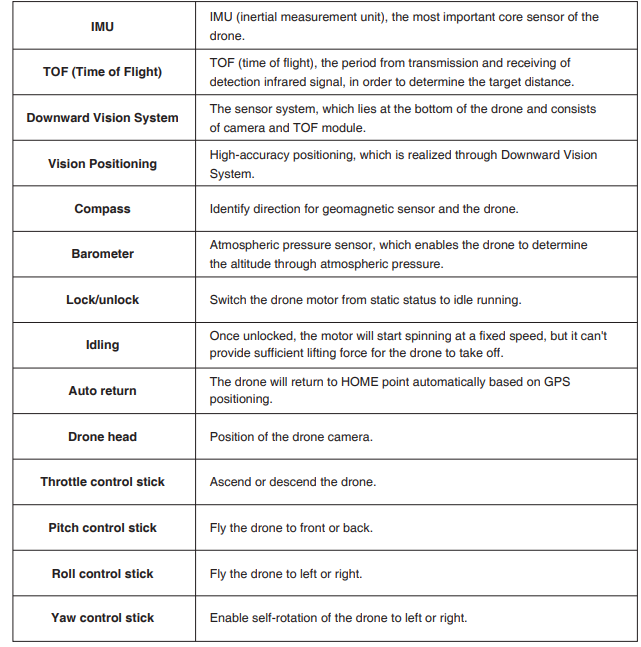
The product consists of a flight control system, a communication system, a positioning system, a power system, and a smart flight battery. This chapter sets down the functions of all parts of the drone.
Positioning
ATOM adopts Potensic’s new SurgeFly™ flight control technology, which supports the following two positioning modes: GPS positioning: Provides precise positioning and navigation to the dronsupportsort precise hovering, smart flight,ight and auto return. Vision positioning: It can realise high-precision positioning at a low altitude based on the Downward Vision System. The vision positioning can be realised without a GPS signal, so that the product can be used indoors.
How to switch: The flight control system will switch automatically according to the environment of the drone. If both the GPS and the Downward Vision System fail, the flight control will be switched to attitude mode, under whichthe drone fails to realise stable hovering, nd the user needs to correct the flight gesture manually through the control stick. The difficulty of drone handling will be increased greatly in ATTI Mode; make sure to master the behaviours and operation of the drone in this mode before using this mode; avoid flying the drone at a long distance, to avoid risks due to failed judgment of drone gesture.
Downward Vision System
The ATOM is equipped with a downward vision system, which is located beneath the drone. The Downward Vision System consists of a monocular camera and a TOF module. The TOF module includes a transmitter tube and a receiver tubeewhichwhich can precisely calculate the fly height above the ground by calculating the transmission and reception time of the infrared signals. In combination with the monocular camera, the system can help achieve high-precision positioning at low altitudes.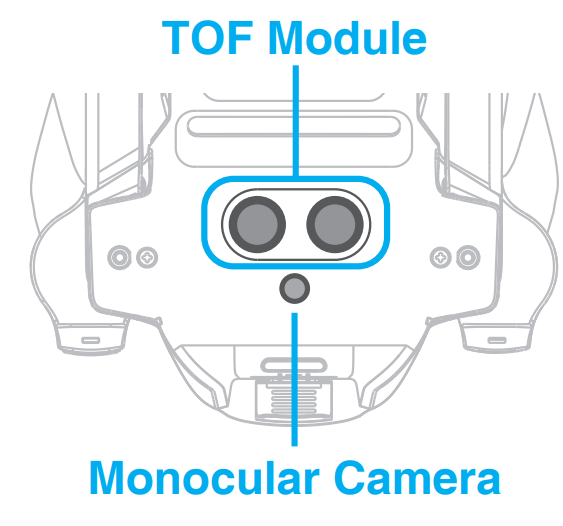
Detection Fileds
The Downward Vision System works best when the drone is at an altitude of 0.3 to 5 m, and its operating range is 0.3 to 10 m.
How to Use
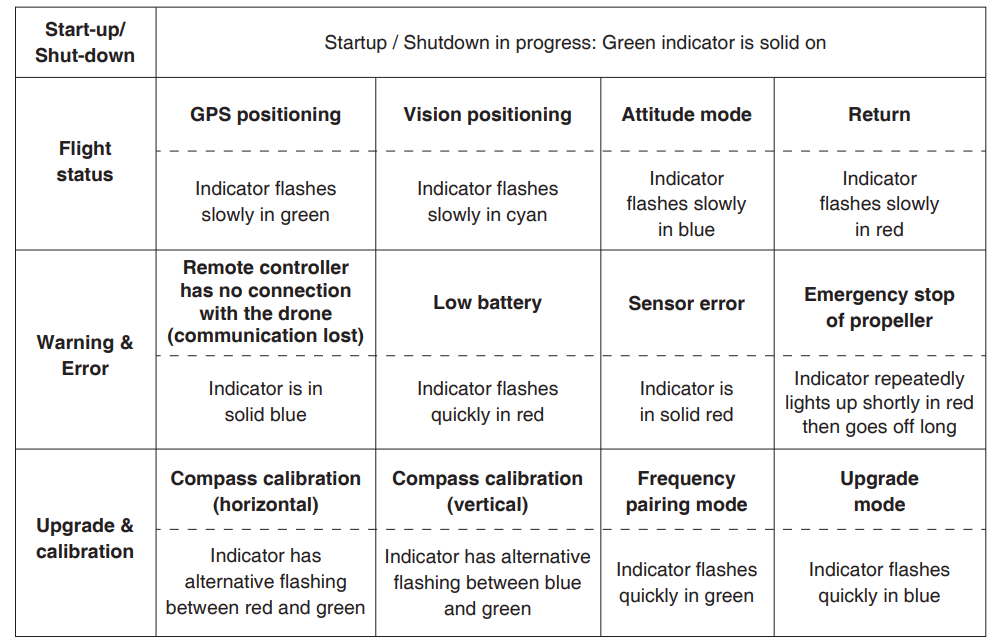
The Downward Vision System will be activated automatically if the positioning conditions are satisfied. The drone tail indicator blinks cyan twice, which indicates the Downward Vision System is working. Speed limit: To ensure positioning accuracy and flight safety during vision positioning flight, the drone will actively limit its flight speed.
Vision positioning is only an auxiliary flight function; please always pay attention to the changes in the flight
environment and positioning mode, and do not rely too much on the automatic judgment of the aircraft. Users need to control the remote controller at all times and be prepared to operate the drone manually at any time. The Visual System cannot work properly when flying over the following surfaces:
- Pure-colour surface
- Surface with strong reflection, such as a smooth metal surface
- Transparent object surface, such as a water surface and a glass surface
- The moving texture, such as running pets and moving vehicles.
- Scenarios with drastic change of light; For example, the drone flies to an outdoor space with strong light from an indoor space. Places with weak or strong light.
- For the sake of safety, please check the camera and TOF transceiver tube before the flight, and clean it with a soft cloth if there is any dirt, dust, or water on it; Contact Potensic Support if there is any damage to the Vision System.
Drone Status Indicator
Smart Battery
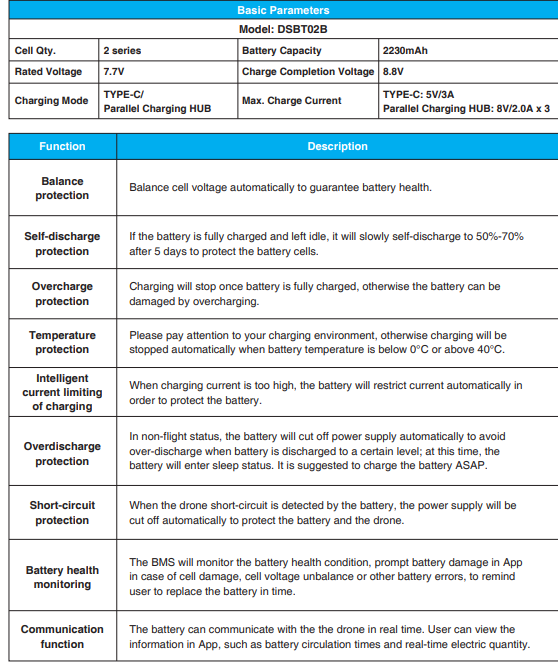
The TOM smart battery is mounted with a high-energy cell and an advanced BMS. The details are as follows:
 Battery Installation & Removal
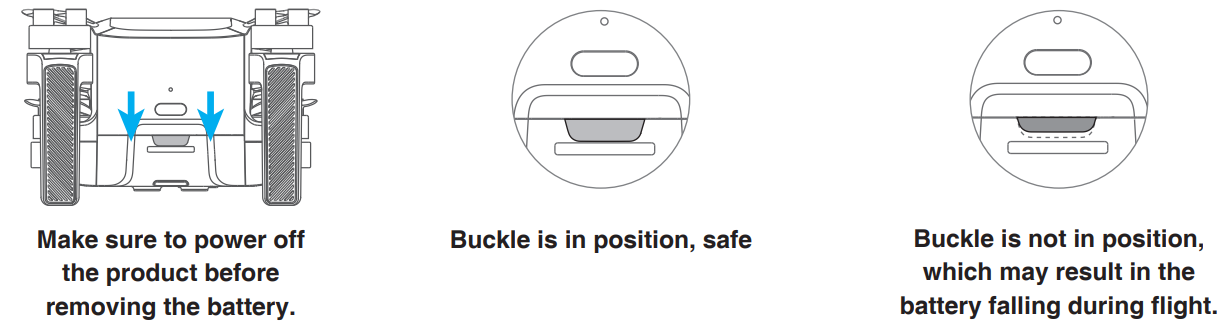
Push the battery into the product’s battery bin horizontally as shown in the picture below. The battery buckle is bounced and locked when hearing a “click” sound.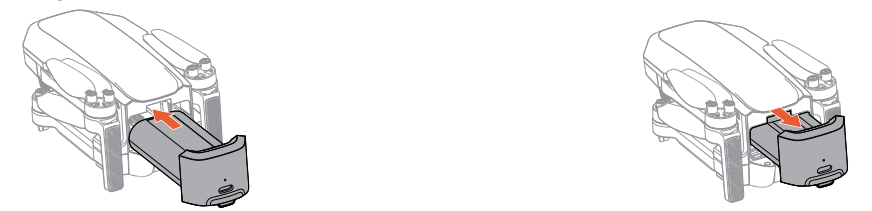
Firstly, press the buckle of the smart battery, and hold the upper cover of the battery to pull out the battery. Once the battery is inserted, make sure the battery buckle is secured properly. This step is highly important and related to flight safety.
View Power Level
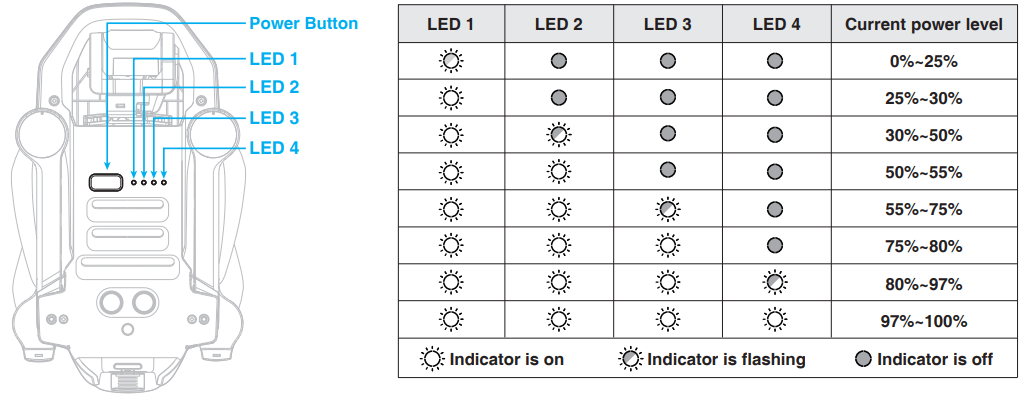
Once the battery is inserted in the drone, short-press the power button to view the power level of the smart battery, as shown in the picture below:
Operation Instructions
When the battery temperature is >70°C, the App will prompt a high-temperature warning of the battery, and the drone will not be able to fly.
Propellers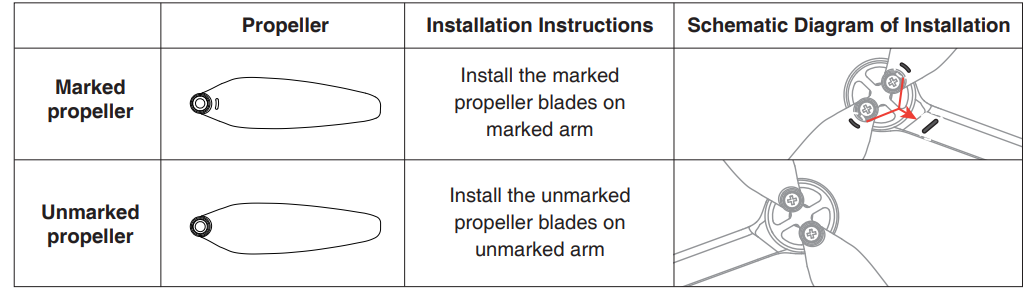
Use the screwdriver from the package to mount the propellers. Hold the motor to remove the propeller blades more easily.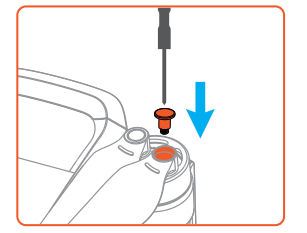 When mounting or removing the propellers, do not put the screwdriver or other foreign materials inside the motors, or the motor may be damaged.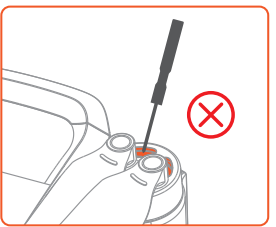
Flight Data
ATOM supports the recording of flight data. The user can view the data in the app. “Flight record” displays the basic data for each flight of the user. “Flight log” records the detailed flight data of the user. For any abnormal circumstance in flight, the user can report it i.n
App and, if necessary, upload the flight log to seek assistance. All flight data isstored in usthe user’sobile device. No flight data will be acquired by the Company, except for the data uploaded by the user to the cloud storage.
Gimbal & Camera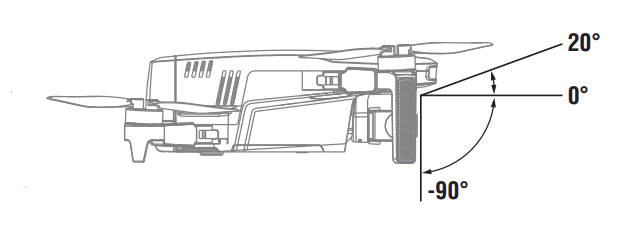 Three-Axis Gimbal ATOM is equipped with a 3-axis gimbal, allowing you to capture clear and stable images and videos. The control pitch range is from +20° to -90°, the control roll and yaw range is from +10° to -10°. The pitch angle of the gimbal can be adjusted by scrolling the gimbal dial on the remote controller. In Video Mode, the control pitch range of the gimbal is +20° to -90°; Otherwise, the control pitch range is 0° to -90°
Make sure to remove the gimbal protector before powering on the drone. After each startup, the default tilt angle of the gimbal is 0°(namely, the horizontal view). D O NOT collide, tap, or apply external force to the gimbal to avoid damaging the precision elements inside.
Camera
The gimbal may shake when flying in Sport Mode or in strong winds. It is recommended to fly the drone in Video Mode to acquire optimal gimbal stabilisation. Do not touch the lens after recording for a long period of time to avoid scalding.
Image Storage
The videos and pictures recorded by ATOM will be stored itinhe SD card, instead of the App or the user’s album. Make sure to insert the SD card prior to flight. Otherwise, it is unable to record and shoot. The user can preview and download the videos and pictures (the drone and the remote controller should be\ connected) in the App.
SD Card Requirements
File format: FAT32, exFAT Capacity: 4 GB- 256 GB Speed requirements: It is suggested to use an SD card above U1 (UHS Speed Class 1) or C10 (Class 10). The video downloaded from the app is just a 720P image used in video transmission. Please read the SD card with a computer or other device to acquire videos of higher definition. The recording can be terminated due to slow write-in when using the U1/C10 SD cards of certain brands. If important data isstored in your SD card, please backup them properly. Do not insert or unplug the SD card when the product is powered on.
Remote Controller
Potensic ATOM is equipped with the DSRC02A remote controller, which boasts Potensic’s long-range PixSync 3.0™ video transmission technology, offering a maximum transmission range of 6km/19,685ft and 720p when displaying video from the drone to the PotensicPro App on your mobile device. Easily control the drone and camera using 0the onboard buttons.
When used with different drone hardware configurations, the remote controller will automatically select the
corresponding firmware version for updating and supporting the following transmission technologies enabledby the hardware performance of the connected drone models: a. ATOM SE: PixSync 2.0™ b. ATOM: PixSync 3.0™
Control Stick Mode
Mode 1 (Left Hand Throttle) 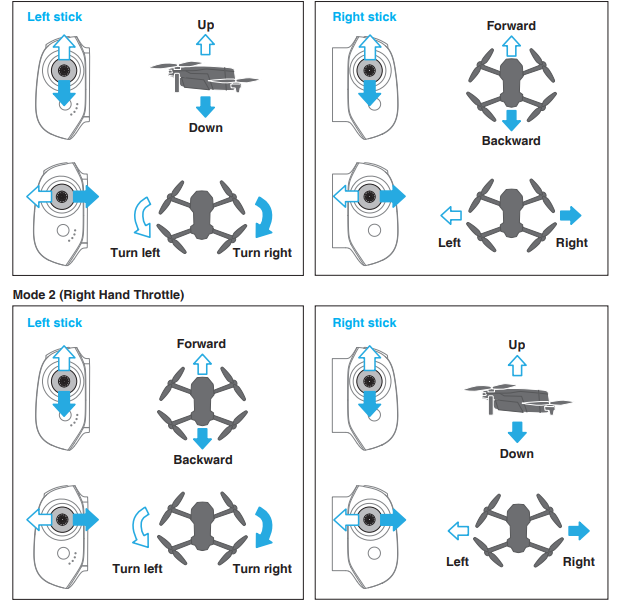
Function
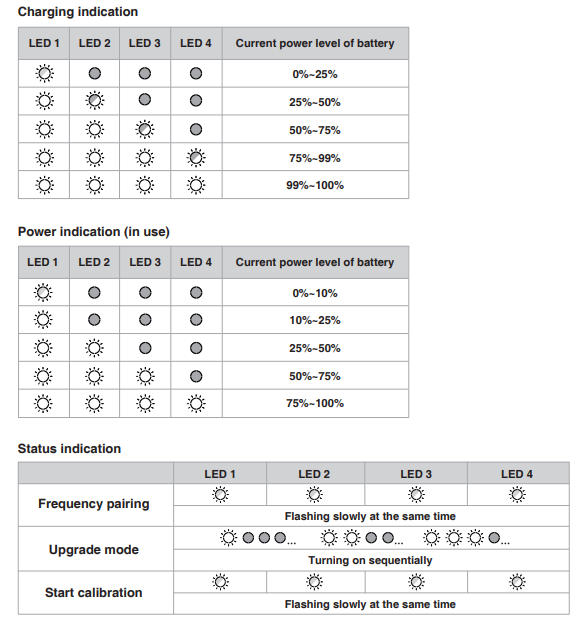
Indicator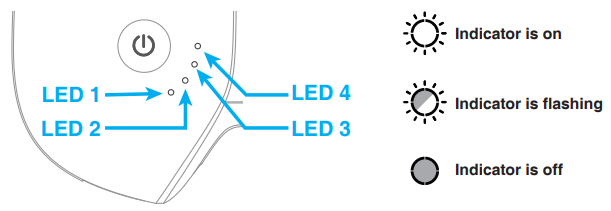
As shown in the picture below, the remote controller is fitted with 4 white LED indicators to indicate the power level and other status.
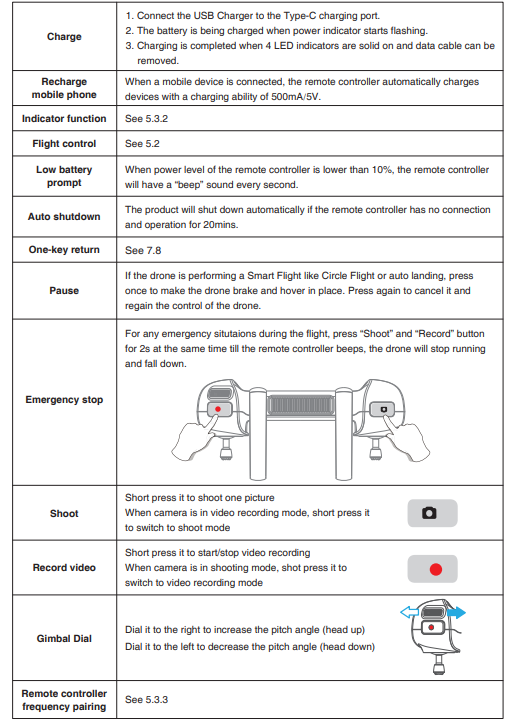
Remote Controller Function
Proceed with frequency pairing between the drone and the remote controller by tapping “Drone Re-pairing” under Calibration in App Settings. See 8.5 Remote Controller Calibration for the detailed procedures.
Antenna Angle 
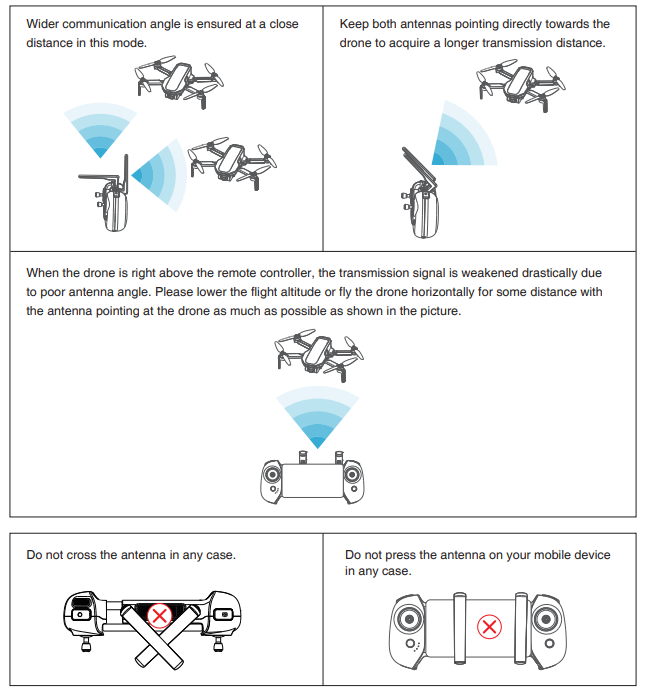
Adjust the antenna angle along with the changes of drone height and distance, to ensure the best communication status of the remote controller.
PotensicPro App
App Homepage Flight Interface
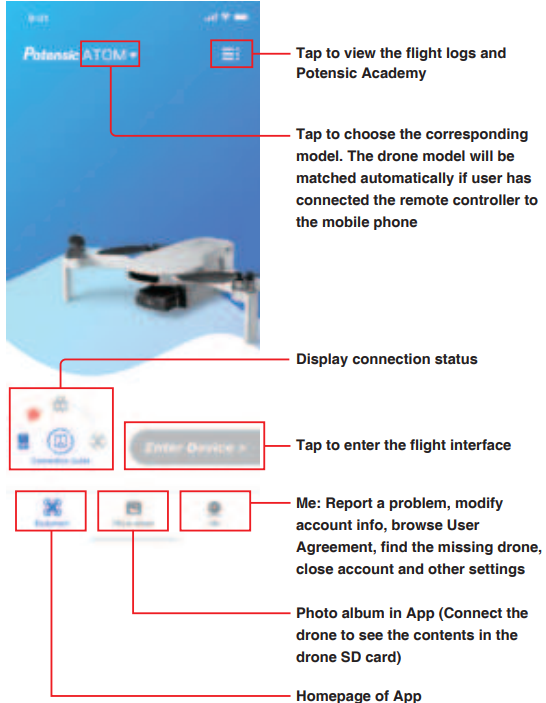
- Return button: Tap to return to the homepage
- Navigation prompt bar: Display drone status and flight mode
- Gimbal angle: nei Display current gimbal pitch angle
- Flight mode: Video Normal 港 Sport
- Positioning mode: GPS, GPS positioning, ng OPTI Vision positioning, Attitude mode, no positioning
- GPS status: Displathe y GPS signal status and the number of satellites searched
- Power level of the smart battery:
- Settings| Estimated Remaining Flight Time
Tap to view information about
Calibration, Control, Camera, and About. Safety Switch on/off Beginner Mode: If switched on, the drone will be confined to fly in a cylindrical space with a radius of 30 m and a height of 30 m, and restricted to fly only in Video Mode. Set measurement system (Metric or Imperial) and speed (Video/Normal/Sport)
Calibration
This sector includes compass calibration, gimbal calibration, gimbal fine-tuning, remote controller calibration, nd drone re-pairing.
Controll
Remote Controller Settings: Tap to switch control stick mode (Mode 1: Left Hand Throttle; Mode 2: Right Hand Throttle.Gimbal Settings: Tap to set the gimbal maximum pitch speed, the gimbal angle (0%/-90°), and to switch between Gimba Stable Mode or FPV Mode.
Camera
General Settings: Tap to set white balance, gridlines, segmental recording, etc. Tap to check microSD card
capacity and format. Other Settings: Tap to set watermarks and add GPS coordinates in photos.
Display/Settings
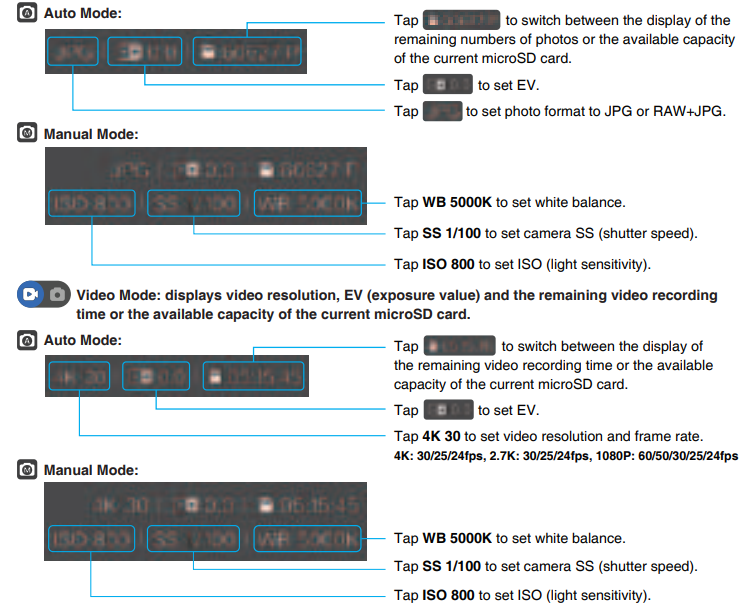
Camera Manual/Auto Mode
Auto Mode Manual Mode: Tap to manually adjust ISO, shutter time, white balance, and set the parameters by
observing the exposure value(EV)
Interval Timer Shooting Mode
In Interval Timer Shooting Mode, the camera will take photos at a selected time interval continuously. Conditions to activate the Interval Timer Shooting Mode: the camera set to Photo Mode and the image format to JPG. Long-press the icon to start the timer dial.
Digital Zoom Mode
The icon displays the current zooming setting. Tap to quickly switch between 1x, 2x, or 3x to zoom in or out. For a more precise zoom, touch and hold the zoom icon, then drag the dial up and down. You can also pinch in or out on the screen with two fingers to zoom in and out.\ The camera supports 2x digital zoom in Photo Mode and up to 3x in Video Mode (3x digital zoom in 1080P/2.7K and 2x in 4K)
Shoot/Record switch button.on
To switch from shooting to video recording to switch from video recording, and vice versa.
Shoot/Record button
Video recording mode, tap to start video rec..ording Shooting mode, tap to shoot a picture. Video recording in progress, tap to cancel
Intelligent Flight Modes
Visual Tracking: The drone tracks the targeted subject to record automatically and generates a short video, which will be saved in MicroSD card. Please watch the tutorial videos for detailed instruction..s
Flight Safety and Technical Tips
Users can turn on/off Flight Safety and Tips in App Settings->Safety. After turning it on, flight-related tips or suggestions will be displayed on the lower right side of the flight interface.
Display flight speed and distance
Horizontal distance from the drone to HOME point,t H. Relative height from the drone to HOMEpointt Flight speed of the drone,d,rone 6. Ascent/descent speed of the drone
Attitude Indicator / Thumbnail map
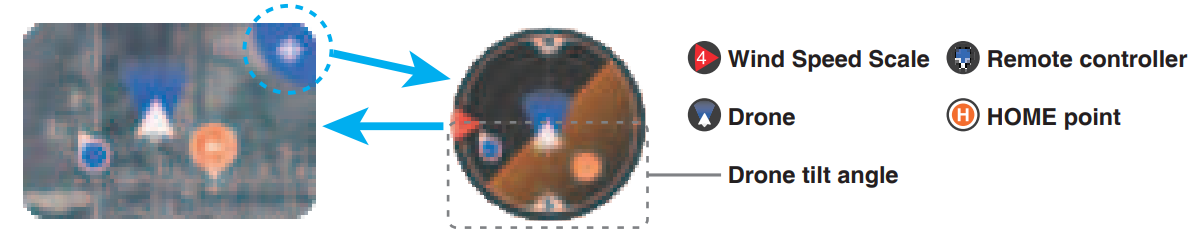
Tap the upper right corner to switch to Attitude IIndicatoror Mthe ode. Tap the thumbnail map to switch to a full-screen map. The attitude indicator displays informationonf drone direction, tilt angle, remote controller direction, HOME point, and more. The attitude indicator can show the angle and direction of the drone in real time as follows.
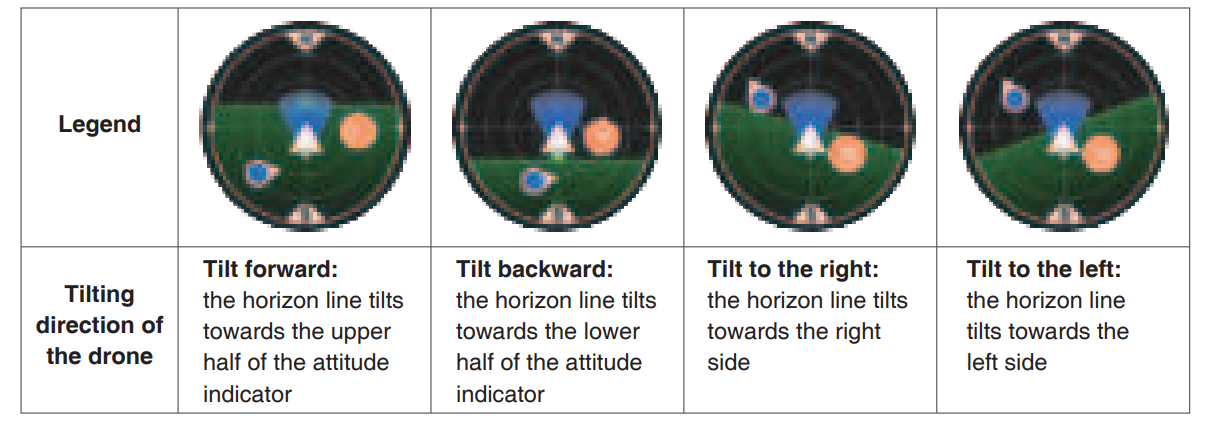
Different Colours of the Attitude Indicator
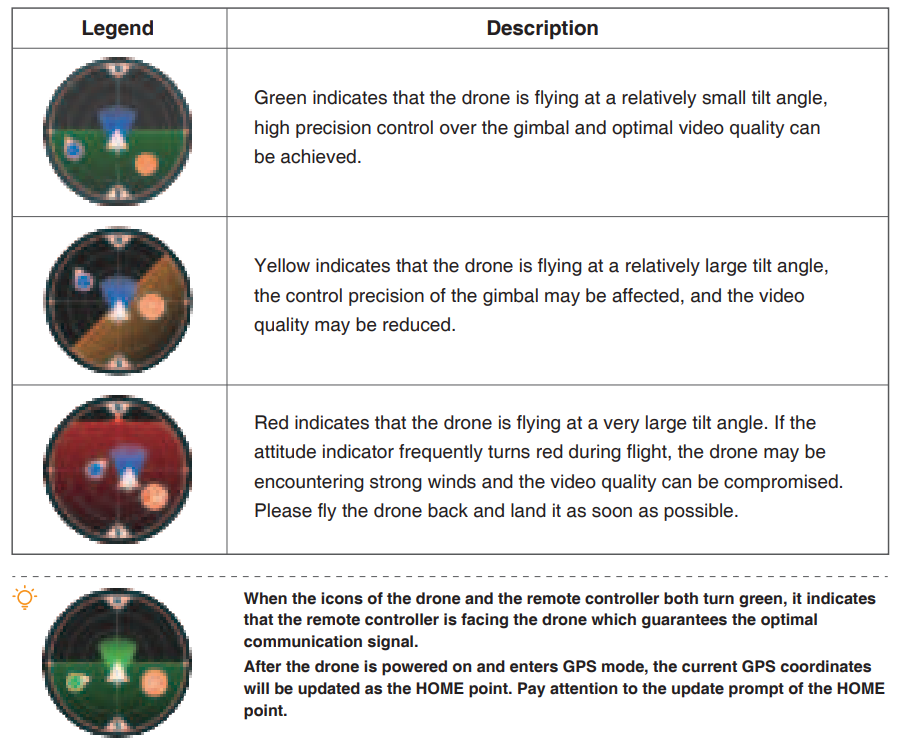
When the drone takes off in OPTI mode and then enters GPS mode, the HOME point might not be the take-offpoint. Pay attention to the return safety.
One-key Takeoff, Landing/Return
The App will display different buttons based on the drone’s status. Tap to initiate one-key takeoff, landing, or
return. Tap to unlock, take off,f and hover at a height of 1.2m * Tap to land or auto return.
Make sure to fully charge the mobile device before the flight, because the power of the mobile device will be
consumed even if it is charged by the remote controller. Please contact your wireless carrier for data charges.
Flight
This chapter introduces safe flight practices and requirements.
Requirements of Flight Environment
- Do not use the product in severe weather, such as gales, rain, snow, wind, and fog.
- It is recommended to keep the drone at least 5m away from structures.
- Control the product within your sight and keep away from the obstacles and crowds.
- Do not use the product in places with high-voltage power lines, telecommunication base station or launching towers, to avoid interference with the remote controller.
- Please use the product with caution when the altitude is over 3,000m, as the flight performance can be affected when the performance of one battery and the power system is weakened due to environmental factors.
Connection
Please follow the steps below:
- Please finish the steps in “3.5 Preparing the Remote Controller” and turn on the remote controller.
- Please finish the steps in “3.4 Preparing the drone” and turn on the drone.
- Launchthe appp to view the connection status. Connection is finished when it shows.
- Tap to enter the flight interface.
It is advised to tap and follow the animated guide to operate for first-time users.
Flight Mode
ATOM has three flight modes-Video/Normal/Sport, which can be switched via the App.
Video Mode
Ascent speed: 2m/s, descent speed: 2m/s, flight speed: 6m/s The drone enters Beginner Mode by default when being used for the first time. The flight speed will be limited to the same as in Video Mode to allow you to familiarise yourself with the controls of the drone.
Normal Mode
Ascent speed: 4m/s, descent speed: 3m/s, flight speed: 10m/s You can exit Beginner Mode after you have mastered adequate flight skills, and the drone will switch to Normal Mode by default.
Sport Mode
Please fly with caution in Sport Mode as the responsiveness of the drone significantly increases, which means a small control stick movement on the remote controller translates into the drone moving a large distance.
A minimum braking distance of 30 m (100 ft) is required in windless conditions to ensure safety. When flying in Sport Mode or strong wiwindssthe gimbal may shake, which is normal.
Beginner Mode
The drone is automatically set to Beginner Mode for first-time use. In beginner mode:
- The flight distance and height will be restricted to 0~30m
- The speed level will be restricted to the same as in Video mode
- The beginners are suggested to learn and master the drone in beginner mode
Takeoff/Landing/Hovering
Step 1: Start the motors. Use a combination stick command to start the motors. Push both sticks to the bottom inner or outer corner, depending on your control stick mode, to start the motors. Release both sticks simultaneously once the motors are spinning.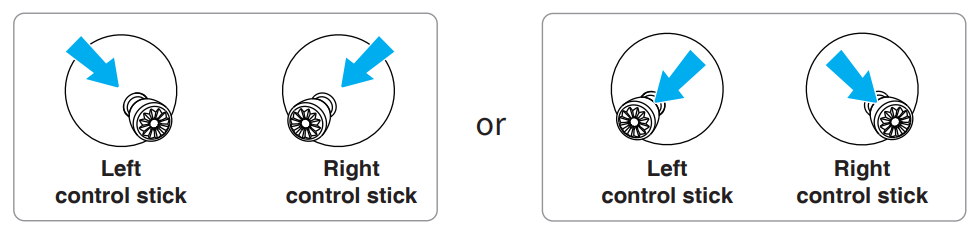
Step 2: Push the throttle control stick to take off. Push the throttle control stick upwards gently as shown in the picture, release the control stick when the drone leaves the ground, and it will keep hovering.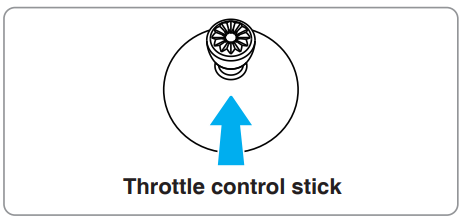
Landing
Pull the throttle control stick until the drone lands on the ground. Release the throttle control stick when the motors are no longer spinning. Take off from a stable and level plane; do not take off from or land on the palm or by hand.
When the drone is in a non-static state, push both sticks to the bottom inner or outer corners for 2s to force unlock it. Please stay away from the drone for more than 5m before operation for your own safety.
One-key Takeoff / Landing One-key takeoff
Tap the one-key takeoff button in the app, then swipe right in the pop-up window to start the drone automatically, then ascend to a height of 1.2m and maintain hovering.
One-key landing
Tap the one-key landing button in the app, then swipe left in the pop-up window to land the drone, or swipe right to start returning.
QuickShots
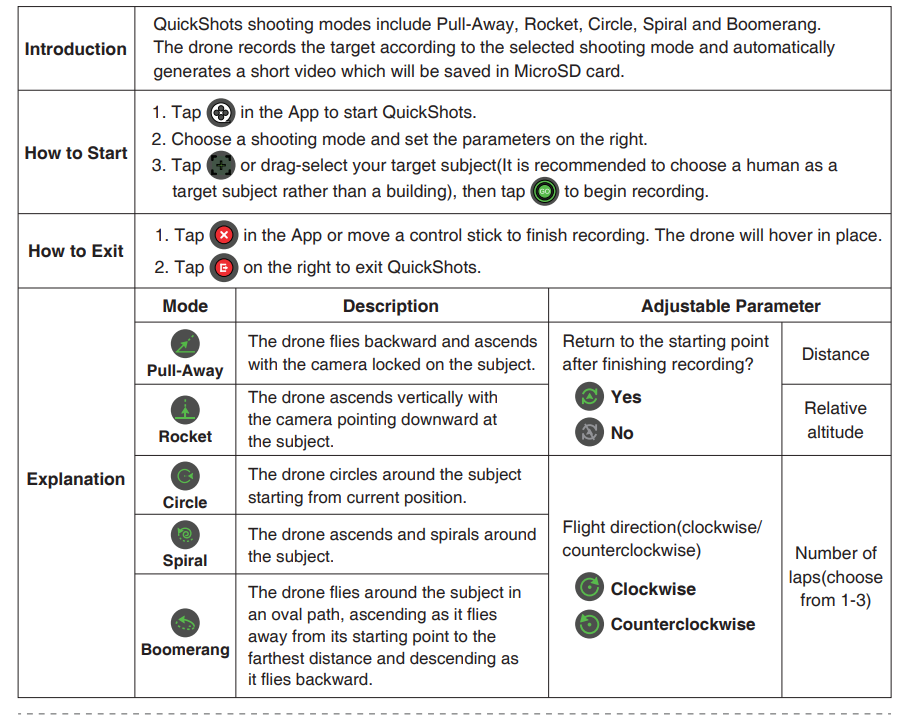
Conditions to activate QuickShots
- The drone is airborne with a strong GPS signal.
- A microSD card is inserted with available storage.
- Sufficient battery level;
- The drone is not in auto-flight state (auto return or landing).
- The drone must be at least 2 m above the ground.
- When locking the target in QuickShots, the gimbal pitch angle needs to be between -75° ~ -15°.
Otherwise, the flight path will be unstable. Make sure to follow local privacy laws and regulations when using QuickShots. QuickShots is not available in the following situations:
- The drone is on the ground.
- The GPS signal is weak.
- The battery level is low.
- The current altitude of the drone is insufficient.
- The drone reaches the virtual fence.
- The gimbal is horizontal or tilted upwards.
DO NOT use QuickShots in any of the following situations where the Downward Vision System may not work properly:
- When the subject is more than 50 m away from the drone.
- When the subject is similar in colour or pattern to the surroundings.
- When the subject is in the air.
- When the subject is moving fast.
- When the ambient lighting is extremely low or high.
- Quick Shots does not support video recording in 1080P@60/50fps.
Visual Tracking
Visual Tracking is unavailable when the drone is on the ground. During Visual Tracking, the gimbal dial will remain unresponsive. When the tracked subject is approaching the drone, it will hover in place and not move backwards. When locking the target in Visual Tracking, the gimbal pitch angle needs to be between -75° ~ -25°. The drone must be at least 4 m above the ground to activate Visual Tracking. During Visual Tracking, the tracked subject should not move at a relatively high speed(recommended speed less than 4m/s)
Use Visual Tracking at locations that are clear of buildings and other obstacles. Make sure there are no
humans, animals, or other obstacles on the flight path. DO NOT use Visual Tracking in places that are close to buildings or where the GPS signal is weak. Otherwise, the flight path will be unstable. Be ready to take over control of the drone by moving the control stick at any time in an emergency, and the drone will exit Visual Tracking and hover in place. Visual Tracking is not available when the drone is flyingwithinr distance and altitude limits. Make sure to follow local privacy laws and regulations when using Visual Tracking. Be extra vigilant when using Visual Tracking in any of the following situations:
- The tracked subject is not moving on a level plane.
- The tracked subject changes shape drastically while moving.
- The tracked subject is moving at a fast speed.
- The tracked subject has a similar colour or pattern to its surrounding environment.
- When the ambient lighting is extremely low or high.
- Operating the drone outside of the recommended range may prevent it from detecting the intended subject well.
Waypoint Flight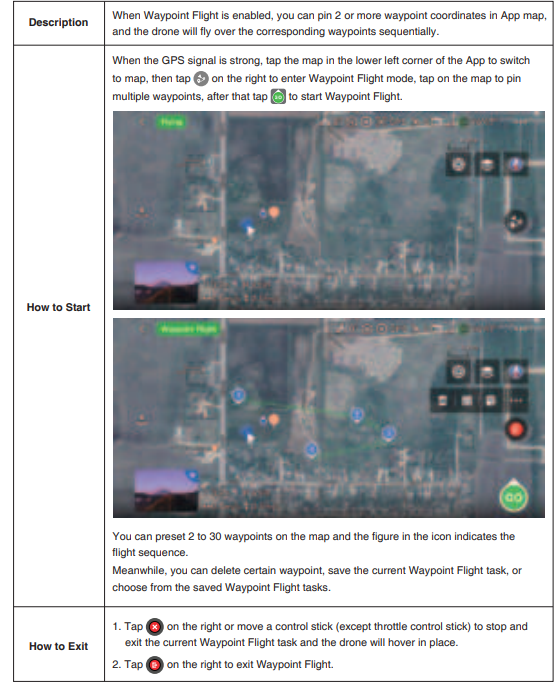
Return (RTH)
Regular Return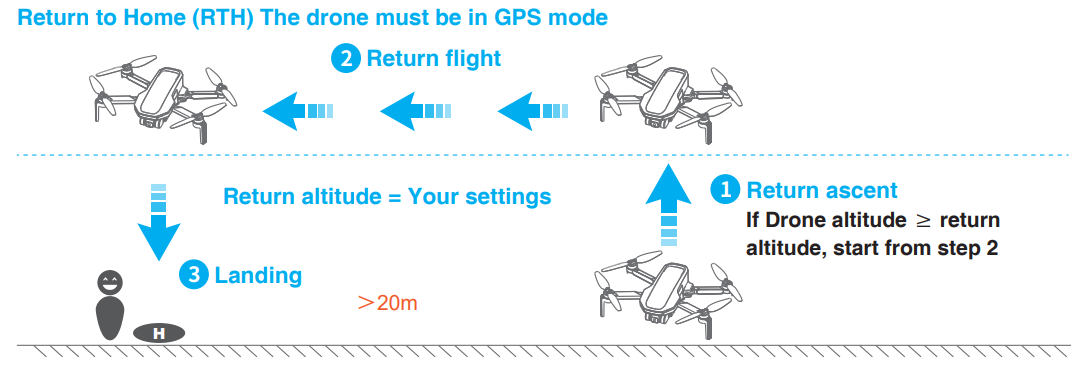
The regular return consists of three steps, as follows:
- Level flight: The drone maintains a straight flight at the set altitude towards the HOME point.
- Landing: Once it reaches the HOME point, the drone will automatically land and stop its propellers.
How to Start RTH
One key RTH: Press and hold the RTH button on the remote controller for 1s or tap in the App to pop up the menu, then swipe right to start the return.
How to exit RTH
Method 1: Tap on the left of the app to exit RTH. Method 2: Briefly press the return button on the remote controller to exit RTH.
RTH Requirements
The drone must take off in GPS mode and successfully record the HOME point. If the drone takes off in OPTI mode and switches to GPS mode mid-flight, it will not be able to return to the takeoff point. Please pay attention to the location of the HOME point on the map and the prompts in the PotensicPro App.
To ensure the safety of the return flight, please set the appropriate return altitude in the app according to the flight environment. During the return course, users can still adjust the flight altitude by adjusting the throttle. The drone will return when it is within 20m of the HOME point, and the return altitude will be 5m. Please pay attention to safety. Tall buildings or obstacles can block the transmission signal and cause signal loss. Do not fly behind buildings beyond the return altitude,
otherwise the drone will collide with obstacles and crash during thereturn. If the drone enters ATTI mode due to GPS failure or GPS signal interference, it will not be able to return. Lowering the flight altitudeappropriatelyy can help reduce power consumption. If the power is insufficient, the drone will perform a forced landing in place. Please pay attention to the prompts in the PotensicPro App. Do not initiate the return when there are obstacles overhead, such as tall trees; the drone may crash during the climb.
Please pay attention to return safety, because the drone does not support obstacle avoidance and may crash
when colliding with obstacles during the return course. For any GPS signal anomaly in communication loss return, the drone will maintain hovering at ATTI mode until the GPS signal is strong enough, and the return will resume.
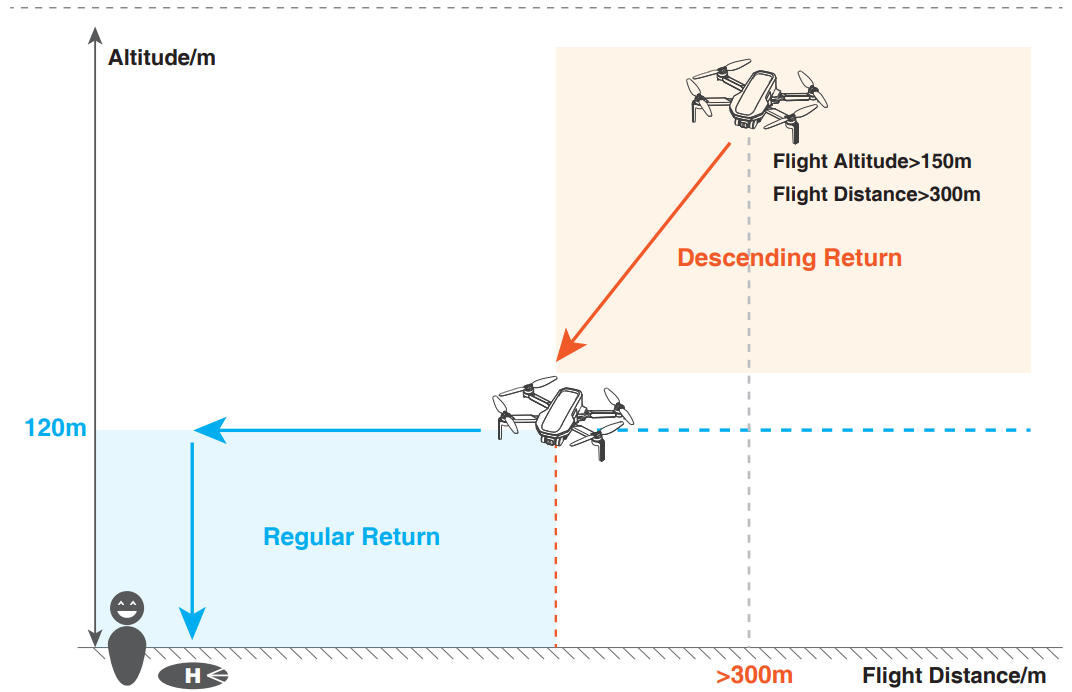
Descending Return
How to Activate
After 10 seconds into the RTH course, if the flight altitude is greater than 150m and the flight distanceis greater than 300m, the App will prompt a message for you to confirm whether to initiate the descending return. Once confirmed, the drone will start the descending return(the drone will descend its altitude while approching theHOME point). When its altitude descends to 120m, the drone will switch to the regular return ma intaining itscurrent altitude till it reaches the HOME point and lands automatically.
How to Exit
Tap on the left of the App interface or keep pushing the throttle control stick up for 2 seconds to exit the descending return. The drone will switch to the regular return, maintaining the current altitude.
- When encountering strong winds, the descending return can save power consumption and guarantee a
more successful return. - This product does not have an obstacle avoidance function.
- Please pay attention to flight safety during the return process.
Calibration
This chapter mainly introduces the calibration-related functions in Settings, including compass calibration, gimbal calibration, gimbal fine-tuning, remote controller calibration, and drone re-pairing.
Compass Calibration
Do not calibrate the compass in locations where magnetic interference may occur, such as close to magnetic
deposits or large metallic structures such as parking structures, steel reinforced basements, bridges, cars, or scaffolding. Keep away from other electronic devices when calibrating, such as the mobile phone. Make sure the drone is at least 1.5m (4.92ft) above the ground when calibrating. It’s not necessary to calibrate the compass when flying indoors.
Calibration Procedure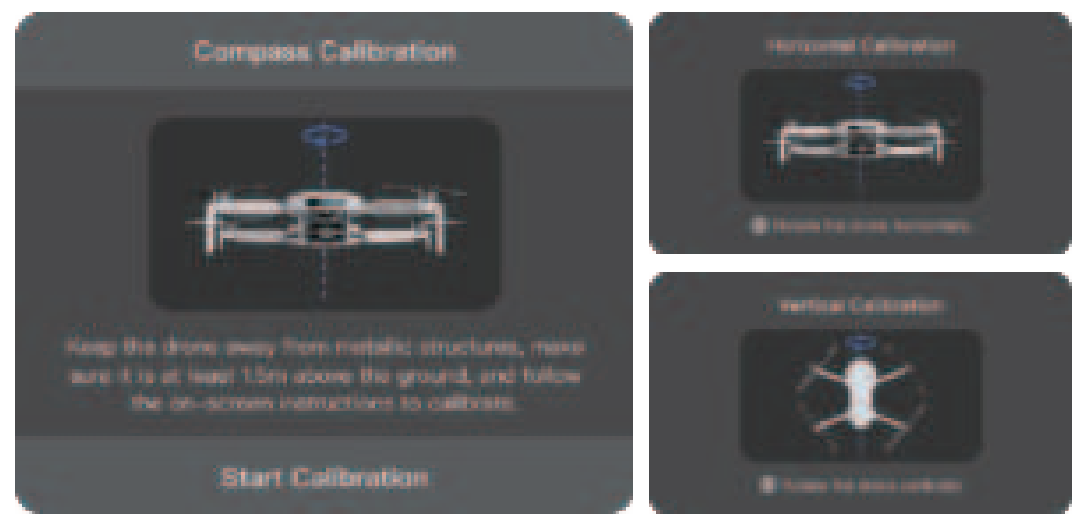
- Hold the drone horizontally and rotate it 360° till the App shows vertical calibration, and the drone’s status indicator will alternatively flash blue and green.
- Hold the drone vertically and rotate it 360° around a vertical axis till the App prompts that calibrationis completed.
- You can also trigger compass calibration manually in the App: Settings-Calibration Compass Calibration.
Gimbal Calibration
When the gimbal is not working or obviously unlevel after powering on and before take-off, please calibrate the gimbal. When the gimbal is unstable or unable to stay level in flight, please land the drone and calibrate the gimbal.
Calibration Procedure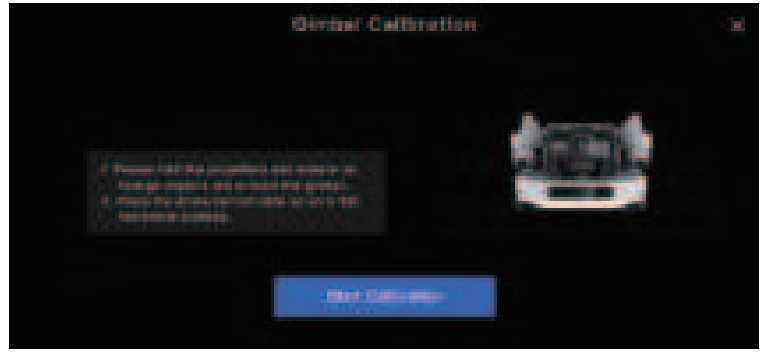
- Tap Settings in the App, select “Gimbal Calibration”,
- Then place the drone on a level table with the bottom facing up.
- Tap “Start Calibration”, then calibrate.
- The live transmission view will appear on the calibration interface.
- Do not move the drone significantly during the calibration process; the calibration may fail.
Gimbal Fine-tuning
The gimbal fine-tuning is for manually calibrating the gimbal and adjusting the roll and yaw offset angle of the gimbal. You can tune the angle with reference to the status of the live transmission view on the App interface.
When to perform gimbal fine-tuning
When the gimbal is unable to stay level oris slightly tilted on level ground.
How to use the Gimbal Fine-Tuning
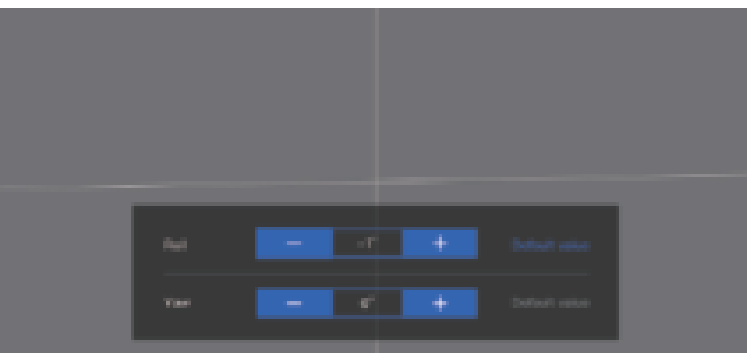
- Tap Settings in the App, select “Gimbal Fine-Tuning”, then tune the roll and yaw angles of the gimbal with a range of ±10° °.
- You can tap “+/-” to adjust the gimbal angles or set the angle value directly.
- Tapping once means “+0.1°/-0.1°”.
- Gimbal Roll Adjustment: Tap “+” to roll to the right, and tap “-” to roll to the left.
- Gimbal Yaw Adjustment: Tap “+” to yaw to the right, and tap “-” to yaw to the left.
- Tap “Default Value” to restore the default angles ( 0° )
Remote Controller Calibration
When to perform remote controller calibration
- When the drone drifts automatically in one direction without any toggling of the control sticks.
- When the drone is auto-rotating sideways continuously.
- When the control sticks aroversensitiveve or lack sensitivity.
Calibration Procedure
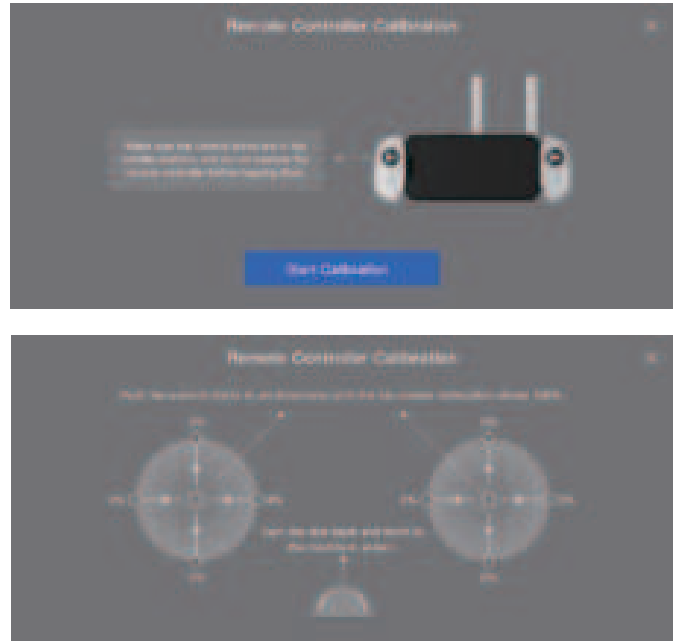
Turn on the remote controller, connect the mobile device, tap Settings in the App, and select “Remote Controller Calibration. Make sure the control sticks are in the middle position and do not operate ithembefore tapping to start the calibration.
Drone Reparing Procedure
- Turn on the remote controller, and connect the mobile device, tap Settings in the App, select “Calibration”, tap “Re-pairing the drone” to re-pair.
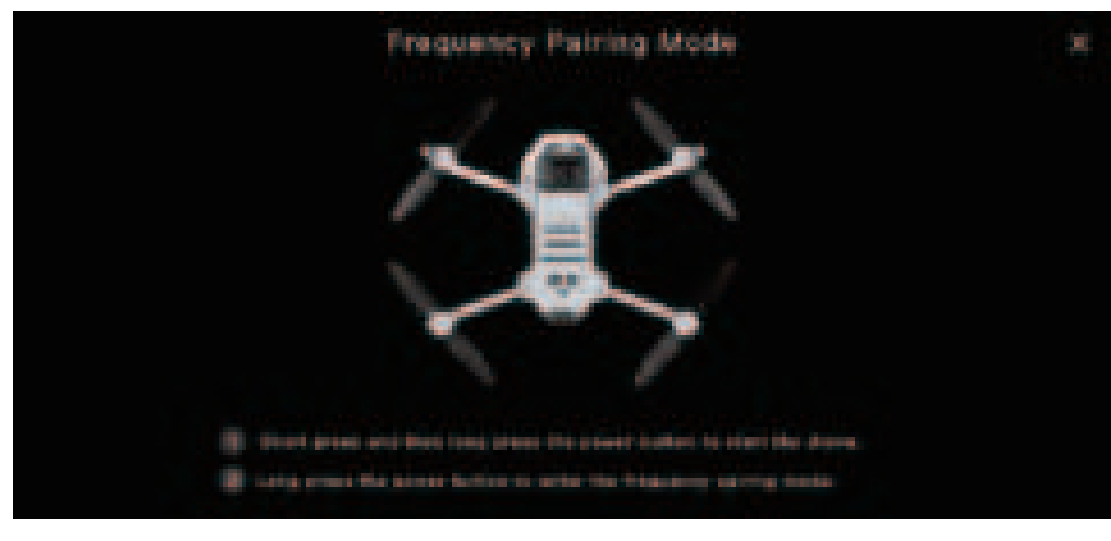
- Power on the drone and long-press the power button till the drone status indicators flash green; the drone is ready to pair. Wait for about 7s, the pairing succeeds when the controller beeps “Di”, then you can view the live transmissionon the App interface.
- Make sure the distance between the remote controller and the drone is within 1m (3.3ft) and away from other objects, and 2.4G frequency interference during the frequency pairing process.
If the pairing has failed, please check if there is any interference from the current location, if any other drones are under pairing, or if the distance is too far between the remote controller and the drone or any blocks between them. If none of the above, please try the pairing procedures again. Do not move or operate the drone and controller during the frequency pairing process.
Specification & Parameters
Drone
- Model: DSDR04C
- Takeoff Weight: < 249g (the takeoff weight includes battery and propeller blades)
- Folded Size: 88x143x58mm
- Unfolded Size (propeller blades included): 300x242x58mm
- Unfolded Size (propeller blades excluded): 210x152x58mm
- Diagonal Distance: 219mm
- Max Speed (Sport Mode): Ascent speed: 5m/s; Descent speed: 4m/s; Flight speed: 16m/s
- Max Wind Speed Resistance: 38km/h (Level 5)
- Maximum Flight Altitude: 120m/393.7ft
- GNSS: GPS+GLONASS+Galileo+BeiDou
- Operating Temperature: 0°C~40°C
- Operating Frequency: 2.400~2.4835GHz
- Transmission Power: 2.4GHz: < 24dBm
- Hovering Accuracy Range: Vertical: +0.1m (with Vision Positioning), #0.5m (with GPS Positioning)
- Horizontal Flight: #0.3m (with Vision Positioning), #1.5m (with GPS Positioning)
- Extra Payload: Not supported
- Max Flight Time: 32min (measured at breezeless conditions and an even speed of 5m/s)
Max Hover Time: 29min (measured in indoor hovering)
Downward Vision System
Unavailable scenarios of vision positioning:
- Hovering range: 0.3~5m(ideal environment); Available at 0.3~10m.
- Pure-colour surface Surface with strong reflection, such as a smooth metal surface
- Transparent object surface, such as a water surface and a glass surface
- Moving texture, such as running pets. The places with weak or strong light.
- The surface has repeating identical patterns or textures, such as floor tile with the same texture and size. The surface has a highly consistent strip pattern.
Camera
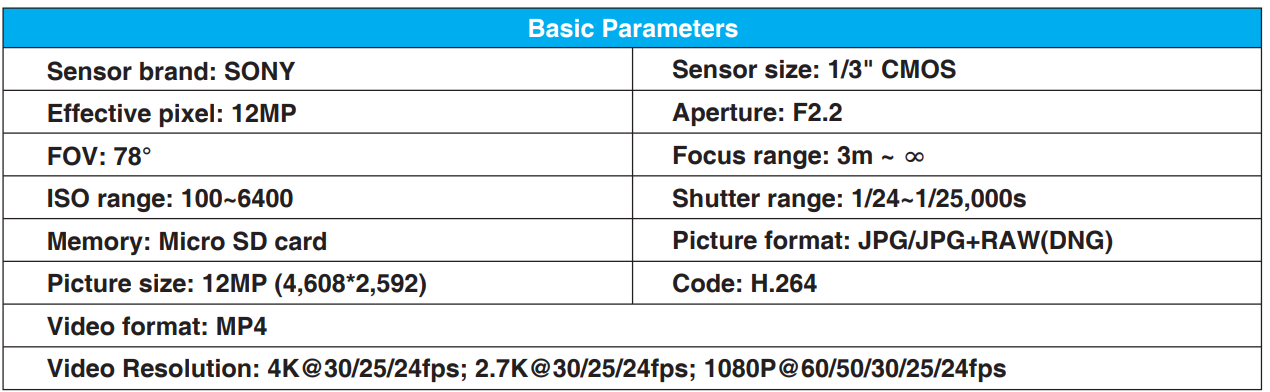
Lens Tilt Range: +20°~-90° CMOS: 1/3″ Effective Pixel: 12MP ISO Range: 100~6400 Electronic Shutter Speed: 1/24s~1/25000s FOV: 78° Aperture: F2.2 Photo Resolution: 4608*2592 Image Format: JPG/JPG+RAW(DNG) Video Resolution: 4K@30/25/24fps; 2.7K@30/25/24fps; 1080P@60/50/30/25/24fps Video Format: MP4 (H.264) Max Video Bitrate: 50Mbps Supported File System: FAT 32, exFAT Type Of Supported Storage Card: MicroSD card; 4~256GB SD card transmission speed ≥class10 or U1 standard
Remote Controller
- Model: DSRC02A
- Operation Frequency: 2.402~2.483GHz Max Transmission Distance (unobstructed, free of interference): 6km
- Operating Temperature: 0°C~40°C
- Battery: 3000mAh, lithium battery, 1S
- Transmitter Power (EIRP): 2.4GHz: ≤20dBm
- Charging Interface: TYPE-C
- Charging Specification: 5V/1A
- Video Transmission System: PixSync 3.0TM
- Video Transmission Quality: 720P Latency (depending on environment and mobile device): 200ms Supported Mobile Device Size: Length: 170mm, Width: 100mm, Thickness: 6.5mm~8.5mm
Smart Flight Battery
- Model: DSBT02B
- Capacity: 2230mAh
- Voltage: 7.7V
- Battery Type: Li-Po 2S
- Energy: 17.18Wh
- Battery Weight: 84g Working Temperature: 0°C~40°C
Technical Terms
FCC ID: 2AYUO-DSDR04B
Changes or modifications not expressly approved by the party responsible for compliance could void the user’s authority to operate the equipment. This device complies with Part 15 of the FCC Rules. Operation is subject to the following two conditions:
This device may not cause harmful interference, and this device must accept any interference received, including interference that may cause undesired operation. This equipment generates, uses, and can radiate radio frequency energy, and if not installedand used in accordance with the instructions, may cause harmful interference to radio communications. However, there is no guarantee that interference will not occur in a particular installation.
- Reorient or relocate the receiving antenna.
- Increase the separation between the equipment and receiver.
- Consult the dealer or an experienced radio/TV technician for help.
- This equipment complies with FCC radiation exposure limits set forth for an uncontrolled environment.
Disclaimer
Drones are products that are potentially dangerous and relatively complex to operate. Please be sure to read the full User Manual to ensure that you understand the basic knowledge of the drone and are familiar with the basic functions before using the product. Please follow the Manual’s operation instructions and precautions strictly, in order to use the product safely and correctly. Users aged under 16 must be accompanied by an adult while using the product.
Please keep the product out of children’s reach. For any direct or indirect loss (including but not limited to property loss and personal injury) due to the user’s failure to follow the Manual’s safety operation, the Company does not bear any liability or offer warranty services. Do not dismantle any part except for propeller blades, or refit the product and attach other items to it; otherwise, the user should undertake the consequences arising therefrom. For any issues with use, handling, a,noraintenance, pleasedoo not hesitateo contact our local dealer or the Company. Potensic reserves the right to interpret this document and related product documents, and reserves the right to change them without notice.
Customer Service
- Ph: +1 833 549 7772
- Website: https://www.potensic.com
FAQs
Q: What distinguishes the Potensic ATOM 2 from other small drones?
With its lightweight folding design, Quick Shots flight modes, and AI-powered subject tracking, the Potensic ATOM 2 is unique. It is perfect for both novice and seasoned creators since it combines smart filming features with portability.
Q: How does the AI Tracker operate?
The AI Tracker automatically tracks a topic while retaining frame by locking onto it using sophisticated image recognition, such as a person, bike, or car. This makes it possible to record activities like cycling, jogging, and outdoor excursions without using your hands.
Q: Can novices use the Potensic ATOM 2?
Indeed. The drone is extremely user-friendly for beginners because of its one-key takeoff and landing, reliable GPS tracking, and simple app controls. New pilots can fly with confidence thanks to safety measures like return-to-home.
Q: Does the drone need to be registered?
The Potensic ATOM 2 may not need to be registered in many areas because it is classified as a sub-250g weight. Users should carefully check local aviation restrictions before flying, though, as drone laws differ by nation.
Q: What is ATOM 2’s camera quality?
The ATOM 2 produces smooth, stabilised video and high-resolution images with vivid colours and crisp details. It works great for casual aerial photography, travel content, and vlogging.
Q: Can the drone follow objects that move quickly?
Yes, as long as there is adequate lighting and the subject stays in view, the AI tracking system is designed to follow moderately to quickly moving objects, like cyclists or runners.