

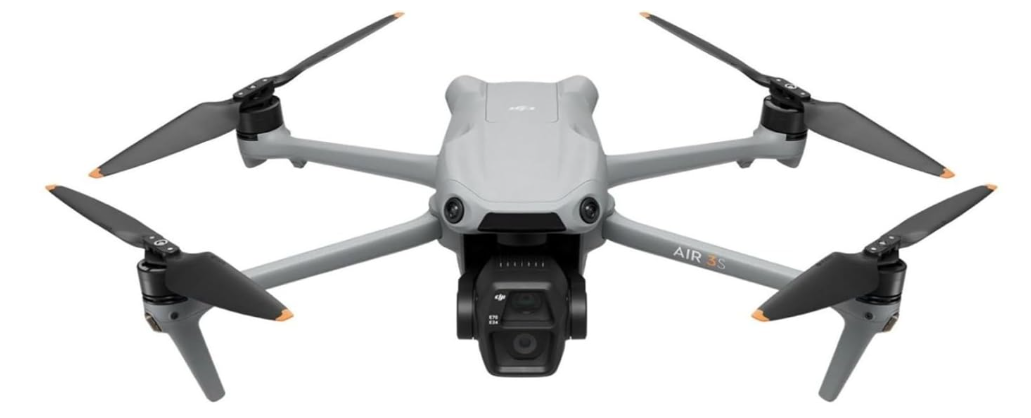
DJI Air 3S 45-Min Max Flight Time Camera Drone
Overview
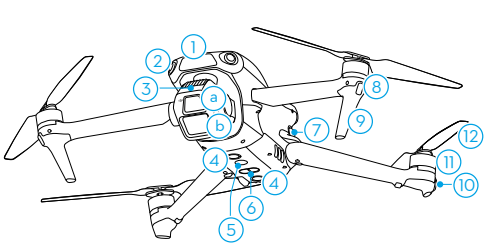
- Forward-Facing LiDAR [1]
- Omnidirectional Vision System [2]
- Gimbal and Camera
- a. Medium Tele Camera. Wide-Angle Camera
- Downward Vision System
- Auxiliary Light
- Three-Dimensional Infrared Sensing System [1]
- Battery Buckles
- Front LEDs
- Landing Gears (Built-in antennas)
- Aircraft Status Indicators
- Motors
- Propellers

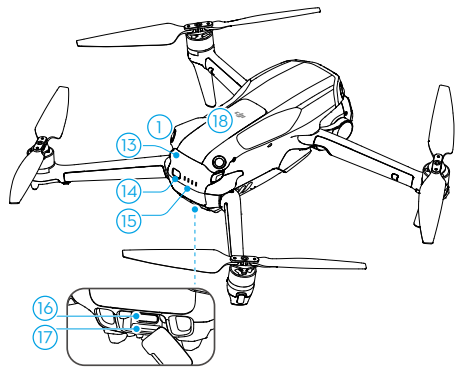
- Intelligent Flight Battery
- Power Button
- Battery Level LEDs
- USB-C Port
- microSD Card Slot
- Cellular Dongle Compartment
Preparing the Aircraft
- Remove the gimbal protector from the camera.

- Unfold the front arms and the rear arms as shown.

- Attached the propellers.

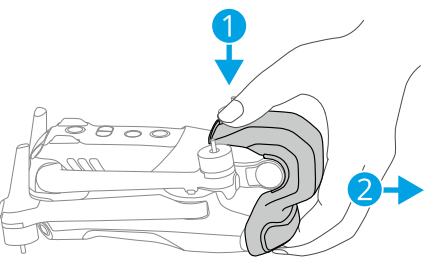
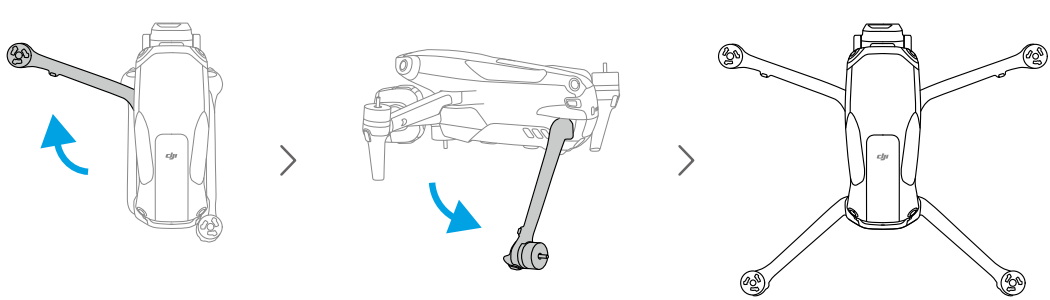
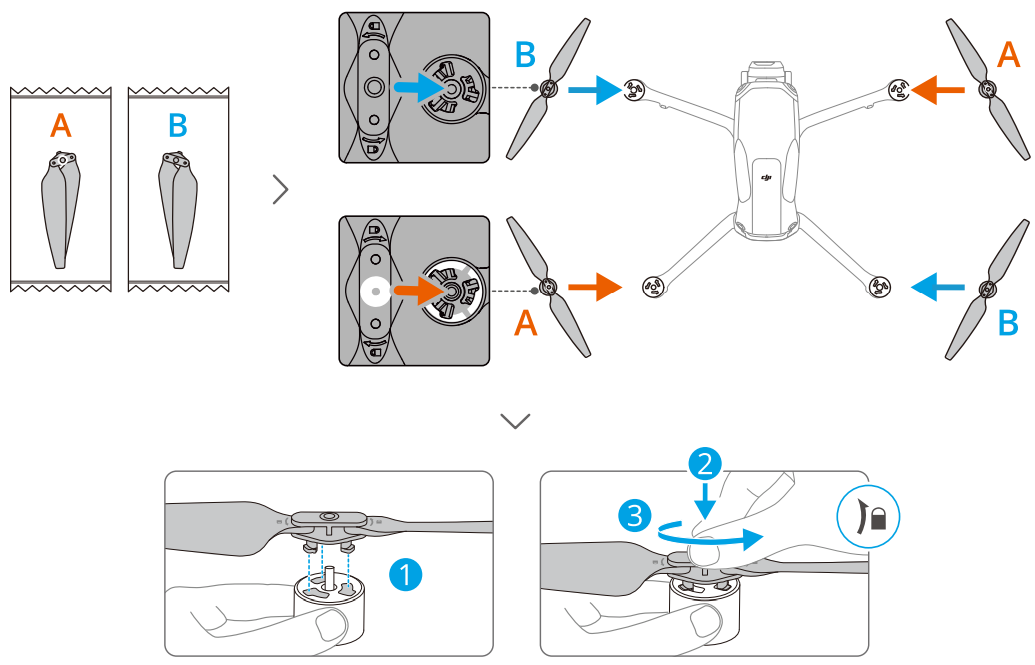
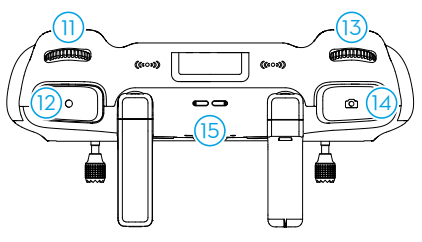
DJI RC 2 Remote Controller
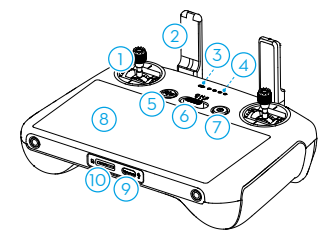
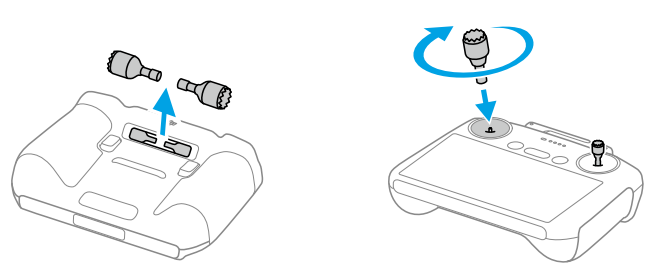
- Control Sticks
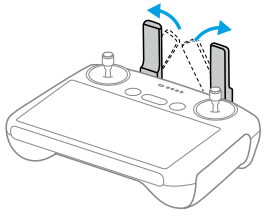
- Antennas
- Status LED
- Battery Level LEDs
- Flight Pause/Return to Home (RTH) Button
- Flight Mode Switch
- Power Button
- Touchscreen
- USB-C Port
- microSD Card Slot

- Gimbal Dial
- Record Button
- Camera Control Dial
- Focus/Shutter Button
- Speaker

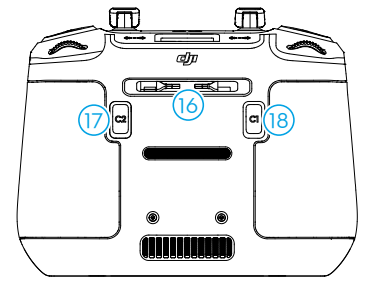
- Control Stick Storage Slots
- Customizable C2 Button
- Customizable C1 Button
DJI RC-N3 Remote Controller
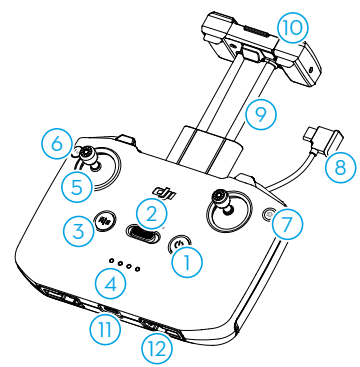
- Power Button
- Flight Mode Switch
- Flight Pause/Return to Home (RTH) Button
- Battery Level LEDs
- Control Sticks
- Customizable Button
- Photo/Video Button
- Remote Controller Cable
- Mobile Device Holder
- Antennas
- USB-C Port
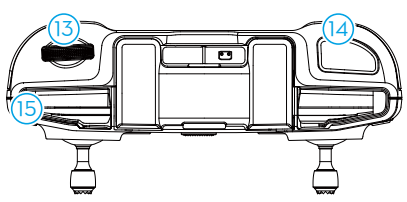
- Control Stick Storage Slots

- Gimbal Dial
- Shutter/Record Button
- Mobile Device Slot
Preparing the Remote Controller
- Remove the control sticks from the storage slots and mount them on the remote controller.

- Unfold the antennas.

- The controller needs to be activated before use, and an internet connection is required for activation.
- Press, then press and hold the power button to power on the remote controller.
- Follow the on-screen prompts to activate the remote controller.
DJI RC-N3
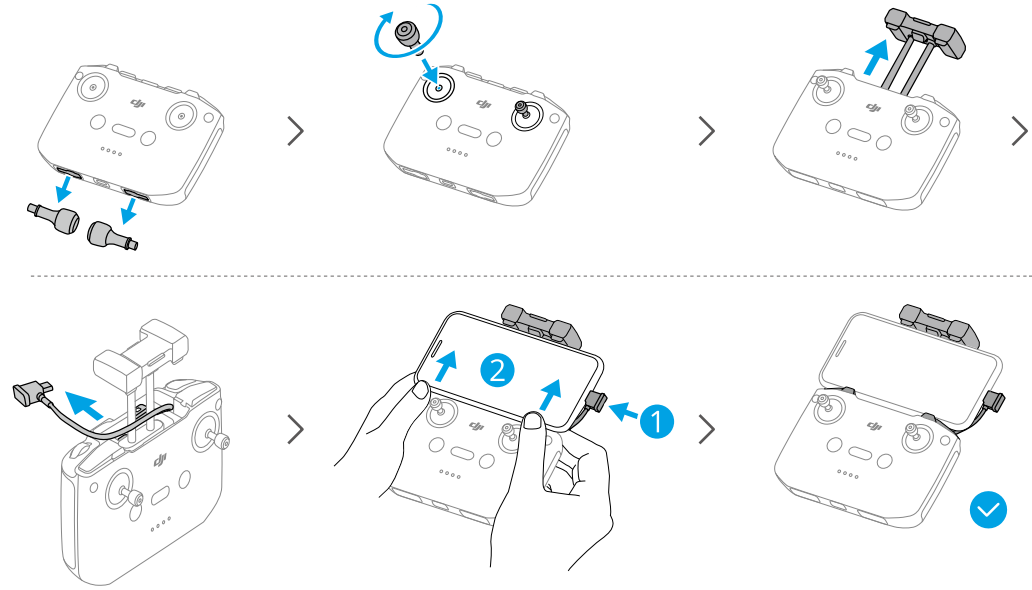
- Remove the control sticks from the storage slots and mount them on the remote controller. Pull out the mobile device holder. Choose the appropriate remote controller cable based on the port type of your mobile device (the cable with a USB-C connector is connected by default).
- Place your mobile device in the holder, then connect the end of the cable without the remote controller logo to your mobile device. Make sure your mobile device is securely in place.
- If a USB connection prompt appears when an Android mobile device is used, select the option to charge only. Other options may cause the connection to fail. Adjust the mobile device holder to make sure your mobile device is firmly secure.
Flight Modes
DJI Mavic 3 has three flight modes, plus a fourth flight mode that the aircraft switches to in certain scenarios. Flight modes can be switched via the Flight Mode switch on the remote controller.
Normal Mode: The aircraft utilizes GNSS and the Forward, Backward, Lateral, Upward, and Downward Vision Systems and Infrared Sensing System to locate and stabilize itself. When the Forward, Backward, Lateral, Upward, and Downward Vision Systems are enabled, and lighting and other environmental conditions are sufficient, the maximum tilt angle is 30°, and the maximum flight speed is 15 m/s.
Sport Mode: In Sport Mode, the aircraft uses GNSS for positioning, and the aircraft’s responses are optimized for agility and speed, making it more responsive to control stick movements. Note that obstacle sensing is disabled and the maximum flight speed is 21 m/s (19 m/s when flying in the EU).
Cine Mode: Cine mode is based on Normal mode, and the flight speed is limited, making the aircraft more stable during shooting.
- The Forward, Backward, Lateral, and Upward Vision Systems are disabled in Sport mode, which means the aircraft cannot sense obstacles on its route automatically.
- The maximum speed and braking distance of the aircraft significantly increase in Sport mode.
- A minimum braking distance of 30 m is required in windless conditions. A minimum braking distance of 10 m is required in windless conditions while the aircraft is ascending and descending.
Aircraft Status Indicators
DJI Mavic 3 has front LEDs and aircraft status indicators
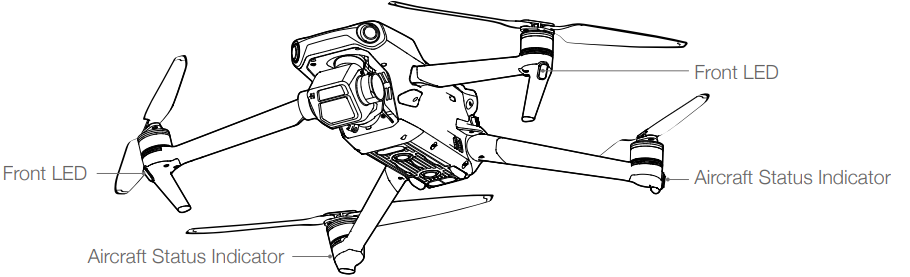
When the aircraft is powered on, but the motors are not running, the front LEDs glow solid red to display the orientation of the aircraft. When the aircraft is powered on, but the motors are not running, the aircraft status indicators display the status of the flight control system. Refer to the table below for more information about the aircraft status indicators.
Aircraft Status Indicator States
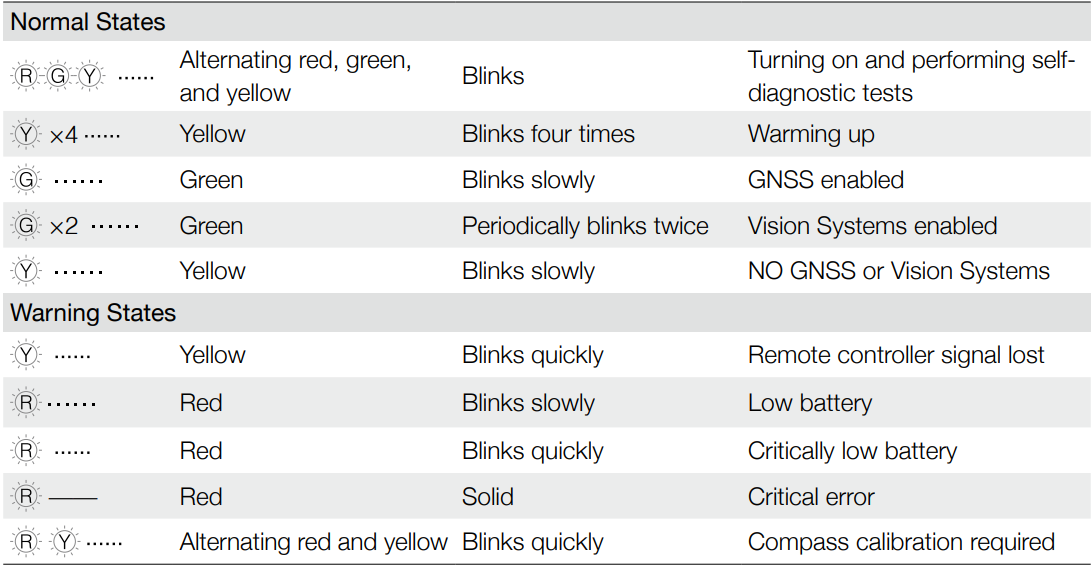
After the motor starts, the front LEDs blink red and green alternately, and the aircraft status indicators blink green. To obtain better footage, the front LEDs turn off automatically when shooting if the front LEDs are set to auto in DJI Fly. Lighting requirements vary depending on the region. Observe local laws and regulations.
Return to Home
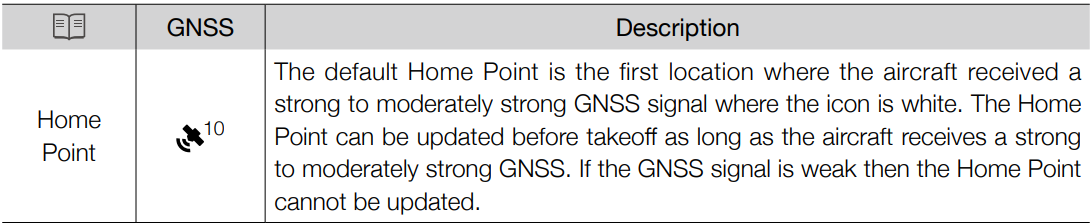
Return to Home (RTH) returns the aircraft to the last recorded Home Point when the positioning system is functioning normally. There are three types of RTH: Smart RTH, Low Battery RTH, and Failsafe RTH. The aircraft automatically flies back to the Home Point and lands when Smart RTH is initiated, the aircraft enters Low Battery RTH, or the video link signal is lost during flight.
Smart RTH
If the GNSS signal is sufficient, Smart RTH can be used to bring the aircraft back to the Home Point. Smart RTH is initiated either by tapping in DJI Fly or by pressing and holding the RTH button on the remote controller until it beeps. Exit Smart RTH by tapping in DJI Fly or by pressing the RTH button on the remote controller.
Advanced RTH
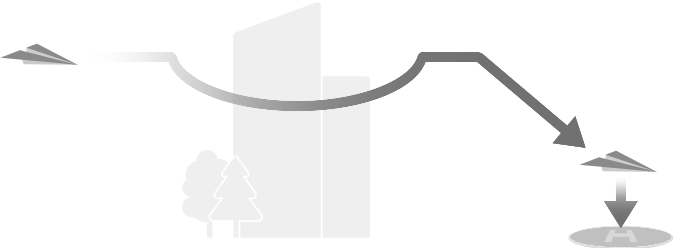
Advanced RTH is enabled if the lighting is sufficient and the environment is suitable for vision systems when Smart RTH is triggered. The aircraft will automatically plan the best RTH path, which will be displayed in DJI Fly and will adjust according to the environment.
RTH Settings
RTH settings are available for Advanced RTH. Go to the camera view in DJI Fly, tap System, Safety, and
then RTH.
- Optimal: Regardless of the RTH Altitude settings, the aircraft automatically plans the optimal RTH path and adjusts the altitude according to environmental factors such as obstacles and transmission signals.
- Preset: When the aircraft is further than 50 m from the home point when RTH begins, the aircraft will plan the RTH path, fly to an open area while avoiding obstacles, ascend to the RTH Altitude, and return to home using the best path.
Advanced RTH Procedure
- The Home Point is recorded. Advanced RTH is triggered. The aircraft brakes and hovers in place.
- The aircraft lands immediately if it is less than 5 m from the Home Point when RTH begins. The aircraft will fly automatically according to the RTH settings, environment, and the transmission signal during RTH. The aircraft lands, and the motors stop after reaching the Home Point.

Straight Line RTH
The aircraft will enter Straight Line RTH when the lighting is not sufficient, and the environment is not suitable for the vision systems. Straight Line RTH Procedure:
- The Home Point is recorded.
- Straight Line RTH is triggered.
- The aircraft brakes and hovers in place.
- The aircraft lands immediately if it is less than 5 m from the Home Point when RTH begins.
- The aircraft lands, and the motors stop after reaching the Home Point.
Low Battery RTH
Low Battery RTH is triggered when the Intelligent Flight Battery is depleted to the point that the safe return of the aircraft may be affected. Return home or land the aircraft immediately when prompted. In order to avoid unnecessary danger due to insufficient power, the aircraft automatically calculates if the battery power is sufficient to return to the Home Point according to the current position, environment, and flight speed.
Failsafe RTH
The aircraft will remain in RTH even if the remote controller signal is restored. When the lighting is not sufficient, and the vision systems are not available, the aircraft will enter Original Route RTH. Original Route RTH Procedure:
- The aircraft brakes and hovers in place.
- If the aircraft is farther than 50 m from the Home Point, the aircraft adjusts its orientation and flies backwards for 50 m on its original flight route before entering Straight Line RTH.
- If the aircraft is farther than 5 m but less than 50 m from the Home Point, it enters Straight Line RTH. The aircraft lands immediately if it is less than 5 m from the Home Point when RTH begins.
- The aircraft lands, and the motors stop after reaching the Home Point.
Landing Protection
Landing Protection will activate during Smart RTH. When the aircraft begins landing, Landing Protection is enabled.
- During Landing Protection, the aircraft will automatically detect and carefully land on suitable ground.
- If the ground is determined unsuitable for landing, the aircraft will hover and wait for the pilot’s confirmation. If Landing Protection is not operational,
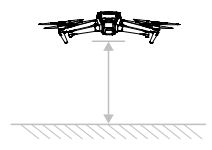
- DJI Fly will display a landing prompt when the aircraft descends below 0.5 m. Pull down on the throttle stick or use the auto landing slider to land.
Precision Landing
The aircraft automatically scans and attempts to match the terrain features below during RTH. The aircraft will land when the current terrain matches the Home Point. A prompt will appear in DJI Fly if the terrain match fails.
- Landing Protection is activated during Precision Landing.
- The Precision Landing performance is subject to the following conditions:
- The Home Point must be recorded upon takeoff and must not be changed during flight.
- Otherwise, the aircraft will have no record of the Home Point terrain features.
- During takeoff, the aircraft must ascend at least 7 m before flying horizontally.
- The Home Point terrain features must remain largely unchanged.
- The terrain features of the Home Point must be sufficiently distinctive.
- The lighting conditions must not be too light or too dark.
- Press the throttle stick down to accelerate landing.
- Move the control sticks in any direction apart from the throttle direction to stop Precision Landing.
- The aircraft will descend vertically after the control sticks are released.
Vision Systems and Infrared Sensing System
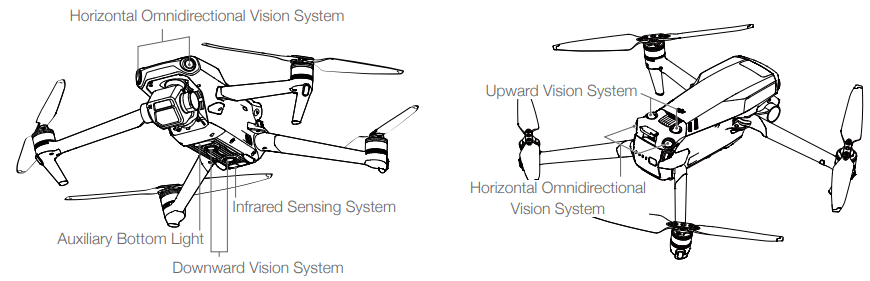
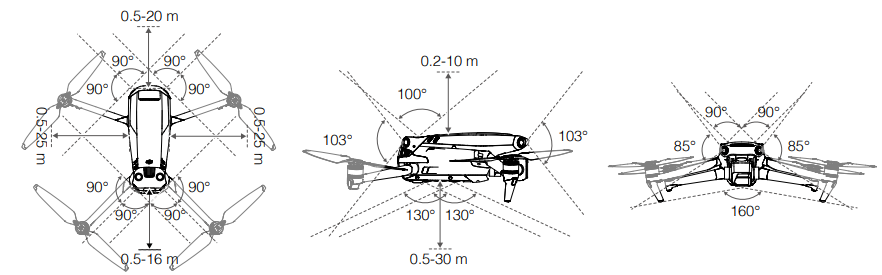
DJI Mavic 3 is equipped with both an Infrared Sensing System and Forward, Backward, Lateral, Upward, and Downward Vision Systems. The Upward and Downward Vision Systems consist of two cameras each, and the Forward, Backward, and Lateral Vision Systems consist of four cameras in total. The Infrared Sensing System consists of two 3D infrared modules. The Downward Vision System and Infrared Sensing System help the aircraft maintain its current position, hover in place more precisely, and fly indoors or in other environments where GNSS is unavailable.
Using the Vision Systems
The aircraft can actively brake when detecting obstacles when using the Forward, Backward, Lateral, and Upward Vision Systems. The Forward, Backward, Lateral, and Upward Vision Systems work best with adequate lighting and clearly marked or textured obstacles. Due to inertia, users must make sure to brake the aircraft within a reasonable distance.
- Flying over monochrome surfaces (e.g., pure black, pure white, pure green).
- Flying over highly reflective surfaces.
- Flying over water or transparent surfaces.
- Flying over moving surfaces or objects.
- Flying in an area where the lighting changes frequently or drastically.
- Flying over extremely dark (< 10 lux) or bright (> 40,000 lux) surfaces.
- Flying over surfaces that strongly reflect or absorb infrared waves (e.g., mirrors).
- Flying over surfaces without clear patterns or texture.
- Flying over surfaces with repeating identical patterns or textures (e.g., tiles with the same design).
- Flying over obstacles with small surface areas (e.g., tree branches).
Intelligent Flight Mode
FocusTrack
FocusTrack includes Spotlight 2.0, Point of Interest 3.0, and ActiveTrack 5.0.
Spotlight 2.0
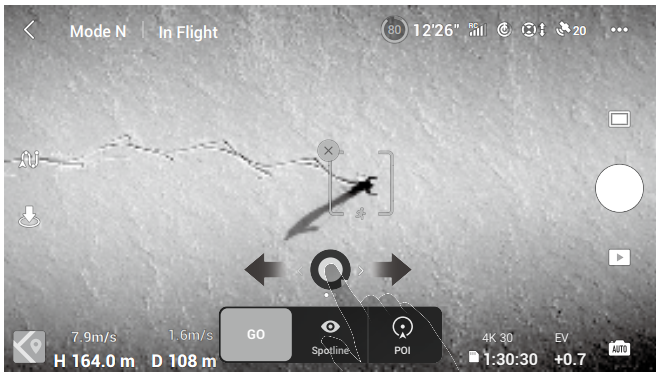
Control the aircraft manually while the camera remains locked on the subject. The mode supports both stationary and moving subjects such as vehicles, boats, and people. Move the roll stick to circle the subject, move the pitch stick to alter the distance from the subject, move the throttle stick to change the altitude, and move the pan stick to adjust the frame. In Spotlight mode, the aircraft will hover in place when there is an obstacle detected when the vision systems are working normally, no matter whether the behavior is set to Bypass or Brake in DJI Fly. Note that the vision systems are disabled in Sport mode.
Parallel
The aircraft tracks the subject at a constant angle and distance from the side. In ActiveTrack, the aircraft maintains a distance of 4-20 m when tracking people with an altitude of 2-20 m (the optimal distance is 5-10 m and altitude is 2-10 m), and a distance of 6-100 m when tracking vehicles or boats with an altitude of 6-100 m (the optimal distance is 20-50 m and altitude is 10-50 m). The aircraft will fly to the supported distance and altitude range if the distance and altitude are out of range when ActiveTrack begins. Fly the aircraft at the optimal distance and altitude for the best performance.
Using FocusTrack
- Take off.

- Drag a box around the subject in the camera view or enable Subject Scanning under Control settings in DJI Fly Control and tap the recognized subject to enable FocusTrack.

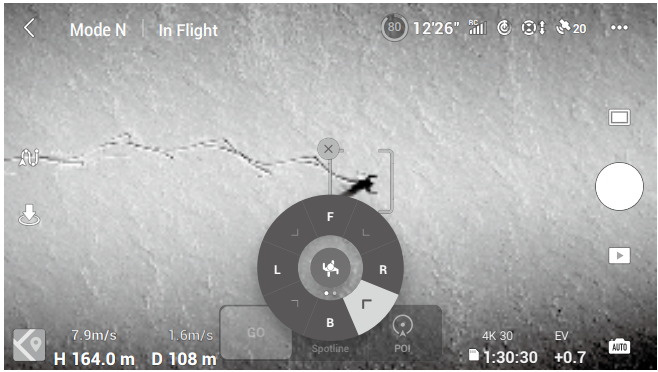
- In Trace of ActiveTrack, the tracking direction can be changed using the direction wheel.

- Tap the shutter/record button to take photos or start recording. View the footage in Playback.
Exiting FocusTrack
Tap Stop in DJI Fly or press the Flight Pause button once on the remote controller to exit FocusTrack.
- DO NOT use FocusTrack in areas with people and animals running or vehicles moving.
- DO NOT use FocusTrack in areas with small or fine objects (e.g., tree branches or power lines), or
transparent objects (e.g., water or glass). - Operate the aircraft manually. Press the Flight Pause button or tap stop in DJI Fly in an emergency
- Be extra vigilant when using FocusTrack in any of the following situations:
- The tracked subject is not moving on a level plane.
- The tracked subject changes shape drastically while moving.
- The tracked subject is out of sight for an extended period.
- The tracked subject is moving on a snowy surface.
- The tracked subject has a similar color or pattern to its surrounding environment.
- The lighting is extremely low (<300 lux) or high (>10,000 lux).
MasterShots
MasterShots keeps the subject in the center of the frame while executing different maneuvers in sequence to generate a short cinematic video.
Using MasterShots
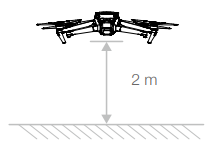
- Take off and hover at least 2 m above the ground.

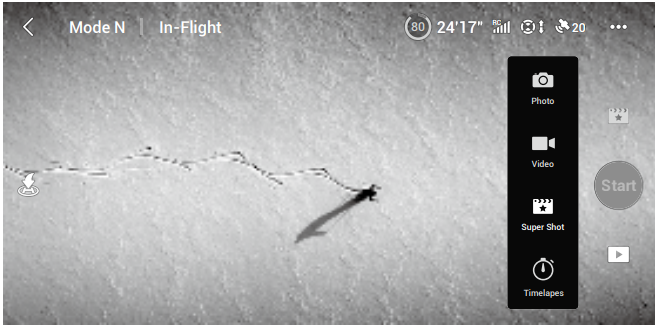
- In DJI Fly, tap the shooting mode icon to select MasterShots and follow the prompts. Make sure that you understand how to use the shooting mode and that there are no obstacles in the surrounding area.

- Tap to access the video.
Exiting MasterShots
Press the Flight Pause button once or tap in DJI Fly to exit MasterShots. The aircraft will hover in place.
- DO NOT use MasterShots in any of the following situations:
- a. When the subject is blocked for an extended period or outside the line of sight.
- b. When the subject is similar in color or pattern to the surroundings.
- c. When the subject is in the air.
- d. When the subject moves fast.
- e. The lighting is extremely low (<300 lux) or high (>10,000 lux).
- DO NOT use MasterShots in places that are close to buildings or where the GNSS signal is weak. Otherwise, the flight path will be unstable. Make sure to follow local privacy laws and regulations when using MasterShots.
Hyperlapse
Hyperlapse shooting modes include Free, Circle, Course Lock, and Waypoint.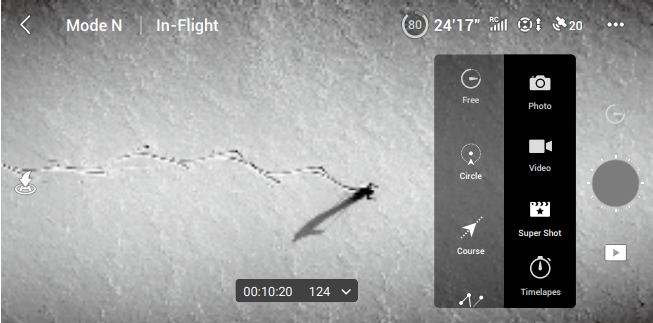
Free
The aircraft automatically takes photos and generates a time-lapse video. Free mode can be used while the aircraft is on the ground. After takeoff, control the movement and gimbal angle of the aircraft using the remote controller. Follow the steps below to use Free:
- Set the interval time, video duration, and max speed.
- The screen displays the number of photos that will be taken and how long the shooting time will be.
- Circle: The aircraft automatically takes photos while flying around the selected subject to generate a time-lapse video. Follow the steps below to use Circle:
- Set the interval time, video duration, and max speed. A circle can be selected to travel in either a clockwise or counterclockwise direction. The screen displays the number of photos that will be taken and how long the shooting time will be.
- Select a subject on the screen. Use the pan stick and gimbal dial to adjust the frame.
- Tap the shutter/record button to begin.
Course Lock
Course Lock can be used in two ways. Firstly, the orientation of the aircraft is fixed, but a subject cannot be selected. In the second way, the orientation of the aircraft is fixed, and the aircraft flies around a selected object. Follow the steps below to use Course Lock:
- Set the interval time, video duration, and max speed. The screen displays the number of photos that will be taken and how long the shooting time will be.
- Set a flight direction.
- If applicable, select a subject. Use the gimbal dial and pan stick to adjust the frame.
- Tap the shutter/record button to begin.
Waypoints
The aircraft automatically takes photos on a flight path of two to five waypoints and generates a time-lapse video. The aircraft can fly in order from waypoint 1 to 5 or 5 to 1. Follow the steps below to use Waypoints.
- Set the desired waypoints and the lens direction.
- Set the interval time, video duration, and max speed.
- Tap the shutter button to begin.
- The screen displays the number of photos that will be taken and how long the shooting time will be.
QuickShots
QuickShots shooting modes include Dronie, Rocket, Circle, Helix, Boomerang, and Asteroid. Mavic 3 records according to the selected shooting mode and automatically generates a short video. The video can be viewed, edited, or shared to social media from playback.
- Dronie: The aircraft flies backward and ascends, with the camera locked on the subject.
- Rocket: The aircraft ascends with the camera pointing downward.
- Circle: The aircraft circles around the subject.
- Helix: The aircraft ascends and spirals around the subject.
- Boomerang: The aircraft flies around the subject in an oval path, ascending as it flies away from its starting point and descending as it flies back.
Asteroid
The aircraft flies backward and upward, takes several photos, and then flies back to the starting point. The video starts with a panorama of the highest position and then shows the descent. Make sure there is sufficient space when using Asteroid. Allow at least 40 m behind and 50 m above the aircraft.
Using QuickShots
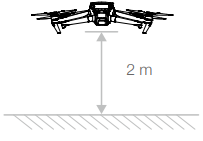
- Take off and hover at least 2 m above the ground

- In DJI Fly, tap the shooting mode icon to select QuickShots and follow the prompts. Make sure that
you understand how to use the shooting mode and that there are no obstacles in the surrounding area. - Select your target subject in the camera view by tapping the circle on the subject or dragging a box around the subject. Choose a shooting mode and tap Start to begin recording.

- Tap to access the video.
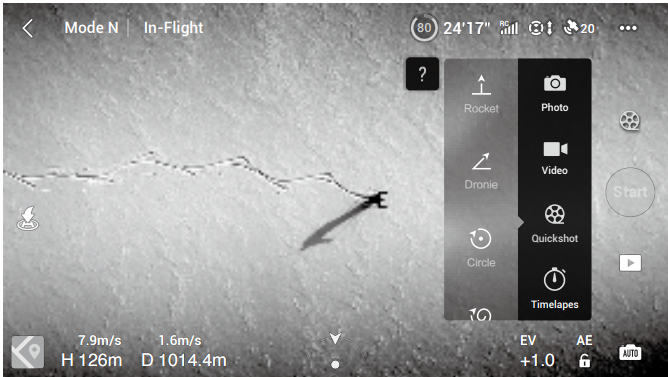
Exiting QuickShots
Press the Flight Pause button once or tap in DJI Fly to exit QuickShots. The aircraft will hover in place.
- Pay attention to objects around the aircraft and use the remote controller to avoid collisions with the aircraft. DO NOT use QuickShots in any of the following situations:
- When the subject is blocked for an extended period or outside the line of sight.
- When the subject is more than 50 m away from the aircraft.
- When the subject is similar in color or pattern to the surroundings.
- When the subject is in the air.
- When the subject moves fast.
- The lighting is extremely low (<300 lux) or high (>10,000 lux).
- DO NOT use QuickShots in places that are close to buildings or where the GNSS signal is weak. Otherwise, the flight path will be unstable.
- Make sure to follow local privacy laws and regulations when using QuickShots.
Advanced Pilot Assistance Systems (APAS 5.0)
The Advanced Pilot Assistance Systems 5.0 (APAS 5.0) feature is available in Normal and Cine mode. When APAS is enabled, the aircraft continues to respond to user commands and plans its path according to control stick inputs and the flight environment. APAS makes it easier to avoid obstacles, obtain smoother footage, and gives a better flying experience. Keep moving the control sticks in any direction. The aircraft will avoid the obstacles by flying above, below, or to the left or right of the obstacle. The aircraft can also respond to the control stick inputs while avoiding obstacles.
Landing Protection
- During Landing Protection, the aircraft will automatically detect and carefully land on suitable ground.
- If the ground is determined unsuitable for landing, the aircraft will hover when it descends below 0.8m
- Make sure you use APAS when the vision systems are available.
- Be extra cautious when flying in extremely dark (<300 lux) or bright (>10,000 lux) environments.
- Pay attention to DJI Fly and make sure APAS is working normally.
- APAS may not function properly when the aircraft is flying near flight limits or in a GEO zone.
Flight Recorder
Flight data, including flight telemetry, aircraft status information, and other parameters are automatically saved to the internal data recorder of the aircraft. The data can be accessed using DJI Assistant 2 (Consumer Drones Series).
QuickTransfer
Mavic 3 can connect directly to mobile devices via Wi-Fi, enabling users to download photos and videos from the aircraft to the mobile device through DJI Fly without the need for the RC-N1 remote controller. Users can enjoy faster and more convenient downloads with a transmission rate of up to 80 MB/s.
Usage
Method 1: The mobile device is not connected to the remote controller
- Power on the aircraft and wait until the self-diagnostic tests of the aircraft are complete.
- Make sure Bluetooth and Wi-Fi are enabled on the mobile device.
- Launch DJI Fly, and a prompt will automatically appear to connect to the aircraft.
- Tap Connect. Once successfully connected, the files on the aircraft can be accessed and downloaded at high speed.
Method 2: The mobile device is connected to the remote controller
- Enable Bluetooth and Wi-Fi on the mobile device.
- Launch DJI Fly, enter playback, and tap in the upper right corner to access the files on the aircraft to download at high speed.
- DJI RC Pro cannot support QuickTransfer. Make sure that Bluetooth, Wi-Fi, and location services are enabled on the mobile device before using QuickTransfer.
- When using QuickTransfer, it is not necessary to enter the Wi-Fi password on the settings page of the mobile device in order to connect. Launch DJI Fly, and a prompt will appear to connect the aircraft.
- Use QuickTransfer in an unobstructed environment with no interference and stay away from sources of interference such as wireless routers, Bluetooth speakers, or headphones.
Propellers
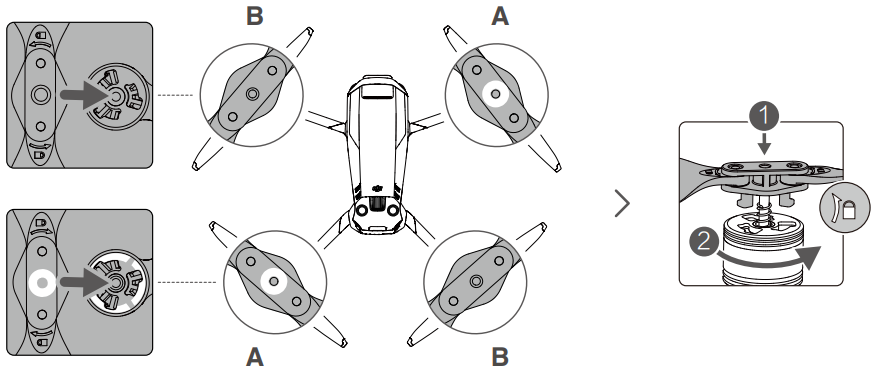
There are two types of DJI Mavic 3 Low-Noise Quick Release Propellers, which are designed to spin in different directions. Marks are used to indicate which propellers should be attached to which motors. Make sure to match the propeller and motor following the instructions.
Attaching the Propellers
Attach the propellers with marks to the motors with marks and the unmarked propellers to the motors without marks. Press each propeller down onto the motor and turn until it is secure.
Detaching the Propellers
Press the propellers down onto the motors and rotate them in the unlock direction.
- Propeller blades are sharp. Handle with care.
- Only use official DJI propellers. DO NOT mix propeller types.
- Purchase the propellers separately if necessary.
- Make sure that the propellers are installed securely before each flight.
- Stay away from the rotating propellers and motors to avoid injuries.
- Do not squeeze or bend the propellers during transportation or storage.
- DO NOT attempt to modify the structure of the motors.
- DO NOT block any of the ventilation holes on the motors or the body of the aircraft.
- Make sure the ESCs sound normal when powered on.
Intelligent Flight Battery
The DJI Mavic 3 Intelligent Flight Battery is a 15.4 V, 5000 mAh battery with smart charging and discharging functionality.
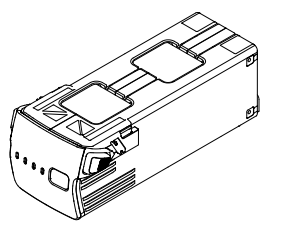
Battery Features
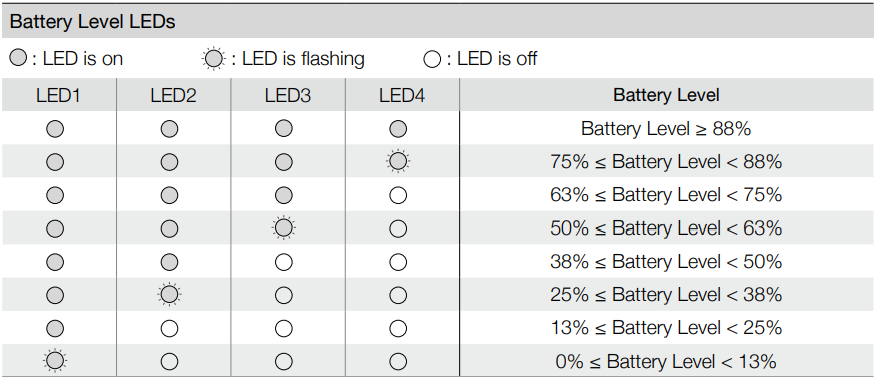
- Battery Level Display: The LED indicators display the current battery level.
- Auto-Discharging Function: To prevent swelling, the battery automatically discharges to 96% of the battery level when it is idle for three days, and automatically discharges to 60% of the battery level when it is idle for nine days.
- Balanced Charging: During charging, the voltages of the battery cells are automatically balanced.
- Overcharge Protection: The battery stops charging automatically once fully charged.
- Temperature Detection: In order to protect itself, the battery only charges when the temperature is between 5° and 40° C (41° and 104° F).
- Overcurrent Protection: The battery stops charging if an excess current is detected.
- Over-Discharge Protection: Discharging stops automatically to prevent excess discharge when the battery is not in use. Over-discharge protection is not enabled when the battery is in use.
- Short Circuit Protection: The power supply is automatically cut off if a short circuit is detected.
- Battery Cell Damage Protection: Displays a warning prompt when a damaged battery cell is detected.
- Hibernation Mode: Charge the battery to wake it from hibernation.
- Communication: Information about the voltage, capacity, and current of the battery is transmitted to the aircraft.
Using the Battery
Checking Battery Level
Press the power button once to check the battery level
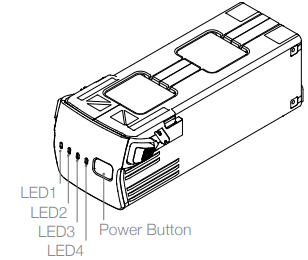
Powering On/Off
Press the power button once, then press againand hold for two seconds to power the battery on or off. The battery level LEDs display the battery level when the aircraft is powered on.
Low Temperature Notice
- Battery capacity is significantly reduced when flying in low-temperature environments of -10° to 5° C (14° to 41° F). It is recommended to hover the aircraft in place for a while to heat the battery. Make sure to fully charge the battery before takeoff.
- When in low-temperature environments, end the flight as soon as DJI Fly displays the low battery level warning. To ensure the optimal performance of the battery, keep the battery temperature above 20° C (68° F).
- The reduced battery capacity in low-temperature environments reduces the wind speed resistance performance of the aircraft. Fly with caution. Fly with extra caution at high sea levels.
Charging the Battery
Fully charge the Intelligent Flight Battery before every flight using the provided Mavic 3 Battery Charging Hub and DJI 65W Portable Charger.
Using Charging Hub
When used with the DJI 65W Portable Charger, the DJI Mavic 3 Battery Charging Hub can charge up to three Intelligent Flight Batteries in sequence from high to low power level. The charging time for one battery is approximately 1 hour and 36 minutes.
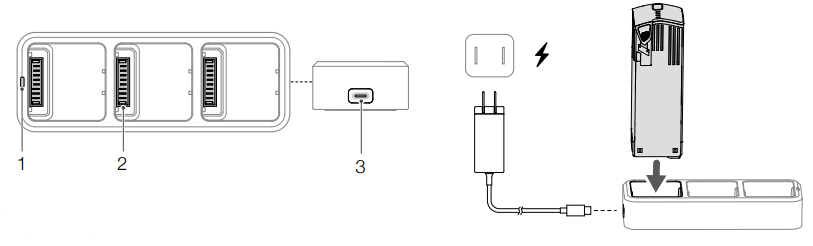
- Status LED Indicator
- Battery Port
- Power Port
Usage
- Insert the Intelligent Flight Battery into the battery port. Connect the charging hub to a power outlet (100-240 V, 50-60 Hz) using the DJI 65W Portable Charger.
- The Intelligent Flight Battery with the highest power level will be charged first, and then the rest will be charged in sequence according to their power levels.
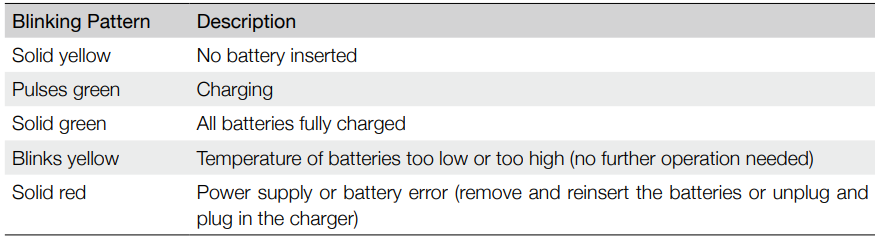
- Refer to the Status LED Indicator Descriptions section for more information about the blinking patterns of the status LED indicator. The Intelligent Flight Battery can be disconnected from the charging hub when charging is complete.
Status LED Indicator Descriptions
- It is recommended to use a DJI 65W Portable Charger or a DJI Mavic 3 Car Charger when using the Mavic 3 Battery Charging Hub to charge Mavic 3 Intelligent Flight Batteries.
- The charging hub is only compatible with BWX260-5000-15.4 Intelligent Flight Batteries.
- DO NOT attempt to use the charging hub with other battery models.
- Place the charging hub on a flat and stable surface when in use.
- Make sure the device is properly insulated to prevent fire hazards.
- DO NOT attempt to touch the metal terminals on the product.
- Clean the metal terminals with a clean, dry cloth if there is any noticeable buildup.
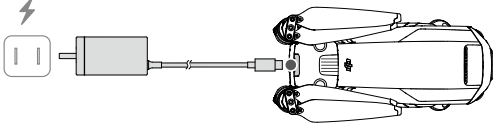
Using the DJI 65W Portable Charger
- Connect the DJI 65W Portable Charger to an AC power supply (100-240 V, 50/60 Hz).
- Attach the aircraft to the charger using the battery charging cable with the battery powered off.
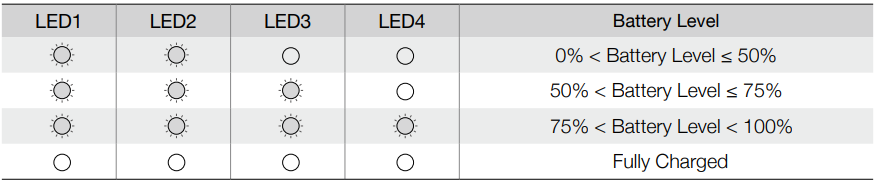
- The battery level LEDs display the current battery level during charging.
- The Intelligent Flight Battery is fully charged when all the battery level LEDs are off. Detach the charger when the battery is fully charged.
- DO NOT charge an Intelligent Flight Battery immediately after flight, as the temperature may be too high. Wait until it cools down to room temperature before charging again.
- The charger stops charging the battery if the battery cell temperature is not within the operating range of 5° to 40° C (41° to 104° F). The ideal charging temperature is 22° to 28° C (71.6° to 82.4° F).
The table below shows the battery level during charging.
Battery Protection Mechanisms
The battery LED indicator can display battery protection prompts triggered by abnormal charging conditions.
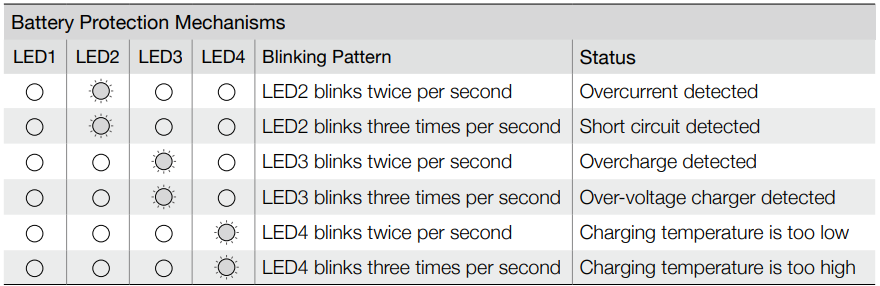
If the battery protection mechanisms activate, in order to resume charging, it is necessary to unplug the battery from the charger and plug it in again. If the charging temperature is abnormal, wait for the charging temperature to return to normal, and the battery will automatically resume charging without requiring unpluggingand replugging the charger.
Inserting the Intelligent Flight Battery
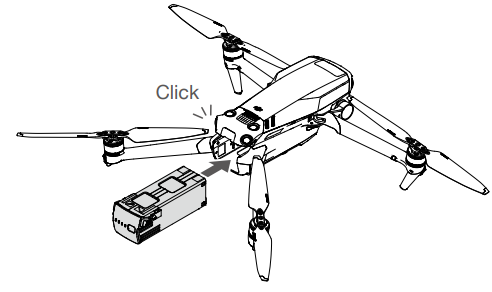
Insert the Intelligent Flight Battery into the battery compartment of the aircraft. Make sure it is mounted securely and that the battery buckles click into place.
Removing the Intelligent Flight Battery
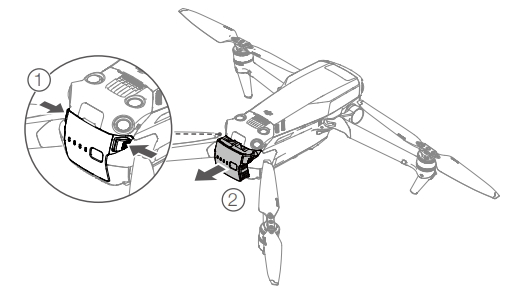
Press the textured part of the battery buckles on the sides of the Intelligent Flight Battery to remove it from the compartment.
- DO NOT detach the battery when the aircraft is powering on.
- Make sure that the battery is mounted firmly.
Gimbal and Camera
Gimbal Profile
The 3-axis gimbal of the DJI Mavic 3 provides stabilization for the camera, allowing you to capture clear and stable images and video. The control tilt range is 0° to +35°.
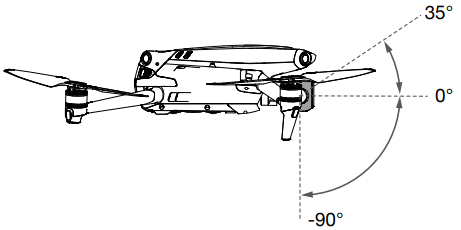
Use the gimbal dial on the remote controller to control the tilt of the camera. Alternatively, enter the camera view in DJI Fly. Press the screen until an adjustment bar appears and drag up and down to control the tilt of the camera.
Gimbal Operation Modes
Two gimbal operation modes are available. Switch between the different operation modes in DJI Fly. Follow Mode: The angle between the gimbal’s orientation and the aircraft’s front remains constant at all times. FPV Mode: The gimbal synchronizes with the movement of the aircraft to provide a first-person flying experience.
- Do not tap or knock the gimbal when the aircraft is powered on.
- To protect the gimbal during takeoff, take off from open and flat ground.
- Avoid getting dust or sand on the gimbal, especially in the gimbal motors.
- DO NOT apply external force to the gimbal after the gimbal is powered on.
- Make sure to remove the storage cover before powering on the aircraft.
- Also, make sure to mount the storage cover when the aircraft is not in use.
- Flying in heavy fog or clouds may make the gimbal wet, leading to temporary failure.
- The gimbal recovers full functionality once it is dry.
Gimbal Axes Lock
For more convenient storage, the gimbal axes will automatically lock after the aircraft is powered off and unlock when it is powered on again. No user operation is required.
- If the gimbal lock malfunctions, it will resume normal operation once the operating temperature is
-10° to 40° C (14° to 104° F). - It is normal for the gimbal to unlock if it is impacted in any way.
- Restart the aircraft to lock the gimbal again.
- It is normal for the gimbalto vibrate slightly after it is locked.
Camera Profile
DJI Mavic 3 uses a 4/3-in CMOS sensor Hasselblad L2D-20c camera, which can take 20MP photos and record at 5.1K 50fps/DCI 4K 120fps Apple ProRes 422 HQ and H.264/H.265 format videos. The camera also supports 10-bit D-Log video, has an adjustable aperture of f/2.8 to f/11, and can shoot from 1 m to infinity. The tele camera boasts a 1/2-in CMOS sensor, capable of shooting 12MP photos with an aperture of f/4.4 and shooting from 3 m to infinity. When in Explore mode, the tele camera can zoom at 28x.
- Make sure the temperature and humidity are suitable for the camera during usage and storage.
- Use a lens cleanser to clean the lens to avoid damage.
- DO NOT block any ventilation holes on the camera, as the heat generated may damage the device and hurt the user.
Storing Photos and Videos
DJI Mavic 3 has 8 GB of built-in storage and supports the use of a microSD card to store photos and videos. A SDXC, UHS-I, or UHS-II microSD card is required due to the fast read and write speeds necessary for high-resolution video data. Refer to the Specifications section for more information about recommended microSD cards. In addition, the DJI Mavic 3 Cine aircraft comes with a built-in 1TB SSD. The footage can be output quickly via the DJI 10Gbps Lightspeed Data Cable.
- Do not remove the microSD card from the aircraft while it is powered on.
- Otherwise, the microSD card may be damaged.
- To ensure the stability of the camera system, single video recordings are limited to 30 minutes.
- Check camera settings before use to ensure they are configured as desired.
- Photos or videos cannot be transmitted or copied from the camera if the aircraft is powered off.
Remote Controller
DJI RC Pro
The DJI RC Pro remote controller features O3+, the latest version of DJI’s signature OcuSync image transmission technology, which works at both 2.4 and 5.8 GHz, is capable of selecting the best transmission channel automatically, and can transmit a live HD view from the camera of the aircraft at a distance of up to 15 km. The built-in 5.5-in high-brightness 1000 cd/m2 screen boasts a resolution of 1920×1080 pixels, while the remote controller comes with a wide range of aircraft and gimbal controls as well as customizable buttons.
Users can connect to the internet via Wi-Fi, and the Android 10 operating system comes with a variety of functions, such as Bluetooth and GNSS (GPS+GLONASS+Galileo). With the built-in speaker, the remote controller supports H.264 4K/120fps and H.265 4K/120fps video, which also supports video output via the Mini HDMI port. The internal storage of the remote controller is 32 GB and also supports the use of microSD cards to store photos and videos. The 5000 mAh and 36 Wh battery provides the RC Pro with a maximum operating time of 3 hours.
Using the Remote Controller
Powering On/Off
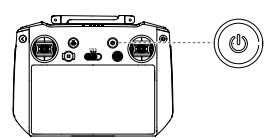
Press the power button once to check the current battery level. Press and then press again and hold to power the remote controller on or off.
Charging the Battery
Use a USB-C cable to connect the charger to the USB-C port of the remote controller.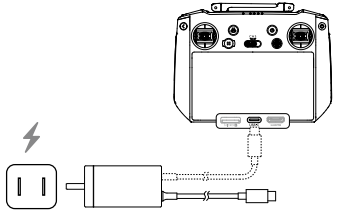
Controlling the Gimbal and Camera
Focus/Shutter Button: Press halfway down to auto focus and press all the way down to take a photo. Record Button: Press once to start or stop recording. Camera Control Dial: Use to adjust the zoom. Gimbal Dial: Used to adjust the tilt of the gimbal.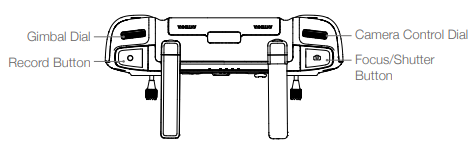
Controlling the Aircraft
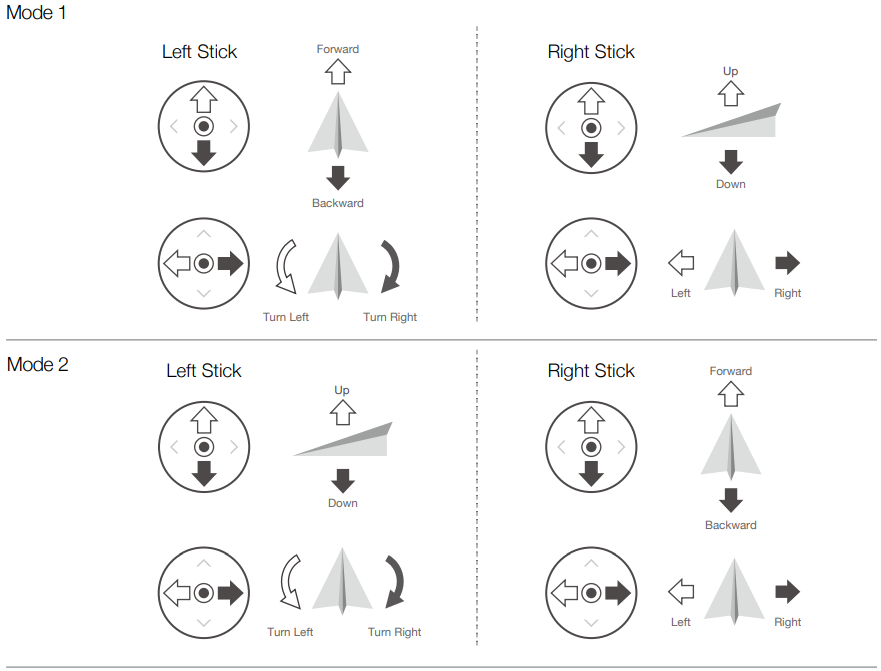
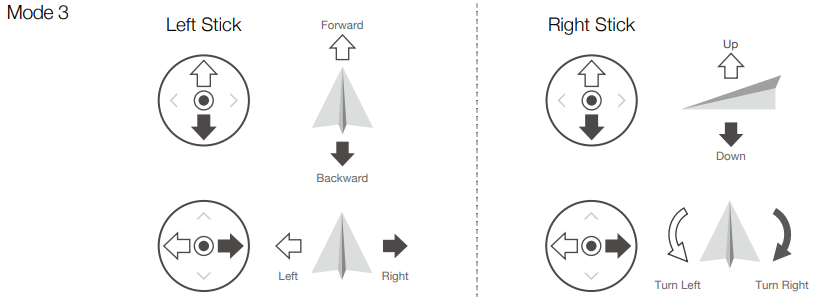
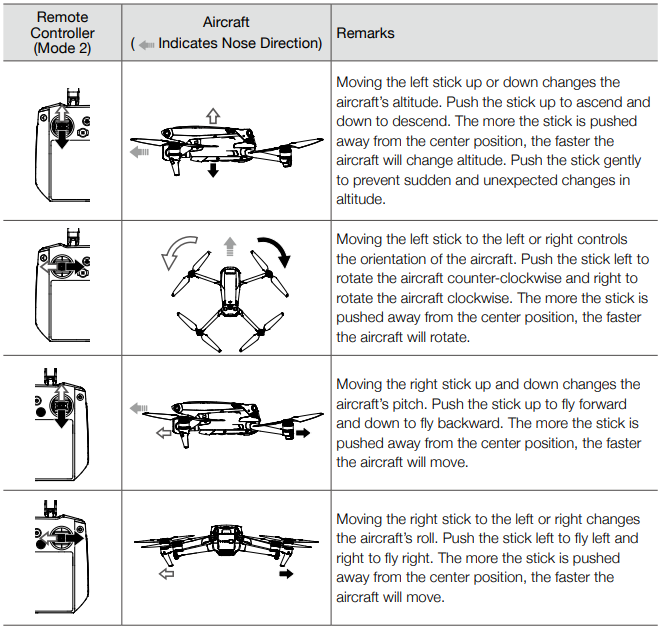
Three preprogrammed modes (Mode 1, Mode 2, and Mode 3) are available, and custom modes can be configured in DJI Fly. The default mode is Mode 2.
Flight Mode Switch
Toggle the switch to select the flight mode.

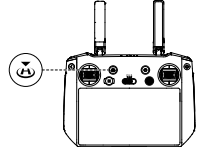
RTH Button
Press and hold the RTH button until the remote controller beeps to start RTH. Press this button again to cancel RTH and regain control of the aircraft. Refer to the Return to Home section for more information about RTH.
Customizable Buttons
Including C1, C2, and the 5D button. Go to System Settings in DJI Fly and select Control to customize the function of the button.
Combination Buttons
- Back + Gimbal Dial: Adjust Brightness
- Back + Camera Control Dial: Adjust Volume
- Back + Record Button: Record Screen
- Back + Shutter Button: Screenshot
- Back + 5D Button: Up – Home, Down – Shortcut Settings, Left – Recent
Status LED
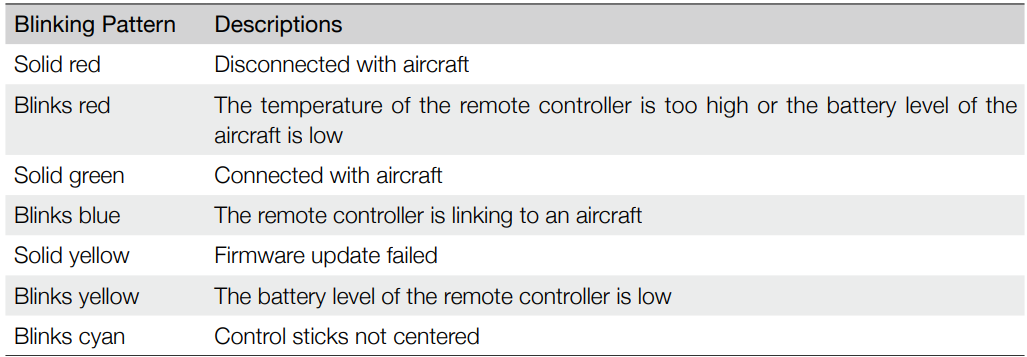
Battery Level Indicators
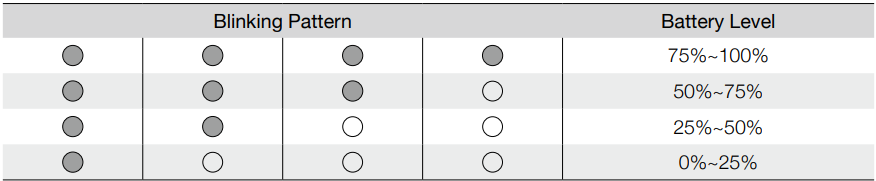
Remote Controller Alert
The remote controller vibrates or beeps when there is an error or warning. Pay attention when prompts appear on the touchscreen or in DJI Fly. Slide down from the top to select Do Not Disturb or Mute to disable some alerts.
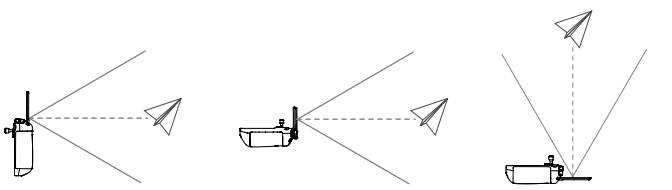
Optimal Transmission Zone
The signal between the aircraft and the remote controller is most reliable when the antennas are positioned in relation to the aircraft, as illustrated below. The optimal transmission range is where the antennas are facing toward the aircraft and the angle between the antennas and the back of the remote controller is 180° or 270°.
- Do not use other wireless devices operating at the same frequency as the remote controller.
- Otherwise, the remote controller will experience interference.
- A prompt will be received in DJI Fly if the transmission signal is weak during flight.
- Adjust the antennas to make sure that the aircraft is in the optimal transmission range.
Linking the Remote Controller
The aircraft and remote controller must be linked before use. Follow these steps to link a new remote controller.
Method 1
- Power on the remote controller and the aircraft.
- Press and hold the power button of the aircraft for more than four seconds.
- The aircraft beeps once to indicate it is ready to link.
- The aircraft beeps twice to indicate linking is successful.
- The battery level LEDs of the remote controller will glow solidly.
Method 2
- Power on the remote controller and the aircraft. Launch DJI Fly.
- In camera view, tap and select Control and Pair to Aircraft (Link).
- Press and hold the power button of the aircraft for more than four seconds.
- The aircraft beeps once, indicating it is ready to link.
- The aircraft beeps twice, indicating linking is successful.
- The battery level LEDs of the remote controller will glow solidly.
Quick Settings
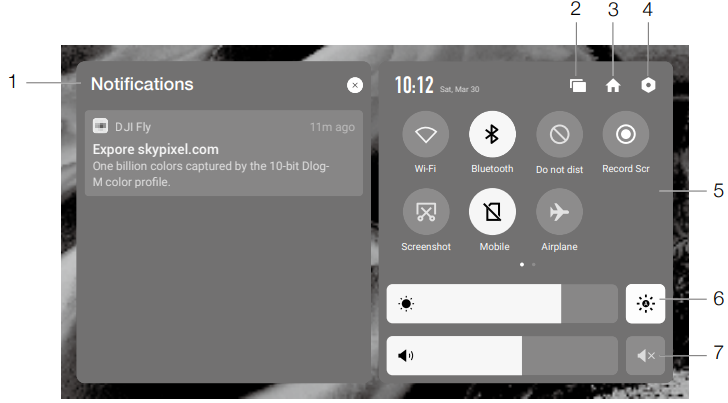
- Notifications Tap to check system notifications.
- Recent Tap to check recently opened apps.
- Home Tap to return to the home screen.
- System Settings Tap to access system settings.
- Shortcuts
- Tap to enable or disable Wi-Fi. Hold to enter settings and connect to or add a Wi-Fi network.
- Tap to enable or disable Bluetooth.
- Hold to enter settings and connect with nearby Bluetooth devices.
- Tap to enable Do Not Disturb mode. In this mode, system prompts will be disabled.
- While recording, the screen displays the recording time. Tap Stop to stop recording.
- Tap to screenshot the screen. Mobile data.
- Tap to enable Airplane mode. Wi-Fi, Bluetooth, and mobile data will be disabled.
- Adjusting Brightness: The screen is in auto brightness mode when the icon is highlighted.
- Tap this icon or slide the bar, and the icon will switch to manual brightness mode.
- Adjusting Volume: Slide the bar to adjust the volume and tap to mute.
Advanced Feature
Calibrating the Compass
The compass may need to be calibrated after the remote controller is used in areas with electromagnetic
interference. A warning prompt will appear if the compass of the remote controller requires calibration.
Tap the warning prompt to start calibrating. In other cases, follow the steps below to calibrate your
remote controller.
- Enter the home screen.
- Select Settings, scroll down, and tap Compass.
- Follow the diagram on the screen to calibrate your remote controller.
- The user will receive a prompt when the calibration is successful.
HDMI Settings
The touchscreen can be shared with a display after connecting the HDMI port of the remote controller. The resolution can be set by entering Settings, Display, and then Advanced HDMI.
RC-N1
Built into the remote controller is DJI’S long-range transmissiontechnology, offering a maximum transmission range of 15 km and displaying video from the aircraft to DJI Fly on a mobile device at up to 1080p 60fps (depending on phone type).
- Compliance Version: The remote controller is compliant with local regulations.
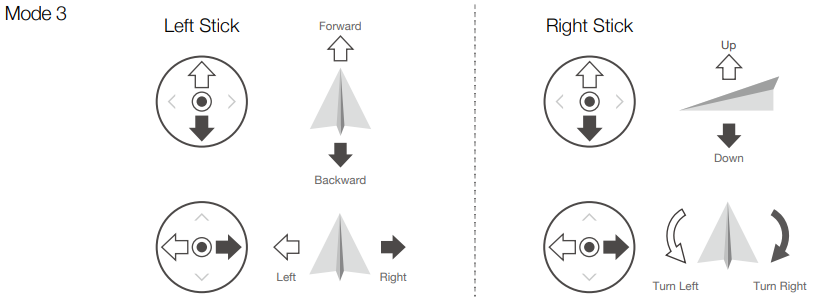
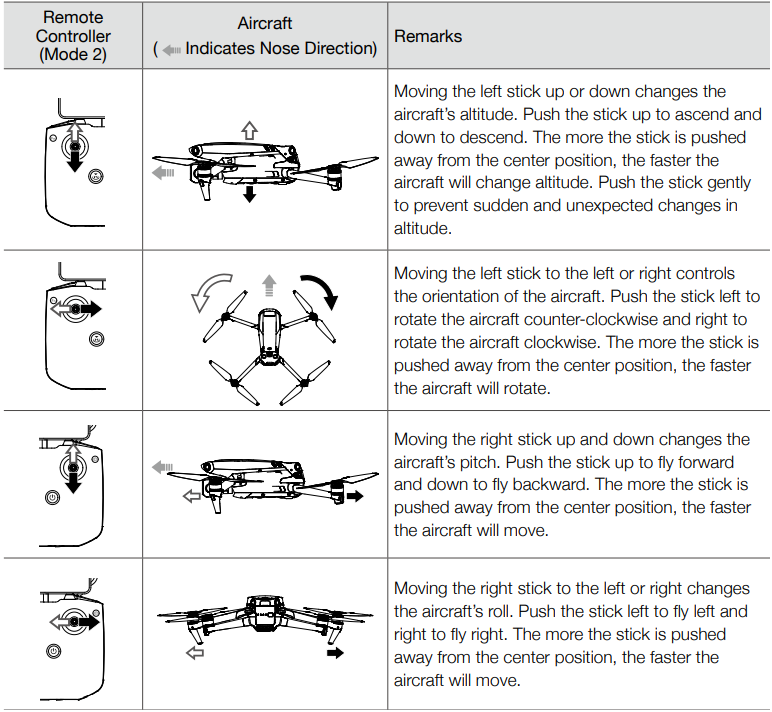
- Control Stick Mode: The control stick mode determines the function of each control stick movement. Three pre-programmed modes (Mode 1, Mode 2, and Mode 3) are available, and custom modes can be configured in DJI Fly. The default mode is Mode 2.
Using the Remote Controller
Powering On/Off
Press the power button once to check the current battery level. Press once, then again, and hold to power the remote controller on or off. If the battery level is too low, recharge before use.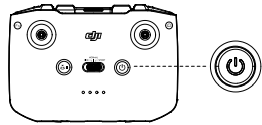
Charging the Battery
Use a USB-C cable to connect the provided charger to the USB-C port of the remote controller. It takes approximately four hours to fully charge the remote controller.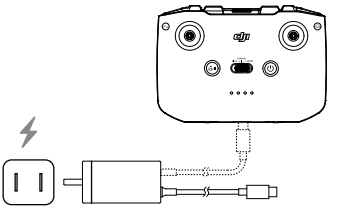
Controlling the Gimbal and Camera
Shutter/Record Button: Press once take a photo or to start or stop recording. Photo/Video Toggle: Press once to switch between photo and video mode. Gimbal Dial: Used to control the tilt of the gimbal. Press and hold the customizable button in order to be able to use the gimbal dial to adjust the zoom in explore mode.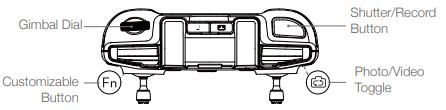
Controlling the Aircraft
The control sticks control the aircraft’s orientation (pan), forward/backward movement (pitch), altitude (throttle), and left/right movement (roll). The control stick mode determines the function of each control stick movement. Three preprogrammed modes (Mode 1, Mode 2, and Mode 3) are available, and custom modes can be configured in DJI Fly. The default mode is Mode 2.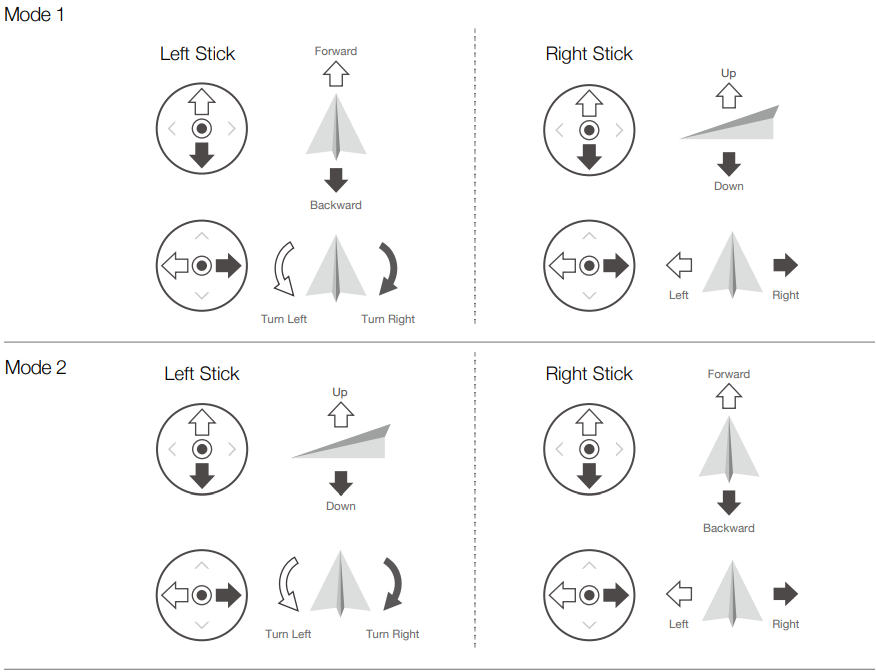
Flight Mode Switch
Toggle the switch to select the flight mode.
Flight Pause/RTH Button
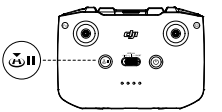
Press once to make the aircraft brake and hover in place. If the aircraft is performing Smart RTH or auto landing, press once to exit the procedure and then brake. Press and hold the RTH button until the remote controller beeps to start RTH. Press this button again to cancel RTH and regain control of the aircraft. Refer to the Return to Home section for more information about RTH.
Customizable Button
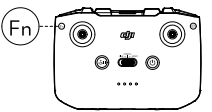
Go to System Settings in DJI Fly and select Control to customize the function of the button. Functions include recentering the gimbal, switching the auxiliary LED, and toggling the map and live view.
Remote Controller Alert
The remote controller sounds an alert during RTH or when the battery level is low (6% to 15%). The low battery alert level can be cancelled by pressing the power button. The critical battery level alert (less than 5%), however, cannot be cancelled.
Optimal Transmission Zone
The signal between the aircraft and the remote controller is most reliable when the antennas are positioned in relation to the aircraft as depicted below.

Linking the Remote Controller
The aircraft and remote controller must be linked before use. Follow these steps to link a new remote controller:
- Power on the remote controller and the aircraft.
- Launch DJI Fly.
- In camera view, tap and select Control and Pair to Aircraft (Link).
- Press and hold the power button of the aircraft for more than four seconds.
- The aircraft beeps once, indicating it is ready to link.
- The aircraft beeps twice, indicating linking is successful.
- The battery level LEDs of the remote controller will glow solidly.
Home
Launch DJI Fly and enter the home screen.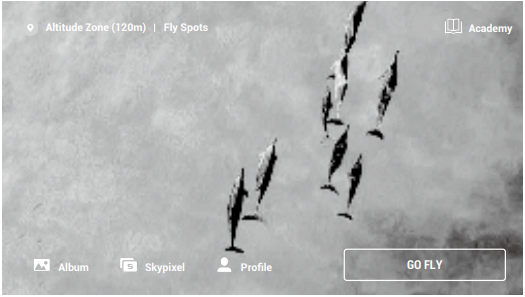
Fly Spots
View or share nearby suitable flight and shooting locations, learn more about GEO zones, and preview aerial photos of different locations taken by other users.
Academy
Tap the icon in the top right corner to enter Academy. Product tutorials, flight tips, flight safety, and manual documents can be viewed here.
Album
Allows you to view photos and videos from DJI Fly and your mobile device. Create contains Templates and Pro. Templates provides auto edit feature for imported footage. Pro allows you to edit the footage manually.
SkyPixel
Enter SkyPixel to view videos and photos shared by users.
Profile
View the account information, flight records, DJI forum, online store, Find My Drone feature, and other settings.
Camera View
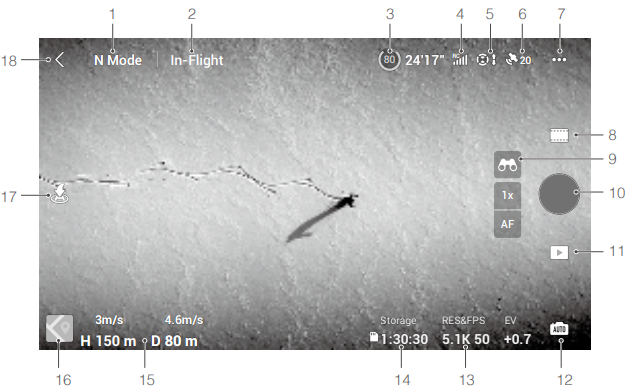
- Flight Mode N: Displays the current flight mode.
- System Status Bar In-Flight: Indicates aircraft flight status and displays various warning messages.
- Battery Information 80 24’17”: Displays the current battery level and remaining flight time.
- Video Downlink Signal Strength RC: Displays the video downlink strength between the aircraft and remote controller.
- System Settings: Tap to view information about safety, control, and transmission.
- Sensors: Tap to view the IMU and compass status and start to calibrate if necessary.
- Battery: Tap to view the battery information, such as battery cell status, serial number, times charged, and production date.
- Auxiliary LED: Tap to set the auxiliary LED to auto, on, or off. Do not turn on the Auxiliary LED before takeoff.
Camera
General Settings: Tap to view and set histogram, overexposure warning, gridlines, peaking level, white balance, auto sync HD photos, and cache when recording. Storage Location: Footage can be stored in the aircraft or on a microSD card. Internal storage and microSD cards can be formatted. The max video cache capacity settings and camera reset settings can also be adjusted.
- Shutter/Record Button Tap to take a photo or to start or stop recording a video.
- Playback: Tap to enter playback and preview photos and videos as soon as they are captured.
- Camera Modes Switch: Choose between Auto and Pro mode when in photo mode.
- Shooting Parameters RES&FPS 5.1K 50: Displays the current shooting parameters.
- Storage Information 1:30:30 Storage: Displays the remaining number of photos or video recording time of the current storage. Tap to view the available capacity of the SSD or microSD card.
- Flight Telemetry D 80m H 150m 4.6m/s 3m/s: Displays the distance between the aircraft and the Home Point, height from the Home Point, aircraft horizontal speed, and aircraft vertical speed.
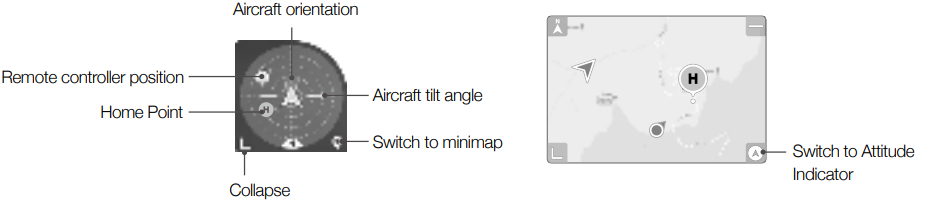
- Map: Tap to switch to the Attitude Indicator, which displays information such as the orientation and tilt angle of the aircraft, position of the remote controller, and position of the Home Point.
Auto Takeoff/Landing/RTH
Tap the icon. When the prompt appears, press and hold the button to initiate auto takeoff or landing. Tap to initiate Smart RTH and have the aircraft return to the last recorded Home Point.
- Make sure to fully charge your device before launching DJI Fly.
- If you are using a mobile phone as your display device,
- DO NOT accept phone calls or use texting features during a flight.
- Read all safety tips, warning messages, and disclaimers carefully.
- The app is designed to assist your operation.
- Use your sound discretion and DO NOT rely on the app to control your aircraft.
- Your use of the app is subject to the DJI Fly Terms of Use and the DJI Privacy Policy.
Flight
Once pre-flight preparation is complete, it is recommended to hone your flight skills and practice flying safely. Make sure that all flights are carried out in an open area. Refer to the Remote Controller and DJI Fly sections for information about using the remote controller and the app to control the aircraft.
Flight Environment Requirements
- Do not use the aircraft in severe weather conditions, including wind speeds exceeding 12 m/s, snow, rain, and fog. Only fly in open areas. Tall structures and large metal structures may affect the accuracy of the onboard compass and GNSS system.
- Avoid obstacles, crowds, high voltage power lines, trees, and bodies of water. Minimize interference by avoiding areas with high levels of electromagnetism, such as locations near power lines, base stations, electrical substations, and broadcasting towers.
- Aircraft and battery performance are subject to environmental factors such as air density and temperature. Aircraft cannot use GNSS within the polar regions. Use the Downward Vision System when flying in such locations. If taking off from a moving surface, such as a moving boat or vehicle, fly with caution.
Flight Limits and GEO Zones
Unmanned aerial vehicle (UAV) operators should abide by the regulations from self-regulatory organizations such as the International Civil Aviation Organization, the Federal Aviation Administration, and local aviation authorities. Users can set flight limits on height and distance. Altitude limits, distance limits, and GEO zones function concurrently to manage flight safety when GNSS is available.
Flight Altitude and Distance Limits
The flight altitude and distance limits can be changed in DJI Fly. Based on these settings, the aircraft will fly in a restricted cylinder, as shown below:
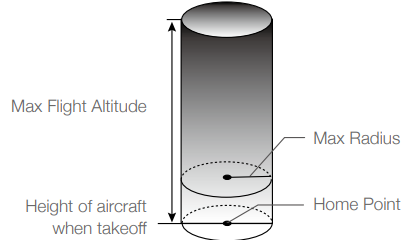
When GNSS is available

Only the Downward Vision System is available.
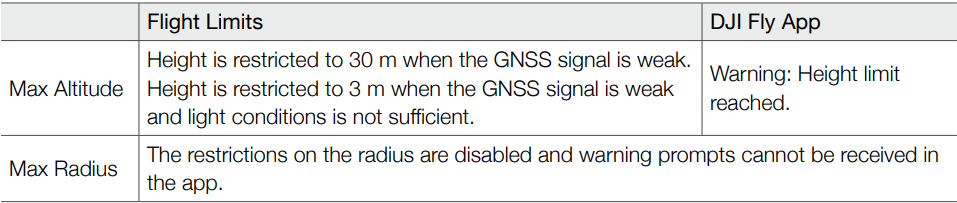
- If the aircraft reaches a limit, you can still control the aircraft, but you cannot fly it any further. If the aircraft flies out of the max radius, it will automatically fly back within range when the GNSS signal is strong.
Pre-Flight Checklist
- Make sure the gimbal and camera are functioning normally.
- Make sure that nothing is obstructing the motors and that they are functioning normally.
- Make sure that the camera lens and Vision System sensors are clean.
- Use only genuine DJI parts or parts certified by DJI. Unauthorized parts or parts from non-DJI-certified manufacturers may cause system malfunctions and compromise safety.
Auto Takeoff/Landing
- Launch DJI Fly and enter the camera view.
- Complete all steps in the pre-flight checklist.
- Tap If conditions are safe for takeoff, press and hold the button to confirm.
- The aircraft will take off and hover 1.2 m above the ground.
- Tap. If conditions are safe to land, press and hold the button to confirm.
- Motors stopafter landing
Starting/Stopping the Motors
Starting the Motors
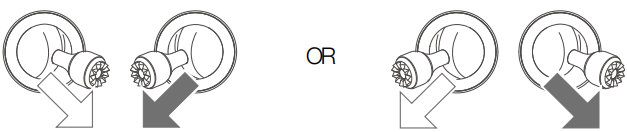
Push both sticks to the bottom inner or outer corners to start the motors. Once the motors have started spinning, release both sticks simultaneously.
Stopping the Motors
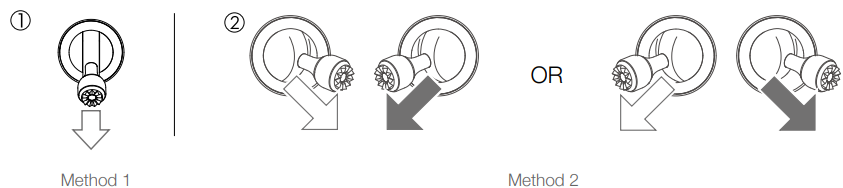
There are two methods to stop the motors.
- Method 1: When the aircraft has landed, push and hold the left stick down.
- Method 2: The motors will stop immediately. Release both sticks once the motors have stopped.
Stopping the Motors Mid-Flight
- Stopping motors mid-flight will cause the aircraft to crash.
- The default setting can be changedthe the n DJI Flight Test.
Takeoff/Landing Procedures
- Place the aircraft in an open, flat area with the aircraft status indicator facing towards you.
- Turn on the aircraft and the remote controller.
- Launch DJI Fly and enter the camera view.
- Gently push the throttle stick to take off or use auto-takeoff.
- Pull the throttle stick or use auto-landing to land the aircraft.
- After landing, push the throttle stick down and hold. The motors stop after three seconds.
- Turn off the aircraft and remote controller.
Video Suggestions and Tips
- Go through the full pre-flight checklist before each flight.
- Select the desired gimbal operation mode in DJI Fly.
- Use Normal or Cine mode to record video.
- DO NOT fly in bad weather conditions, such as when it is raining or windy.
- Choose the camera settings that best suit your needs.
- Perform flight tests to establish flight routes and to preview scenes.
- Make sure to place the aircraft on a flat and steady surface before takeoff. DO NOT totouch offrom your palm or while holding the aircraft with your hand.
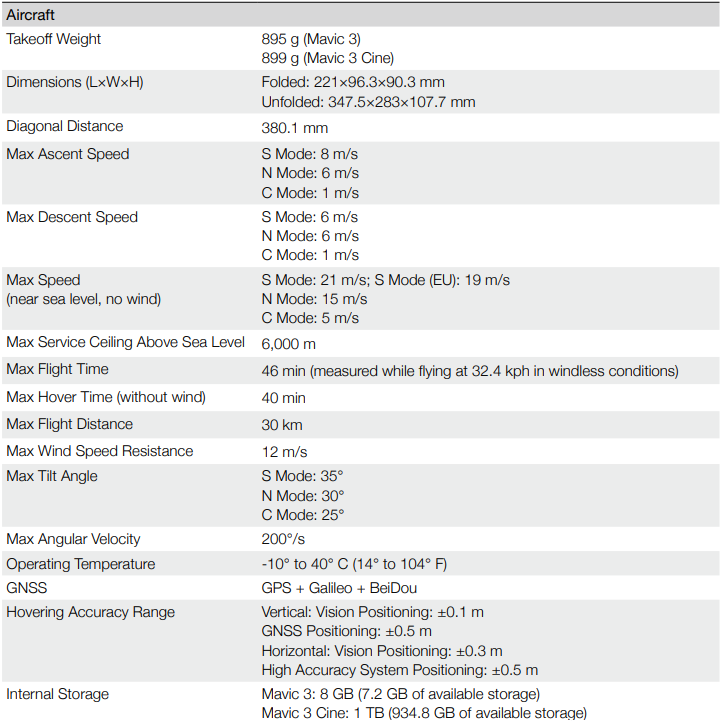
Specifications
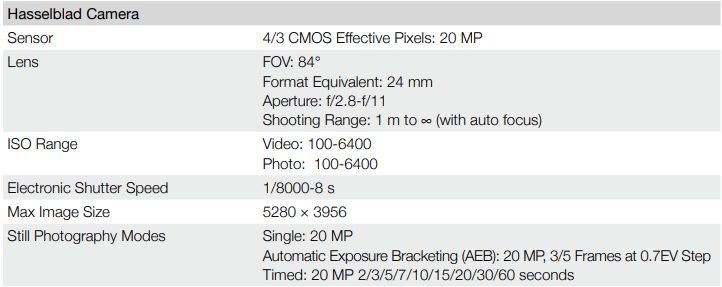
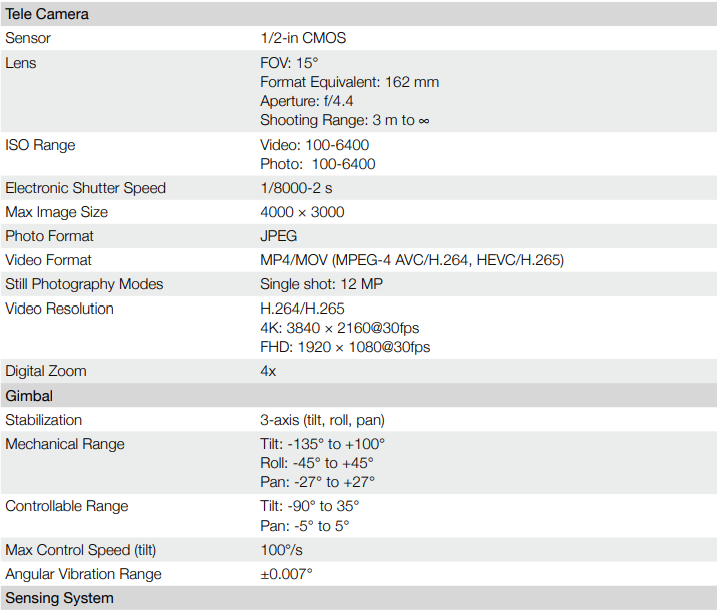
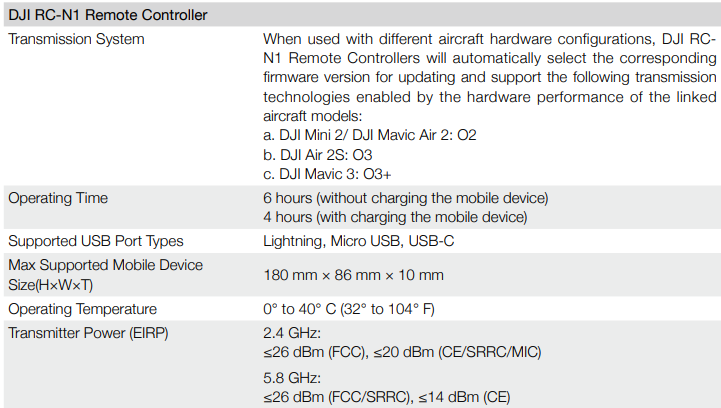
Using DJI Fly
When you connect the aircraft or remote controller to DJI Fly, you will be notified if a new firmware update is available. To start updating, connect your remote controller or mobile device to the internet and follow the onscreen instructions.
Using DJI Assistant 2 (Consumer Drones Series)
Update the aircraft and remote controller firmware separately using DJI Assistant 2 (Consumer Drones Series).
- Launch DJI Assistant 2 (Consumer Drones Series) and log in with your DJI account.
- Power on the aircraft and connect the aircraft to a computer via the USB-C port.
- Select DJI Mavic 3 and click on Firmware Updates on the left panel.
- Select the firmware version that you wish to update to.
- Wait for the firmware to download. The firmware update will start automatically.
- The aircraft will reboot automatically after the firmware update is complete.
Follow the instructions below to update the remote controller firmware through DJI Assistant 2 (Consumer Drones Series):
- Launch DJI Assistant 2 (Consumer Drones Series) and log in with your DJI account.
- Select the DJI Mavic 3 Remote Controller and click on Firmware Updates on the left panel.
- Select the firmware version that you wish to update to.
- Wait for the firmware to download. The firmware update will start automatically.
- Make sure to follow all the steps to update the firmware. Otherwise, the update may fail.
- Make sure the computer has access to the internet.
- Do not disconnect the aircraft from the computer during an update.
Firmware Update
Use DJI Fly or DJI Assistant 2 (Consumer Drones Series) to update the aircraft and the remote controller firmware.
Using DJI Fly
When connecting the aircraft or remote controller to DJI Fly, you will be notified if a new firmware update is available. To start updating, connect your remote controller or mobile device to the internet and follow the on-screen instructions.
Update the aircraft firmware.
- Select DJI Mini 3 and click Firmware Updates.
- Select the firmware version.
- Wait for the firmware to download. The firmware update will start automatically.
- Wait for the firmware update to complete.
Update the remote controller firmware.e
- Launch DJI Assistant 2 (Consumer Drones Series) on your computer and log in with your DJI account.
- Power on the remote controller and connect it to the computer via the USB-C port.
- Select the corresponding remote controller and click Firmware Updates.
- Select the firmware version.
- Wait for the firmware to download. The firmware update will start automatically.
- Wait for the firmware update to complete.
Customer Service
- Ph: +1 818 235 0789.
- Website: https://fly-safe.dji.com/nfz/nfz-query.
- Address: Lobby of T2, DJI Sky City, No. 53 Xianyuan Road, Xili Community, Xili Street, Nanshan District, Shenzhen, China, 518055.
DJI is a trademark of DJI. Copyright © 2025 DJI All Rights Reserved.