

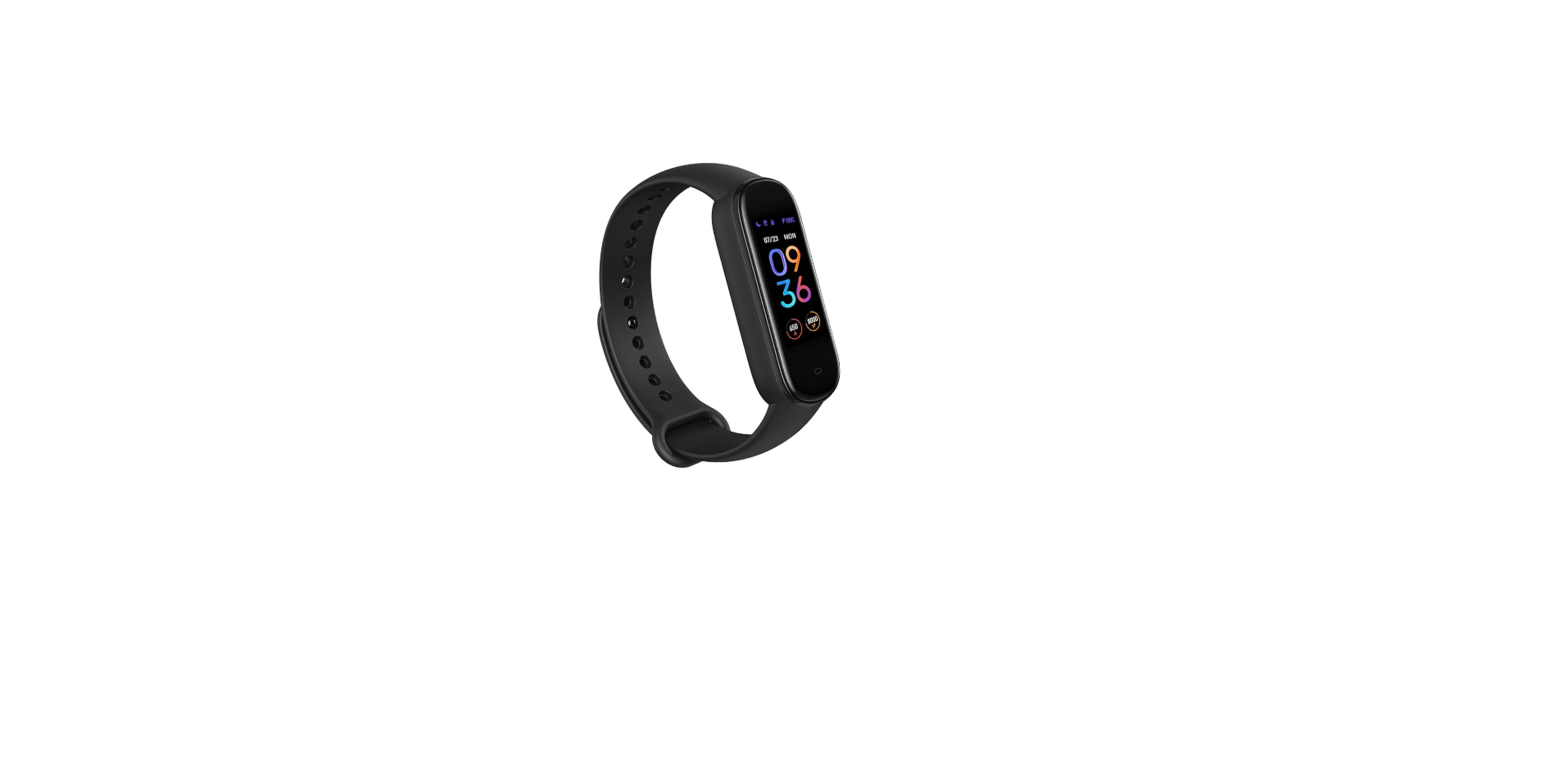

Amazfit Band 5 Activity Fitness Tracker
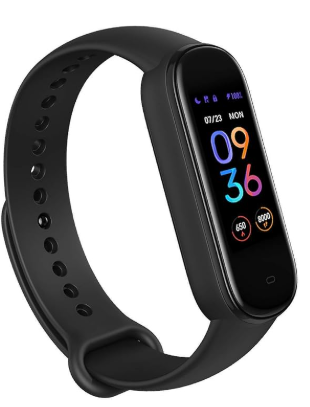
Safety Instructins
- When using the band to measure heart rate or blood-oxygen saturation.
- Keep your wrist still during the measurement process.
- The Amazfit Band 5 has a water resistance rating of 5ATM.
- You can wear the band when taking a shower or swimming in pools or shallow water.
- However, do not wear the band while using a sauna or diving.
- The touch button and touch screen of the band do not support underwater operation.
- When the band gets wet, dry the band with a soft cloth before use.
- In daily use, avoid wearing the band too tightly.
- Keep the contact area of the band dry and clean the strap regularly with water.
- If symptoms such as redness and swelling are experienced at the contact area with the skin, stop using the band immediately and consult a doctor.
- Use your finger to push the band body from the front of the strap. Log in to the Zepp App, select the option to pair the band, and follow the prompts in the connection wizard.
- When the band vibrates and the pairing prompt is displayed on the screen, tap the button to complete pairing.
- This product is equipped with a non-removable built-in battery.
- Do not replace the battery by yourself to avoid damage to the battery or the product.
- The battery may only be replaced at an officially authorized service center.
- Do not throw the battery into a fire, as this will cause the battery to catch fire and explode.
- Dispose of batteries according to local regulations. Do not dispose of batteries as household waste
Overview
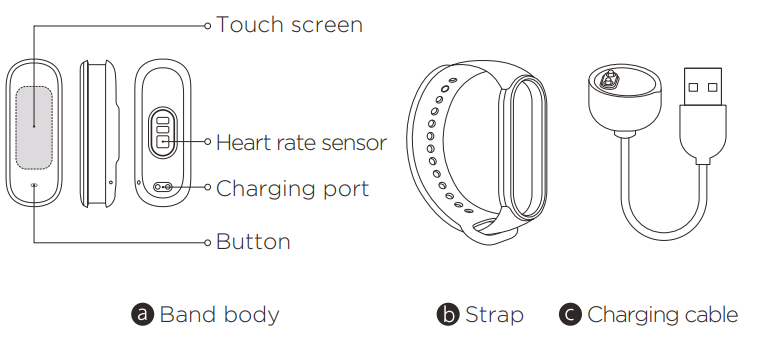
Installation
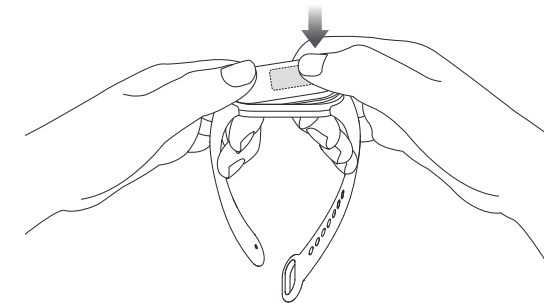
- Insert one end of the band body into the slot on the strap with the outer face of the strap turned upward.
- Press your thumb firmly against the other end, so that the entire band body is inserted into the slot on the strap and locks firmly into place.

Wearing
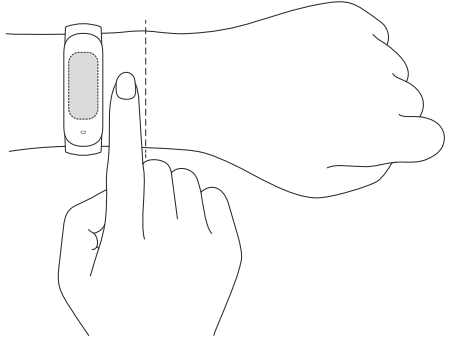
- Wear the band with a distance of one finger away from the wrist bone, and adjust the strap so that it fits comfortably.
- To achieve optimal measurement results for the heart rate sensor, the back of the band should be in contact with the skin. Wear the band correctly, not too tight or too loose, and leave enough space for the skin to breathe. The strap can be tightened during exercise and loosened afterwards.
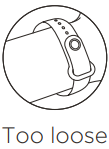
- When the band moves easily up and down the arm, or the sensor cannot read the heart rate, try to tighten the strap slightly.
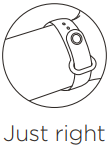
The band should fit snugly on your wrist.
Connecting the Band
- The Amazfit Band 5 can connect to the Zepp App. For the latest version of the Zepp App, scan the QR code below or download and install from Google Play or the Apple App Store.
- Log in to the Zepp App, select the option to pair the band, and follow the prompts in the connection wizard. When the band vibrates and the pairing prompt is displayed on the screen, tap the button to complete pairing.

Usage
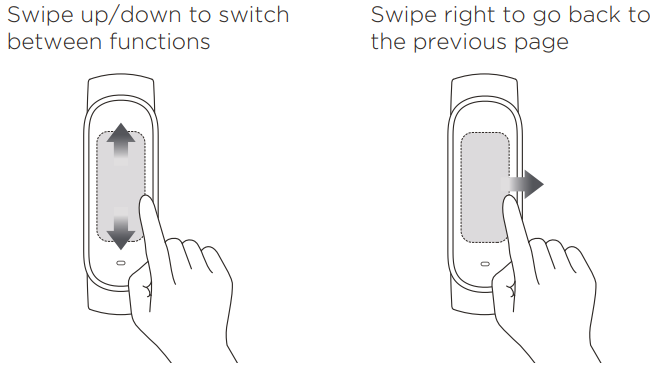
Once the band is paired, it begins recording and analyzing your exercise, nightly sleep, and other information. Tap the button to activate the screen. Swipe up or down to view different information such as PAI (personal activity intelligence), exercise data, and heart rate measurement.
Disassembly
Take the band, hold both ends of the strap firmly, and pull the strap so that a small gap appears between the band body and the slot on each end of the strap. Use your finger to push the band body from the front of the strap.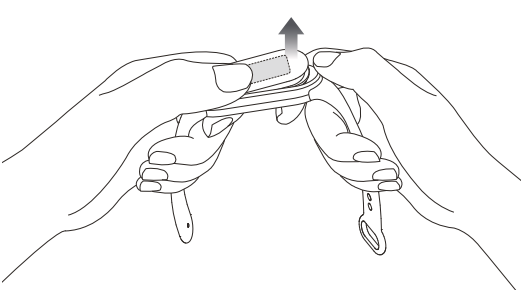
Charging
When the band indicates that the battery is low, promptly charge it.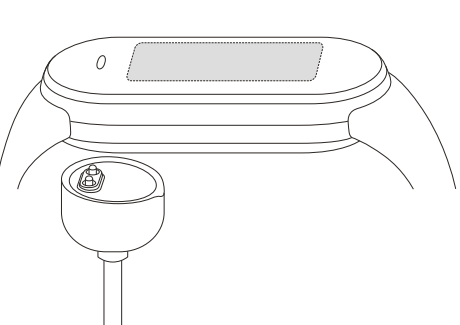
Repair and Maintenance
- Avoid using detergents such as soap, hand sanitizer, or bath foam for cleaning to prevent chemical residues from irritating the skin, corroding the device. or degrading the water resistance of the product.
- Keep the product and your skin clean and dry to maximize comfort and prevent damage to the product over time.
- This is especially important after exercise or after contact with liquids such as sweat, soap, sunscreen, and lotions that may irritate the skin.
- After wearing the device while bathing (for devices that support bathing), swimming (for devices that support swimming), or sweating, please promptly clean and dry the device.
- When using light-colored watch straps, avoid contact with dark clothing to prevent color staining.
- Avoid wearing the device in saunas or steam rooms to avoid degrading water resistance.
- Avoid using the device in high-speed water sports scenarios such as diving and water skiing.
Specifications
- Product name: Amazfit Band 5
- Model: A2005
- Band body dimensions: 47.2 mm x 18.5 mm x 12.4 mm
- Strap material: Thermoplastic elastomer
- Strap clasp material: Aluminum alloy
- Adjustable length: 162 mm-235 mm
- System requirements: Android 5.0 or iOS 10.0 or later
- Battery: 125 mAh
- Battery type: Li-polymer battery
- Input voltage: 5.0 VDC
- Input current: 250 mA MAX
- Water resistance rating: 5ATM
- Working Temperature: 0℃-45℃
- Maximum output: < 20 mW
- Bluetooth frequency: 2402 MHz-2480 MHz
- Wireless connectivity: Bluetooth 5.0 BLE
Warranty Policy
Amazfit products are provided with a 1-year warranty period from the date of your purchase in compliance with local consumer laws of the country or region where you are located.
Regulatory Notice
This device complies with part 15 of the FCC Rules. The operation is subject to the following two conditions:
- This device may not cause harmful interference, and
- This device must accept any interference received, including interference that may cause undesired operation.
- FCC ID: 2AC8UA2005
- IC: 21806-A2005 CAN ICES-3(B)/NMB-3(B)
Any changes or modifications Amazfit Band 5 Activity Fitness Tracker not expressly approved by the party responsible for compliance could void the user’s authority to operate the equipment.
This equipment generates, uses, and can radiate radio frequency energy and, if not installed and used following the instructions, may cause harmful interference to radio communications. However, there is no guarantee that interference will not occur in a particular installation.
- Reorient or relocate the receiving antenna.
- Increase the separation between the device and receiver.
- Consult the dealer or an experienced radio/TV technician for help.
- Operation is subject to the following two conditions:
This device may not cause interference. This device must accept any interference, including interference that may cause undesired operation of the device.
Disposal and Recycling Information
Instead, you should protect human health and the environment by handing over your waste equipment to a designated collection point for the recycling of waste electrical and electronic equipment, appointed by the government or local authorities. Correct disposal and recycling will help prevent potential negative consequences to the environment and human health.
Customer Support
- Website: en.amazfit.com
- Technical support: support.amazfit.com
- E-mail: support@amazfit.com
- Manufacturer: Anhui Huami Information Technology Co., Ltd.
- Address: Room 1201, Building A4, National Animation Industry Base, No. 800 Wangjiang West Road, Gaoxin District, Hefei, China
FAQs
How do I set up my Amazfit Band 5 for the first time?
Install the Zepp App (formerly known as the Amazfit App) on your smartphone in order to configure your Amazfit Band 5. To pair your band via Bluetooth, launch the app, log in or register, and then follow the on-screen directions. The device will automatically sync data and update firmware if necessary after pairing.
Can I use the Amazfit Band 5 without my phone?
Yes, you may use it for simple tasks like monitoring your heart rate, steps, and sleep patterns. But in order to access comprehensive statistics, sync data, and get intelligent notifications, you’ll need your smartphone and the Zepp App.
How do I charge the Amazfit Band 5?
Connect your device to the charging pins on the back of the band using the magnetic charging wire that comes with it. Next, attach the USB end to a power source, such as a computer, power bank, or converter. The charging process will be shown on the display. Usually, it takes two hours to fully charge.
How do I change the watch face on my Band 5?
Launch the Zepp app → To choose Amazfit Band 5, tap Profile. Select Watch Faces. You can then alter pre-existing designs or download new ones. Additionally, you can change the watch face right on the band.
How can I track my workouts using the Amazfit Band 5?
Choose Workout by swiping across the band’s screen. Tap Start after selecting your preferred exercise (such as walking, running, cycling, yoga, etc.). Your heart rate, distance travelled, time, and calories burned will all be recorded by the band. Press and hold the side button to finish the workout.
Does the Amazfit Band 5 track blood oxygen (SpO₂)?
Indeed. A SpO₂ sensor on the Amazfit Band 5 gauges your blood oxygen content. Swipe to the SpO₂ screen and hold still while taking a measurement to perform a manual check. Note: This reading is not for medical use; it is for tracking wellness.
Can I receive messages and call notifications on the Band 5?
Indeed. Make sure your phone and band are linked, and that the Zepp App’s settings allow notifications. After that, you’ll get notifications for apps, calls, and messages right on your wrist.
How can I reset or restart my Amazfit Band 5?
Swipe up → choose Settings → Restart to restart. Select Settings → Factory Reset to do the reset. Make sure you sync your data with the Zepp App in advance because doing so will remove all of the band’s data.