

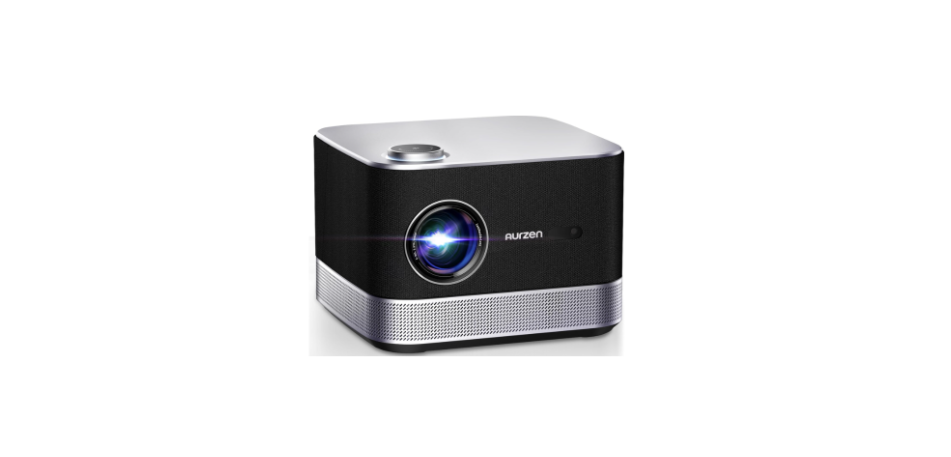

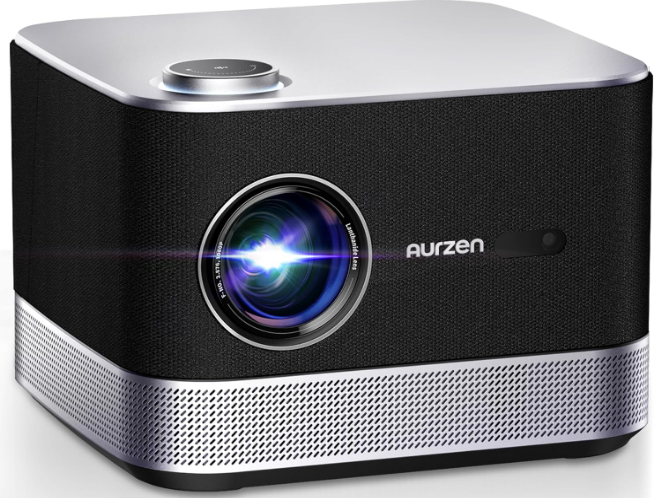
Aurzen BOOM 3 Smart 4K Supported Projector
In The Box

Overview
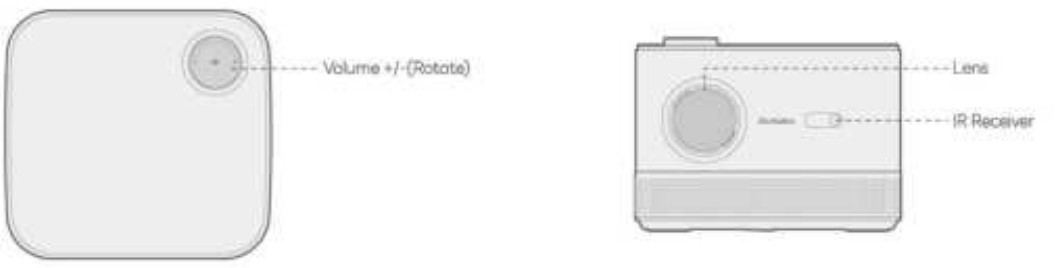
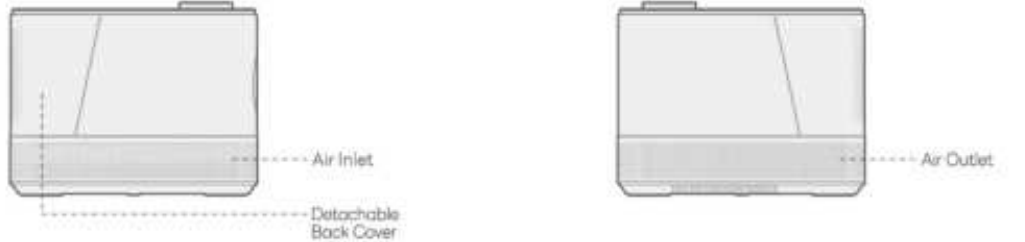
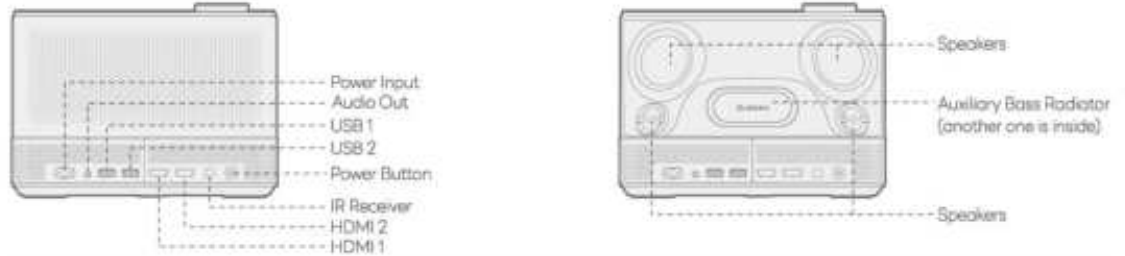
Projector
Remote Controller
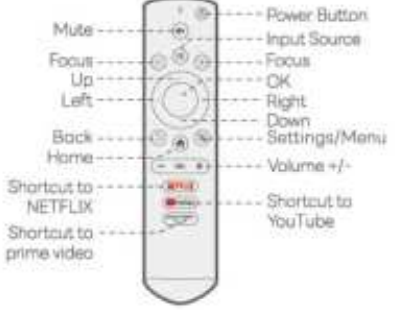
- Power Button: Press. Once Turn on the projector.
- Mute: Silence the projector’s audio. Press twice to turn off the projector
- Input Source: Press to access the input source page and select your preferred input source.
- Focus: Press and hold these two buttons to make a precise focus adjustment.
- Left/Right/Up/Down: Navigate menus or adjust the selected content.
- OK: Confirm selection. Back: Go back to the previous menu. Home: Return to the homepage
- Settings/Menu: Pressto access the setting poge or open the menu
- Volume+/-Increase/decrease the projector’svalume
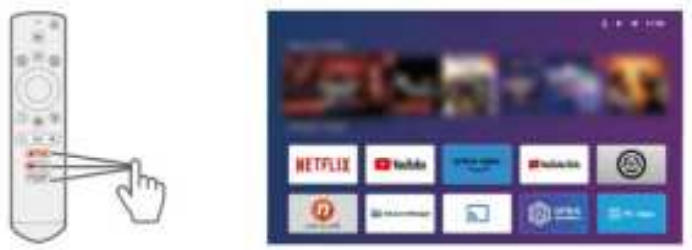
- Shortcut to NETFLIX: Press to launch the NETFLIX app.
- Shortcut to YouTube: Press to launch the You Tube opp
- Shortcut to Prime Video: Press to launch the Prime Video app
Quick Start
Projector Installation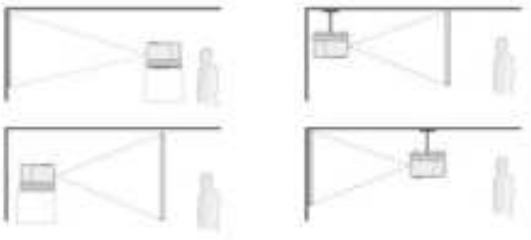
Power On/Off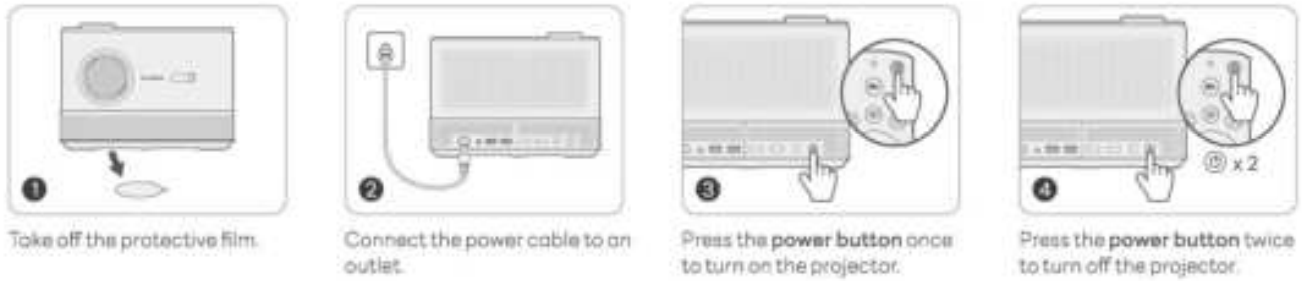
Remote Pairing and Setup Wizard
- The projector automatically adjusts image clarity and corrects image shape upon powering on.
- Afterwards, followthe setup wizard to pair the remote with the projector, choose your preferred language, establish a WiFi connection, and access the homepage
Images Adjustment
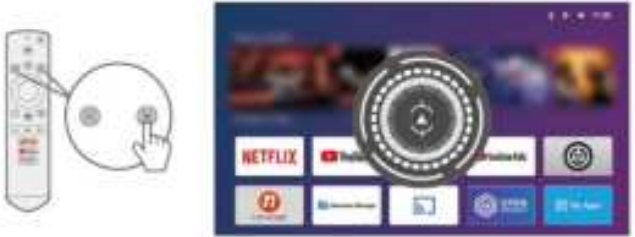
- Auto Focus


Electric/Manual Focus
- You can also press ond nold the focusbuttons on the note to sharpen the image focus until the blurry image becomes clear
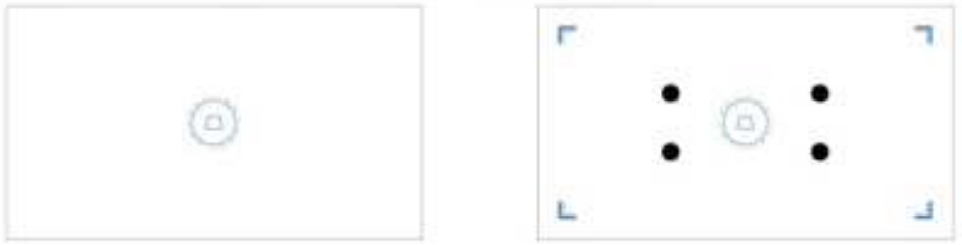
Auto Keystone Correction
When the projector is powered on, it will automatically correctthe keystone distortion.
Manual Keystone Correction
Press the buttonon the note, then select Manual Keystone Correction to manually correct the image shape by four points.
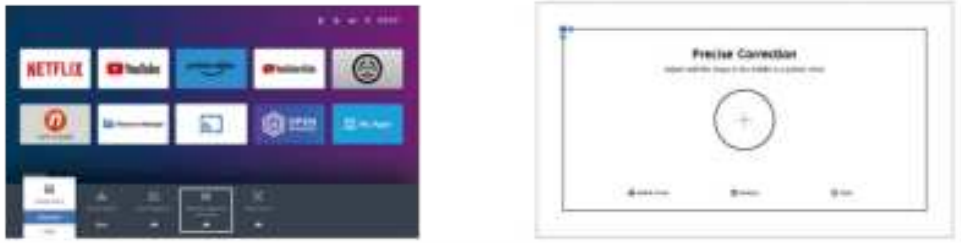
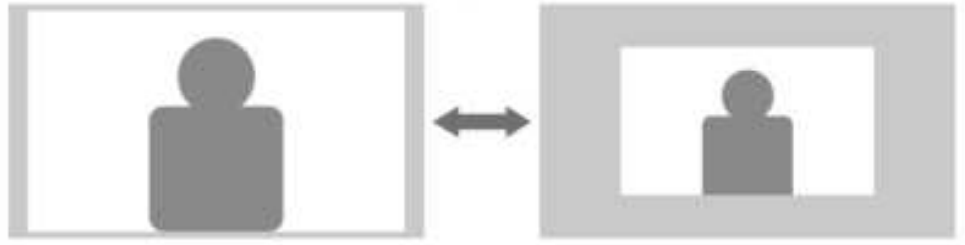
Image Scaling
Go to Settings> Picture> Image Zoom to reduce or enlarge the image size between 506 and 100%
Play content from Officially Licensed Apps like Netflix, Prime Video, and YouTube.
Go to the Homepage and select your preferred platform via the shortcuts on the remote, then log in to your account to play the corresponding content.
Connection & Input Sources
Connect your device to the projector correctly, then select the right input source.
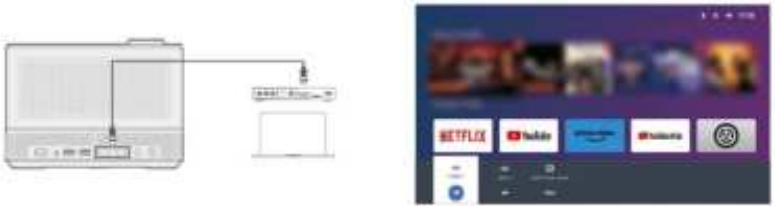
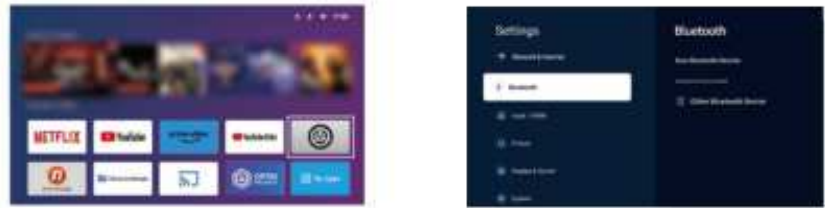
- USB Connection: To play files stored on a US disk, insert the USB into the projector and select the USB icon located in the upper right corner of the homepage. Alternatively, you can navigate to Home> My Apps> Resource Manager to locate and play the desired file directly
- HDMI Connection: To connect a device with an HDMI output port to the projector, use the provided HDMI cable to connect itto the projector’s HDMI input ports. Then press thebuttonon the remote and select HDMI 1 or HDMI 2 as the input source
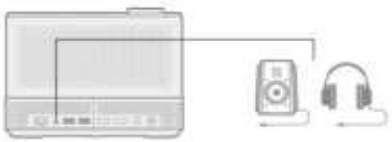
- Wired Speaker and Headphones Connection: This option is notrequired to select any input source

WIFI Connection
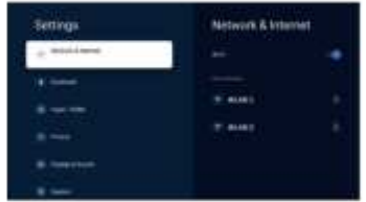
You can connect your projector to your router’s WiFi by accessing the setup wizard or clicking on the WiFi icon on the homepоде
Screen Mirroring
For Android System
To activate this function, please make sure your Android device supports Multi-screen/Smart View/Wireless Display. Names vary on different Android devices.
- Step 1: Go to the Wi-Fi settings of your Andrpid deviceto switch on the Wi-Fi option.
- Step 2: Go to Homepage> My Apps ScreenCast Assistant to enter the interface below
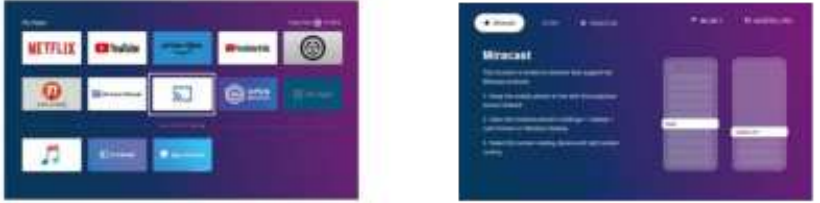
- Step 3: Activate the Multi-screen/Smart View/Wireless Display function on your Android device and search for the projector.
- Step 4: Choose AURZEN PR3 from the list, and once the connection is successful, the content on your Android device willbe mirrored onto the projection screen or wall.
DLNA
- Step 1: Connect the projector and your mobile device to the same router’sWiF
- Step 2: Go to Homepage> MyApps> ScreenCast Assistont ond then select DLNA to access the following page.
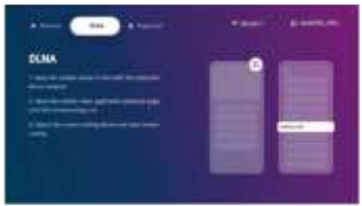
- Step 3: Launch a video player App onyour mabile device and select a video to play
- Step 4: Toptosearch for the projector and select AURZEN PRJ to connect. The content on your device will be castto thewall/screen.
For iOS System
- Step 1: Connect the projector and your mobile device to the same router’sWiFi ordirectlyconnect your mobile device to the projector’s AP hotspot.
- Step 2: Go to Home> My Apps ScreenCast Assistant and then select MagicCost to access the following page. Next, select Goto download to download and instollthe MagicCast App.
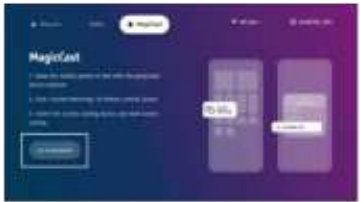
- Step 3: Launch the MagicCastApp and remain on the following page.
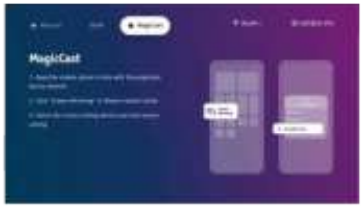
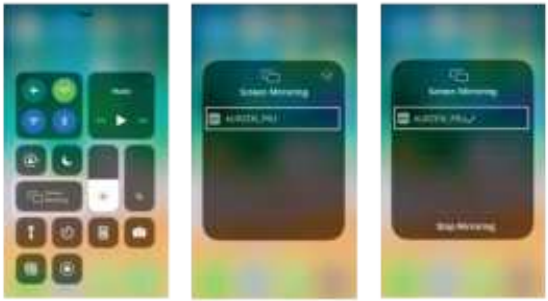
- Step 4: Go to the Control Center of your OS device, then tap Screen Mirroring/Air Playing to search for the projectoe
- Step 5: Choose AURZEN PR3 from the list, and once the connection is successful, the contenton your iOS device will be mirrored onto the projection screen or wall.
BLUETOOTH CONNECTION
Use as A Bluetooth Speaker
It is possible to use this projector os a Bluetooth speaker by connectingyour mobile device to it through a Bluetooth connection.
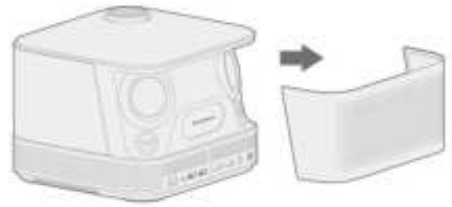
- Step 1: Take off the Detachable Bock Coverfrom the projector and directly see the speakers.
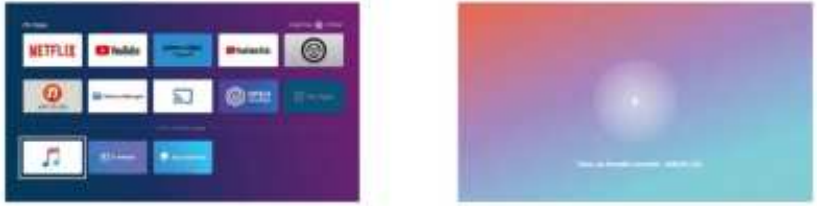
- Step 2: Go to Homepage> My Apps> Bluetooth Music to make the projector ready for a Bluetooth connection.
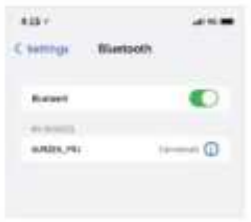
- Step 3: Access your mobile device’s Bluetooth settings and activate Bluetooth Search for AURZEN PRJ in the available devices list to pair your mobile device with the projector.
Connect to An External Bluetooth Speaker
In addition to using the wired 35mm audio output port, you can also connect Bluetooth speakers or Bluetooth headphones to this projector via a Bluetoothconnection.
Step 1: Turn on your Bluetooth device and make it ready for a Bluetooth connection
Step 2: Go to Home> Settings> Bluetooth to scan available Bluetooth devices, then select your Bluetooth device and pair it with the projector.
Settings

Network & Internet
- Connect theprojector to a working Wi-Fi network
Bluetooth
- Connect the projector to an external Bluetooth speaker
Input/HDM
- Choose the default input source once the projector is powered on
- Adjustthe image aspect ratio when using the HDMI input source and more.
Picture
- Correctthe Keyntone and adjust the focus manually or automatically
- Image Zoom: Modifythe imoge size between 50% and 100%
- Projection Mode: Select the appropriate projection mode to ensure accurate image projection
Display & Sound
- Choose the correct sound output based on theconnected devicо
- Enable or disablekey tones, eto
System
- Set the projector’s language
- Adjust the date and time settings
- Updatethe software as needed.
- Restore the projector to the factory settings
General & Privacy
- Rename the projector.
- Set the screen to automatically turn off at a specific time
- Enable screen mirroring for Android devices and manage ather privacy-ralated settings
Distance & Size
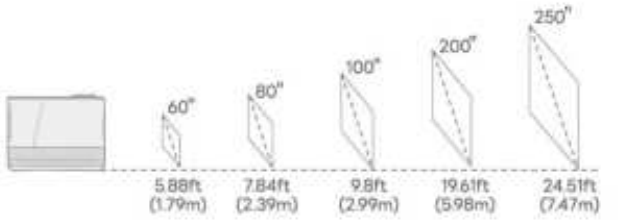
- The recommended projection distance varies with different projection contents.
- Please adjust the distance between the wall/screen and the projector as needed.
- For optimal moge quality, we recommend a projection size of 60 to 80 inches.
- Position the projector 5.88 to 784 feet away from the wall or screen.
- Ambient darkness will improve the clarity of the projected images
E-Manual
To access the online user manual forfuture reference, follow these steps
- Step 1: Go to the homepage.
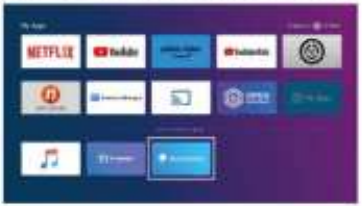
- Step 2: Navigate to My Apps
- Step 3: Click on the E-manual aptian.
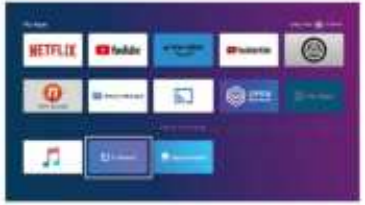
Explaination Of Apps
- You can’t download the apps on the APP STORE platform, but you can log iin toyour account to watch the content directly
- You can download the apps in the App Assistant and log into your accountto watch the content directly
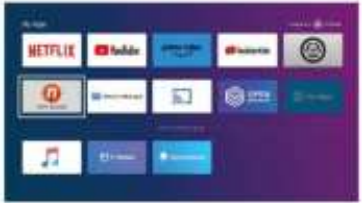
- Once you’re on the My Apps page, you can press and hold the OK button, then use the buttonsfavonite apps
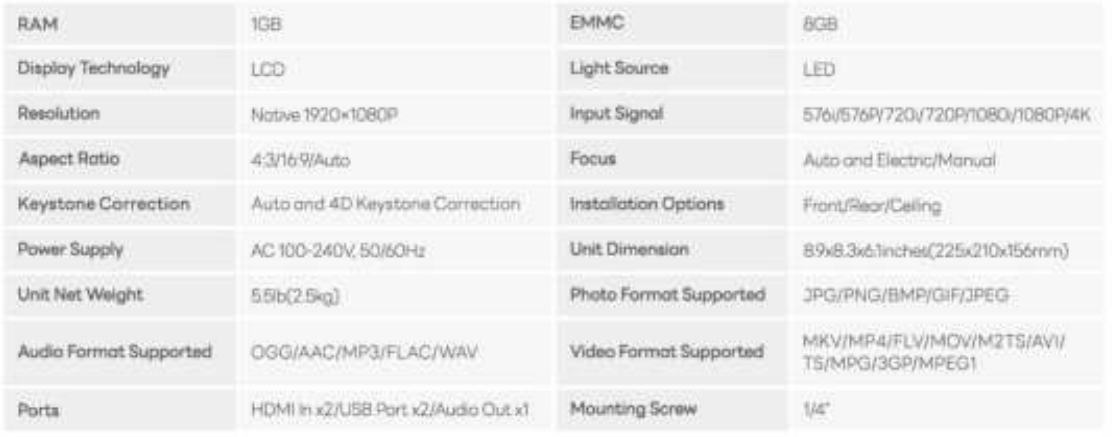
Specifications
Troubleshooting
- Blurry image
- Adjust the focus of the projector.
- Make sure the projection distance is in the effective focal range of the projector.
- Remove the dust or dirt from the lens with a soft cloth or soft-bristled brush.
- Non-rectangular image
- Use the keystone correction function to adjust the image shape.
- Auto focus failure
- Make sure the ToF camera of the projector is not blocked.
- Move the projector back and forth until it is within the effective auto-focus range.
- Auto keystone correction failure
- Make sure the Tof camera of the projector is not blocked.
- BT device connection
- Ensure your BT device is ready for a connection.
- Changing language
- On the projector’s homepage, open the side menu by pressing the OK button on the projector.
- Select Common Settings > Languages and choose your desired language.
- Projector getting warm
- It’s normal for the projector to generate heat during use.
- It’ss been tested and meets safety standards.
- Noise increase in Turbo mode
- The noise level rises in Turbo mode due to enhanced heat dissipation performance. This is normal.
Disposal
All products bearing this symbol are waste electrical and electronic equipment (WEEE, as in Directive 2012/19/EU), which should not be mixed with unsorted household waste. Instead, you should protect human health and the environment by handing over your waste equipment to a designated collection point for the recycling of waste electrical and electronic equipment, appointed by the government or local authorities. Correct disposal and recycling will help prevent potential negative consequences to theenvironment and human health. Please contact the installer or local authorities for more information about the location, as well as the terms and conditions of such collection points.
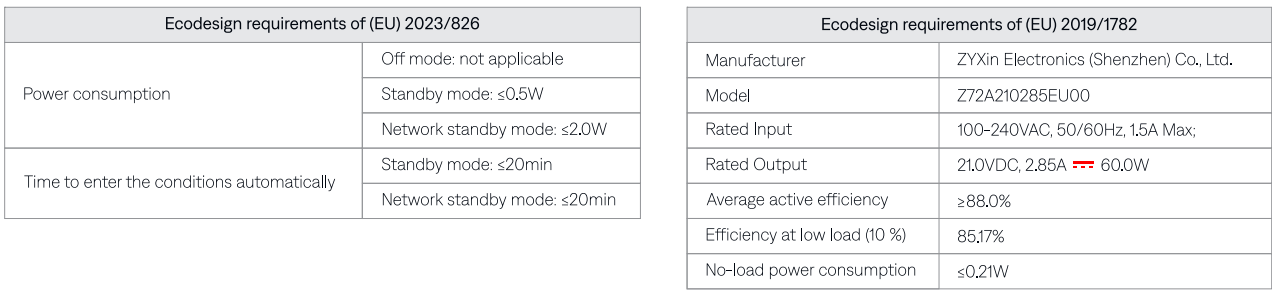
FCC Statements
This equipment generates, uses, and can radiate radio frequency energy and, if not installed and used in accordance with the instructions, may cause harmful interference to radio communications. However, there is no guarantee that interference will not occur in a particular installation.
- Reorient or relocate the receiving antenna. Increase the separation between the equipment and receiver. Consult the dealer or an experienced radio/TV technician for help.
RF Exposure Information:
- The radiated output power of this device meets the limits of the FCC radio frequency exposure limits.
Canada Compliance Statement
This device complies with Innovation, Science and Economic Development Canada license-exempt RSS standard(s). Operation is subject to the following two conditions:
- This device may not cause interference, and (2) this device must accept any interference, including interference that may cause undesired operation of the device.
- Operation in the band 5150-5250 MHz is only for indoor use to reduce the potential for harmful interference to co-channel mobile satellite systems.
- The radiated output power of this device meets the limits of IC radio frequency exposure limits.
Customer Support
- Email: support@aurzen.com
- Mon-Fri, 9:00 to 17:00 EST
- Phone: +1-667-218-4830