

 Aurzen D1R Roku TV Bluetooth Smart Projector

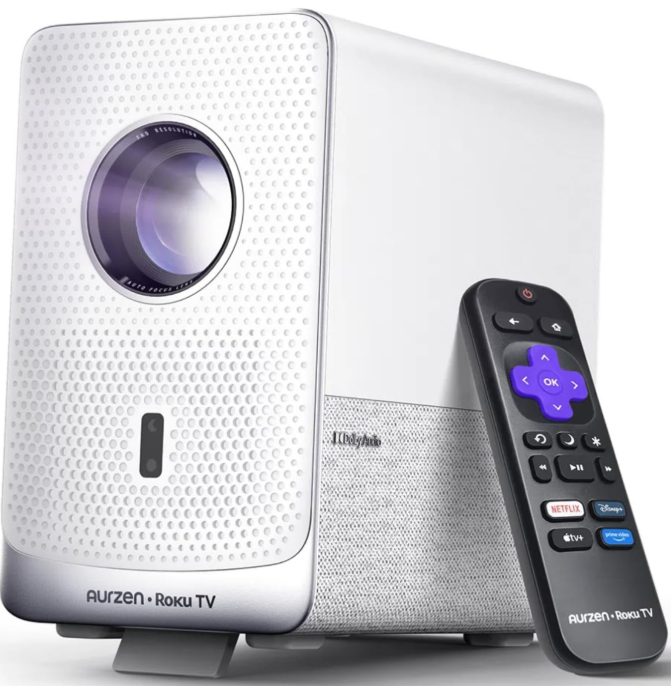
Content In Box
Projector

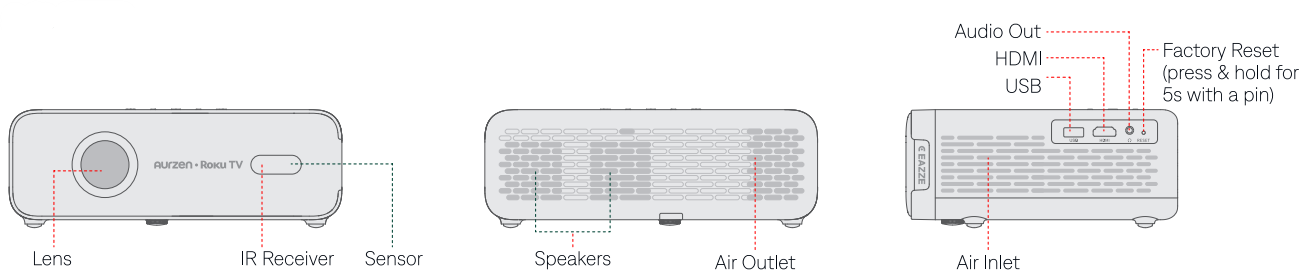
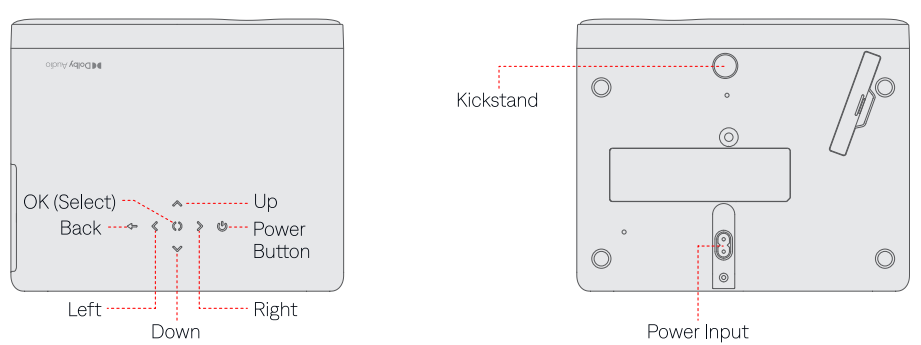
Remote Control
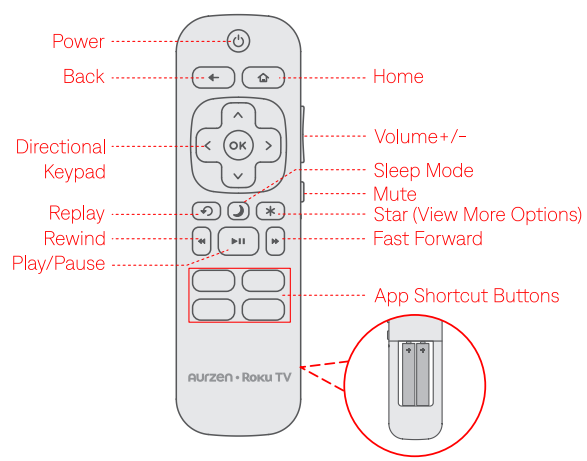
- Power your remote by inserting 2 AAA batteries (not included), carefully matching (+) and (- indicated inside the battery compartment.
- Always replace dead batteries with two new batteries from the same manufacturer and of the same kind. Never use damaged batteries. If your remote gets warm/hot during use, discontinue use and contact customer support immediately.
Projector Installation
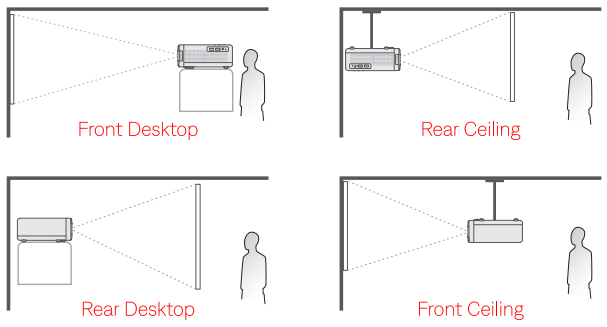
- Select the appropriate projection orientation during the guided setup process or via Home > Settings > Projector settings > Orientation.
- Mounting Screw: 1/4* (not included).
Powering On
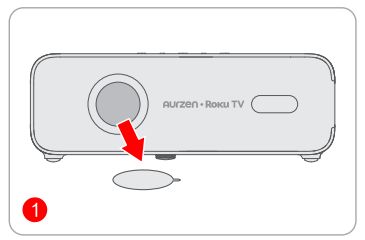
- Remove the protective film from the lens.
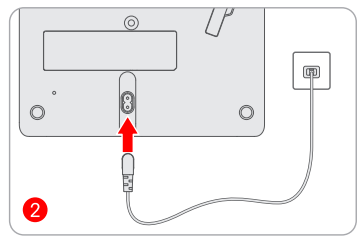
- Plug the power cable into an outlet.
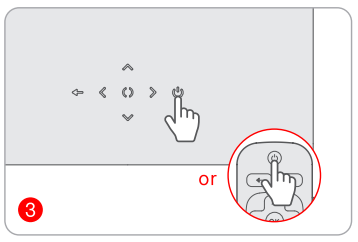
- Press the Power Button to turn the projector on.
Setup Wizard
Follow the on-screen setup instructions to activate your projector.
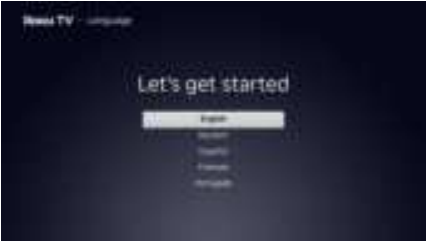
- Choose your language, location, and projection orientation.
- Connect to WiFi.
Activation
Activate your projector using one of the following methods.
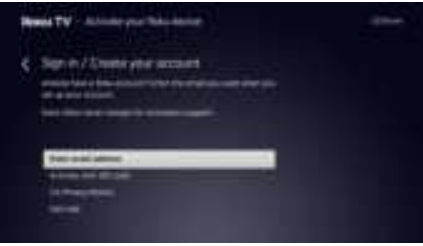
Using Email
- Enter your email address when prompted. Then check your inbox for an activation email and follow the instructions to complete activation.
Using a QR code
- Scan the on-screen OR code to go to the indicated link and follow the instructions to complete activation.
- A Roku account and internet connection are required for activation.
- Roku never charges for activation.
- You can rename the projector during the activation process.
Device Connection
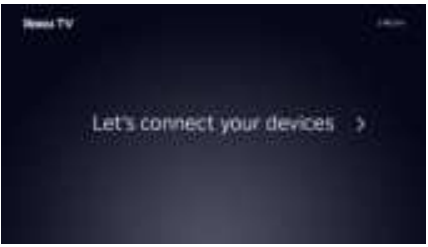
Follow the on-screen instructions to connect and set up external devices, such as a cable box, Blu-ray™ player, or game console. To skip this step, select Do this later when prompted.
Home Screen Setup
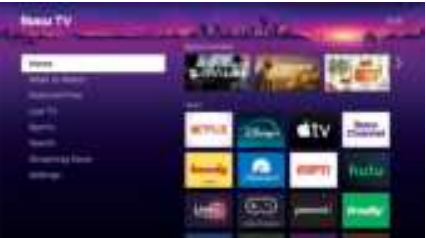
After completing the setup, the home screen will appear. Use the directional pad on the remote control to navigate between sections.
- Resolution is based on Projector compatibility and varies by channel and content.
- Channels are subject to change, vary by region, and may require
- Change the screen theme by going to Settings > Theme.
- Hide or show items and options by going to Settings > Home Screen.
- Find and add streaming apps from the Streaming Store.
- Newly added apps will appear on the home screen.
- Arrange items (moving, removing, and more) by highlighting an item and pressing the Star * button on the remote control.
Image Adjustment
Focus
Auto Focus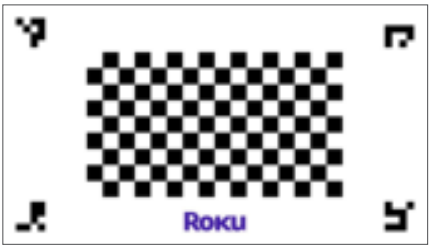
- The projector automatically adjusts image clarity when it detects shaking or rapid movement.
- You can also trigger Auto Focus by going to Home > Settings > Projector settings and selecting Start auto-focus.
Electric/Manual Focus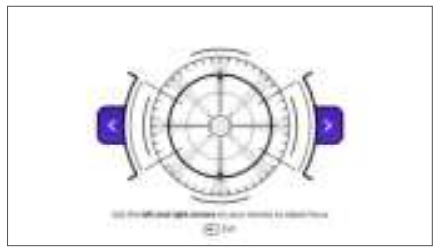
- For manual adjustment, go to Home > Settings > Projector settings > Image correction > Manual focus and follow the on-screen instructions to sharpen the image until it becomes clear.
Keystone Correction
Auto Keystone Correction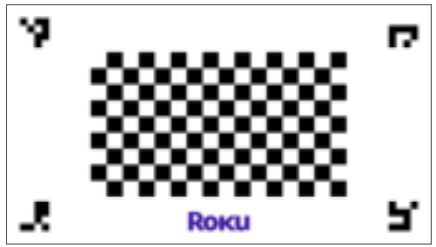
- To activate the auto keystone feature, go to Home > Settings > Projector Settings and select Start auto-keystone. The projector will automatically correct keystone distortion.
Manual Keystone Correction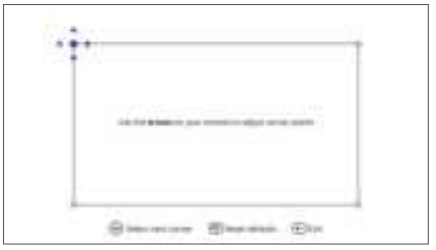
- For manual adjustment, go to Home > Settings > Projector settings > Image correction > Manual keystone and follow the on-screen instructions to adjust the image using four-point correction.
How to Fit into the Screen
- Step 1: Press Reset defaults in the manual keystone menu.
- Step 2: Adjust the position of the projector, and make sure the displayed area is larger than the screen.
- Step 3: Adjust the display area by using manual keystone and fit it into the screen.
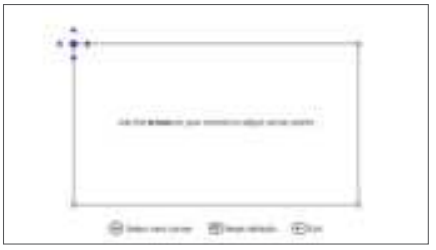
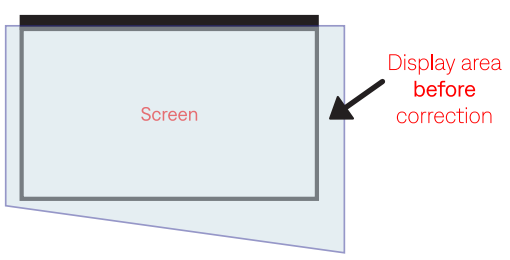
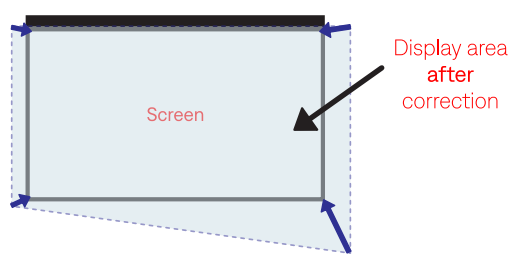
Image Scaling
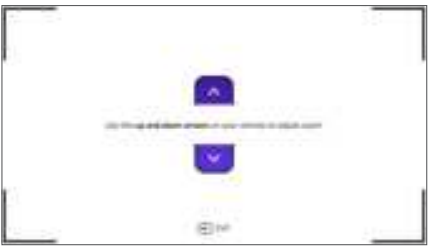
Connection & Input Sources
USB Connection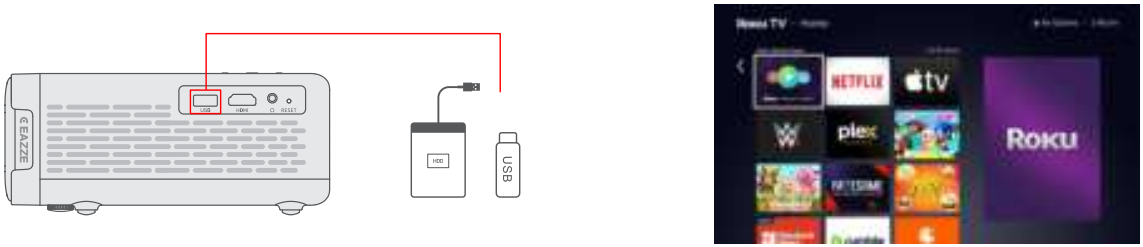
- To play files from a USB media device, insert the disk into the projector’s USB port.
- Player to locate and play your file. Or find and launch the Roku Media Player on the Home screen.
HDMI Connection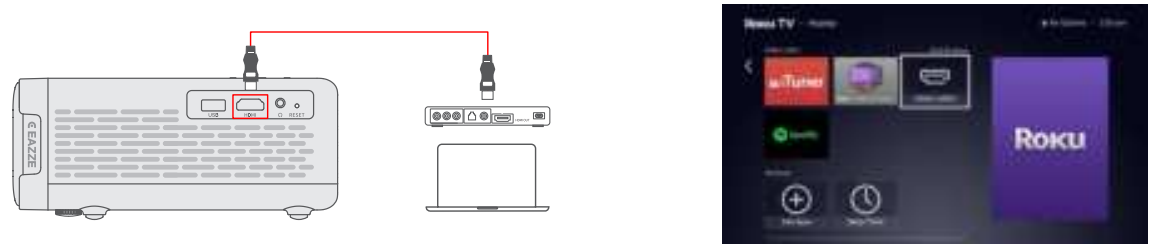
- Use an HDMI cable (not provided) to connect a device with an HDMI output port to the projector’s HDMI port. Then go to Home > Settings > Picture settings and select HDMI 1 (ARC). Or find and select HDMI 1 (ARC) on the Home screen under Apps & Inputs.
- When connecting different Windows-based laptops or PCs to the projector via HDMI, there may be variations in color performance while displaying identical content. To fix this, go to Home > Settings > Picture settings > HDMI 1 (ARC) and then press the button on the remote to open the Settings menu. Choose Picture settings > Picture mode and select the Vivid mode.
Wired Speaker and Headphones Connection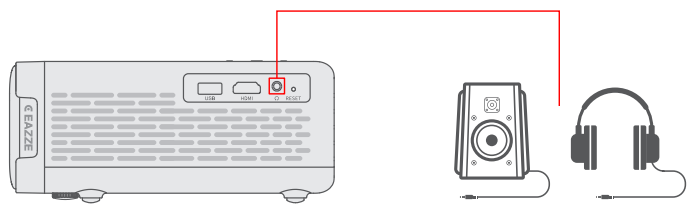
- No input source selection is required.
WIFI Connection
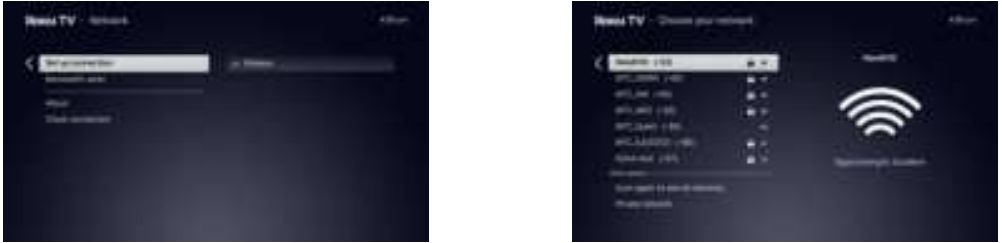
You can connect your projector to a WiFi network by going to Home › Settings > Network > Set up connection > Wireless. Only 2.4GHz or 5GHz bands are supported.
Screen Mirroring
Copyrighted content from Hulu, Disney+, and similar streaming services CANNOT be wirelessly mirrored or cast due to copyright restrictions. These apps are available for download in the Roku Channel Store.
For iOS Devices
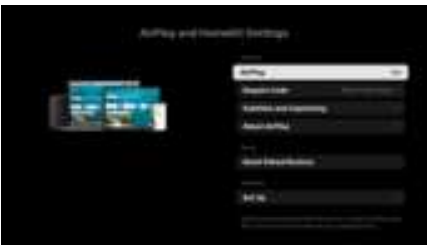
Ensure AirPlay is turned on by going to Home > Settings > AirPlay and HomeKit.
- Step 1
- Connect the projector and your iOS device to the same WiFi network.
- Step 2
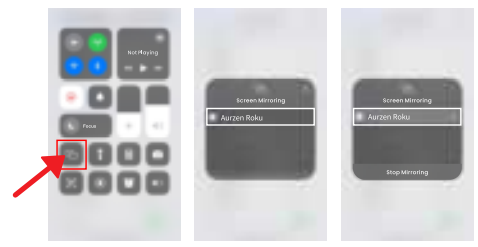
- Open the Control Center on your iOS device and tap Screen Mirroring to search for the projector.
- Open the Control Center on your iOS device and tap Screen Mirroring to search for the projector.
- Step 3
- Choose Aurzen Roku (or the projector name if you have renamed it) from the list.
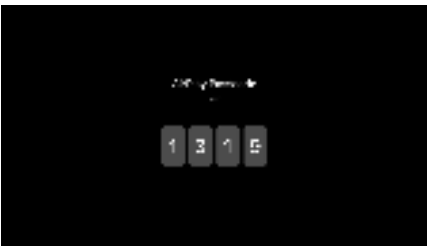
- For the first time, you’ll need to enter the projector’s on-screen passcode into your phone.
- Once connected, your iOS device’s screen will be mirrored onto the projection screen or wall.
For Android Devices
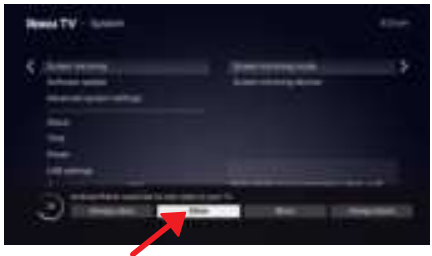
- Ensure the screen mirroring mode is not set to Never allow by going to Home > Settings > System > Screen Mirroring
- Ensure your Android device supports Multi-screen, Smart View, or Wireless Display (names may vary by device).
- Step 1
- Turn on WiFi on your Android device (a successful WiFi connection is not required).
- Step 2
- Activate the Multi-screen/Smart View/Wireless Display function on your Android device and search for the projector.
- Step 3
- Choose Aurzen Roku (or the projector name if you have renamed it) from the list and confirm casting when prompted. Once connected, your Android device’s screen will be mirrored onto the projection screen or wall.
Bluetooth Connection
Use as a Bluetooth Speaker
Turn your projector into a Bluetooth speaker by connecting it to your mobile device.
- Step 1
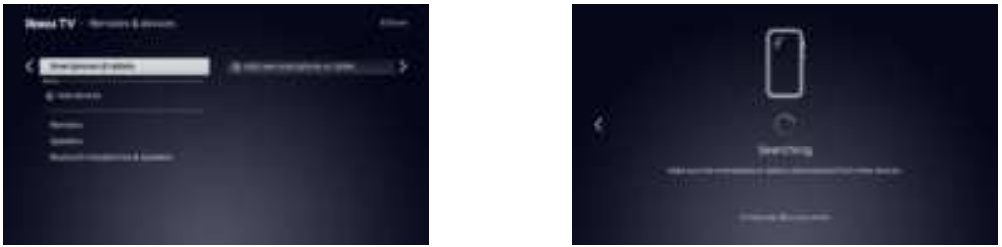
- Go to Home > Settings > Remotes & devices > Smartphones & tablets and select Add new smartphone or tablet. Or, find and select Bluetooth on the Home screen under Apps & Inputs.
- Step 2
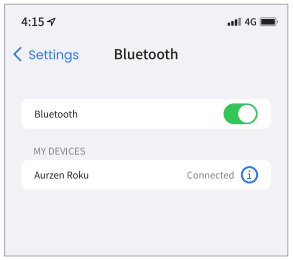
- Access your mobile device’s Bluetooth settings and activate Bluetooth. Search for Aurzen Roku (or the projector name if you have renamed it) in the available devices list and pair your mobile device with the projector.
Connect to a Bluetooth Speaker or Headphones
You can connect the projector to a wireless Bluetooth speaker or headphones.
- Step 1
- Turn on your Bluetooth device and make it ready for a Bluetooth connection.
- Step 2
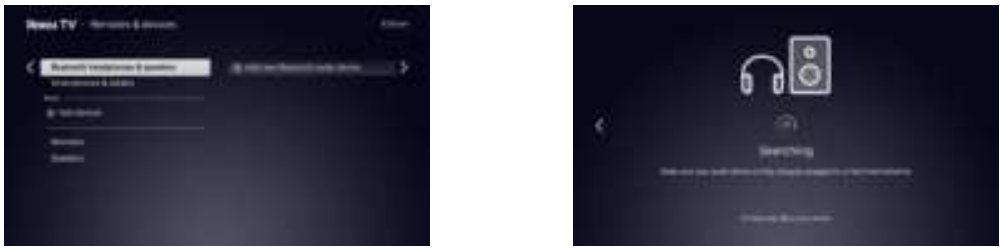
- Go to Home > Settings > Remotes & devices > Bluetooth headphones & speakers and select Add new Bluetooth audio device. Search for available devices, then select and pair your device with the projector.
Specifications
- Display Technology: LCD
- Optical Engine: Open
- Aspect Ratio: 4:3/16:9
- Speaker: 2X 5W
- Dimensions: 9.13 x 7.48 x 3.27 inches (232 × 190 x 83mm)
- Video Format Supported: AV1/MP4/MKV/FLV/MOV/3GP/MPEG1/MPEG2/XVID
- Ports: HDMI 1.4 x 1/ USB 2.0 x 1/ Audio Out × 1
- Light Source: LED
- Input Signals: 576i/576P/720i/720P/1080i/1080Р
- Installation Type: Front/Rear/Ceiling
- Power Supply: 100-240V AC, 50/60Hz
- Net Weight: 3.1 lbs (1.4 kg)
- Audio Format Supported: MP2/MP3/PCM/FLAC
- Mounting Screw: 1/4*(not included)
Settings
Network
- View info on the connected network.
- Check the network connection status.
- Set up a WiFi connection.
- Enable/disable the bandwidth saver.
Remotes & devices
- Connect the projector to external remotes, speakers, wireless headphones, smartphones, and tablets.
Theme
- Personalize the projector’s theme, including wallpaper, screensaver, sound, and more.
Accessibility
- Customize caption and screen reader settings.
Projector settings
- Activate auto-focus & auto-keystone.
- Adjust the focus manually.
- Correct the keystone distortion manually.
- Modify the image size.
- Enable auto-keystone & auto-focus, or auto-focus only upon movement.
- Select the projection orientation for accurate image projection.
Picture settings
- View input.
- Customize picture settings such as brightness, contrast, sharpness, color, tint, and more.
Inputs
- Rename and move input icons.
Audio
- Set audio output, menu volume, preferred audio language, streaming format, and digital output format.
Guest Mode
- Configure the guest mode to secure your account and personal data.
Home screen
- Customize the home screen layout and settings.
Payment method
- Add a payment method for subscriptions and purchases.
Apple AirPlay and HomeKit
- Set up Apple AirPlay and HomeKit for seamless integration with Apple devices.
Privacy
- Manage advertising preferences, voice interaction, and Smart TV experience settings.
Help
- Access tutorial videos for tips and guidance.
System
- View system info.
- Set a ZIP code.
- Configure sleep timer, time zone, and clock format.
- Set the auto-launch feature and launch the app for USB media devices.
- Search for and control CEC devices.
- Choose device language.
- Set screen mirroring mode and device control.
- Update the software as needed.
- Restore the projector to the factory settings.
- Reset the network connection.
- Enable/disable device connections.
- Choose the mobile app control level.
Distance & Size
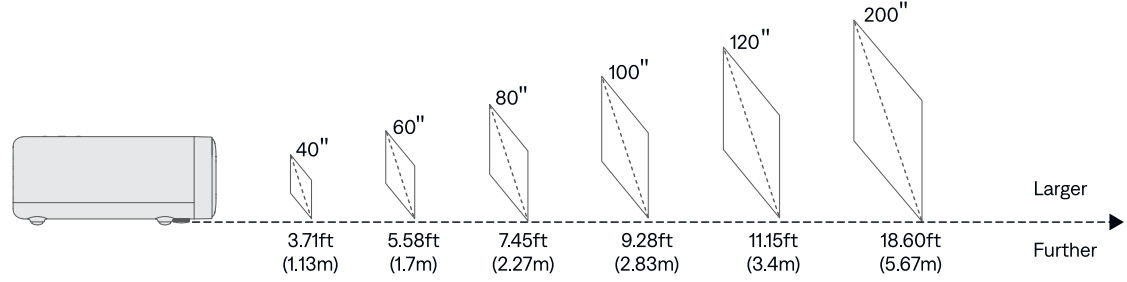
- For optimal image quality, we recommend a projection size of 80*. Position the projector 7.45ft (2.27m) away from the wall or screen.
- The recommended projection distance varies with different projection content. Adjust the distance between the wall/screen and the projector as needed.
- Ambient darkness will improve the clarity of the projected images and may also improve auto focus and auto keystone functions.
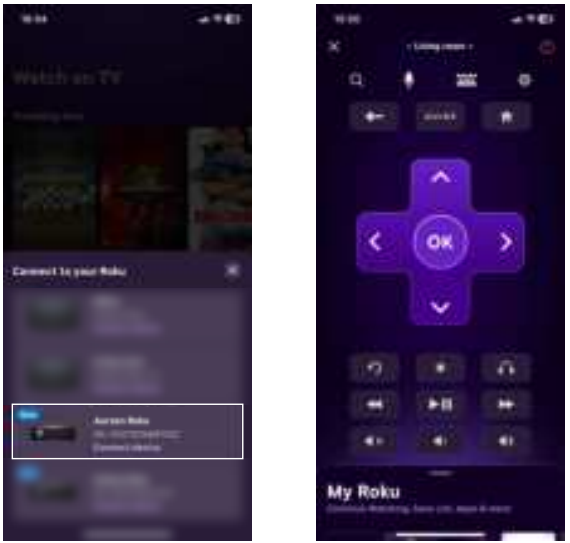
Controlling By Mobile App
In addition to the remote control, you can use the Roku mobile app to control your projector.
- Step 1
- Connect both your mobile device and projector to the same wireless network.
- Step 2
- Download the Roku mobile app from the App Store or the Google Play Store.
- The Roku App (Official) on the App Store (apple.com) for iOS.
- The Roku App (Official) – Apps on Google Play for Android OS.
- Step 3
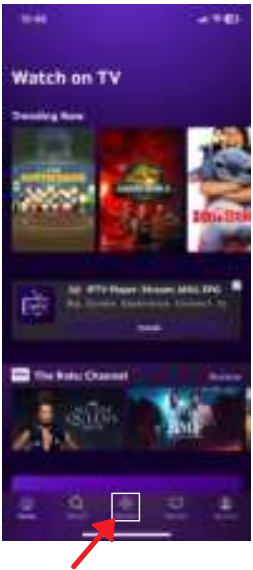
- Launch the app and tap the Remote tab.
- Step 4
- Choose Aurzen Roku (or the projector name if you have renamed it) from the device list to connect. Then the remote interface will appear.
Customer Support
- Email: support@aurzen.com
- Mon-Fri, 9:00 to 17:00 EST
- Phone: +1-667-218-4830
FAQs
Q: Is the Roku TV included with the Aurzen D1R projector?
Indeed. You may stream material straight from the Aurzen D1R without the need to connect an external streaming device, thanks to its integrated Roku TV system.
Q: Does using Roku TV require a separate subscription?
No subscription is required to use Roku TV itself. However, some streaming apps available on Roku (such as Netflix or Disney+) may require their own paid subscriptions.
Q: Is it possible to pair this projector with Bluetooth headphones or speakers?
Indeed. For improved audio or private listening, the Aurzen D1R’s Bluetooth connectivity makes it simple to pair wireless speakers, soundbars, or Bluetooth headphones.
Q: Does the projector need Wi-Fi to function?
Roku TV content streaming and app downloads require Wi-Fi. When external devices are linked by USB or HDMI, the projector can still be utilised offline.
Q: Which gadgets are compatible with the Aurzen D1R?
HDMI allows you to connect gaming consoles, laptops, streaming sticks, DVD players, and more. Compatible media files can be played straight from a flash drive using USB connections.