

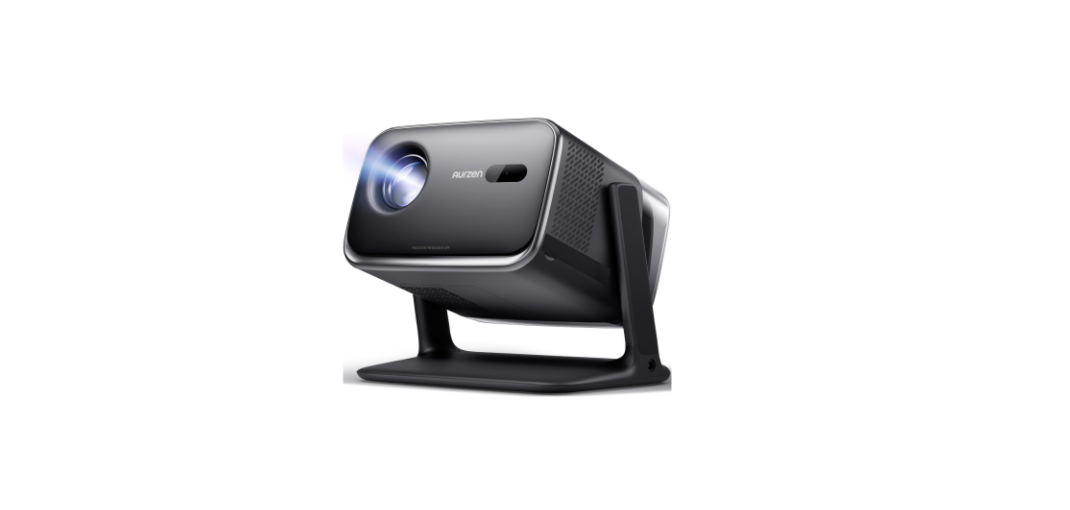
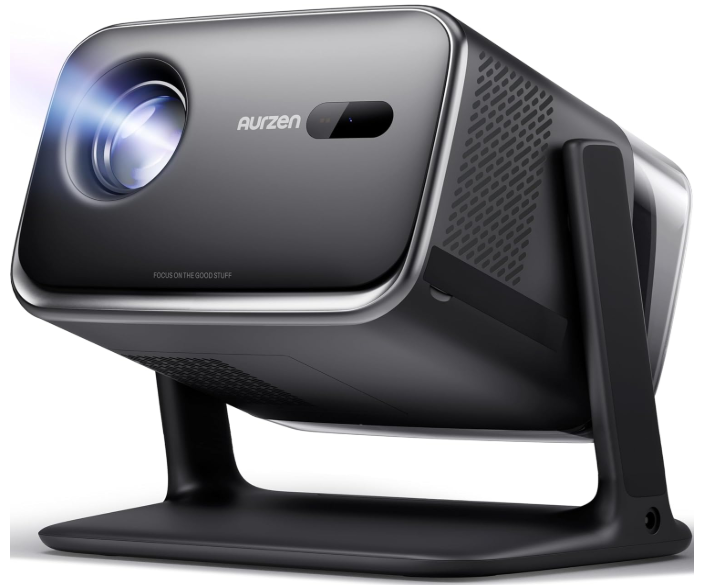
Aurzen Neutop A02M21 Smart Projector
Introduction
Please read the Product Instructions carefully.
Thank you for purchasing and using this product. For your safety and interests, please read the Product Instructions carefully before using the product. The trademarks and names mentioned in the Product Instructions are the property of their respective owners. All Product Instructions shown are for illustration purposes only. The actual product may vary due to product enhancements. We shall not be liable for any personal injury, property damage, or other damages caused by the failure of the user to comply with the Product Instructions or precautions.
In The Box

Overview
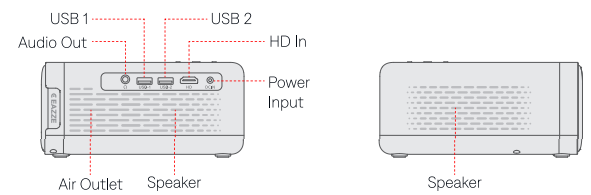
Projector
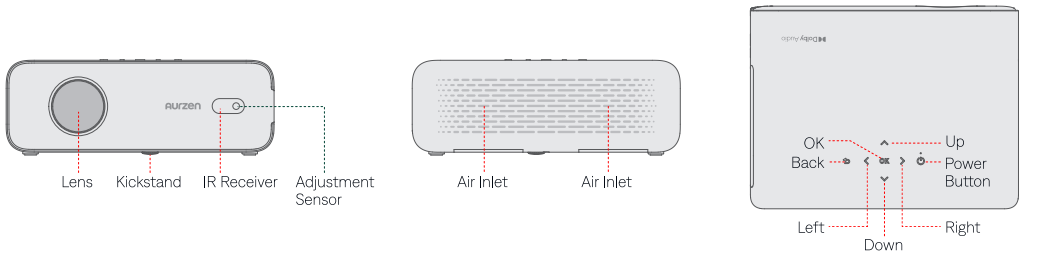
Remote Control
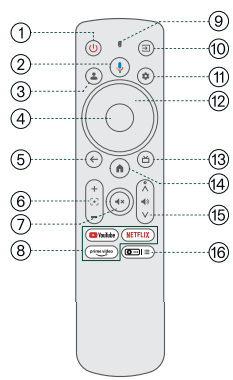
- Power Press to power on/switch to standby mode/ wake up/press and hold for 3s to power off
- Google Assistant: Press and hold, and talk
- User Profile Press to see the profile page
- ок Confirm a selection/pause/resume
- Back Return to previous page
- Focus Adjustment
- Mute
- Streaming Apps Jump to video streaming pages
- Indicator Light
- Press to choose from the input sources
- Settings Press to access the dashboard
- Navigation Control cursor on the screen
- HD Quick Switch Press to switch directly to the HD input signal
- Home Access homepage
- Volume +/-
- Projector Setting (Shortcut): Access the projector setting shortcut menu.
Quick Start
Projector Installation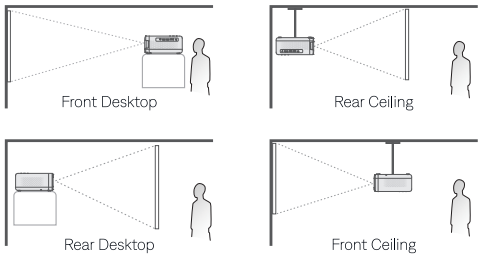
Power On/Off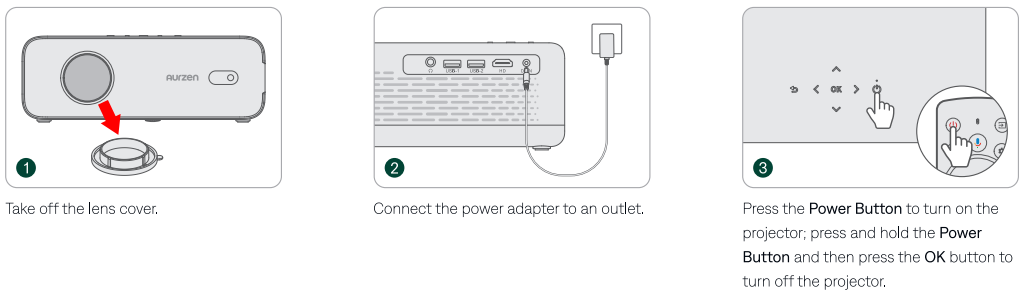
Remote Control Pairing
- Turn on the projector and wait for the pairing prompt on the screen. Bring the remote control within 0.33 ft/10 cm of the projector, then simultaneously press and hold the and a buttons, wait for the pairing to complete.


Setup Wizard
- Follow the setup wizard to select the projection mode, choose your preferred language, select the correct region, and sign in with your Google Account or set up basic TV.
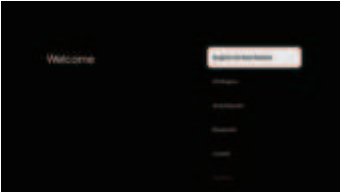
Image Adjustment Focus
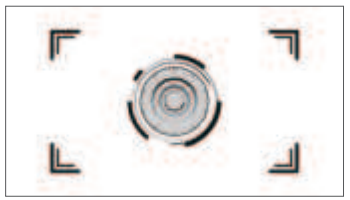
- Auto Focus image quality. When the projector detects shaking/rapid movement, it will automatically adjust the
Electric/Manual Focus
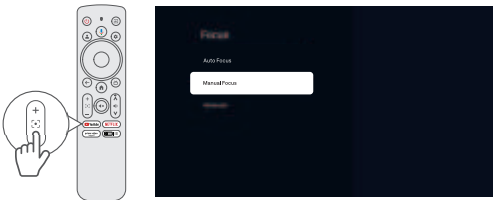
You can also press the Focus buttons on the remote or go to Homepage > Dashboard © > All settings @ › Projector › Focus › Manual Focus to sharpen the image focus until the blurry image becomes clear.
Keystone Correction
- Auto Keystone Correction
When the projector detects shaking/rapid movement, it will automatically correct the keystone distortion.
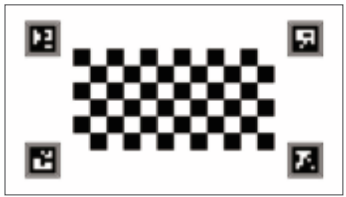
Manual Keystone Correction
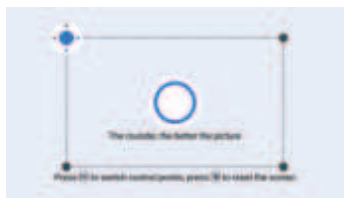
Go to Homepage > Dashboard ® > All settings ® > Projector > Keystone > Manual Keystone to manually correct the image shape by four points.
Google Assistant
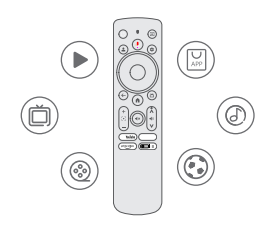
Your TV is more helpful than ever. Use your voice to find movies, streaming apps, play music, and control the TV. Ask Google Assistant to find a specific title, search by genre, or get personalized recommendations. Get answers on screen, control smart home devices, and more. Press the Google Assistant button on the remote to get started.
Google Cast
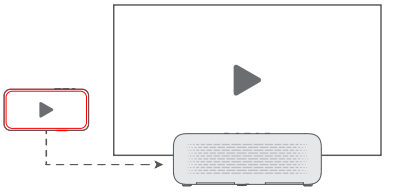
Google Cast is a platform that lets you stream your favorite entertainment from your phone, tablet, or laptop right to your projector. Easily control your TV with apps you already know and love from your iPhone®, iPad®, Android™ phone or tablet, Mac®, Windows® laptop, or Chromebook. To use Google Cast, please ensure you are using a Google Cast-enabled app and follow the instructions below.
- Connect your device and the projector to the same wireless network.
- Open the streaming app on your device.
- Play a video and tap the casting icon on the video screen.
- Select AURZEN D1G to connect. The projector will display the video from your device.
Screen Mirroring Using the Google Home App (For Android Devices)
You can mirror your entire Android device screen onto the projector screen.
- Ensure that you have installed the Google Home app on your device.
- Ensure that both your device and the projector are connected to the same wireless network.
- Open the Google Home app and go to the Devices tab.
- Find and select AURZEN D1G (or the name of your projector if you have renamed it).
- On the device page, tap Cast my screen and confirm when prompted. Your device’s screen will be mirrored on the projector screen.
Screen Mirroring Using the AirScreen App
You can mirror the entire screen from your iOS/Android device onto the projector screen.
- Ensure that both your device and the projector are connected to the same wireless network.
- Search and install AirScreen on the Apps tab – AirPlay is available on your projector.
- Open the AirScreen app and follow the on-screen instructions to complete the process.
BT Speaker Mode
You can use this projector as a BT speaker by connecting your mobile device to it through a BT connection.
Step 1 & 2
Go to Homepage > Dashboard > All settings make the projector ready for a BT connection. > Projector > BT Speaker Mode to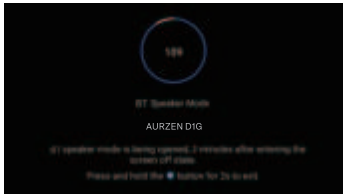
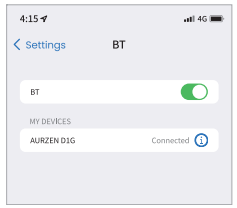
Access your mobile device’s BT settings and activate BT. Search for AURZEN DiG in the available devices list to pair your mobile device with the projector.
Settings
- Color Temperature Go to Homepage > Dashboard Standard, and Warm. > All settings > Display & Sound > Picture > Advanced Settings > Color Temperature to select from User, Cool,
- Reset. Go to Homepage > Dashboard System & Product Info. Go to Homepage > Dashboard > All settings > System > About > Reset to restore the projector to factory settings. > System > About to check system & product information.
Distance & Size
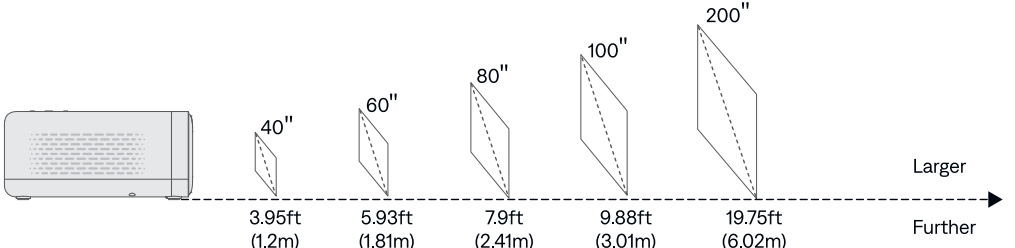
- For optimal image quality, we recommend a projection size of 60*. Position the projector 5.93ft (1.81m) away from the wall or screen.
- The recommended projection distance varies with different projection contents. Please adjust the distance between the wall/screen and the projector as needed.
- Ambient darkness will improve the clarity of the projected images.
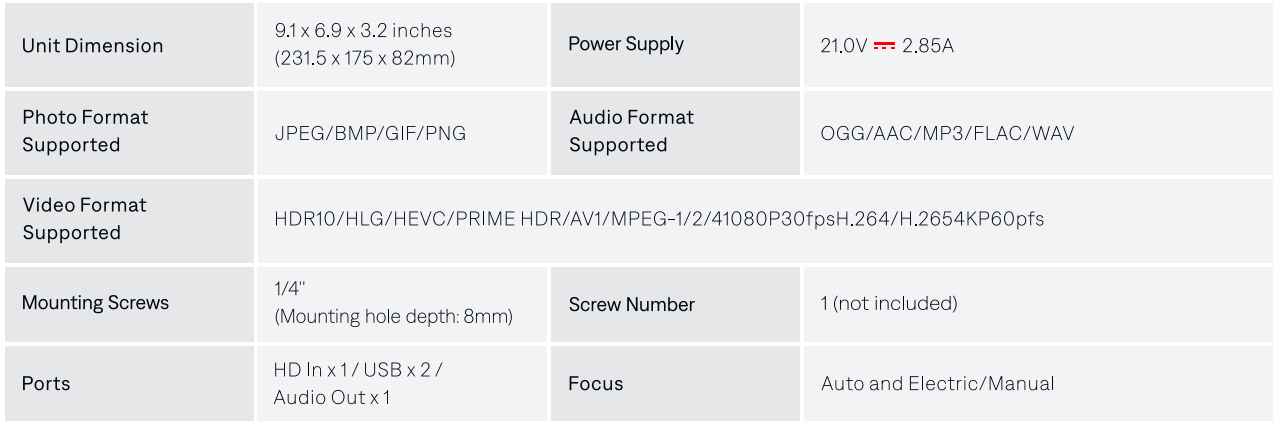
Specifications

Statement
Google TV is the name of this device’s software experience and a trademark of Google LLC. Google, YouTube, Google Home, Google Cast,t and other marks are trademarks of Google LLC.
Dolby Audio
Dolby, Dolby Audio, and the double-D symbol are registered trademarks of Dolby Laboratories Licensing Corporation. Manufactured under license from Dolby Laboratories. Hereby, Shenzhen Neutop Optoelectronics Co., Ltd. declares that this radio equipment is in compliance with Directive 2014/53/EU. The full text of the EU declaration of conformity is available at the following internet address: https://aurzen.com/pages/declaration
The radio frequency specification below only applies to the EU and UK regions.

Disposal
All products bearing this symbol are waste electrical and electronic equipment (WEEE, as in Directive 2012/19/EU), which should not be mixed with unsorted household waste. Instead, you should protect human health and the environment by handing over your waste equipment to a designated collection point for the recycling of waste electrical and electronic equipment, appointed by the government or local authorities. Correct disposal and recycling will help prevent potential negative consequences to theenvironment and human health. Please contact the installer or local authorities for more information about the location, as well as the terms and conditions of such collection points.
FCC Statements
This equipment generates, uses, and can radiate radio frequency energy and, if not installed and used in accordance with the instructions, may cause harmful interference to radio communications. However, there is no guarantee that interference will not occur in a particular installation.
- Reorient or relocate the receiving antenna. Increase the separation between the equipment and receiver. Connect the equipment into an outlet on a circuit different from that to which the receiver is connected.
- Consult the dealer or an experienced radio/TV technician for help. Important: You are cautioned that changes or modifications not expressly approved by the party responsible for compliance could void the user’s authority to operate the equipment. RF Exposure Information:
- The radiated output power of this device meets the limits of the FCC radio frequency exposure limits. This device should be operated with a minimum separation distance of 20cm (8 inches) between the equipment and a person’s body.
- The remote control has been evaluated to meet the general RF exposure requirements. It can be used in portable exposure conditions without restriction.
Canada compliance statement /Conformité réglementaire canadienne
This device complies with Innovation, Science and Economic Development Canada license-exempt RSS standard(s). Operation is subject to the following two conditions:
- This device may not cause interference, and (2) this device must accept any interference, including interference that may cause undesired operation of the device.
- Operation in the band 5150-5250 MHz is only for indoor use to reduce the potential for harmful interference to co-channel mobile satellite systems.
- The radiated output power of this device meets the limits of IC radio frequency exposure limits.
Customer Support
- Email: support@aurzen.com
- Mon-Fri, 9:00 to 17:00 EST
- Phone: +1-667-218-4830