

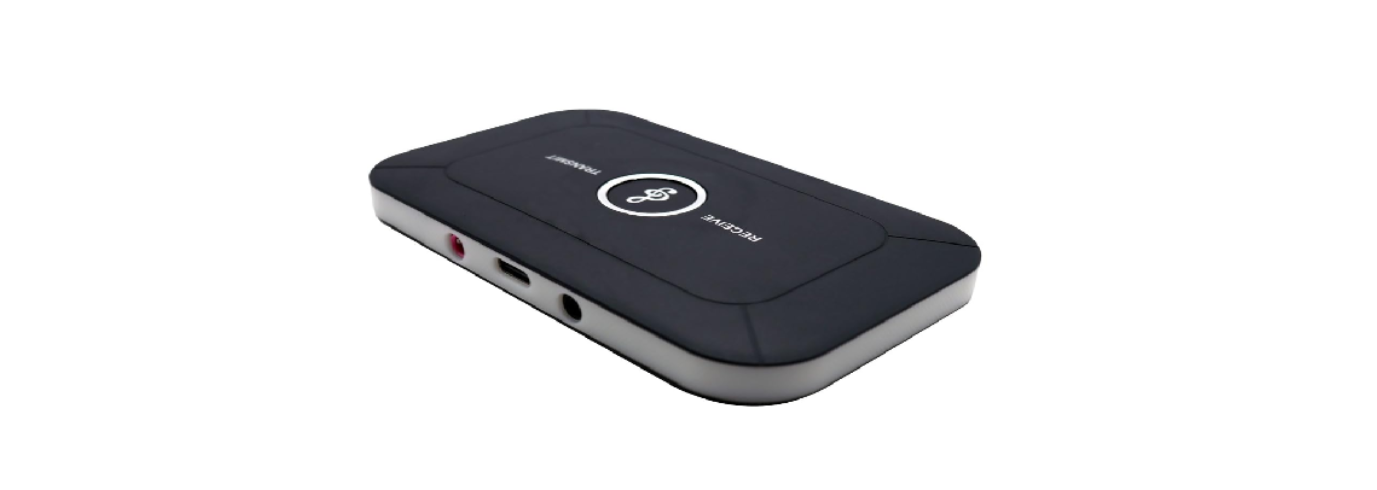

Bose BT2-C5 Audio Streaming Module Instruction
 Introduction
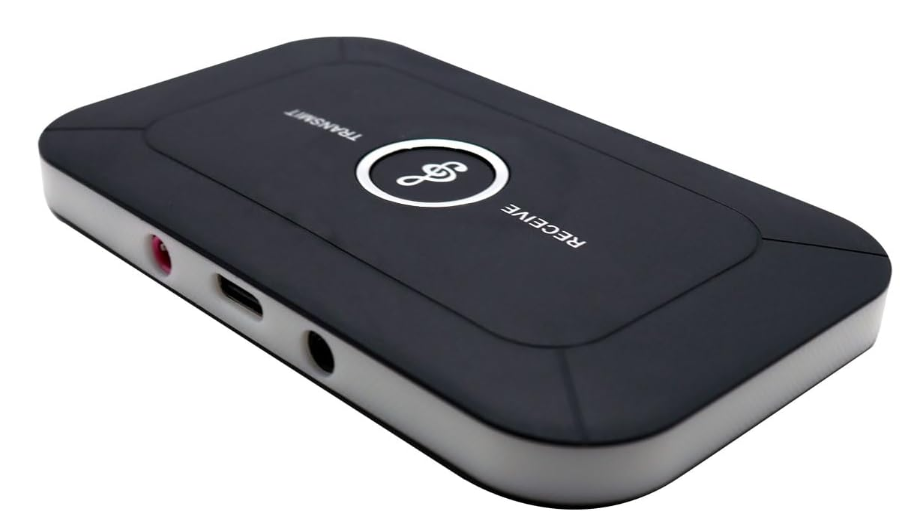 Introduction
The BT2-C5 module adds music streaming capabilities to C5 Theftlock CD or Tape radios (Bose and non-Bose). User has the option to install this module behind the radio cavity OR (if pre-wired), to the 10-pin CD plug in the trunk/hatch. Irrespective of install location, the BT2-C5 replaces the factory 12-disc changer (if present).
If the vehicle has a CD changer and you wish to retain it, purchase our BTA-C5 instead. Alert: The BT2-C5 supports music streaming via Bluetooth, but does NOT support hands-free calls (HPF). Purchase our BT3-C5 for hands-free and music streaming. For more, see the frequently asked questions at the end of this guide.
Safety Instructions
- This installation guide is provided as a GENERAL installation guide; some vehicles vary, and
may require additional steps. - We do not accept responsibility for third-party labour charges or modifications.
- Exercise due diligence when installing this product.
- We do not accept any responsibility for vehicle damage or personal injury.
- Careless installation and operation can result in equipment damage
Requirement
- 1997-04 Corvette AM/FM/CD and AM/FM/TAPE RADIOS WITH AUX BUTTON
Installing the Radio
Selecting the “install at radio” option means the module is to be connected to the 20-pin plug/connector behind the dash/radio. If the vehicle has a 12-disc CD changer in the trunk/hatch, it must be disconnected from the 10-pin plug in the trunk or hatch.
Before getting started, we highly recommend disconnecting the negative battery terminal. If the vehicle has a 12-disc changer, please disconnect it from the 10-pin plug in the trunk/hatch
- Remove the radio from the dash to gain access to the factory plug
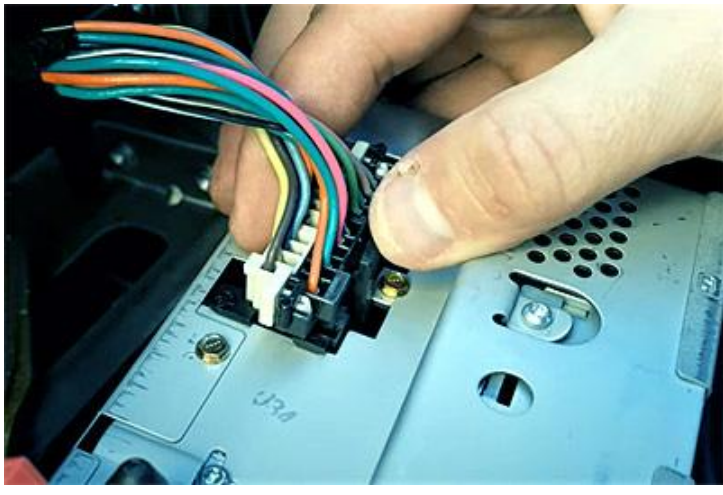
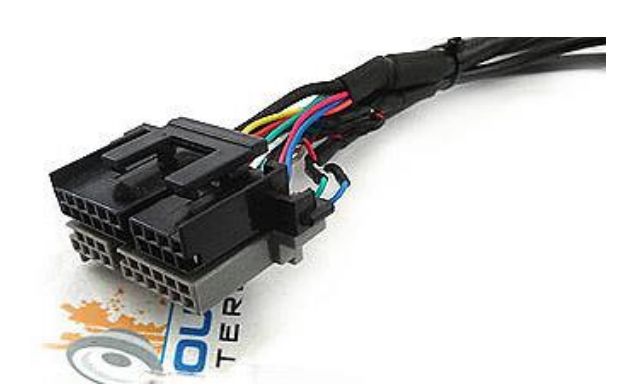
- With the radio removed, release the 20-pin black/gray plug by pressing down on the black release tab.
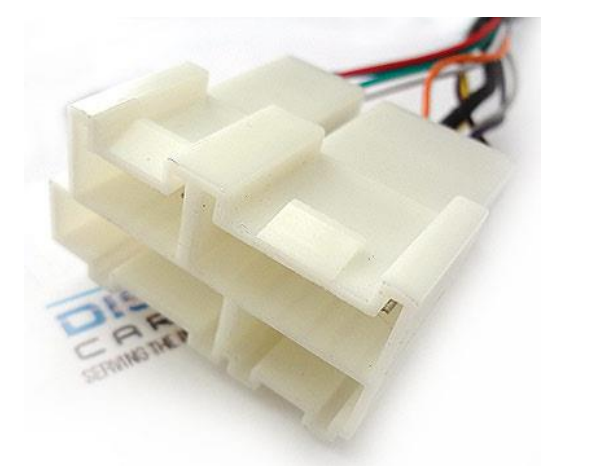
- Connect the 20-pin black/gray plug (from step 2) to the mating 20-pin socket (white) on the installation harness.
- Connect the installation harness 20-pin black/gray plug to the radio 20-pin socket vacated in step 3
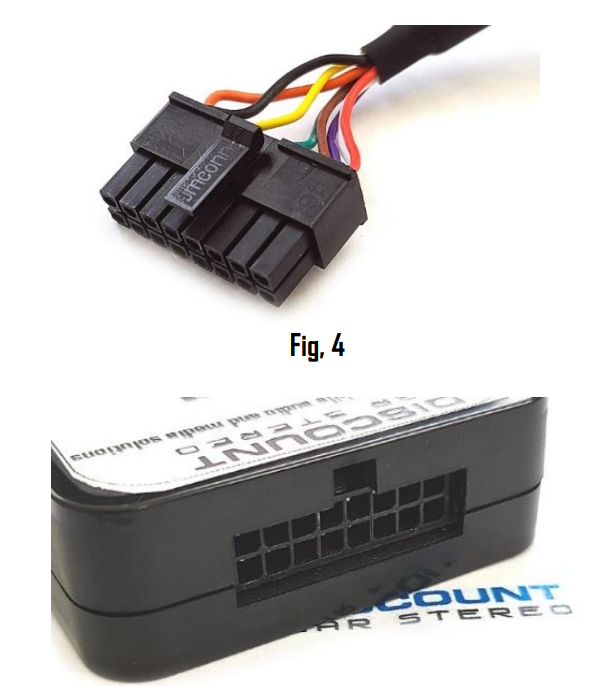
- Connect the installation harness 16-pin plug to the module 16-pin connector. Alert: Ensure the 16-pin plug is fully seated and locked in place
Installation
We highly recommend disconnecting the negative battery terminal
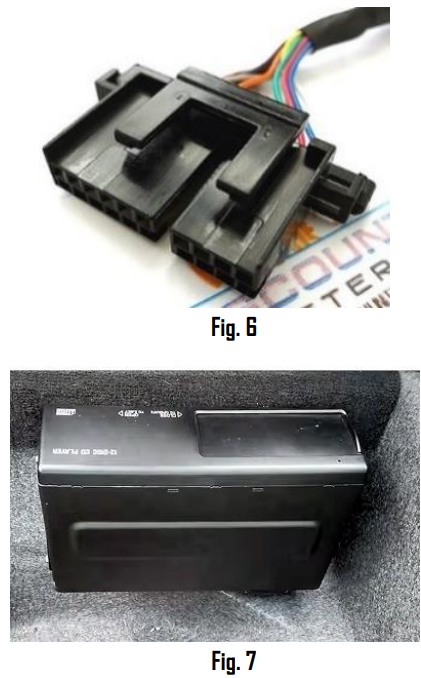
- Locate the factory 10-pin CD plug in the trunk or hatch area. If the vehicle has a 12-disc CD changer, it must be disconnected. To retain the CD changer, purchase our BTA-C5 instead.
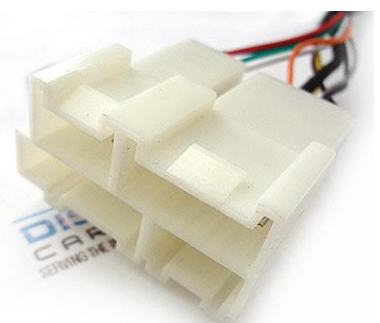
- Connect the factory 10-pin CD plug to the installation harness mating 10-pin socket (white).
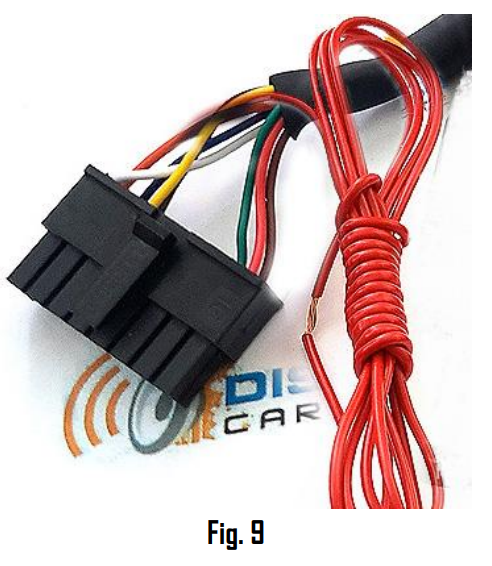
- 9Route the installation harness RED accessory wire to a 12V accessory (switched) supply in the vehicle. The 10-pin CD plug does not have a switched 12V wire. (Do not connect the red wire to the battery supply.)
Getting 12V switched power in the C5 Corvette
We have 3 suggestions as to where to connect the installation harness red accessory (switched) wire:
- 1997-03 vehicles include a 3-pin plug under the passenger toe board/near BCM (may be covered in black duct tape). The yellow wire is ACC (Switched). If the vehicle does not have a 3-pin plug (e.g.2004), go to suggestions #2 &. #3 below.
- Convertibles: It is also possible to get 12V “switched” power from the factory antenna wiring behind the passenger trunk area. Simply pull the carpet away and locate the 3-pin wire plug (orange, pink, black). The pink wire is switched and will power the module when the radio is turned on/off. Tap/splice the installation harness red wire to pink on the 3-pin plug.
- Fuse #11, 22, 23 from the interior fuse box under the passenger toe board.
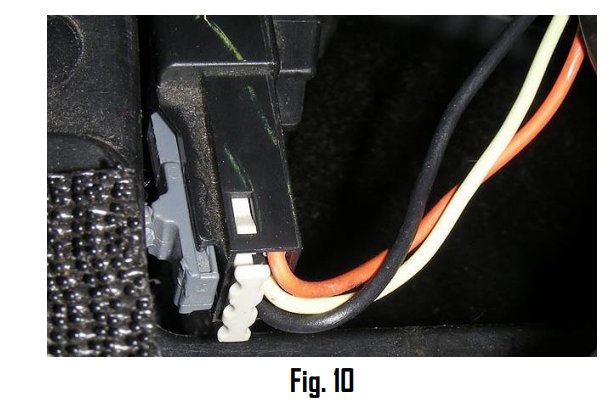
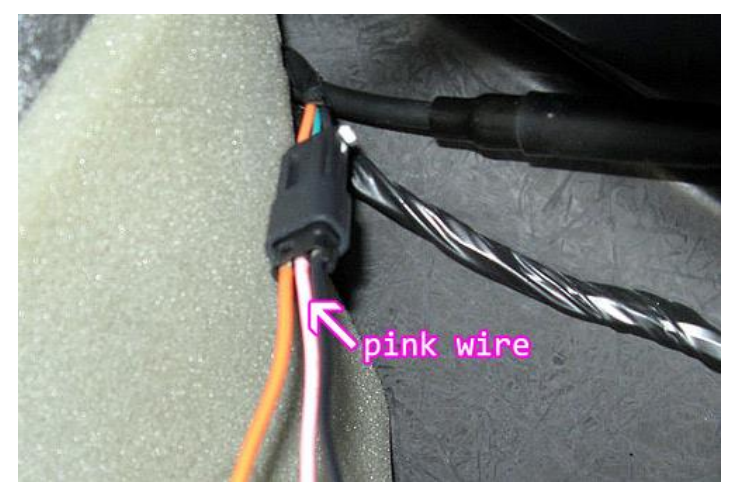
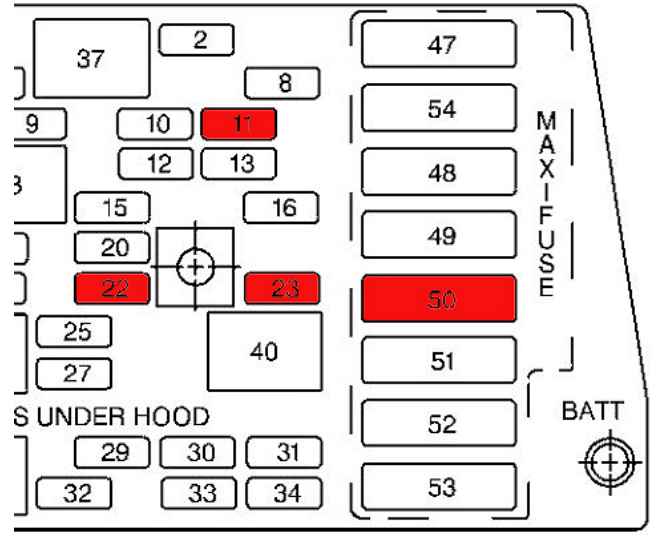
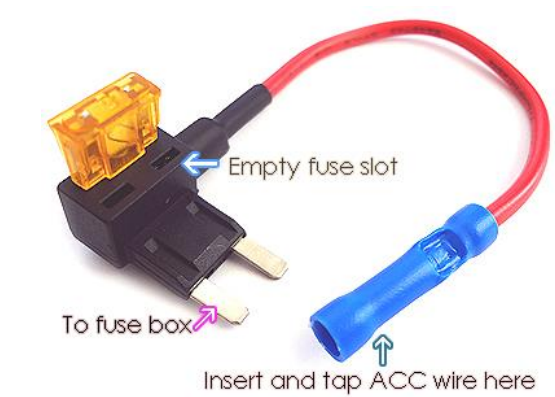
The mini-tap circuit is included for this purpose.
Wiring Instructions
- Strip 1/4- 3/8” insulation from accessory wire
- Insert the stripped wire into the blue butt connector
- Hold the wire in place and crimp (crimping tool, pliers, etc.) After crimping, verify crimp integrity by pulling on the wire.
- Go to the fuse box and remove factory fuse #11 or #22. If either fuse slot is empty has no fuse); skit to step 6. Insert the factory fuse into the empty slot on the add-a fuse tap
- Insert add-a-fuse blades into fuse box slot #11 or #22vacated in step 4. Alert: If the vehicle fuse slot #11, #22, etc. was empty, the empty fuse slot on the add-afuse circuit remains empty.
Pairing
Pairing process varies among devices, but the basic steps are the same. This process is done upon initial install and will not have to be repeated.
- Turn ignition and radio “O.N”
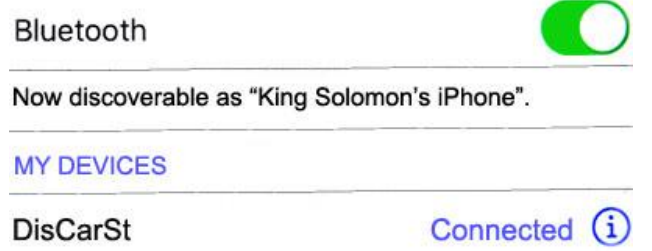
- From your Bluetooth-enabled device, turn the Bluetooth ON and search for Bluetooth devices.
- When a list of available Bluetooth devices appears on your Bluetooth device, select “DisCarSt”.
- Confirmation “tone” is heard on car speakers.
- The unit will automatically enter the BT Audio source, and you can now start streaming audio from your Bluetooth-enabled device. If the mobile phone doesn’t support the SSP (Simple Secure Pairing) Profile, please enter the pass code of “00.00.”
Bluetooth Operation
- Turn the ignition to “ACC”, turn the radio ON.
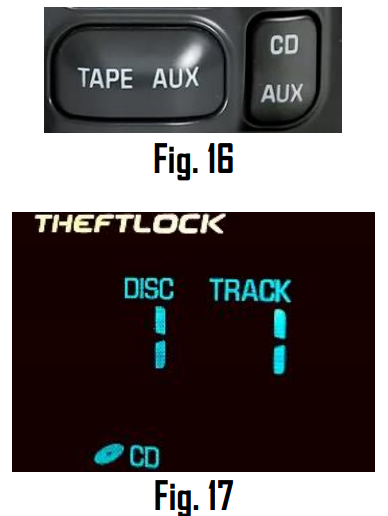
- Press the “TAPE/AUX” OR “CD/AUX” button on the radio to enter Bluetooth mode.
- Open streaming application (e.g., Spotify, Deezer, Apple Music, etc.)
- The application should now be heard on car speakers or adjust the volume.
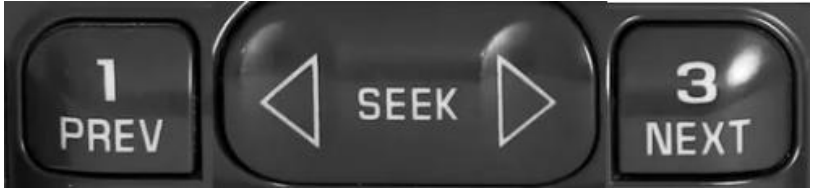
- To track up, press the radio SEEK > or NEXT button
- To track back, press the radio < SEEK or PREV button (See Fig. 18)
- If correct operation is confirmed, reinstall the audio/panels.
Feature Comparison
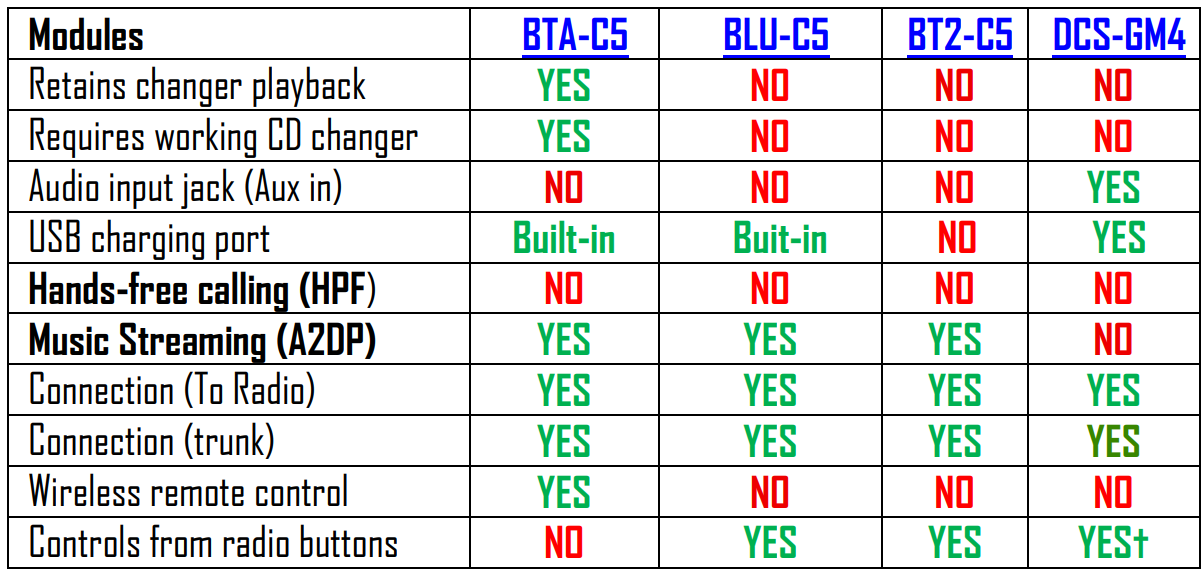
Bluetooth Hands-free calls + audio streaming (A2DP)—See table 1. Audio streaming (no Hands-free) and AUX- See Table 2
Table 1,2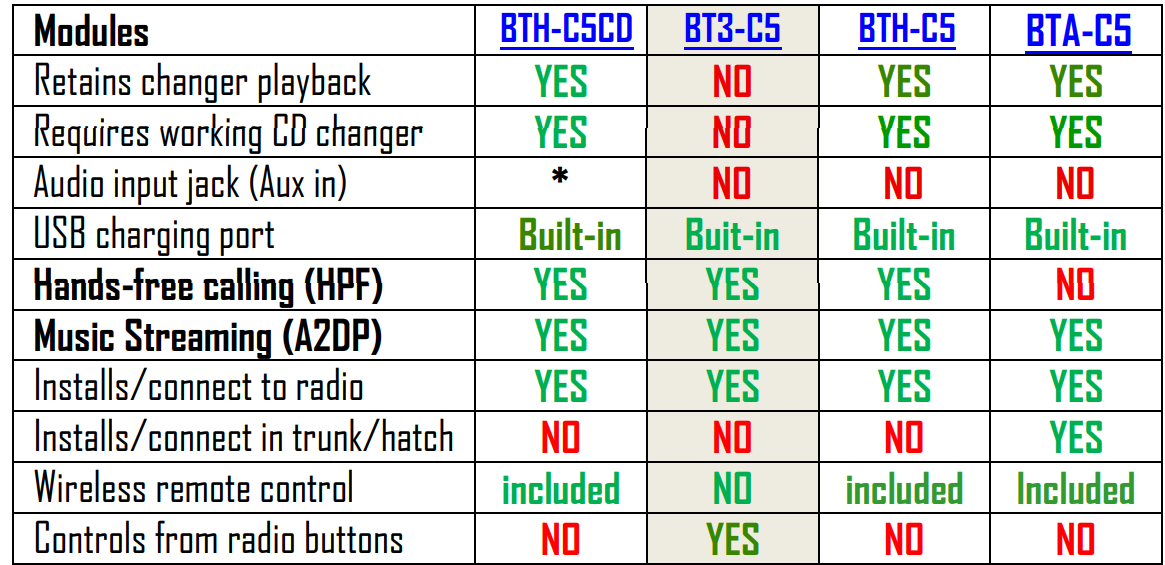
Troubleshooting
Does the BT2-C5 require a 12-disc CD changer to work?
- NO. If the vehicle has a 12-disc changer, it must be disconnected or purchase our BTA-C5 to retain it. I did not receive a microphone.
Does the BLU-C5 not support Bluetooth hands-free calls?
- NO; BT2-C5 module supports Bluetooth streaming only (A2DP). For Bluetooth hands-free purchase our BTH-C5CD or BT3-C5
Can I install the BT2-C5 without removing the radio?
- YES, but only if the vehicle has a 10-pin “CD” plug (See Fig. 6) in the trunk/hatch. To install BLU-C5 without removing the radio, select trunk/hatch install options from the drop-down. See question 6.
Does installing the BT2-C5 disable the CD player built into the radio?
- NO. The BT2-C5 adds music streaming to the existing system and does not interfere with the operation of the CD player built into the radio.
Is it possible to install the BT2-C5 at the radio instead of the trunk/hatch?
- YES; select “Installs at radio” from options in drop-down and follow installation 1 on page 2.
How do I know if the vehicle has BOSE?
- Check the speaker grills for the logo. See Fig.24
Warranty
- This product is covered by a limited warranty.
Customer Support
- Tel: 1-800-278-1083
- Website: https://support.bose.com/
MA 01748 USA Bose is a trademark of Bose Corporation. ArenaMatch is a trademark of Transom Post OpCo LLC. ©2024 Transom Post OpCo LLC.
FAQs
Q: What is the BT2-C5 Audio Streaming Module designed for?
Bose commercial audio systems may receive music or announcements from smartphones, tablets, or other networked sources over Wi-Fi or Bluetooth thanks to the BT2-C5 wireless audio streaming module, which integrates easily with installed systems.
Q: How do I connect the BT2-C5 to my existing Bose system?
Use the included cables to connect the BT2-C5 to the audio input terminals on your system.
Q: What are the power requirements for the module?
To prevent damage or unstable operation, make sure the power supply satisfies the requirements of the module.
Q: How do I reset the module to factory settings?
To clear all network and pairing settings, press and hold the module’s reset button for around ten seconds, or until the status LED flashes.
Q: Can the BT2-C5 stream high-quality audio?
Indeed, the module provides dependable and clear sound for business installations by supporting common high-quality audio streaming protocols over Bluetooth and Wi-Fi.
Q: Is the module compatible with non-Bose audio systems?
Although the BT2-C5 may work with other systems because it can output audio via normal analogue or digital interfaces, full capability is provided by integration with Bose commercial management software.
3 Comments
I don’t think the title of your article matches the content lol. Just kidding, mainly because I had some doubts after reading the article.
Thanks for sharing. I read many of your blog posts, cool, your blog is very good.
Your article helped me a lot, is there any more related content? Thanks! https://accounts.binance.com/register-person?ref=IXBIAFVY