


for speakerthe 
Bowers And Wilkins CDA-4D Distribution Amplifier

Features
- 4-channel amplification in 2 zones with 125 watts per channel delivering high-resolution audio.
- Engineered to work with Bowers & Wilkins installation speakers and subwoofers.
- Highly flexible usage/configuration – Left/Right outputs can be bridged to provide a mono output of double the power at 250 watts.
- Three power mode control options – on, auto detect, or 12V trigger.
- Robust and reliable protection features, preventing damage due to overload, short circuits, or heat.
- Ultra-compact rack-mount design (1 rack unitThe ).The
- The Product Configuration page allows a customizable setup for various use case configurations
- Audio Video Bridging (AVB) compatible.
Contents
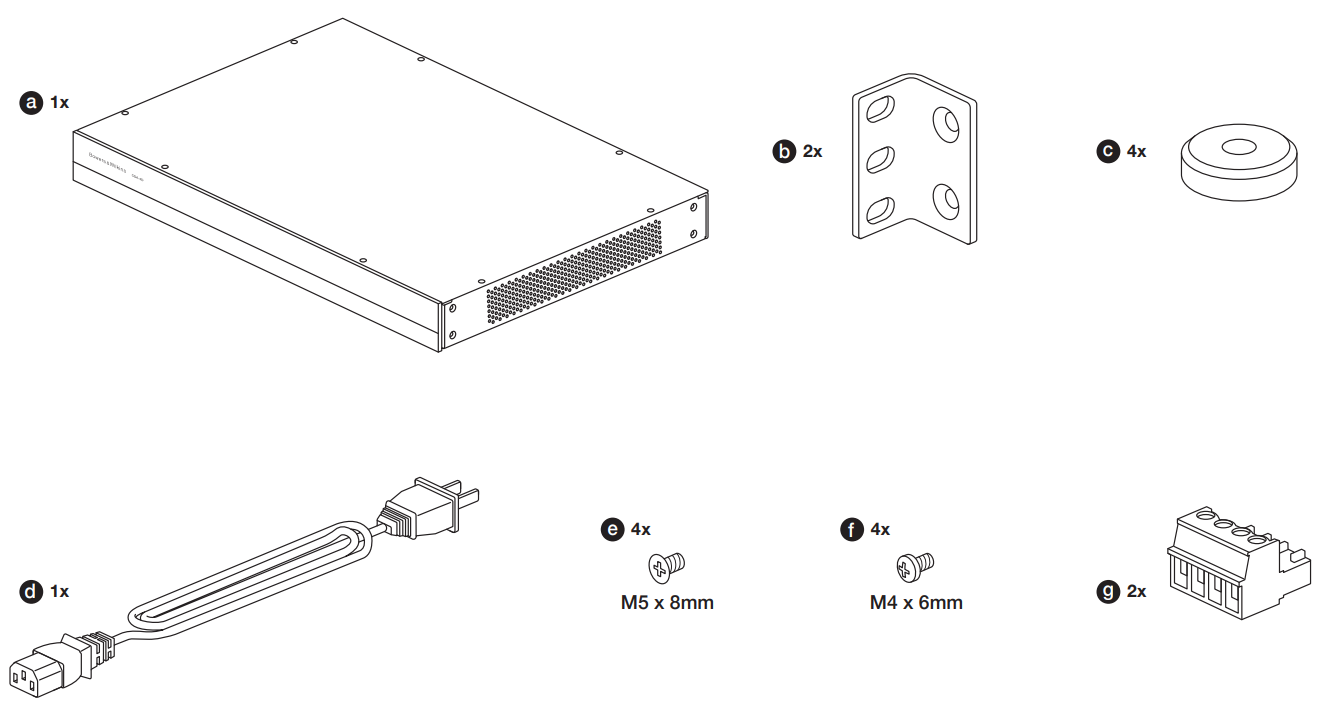
- 1 x CDA-4D
- 2 x Rack-mount ears
- 4 x Feet
- 1 x Power cable
- 4 x Rack-mount ear screws (M5 x 8mm)
- 4 x Feet screws (M4 x 6mm)
- 2 x 5.08mm Pitch 4-way Phoenix Combicon style
Installation
Rack mounting
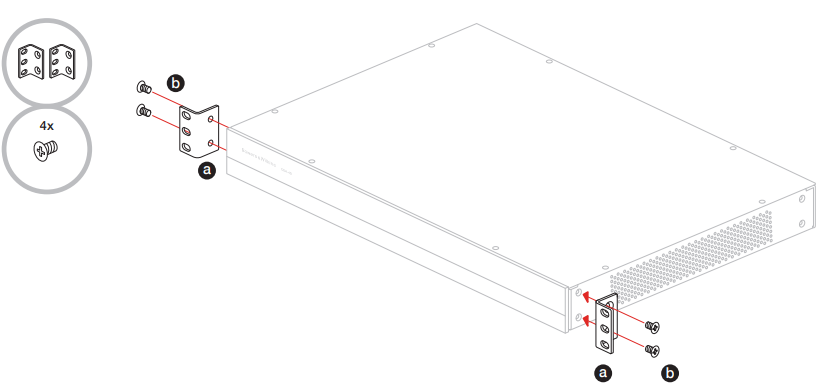
- Attach the brackets by inserting machine screws through each bracket into the threaded holes in the side of the amplifier, see Diagram 2.
Foot mounting
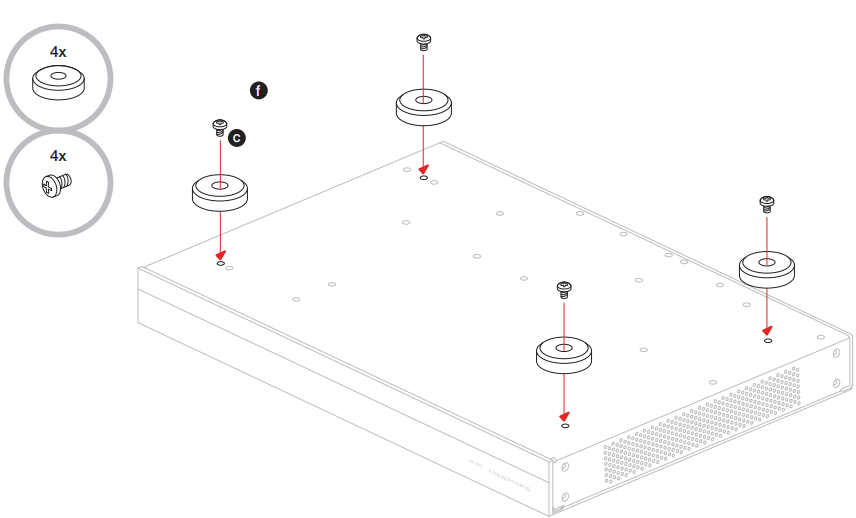
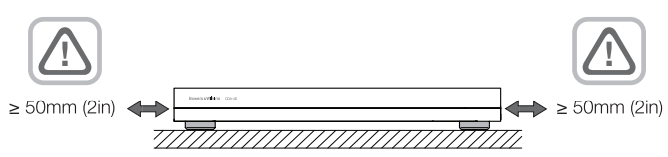
- CDA-4D can also be btable-mounteded and is supplied with feet and feet screws, see Diagram 3.
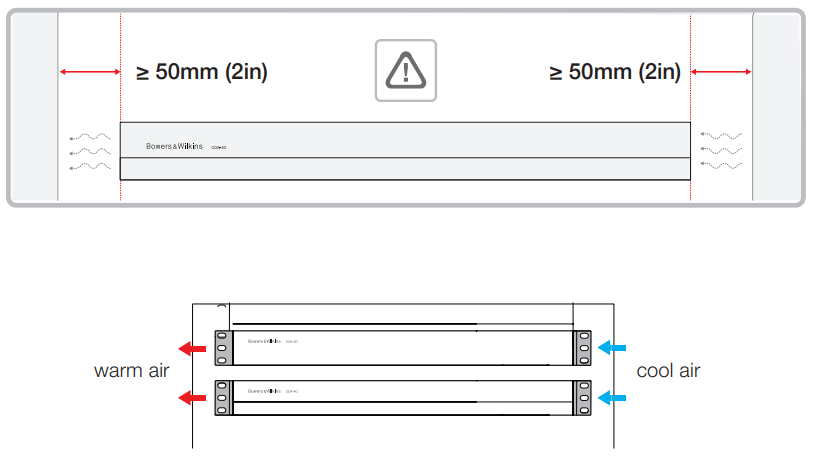
- Ensure that, once positioned, the amplifier is well ventilated and that the ventilation apertures are not obstructed. If the system is taken out of use for a long period, disconnect the amplifier from the mains power supply.
Controls and Connections
Rear panel sockets and switches
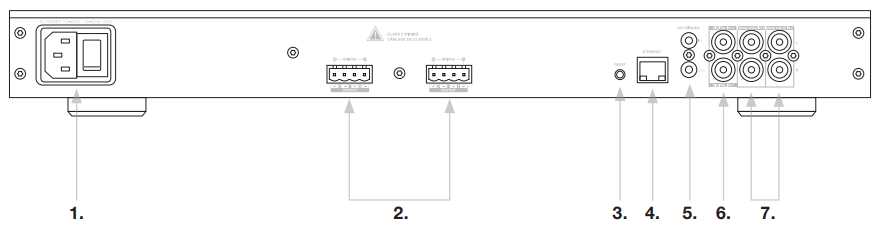
- Power input socket (IEC C14)
- Output
- Reset button
- Ethernet (RJ45) socket
- 12V trigger in / out
- Digital inputs
- Analogue inputs
Front panel controls
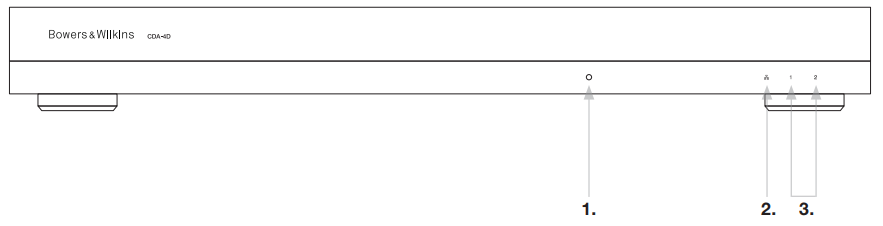
- Power LED
- Ethernet LED
- Zone status LEDs
Reset Button
- Using the factory reset can erase all settings and revert the amplifier to the factory flashed firmware.
Reboot
- This allows the device to gracefully shut down and restart.
- Single press of the reset button – The LED will flash green while rebooting..
Reset
- This will reset all settings and all saved presets.
- Press and hold the reset button for 5 seconds until the LED starts flashing green.
- Release the button and wait for the device to restart.
Factory Reset
- This will reset all settings, all saved presets, and device firmware to its original factory settings.
- Make sure the unit is turned off using the AC power inlet switch.
- Press and hold the reset button and turn the AC power inlet switch on.
- Keep pressing for 10 seconds until the LED starts flashing green.
- Release the reset button and wait for the device to restart.
Connecting
Connecting speaker wires or input cables while the amplifier is powered may cause electrical shock and could damage the amplifier. Unplug the power cord before making connections. There are three options when connecting audio inputs to the CDA-4D distribution amplifier.
Ethernet
Network connection is mandatory for setup and configuration. See section 6 Network..
Audio Video Bridging (AVB) connection
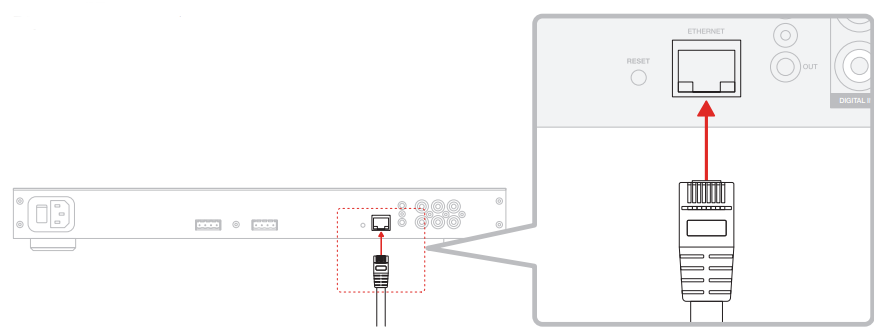
Used to make a connection to a wired network. Once connected, the amplifier will become visible on the network to other Bowers & Wilkins CDA devices. See Diagram 6. Refer to section 7.2.1 on how to set up your amplifier.
Analogue Input
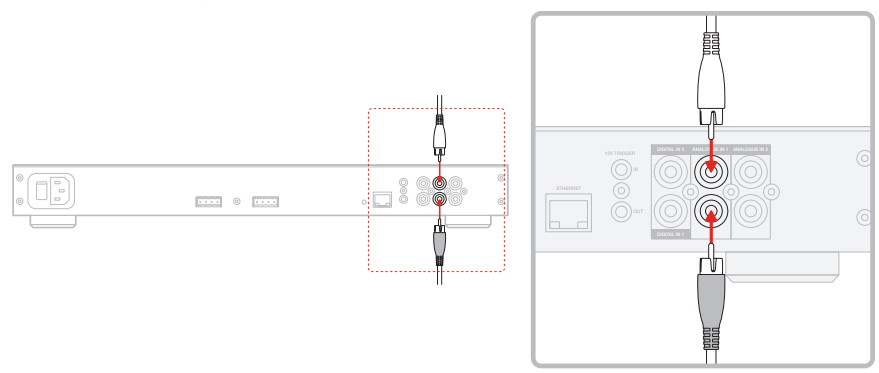
Primary Analogue Inputs 1L, 1R
- Use these inputs for the primary audio source.
Secondary Analogue Inputs 2L, 2R
- Use these inputs for a secondary audio source. See Diagram 7.
Digital Input
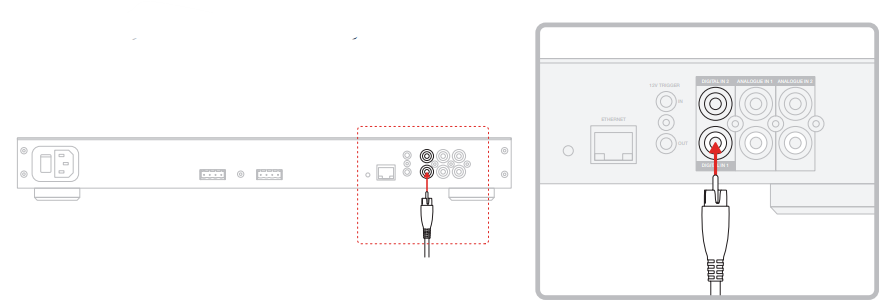
Primary Digital Inputs 1
- Use these inputs for the primary Digital Audio Source.
Secondary Digital Inputs 2
- Use these inputs for a secondary digital audio source. See Diagram 8.
Connecting to speakers
CDA-4D can power two stereo outputs of audio and has phoenix-style terminal blocks forspeakerk connections. Speakers can also be wired to bridge channels to increase the power available to the speakers.
To connect stereo speakers
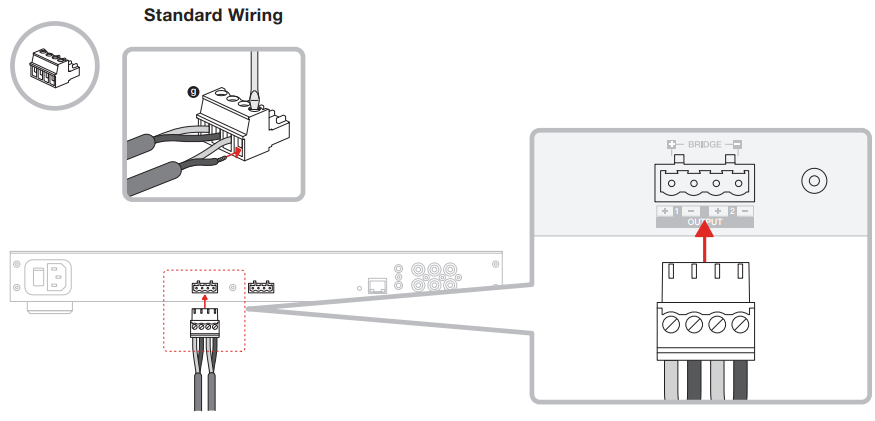
- Connect the speaker cable to the Phoenix connector and reinsert it into the amplifier.
- The common signal of these speaker outputs must not be connected to any other common signal. Do not connect the 1 – and 2 – (negative) terminals together.
- Doing so will result in a fault condition, and the amplifier will either shut down or not work properly.
- Check the polarity of the speakers and wires before connecting to the amplifier.
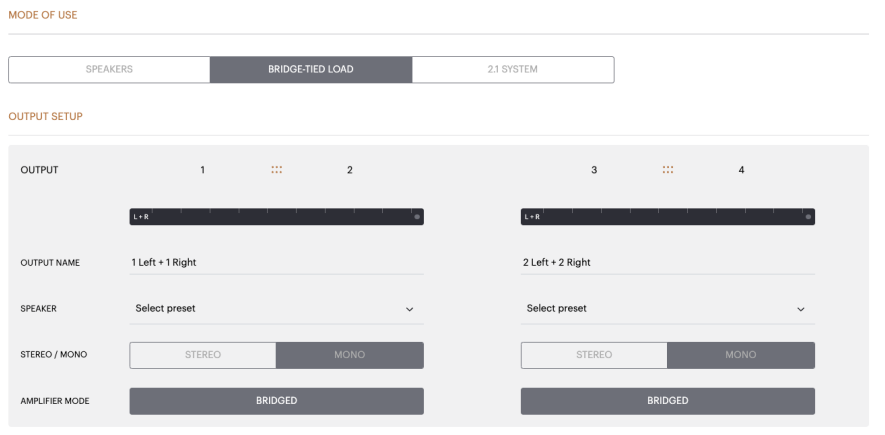
To connect bridged-tied load speakers, see Diagram 10
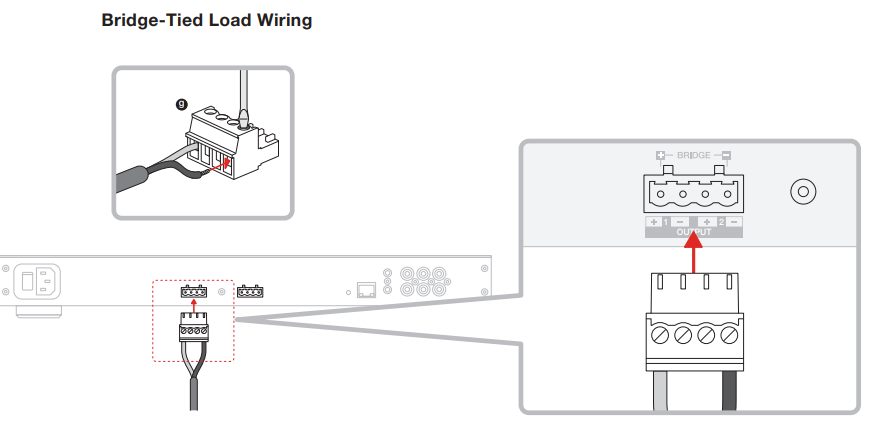
- Select BRIDGE-TIED LOAD in the Product Configuration Page.
- Connect the + terminal from the speaker to the + terminal of the right channel (R).
- Connect the – terminal from the speaker to the – terminal of the left channel (L) on the amplifier.
The two terminals for a bridged pair of speakers are marked by + BRIDGE –. In bridge mode, both amplifiers in the zone combine to make a mono output of double the power. The minimum load impedance in bridge mode is 8Ω. Connecting 4Ω loads may result in lower output power, distortion, and overheating.
Setting POWER MODE
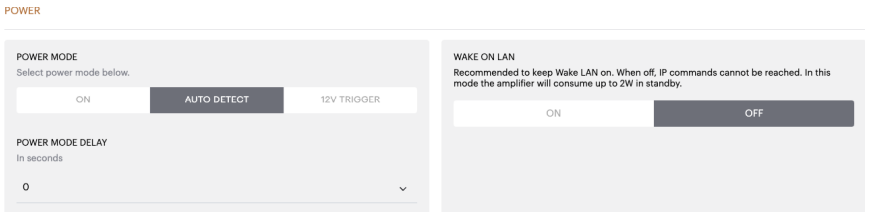
To set up CDA-4D to be controlled by a 12V trigger
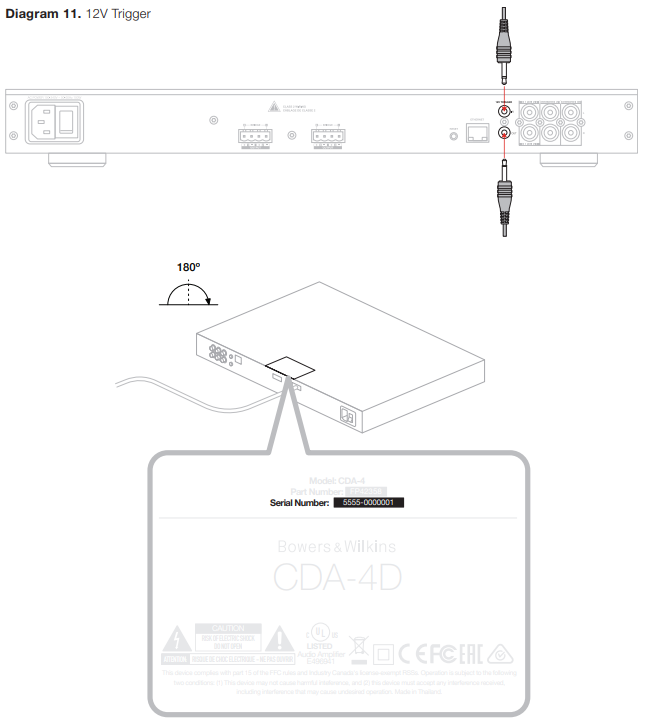
- Connect the 12V trigger cable to the 3.5mm 12V TRIGGER IN socket, see Diagram 11. Ensure a 12V signal is present.
- Select 12V TRIGGER in the POWER MODE settings.
- (Optional) Connect the 12V TRIGGER OUT socket to a 12V TRIGGER IN on another amplifier to link the power control together.
In this mode, CDA-4D will turn on when a 12V signal is present on the 12V Trigger Input. This 12V trigger input can be wired to the 12V trigger output from an audio matrix switch or a relay.
Network Connection Instruction
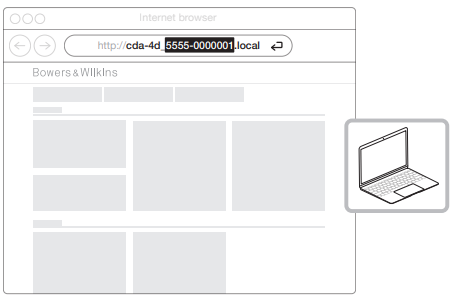
- The amplifier’s factory default settings have DHCP set to ON.
- Connect the amplifier to a network with a router using an RJ-45 cable. Make sure the computer/tablet and amplifier are on the same network.
- Turn on the amplifier.
- Open a web browser
- Enter the CDA-4D default network address [product name]+[serial number], for example: http://cda-4d_XXXX-xxxxxxx.local in the browser address field and press “return”. This will open the Product Configuration Page.
Alternatively, all network IP addresses will be accessible from your Router configuration page.
Configuring your Amplifier
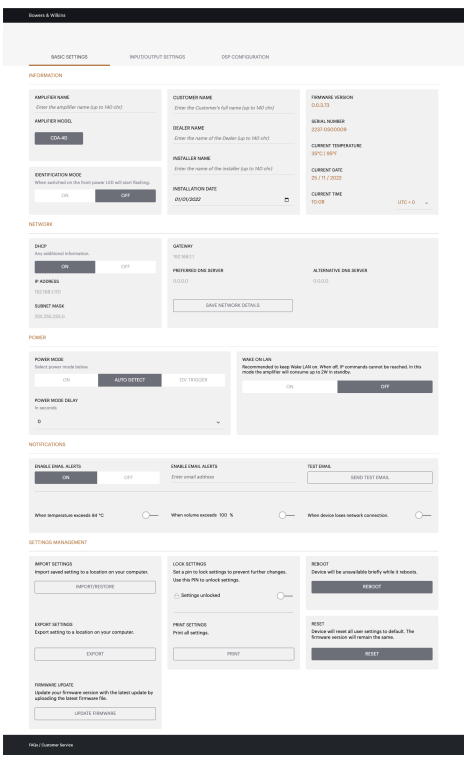
Basic Settings
In the Basic Settings tab, users can edit general amplifier settings. The following section will take you through each of the functions on this tab.
Information
In this section, the user can add a name for the CDA-4D amplifier and enter the installation details. The amplifier model, Firmware version, serial number, temperature, and time/date are displayed here; they are non-editable.
Identification Mode
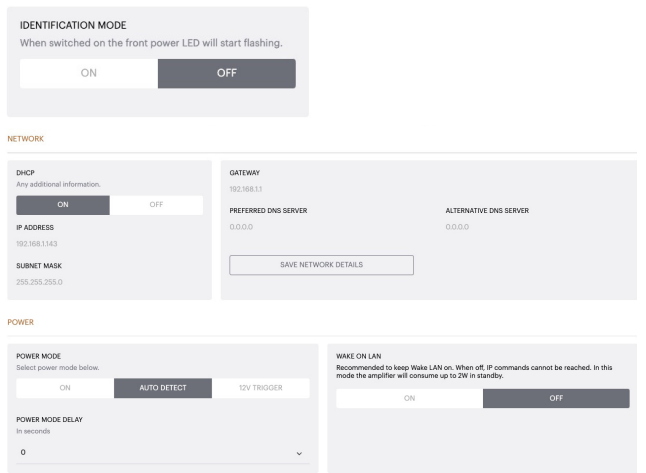
When this option is switched ON, the front power LED will start flashing (White) to indicate which amplifier you are programming.
Network
DHCP ON / OFF
- CDA-4D’s factory default setting has DHCP (Dynamic Host Connection Protocol) set to ON.
- DHCP shows the current IP address used when DHCP is ON. When DHCP is set to OFF, this allows you to enter a desired static IP address.
Power Mode
In this section, the user can select from a selection of POWER MODE options. CDA-4D’s factory default setting is set to Auto Detect.
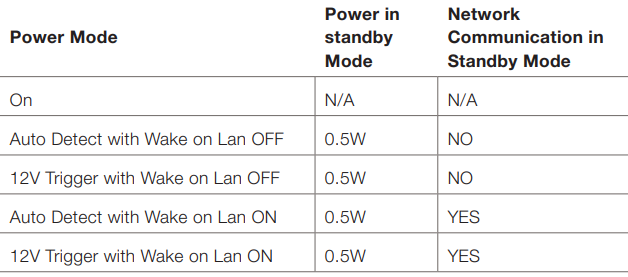
ON
- In this mode, signal sense and 12V Trigger are turned off. The amplifier will always stay on.
AUTO DETECT
- This mode uses signal sense to turn the amplifier on.
12V TRIGGER
- In this mode, the amplifier will turn on when a 12V signal is detected and turn off when not.
Auto On Delay
- The amplifier can be set from 0-20 seconds. This is useful when you want a series of amplifiers to switch ON in a specific sequence.
Wake On Lan
- This allows the amplifier to be powered on or awakened from standby, from another device on a network.
Control Systems
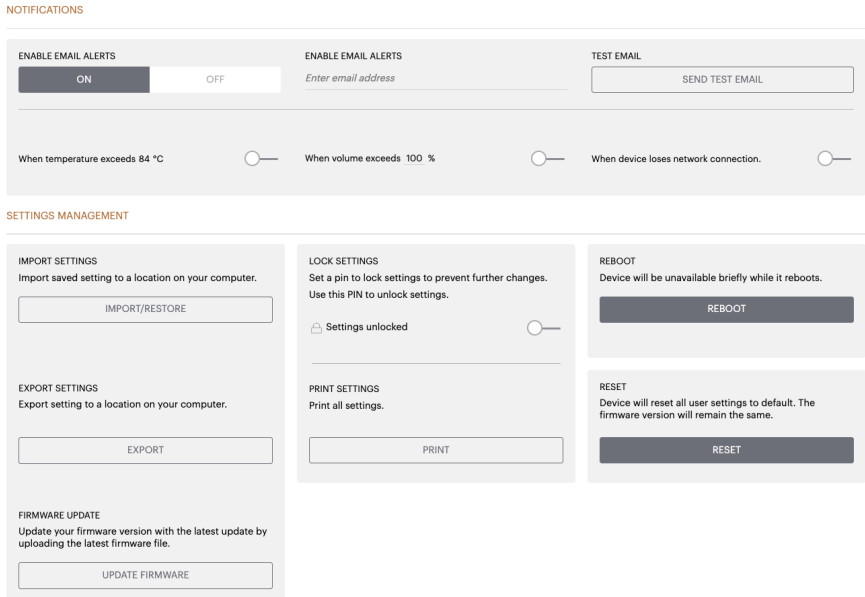
Wake on LAN must be enabled to control the unit via a control system.
Notifications
In this section, the user can turn ON notifications and select notification alerts from the list. An alert notification will be sent to your desired email address when the selected alerts are triggered.
Settings Management
Import / Restore and Export Settings The Import / Restore and Export button allows you to import and export saved settings from a location on your computer. This can be very useful when setting up multiple amplifiers.
Lock Settings
- When LOCKED, changes cannot be made on the device configuration page.
- The PRINT button will output a complete list of all settings for the amplifier.
Reboot
- The REBOOT button allows the device to gracefully shut down and restart.
Reset
- The RESET button will reset all settings and all saved presets.
Input / Output Settings
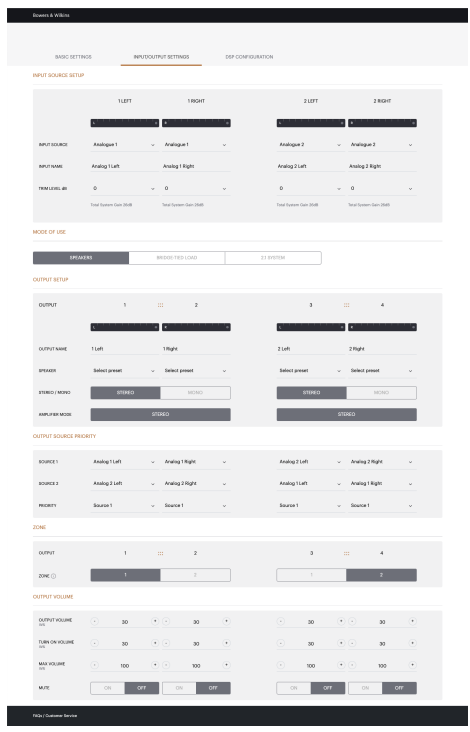
Source Setup
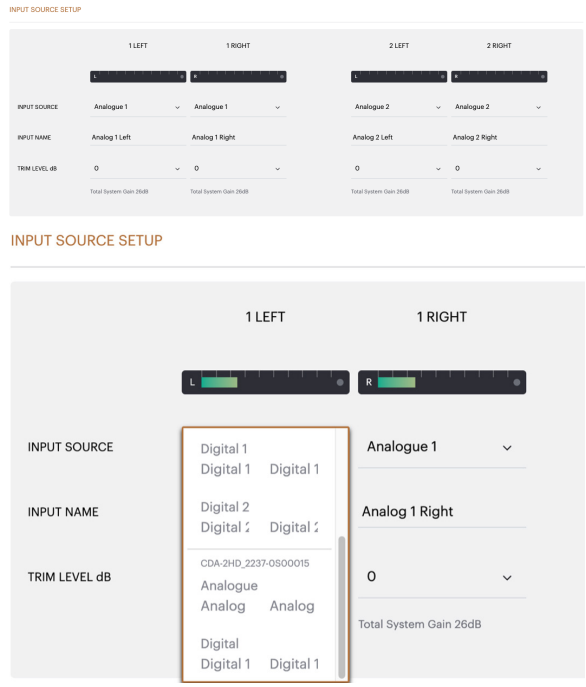
AVB Input Sources
AVB input sources will be available when sibling devices can recognize each other on the network. The sibling device will be shown in the INPUT SOURCE drop-down with the serial number or friendly name of the device shown in the list. You will be able to select either of the inputs from that device to use.
Trim Level
- Trim level can be adjusted for each channel from 1dB to +13dB with a 1dB increment.
- The trim level allows levelling of the inputs before being amplified. The total system gain will be calculated and shown when the threshold level is adjusted.
Mode of Use

The Mode of Use defines the system setup and the number of possible speaker configuration variants. There are 3 options.
Speaker Mode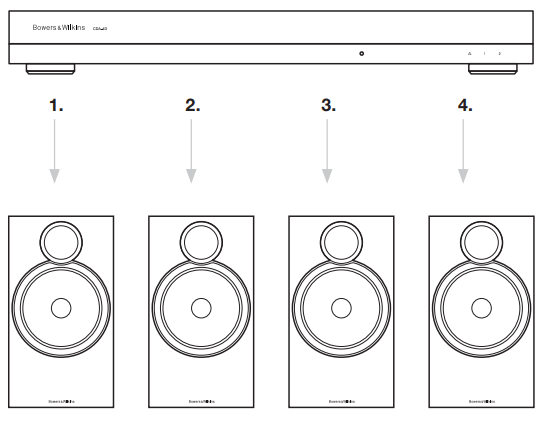
- Four channels driving four speakers in stereo or mono.
Bridged-Tied Load Mode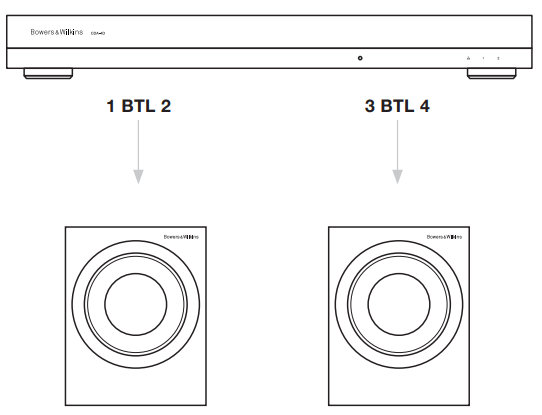
- When more power is required, two channels can be bridged into one.
2.1 System Mode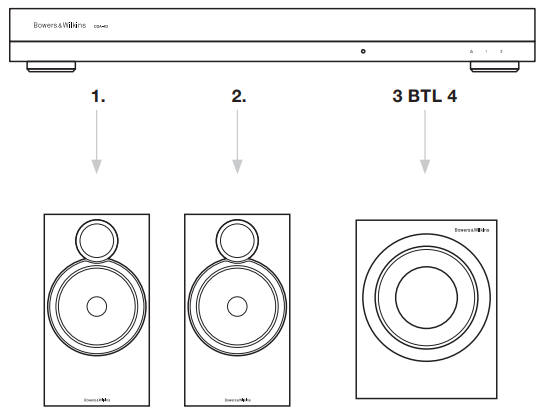
- 2.1 system will allow users to drive two speakers in stereo or mono, and bridge the other two channels into one for more power.
Output Setup
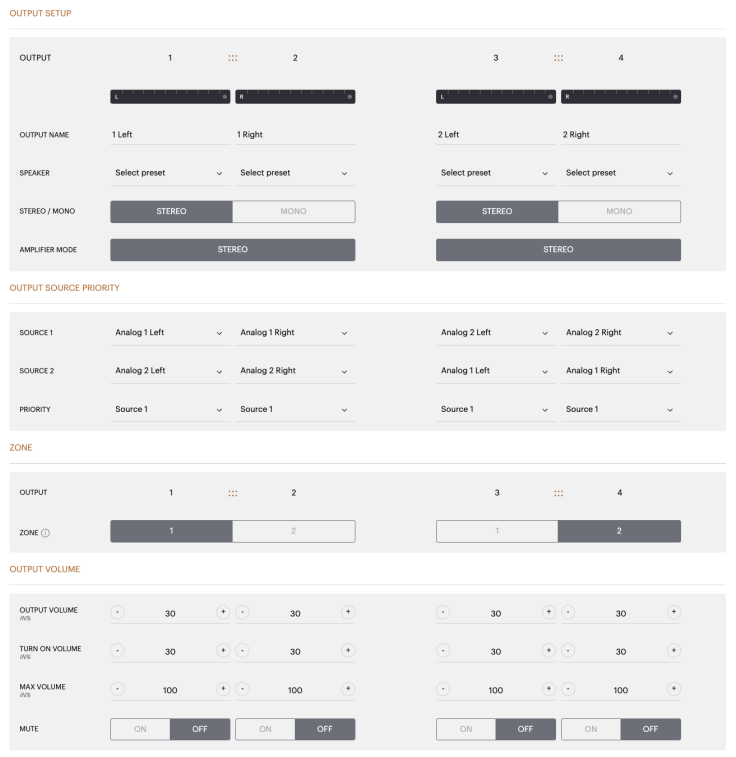
- This monitors the audio output level sent to the speakers.
- This section lists all available output channels.
Speaker
- When using a non-Bowers & Wilkins product, please choose any User Preset.
Zone
- CDA-4D has 2 output zones: Zone 1 or Zone 2.
- This groups the settings Output Volume,
- Turn on Volume, and mute across channels that have the same Zone.
Output Source Priority
Source 1
This is the primary source you will direct to the speakers. Left inputs default to left outputs and right inputs to right outputs.
Source 2
- This is used as a secondary input source
Priority
- CDA-4D has two available input sources. This allows the user to define which input source to use.
- Source 1 only – Only play from Input Source 1.
Output Volume
- This is the main volume level control for each channel.
Output Volume
- Main volume level control for each channel.
Turn On Volume
- In case of a power outage, the TURN ON VOLUME ensures the system always comes back on at the same level.
Mute
- Eliminates the output from the speakers. Channels placed in the same Output Zone will change simultaneously.
DSP Configuration
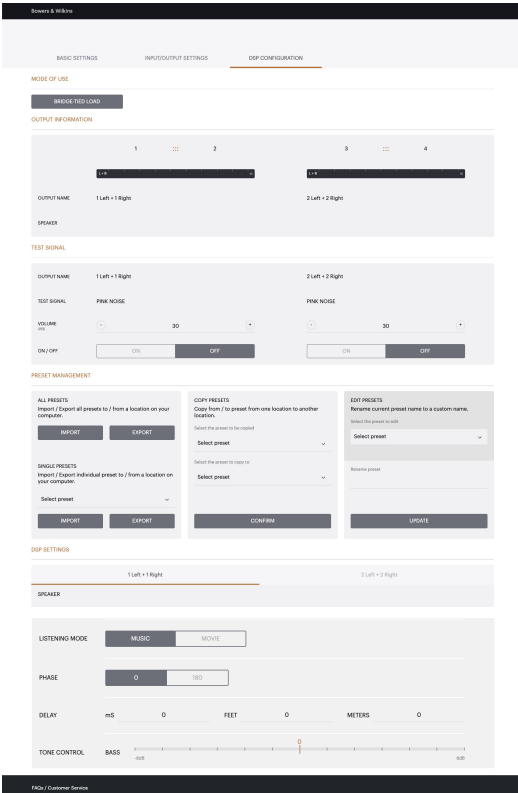
- In the DSP Configuration tab, you can make fine adjustments like Phase, Delay, ay a Tone Control on Bowers & Wilkins products.

Output Information
This section displays the output selection made in the previous Output Setup page.
Test Signal
- The CDA-4D includes a built-in pink noise generator.
Volume
- The Volume setting here allows you to change the volume of the pink noise.
- Changes applied here to the volume settings are independent of the Output Volume settings and will not affect those settings.
On/Off
- The On/Off lets you play the test signal to the channel chosen.
Import, Export & Copy Presets
- This section allows import, export,r,, or copy of presets to or from a computer location.
All Presets
- IMPORT (all presets) allows importing of all saved presets from a computer.
- This is useful when setting up multiple amplifiers.
- EXPORT (all presets) allows saving all presets from the amplifier to a computer.
Single Preset
- IMPORT (single preset) allows importing of the selected presets from a computer.
- EXPORT (single preset) allows saving the selected preset from the amplifier to a computer.
Copy Presets
- This allows the duplication of the selected preset.
Rename Presets
- This allows changing the name of the selected preset.
DSP Settings
Output Tab
- Select the output tab to make adjustments to speaker settings for each output channel.
Speaker
- This shows the product model selected for the output channel.
Tone Control
- TONE CONTROL allows fine adjustment to the BASS and TREBLE.
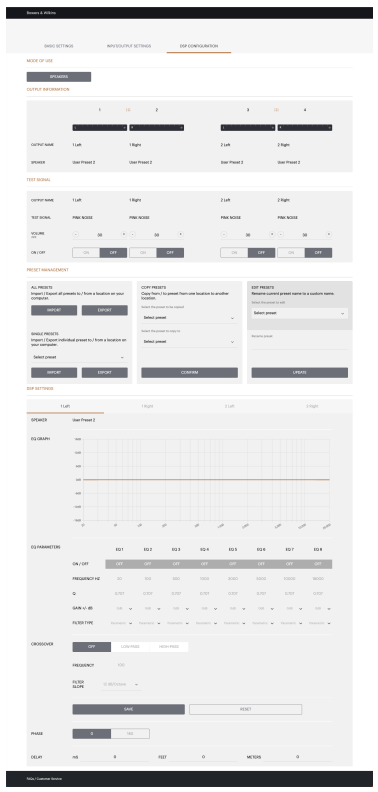
DSP Settings for third-party products
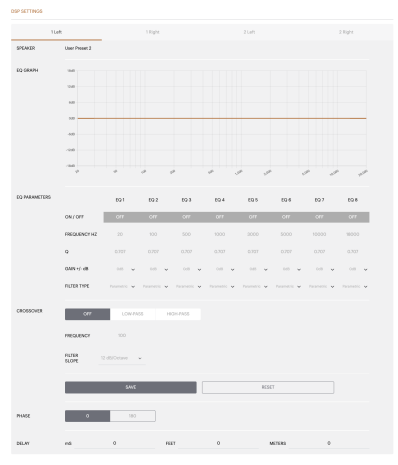
Output Tab
Select the output tab to make adjustments to speaker settings for each output.
EQ Settings
Graph
- The EQ graph reflects the changes to the EQ Parameter.
Parameter
- The CDA-2HD features an 8-band parametric EQ.
On/Off
- Use the On/Off button to switch the frequency band to activate the frequency bandwidth applied.
Frequency Hz
- The lower the Q factor, the wider the bandwidth. The higher the Q factor, the narrower the bandwidth.
Gain
- EQ Gain increases or decreases the gain at the selected frequency.
Filter Type
- Filter Type available: Parametric, High Shelf, or Low Shelf.
Crossover
- Crossover available: Off, High Shelf,f, or Low Shelf.
Filter Order (dB/Oct)
- Filter Order selectable between -6dB, -12dB, 18dB, -24d, B or Off.
Save / Reset
- To apply the EQ and Crossover configuration made on the channel, click Save before moving to the next tab. To restore the default setting or clear the settings made to this section, click the Reset button.
Phase
- Phase default is set to OFF. When turned ON, Phase will invert at 180°.
Delay
The minimum delay is 0.01 milliseconds, and the maximum delay is 20 milliseconds.
LED status
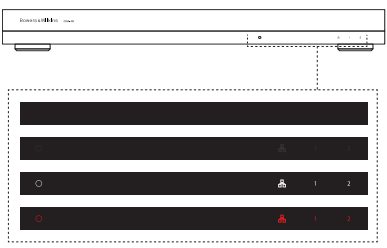
Power LED
| Dark/unlit | Off |
| Dim white | Standby |
| White | On |
| Red | Fault |
Zone status LED
| Dark/unlit | Off / Signal not present / PSU fault |
| White | One signal present |
| Red | Zone fault |
Network status LED
| White | Network present |
| Red | Network error |
Environmental Information
- This product automatically manages its power state without the need for any interaction.
- This product complies with international directives, including but not limited to the Restriction of Hazardous Substances (RoHS) in electrical and electronic equipment, the Registration, Evaluation, Authorization and restriction of Chemicals (REACH), and the disposal of Waste Electrical and Electronic Equipment (WEEE).
- Consult your local waste disposal authority for guidance on how to properly recycle or dispose of this product.
Customer Service
- Ph: 800 370 3740
- Website: https://www.bowerswilkins.com/
FAQs
How many speakers can the CDA-4D power?
Depending on impedance, each of the amplifier’s four independent channels can power one or more passive speakers.
What is the power output of the CDA-4D?
The CDA-4D typically provides high continuous power per channel, while exact power output varies depending on operation mode and impedance. For precise wattage values at 8Ω and 4Ω, consult the specification table in the user manual.
Can I use the CDA-4D with a passive subwoofer?
Only if the subwoofer has a matching impedance and the amplifier is capable of bridged mode. Use a specialized subwoofer amplifier if not.
Where can I find full technical specifications?
The CDA-4D User Guide’s Specifications section contains all technical information, including wattage, frequency response, DSP functions, impedance ratings, rack dimensions, and trigger voltage.
What is the typical lifespan of the CDA-4D?
The CDA-4D can endure ten to fifteen years or beyond with the right maintenance, cooling, and load control.
Can I connect the CDA-4D to a matrix switcher?
Indeed. Audio matrix switchers are completely compatible with the CDA-4D. Set up the switcher outputs for each zone using the amplifier’s line-level inputs.