



Bowers And Wilkins Panorama 3 Dolby Sound Bar
 Features
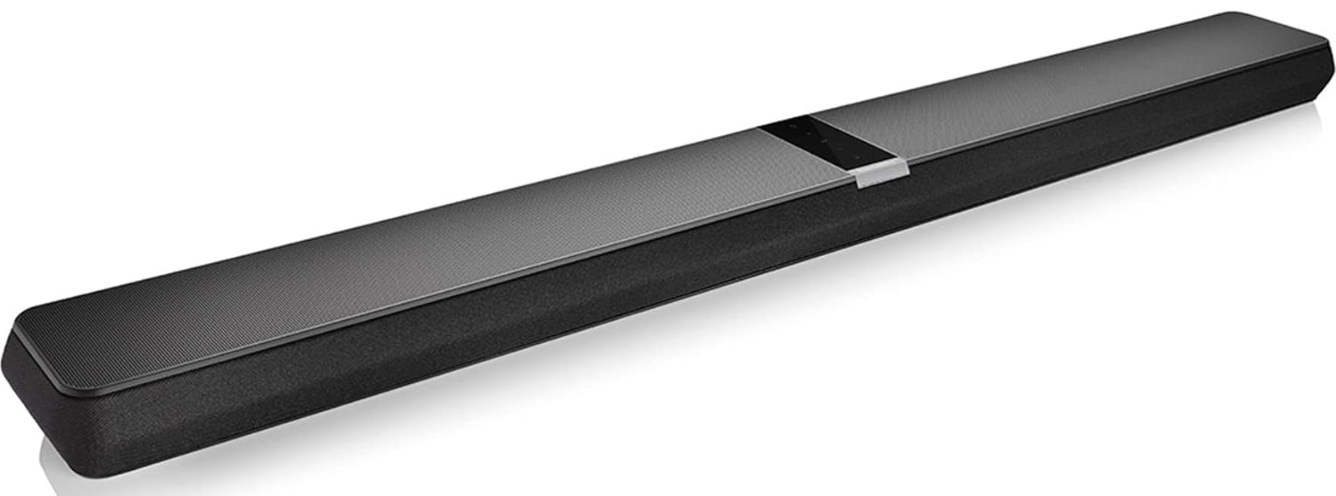 Features
- Panorama 3 is a network-connected, wireless active speaker that provides extremely high performance.
- Panorama 3 is primarily intended to be configured and controlled using the Bowers & Wilkins Music App. The app is available for both iOS and Android™ devices.
- Some commonly used control functions are also available via touch buttons on the Panorama 3 rear panel.
- It is only possible to install and configure a Panorama 3 using the Bowers & Wilkins Music App. Panorama 3 will enable you to:
- Listen to audio from TVs via an HDMI® ARC/eARC connection. Listen to audio from TVs via a digital audio optical connection.
- Listen to audio from streaming services like Tidal, Qobuz, Deezer, Spotify®, Apple Music, and many others.
- Listen to audio over Bluetooth® from appropriately enabled Bluetooth source devices.
- Listen to audio playing anywhere in your home on any compatible Bowers & Wilkins wireless speaker connected to your home network.*
- The Bowers & Wilkins Music App is required to connect your Panorama 3 to your home network and establish a connection with other products in your home.
- The Bowers & Wilkins Music App also provides some control and configuration functions during use. Before you begin your Panorama 3 installation, please download and install the Bowers & Wilkins Music App on your iOS or Android device.
- The Bowers & Wilkins Music App requires iOS 11.4 or later, or Android V8.1 or later. Bluetooth and WiFi services must be enabled on your iOS or Android device. You will also need to know your WiFi network password.
Package Contents
- Panorama 3
- Power cable
- HDMI cable
- Wall bracket
- Literature pack
Description
Buttons / Connectors
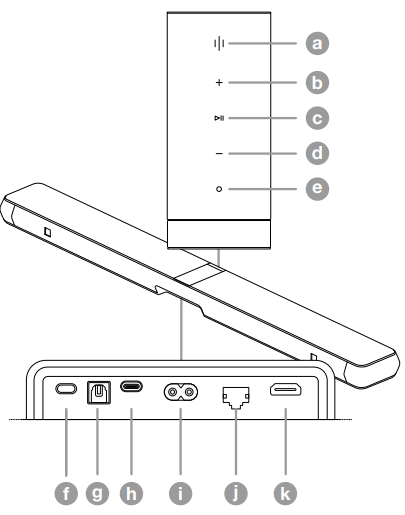
- Multifunction
- Volume Up
- Play/Pause
- Volume Down
- Voice Assistant
- Reset
- Digital Input
- Service
- Power
- Ethernet
- HDMI (ARC/eARC)
Installation
Your Panorama 3 is designed to work with your TV and, therefore, needs to be located close to your TV. When connected to the TV, the Panorama 3 requires both an HDMI connection and a mains power supply to operate, so it must be located within reach of a mains socket and an HDMI connection.
If your Panorama 3 is to use a wired connection to your home network, it will need to be located within reach of an appropriate network (Ethernet) cable and use a USB-C to Ethernet adaptor – see section 2.1.
Your Panorama 3 can be placed on a shelf, table, or furniture unit, or it can be wall-mounted on the dedicated wall bracket, which is included with the Panorama 3. If you decide to place your Panorama 3 on a shelf, ensure that the shelf is easily able to support the weight. The audio performance may be diminished if mounting furniture or shelf panels is flimsy or resonant.
Like the vast majority of speakers, your Panorama 3 radiates sound energy not only forward but also to the top, side, nd rear. Consequently, if your Panorama 3 is positioned close to room boundaries, or particularly in a corner, bass may become over-emphasised.
If you find that the bass from your Panorama 3 is too prominent, moving it to an alternative position may be beneficial, or you can lower the bass level via the Bowers & Wilkins Music App Settings menu.
Connections
In addition to a mains power socket, your Panorama 3 speaker also has an HDMI ARC/eARC connection, optical audio connection, and a USB-C connection for service. It is possible to connect the Panorama 3 to a wired (Ethernet) connection with the use of an Ethernet-to-USB-C adaptor (not supplied).
The primary recommended connection to a TV is with the HDMI connection, and we recommend that you connect the Panorama 3 to your TV’s ARC socket. If your TV does not have an ARC or eARC-enabled HDMI connection, then you can connect the Panorama 3 to the TV with the optical digital audio connection.
Initial Connection
With all connections made, the Bowers & Wilkins Music App installed on your mobile device and your TV configured to work with the selected connection method, your Panorama 3 is ready to be set up.
Your Panorama 3 has no mains power switch, and once connected to mains will run a short start-up routine before being ready to use. The start-up routine includes booting up the speaker, connecting to the network, and establishing a link to any streaming services, and, therefore, can take some time to complete.
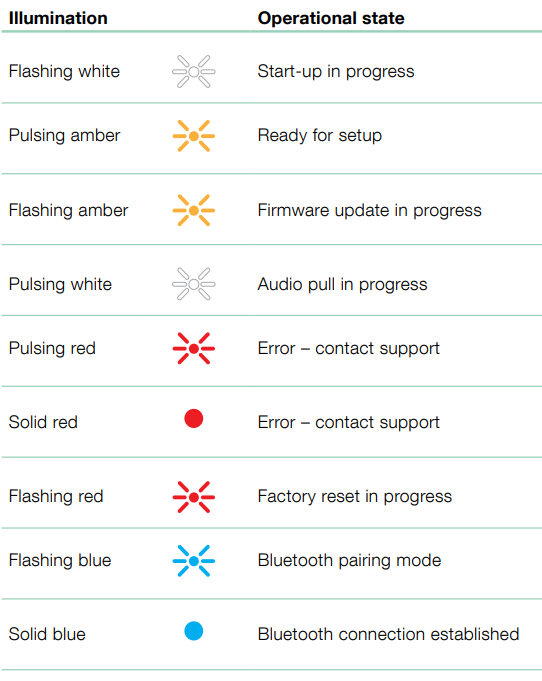
During this time, the Multifunction button will flash white during boot up and orange when establishing a network connection. An audio prompt will play when the start-up routine is complete.
When a Panorama 3 that has not been previously used is first switched on, it will automatically enter setup mode to enable its connection to your home network. Setup mode is indicated by a slow amber pulse illumination of the Multifunction button (see Diagram 1).
The Panorama 3 will also appear in the Bowers & Wilkins Music App as available for set-up, either as a pop-up or after selecting ‘Add Product’ from the app settings page.
Your Panorama 3 manages its operational state and power consumption entirely automatically and will switch to a power-saving mode after twenty minutes of inactivity. There is no need to ever switch off your Panorama 3; however, should you wish to do so, simply disconnect it from mains power. Your Panorama 3 will retain its settings without mains power.
Specifications
- Compatible with the Bowers & Wilkins Music App
- Apple AirPlay 2
- Spotify Connect
- Bluetooth
- Alexa enabled
- Dolby TrueHD
- Discrete Dolby Atmos 3.1.2
- HDMI eARC
- Audio Format Support
- Dolby Atmos
- Dolby Digital True HD
- Dolby Digital Plus
- LPCM
- Bluetooth 5.0, class 2
- Bluetooth Codecs
- aptX™ Adaptive
- AAC
- SBC
- Amplifier Power Output 400W
- Drive Units
- 3x 19mm (0.75”) Titanium dome tweeter
- 6x 50mm (2”) Woven glass fibre cone bass/midrange
- 2x 50mm (2”) Woven glass fibre cone atmos drive unit
- 2x 100mm (4”) Low profile bass unit
- Frequency Response 43Hz–48kHz
- Dimensions 65mm (h) x 1210mm (w) x 140mm (d)
- Weight 6.5kg
- Connections 1x HDMI ARC/eARC
- 1x Digital Audio In (Toslink)
- 1x RJ45 Ethernet
- 1x USB-C (service only)
- Input Voltage 100V–240V, 50/60Hz
- Standby Power Consumption Below 2 watts
Restarting / Rebooting
You can restart a Panorama 3 speaker with a short press and release of the Reset button located on its rear panel (see Diagram 1). Pressing the button will reboot the Panorama 3 off and on again. All settings will be retained when your Panorama 3 restarts. You can also restart your Panorama 3 via the Bowers & Wilkins Music App settings page.
Factory Reset
If you wish to reset your Panorama 3 to its factory default settings, press and hold the Reset button for five seconds. The Reset button location can be seen in Diagram 1. The reset process will be indicated by a red Multifunction button and an audio queue; this process will shut down the Panorama 3. On restart, your Panorama 3 will enter setup mode. All settings will be deleted when your Panorama 3 resets. You can also reset your Panorama 3 via the Bowers & Wilkins Music App Settings menu.
Setting up on a Network
With your Panorama 3 in setup mode and with its Multifunction button pulsing slowly amber, launch the Bowers & Wilkins Music App on your iOS or Android device. The app will guide you with prompts through the setup process. Wilkins Music App settings page.
The Bowers & Wilkins Music App will first search for any products in setup mode and then will automatically prompt you to start the setup process. Alternatively, with the WiFi network configuration and space selection complete, you will need to configure the input you have selected for the connection to the TV. The app will step you through setting up your TV.
If you have connected to the TV with HDMI ARC/eARC, the Bowers & Wilkins Music App will show you how to connect the Panorama 3 to the TV and enable CEC. This allows you to control the audio on the Panorama 3 with your TV or set-top box remote control. If you have connected the TV with the optical connector, the Bowers & Wilkins Music App will show you how to connect the Panorama 3 to the TV and disable the TV’s internal speakers.
Standalone Bluetooth Setup
It is possible to use your Panorama 3 over Bluetooth without the need to connect the product to a network. With your Panorama 3 in setup mode – indicated by the Multifunction button pulsing slowly amber – press and hold the Multifunction button for 5 seconds. The Panorama 3 will play an audio prompt a,, nd the Multifunction button will flash blue.
Using Your Panorama 3
Spaces
Spaces are a core concept of the Bowers & Wilkins Music App and compatible products. A ‘Space’ is a room or a specific area in your home in which you listen to music. It is not possible to use the Panorama 3 with any other device in the same space.
Dolby Support
The Panorama 3 will support Dolby Digital audio in the following formats
- Dolby Digital
- Dolby Digital Plus™
- Dolby Atmos
- Dolby TrueHD
For all of these audio formats, the Panorama 3 will automatically optimise playback and provide the best audio performance possible.
Streaming Music
You can use your Panorama 3 to play audio from streaming services such as Spotify, Apple Music, Qobuz, and Tidal. These can be streamed directly from the Bowers & Wilkins Music App, Spotify Connect®, AirPlay® 2, or Bluetooth.
Playing Audio via the Bowers & Wilkins
Music App
Once you have connected to your product and enabled a music streaming service in the Bowers & Wilkins Music App, you can browse music from your streaming service. Once you have selected the track you want to play, simply click the ‘Play’ button. If you only have a single space, the music will automatically play in that space. If you have multiple spaces, clicking ‘Play’ will display a list of the available spaces in your home, and selecting a space will play the audio through the selected space.
Playing Audio via Spotify Connect
Use your phone, tablet, or computer as a remote control for Spotify. Go to https://www.spotify.com/ to learn how.
Playing Audio via AirPlay
- AirPlay enables apps on Apple mobile, laptop, op or desktop devices to stream audio over a network to any AirPlay-compatible speakers, such as Panorama 3. AirPlay-enabled apps will display the AirPlay icon.
- To use AirPlay, open the app you wish to use and select the content you wish to play.
- Tap on the AirPlay icon to display a list of available devices, followed by the space name you wish to use.
Playing Audio via Bluetooth
- Bluetooth enables audio apps on mobile, laptop, or desktop devices to stream material over a wireless connection to your Panorama 3.
- To use Bluetooth, you will first need to pair your device to the Panorama 3.
- On the Bowers & Wilkins Music App, select Settings and then select the space that contains the device you want to pair with.
- Selecting ‘Pair new device’ will put the Panorama 3 into Bluetooth pairing mode.
- Go to the Bluetooth menu of your device and pair it with the Panorama 3.
- The Panorama 3 will use the space name in the Bluetooth pairing menu. Once paired, you can play audio via any app on your source device.
You can see a list of the devices paired to your Panorama 3 in the Bowers & Wilkins Music App.
Bowers & Wilkins Music App
The Bowers & Wilkins Music App opens on the main page. At the bottom of the page are four navigation icons for the main sections of the app: browse, library, search, ch, and settings. The icon illuminated in yellow indicates which page you are on.
Browse
The browse page of the Bowers & Wilkins Music App has content arranged in multiple rows in a ribbon view that you can search through by swiping right and left. The browse page shows recommended playlists that are generated based on your musical taste, your recently played music, and some recommended playlists curated by Bowers & Wilkins. You can also scroll down and browse music from any specific streaming services you have linked to your app.
Library
The library page groups together all the material that you have liked either in the Bowers & Wilkins Music App or in any of your streaming services. You can search content here by music, podcpodcastsnd radio. If you have liked material in a streaming service native app, it may not appear in the Bowers & Wilkins Music App Library straight away.
Search
You can search for any music via the search function in the Bowers & Wilkins Music App. The app will search for results from all your linked streaming services.
Settings
The settings pages allow you to configure multiple products within your home. The settings page is split into different sections.s
- Spaces
This section lists all the spaces within your ho, me, and from this you can configure individual devices.
- Your Account
This section allows you to modify your account details and link any music services to your app.
- Your Products
This is where you can trigger any updates that are available for any of your products in your home.
Linking Streaming Services
The Bowers & Wilkins Music App enables you to select and play music from several streaming services, such as Qobuz, Tidal, Deezer, and many more. To do this, the Bowers & Wilkins Music App needs to be linked to your music streaming service. This can be done in settings via the ‘Link Services’ button in ‘Your Account’. Simply tap and follow the on-screen instructions.
Player View
When audio is playing on the Panorama 3, you can control the volume, play/pause the audio, skip forward, and skip back. The Player view can be minimised by pressing the down arrow on the top left of the screen. This minimises the player’s view to the bottom of the main screen. This can be maximised by tapping on the mini player view at any time.
Software Update
Panorama 3 is a network-connected speaker and, as such, reliability improvements, new functions, and new features can be enabled via software updates. When a software update is available for any product on your network, a tag is marked on the settings icon. Going to the settings page will display the available update. Tapping this will trigger an update for all the products on the network that require an update.
Audio Adjustments
- The placement of any speaker can have an impact on the audio.
- Placing a speaker close to a wall can over-emphasise the bass, and if the speaker is not facing you, the high-frequency content can be lowered. Therefore, it is possible to adjust the bass and treble settings of your Panorama 3 to allow greater flexibility in positioning within your room.
- To access these settings, select Settings and then the name of the space with the product you wish to adjust, then select the device.
- You can then adjust the bass and treble from 6dB to +6dB. The settings will be stored by the Panorama 3 when the power is disconnected, but will be reset after a factory reset.
Amazon Alexa
The Panorama 3 is a smart speaker with the Amazon Alexa voice assistant built in.
- To enable this feature, go to the device-level settings page within the Bowers & Wilkins Music App.
- Select Settings and then choose the space containing the Panorama 3 on which you wish to enable the voice assistant. Next, select the device.
- The device settings page will be displayed.
- You can enable Amazon Alexa here by linking to your Amazon account: simply click the link and follow the instructions.
- You can unlink your Panorama 3 from your Alexa account at any time.
- Talk to Alexa simply say the trigger word, ‘Alex, or press the Voice Service button on the Panorama 3.
- Pressing and holding the Voice Service button will mute the Alexa microphones.
Panorama 3 Controls
- Your Panorama 3 has buttons on the upper rear panel that provide play/pause control, volume adjustment, and voice assistant – see Diagram 1. Pressing Play/Pause will alternately stop and restart audio playback.
- Pressing Volume Up (+) or Volume Down (-) will adjust the volume of any audio that is being played. Pressing and holding the + and – buttons will continuously increase or decrease volume.
- Touching the Multifunction button will cycle through and play the active streams and sources available to the Panorama 3. The Panorama 3 Multifunction button illumination changes to indicate a variety of operational states. The illuminations are displayed in Diagram 2.
- Pressing the Voice Service button allows you to talk to the voice assistant without needing to say the trigger word. This functionality requires a voice service to be enabled on your Panorama 3.
Cleaning
Should your Panorama 3 need cleaning, you can wipe its top surface with a clean, lint-free cloth and brush its grille with a soft brush. If you wish to use any cleaning fluid, apply it onto the cleaning cloth and not directly onto the Panorama 3. Test a small area first, as some cleaning products may damage some of the surfaces. Avoid abrasive products that contain acid, alkali, or antibacterial agents.
Environmental Information
- This product automatically manages its power state without the need for any interaction. When connected to a network and not in use, power consumption is automatically reduced below 2 watts.
- This product complies with international directives, including but not limited to the Restriction of Hazardous Substances (RoHS) in electrical and electronic equipment, the Registration, Evaluation, Authorisation and restriction of Chemicals (REACH), and the disposal of Waste Electrical and Electronic Equipment (WEEE).
- Consult your local waste disposal authority for guidance on how to properly recycle or dispose of this product.
Customer Service
- Ph: 800 370 3740
- Website: https://www.bowerswilkins.com/
FAQs
Q: What is the Panorama 3 designed for?
A high-end Dolby Atmos soundbar, the Panorama 3 provides immersive 3D audio for home theatre systems, TVs, and streaming devices. It produces cinematic sound from a single unit by combining up-firing drivers, high-fidelity speakers, and sophisticated digital signal processing.
Q: Can I add a subwoofer or rear speakers?
Indeed. The Bowers & Wilkins Bass Module and Surround Speakers, which can be added wirelessly to create a full home theatre setup with real 5.1 or 5.1.2 Dolby Atmos sound, are compatible with the Panorama 3.
Q: How do I set up Dolby Atmos?
Make sure Dolby Atmos is output via HDMI eARC/ARC on your TV or streaming device. The signal will be immediately detected and decoded by the Panorama 3. To choose Dolby Atmos for compatible content, use the audio options on your device.
Q: What audio formats are supported?
Dolby Atmos, Dolby TrueHD, Dolby Digital Plus, PCM, and stereo formats are all supported by the Panorama 3. For high-definition soundtracks, HDMI eARC guarantees lossless audio transfer.
Q: Can I use the soundbar with multiple devices simultaneously?
Indeed. It may be connected to a TV, gaming console, or streaming device thanks to its several inputs (HDMI, optical, analogue, and Bluetooth). Touch controls or the app can be used to switch between inputs.
Q: Can I stream music from my phone or tablet?
Indeed. Stream high-quality music straight to the Panorama 3 over Bluetooth or Apple AirPlay. When utilising suitable devices, the soundbar supports lossless formats.
Q: How do I reset the soundbar to factory settings?
For approximately ten seconds, simultaneously press and hold the power and input buttons until the LED flashes, signifying that the settings have been reset.
4 Comments
Thank you for your sharing. I am worried that I lack creative ideas. It is your article that makes me full of hope. Thank you. But, I have a question, can you help me?
Can you be more specific about the content of your article? After reading it, I still have some doubts. Hope you can help me.
I don’t think the title of your article matches the content lol. Just kidding, mainly because I had some doubts after reading the article.
Thanks for sharing. I read many of your blog posts, cool, your blog is very good. https://accounts.binance.com/fr-AF/register?ref=JHQQKNKN