



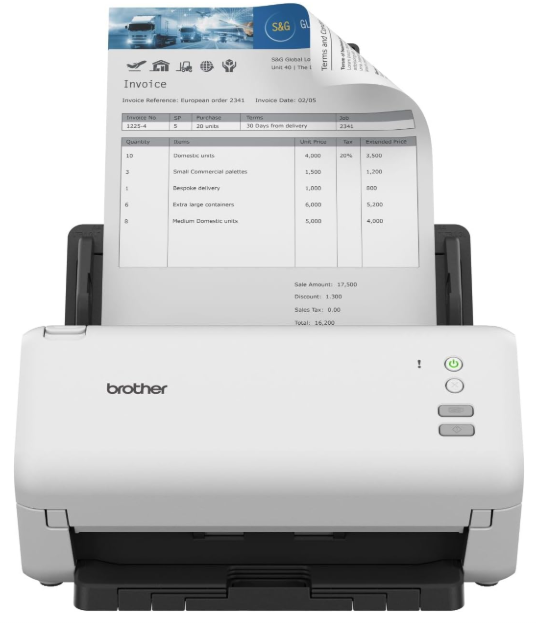
Brother ADS-4100 Desktop Document Scanner
Unpack the machine and check the components.
The components included in the box may differ depending on your country. Remove the protective tape and film covering the machine. Open the Front Cover and Roller Cover, and then remove the protective tape.
- This product is packaged in a plastic bag. To avoid suffocation, keep plastic bags away from babies and children. The bag is not a toy.
- Use only the AC adapter supplied with this product.
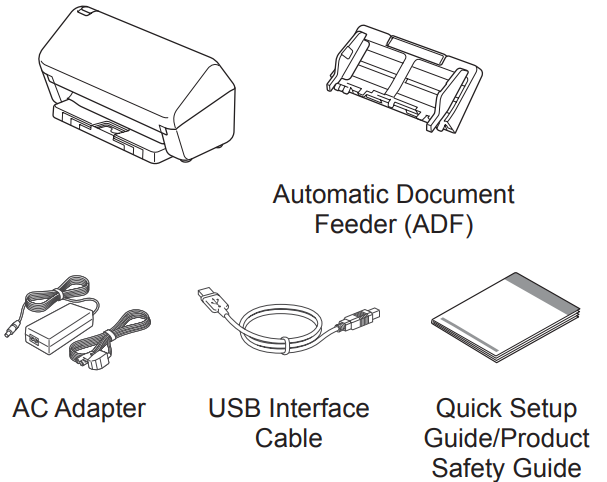
Unless otherwise specified, illustrations in this guide show the ADS-4300N.
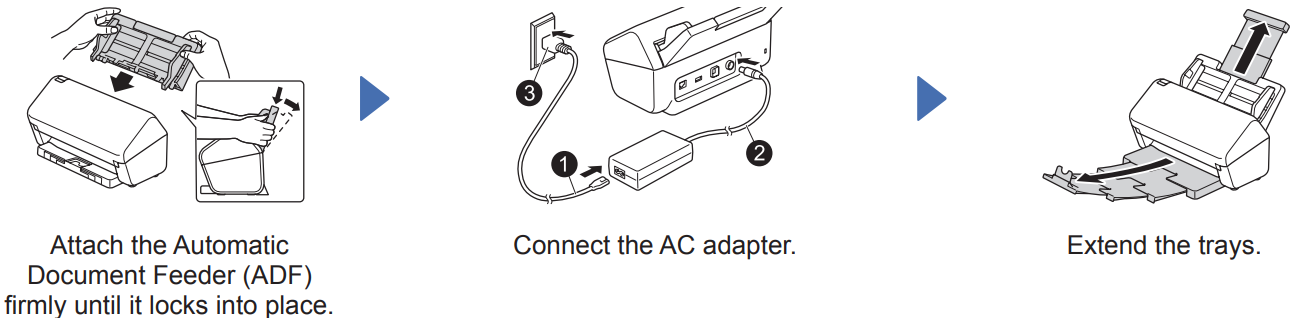
Prepare your machine
Select your language
Press [Settings] > [Initial Setup] > [Local Language] and select your language. Press [ Home Button ].
Connect your machine and install the software
Select your preferred scanning method and choose your connection method.
Using your machine with your computer or mobile device
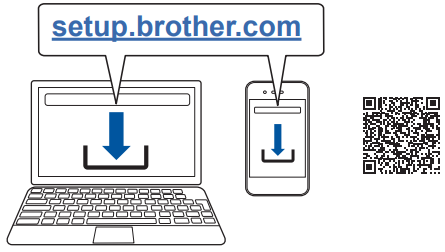
Visit setup.brother.com to download and install Brother software.
For Mobile Devices
- Set up the connection manually.
- You can also connect to your machine if it is connected to your router/ access point using a network cable (purchased separately). For more information, see the Online User’s Guide.
- To check for the latest firmware, visit support.brother.com/up7.
- If not successful, try to set up the connection manually.
Using your machine as a standalone device
Connect your machine to your network using a network cable (purchased separately) or via Wi-Fi®. You can set up your Wi-Fi connection either using the machine’s control panel or using your computer.
LED Indications
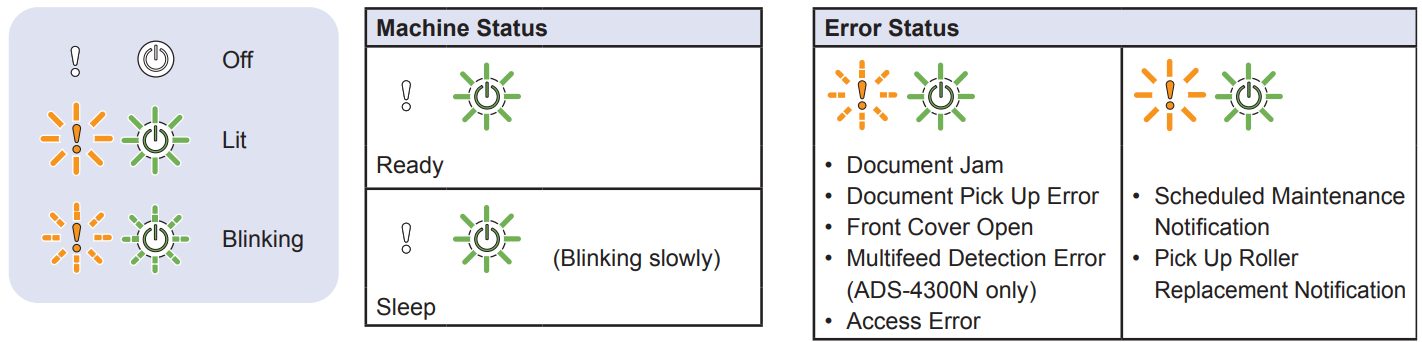
For more information about troubleshooting your machine, see the Online User’s Guide.
IMPORTANT
IMPORTANT indicates a potentially hazardous situation which, if not avoided, may result in damage to property or loss of product functionality.
- Prohibition icons indicate actions that must not be performed.
- This icon indicates that flammable sprays may not be used.
- This icon indicates that organic solvents, such as alcohol or other liquids, may not be used.
- Electrical Hazard icons alert you to possible electrical shocks.
- Fire Hazard icons alert you to the possibility of fire.
- Unplug icons indicate that you should unplug the machine.
Compilation and Publication Notice
This manual has been compiled and published to provide the latest product safety information at the time of publication. The information contained in this manual may be subject to change. For the latest manual, please visit us at support.brother.com/manuals.
Choose a safe location for the unit.
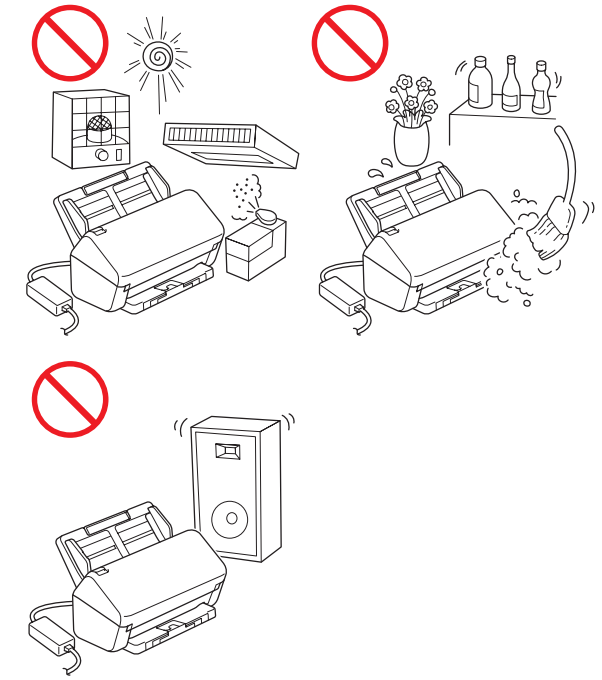
Put the unit on a flat, stable surface that is free from shocks and vibrations, such as a desk. Choose a dry, well-ventilated location where the temperature remains between 5°C and 35°C and the humidity is between 20% to 80% (without condensation).
Product Safety Guide
DO NOT place the unit near radiators, heaters, air conditioners, water, chemicals or devices that contain magnets or generate magnetic fields. Doing so may create the risk of a short circuit or fire should water come into contact with the unit (including condensation from heating, air conditioning, and/or ventilation equipment that may be sufficient to create a short circuit or fire)
Slots and openings in the casing, back or bottom of the product are provided for ventilation. The product should be placed so as not to come into contact with any wall or other device, so these openings are not blocked or covered. Blocking the unit’s ventilation could create a risk of overheating and/or fire.
DO NOT place the unit on an unstable or tilted cart, stand, or table, or on any tilted/slanted surface. The machine may fall, causing injury to you and serious damage to the unit. There is an added risk of injury if the scanner glass should break.
General precautions
Plastic bags are used in the packaging of the unit. To avoid the danger of suffocation, keep these plastic bags away from babies and children. Plastic bags are not toys. Never insert any objects into the slots in the machine’s casing, since they may touch dangerous voltage points or short out parts, resulting in the risk of fire or electrical shock. If metal objects, water or other liquids get inside the machine, immediately disconnect the unit from the electrical socket. Contact your Brother dealer or Brother customer service. DO NOT disassemble or modify the unit; a fire or electrical shock may occur. If the unit requires repair, contact your Brother dealer or Brother customer service.
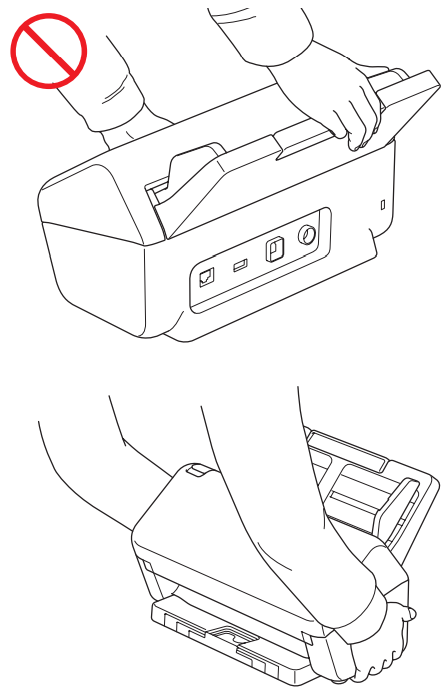
DO NOT carry the machine by holding the Automatic Document Feeder (ADF). Doing this may cause the Automatic Document Feeder (ADF) to detach from the machine. Only carry the machine by placing your hands under the entire machine.
Use caution when operating the machine to prevent clothing (particularly sleeves, neckties, etc.), hair, or accessories from being drawn into the machine; an injury may occur. In the event that an object is drawn into the machine, immediately disconnect the unit from the power source.
Connecting the unit safely
There are high-voltage electrodes inside the unit. Before you access the inside of the machine (for routine maintenance, such as cleaning), make sure you have unplugged the AC adapter from the electrical socket as well as any Ethernet cables (network models only) from the machine. DO NOT touch the AC adapter, or handle the plug with wet hands. Doing this might cause an electrical shock.
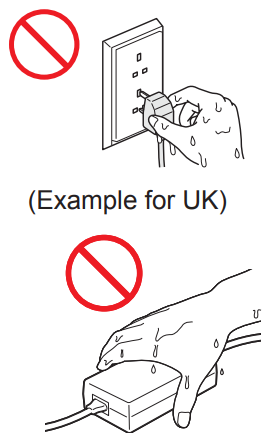
When disconnecting the AC adapter from the machine or from the electrical socket, always hold the connector, not the cord, and pull firmly. Failure to do so may result in exposed or broken power cord wires, fire, or electrical shock. Make sure that one end of the AC adapter is firmly plugged into a standard electrical socket, and the other end is firmly plugged into the adapter block. Do not use an electrical socket that is loose. If the AC adapter is not completely plugged into the electrical socket and adapter block, there is a danger of the adapter becoming hot and catching fire. Always use the supplied AC adapter, and plug the adapter into an electrical socket within the voltage range indicated in Specifications in the Online User’s Guide. Failure to do so may result in an injury to yourself or others, or damage to the machine or other property. Brother does not assume any responsibility for any accident or damage resulting from not using the supplied AC adapter.
Servicing the unit
DO NOT attempt to service the unit yourself. Opening or removing covers may expose you to dangerous voltages and other risks, and may void your warranty. Contact your Brother dealer or Brother customer service. If the unit has been dropped or the casing has been damaged, there may be the possibility of an electrical shock or fire. Unplug the unit from the electrical socket and contact your Brother dealer or Brother customer service. If the unit becomes unusually hot, releases smoke, generates any strong smells, or if you accidentally spill any liquid on it, immediately unplug the unit from the electrical socket. Contact your Brother dealer or Brother customer service.
Declaration of Conformity
We, Brother Industries, Ltd., 15-1 Naeshiro-cho, Mizuho-ku, Nagoya 467-8561 Japan, declare that these products conform with the relevant EU harmonization legislation (Europe and Turkey only) and UK legislation (Great Britain only). The Declaration of Conformity (DoC) can be downloaded from our website. Visit support.
Wireless LAN
This scanner supports a wireless interface.
- Frequency band(s): 2400 MHz – 2483.5 MHz Maximum radio-frequency power transmitted in the frequency band(s): Less than 20 dBm (e.i.r.p.)
- (Europe Only) Frequency band(s): 5180 MHz – 5320 MHz Maximum radio-frequency power transmitted in the frequency band(s): Less than 23 dBm (e.i.r.p.) For indoor use only (5.18 GHz – 5.32 GHz)
- (Europe Only) Frequency band(s): 5500 MHz – 5700 MHz Maximum radio-frequency power transmitted in the frequency band(s): Less than 23 dBm (e.i.r.p.) For indoor use only (5.5 GHz – 5.7 GHz)
Wireless LAN Enable/ Disable (ADS-4500W/ ADS-4700W/ADS-4900W only)
- Press [Settings] > [Network] > [WLAN(Wi-Fi)] > [WLAN Enable].
- Press [On] (or [Off] ).
- Press [ Home Button ].
Trademarks
Mac is a trademark of Apple Inc., registered in the U.S. and other countries. Wi-Fi is a registered trademark of Wi-Fi Alliance®. Each company whose software title is mentioned in this manual has a Software License Agreement specific to its proprietary programs. Any trade names and product names of companies appearing on Brother products, related documents and any other materials are all trademarks or registered trademarks of those respective companies. Copyright and License © 2021 Brother Industries, Ltd. All rights reserved.
Customer service
Visit www.brother.com for contact information for your local Brother office.
Unlawful use of scanning equipment
It is an offence to make reproductions of certain items or documents with the intent to commit fraud. The following is a non-exhaustive list of documents for which it may be unlawful to produce copies. We suggest you check with your legal adviser and/ or the relevant legal authorities if in doubt about a particular item or document:
- Currency
- Bonds or other certificates of debt
- Certificates of deposit
- Armed forces service or draft papers
- Passports
- Postage stamps (cancelled or uncancelled)
- Immigration papers
- Welfare documents
- Cheques or drafts drawn by governmental agencies
Identifying badges or insignias. Copyrighted works cannot be copied lawfully, subject to the “fair dealing” exception relating to sections of a copyrighted work. Multiple copies would indicate improper use. Works of art should be considered the equivalent of copyrighted works.
Disclaimer
Brother disclaims any warranties with respect to avoidance, mitigation or non-occurrence of any breakdowns, malfunctions, system crashes, hangups, virus infections, damage and disappearances of data, and any other kind of errors by using this product.