


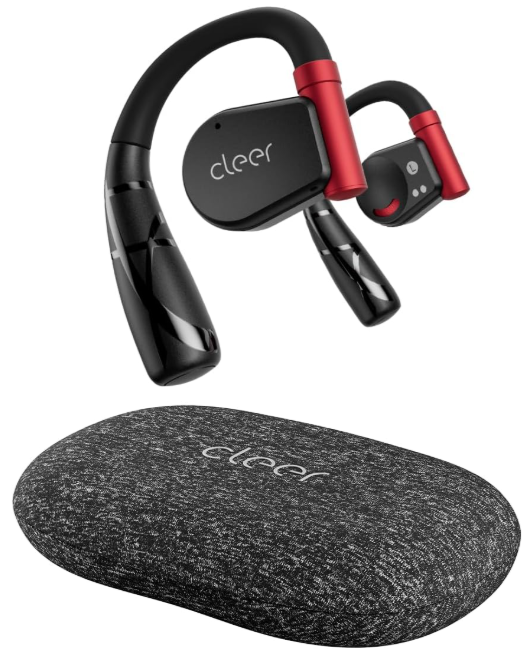
 Cleer ARC II True Wireless Open-Ear Earbuds

Turning On/Off
Turn on/off automatically.
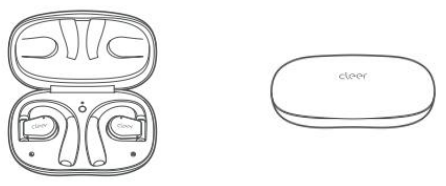
- Turn on
- Open the charging case, and ARC II will turn on automatically.
- Turn off
- ARC II will turn off and start charging when you put it inside the charging case.
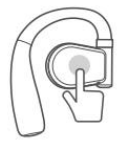
Without a Charging Case
- Turn on
- Tap and hold the touch pad of each headphone for 5 seconds; two headphones will turn on simultaneously.
- Turn off
- Tap and hold the touch pad of either headphone for 5 seconds; both headphones will turn off simultaneously.
First pairing
- Open the charging case and take out ARC II. When the LED blinks white and red, ARC II will be ready for pairing.
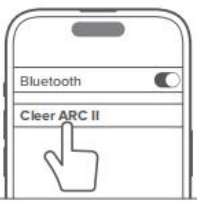
- Select “Cleer ARC II” in the Bluetooth pairing list on your mobile device.
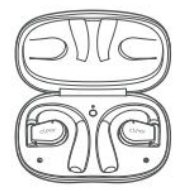
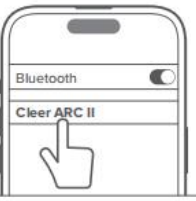
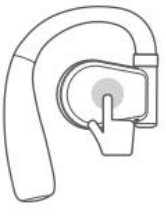
Touch Pad Pairing
- Tap the ouch pad of either headphone five times continuously, and ARC II will be ready for pairing.
- Select “Cleer ARC II” in the Bluetooth pairing list on your mobile device.
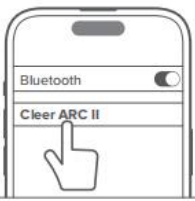
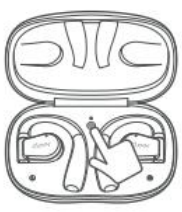
Charging Case Pairing
- Place both headphones back into the charging case. Next, tap and hold the MFB button until the LED blinks white and red, and ARC II will be ready for pairing.
- Select “Cleer ARC II” in the Bluetooth pairing list on your mobile device.
Make Phone Calls
- It is recommended for iPhone users to set headphones priority as follows:
- Go to Settings → Accessibility → Touch → Call Audio Routing → switch to “Bluetooth Headset” Ø
- For other phones: Headphones will be prioritized as the default.
By phone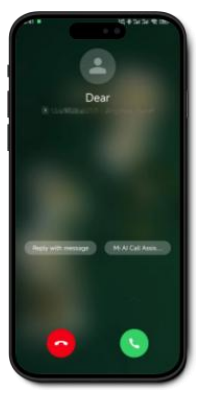
Make/answer calls on the user’s mobile device.
By touchpad
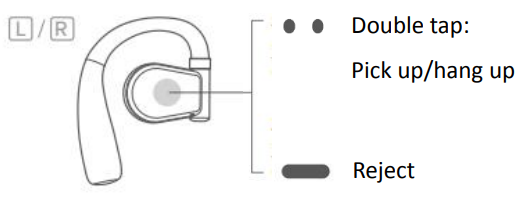
Can be customized in the Cleer+ App
By motion control
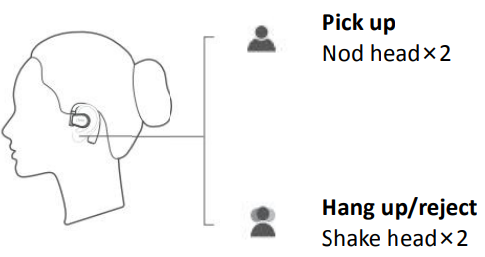
This function is deactivated by default. Activate it in the Cleer+ App.
Adjust Volume
By phone
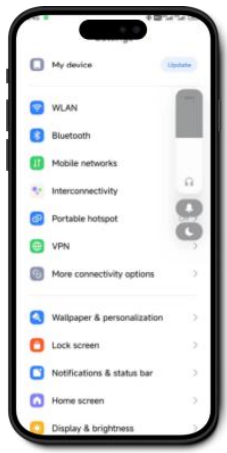
Adjust the volume on the user’s mobile device
By touchpad
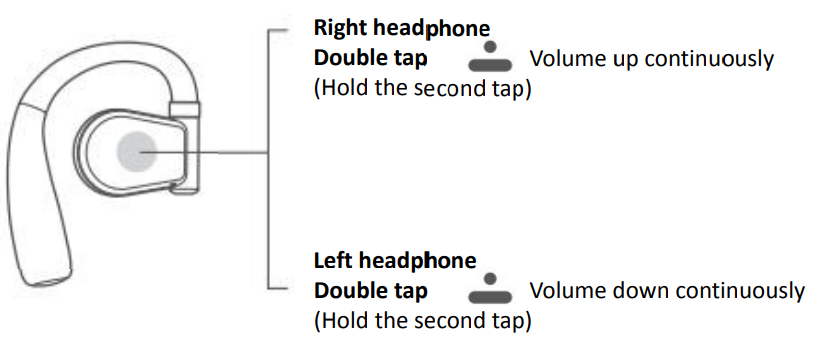
Increase volume
- Tap the touchpad of the right headphone twice, holding the second tap; the volume will keep increasing.
Decrease volume
- Tap the touch pad of the left headphone twice, holding the second tap; the volume will keep decreasing.
Switch Tracks
By phone
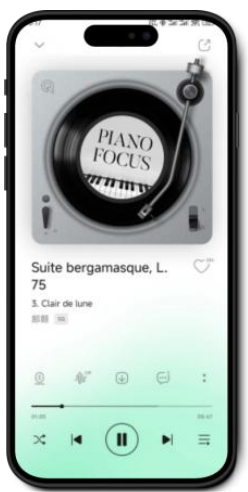
Switch tracks on the user’s mobile device
By touchpad
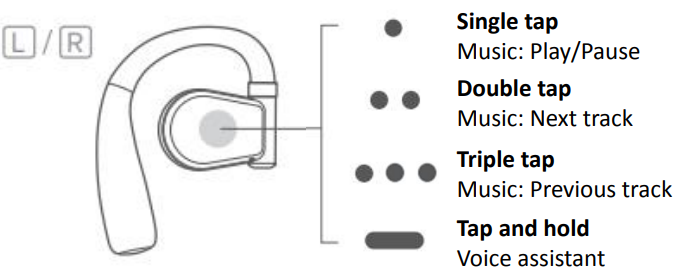
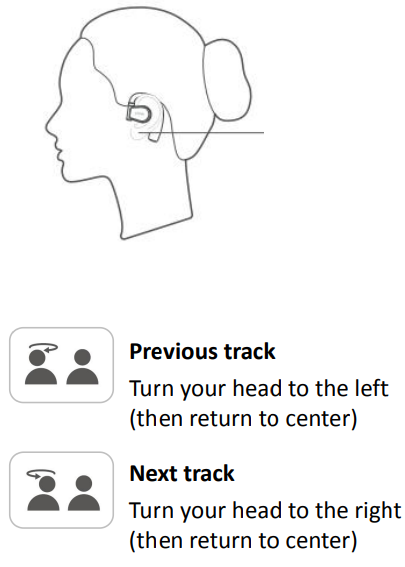
By motioncontrol
Turn on/off Motion Control
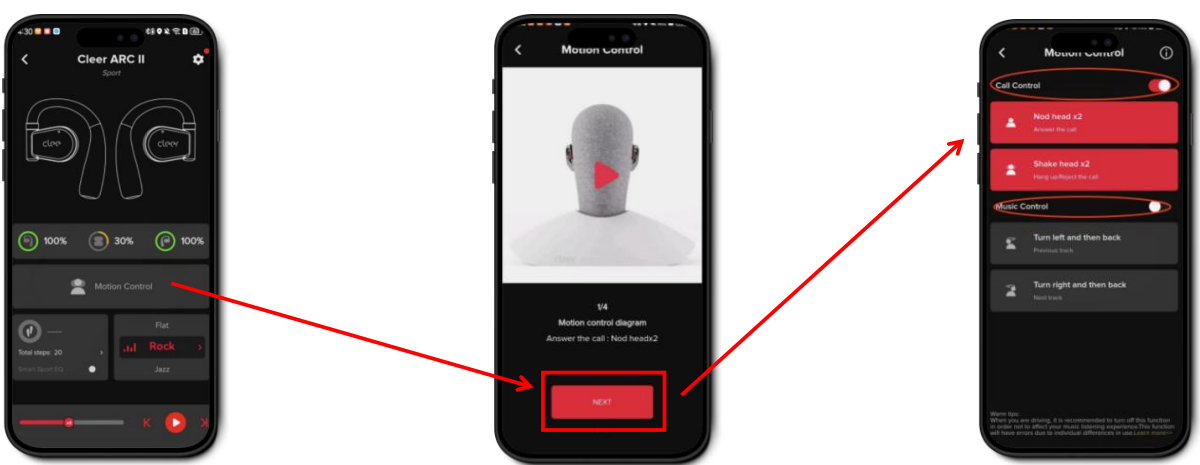
- This function is deactivated by default. Activate or deactivate it in the Cleer+ App.
- Other functions related to motion control (sedentary reminder/adaptive sport sound effects/step counting and management) are also deactivated by default. Activate or deactivate it in the Cleer+ App.
- [Settings] → [Motion Control] → Toggle the [Call Control] or [Music Control] button to turn on/off
Sedentary Reminder
This function is deactivated by default. Activate or deactivate it in the Cleer+ App.
- [Settings] → [Health Management] → Toggle the [Sedentary Reminder] button to turn on/off
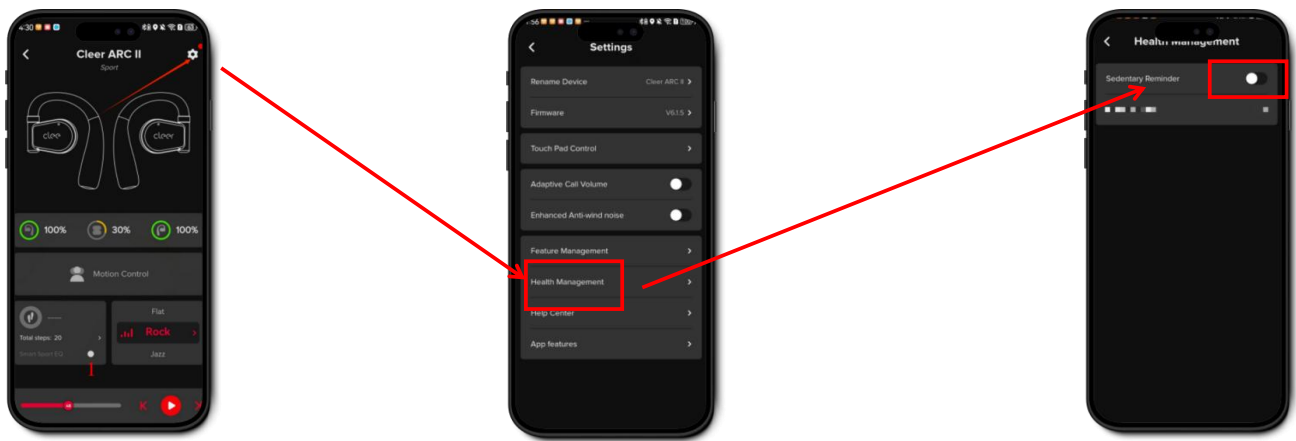
- Open the Cleer+ App, and tap the [SSettingsicon at the top right corner
- Tap [Health Management].
- Toggle the button to turn on/off the sedentary reminder.
Update Firmware
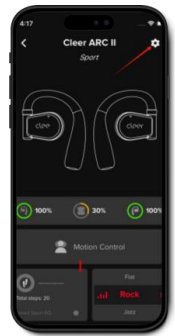
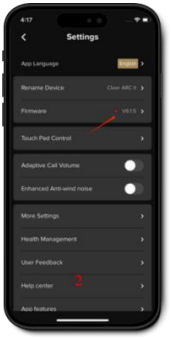
- Open the Cleer+ App
- Tap the [Setting] icon at the top right corner.
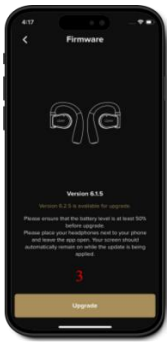
- Tap [Firmware]
- Tap [Update] on the pop-up page.
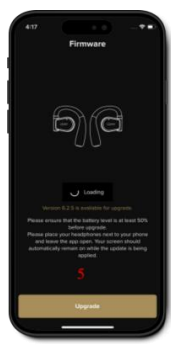
- Preparing update.
- Downloading update.
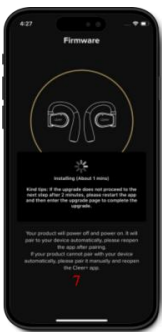
- ARC II will restart automatically.
- Update completed.


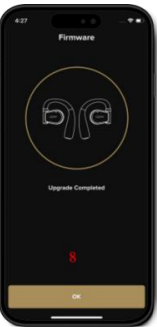
Reminder
- Please ensure your device has a good network connection and sufficient battery power.
- The updating process usually takes 7-15 minutes.
- Please ensure that the battery level is at least 50% before the upgrade.
- Please place your headphones next to your phone and leave the app open.
- Your screen should automatically remain on while the update is being applied.
Reset
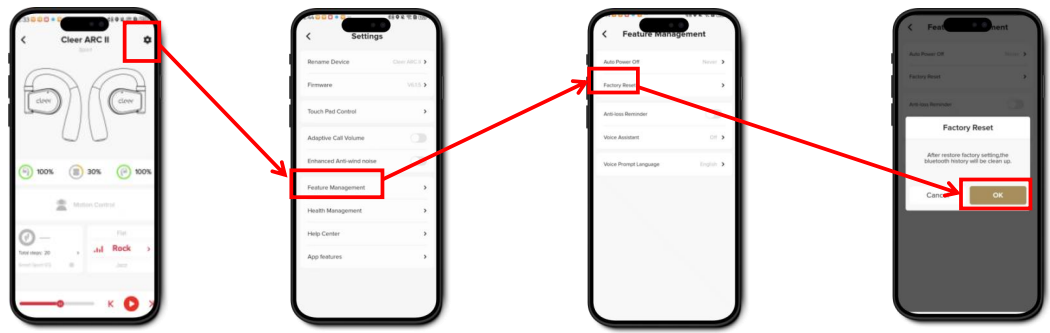
- Open the Cleer+ App, and tap the [Settings] icon at the top right corner.
- Tap [Feature Management].
- Tap [Factory Reset]
- Tap [OK] in the pop-up window.
To use this function, both left and right headphones must be connected to the app simultaneously. If only one headphone is connected, a pop-up reminder will appear.
Warranty
Labor: For a period of (1) year from the original date of purchase of the product (“Labor Warranty”), Cleer Limited will, at its option, repair or replace with a new or refurbished product, the product determined to be defective. If Cleer Limited elects to replace the product after this Labor Warranty has expired but while the parts warranty is still in effect, it will do so for the applicable labor charge.
Parts: For a period of (1) year from the original date of purchase of the product (“Parts Warranty”), Cleer Limited will supply new or refurbished replacement parts in exchange for parts determined to be defective.
Repair / Replacement Warranty: This Limited Warranty shall apply to any repair, replacement, part, or replacement product for the remainder of the original Limited Warranty period or for (90) days, whichever is longer. Any product replaced under this.
Customer Service
- Website: www.cleeraudio.com
- Ph: 1 888 672 5337 (67 CLEER)
FAQs
Q: What’s the sound quality like? Are they loud enough?
In order to make up for the inherent openness of the open-ear style, the ARC II has big 16.2 mm graphene/neodymium drivers that beam sounds towards your ears, producing rich sound with good loudness and bass.
Q: How long does the battery last?
You can play for almost eight hours on a single battery. The total playback duration increases to 35 hours with the accompanying charging case (around 8 hours in the earbuds + 27 hours from the case).
Q: Are they sweat/water resistant — can I use them for workouts or outdoors?
Indeed. Because of its IPX5 water and sweat resistance certification, the ARC II earbuds can be used for daily use, running, and exercise, even if you perspire or get caught in light rain.
Q: Do they support multiple devices at once?
Yes, you can pair and switch between two devices (such as a phone and a laptop or tablet) without having to pair them again because they have a multipoint connection.
Q: What codecs and Bluetooth version do they support?
For high-quality wireless audio, ARC II employs Bluetooth 5.3 and supports audio codecs such as SBC, AAC, and aptX Adaptive/aptX Lossless.
Q: Can I control music/calls/voice assistant from the earbuds?
Indeed. Play/pause, track skip, volume, call answer/hang-up, and activating your phone’s built-in voice assistant are all controlled by touch on the earphones.
Q: Do they work for phone calls? Are calls clear?
They have two built-in microphones (beamforming and aptX speech support) that are optimised for good speech capture, making them excellent for making calls when outside, walking, or travelling.
1 Comment
Your article helped me a lot, is there any more related content? Thanks!