

 EarFun Air S ANC Wireless Earbuds


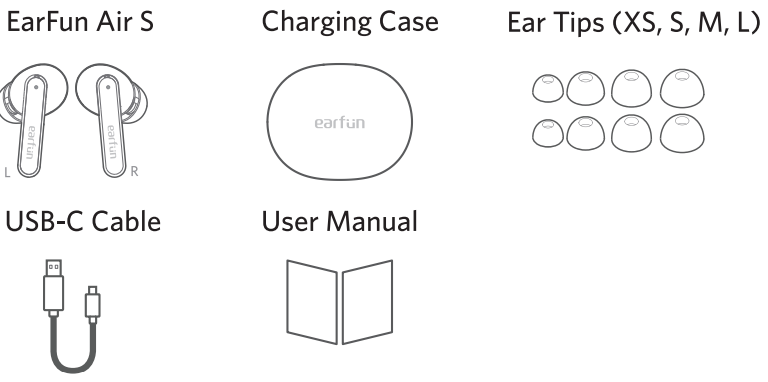
What’s in the Box
Description
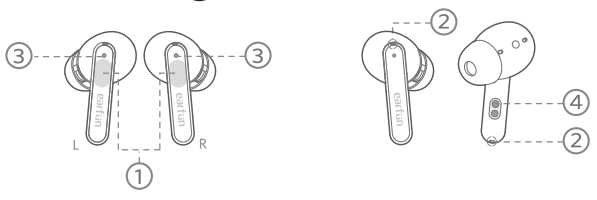
- Touch control zone
- Microphone
- Earbuds LED indicator
- Charging contactor
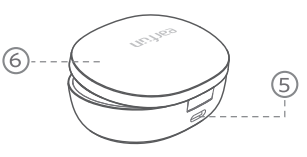
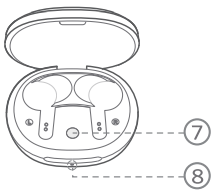
- USB-C charging port
- Charging case
- Reset button
- Battery level indicator
How to Fit
Note: it may affect the noise-cancelling effect if you are not wearing the earbuds correctly.
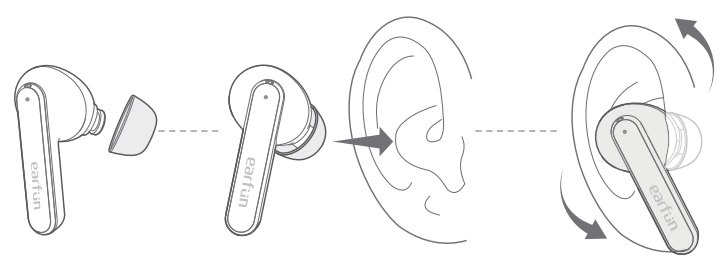
- Take a tip fit test to ensure the correct size.
- Identify the left and right earbuds.
- Place the earbuds in your ear canal and rotate to lock.
Charging
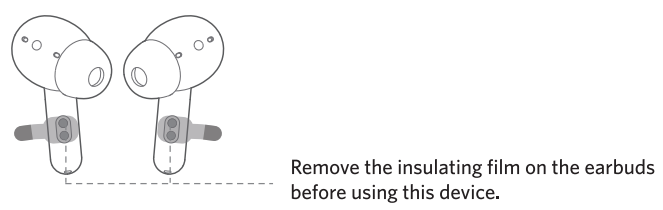
- Fully dry off the earbuds and the USB port before charging.
- Remove the insulating film from the earbuds before using this device.
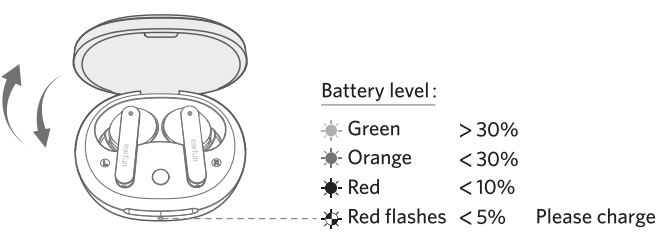
- Open or close the charging case to activate the case battery level LED indicator.
- Place the earbuds back into the charging case, and the earbuds will start charging.
- Fully charge both the earbuds and the charging case before first-time usage.
- Connect the USB-C cable for .charging
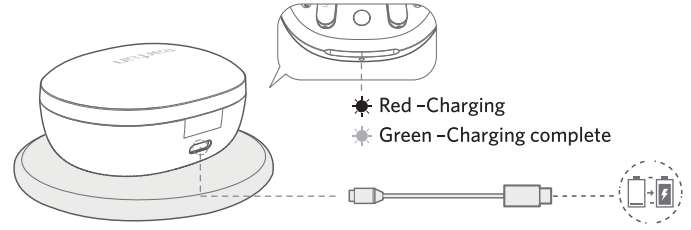
- Wireless charging(not included)
Pairing
Pairing with Device
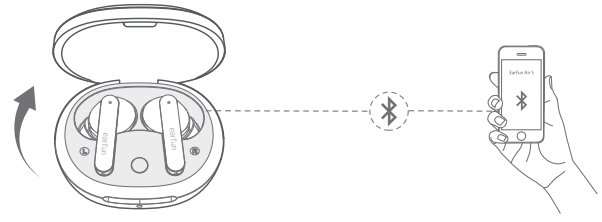
- Open the charging case, and the earbuds will automatically power on and enter pairing mode.
- Activate Bluetooth on your Bluetooth-enabled device and search for other Bluetooth devices.
- Select “EarFun Free S” from the list of Bluetooth devices shown (if a password is needed, type ‘0000’).
- The earbuds will automatically connect with the device paired last time when the case is open.
- Each earbud could be used independently.
Connect to a New Device
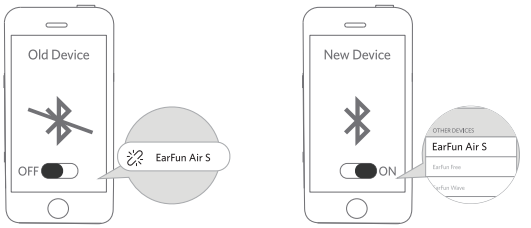
- Unpair the earbuds from the Bluetooth-enabled device that’s connected. The earbuds will disconnect from the current device and enter pairing mode for another pair.
- Search on the new device and connect.

- Place both earbuds back into the charging case and make sure they are being charged. Keep the cover open and then press and hold the charging case button for 3 seconds until the LED indicators on the earbuds flash in blue rapidly.
- Search on the new device and connect.
Connecting two Bluetooth devices

- Pair with the first device and stay connected.
- Keep the earbuds in the charging case, then tap and hold the charging case button for 3 seconds until the LED indicators on the earbuds flash blue rapidly, and then the earbuds enter pairing mode and will disconnect from the first device.
- Search on the second device to connect the earbuds.
- Manually reconnect the earbuds to the first device.
The earbuds will automatically connect to both devices after finishing setting up the multipoint connection.
Functions
Power On and Off
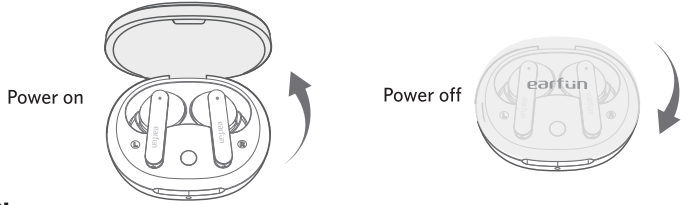
Open the charging case, and the earbuds will automatically power on. Place the earbuds back into the charging case and close the case, then the earbuds will automatically power off.
- If the earbuds are not connected to any device, they will automatically power off after 10 minutes to save battery life.
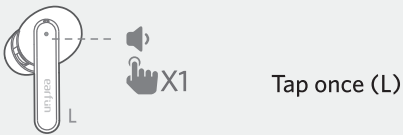
Playing Music
Play / Pause

Next Track

Volume Up
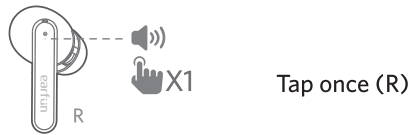
Volume Down
Hands Free Conversations
Answer / End a Call
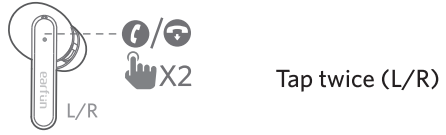
Reject a Call
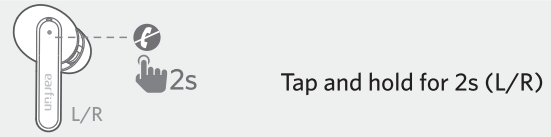
Answer and transfer two Calls.
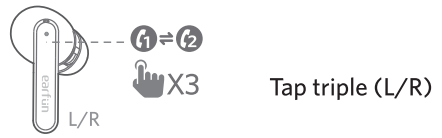
Activate Voice Assistant

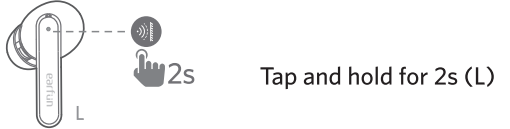
Noise-Cancelling control
Game Mode
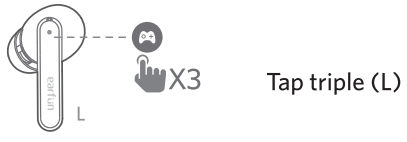
- Turning on the game mode can drop latency to as low as 60ms and improve the gaming and watching video experience, but it will shorten the connection distance. We suggest you turn off the game mode when you use the earbuds for music.
- The normal mode provides a latency of about 200ms.
- Bluetooth technology can’t eliminate latency.
Earbuds LED Indicator
- Power on: Blue indicator flashes for 1s
- Power off: Red indicator flashes for 1s
- Pairing mode: Indicator flashes blue
- Successfully connected: Indicator goes out
- Factory reset: Indicator flashes purple
Reset and Reconnecting
If you fail to build a connection between two earbuds or between earbuds and a Bluetooth device, please try the following steps.
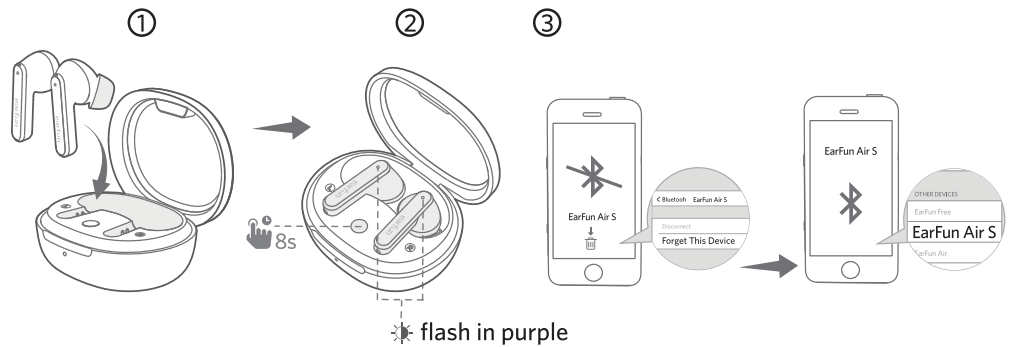
- Place both earbuds into the charging case.
- Keep the charging case open, then press and hold the charging case button for at least 8 seconds until both earbuds flash in indicating thatle, then the earbuds have been reset successfully.
- Delete the previous connection from the Bluetooth device and reconnect to “EarFun Free S”.
Specitications
- Bluetooth version: V5.2
- Bluetooth frequency: 2.402GHz-2.480GHz
- Bluetooth profile: A2DP, AVRCP, HFP, HSP
- Bluetooth transmitted power: <7dBm (for EU)
- Maximum working range: 15m(without obstacles)
- Battery capacity: 40mAh x 2(earbuds); 5
- Charging time
- 1.5 hours(for earsbuds)
- 2 hours(for charging case via USB-C)
- 3.5 hours(for charging case via wireless charger)
- Play time
- ANC OFF-Up to 6 hours, Totally 30 hours with the charging case; (varies by volume level and audio content)
- ANCON-Up to 5 hours, Totally 25 hours with the charging case;(varies by volume level and audio content)
- Input: 5V =- 1A
- Dimensions: 56mmx65mmx31mm
- Weight: 52g
Troubleshooting
- Each earbud could be used independently. To connect the earbuds to your device, please check if the Bluetooth of the device is on at first, then select ‘EarFun Free S’ on the Bluetooth list to get paired. If the earbuds still can’t connect to your device, please try to reset them or contact our customer support.
- Make sure there are no objects between the earphones and your Bluetooth device, and make sure there is no radio or WIFI interference nearby. Bluetooth earphones have a maximum range of 49 feet (15m, no obstacles). However, the actual range will depend on usage and environment.
- Touch L earbud once decreases the volume, and touch R once could increase it. Please recharge it and make sure it has enough battery power. If it is fully charged and still nothing happens, or you are not able to charge the unit, please contact our customer support for warranty ccoverage
- The earbuds are sweat & waterproof, but the charging case is not waterproof. The earbuds will remain on as long as they are connected to a device. If no audio is in use, they will enter power-saving mode and wake up once audio is played. If the earbuds are not connected to any devices, they will automatically shut off in 10 minutes.
FCC Statement
This device complies with Part 15 of the FCC Rules. Operation is subject to the following two conditions. This device may not cause harmful interference. This device must accept any interference received, including interference that may cause undesired operation.
Changes or modifications not expressly approved by the party responsible for compliance could void the user’s authority to operate the equipment. This equipment generates uses and can radiate radio frequency energy and, if not installed and used in accordance with the instructions, may cause harmful interference to radio communications. However, there’s no guarantee that interference will not occur in a particular installation.
- Consult the dealer or an experienced radio/TV technician for help.
- Increase the separation between the equipment and the receiver
- Reorient or relocate the receiving antenna.
Radiation Exposure Statement
This equipment complies with FCC radiation exposure requirements. The device can be used in portable exposure conditions without RF restriction. This device complies with Industry Canada licence-exempt RSS standard(s). Operation is subject to the following two conditions
- This device may not cause interference, and
- This device must accept any interference, including interference that may cause undesired operation of the device.”
EU Declaration of Conformity
Earfun Technology (HK) Limited hereby declares that this equipment complies with the essential requirements and other relevant provisions of Directive 2014/53/EU and RoHS 2011/65/EU Directive.
UK Declaration of Conformity
Hereby, [Earfun Technology (HK) Limited] declares that the radio equipment type [K2] complies with UK Radio Equipment Regulations (SI 2017/1206).
ISED Compliance Statements
This device contains licence-exempt transmitters/receivers (s) that comply with Innovation, Science and Economic Development Canada’s licence-exempt RSS(s). Operation is subject to the following two conditions:
- This device may not cause interference.
- This device must accept any interference, including interference that may cause undesired operation of the device.
This equipment complies with IC RSS-102 radiation exposure limits set forth for an uncontrolled environment.
Customer Service
- Website: www.myearfun.com
- Email: service@myearfun.com
- Ph: +91-99997-92449
FAQs
Q: What devices can I connect to the NAGA 40 Soundbar?
TVs, smartphones, tablets, laptops, DVD/Blu-ray players, and pretty much anything with a compatible audio output (Bluetooth, HDMI ARC, optical, AUX, USB) may all be connected to the NAGA 40.
Q: How much power and sound quality does it deliver?
With a frequency response ranging from 40 Hz to 20 kHz and a power output of up to 70 W (2.0 channel setup), the NAGA 40 provides rich and balanced audio with good bass, mids, and treble for movies, music, and games.
Q: Can I mount the soundbar to a wall or place it under my TV?
Indeed. For a neat arrangement, you may place it on a wall or beneath your TV using the wall mounting kit (brackets, screws, and wall plugs) included in the package.
Q: Does it come with a remote control?
Yes, the NAGA 40 comes with a battery-operated remote control that makes it simple to turn on and off, switch input modes, change volume, control playback, and alter EQ modes.
Q: Can I play music directly from a USB drive?
Indeed, USB playback is supported by the NAGA 40. Use the remote or front-panel controls to switch the soundbar to USB mode after inserting a FAT32 formatted USB stick (up to 64 GB) containing MP3 or WAV music files.
Q: Is the soundbar compatible with external subwoofers or a stereo setup?
The NAGA 40 is essentially a stereo soundbar with two channels. It is best utilised as a standalone stereo bar because it does not formally specify external subwoofer output.
Q: Will the soundbar automatically turn off if idle?
Yes, the NAGA 40 will automatically shut down to conserve energy if no audio signal is detected for approximately 180 minutes.