



HAPPRUN KC7 Pro Netflix Projector Instruction
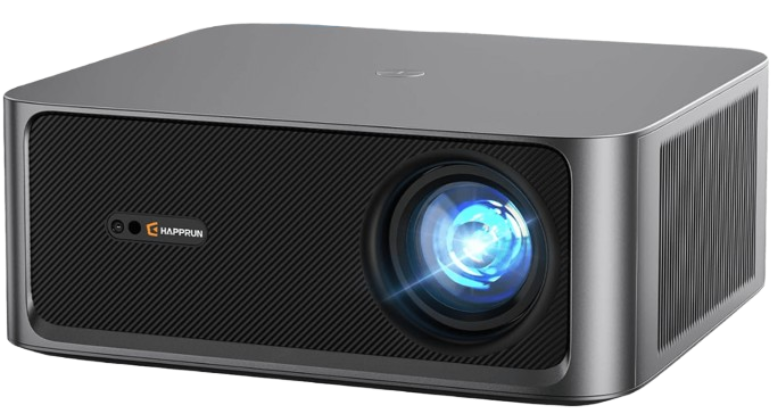
Important Safety
- Do not look directly into the lens while the projector is running, as strong light may damage your eyes.
- Do not block the air outlet to prevent the projector from cooling down, as internal electronics may be damaged.
- Keep the projector and accessories out ofchildren’se reacn.
- Please make sure that the working environment of the projector is dry and ventilated.
- To prevent electric shock, please keep the projector out of the rain and away from moisture, it is recommended to switch off the projector after it has run for 6 hours non-stop.
- Do not press hard on the projector, as it may damage the product.
- Do not throw, hit, or shake the projector to avoid damaging the circuit board.
- Any questions after receiving the projector, please contact us, we will quickly and correctly solve your problem within 24 hours and give you a satisfactory answer.
Package Contents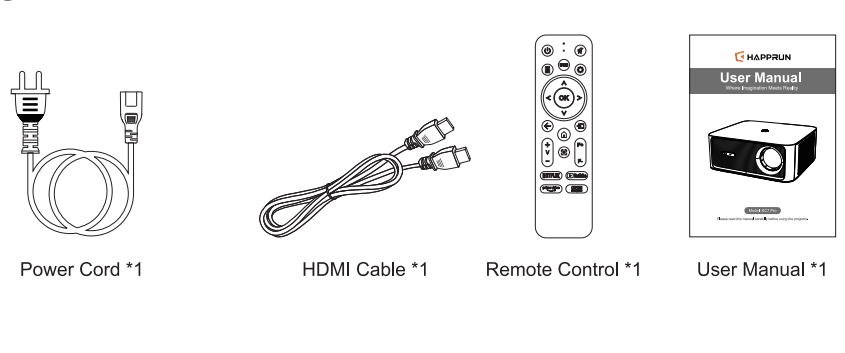 Projector Description
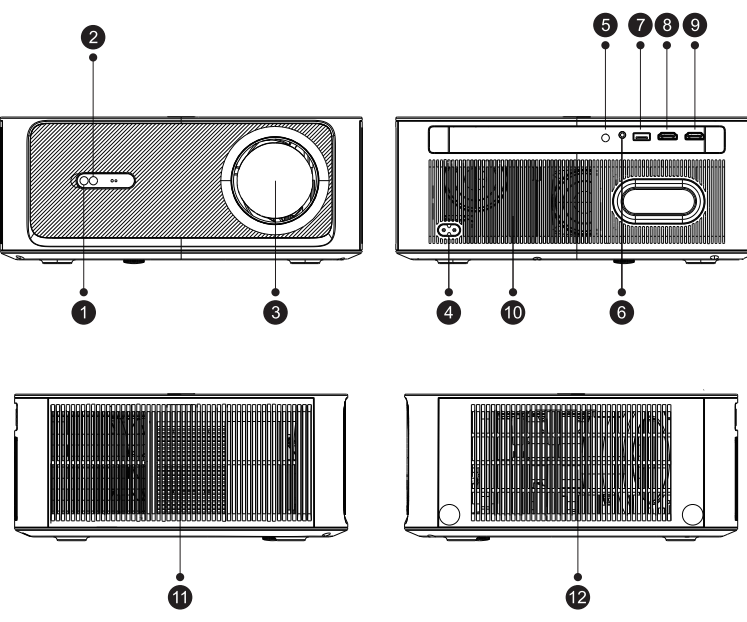 Projector Description
- Camera
- IR Receiver
- Lens
- Power Jack
- IR Receiver
- Headphone Jack
- USB Port
- HDMI Port
- HDMI Port
- Speaker*2
- Air Outlet
- Air Inlet
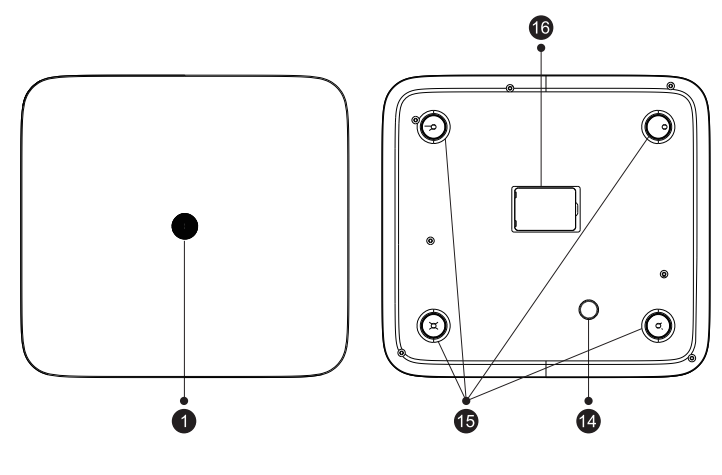
- Power Key
- Angle Adjustment Knob
- Hole for Stand(M5)
- Bottom Label & Dust Cover Remove the Bottom Label & Dust Cover to clean up the dust
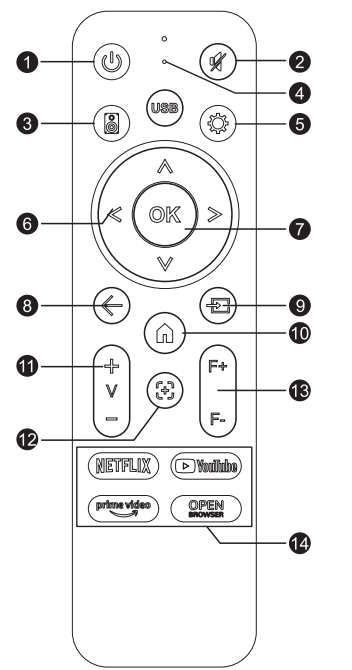
Remote Control Button Function
- Power
- Mute
- BT Speaker Shortcut Ke
- USB Shortcut Key
- Settings
- Arrow Keys
- 0K
- Back
- Source
- Home
- Volume+/-
- Auto Focus
- Focus+/-
- App Shortcut
Quick Start
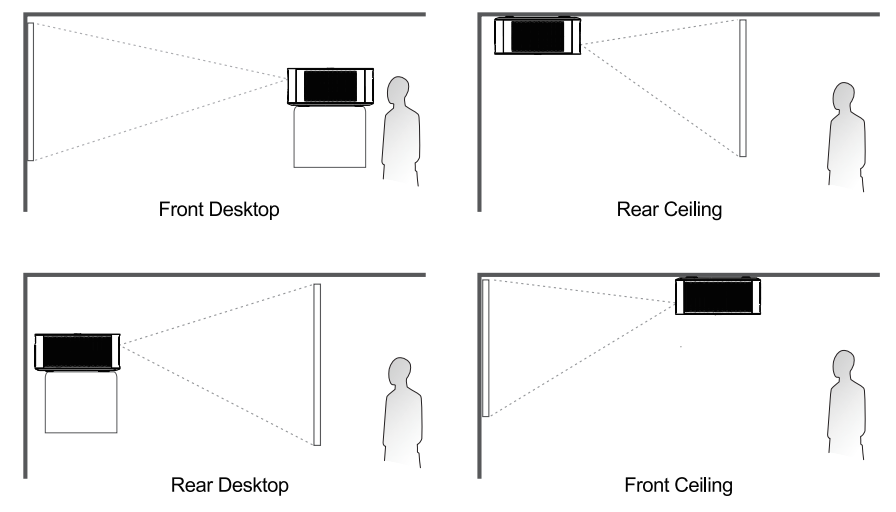
Projector Installation
Ceiling mount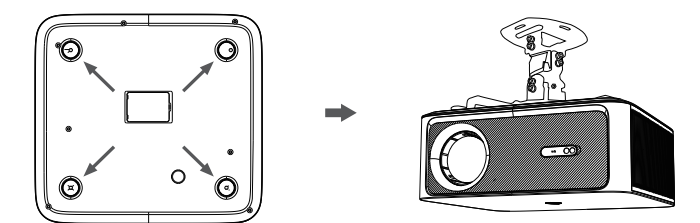
When ceiling mounting the projector, please purchase a compatible 4-hole mount (M5\ screws) separately.
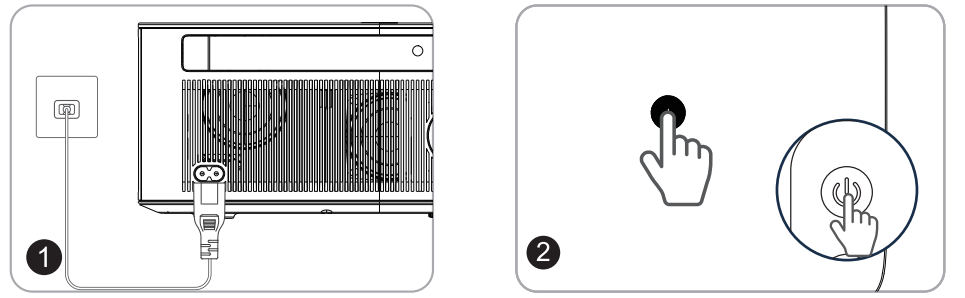
Power On/Off
- Connect the power adapter to an outlet.
- Press the power button on the device or the remote control to turn it on.
Screen Adjustment
Screen size adjustment
Go to Home > Setting ® > Picture > Image Zoom to reduce or enlarge the image size.
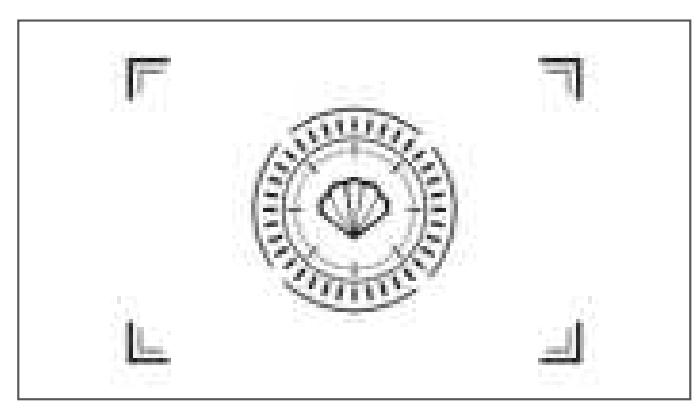
Focus
- Auto Focus
When the projector detects shaking/rapid movement, it will automatically adjust\ the image quality. - Electric Focus
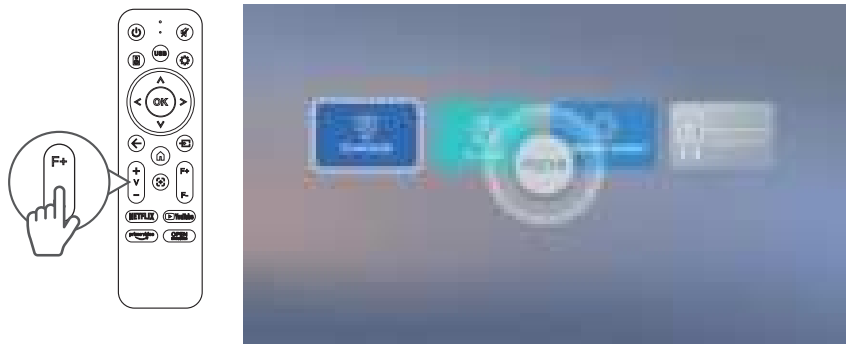
You can also press the Focus button on the remote or go to Home > Setting ® > Picture > Manual Focusing > Focus > Manual Focus to sharpen the image focus until the blurry image becomes clear.
Screen Adjustment
Keystone Correction
- Auto Keystone Correction
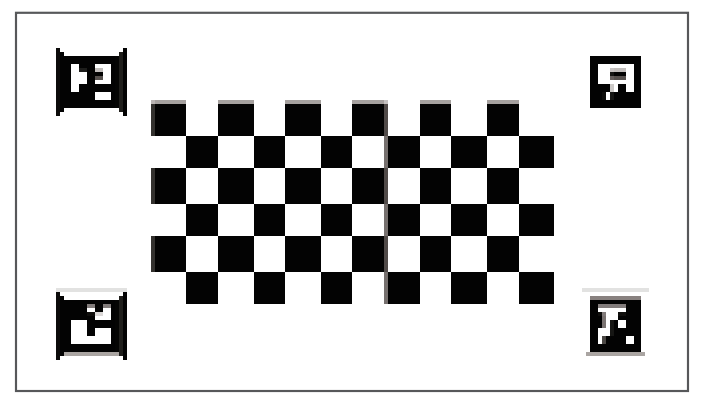
When the projector detects shaking/rapid movement, it will automatically correct the keystone distortion. The optimal angle for automatic keystone correction is to keep it within 15°. - Manual Keystone Correction
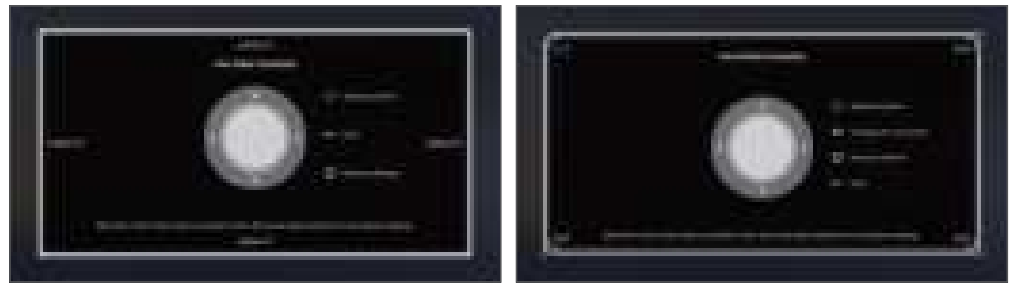
Go to Home > Setting > Picture > Four Sides Correction or Four Points Correction to manually correct the image shape by four points.
Screen Adjustment
Automatic Obstacle Avoidance
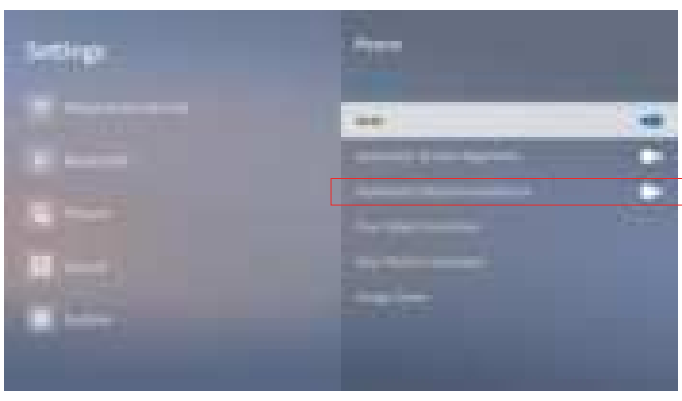
Go to Home > Setting ® > Picture > Automatic Obstacle Avoidance select “On” and When the device encounters an obstacle, the projectionautomatically avoids it. Note: The best experience for theautomatic obstacle avoidance function is achieved when the projector’s tilt angle is within 15 degrees, and the obstacle does not block the focus point of the screen.
Cvoiceurori
Connect your device to the projector correctly, then select the right input source.

- Audio Connection: Simply connect the audio device to the projector for normal use.
- SB Connection: Insert the disk. Then press USB Shortcut Key to locate or press the “Sourch” button and choose “USB”
- DMI Connection: a. Connect your HDMI cable to the projector and\ the computer or other device. b Press the “Sourch” button and choose “HDMI”
Wi-Fi Connection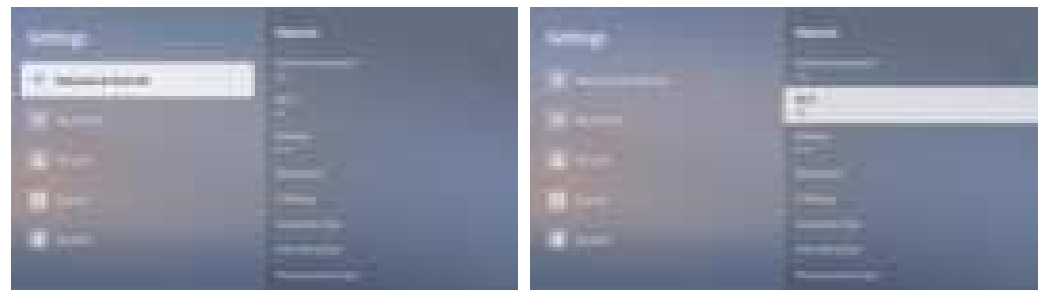
You can connect your projector to your router’s WiFi by going to Home > Setting ® > Network & Internet > Wi-Fi.
Connection
Rluetooth Fyternal Connection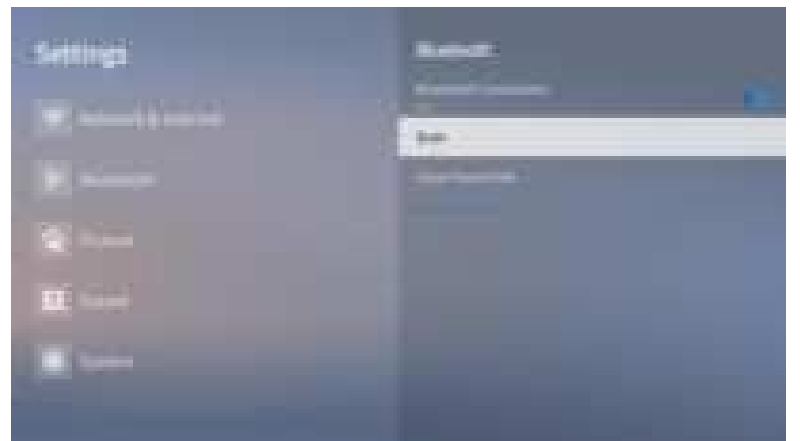
- Turn your external Bluetooth devices.
- Go to Home >Settings devices. > Bluetooth > On > Scan and choose your external Bluetooth
Bluetooth Speaker Mode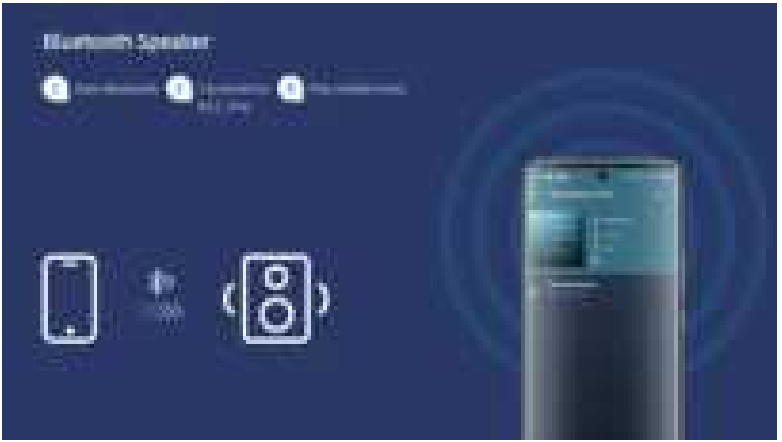
- Press the Bluetooth Speaker shortcut key on the remote control or Go to Home >My App > Bluetooth Speaker
- Open your phone’s Bluetooth settings, find the projector’s Bluetooth name, connect, and start playing.
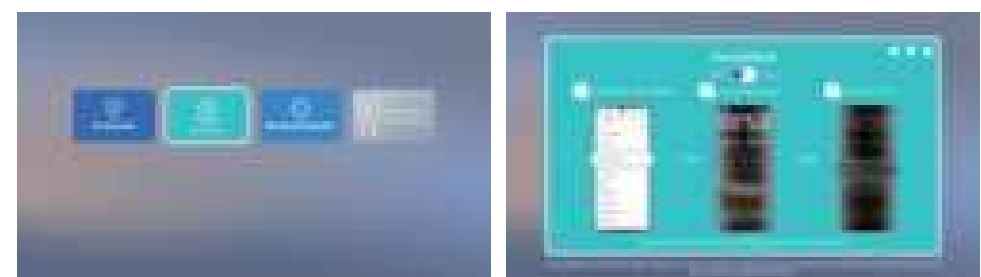
Screen Casting & Mirroring
Screen Casting
- Connect your device and the projector to the same wireless network.
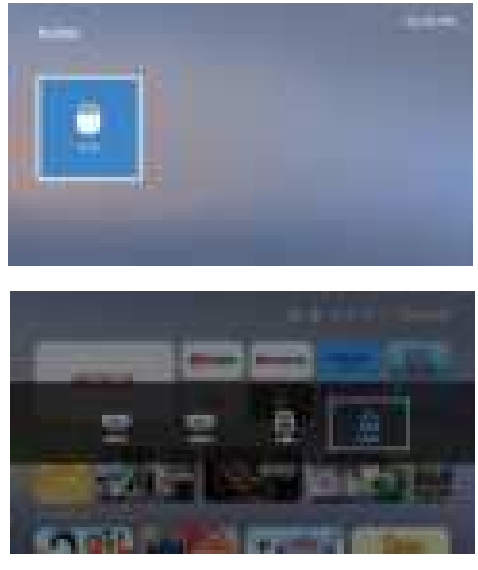
- Go to Home >My App > homeshare.
- Open the Netflix or YouTube app on your mobile device, tap the cast icon, select your projector model and start castina
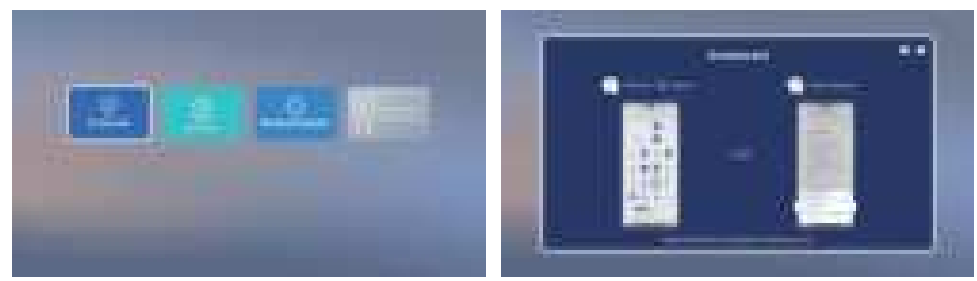
Android Screen Mirroring
- Connect your device and the projector to the same wireless network.
- Go to Home >My App > Screencast.
- Click the screen casting button on your phone, select the projector’s device name, and start mirroring.
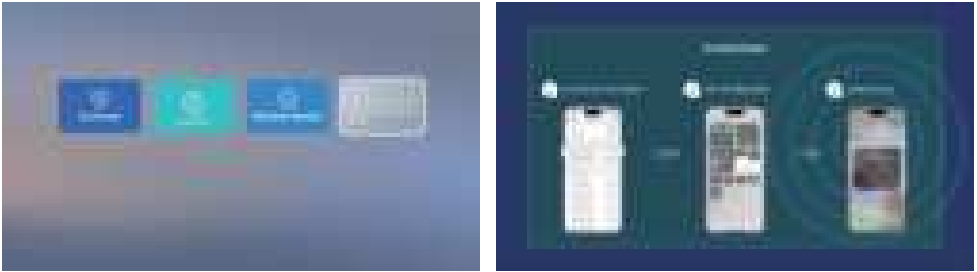
IOS Screen Mirroring
- onnect your device and the projector to the same wireless network.
- Go to Home >My App > iphone wireless on the same screen.
- Click the screen casting button on your phone, select the projector’s device name, and startmirroring.
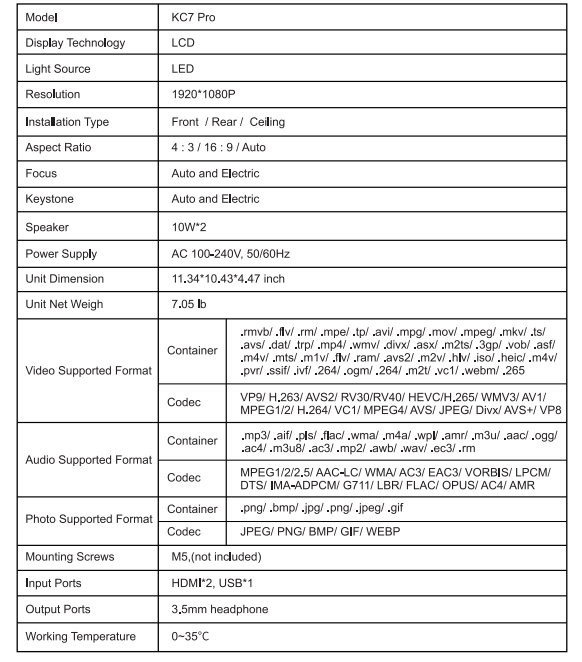
Specification
Customer Support
TOP SERVICE:
Any questions about this item, please
- Call: 1-888-986-2646(US)
- US:service@happrunlife.com