



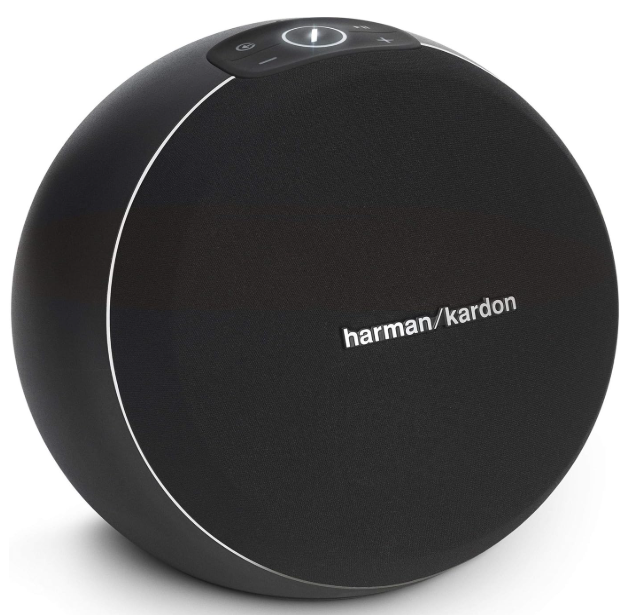
Harman Kardon OMNI 10 Plus Wireless HD Speaker
Introduction
We’ve created a system that harnesses the power and versatility of your home wireless network to create a better and easier audio experience without compromising on audio quality. We hope you enjoy your new Harman Kardon Wireless HD Music System product and that you’ll consider extending our solution throughout your home.
Safety Instructions
Verify Line Voltage Before Use
The Omni 10+ and Omni 20+ have been designed for use with 100-240 volt, 50/60 Hz AC. Connection to a line voltage other than that for which your product is intended can create a safety and fire hazard and may damage the unit. If you have any questions about the voltage requirements for your specific model, or about the line voltage in your area, contact your selling dealer before plugging the unit into a wall outlet.
Do Not Use Extension Cords
To avoid safety hazards, use only the power cord supplied with your unit. We do not recommend that extension cords be used with this product. As with all electrical devices, do not run power cords under rugs or carpets, or place heavy objects on them. Damaged power cords should be replaced immediately by an authorized service center with a cord that meets factory specifications.
Handle the AC Power Cord Gently
When disconnecting the power cord from an AC outlet, always pull the plug; never pull the cord. If you do not intend to use your speaker for any considerable length of time, disconnect the plug from the AC outlet.
Do Not Open the Cabinet
There are no user-serviceable components inside this product. Opening the cabinet may present a shock hazard, and any modification to the product will void your warranty. If water accidentally falls inside the unit, disconnect it from the AC power source immediately and consult an authorized service center.
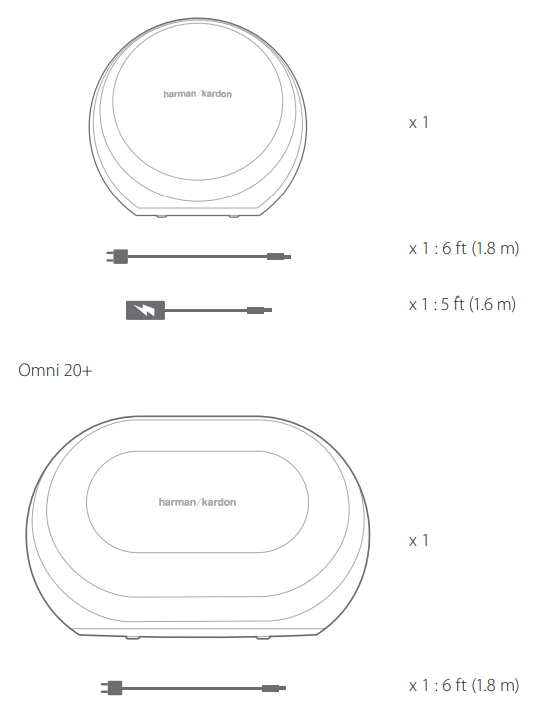
What’s in the Box
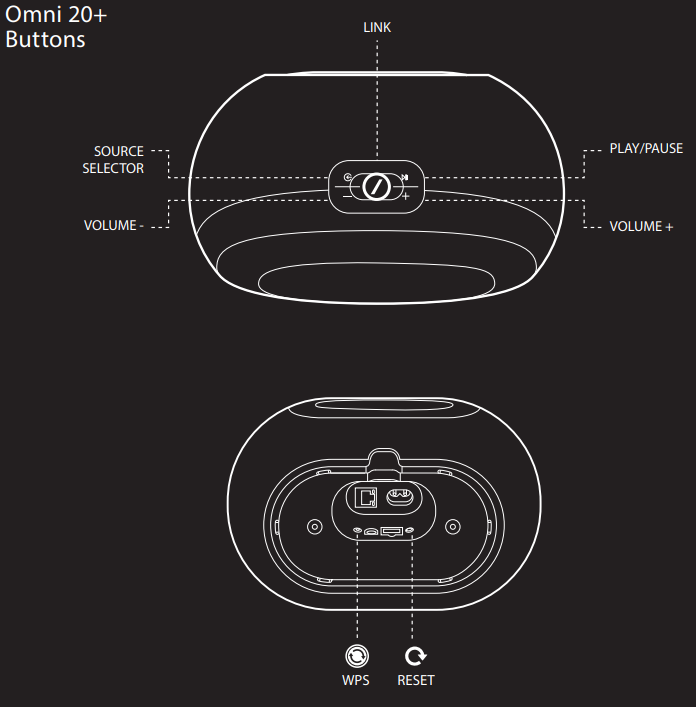
Button & Connector
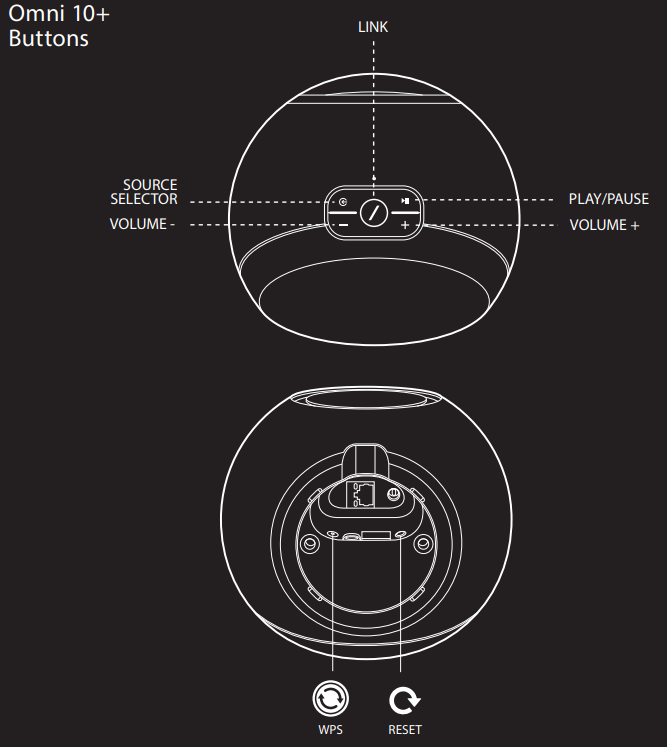
Link Button
Pressing the Link button adds this speaker to a different speaker group. Grouped speakers all play the same music. For example, if you are listening to music in the Bedroom, you can walk to the Kitchen and press the Link button on the speaker in the Kitchen. The Kitchen will join and begin to play the same music as the Bedroom. Pressing multiple times will switch between different groups on the network.
- Pressing the Link button for 5 seconds will enable Party Mode, which sends the same music to every speaker in the house.
Source Button
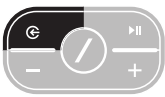
Pressing the Source button cycles the currently active music source in this room between AUX-in and Bluetooth. If you are currently streaming audio over Wi-Fi, it will switch away from Wi-Fi to the Bluetooth or AUX-in source. Switching to one of these sources will send the same music that you hear on this speaker to all the other speakers in the same group.
Play/Pause Button
The Play/Pause button pauses or resumes music playback on Bluetooth or any of the Wi-Fi sources, including Spotify Connect and Chromecast built-in. AUX-in audio must be paused from the external audio source.
Volume +/- Buttons
Press the Volume + button to increase volume, or press the Volume – button to decrease volume. Pressing both at the same time will mute the speaker.
WPS Button
This button is used to connect the speaker to your home Wi-Fi network. Press it to enter WPS PBC mode. Press it for 5 seconds to enter WPS PIN mode. See the WPS section on page 15 for more information.
Reset Button
Press the Reset button for 5 seconds to perform a factory reset. This will erase all user settings, disconnect from the Wi-Fi network, and the speaker will enter Wi-Fi setup mode, allowing you to connect it to a different Wi-Fi network.
AC Power Connector
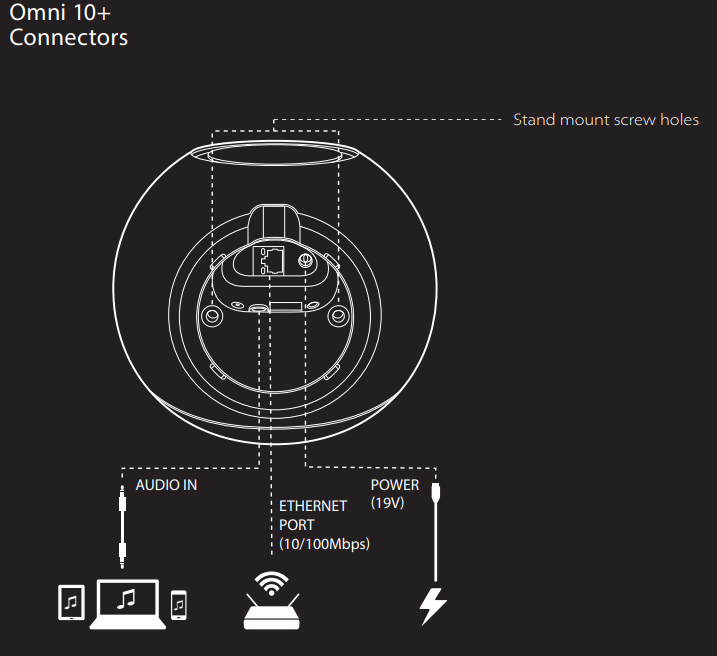
Use the supplied power supply (Omni 10+) or power cord (Omni 20+) to connect the speaker to AC power.
Audio In Connector
Connect an analog audio source via a 3.5mm or 1/8” stereo AUX cable to this connector to enjoy audio from an analog audio device.
Ethernet Connector
You may optionally connect an Ethernet cable to this port for a faster, more stable network connection. It’s possible to connect some speakers via Wi-Fi and others via Ethernet, if desired.
Speaker Setup
- In this section, you will set up your Omni 10+ or Omni 20+ speaker, connecting it to Wi-Fi and
connecting each source device you plan to use. - Before you begin, download the Harman Kardon Controller app for iOS or Android.
- This app is available on both the iOS App Store and the Google Play Store.
- You will use this app to set up and configure the speaker.
- If you prefer to learn via video, Harman Kardon has created a helpful setup video.
- Just scan the QR code below to be taken to the video on the web.
Connecting Your Speaker to Wi-Fi
The first time you open the Harman Kardon Controller app, you will be greeted by a tutorial walking you through the basic operations, followed by the Set Up New Speaker button. Pressing this button will begin the setup process, which the Controller app will guide you through. It will also be described in this manual.
- Before continuing, choose a room to set up. Decide if you will use a single Omni+ speaker in this room or if you will use two Omni+ speakers in a wireless stereo pair.
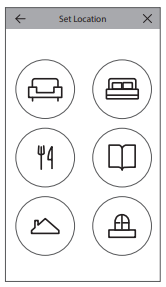
- The next step of the speaker setup process is to select where this speaker will be used. Select one of the predefined rooms, like the Living Room or the Bedroom.

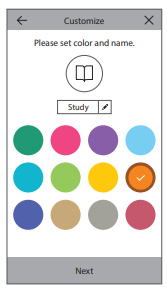
- After selecting a room name, you will be able to customize the room with a specific color. There are twelve different colors to choose from.
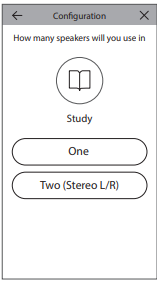
- The next step is to select how many Omni+ speakers you wish to use in this room. With Omni 10+ and Omni 20+, you have the option to use one speaker or two speakers in a wireless stereo pair.
After this, you will connect the speaker to your home network. The process for this differs between Android and iOS.
iOS
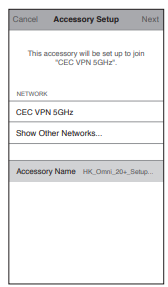
Omni 10+ and Omni 20+ use a new iOS feature named Wireless Accessory Configuration, which is the easiest way to set up Wi-Fi for iOS users. Each speaker you have plugged inintoC power will appear on this screen. Select one of the speakers, and an iOS system pop-up will appear, showing you a list of Wi-Fi networks in range. Choose the Wi-Fi network you want to connect this speaker to, then press Next. This should normally be the same network your phone is connected to, which will appear as the default option.
- If you are only using one Omni 10+ or one Omni 20+ in this room, the room setup is complete. You may now set up additional rooms through the same process, or start streaming music. If you’re setting up a stereo pair, the Controller app will guide you through this process one more time, then proceed to Stereo Pair Setup on page 16.
Android
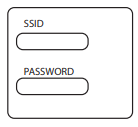
You will now see each Omni 10+ or Omni 20+ speaker you have connected to AC power on the screen. Select any one of the speakers to see a list of available Wi-Fi networks. Choose the Wi-Fi network you wish to connect your Omni+ speakers to, then enter the Wi-Fi password. Every Omni+ speaker will reboot and connect to this Wi-Fi network.
WPS
WPS is a simple way to connect your system to your home Wi-Fi network. To confirm whether your router supports WPS, look for the WPS logo or the letters WPS on your router. The Omni 10+ and Omni 20+ support both WPS-PBC and WPS-PIN modes.
WPS-PBC
To connect your speaker via WPS-PBC mode
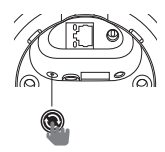
- Press the WPS button on your Wi-Fi router or access point.
- Within one minute, press the WPS button on the bottom of your Omni 10+ or Omni 20+.
- The Link button on the top of the speaker will begin to quickly flash for up to one minute. When the LED stops flashing and turns solid white, your speaker is connected.
WPS-PIN
To connect your speaker via WPS-PIN mode:
- Use a web browser to navigate to your Wi-Fi router or access point’s setup page.
- Press the WPS button on the bottom of your Omni 10+ or Omni 20+ for 5 seconds.
- Enter 87654325 into the WPS-PIN section of your router or access point’s setup page.
- The Link button on the top of the speaker will begin to quickly flash for up to one minute. When the LED stops flashing and turns solid white, your speaker is connected.
Ethernet
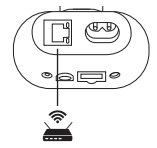
Although Omni 10+ and Omni 20+ are Wi-Fi-enabled speakers, Ethernet offers the fastest, most stable connection. If you are placing a speaker in a location where connecting it to the network via Ethernet is convenient, just connect a standard Ethernet cable to the Ethernet connector on the bottom of the speaker. No additional Wi-Fi setup is required. Ethernet can also be used to connect speakers that are out of Wi-Fi range.
Stereo Pair Setup
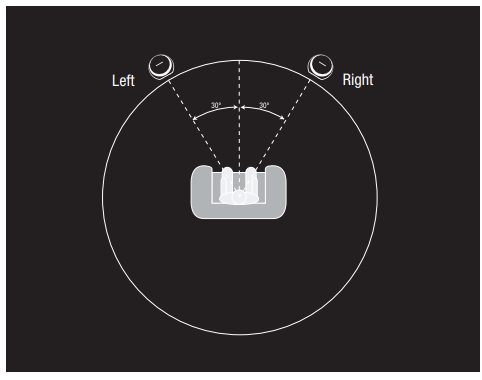
- When setting up a stereo pair, speaker placement is important. You should place both speakers in a semicircle with your listening position at its center. Angle each speaker so it directly faces the listener.
- Place the speakers at the same height, preferably at about the same height as the listener’s ears.
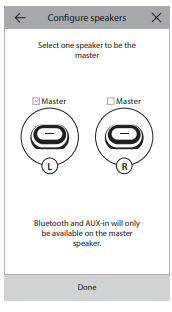
- After placing the speakers and connecting them to Wi-Fi (see Connecting Your Speaker to Wi-Fi on page 13), the Controller app will guide you through assigning the left and right channels. At
- At the bottom of the screen, you will see every available speaker on the network. Drag one of the speakers to the area for the left speaker, and you will see the LED on top of that speaker flash white and hear an audio tone to identify which speaker you’ve selected.
- Make sure this is the correct speaker that you want to put in the left position of the stereo pair, then repeat for the right speaker.
- The final step is to assign one of the speakers in the pair to be the Master speaker. You must connect any AUX-in devices to this Master speaker, and you may only pair with Bluetooth to this speaker.
- The other speaker will automatically go to Standby mode to conserve power as soon as music streaming has stopped.
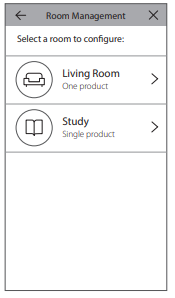
- You may also upgrade any existing single-speaker room to a stereo pair. Go to Settings > Room management and select the room you wish to add a speaker to.
- Select Add Speaker, and you will be guided through the same setup process as above, with the ability to assign any other speaker already on the network to this room.
Connecting to Bluetooth
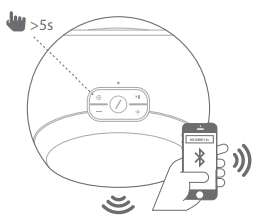
- The Omni 10+ and Omni 20+ are equipped with Bluetooth, which allows audio streaming from any app on your phone or tablet.
- To pair your phone or tablet with your Omni 10+ or Omni 20+ speaker, make sure the speaker is fully powered on, then press the Source button on the top of the speaker for 5 seconds.
- If using a stereo pair, use the Source button on the Master speaker. The Link button on the top of the speaker will begin to flash blue. Find the Omni 10+ or Omni 20+ in your phone or tablet’s
- Bluetooth settings menu, and select it to pair.
- Once paired, all the audio from your phone or tablet will be wirelessly streamed to your speaker and all the other speakers in the same group.
- Stereo audio will automatically be sent to the correct left and right channels in a wireless stereo pair, and you can send the audio around the house by grouping rooms in the Controller app or by pressing the Link button.
- You only need to pair once with each speaker you wish to stream to via Bluetooth. After the initial pairing is done, you only need to select the speaker in your phone or tablet’s Bluetooth settings menu to reconnect.
- When streaming Bluetooth audio, the Link button LED will turn blue.
Connecting AUX-In Devices
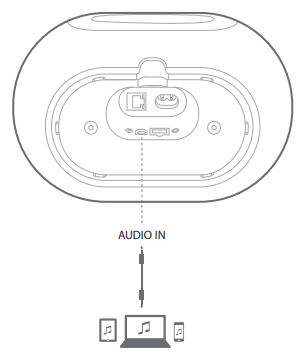
- The Omni 10+ and Omni 20+ both have an Audio In connector on the bottom for playback of local analog sources. Connect a 3.5mm stereo auxiliary cable (sold separately) to the Audio In connector on the speaker, and connect the other end of the cable to your analog audio source device.
- When playing audio over the Audio In connector, the speaker will automatically switch to the AUX-in source, and the audio will automatically be sent to all other speakers in the same group.
- Stereo audio will automatically be sent to the correct left and right channels in a wireless stereo pair, and you can send the audio around the house by grouping rooms in the Controller app or by pressing the Link button.
- Note that in a wireless stereo pair room configuration, you must connect the external source to the Master speaker.
How to Control the Speaker
Speakers, Rooms, and Groups
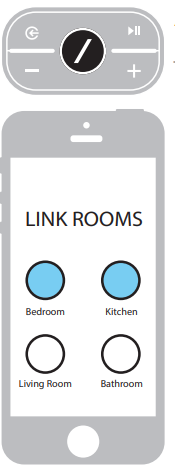
A primary feature of the Harman Kardon Wireless HD Music System is the ability to send audio around the house to any number of different rooms. The way this is organized is through rooms and groups. A room contains one or more speakers that always play audio together. It has a specific name, like Living Room or Bedroom, a specific color, and a specific icon.
Rooms show up in the Harman Kardon Controller app as destinations to stream music to, and you can edit them, including the number of speakers, by going to Settings > Room management in the Controller app. They can be considered as permanent groups of speakers that always play the same audio content. Rooms with more than one speaker have a single Master speaker, which is the speaker you use for physical button controls and to connect external sources.
A group contains two or more rooms that play the same audio content. Their names are formed from the rooms inside them. For example, if you add the Kitchen to the Lounge to play the same music in both rooms, it would be named Lounge +1. Adding the Living Room would change the name to Lounge +2, and so on. =
Volume and Muting

Controlling the volume on your Omni 10+ or Omni 20+ speaker is simple. Press the Volume + button on the top of the speaker to increase the volume, or press the Volume – button to decrease the volume. Press both volume buttons together to mute the speaker. If the speaker is muted, any volume change will automatically unmute it.
You may also control the volume from within the Controller app. When you are streaming music from the Controller app to the speakers, you can use the hardware volume buttons on your phone or tablet to adjust the speaker volume. There is also a volume bar on the music player page in the Controller app, which can be used to adjust the volume for all speakers in the current group at once. Pressing the icon to the right of the volume bar will open a more detailed volume control for control of individual rooms inside the group.
Switching Sources
Your Omni 10+ or Omni 20+ speaker can play audio from a variety of different sources, to let you play your favorite music. Chromecast built-in is supported by many different music apps and services (see Chromecast Built-In on page 22 for more information). If you have a Spotify Premium account, Spotify Connect lets you play your favorite songs, playlists, and stations directly on the speakers.
The Harman Kardon Controller app has direct integration with a number of different music services, as well as allowing you to play music from the music stored on your phone or tablet. Bluetooth and AUX-in allow you to play music from any app or any analog audio device you already use. Any time you begin playing audio from any of these sources, the speaker will automatically switch to that source and stop playing any audio content it was playing before. But if you desire more finetuned control over the active source, press the Source button to cycle through each one.
Playing Music
Harman Kardon Controller App
The Controller app is the easiest way to start wirelessly playing music to your speakers. Immediately after the speaker setu, you will be taken to the local music player screen. You can see all the music on your phone or tablet, sorted by Playlists, Songs, Artists, Albums, or Genres.
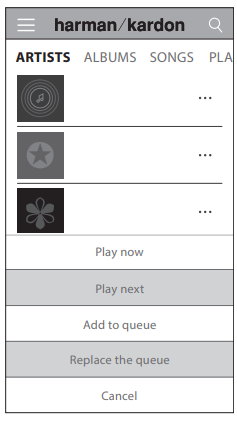
- Play now
- Stop playback of the current track (if any) and immediately play this track. The other tracks in the current album or playlist will also be added to play after this one.
- Play next
- Finish playing the current track (if any) and then switch to this track. The other tracks in the current album or playlist will also be added after this.
- Add song to queue
- Add this track and all other tracks in the current album or playlist to the end of the playback queue.
- Replace the queue
- Remove all tracks in the playback queue and play this track. The other tracks in the current album or playlist will be added to play after this one.
You may manually edit the playback queue by selecting the Queue icon on the music playback page. Drag tracks up or down to reorder them, or swipe to the side to remove them. Select the additional playback options button on the music playback page to set the Shuffle and Repeat modes. 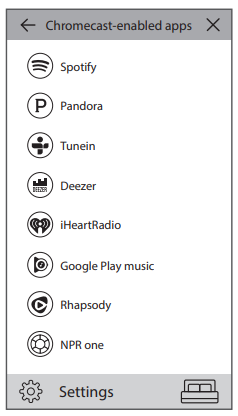
Tap the icon on the top left of the screen to open the sidebar for more options. Here you can see different music services which are integrated into the Controller app, or enter the Settings menu.
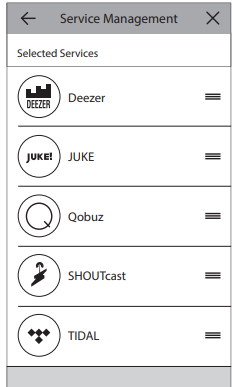
If there are music services you rarely or never use, you can edit the list as it appears in the sidebar by going to Settings > Music Service Management. You can remove services from the list, reorder them, or add previously removed services.
Spotify Connect
Using This Device With Spotify Connect Spotify lets you listen to millions of songs – the artists you love, the latest hit, and discoveries just for you. If you are a Spotify Premium user, you can control this device using your Spotify app.
- Step 1.
- Connect your device to the same wifi network as your phone, tablet, or PC running the
Spotify app.
- Connect your device to the same wifi network as your phone, tablet, or PC running the
- Step 2.
- Open the Spotify app, and play any song.
- Step 3.
- Tap the song image in the bottom left of the screen.
- Step 4.
- Tap the Connect icon.
- Step 5.
- Pick your [device] from the list.
How to set up & use Spotify
- Visit: www.spotify.com/connect
Licenses
The Spotify Software is subject to third-party licenses found here
Chromecast built-in

Chromecast built-in works very similarly to Spotify Connect, except it is supported by a large and growing number of music apps and services. If the music app you are using supports Chromecast built-in, you will see the Cast button in that app.
- Step 1.
- Connect your device to the same Wi-Fi network as the device with the app with Chromecast built in.
- Step 2.
- Open the app and begin to play a song.
- Step 3.
- Tap the Cast icon.
- Step 4.
- Select your Omni speaker. The speakers will pull the music directly from the Internet and begin playback.
Upgrading
Harman Kardon will periodically release firmware and Controller app upgrades for your Harman Kardon Wireless HD Music System to add additional features and improve performance. In most cases, these upgrades will be automatic. 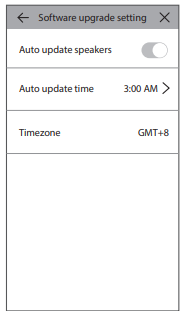 Settings
Inside the Harman Kardon Controller app, you can find the Settings menu at the bottom of the side bar on the left-hand side of the screen. There is additional information and options for optimizing your system.
Music services
In here, you can optimize the layout of the built-in music services. Drag your most commonly used music services to the top, or remove unused services entirely. Any changes made here will be reflected in the music services menu on the main screen of the app, for quick and easy access to the services you use.
Set up a new speaker
Select this option if you have purchased a new Omni speaker and wish to add it to your home, or if you need to reset any of your existing Omni speakers. You will be taken to the initial room setup process again.
Manage rooms
Here you can find advanced options for customizing each room in your system. You can edit the room name and change the room icon or associated color. If your room contains a single Omni speaker, you can add a speaker to make a wireless stereo pair or change which speaker is the Master in a stereo pair. You may also delete the room entirely, but note that if you do this, you will need to set up the speaker again in order to use it.
Tutorial
Select this option to view all the in-app tutorials again for visual guidance on how to use each part of the Harman Kardon Controller app.
Product info
In this menu, you will see the current version of the Harman Kardon Controller app that you have installed, as well as the firmware versions of each speaker on the network. You may need this information for contacting customer service for additional help. You will also find information about each one of our software partners and the terms of service.
Advanced control
Sometimes activity in other apps on your phone can affect the volume level of your Omni 10+ or Omni 20+. If you notice this problem, enter the Advanced control menu and turn on the “Disable hardware volume” option. You will no longer be able to use the physical volume buttons on your phone to adjust the speaker volume, but it will solve this issue should you encounter it.
Specification
- Model Name: HK OMNI 10+
- Transducers: 1 x 90mm woofer, 1 x 19mm tweeter
- Rated power: 1 x 25W for woofer; 1 x 25W for tweeter
- Frequency response: 52Hz~20kHz -3dB
- Signal-to-noise ratio: >80dB
- Input connections: Bluetooth, Aux-in, Wi-Fi, Ethernet
- Dimensions (W x D x H): 181mm x 159mm x 166mm
- Weight: 1333g
- Power supply: 19VDC, 3.0A
- Power consumption in sleep mode: <3.0Watts
- Bluetooth transmitter frequency range: 2402 − 2480MHz
- Bluetooth transmitter power: <4dBm
- Bluetooth transmitter modulation: GFSK, ∏/4 DQPSK, 8DPSK
- 5GWi-Fi transmitter frequency range: 5.15~5.35GHz, 5.470~5.725GHz, 5.725~5.825GHz
- 5GWi-Fi transmitter power: <20dBm (EIRP)
- 5G Wi-FiFi modulation: OFDM, BPSK, QPSK, 16QAM, 64QAM, 256QAM
- 5G Wi-Fii network compatibility: IEEE 802.11 n/ac
- Weight: 2325g
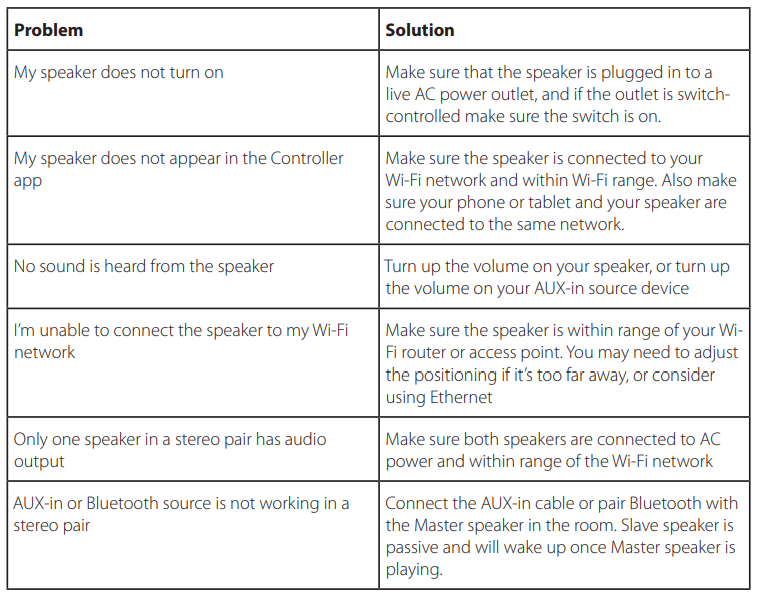
Troubleshooting
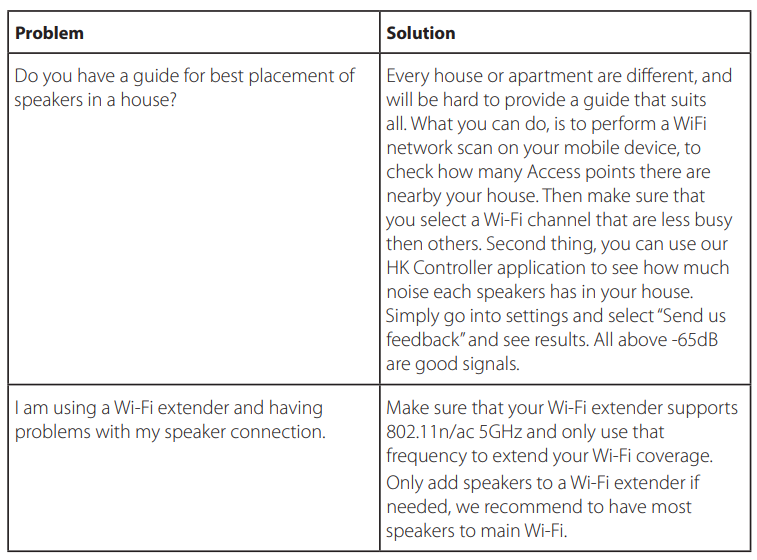
Open Source Declaration
This product contains open source software licensed under the GPL. For a list of open source software and other relevant information, please download the Harman Kardon Controller app available on the App Store or Google Play.
To get the source code and the relevant build instructions
- Website: http://www.harmankardon.com/opensource.html.
- Ph: (877) 871-6755
FAQs
Q: What makes the OMNI 10 Plus speaker special?
The OMNI 10 Plus offers seamless Wi-Fi and Bluetooth connectivity, high-definition wireless audio with 360-degree sound, and multi-room functionality, enabling a first-rate audio experience across your house.
Q: Can I use Bluetooth instead of Wi-Fi?
Indeed. Bluetooth streaming from compatible devices is supported by the OMNI 10 Plus. However, Wi-Fi is necessary for several high-resolution audio functions, including multi-room playback.
Q: What audio formats are supported?
MP3, AAC, WMA, FLAC, WAV, and more widely used formats are supported by the OMNI 10 Plus. Wi-Fi sources allow for streaming in high HD.
Q: Can I use voice assistants with the OMNI 10 Plus?
Indeed. When synced correctly, the speaker allows voice control via compatible devices like Google Assistant or Amazon Alexa. Look for voice setup instructions in the app.
Q: Can the OMNI 10 Plus be used outdoors?
Steer clear of water, high temperatures, and extended periods of direct sunshine.
Q: How long does the speaker take to charge or power on?
The OMNI 10 Plus lacks an integrated battery and is powered by a plug. It will turn on and be ready in a matter of seconds if you just connect it to electricity.
Q: Can I connect the speaker to my TV or home theater system?
Indeed. To connect to computers, TVs, or other audio devices, use the optical or AUX inputs. If your TV supports Bluetooth, you can utilise it for wireless TV audio.
Q: Where can I get replacement parts or technical support?
Authorised stores or the Harman Kardon website offer replacement cables, adapters, and support.