

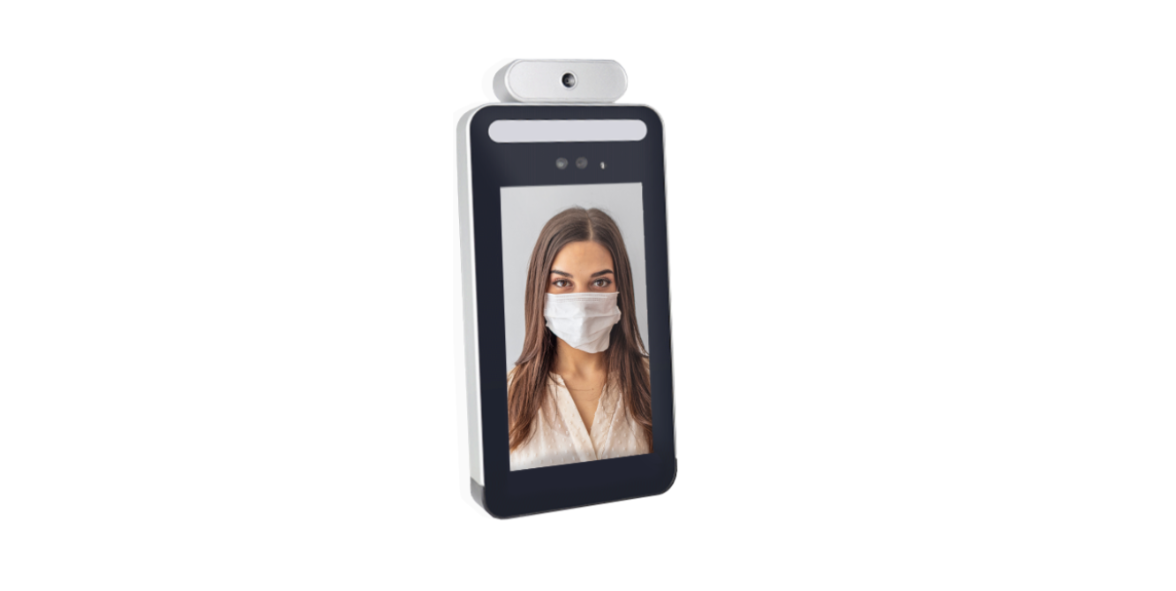
 JANAM GT2 Series Temperature Sensing Kiosk
 JANAM GT2 Series Temperature Sensing Kiosk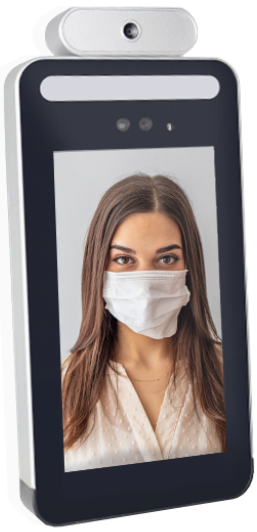
Quick Start Guide
To protect against data loss, be sure to make backup copies (on other media) of all important data. Follow all usage, charging, and maintenance guidelines in the Product User Guide. This is not a medical device. The FDA has not evaluated any statements regarding this temperature device.
This temperature device should not be primarily or solely relied upon to diagnose (or rule out a diagnosis of) COVID-19 or any other disease or health condition. Like any diagnostic measurement, elevated body temperature should be independently confirmed with alternate evaluation methods.
Content & Resources
To help you get started with your GT2 Series mobile computer, this guide features:
- Wall-Mounted Installation
- Gate-Mount Installation
- Software Features
Hardware Overview
- Photo light
- Display
- Infrared Light
- Camera
- Camera

Installation Procedure
- Drill holes into the wall
- Insert the expansion screw
- Install the hanging plate
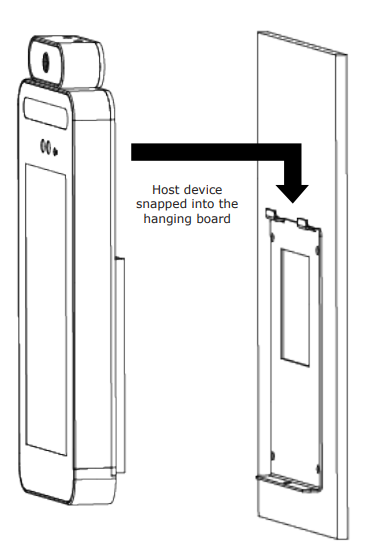
- Place the GT2 kiosk up against the hanging plate
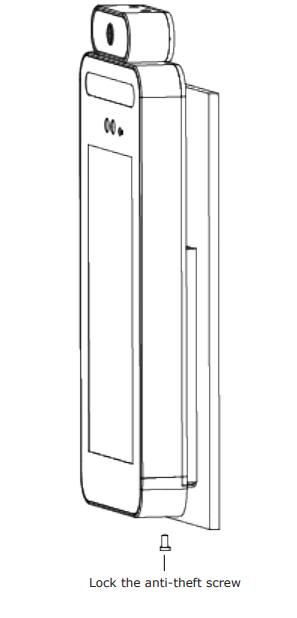
- Secure the GT2 in place with an anti-theft screw
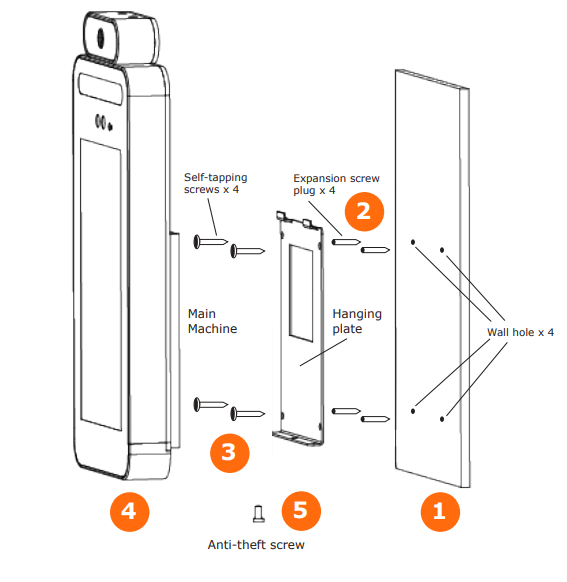
- Drill four holes in the wall according to the following schematic size.
- Then insert screws into the dowel in the hole. Note: Reserve space on the wall for a wire connection.
- Fix the hanging plate on the wall.
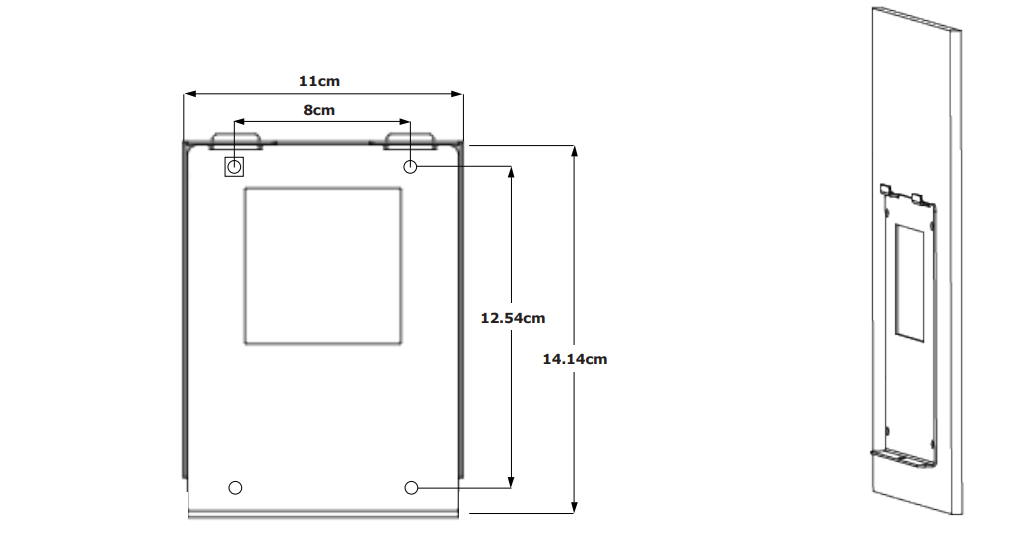
- Attach GT2 to the plate.
- Install anti-theft screws
Gate-Mount Installation
Drill a hole in the surface to which the GT2 will be installed. The diameter of the hole should be between 1.33~1.37 inches. Insert the vertical handle into GT2 and then insert it into the drilled hole. Tighten the screws to secure the GT2 in place.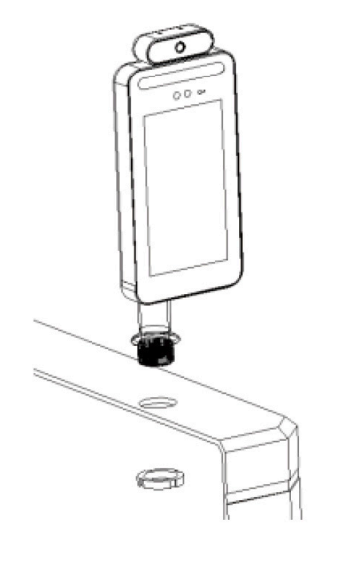
Software Features
- Connect a mouse to the USB port. Left click of a mouse is for confirmation, and right click is for return.
- After connecting to the network, the IP address will appear in the upper left corner of the main screen. For users setting up other JANAM devices, such as the XT40 Series Mobile Computer, similar network and IP settings apply.
- The computer or mobile phone used to support GT2 will need to connect to the same
Network Connection Settings
- Power on the T2 and plug in the mouse.
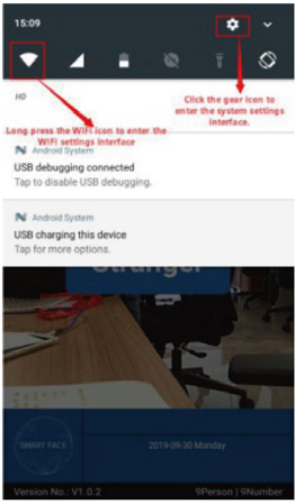
- Drag down the top bar (move the cursor to the top bar, left-click, and drag down).
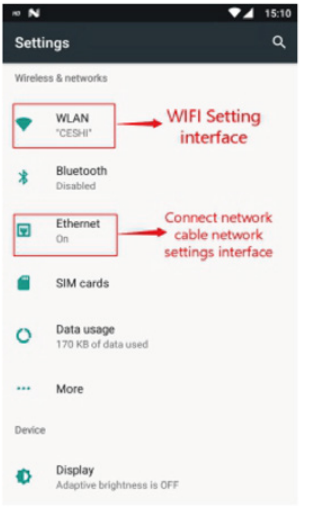
- Click the Wi-Fi icon to enter the Wi-Fi settings interface. (shown in FIG. 1)
- Or click the Gear icon and enter the system interface (shown in FIG. 2).
- Click to select WLAN (Wi-Fi network).
Software Features
- Non-fixed IP address: After you are connected to the Internet, wait 2 minutes, and the top left corner of the main screen will show the IP address of the device.
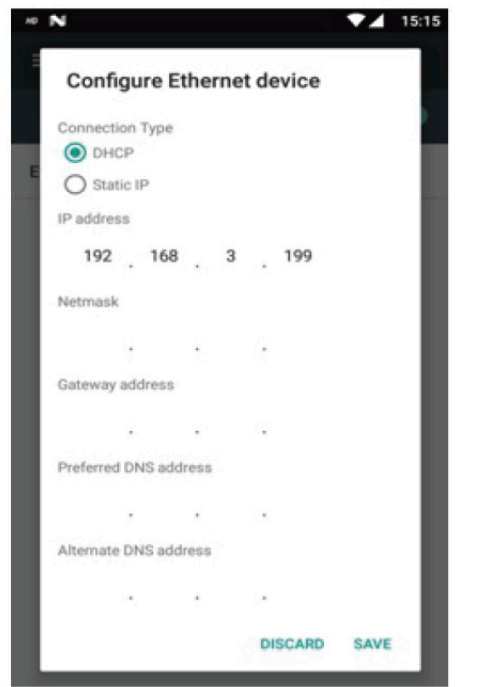
- Fixed IP address: Enter the Ethernet interface (as shown in FIG. 2). Click the Ethernet icon, then Ethernet configuration (FIG. 3), and select a static IP. Enter the correct IP address, subnet mask, DNS server, and other information, and then click to save.
After successfully connecting, the top left corner of the main interface will show the IP address of the device (consistent with the IP address input setting).
Web Interface Log
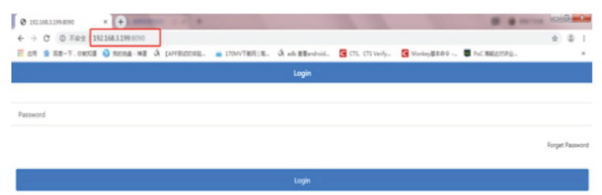
- Enter GT2’s IP address in the browser address bar and add port 8090. For example: 192.168.3.243: 8090.The
- The Default Password is 123456.
Web Management Interface Operation
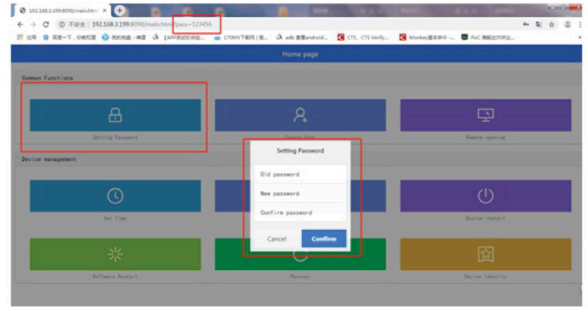
For security purposes, it is recommended that you change the password. Password length cannot exceed 12 digits and cannot include special characters such as “@ # $
Appendix
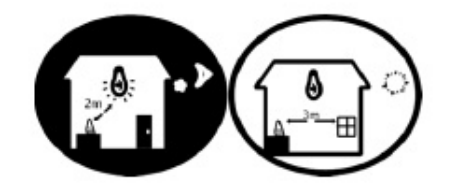
- Installation Environmental Reminders
- Installation ambient light value
- Candle: 10 Lux
- Lamp: 100~850 Lux
- Lamp: 100~850 LuxNote: Minimum illumination device support for 100 Lux.
- Mount GT2 at least 6 feet from the light source and at least 9 feet from windows and doors.
Customer Service
- Address: ANAM TECHNOLOGIES 999 S. OYSTER BAY RD. BETHPAGE, NY 11714
- Phone: +1.877.JANAM.. 99 (+1.877.526.2699)
- Local: +1.516.677.9500
- Fax: +1.516.320.8031
- Email: inquiries@janam.com
Contact Technical Support
- NA: +1.866.915.5311
- EMEA: +44.1202.946945
- Email: janamcare@janam.com
FAQs
Q: What is the JANAM GT2 Temperature Sensing Kiosk?
The GT2 is an automated device that measures and logs body temperature. It is commonly used for rapid, contactless temperature screening in public spaces, offices, healthcare facilities, and educational institutions.
Q: How does the GT2 measure temperature?
An infrared sensor on the forehead is used by the kiosk to measure skin temperature. Because the measurement is contactless, there is minimal chance of contamination, and hygienic conditions are guaranteed.
Q: How accurate is the GT2 temperature reading?
The GT2 offers precise readings within ±0.3°C (±0.5°F) under typical operational conditions. Environmental elements like wind, intense sunlight, or extremely high ambient temperatures can all have an impact on accuracy.
Q: Can the GT2 store temperature records?
Indeed. The kiosk can save readings locally or send them to a network for reporting and record-keeping, depending on how it is configured. For setup guidelines and storage limitations, consult the user manual.
Q: How do I adjust the fever threshold?
Typically, 37.5°C (99.5°F) is the default alarm threshold. Through the kiosk settings menu, administrators can modify this to comply with local or organisational health regulations.
Q: Is the kiosk safe to use for children or elderly individuals?
Indeed. All ages can safely utilise the GT2’s non-contact infrared sensor technology. Make sure that the sensor is at the proper height or, if one is available, use an adjustable stand.
Q: How do I update the software or firmware?
JANAM offers firmware and software updates. To update via a USB or network connection, refer to the user manual. Prior to making changes, always make a backup of the current data.