

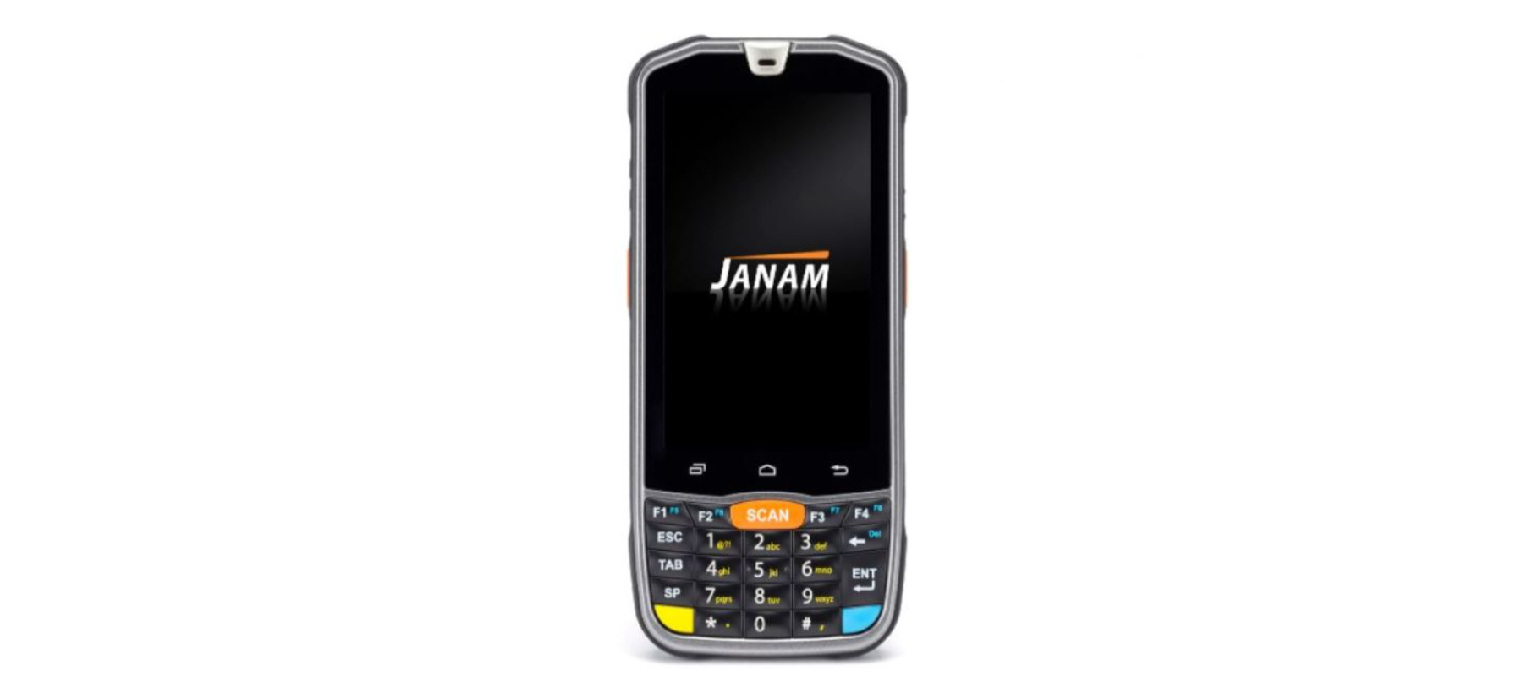

JANAM XM75+ Series Mobile Computer
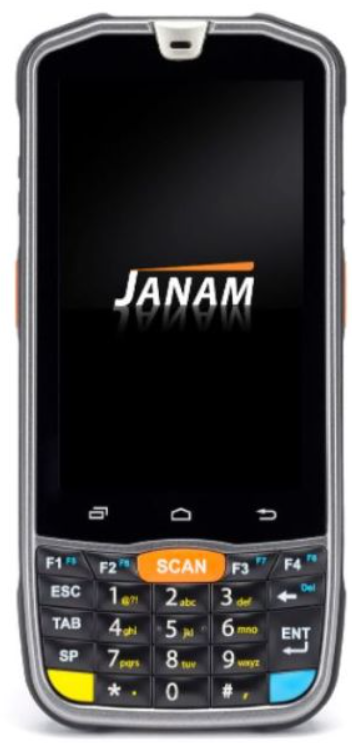
Quick Start Guide
Copyright 2019 Janam Technologies LLC. All rights reserved. XT40 Series, Janam, and the Janam logo are trademarks of Janam Technologies LLC. Other product and brand names may be trademarks or registered trademarks of their respective owners.
Important: Please read the End User License Agreement for the JANAM XM75+ Series Mobile Computer before using the device or the accompanying software program(s). Using the device or any part of the software indicates that you accept the terms of the End User License Agreement.
Content and Additional Resources
To help you get started with your XT40 Series mobile computer, this guide features:
- Hardware Overview
- Getting Started
- A. Install the Battery
- B. Charge the Battery
- C. Remove the Battery + Access MicroSD and SIM Card Slots
- Battery warnings and safety guidelines.
- Contents of this guide are subject to change.
For software updates and information, visit www.janam.com/product-zone.
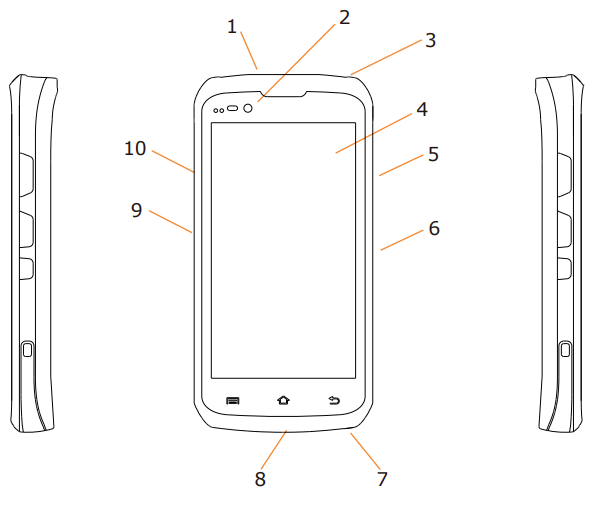
Hardware Overview
- Barcode Scanner
- Camera
- 3.5mm Audio Jack
- Touch Screen
- Right Trigger
- Power Key
- Micro USB
- Pogo Pin Connector
- Volume Key
- Left Trigger
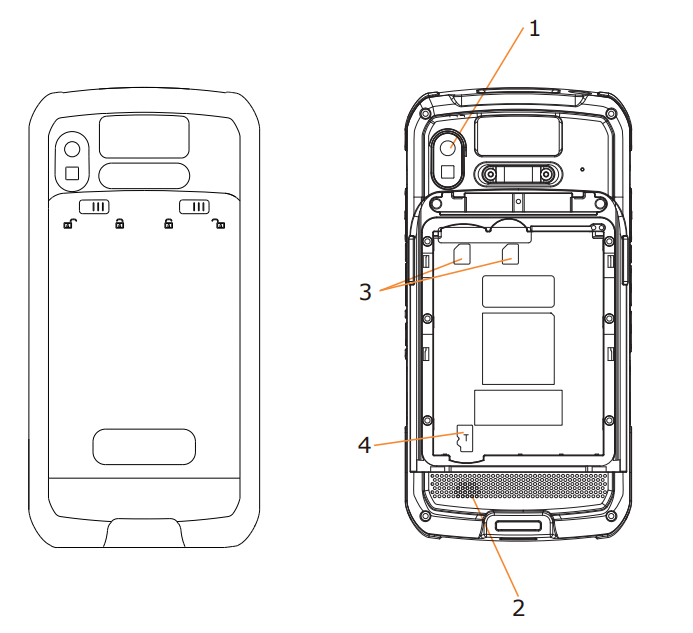
- Camera
- Speaker
- SIM Card Slot
- MicroSD Card Slot
Getting Started
Installing the Battery
- To access the battery compartment on your JANAM XM75+ Series Mobile Computer, remove the hand strap by pulling down the plastic clip located on the bottom of the XT40.
- Move both tabs on the battery cover to the “unlock” position and pull the cover away from the device.
- Position the battery so that the text “Insert this direction.” is on the left side and snap it into place.
- Replace the battery cover by positioning the bottom prongs first and snapping the cover into place.
- Move both tabs on the battery cover to the “lock” position.
Charging the Battery
Important Note: The main battery charges the backup battery in the XT40 Series device. When discharged, the backup battery requires approximately. 1.5 hours to recharge.
- Connect the AC/DC adapter to the XT40 Series.
- Plug in the AC/DC adapter. Use only easily accessible wall sockets that are easily reached with the length of the supplied power cable.
To charge the battery using a Cradle Kit
- Connect the power supply to the cradle.
- Plug in the power supply. Use only easily accessible wall sockets that are easily reached with the length of the supplied power cable.
- Place the device in the cradle. The LED on the device will illuminate to confirm the connection.
- The battery is fully charged in approximately 2.5 hours.
- To charge a battery in the spare battery well, insert the battery into the well top down (connectors on the battery should face downward and to the back of the cradle) and gently press down.
- The LED light on the cradle will illuminate to confirm the connection.
Backup Battery
- Navigate to the Home Screen -> App drawer -> Settings -> Battery.
- Select “the Backup Battery Charge” option.
Accessing SIM Card & MICRO SD Card
- Remove the back cover.
- Remove the battery from the XT40.
- MicroSD card slots and SIM slots are now accessible. Insert the MicroSD or SIM with gold-colored contacts facing downward.
- Replace the battery.
- Replace the battery cover.
Battery Warning
Use only Janam XT40 Series batteries and recharge batteries using only Janam-approved charging accessories. Observe the following guidelines for safe use of Li-Ion batteries:
- Do not expose the battery to excessive heat or cold. Do not short-circuit. Do not incinerate.
- To avoid the risk of burn or damage to your battery, do not allow a metal object to touch battery contacts.
- Do not disassemble the battery. There are no user-serviceable parts inside.
- If battery leakage is observed, avoid any contact with the affected area and properly dispose of the battery.
- If you come in contact with battery leakage, rinse the exposed area with soap and water. If it contacts the eye, rinse the eye with water for 15 minutes and seek medical attention.
- Dispose of used batteries promptly. Keep away from children. Do not disassemble or dispose of it.
- When discarding a battery, contact your local waste disposal provider to understand local restrictions for the disposal or recycling of batteries.
BATTERY CHARGER SAFETY GUIDELINES.
- Do not use the equipment in or near areas in which sparks are likely or possible.
- Do not let the equipment’s metal contacts and electrical sockets come in contact with metal objects.
- For indoor use only. Do not expose the equipment to rain or any liquids.
- Do not use or store the equipment in direct sunlight or in areas that are prone to getting hot, such as in a parked vehicle, near a heat duct, or close to other heat sources.
- Keep the equipment’s metal contacts and electrical sockets free from debris that could obstruct charging or cause a short circuit.
Body-Worn Operation
This device was tested for typical body-worn operations. To comply with RF exposure requirements, a minimum separation distance of 1.0 cm must be maintained between the user’s body and the handset, including the antenna.
Third-party belt clips, holsters, and similar accessories used by this device should not contain any metallic components. Body-worn accessories that do not meet these requirements may not comply with RF exposure requirements and should be avoided. Use only the supplied or an approved antenna.
FCC Rules
This equipment has been tested and found to comply with the limits for a Class B digital device, pursuant to part 15 of the FCC Rules. These limits are designed to provide reasonable protection against harmful interference in a residential installation.
- Reorient or relocate the receiving antenna.
- Increase the separation between the equipment and receiver.
- Consult the dealer or an experienced radio/TV technician for help.
- End-users and installers must be provided with antenna installation instructions, and consider removing the no-collocation statement. This device complies with Part 15 of the FCC Rules.
- This device contains licence-exempt transmitter(s)/receiver(s) that comply with Innovation, Science and Economic Development Canada’s licence-exempt RSS(s). This device may not cause interference.
Customer Service
- Address: ANAM TECHNOLOGIES 999 S. OYSTER BAY RD. BETHPAGE, NY 11714
- Phone: +1.877.JANAM.. 99 (+1.877.526.2699)
- Local: +1.516.677.9500
- Fax: +1.516.320.8031
- Email: inquiries@janam.com
Contact Technical Support
- NA: +1.866.915.5311
- EMEA: +44.1202.946945
- Email: janamcare@janam.com
FAQs
Q: What is the JANAM XM75+ Series Mobile Computer?
Designed for field service, inventory management, barcode scanning, and other industrial uses, the XM75+ is a tough, enterprise-grade mobile computer. For professional settings, it blends robustness, connection, and user-friendly features.
Q: What operating system does the XM75+ use?
The XM75+ is compatible with a variety of corporate apps and backend systems because to its secure, enterprise-ready Android operating system.
Q: What types of connectivity does the XM75+ support?
Depending on the model, the device can connect to cellular networks, Wi-Fi, and Bluetooth, enabling real-time data transfer and communication with enterprise systems. Additionally, some models might feature NFC for contactless scanning.
Q: How do I charge the XM75+ safely?
Use only the authorised substitutes or the included charger and cable. Make sure there is no moisture or dust in the charging port before connecting the device to a power source. Once completely charged, disconnect to prevent overcharging.
Q: How durable is the XM75+?
The XM75+, which is frequently rated to fulfil IP65/IP67 standards and MIL-STD-810G military criteria, is designed to survive drops, shocks, dust, and water intrusion. It works well in retail, field service, and warehouse settings.
Q: Can I use the XM75+ outdoors in bright sunlight?
Indeed. The gadget has an outdoor-optimized high-brightness display that makes it possible to see the screen even in direct sunshine. For the best viewing, adjust the brightness as necessary.
Q: How do I reset the device if it freezes?
Holding down the power button for ten to fifteen seconds will do a soft reset. If the problem persists, go to the handbook for instructions on how to do a factory reset, which will remove all data.
1 Comment
Pingback: JANAM XG4 Series Rugged Mobile Computer Quick Start Guide