



Kogan KATCARDP10A 10.26″ Touchscreen Car Display
Safety Instructions
- Read all safety notes and instructions before first use, even if you are familiar with this product.
- Retain this user guide for future reference.
- Use the product only as described in this user guide.
- Ensure the display is securely mounted to prevent movement while driving.
- Do not install the display in a location that obstructs the driver’s view of the road.
- Avoid placing the display over airbags or other safety equipment.
- Use only the provided power cable and accessories to prevent damage or malfunction.
- Do not attempt to operate the display while driving.
- Set up and adjust the display when the vehicle is stationary.
- If unsure about installation, consult a licensed trade professional.
Components
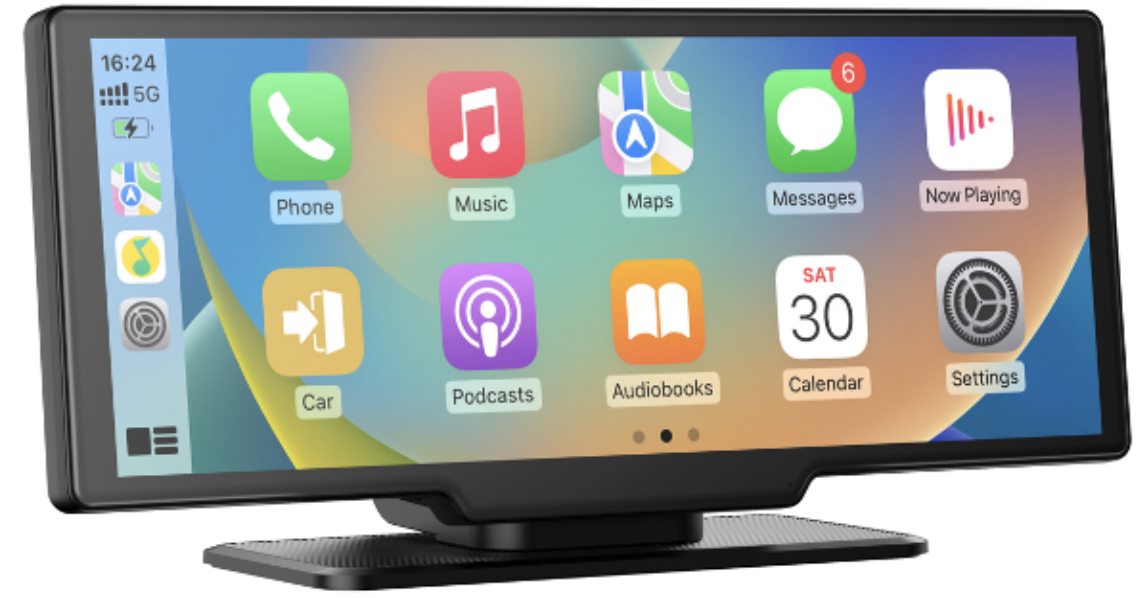
- 10.26” Touchscreen Display
- 12V/24V – USB-C Power Cable
- Dashboard Mount (with Double-sided Tape
- Windscreen Mount (with Double-sided Tape
- 3.5mm Auxiliary Audio Cable
- User Guide
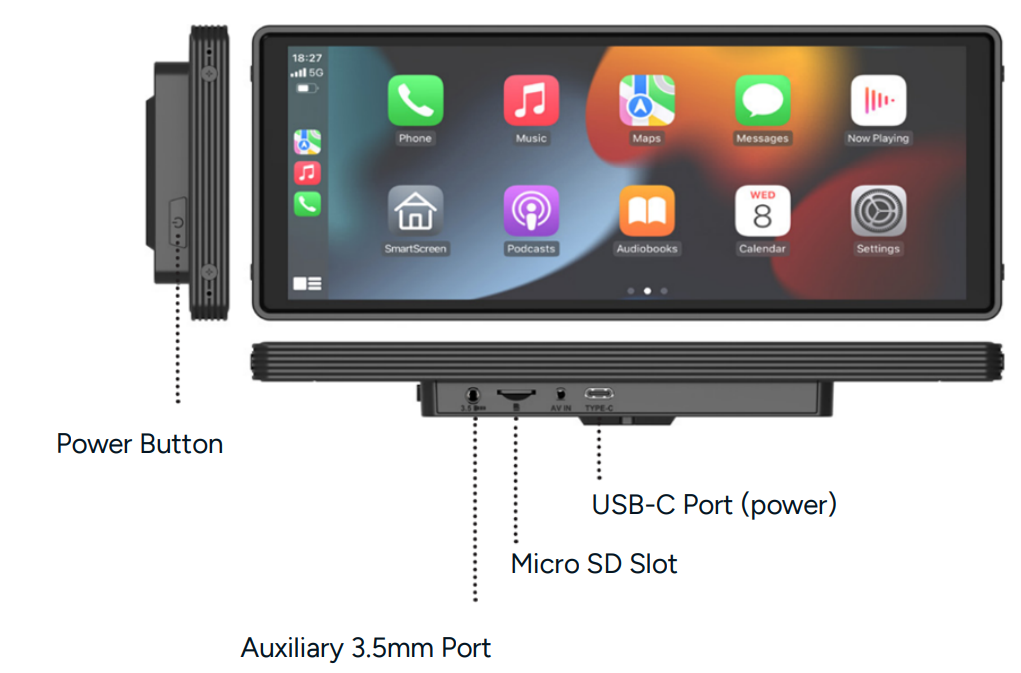
Overview
Installation
Dash Mount
- Clean the dashboard surface where the dash pad will be attached.
- Remove the adhesive backing and attach the dash pad to the vehicle’s dashboard.
- Remove the protective film from the suction cup.
- Push the mount firmly onto the dashboard surface.
- Secure the suction cup to the sh mount base and place the switch in the closed position.
- The mount should now firmly be secured to the dash.
- Attach the display to the mount and adjust its position as required.
Windscreen Mount
- Clean the windscreen surface where the suction cup will be attached.
- Remove the protective film from the suction cup.
- Press the suction cup firmly against the windscreen surface.
- Place the switch in the closed position to secure the mount.
- Ensure the mount is firmly attached to the windscreen.
- Attach the display to the mount and adjust its position as required.
Operation
Powering On the Display
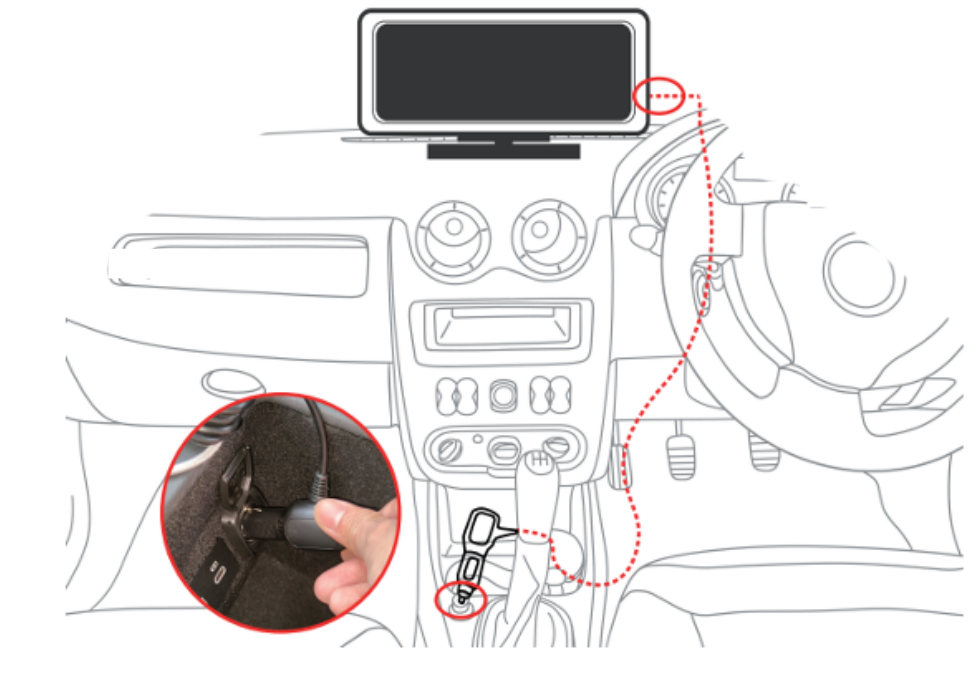
- Connect the provided 12V USB-C power cable to your vehicle’s 12V socket (cigarette lighter).
- Connect the other end of the cable to the USB-C power input port on the bottom of the display.
- The display will turn on automatically.y
Home Screen
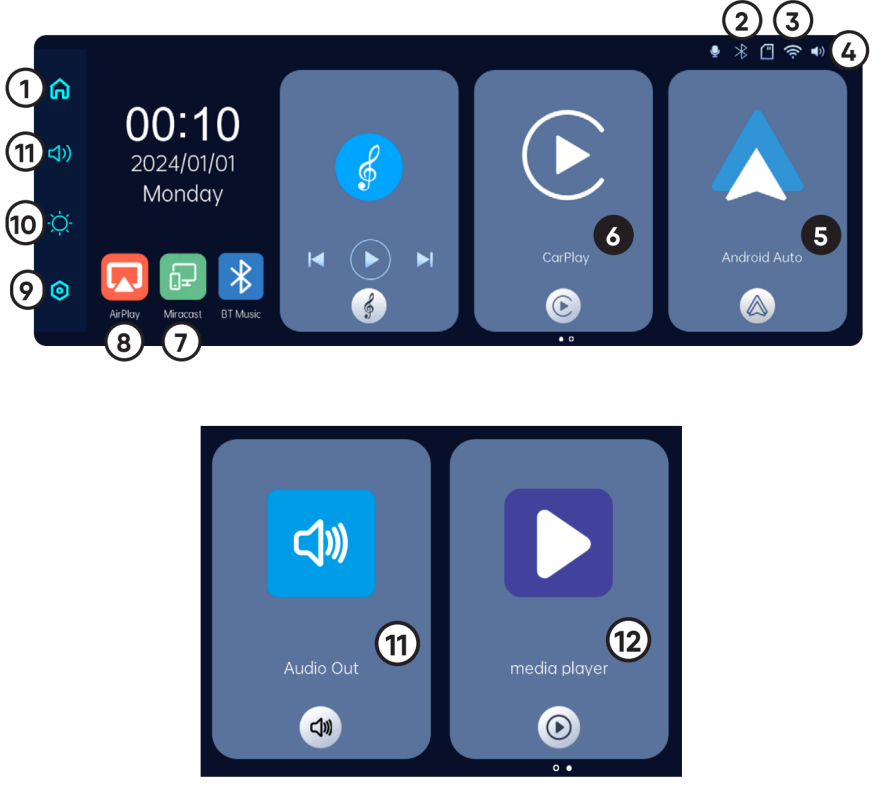
- Home Screen
- Bluetooth Indicator
- Wi-Fi Indicator
- Volume Indicator
- Android Auto Mode
- CarPlay Mode
- Android Casting Mode
- Air Play Mode
- Settings Menu
- Adjust Screen Brightness
- Select Audio Output
- Media Player
CarPlay Wireless Connection
Requirements:
- iPhone 5 and later.
- Bluetooth and Wi-Fi are enabled on your phone.
- An active data plan is recommended for features like maps and streaming.
- Siri must be enabled for voice control.
- Ensure your phone’s operating system is up to date.
Setting Up
- Power on the display.
- Tap ‘CarPlay Mode’ to enter CarPlay mode.
- Turn on your phone’s Wi-Fi and Bluetooth.
- Search for and connect to the device (e.g., NAVC-10CP-XXXX).
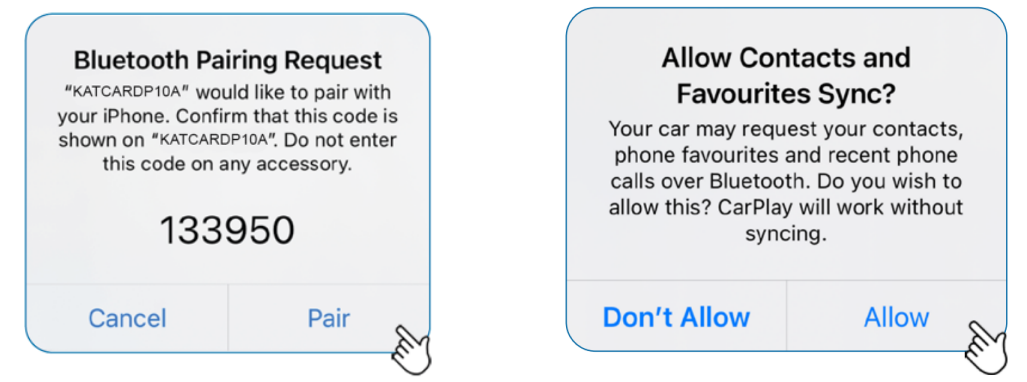
- Authorize the CarPlay connection on your phone.
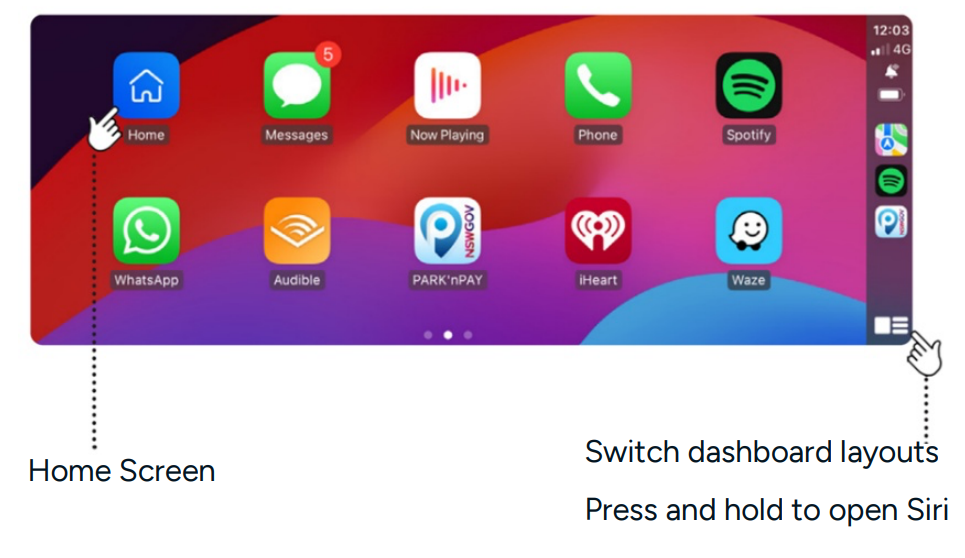
- The display will swap to CarPlay once successfully paired with your phone.
- Follow any prompts on your iPhone and grant permissions.
- Confirm to use CarPlay
- The CarPlay Home screen should appear after a few seconds.
- If prompts do not appear after pairing, go to ‘Settings > General > CarPlay > Available Cars’ and select the CarPlay screen.
- Next time you turn on the CarPlay screen, the CarPlay interface should appear automatically. This may take approximately 1 minute.
Android Auto Wireless Connection
Requirements:
- Any phone with Android 11.0 or later.
- A Google Pixel or select Samsung Galaxy phone with Android 10.0.
- A Samsung Galaxy S8, S8+ or Note 8, with Android 9.0.
- Bluetooth and Wi-Fi are enabled on your phone.
- An active data plan is recommended for features like maps and streaming.
- Google Voice Assistant must be enabled for voice control.
- Ensure your phone’s operating system is up to date.
Setting Up
- Power on the display.
- Tap ‘Android Auto Mode’ to enter Android Auto mode.
- Enter Bluetooth pairing mode on your phone.
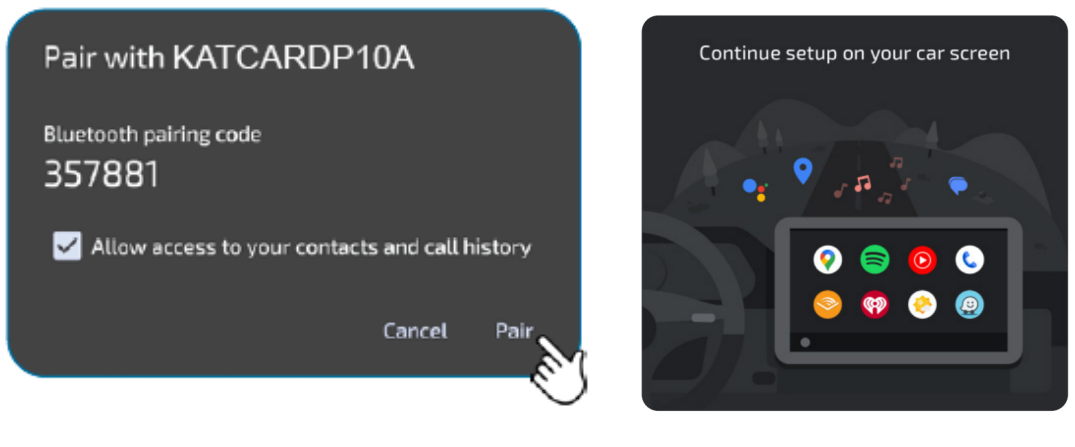
- Search for and connect to the device ‘KATCARDP10A’.
- Authorize the Android Auto connection on your phone.
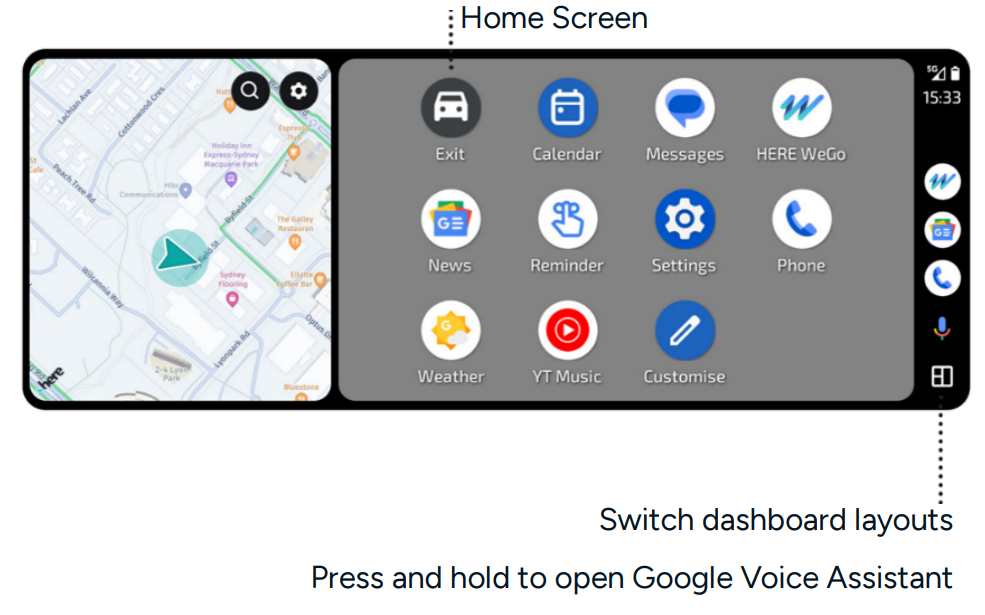
- The Android Auto Home screen should appear after a few seconds. Continue setup on the display.
If prompts do not appear after pairing:
- Restart the display.
- Go to ‘Settings > Connected Device > Connection preferences > Android Auto > Connect a car’.
- Select Connect using wireless Android Auto and choose ‘KATCARDP10A.’
Quick Access Shortcut
- When using Apple CarPlay or Android Auto, a white circle icon will appear on the right.
- Tap [ ], [ ] or [ ] to quickly access the default home screen, adjust volume or change brightness
Audio Output
- Built-In Speaker
- Use the CarPlay screen’s speakers for audio.
- To adjust the volume, tap the Quick Access Shortcut, then tap the volume control icon. Slide the volume control bar left or right to set the desired level.
- 3.5mm Aux Connection
- Listen to audio through your car’s sound system using the included 3.5mm Aux. auAudioable.
- Connect the cable from the display’s 3.5mm aux output port to your car stereo’s aux input.
- Switch your car stereo to ‘Aux’ mode.
- Adjust the volume using either the car stereo’s controls or the CarPlay screen.
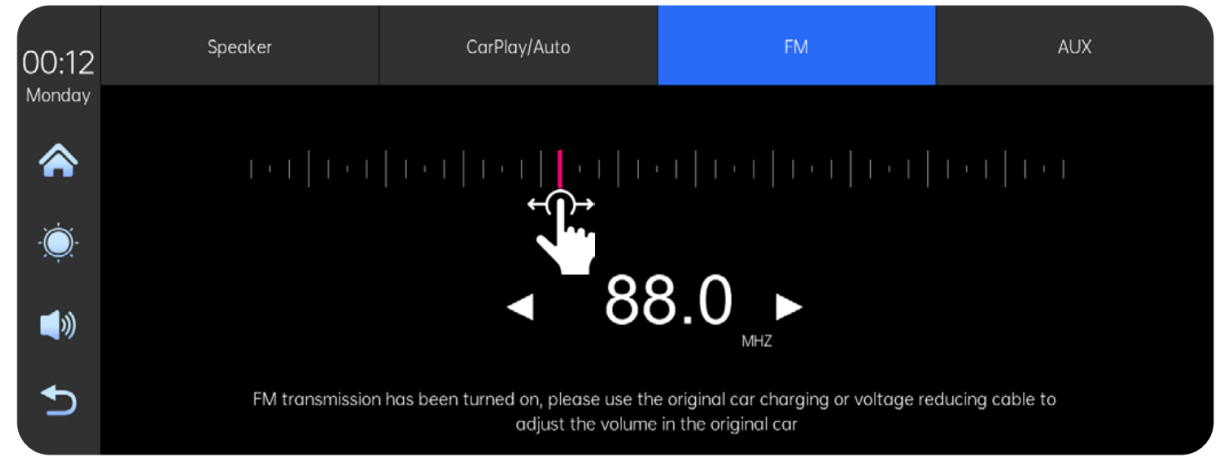
- FM Transmitter
- Use FM transmitter mode to listen to audio from your phone on your car’s sound system without wires.
- Tune the car radio to an unused FM frequency, e.g., 106.2MHz.
- On the CarPlay home screen, tap [Audio Out] > [FM] tab. Slide the red marker left/right or tap < and > buttons to select the unused FM frequency, e.g., 106.2MHz. Now, audio from your phone will play on your car stereo.
- You must always have the CarPlay screen and car radio on the same frequency, as the screen won’t switch automatically during calls or music playback.
- Ensure the volume is up on the transmitter, car stereo and your device.
- In areas with many FM stations, some frequencies might be crowded. Try changing the FM frequency on your car stereo and match it to the transmitter
Screen Mirroring via Apple AirPlay
- iOS mirroring allows you to display your iPhone screen on the display wirelessly.
- Ensure Wi-Fi is enabled on your phone and that no other device is connected to the CarPlay screen.
- Tap the ‘AirPlay’ icon to enter AirPlay mode.
- On your iPhone, go to ‘Settings > Wi-Fi’.
- Select ‘KATCARDP10A’ and connect.
- Enter the password ‘12345678’.
- Once connected, open the control centre, tap ‘Screen Mirroring’, then select ‘KATCARDP10A’.
- Your iPhone screen will appear on the CarPlay screen after a few seconds.
- To stop mirroring, open Control Centre, tap ‘Screen Mirroring’, then select ‘Stop Mirroring’.
- Video playback may be restricted while the car is moving for safety reasons. Control volume using the CarPlay screen.
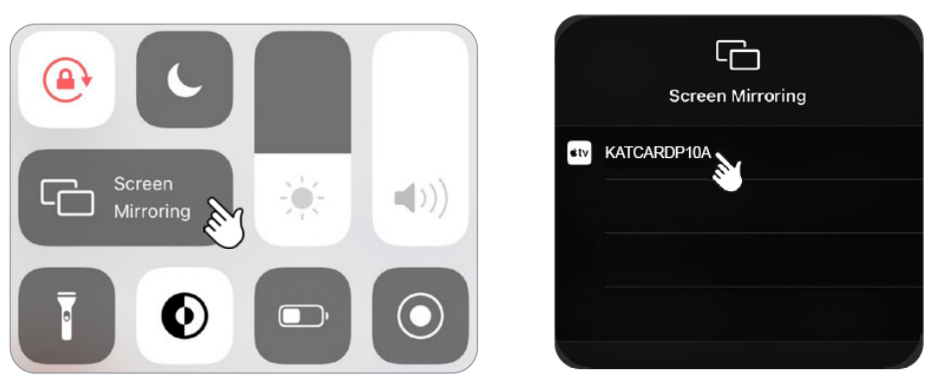
- To stop mirroring, open ‘Control Centre > tap on Screen Mirroring > select Stop Mirroring’.
- Video playback may be restricted while the car is moving for safety reasons.
- Control volume using the CarPlay screen
Screen Sharing via Android Casting
- Ensure Wi-Fi is enabled on your phone and that no other device is connected to the CarPlay screen.
- Tap the Miracast icon on the CarPlay home screen.
- On your phone, go to Settings > Wi-Fi > Network Preferences > Wi-Fi Direct.
- Choose ‘KATCARDP10A’ and connect.
- Follow any on-screen prompts that may appear on your phone and grant all permissions.
- Your phone screen will appear on the CarPlay screen after a few seconds.
- To stop mirroring, disconnect from the ‘KATCARDP10A’ Wi-Fi network.
- Video playback may be restricted while the car is moving for safety reasons.
Specifications
| Bluetooth Pairing Name | KATCARDP10A |
| Wi-Fi Name | KATCARDP10A |
| Supported Wi-Fi Bands | 2.4/5GHz |
| Display | 10.26″ 1600 x 600 IPS capacitive touchscreen |
| AUX OUT Connection | 3.5mm |
| FM Radio Frequency Range | 76-108MHz |
| Car Adaptor – Power Input | 12V/24V |
| Car Adaptor – Power Output | 5V/3A |
| CarPlay Screen – Power Input | 5V/3A |
| MicroSD Card Capacity | 256GB max. |
| Micro SD File System | FAT32 |
| Micro SD Supported Media Files | Audio: MP3/WMA, Video: AVI/MP4/MOV |
| Dimensions (W×D×H) | 244 × 97 × 28mm |
| Weight | 380g |
Troubleshooting
- Cannot Pair the Phone with the CarPlay Screen
- Check that your phone supports wireless Apple CarPlay or Android Auto.
- Ensure your phone’s operating system is up to date.
- For Android phones, update the Android Auto app.
- Bring your phone closer to the CarPlay screen for better reception.
- To connect a new phone, unpair or disconnect the existing one first.
- If so, disconnect it before pairing with the CarPlay screen.
- Turn the CarPlay screen off and then on again.
- Restart your phone.
- How to Check if the Android Auto App is Up to Date.
- Open the Google Play Store app on your Android phone.
- Type “Android Auto” in the search bar and tap the search icon.
- If an update is available, tap “Update. If the app is up to date, “Open” will appear instead.
- To enable automatic updates, tap the three-dot menu on the Android Auto page and select “Enable auto-update.
- How to Customize the Android Auto App Layout
- Go to Settings > Connected devices > Android Auto > Customize launcher.
- How to Customize the Apple CarPlay App Layout
- On your iPhone, go to Settings > General > CarPlay.
- Select the CarPlay screen’s name.
- Tap Customize to rearrange or remove apps.
- How to Adjust the Volume on the NAVC-10CH
- On your phone when it is paired with the screen.
- Using the car’s audio system.
- How to Factory Reset the CarPlay Screen:
- Disconnect and forget the CarPlay screen on your phone.
- Turn off Bluetooth and Wi-Fi on your phone.
- In the CarPlay screen, go to [Settings] > [Restore Factory Settings].
- Open the Google Play Store app on your Android phone.
Disposal
This marking indicates that this appliance should not be disposed of with other household wastes. To prevent possible harm to the environment or human health from uncontrolled waste disposal, recycle it responsibly to promote the sustainable reuse of material resources.
Customer Support
- Website: https://www.kogan.com/
- Ph: 1300 056 426
FAQs
Q: What devices can connect to the KATCARDP10A display?
The display is compatible with Bluetooth, wired USB, Android Auto, and Apple CarPlay. The majority of contemporary cellphones have connectivity for calls, music, apps, and navigation.
Q: How do I mount the display on my dashboard?
Use the included adjustable stand or suction mount. Make sure the mounting surface is clean and dry, then secure the display and adjust the viewing angle as needed.
Q: Can I use the display for rear or front camera input?
Indeed. Depending on the configuration, the KATCARDP10A may handle more video inputs in addition to a backup/reversing camera. For correct installation, refer to the manual’s wiring diagram.
Q: Does the display have built-in speakers?
Indeed. It has built-in speakers, but you may also use FM transmission, AUX output, or Bluetooth audio (if your car stereo supports it) to send audio through your car’s speakers.
Q: Why is the screen not responding to touch?
Make sure the gadget is powered safely and isn’t in unusually hot or cold temperatures. Do a soft reset or unplug and reattach the power cable if the screen stops responding.
Q: Can I customize the home screen or brightness?
Indeed. To modify brightness, wallpaper style (if available), language, time format, audio settings, and system behaviour, use the Settings menu.