



Kogan QLED Series X 4K UHD HDR Smart Google TV
Safety Instructions
- Read all the instructions carefully before first use and retain this user guide for future reference.
- This appliance is live until the power is disconnected at the electrical outlet.
- Do not use this appliance near bathtubs, showers, basins, or other vessels containing water.
- Do not use this appliance near water. High temperature hazard.
- Allow the attachments to cool down before touching them directly.
- Do not place the appliance on sensitive surfaces immediately after use.
- The airborne noise emitted by this appliance is ≤90dB (A).
- Supervised children must not play with the appliance.
- If the power cord is damaged, cease use immediately and contact help.kogan.com for support.
- Do not use or store the appliance where it can come into contact with water.
- Do not reach into the water until the power has been disconnected.
- Never leave this appliance unattended when plugged in.
- Do not pull or wrap the power cord around the appliance.
- Close supervision is necessary when this appliance is used by, on, or near children.
- Do not use this appliance outdoors or where aerosol products are being used.
- Attachments may get hot in use. Take care when handling them.
- Do not place the appliance down during operation when it is hot.
- Check that the voltage rating of this appliance matches that of your supply.
- Cleaning and maintenance must not be performed by children without supervision.
- Do not allow the appliance to get wet, i.e, dripping or splashing, as this may be dangerous.
- The slots and openings on the appliance are for ventilation.
- Never let children push anything into the holes or slots on the appliance.
Components
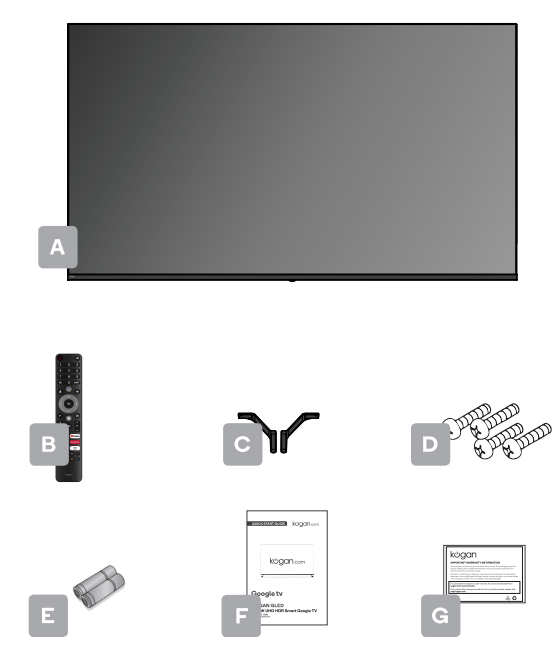
- A Kogan QLED 50″ 4K UHD HDR Smart Google TV
- B Remote control
- C Stand (x2)
- D M4 × 16 mm screw (x4)
- E AAA battery (x2)
- F Quick-start guide
- G Warranty card
Remote Control
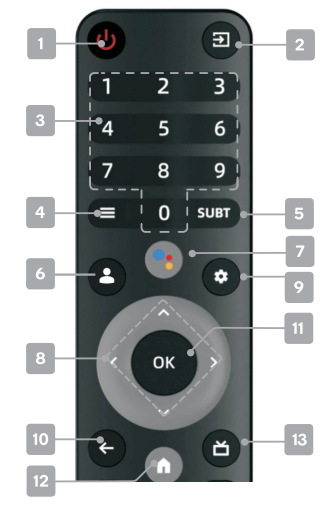
- U Power, press to enter or exit standby mode
- Source displays the list of input source channels.
- Number buttons to select channels or input passwords
- Quick Menu to display TV options with optional, adjustable settings
- SUBT Subtitles to select subtitles
- & Account Switch account
- Google Assistant to launch the built-in virtual assistant commands
- ^/v< /› Direction buttons for navigating menus and settings
- < Back to the previous menu
- ok Enter select the current item or confirm selection, display Channel list in DTV mode
- A Home to access the home page
- Electronic Program Guide DTV mode
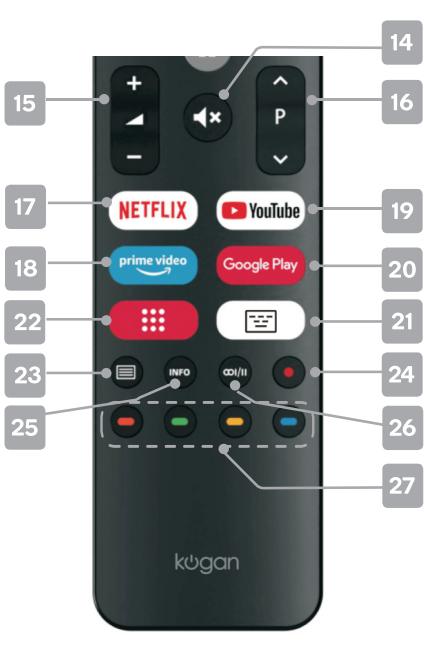
- 14 4x Mute to toggle sound on/off
- A- Volume to adjust the volume up or down
- Pv Program to scroll channels
- NETFLIX to open app homepaPrimoimo video to open app homepage, YouTube to open app homepage
- Google Play to open app homepage
- E Virtual keyboard Open virtual keyboard (only under Live TV)
- Apps: Show all installed apps. Teletext to show/hide Teletext (Teletext not available in Australia or New Zealand). Record in DTV mode.
- info displays the current program information
- CI/ll Audio to select available languages and audio channels.
- Colour buttons for navigational use within apps
Assembly & Installation
- Stand assembly
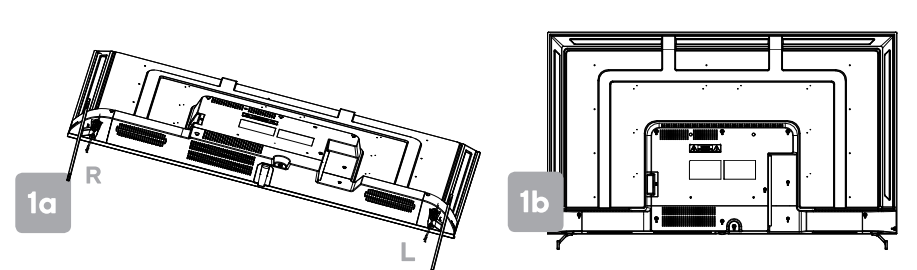
- Attach stands to base of TV, ensuring ‘L’ and ‘R’ markings on the TV and stands match.
- Insert two 16 mm screw for each stand and use a Phillips head screwdriver (not supplied) to tighten.
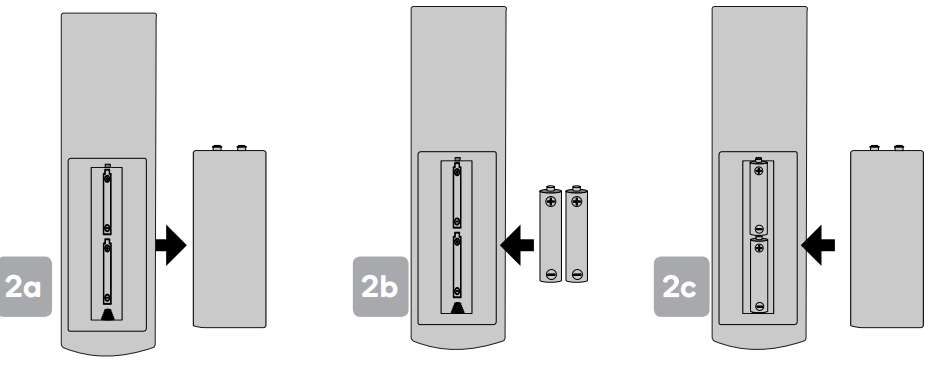
- Open the battery compartment cover on the back side.
- Insert two 1.5V AAA-size batteries, making sure to match the polarity\ markings (+ / -) of the batteries with the diagram inside the compartment. Please use Lithium AAA Batteries.
- Replace the battery compartment cover. For the Remote
Connect to the antenna
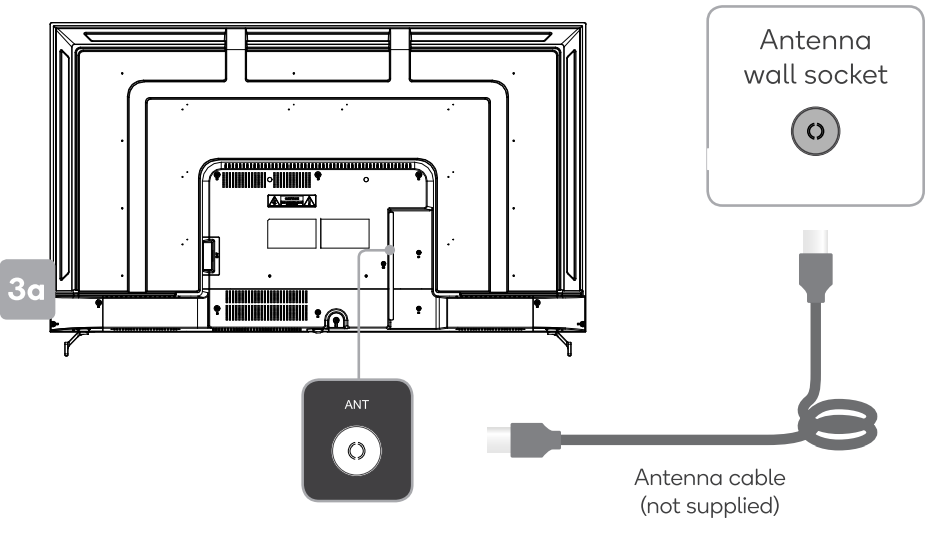
- Connect an antenna cable (not supplied) via the ‘ANT’ input port at the back of the TV.
- Ensure the antenna cable is also connected to a working antenna, either via an antenna wall socket in your home or directly.
Turning On/Off
Plug the power cord into a suitable power outlet, then press the POWER (U) button on the remote control, making sure to aim it at the sensor at the front of the TV. Alternatively, you can press the power button on the lower side of the back panel of the TV.
Press the POWER (U) button on the remote control to enter standby mode. To power down the TV completely, unplug the power cord from the power outlet. Do not leave your set in standby mode for long periods of time. If you will not use the TV for a long time, it is recommended to unplug the set from both the power outlet and aerial.
First Time Setup
When turning the TV on for the first time, the Welcome screen will appear. Use the s, v and OK buttons to navigate the following options.
The entertainment you love
In your Google Account, you get. Movies and TV shows from your favourite Streaming apps. Personalised recommendations, Google Assistant. Search and control your TV with your voice, live TV, External devices, and Basic TV can also be set directly.
Select Wi-Fi Network
Your Android TV will automatically scan for wireless networks nearby. Ensure the TV is within range of your wireless modem or router, and have your password handy. Follow the prompts to input your password and connect your TV to your selected network. If you’d prefer to connect an Ethernet cable to connect to the internet, simply insert the cable (not supplied) into the ‘LAN’ input port at the back of the TV (4a), and ensure that it is correctly connected to the internet.
Terms
This page will allow you to read each of the Google Terms of Service, Privacy Policy, and Google Play Terms of Service in full, and to accept them.
Remote & accessories
Your Android TV remote control has Bluetooth capabilities. Follow the onscreen prompts to pair the remote with the TV. This will allow you to use voice commands with your remote via the Google Assistant button.
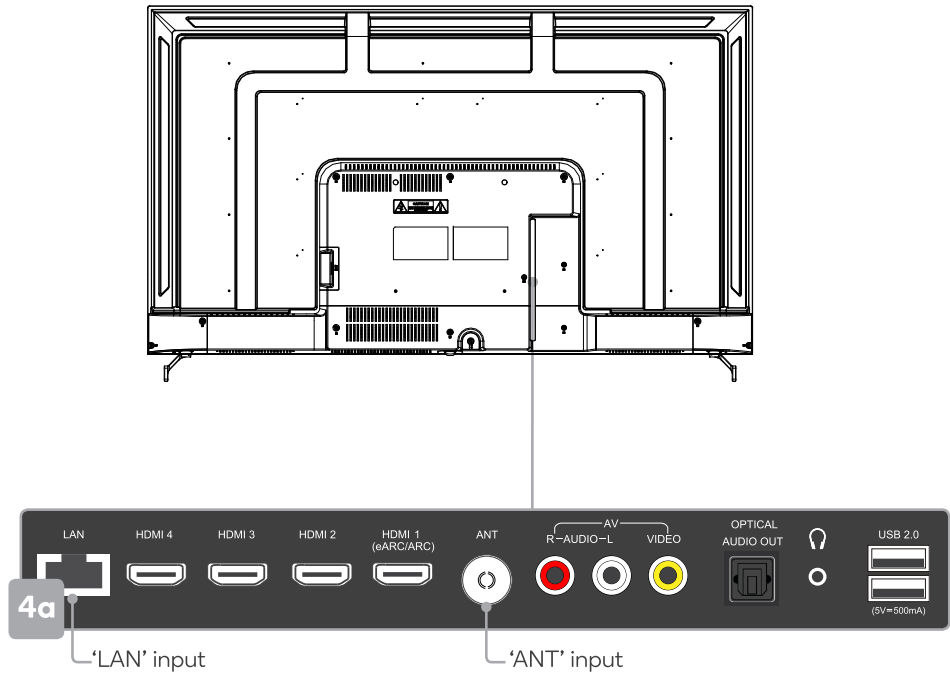
Following these options, the Auto Tuning screen will appear. Ensure you have an antenna cable connected to the ‘ANT’ input port at the back of the TV (4a). The auto-tuning function will search for and save all available free-to-air TV channels. After confirming your settings, the process will automatically begin. When setup is complete, you will be able to access the Home page. eARC Enhanced Audio Return Channel. If you want to use the
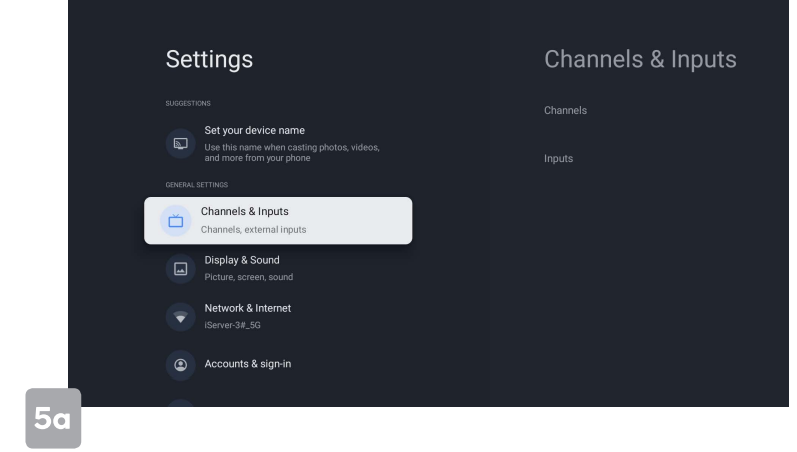
EARC function, Please set EDID version to EDID version 2.1 (Settings-> Channels & Inputs-> Input-HDMI EDID Version). In addition, the eARC switch needs to be turned on. Settings-> Display & Sound ->Sound->eARC.
Home Page
- Google Assistant: Click to launch the built-in virtual assistant, which will begin listening for voice commands. Give it a try, ask “What’s the weather today?”
- Text search:h Enter text manually to search TV apps.
- For you, Movies and Shows.
- Ap: ps Access the App Centre to display all installed apps.
- Library View records, manage watch list.
- Dashboard Dashboard contains the user account, settings page, input source list, weather panel, image settings, notifications, etc.
Setting
Global settings
In live TV mode, you can also press the = Quick Menu button on your remote control and use the < /> buttons to navigate to the Settings option.
Quick Menu
Options for your Live TV (Input, picture, sound, Power, Advanced Options) can be accessed by pressing the = Quick Menu button on your remote control. Use </› buttons to navigate through the submenus, and ^/v buttons to access Channel and Recording/Time Shift options.
Troubleshooting
Poor picture and sound quality
- Try a different channel
- Adjust the antenna
- Check all connections
No picture or sound in the TV status
- Try another channel
- Press the TV/AV button|
- Make sure the TV is plugged in
- Check the antenna connection
Sound is too low at maximum volume
- Check the volume settings on any external speakers connected to your television.
- Adjust the TV volume accordingly
- Check another channel or input
- Check that MUTE hasn’t been turned on
Colour, wrong colour or tints
- Make sure the program itself is broadcast in colour
- Select the picture menu, then adjust the HUE and Colour Tuner
Blurred or snowy picture, distorted sound
- Check direction, location and connections to your antenna
- Issues may be caused by the use of an indoor antenna (poor signal)|
Remote control malfunctions
- Replace remote control batteries
- Check battery terminals
- Remote is out of range. Move closer to the TV
- Remove any obstructions between the remote and the IR sensor of the TV
- Adjust the horizontal and vertical position
No Signal” on the HDMI source
- Test the device with a different HDMI cable
- Plug the device into another HDMI port
- Try a different device connected to the same cable and port
- Perform a factory reset on your TV
Dolby
VISION-ATMOS
Dolby, Dolby Vision, Dolby Atmos, and the double-D symbol are registered trademarks of Dolby Laboratories Licensing Corporation. Manufactured under license from Dolby Laboratories. Confidential unpublished works. Copyright © 2012-2021 Dolby Laboratories. All rights reserved.
Disposal
This marking indicates that this appliance should not be disposed of with other household wastes. To prevent possible harm to the environment or human health from uncontrolled waste disposal, recycle it responsibly to promote the sustainable reuse of material resources.
Customer Support
- Website: https://www.kogan.com/
- Ph: 1300 056 426
FAQs
Q: What resolution does the Kogan QLED Series X TV support?
With its 4K UHD (3840×2160) resolution capability, the TV offers high-definition clarity for streaming media, games, and movies.
Q: Does this TV support HDR content?
Indeed. For improved colour, contrast, and brightness in suitable content, the Kogan QLED Series X supports Dolby Vision and HDR10+ formats.
Q: Is Google TV built-in?
Indeed. Google Play apps, YouTube, Netflix, and other streaming services are available on the TV thanks to Google TV, which also offers personalised suggestions.
Q: How do I connect the TV to Wi-Fi?
After choosing your Wi-Fi network and entering your password, go to Settings > Network & Internet and wait for confirmation. For best results, make sure the TV is close to your router.
Q: Can I control the TV using my smartphone?
Indeed. On Android and iOS smartphones, you can remotely operate the TV, cast content, and adjust settings using the Google Home or Google TV apps.
Q: What ports and connections are available?
Multiple HDMI ports (with ARC/eARC), USB connections, Ethernet, optical audio output, and Bluetooth connectivity for speakers, headphones, and other devices are all included in the TV.
Q: How do I enable voice control?
Voice control allows you to search content, manage apps, and change settings.
Q: How do I update the TV software?
To find the most recent firmware, navigate to Settings > Device Preferences > About > System Update. Updates guarantee the best possible security and performance.