



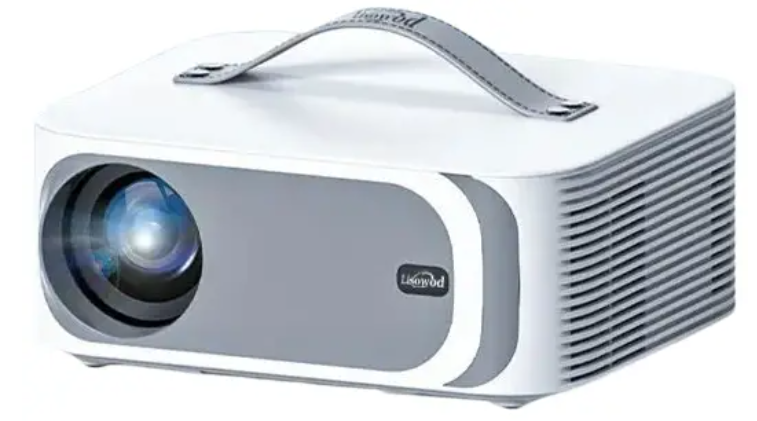
Lisowod L61PRO Smart Video Projector
OSD Setting
Home Menu
Unable to exit the application normally due to network issues, you can press the A button to return to the home page.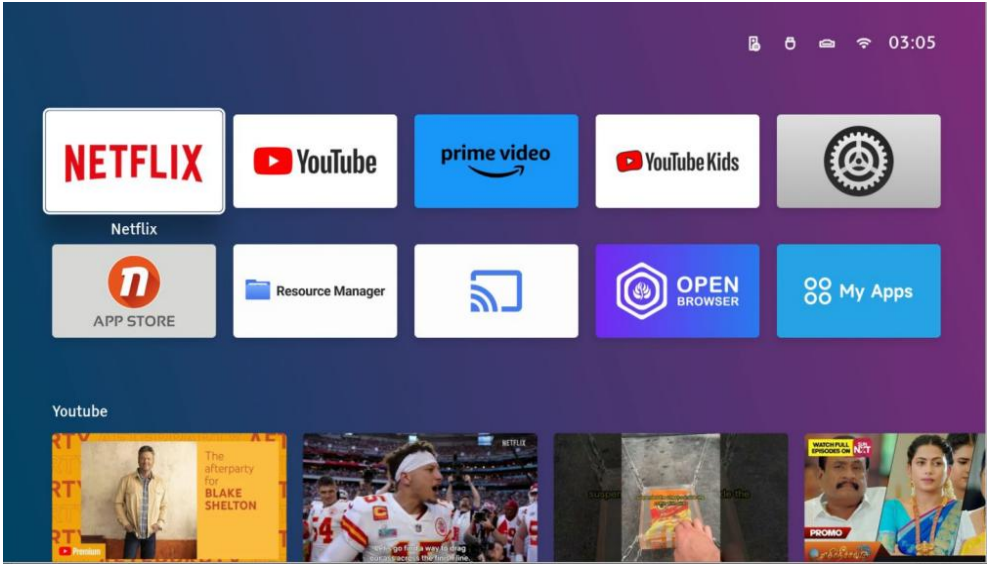
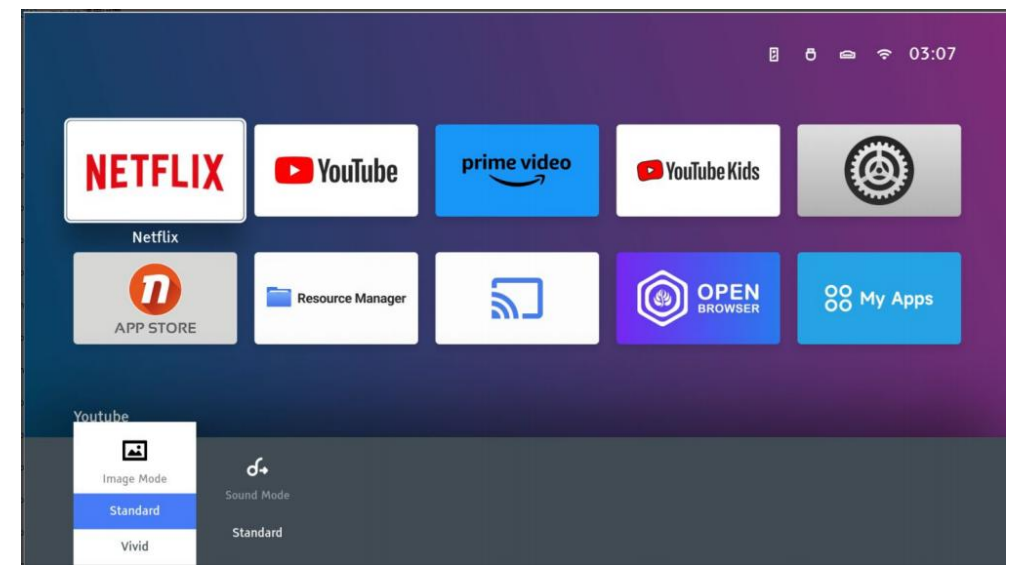
Access the Shortcut Menu
Press the shortcut menu button on the remote, and a shortcut menu appears below. You can quickly access common settings such as adjusting image quality, sound quality, and fast keystone correction.
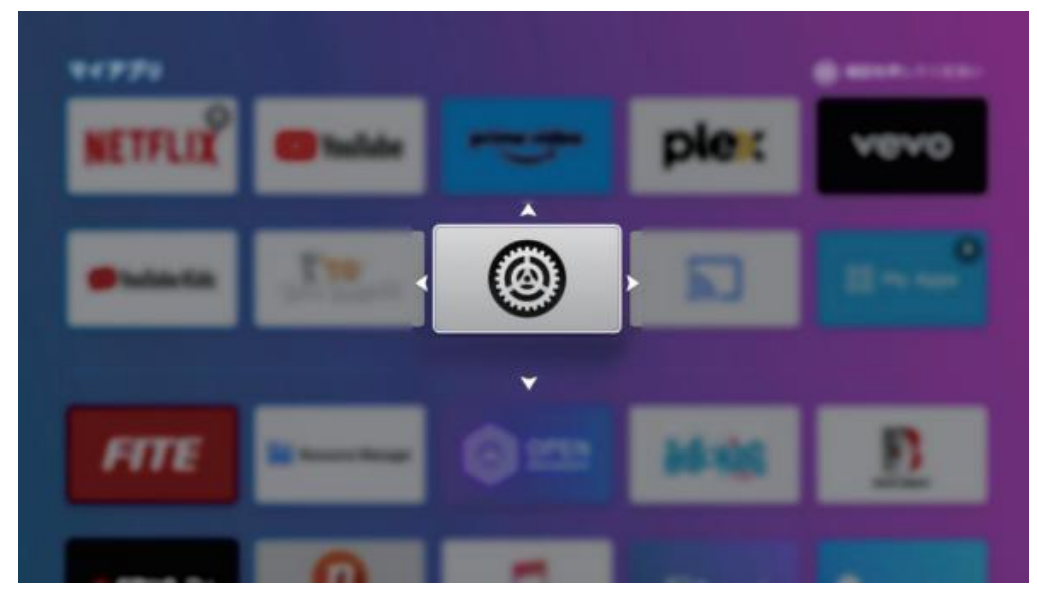
Customize Your Home Page
Press and hold the OK button on the remote control to enter the application in moving mode. You can rearrange frequently used icons according to your preference.
My App
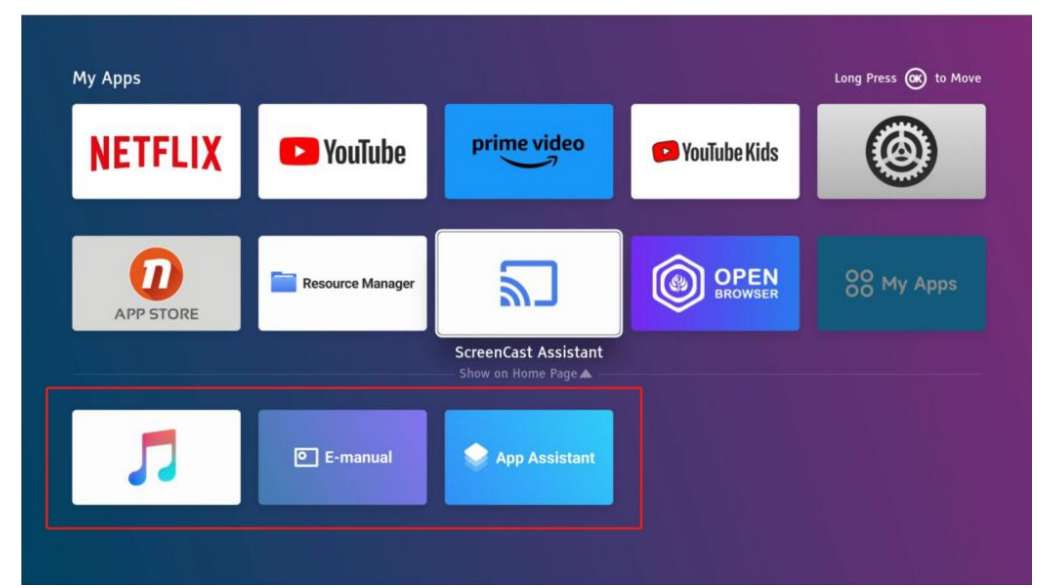
E-Manual
You can view the E-Manual of this product by accessing [E-Manual] through [My Apps] on the homepage. Don’t worry if you can’t find paper instructions.
Bluetooth Speaker Mode
Click the [music] icon. After pairing a smartphone with the projector (Device name: L61PRO via Bluetooth), you can use the projector as a speaker to play music. Note: To turn off the display, press the power button on the remote and select the “Display Off” option.
Compatibility Tips for Streaming
The L61P projector is also compatible with Chromecast, Fire TV Stick, and other streaming devices. Ensure true 1080P resolutions are set on these devices for best performance. Please provide an external USB power source for them, as the L61Pro projector’s USB port may not supply sufficient power.
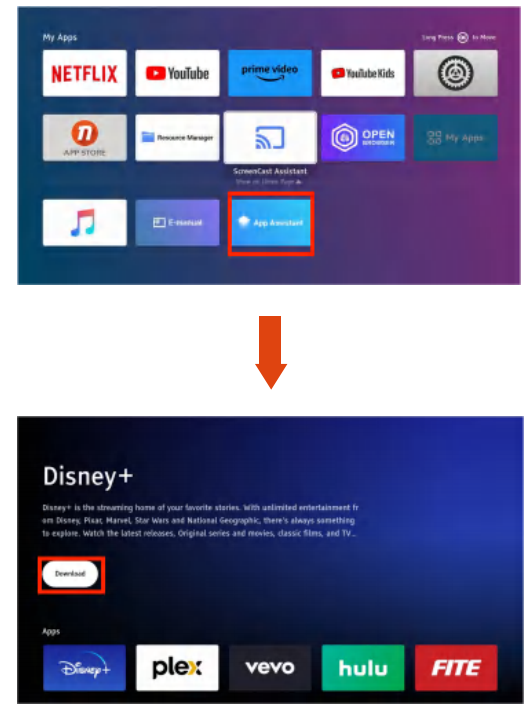
Settings Menu
Click to enter the setting interface of the projector. In this interface, you can modify the relevant setting parameters of many kinds of projectors.
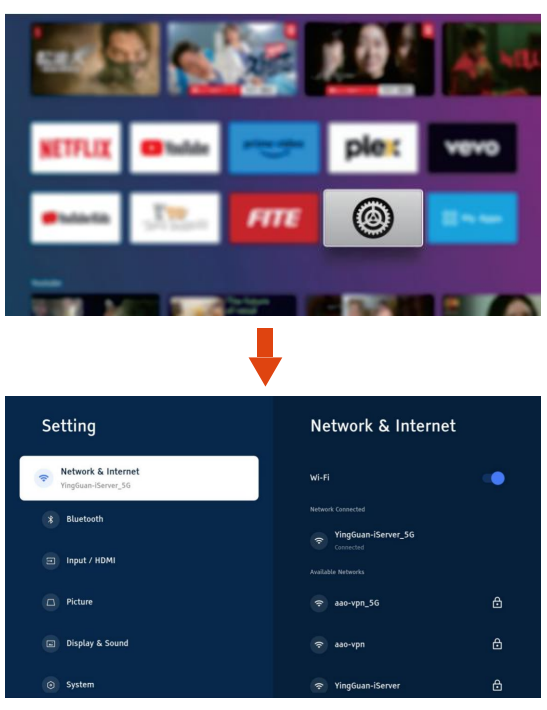
Projector Image Setting
Electric Focus
When the projector’s image is blurry, press the” [+] “and” E-3 “buttons on the remote to adjust focus accordingly. You can press and hold the button to bring the projector to a near-sharp picture, and then press the button shortly to achieve the clearest picture.
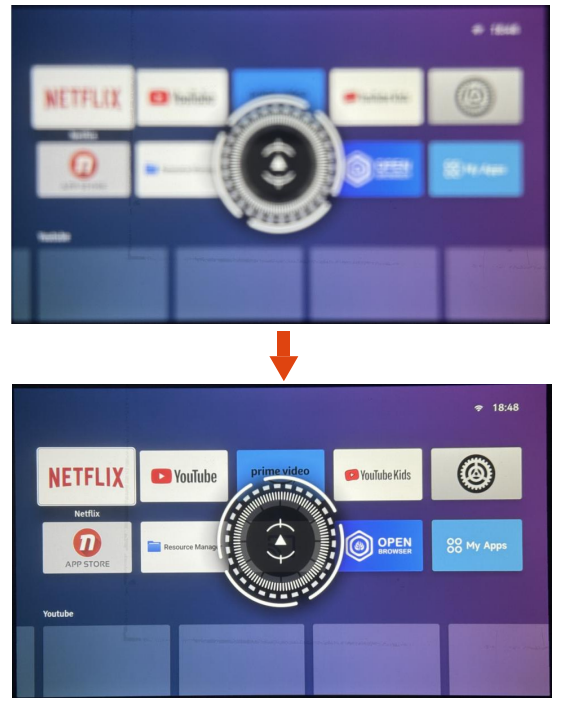
4P Keystone Correction
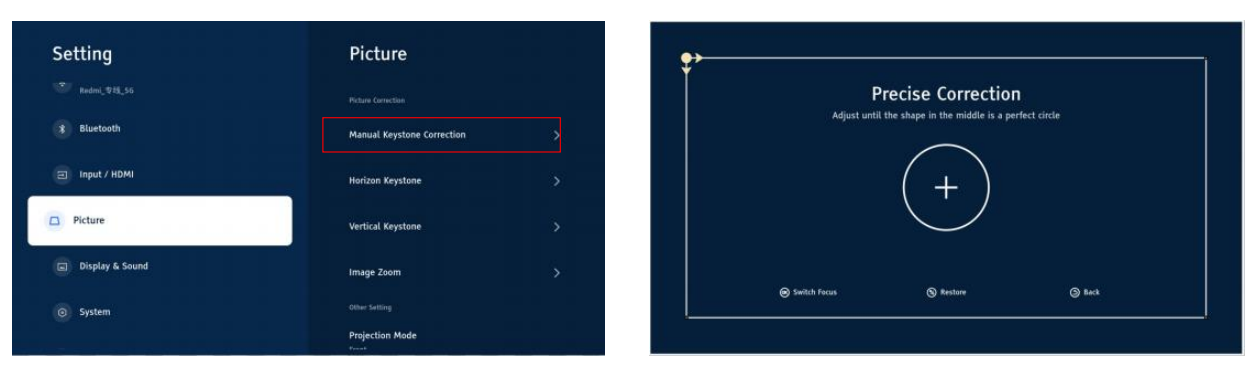
Go to the Picture Setting-Manual Keystone Setting, Press the “OK” button to go to the 4P Keystone Correction Setting Page. Press the arrow keys to adjust the 4 corners of the picture and press the OK button to skip to the next corner.
Zoom Function
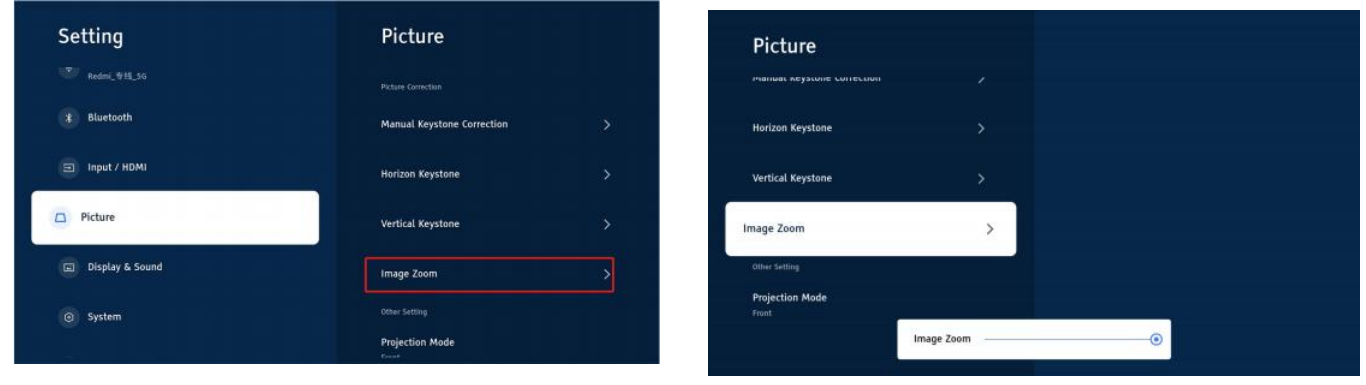
Go to the Picture Setting-Zoom Setting, the “OK” button to go to the Zoom page, use the and buttons on the remote control to zoom in or out from 100%-50%.
Wireless Connection
For Android/Windows/iOS devices. Click, we provide three methods on the same screen. Please choose different connection methods according to different devices.

System Update
USB Upgrade
Select Settings->System->USB Drive Upgrade from Home Page, and it will automatically do the updating process after a few minutes.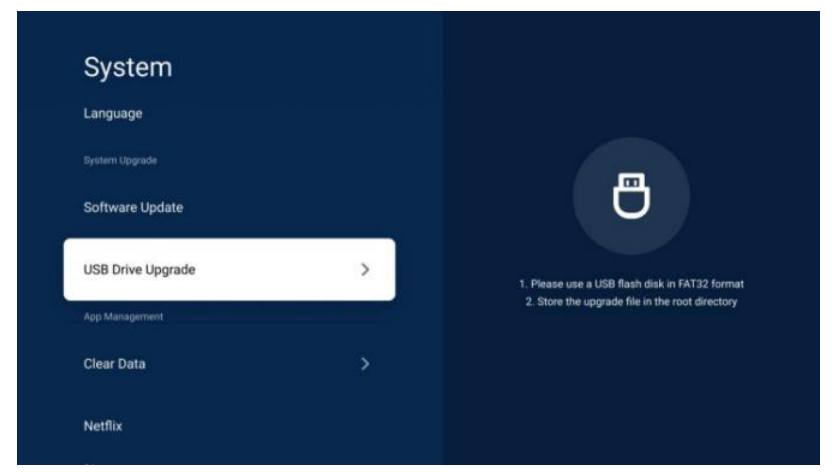
OTA Upgrade
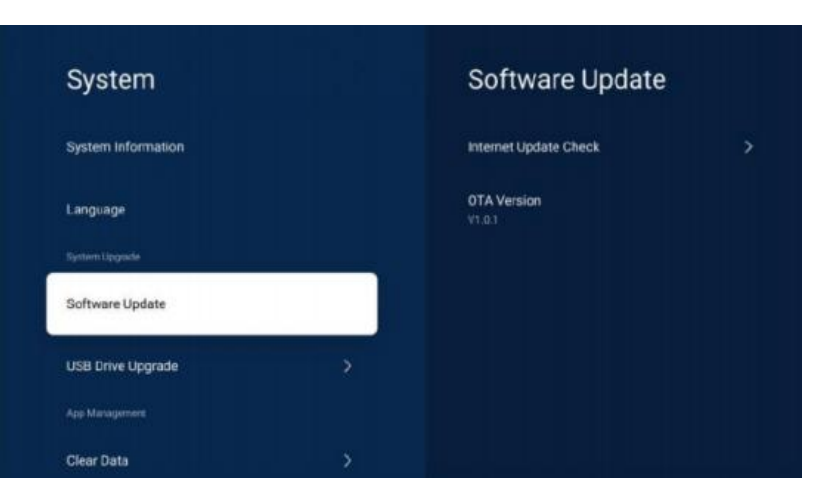
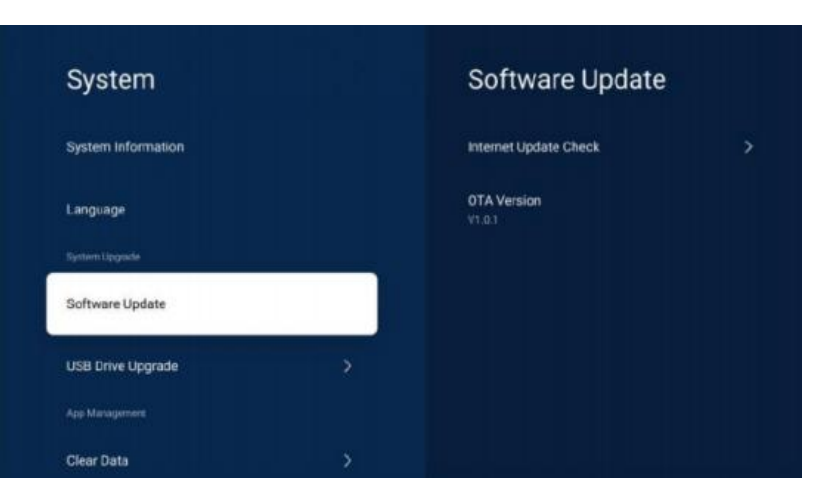
- Select Settings -System -System Information to check the software version.
- Select System-Software Update->Internet Update Check to upgrade by Internet.
Optional Upgrade
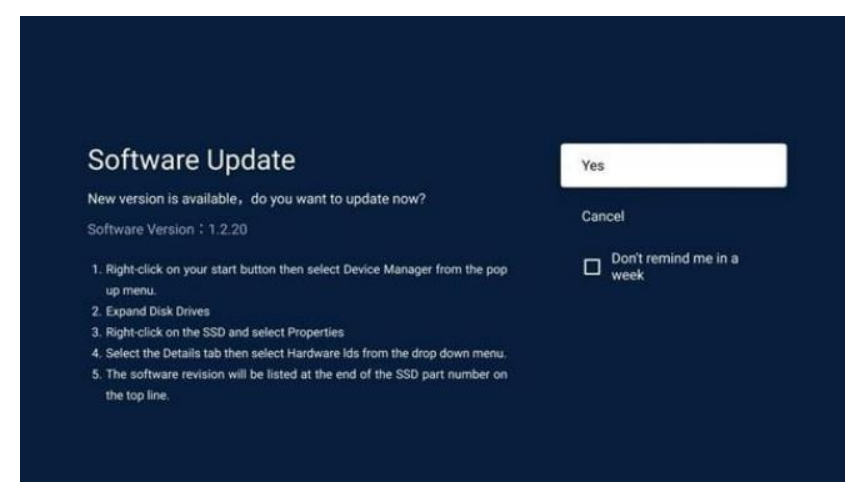
- If new version software is available, it will show as below, the user can select Yes to download the software or Select Cancel to exit this page (This is the Optional Upgrade Page, the user can select upgrade or not.)
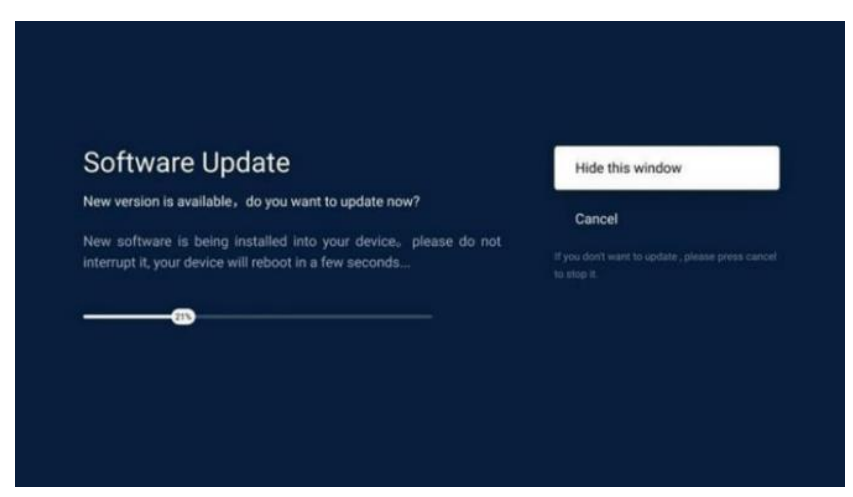
- Select Yes to download the software, Ul will see as below.
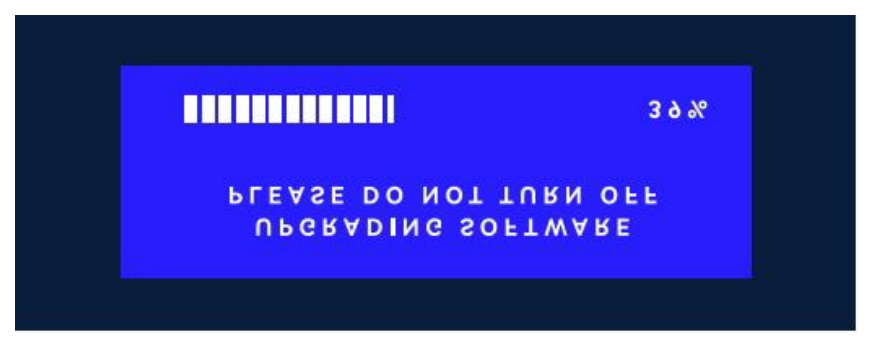
- After a few minutes, the objector will reboot and do the updating process.
FCC Statement
This device complies with Part 15 of the FCC Rules. Operation is subject to the following two conditions:
- This device may not cause harmful interference, and(2)This device must accept any interference received, including interference that may cause undesired operation.
FCC Radiation Exposure Statement
This equipment complies with FCC radiation exposure limits set forth for an uncontrolled environment.t This equipment should be installed and operated with a minimum distance of 20cm between the radiator & your body.
Customer Support
- Website: @lisowod.com
FAQs
Q: What is the Lisowod L61PRO Smart Projector?
The L61PRO is a small, intelligent video projector that can stream from several devices, play HD videos, and connect wirelessly. It is intended for viewing portable media, office presentations, and home entertainment.
Q: What video resolutions does the L61PRO support?
1080p is the native resolution. Full HD outputs video at native 1080p or scaled to the projector’s display capabilities, and supports input resolutions up to 4K.
Q: What connectivity options are available?
HDMI: Link gaming consoles, streaming devices, and laptops.USB: For external storage or flash drives, Bluetooth and Wi-Fi: For audio connectivity and wireless streaming, AV & Audio Out: For older gadgets or external speakers
Q: How do I set up the projector?
The projector should be positioned facing the wall or projection screen on a sturdy surface. After plugging in the power adapter, switch the projector on. Use the on-device buttons or the remote to change the focus and keystone settings. Use wireless streaming, USB, or HDMI to connect your input device.
Q: How do I adjust the focus and keystone?
Focus: Until the image is sharp, turn the on-device adjustment knob or focus ring. Keystone correction: To fix trapezoid distortion, manually adjust using the projector’s menu or remote control.
Q: Can I use the L61PRO in bright rooms?
Dark or dim environments are ideal for the projector’s performance. Image contrast and quality may suffer in bright spaces. For increased brightness, think about utilising blackout curtains or a high-gain projection screen.
Q: How do I connect the projector to Wi-Fi?
Navigate to the projector’s Settings Network menu. After choosing your Wi-Fi network, type in the password. Verify the connection and look for updates or online streaming.