

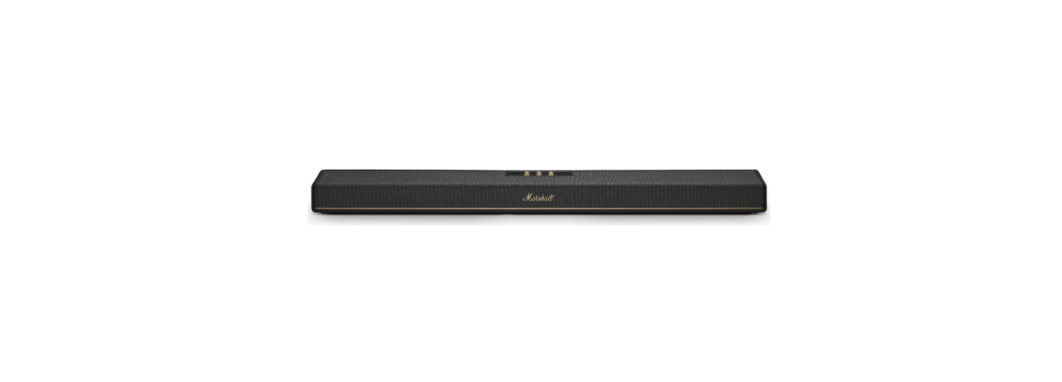

Marshall 972HSTN120 Heston 120 TV Soundbar


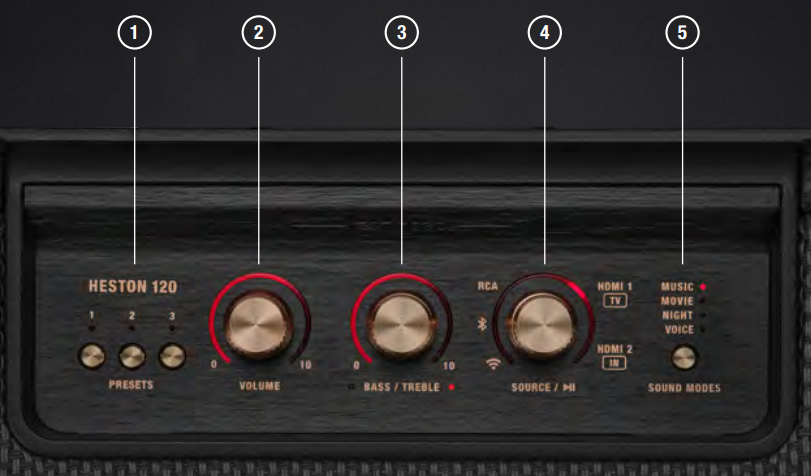
Top Panel
- PRESET BUTTONS Push a button to start playing a custom playlist.
- Configure the buttons in the Marshall app.
- VOLUME CONTROL Turn the knob to adjust the volume.
- BASS/TREBLE CONTROL Push the knob to toggle between bass and treble,e and then turn it to adjust.
- SOURCE CONTROL Turn and push the source control to select the audio input source.
- When playing via Bluetooth® or Wi-Fi, push the knob to play/pause.
- SOUND MODE BUTTON Push the button to toggle the sound modes.
Back Panel
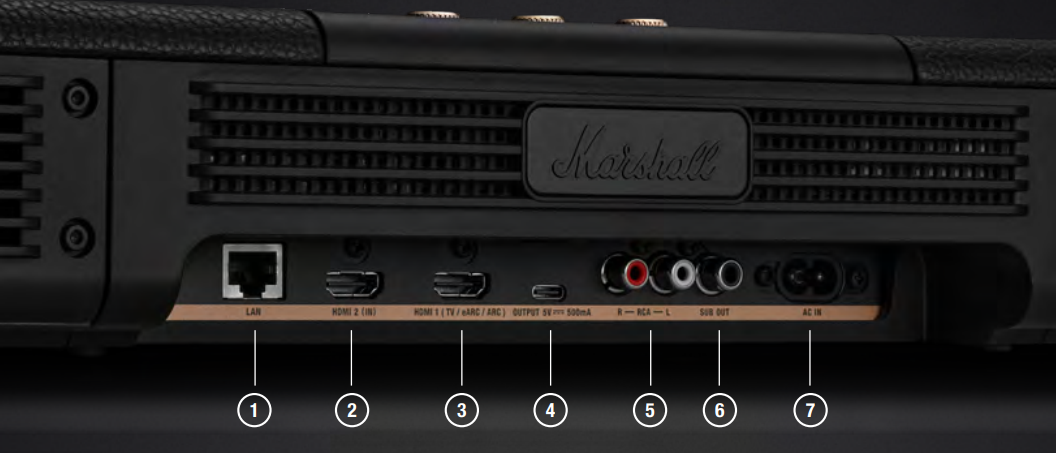
- LAN Use an Ethernet cable to connect Heston 120 to the internet via a LAN port on your router or modem.
- HDMI 2 (IN) Connect an additional HDMI device, such as a gaming console, DVD, or Blu-ray player.
- The signal is passed through HDMI 1 to the TV.
- HDMI 1 (TV / EARC / ARC) Connect to an eARC/ARC compatible HDMI port on your TV.
- USB-C POWER OUTPUT Provides 5 V/500 mA to charge or power a USB-C device.
- RCA INPUT (LEFT AND RIGHT) Plug in an RCA audio device, such as a turntable with an RIAA preamp.
- SUB OUT Plug in an active subwoofer for extra bass (not included)
- MAINNS POWER INPUT Use the included mains lead to connect Heston 120 to the wall socket.
Getting Started
- PLACE HESTON 120 UNDER YOUR TV. Place the soundbar on a flat surface, centred under your TV with at least 15 cm clearance above and on each side.
- CONNECT TO YOUR TV Connect one end of an HDMI cable to the HDMI 1 (TV) port on Heston 120 and the other end to an HDMI port supporting eARC / ARC on your TV.
- PLUG IN MAINS POWER Connect the mains lead to the mains input on Heston 120, then connect the mains plug to the wall socket.
- DOWNLOAD THE MARSHALL APP Download the Marshall app and complete the setup.
- The app guides you through Wi-Fi setup, room correction, and is the remote control for Heston 120.
Preset Buttons
Push a preset button to start playing a custom playlist or internet radio station. The preset can be saved in the Marshall app or simply press and hold the preset button for 2 seconds while playing anything via Spotify Connect or an internet radio station through Airable.
Audio Source
Turn on and select the audio input source using the source control. When playing via Bluetooth or Wi-Fi, push the knob to play/pause.
Pairing Bluetooth
Heston 120 can be connected to 2 Bluetooth devices at a time and remembers up to 8 previously paired devices. When in range, it will try to reconnect with the last connected device.
- I. Use the Source control to select Bluetooth.
- II. Push the Source control for 2 seconds until the Bluetooth source LEDturns to a slow pulse.
- III. Select Heston 120 from your audio device’s Bluetooth list.
Changing Sound Mode
Push the sound mode button to toggle the sound modes. Music: The Marshall signature sound, perfectly balanced and tuned. The best way to enjoy music. Movie: Big screen immersive sound with full spatial clarity for watching your favourite films. Night Lowers loud sounds while keeping the softer details clear, perfect for nighttime viewing that won’t disturb others. Voice makes dialogue crystal clear, great for when you don’t want to miss a word.
Connecting Subwoofer
Heston 120 can be connected to an external active subwoofer (not included) for even more bass. Use an RCA cable to connect the active subwoofer to the SUB OUT port on the back of the soundbar.
HDMI Ports
Heston 120 comes with two HDMI ports.
HDMI 1 (TV / EARC / ARC)
Connects Heston 120 to your TV. Both Audio and audio control are handled through the HDMI lead, allowing you to control the volume of your soundbar with your TV remote.
HDMI 2 (IN)
Connects to an additional HDMI device, such asa gaming console, DVD, media, or Blu-ray player. The signal from HDMI 2 is automatically routed through Heston 120 to your TV via HDMI 1.
Internet Connection
Connecting Heston 120 to the internet to get the most out of it, with all features and options for customisation, as well as getting over-the-air updates to keep your soundbar up to date with the latest software. Open the Marshall app and follow the in-app instructions to connect Heston 120 to a Wi-Fi network. If you don’t have access to a Wi-Fi network, use an Ethernet cable and connect the LAN port on Heston 120 to your router or other internet access point.
Room Connection
Heston 120 comes with a room correction feature that adjusts for these differences for you to make the most of your space with a perfect musical ft. Go to Room correction in the app and follow the in-app instructions.
Tidal Connect
- In the TIDAL app, open the Now Playing screen while playing a track.
- From the Now Playing screen, select the device output icon.
- Choose a TIDAL Connect-enabled speaker from the list.
- Ensure your mobile device is on the same network as the device you’re using for TIDAL Connect
Google Cast
Heston 120 works with Google Cast so you can stream music from your favourite apps on your phone, tablet, or laptop. Simply tap the Cast icon from apps you already know and love to stream music from your phone, tablet or laptop to your TV soundbar.
Apple Airplay
With Apple AirPlay, you can enjoy your favourite music or podcasts on your home audio system and speakers in any room — with a tap or by just asking Siri — right from your iPhone, iPad, HomePod, HomePod mini, or Apple TV. After installing your Heston 120, add it to the Apple Home app with a few simple steps using your iPhone or iPad. To use AirPlay with Heston 120, the latest version of iOS, iPadOS, or macOS is recommended.d
Airable
People at airable know and love webradio. The airable internet radio catalogue contains more than 70.000 radio stations worldwide. Use the app and go to Internet radio in the Marshall app to find your favourite station.
Cleaning
Clean your TV soundbar regularly to keep it fresh and last longer.
Gently clean the non-fabric parts and the leads with a lint-free cloth, slightly
damp with water, 70% isopropyl alcohol, or 75% ethalcohol.
- Carefully clean the fret and openings with a dry and soft brush or a cotton swab.
- Do not use any sharp or metal objects. Do not use compressed air.
- Do not use products containing bleach or hydrogen peroxide.
- Do not submerge the soundbar in any cleaning agents.
- Do not rinse the soundbar under running water.
Power Modes
Heston 120 will go into network standby or low power mode when left unused after the idle timeout has passed. Wake up the soundbar by turning on your TV, using the Marshall app with the soundbar, or using any button or knob.
| Normal operation | Wi-Fi and Bluetooth are disabled | |
| Power mode | Network standby | Low power mode |
| Power consumption | < 2.0 W | < 0.5 W |
| Idle timeout* | ≤ 20 minutes | ≤ 20 minutes |
The idle timeout can be configured in the Marshall app. Pushing the Preset 1 button for 30 seconds will enable or disable the low power mode. Note! Enabling low power mode will disable Wi-Fi and Bluetooth, and therefore disable all features and services depending on those technologies.
Resetting
A factory reset will reset the soundbar to its original settings, excluding any firmware updates.
- Remove Heston 120 from the app and Heston 120, and Heston 120 [LE] if present, from your sound device’s Bluetooth list.
- Ensure that the soundbar is connected to mains power.
- Push Source control for 10 seconds until all LEDs blink and the soundbar restarts.
- Heston 120 has returned to its factory settings and is ready to be paired.
Troubleshooting
| PROBLEM | ACTION |
| Cannot connect to the internet/Wi-Fi connection is poor | Check that your router is working properly. |
| Try moving your router closer to the speaker. | |
| Make sure that there are no obstacles such as walls or doors, or interfering electronic devices nearby. | |
| Reset Heston 120 and set it up again, see Resetting Heston 120. | |
| Use an Ethernet cable to connect the Heston 120; see Connecting Heston 120 to the internet. | |
| There is no TV sound | Check the volume on the TV and the soundbar. |
| Check that you have connected the TV to HDMI 1 (TV) on the soundbar. | |
| Check that you have connected the soundbar to an eARC/ARC HDMI port on the TV. | |
| Check your TV’s user manual for information about HDMI support, settings, and labelling of ports. |
| PROBLEM | ACTION |
| My TV does not have an eARC/ARC HDMI port | If your TV does not support HDMI ARC/eARC, connect your TV’s audio output to the RCA inputs on Heston 120. |
| Heston 120 sound dull/ weird/bad | Check that you have the right sound mode selected |
| Check the audio settings in the app. | |
| Make sure that Heston 120 has at least 15 cm of clearance above and on each side, and that nothing is obstructing the sound. | |
| Set up Room correction in the Marshall app. | |
| Preset buttons don’t work. | The preset buttons are configured out of the box. |
| The presets require the internet to play. Check that you have a working Wi-Fi and internet connection. | |
| How do I turn off Heston | Heston 120 does not come with a power of |
| 120 | button, but it will go into low-power modes when not used. Please see Network standby for power options. |
Customer Service
- Website: https://www.marshall.com/
- Ph: Sweden: +46 8 592 005 00
2 Comments
Your point of view caught my eye and was very interesting. Thanks. I have a question for you. https://accounts.binance.com/fr-AF/register-person?ref=JHQQKNKN
Thank you for your sharing. I am worried that I lack creative ideas. It is your article that makes me full of hope. Thank you. But, I have a question, can you help me? https://www.binance.info/si-LK/register?ref=LBF8F65G