

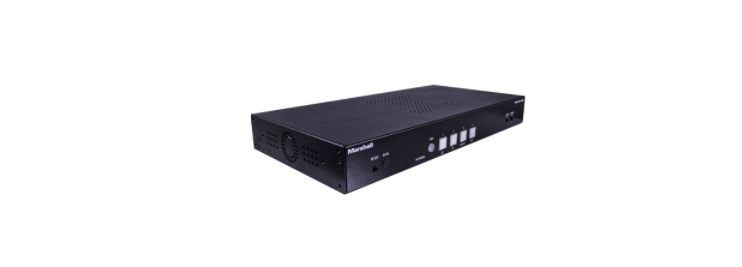
 Marshall VMV-402-3GSH Four-Input Seamless Switcher


Features
- Quick, seamless switching
- Four 3G SDI inputs, two HDMI inputs
- Accepts mixed formats/frame rates, outputs a single format/frame rate
- 3G SDI and HDMI Program outputs
- Full-time HDMI Quad output
- Audio embedding possible via 3.5mm front panel jack
- Easy setup via front panel controls or web browser
- Remote operation via Ethernet or RS232
- Front panel IR receiver plus IR extension receiver cable
- Full-width 1RU rack or shelf mounting
- Well-suited for AV infrastructure applications.
Accesories
VMV-402-3GSH Switch
- Two Rack Ears with 4 screws
- IR mini hand-held remote control
- IR extension cable
- 12volt 5 Amp Universal Power supply (120/240VAC) with IEC AC cord
Front Panel
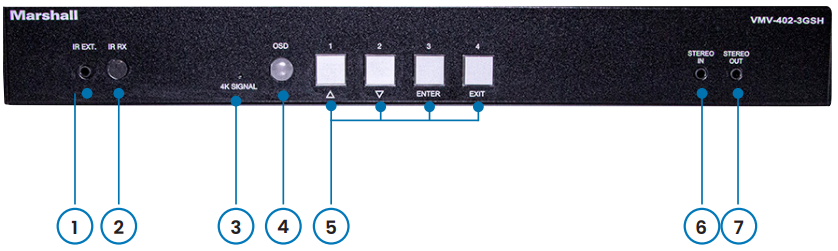
- IR EXT – Jack for IR sensor extension cable
- IR RX – Front panel IR sensor
- 4K Signal Light – Indicates the unit is outputting a 4K signal
- OSD Button – Opens on-screen menu system
- Select Input Buttons 1-4 – Hold to select HDMI input. Also used for the on-screen menu system.
- Stereo In – 3.5mm audio line input jack to embed audio in program output
- Stereo Loop Out from the stereo in the jack
Back Panel
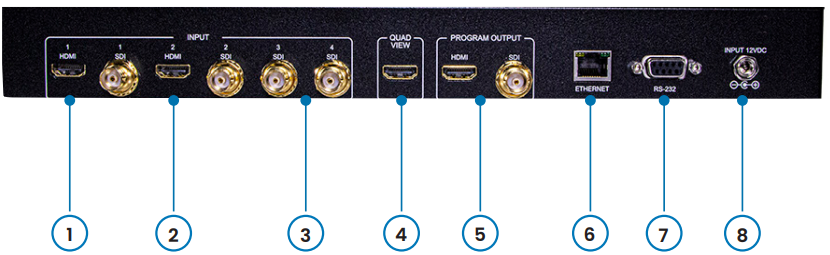
- Input 1 – HDMI & 3G SDI
- Input 2 – HDMI & 3G SDI
- Inputs 3 & 4 – 3G SDI
- Quad View Output – HDMI
- Program Output – HDMI
- Ethernet Port – For network control & browser setup
- RS232 Port – For serial control
- 5.5mm x 2.1mm Locking power jack, 12 VDC
System Setup
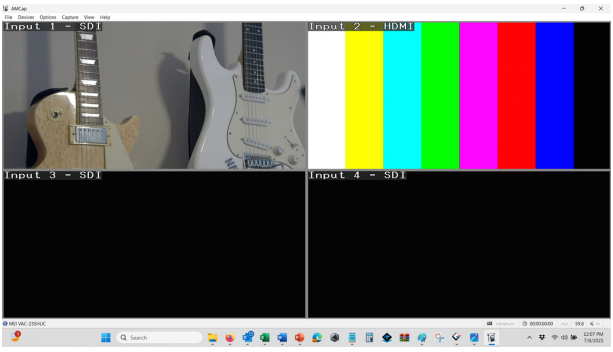
System setup is available through front panel controls. The menus are displayed via the Quad View HDMI output. The hand-held IR remote can be used to access this same menu system and select video inputs. Setup and control are also available via a Web Browser (Microsoft Edge has the best compatibility). The front panel OSD (on-screen display) method is a great place to start with initial setup and system check, as it does not require configuring an Ethernet connection first.
Operation
- Supply power to the unit using the power adapter included with the product. It will take approximately 45 seconds for the unit to be fully operational.
- Typically, the four input select buttons will light a pale Green color.
- This indicates they are using the SDI sources. To use an HDMI source for either Input 1 or Input 2, select that button, then press and hold it for about 3 seconds.
- It will change to an amber color, indicating that the HDMI source is active. Press and hold again to return to the SDI input.
HDMI Output
- There will be a four-quadrant pattern visible on the monitor.
- Press the front panel OSD button.
- A menu with four main options will appear.
- Use the Arrow buttons (1 & 2) to move up and down in the list.
- Press the Enter button (button 3) to open the item.
- Continue to use the arrow buttons and the Enter button to select and change items as desired.
- An item is selected when the text appears yellow.
- Pressing the Enter key a second time will unselect the item (text returns to white).
- Once an item has been changed, pressing the Enter button (button 4) will return the text color to white and the change will take effect.
- Press the Exit button again to close the Menu.
Menu Options
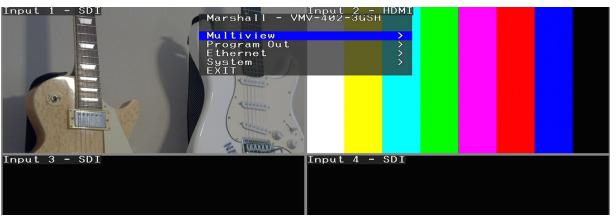
- MULTIVIEW
- Configures Quad View layout and video format/frame rate.
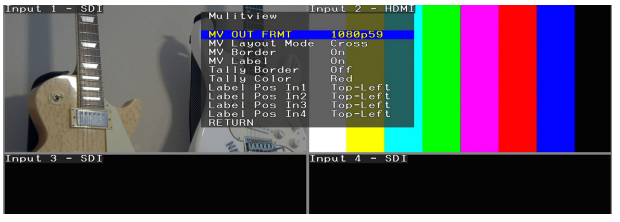
- MV OUT FRMT
- Select the desired video format/frame rate. NOTE: The output format is independent of the incoming video format. Output formats range from HD to Full HD to UHD.
- MV Layout Mode
- Select one of 5 quad patterns.
- MV Border
- Turn the border off for a clean display
- MV Label
- Turn quadrant labels On or Off.
- Tally Border
- Turn on to highlight the border of the currently selected input
- Tally Color
- Select Red, Green, or Yellow tally border
- Label Pos In
- Choose the location for each label in each quadrant
- PROGRAM OUT
- Configure the Program video format, and audio follow-up
- PGM OUT FRMT –
- Select the desired video format/frame rate.
- Audio Mute
- Selects whether audio should be embedded into the Program video channel. Audio Select
- The audio source may be selected here.
- Follow PGM
- Program audio will follow the selected video source
- STEREO In
- Program audio will come from the front panel Stereo In jack
- Input 1 – 4
- Program audio will come from one of the video inputs, even when that video is not the selected Program video.
- Waveform
- This is currently an experimental function. When ON, it will place a Waveform overlay on the Program video output.
- YCbCrV
- Luma and Chroma components are displayed
- GBRV
- Chroma primaries are displayed
- HIST
- A histogram is displayed
- Off
- Waveform overlay is not displayed
- Ethernet
- Configure Network Parameters
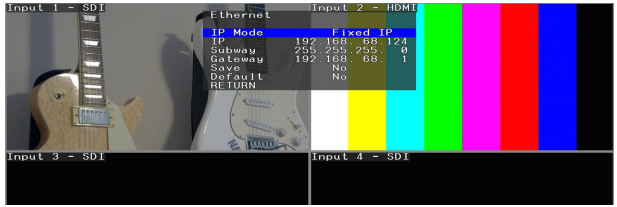
- IP Mode
- Select DHCP (automatic) or Fixed IP (static) IP addressing.
- IP
- Use the arrow buttons to change the IP address. This portion of the firmware is not complete at this time. There are three other methods available to set an IP Address.
Method 1,2 & 3
Change IP Mode to DHCP to let an attached network assign an IP address. If this address is acceptable, switch to Fixed IP mode, scroll down to Save, press Enter, select YES, press Enter again, and the address will remain Fixed (Static). Power cycle the unit.
Change IP Mode to DHCP mode. Use this address temporarily to log in via a Web Browser and follow the steps in the section below on Web Browser Operation to set a desired IP address. Ethernet addressing can be found on the bottom of the UTILITIES page.
Scroll down to Default, press Enter, select YES, press Enter again. The unit will restart with a new Static IP address of 192.168.68.110. Connect a computer directly to the switcher and configure the computer’s Ethernet port to a similar address, such as 192.168.68.115. Use a browser to access the switcher via the 192.168.68.110 address. Follow the steps in the section below on Web Browser Operation. Ethernet addressing can be found on the bottom of the UTILITIES page. After the IP address is changed, it will be necessary to use the new address to log back in via the browser.
System
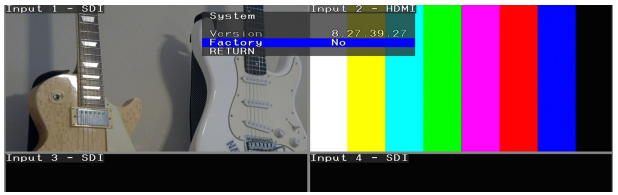
- Version
- This is a display only. Shows the current firmware version.
- Factory
- Resets the unit to default menu settings (does not change the IP address).
Web Browser
LOG-IN Page
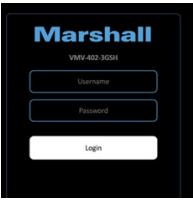
- Username = Admin
- Password = 12345
Once logged in, the Outputs page will appear. Note the three tabs at the top to select Outputs, Labels, and Utilities corresponding to the three main pages.
Output Page
All functions on this page have an immediate effect.
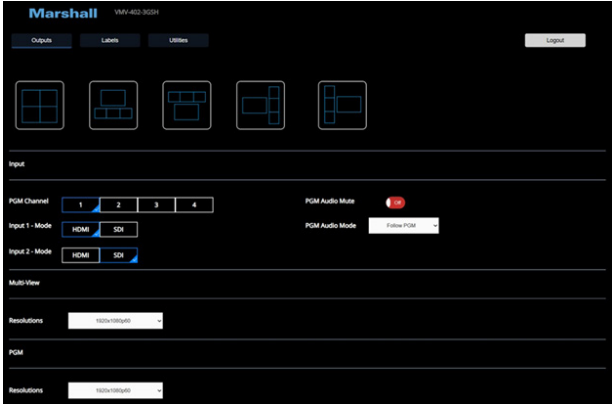
The top row shows the various patterns that are available for the Quad Video Output. Simply click on a pattern, and the output will change. The middle row provides direct control of the switcher inputs and input types (HDMI, SDI). Configuring Input 1 or 2 between SDI and HDMI sources takes a few seconds. Once the input mode is set, switching between any of the four source buttons will be very quick. To have audio on the Program Video Output, use the PGM Audio Mode pulldown list to select the source.
- Follow PGM
- Uses audio from each video source as it is selected.
- Input 1 – 4
- Uses audio from just one video source and stays with that audio even when the video source is
changed.
- Uses audio from just one video source and stays with that audio even when the video source is
- Stereo In
- Uses analog audio from the Stereo In connector on the front panel.
PGM Audio Mute button to silence all audio when set to ON. The lower portion of the page provides video format and frame rate control of the Quad Output (Multiview) and the PGM (main program output). Simply make a selection from the pull-down list. When a new format is selected, the switcher will restart immediately and return to operation in about 45 seconds.
Labels Page

- This page controls labels and borders for the Quad Output.
- The functions have an immediate effect except for changing the label text.
- After typing new label text, it is necessary to click the Apply button to send the new labels to the switcher.
- To create a completely clean Quad output, set Border and Label switches to OFF.
- When Tally Border is ON, one of the quadrants will have a colored border, indicating which source is active.
- Example: when Input 1 is selected, the upper left quadrant will have a colored border; when Input 4 is selected, the colored border will move to the lower right quadrant.
- Color options are Red, Green, or Yellow.
- Each quadrant has six possible positions for the label text.
- Use the Label Position pulldowns to select the desired location for the text.
- The label position will change immediately when a new position is selected.
Utilities Page
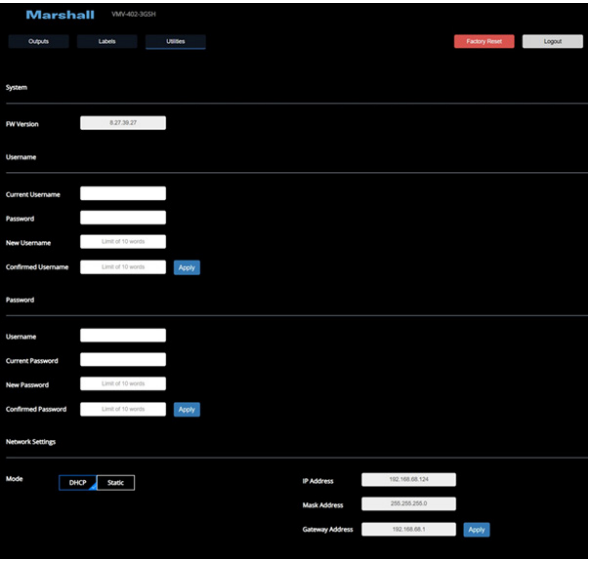
- The top of the Utilities page displays the current firmware version.
- There is also a red Factory Reset button. Clicking this button sets all menus to their default options.
- This includes Quad labels, label positions, borders, etc.
- It does not change the IP addr whichhich allows the web browser to maintain control.
- The mid-portion of the page allows changing the Log-in Username and the Log-in Password.
- Both the Username and Password are case-sensitive.
- Simply select Static, then type over the existing address and click on the Apply button.
- The switcher will restart with the new address.
- Note that after the IP address is changed, the web browser will no longer be able to make changes.
- It will be necessary to log back in using the new IP address.
Specifications
| Video Inputs | 4 x 3G-SDI 2 x HDMI (selectable from input 1 & 2) |
| Input Formats Supported | SDI: SD: 480i 59.94 / 576i 50 HD: 720p 50/59.94/60 1080i 50/59.94/60 1080P 23.98/24/25/29.97/30 3G: 1080p 50/59.94/60
HDMI: 480i 59.94/60 480p 59.94/60 576i 50 576p 50 720p 23.98/24/25/29.97/30/50/59.94/60 1080i 50/59.94/60 1080p 23.98/24/25/29.97/30/50/59.94/60 3840x2160p 23.98/24/25/29.97/30/50/59.94/60 4096x2160p 23.98/24/25/29.97/30/50/59.94/60 |
| Embedded Audio support | Embedded surround sound (up to 7.1ch) or stereo digital audio |
| Video Outputs (Program) | 1x HDMI + 1x SDI |
| Video Output (Preview) | 1 x HDMI |
| Output Formats Supported | Quad-View Preview (HDMI): 720p50/59.94/60 1080i50/59.94/60 1080p25/29.97/30/50/59.94/60 3840x2160p25/29.97/30/50/59.94/60 Program (HDMI): 720p50/59.94/60 1080i50/59.94/60 1080p25/29.97/30/50/59.94/60 3840x2160p25/29.97/30/50/59.94/60 Program (SDI): 720p50/59.94/60 1080i50/59.94/60 1080p25/29.97/30/50/59.94/60 |
| Housing | Metal enclosure |
| Dimensions [L x W x H] | 358.7mm x 181.3mm x 43.3mm [14.1” x 7.1” x 1.7”] |
| Net Weight | 3.31 lbs [1.5kg] |
| Mounting | 1U rack-mounting case with ears |
| Power supply | 12VDC 5A |
| Power consumption | 43 Watts |
| Operation Temperature | 0 ~ 50°C [32°F ~ 122°F] |
| Storage Temperature | 0 ~ 60°C [32°F ~ 140°F] |
| Relative Humidity | 30% ~ 70% |
Warranty
Marshall Electronics warrants to the original consumer that this VMV-402-3GSH will, under normal use, be free from defects in workmanship and materials when received in its original container for a period of one year from the purchase date.
This warranty is extended to the first consumer only, and proof of purchase is necessary to honor the warranty. If there is no proof of purchase provided with a warranty claim, Marshall Electronics reserves the right not to honor the warranty set forth above.
Therefore, labor and parts may be charged to the consumer. This warranty does not apply to the product exterior or cosmetics. Misuse, abnormal handling, alterations, or modifications in design or construction void this warranty. Due to constanteffortst to improve products and product features, specifications may change without prior notice.
Customer Service
- Website: https://www.marshall.com/
- Ph: Sweden: +46 8 592 005 00
FAQs
Q: What is the primary function of the Marshall VMV-402-3GSH?
The VMV-402-3GSH is a seamless video switcher that enables seamless, continuous switching between several video sources without noticeable hiccups or signal dropouts.
Q: How many video sources can be connected at once?
It is perfect for settings that need to quickly switch between several cameras, media players, or PCs because it supports up to four video inputs.
Q: What does “seamless switching” mean in real-world use?
For live broadcasts and formal presentations, seamless switching guarantees that changes between inputs take place without black frames, screen flashes, or signal interruptions.
Q: Is this switcher suitable for live production environments?
Indeed. It works effectively in conference rooms, live events, studios, and places of worship where reliable video output is crucial.
Q: How is the switcher controlled?
Without the need for external control systems, users can operate input switching quickly and reliably thanks to user-friendly front-panel controls.
Q: Does the switcher introduce latency during switching?
Because of its low-latency design, the VMV-402-3GSH ensures seamless transitions that are appropriate for real-time video applications.
Q: Can it be integrated into an existing AV rack system?
Indeed. Its sophisticated, compact appearance makes it simple to integrate into fixed setups or standard AV racks.