

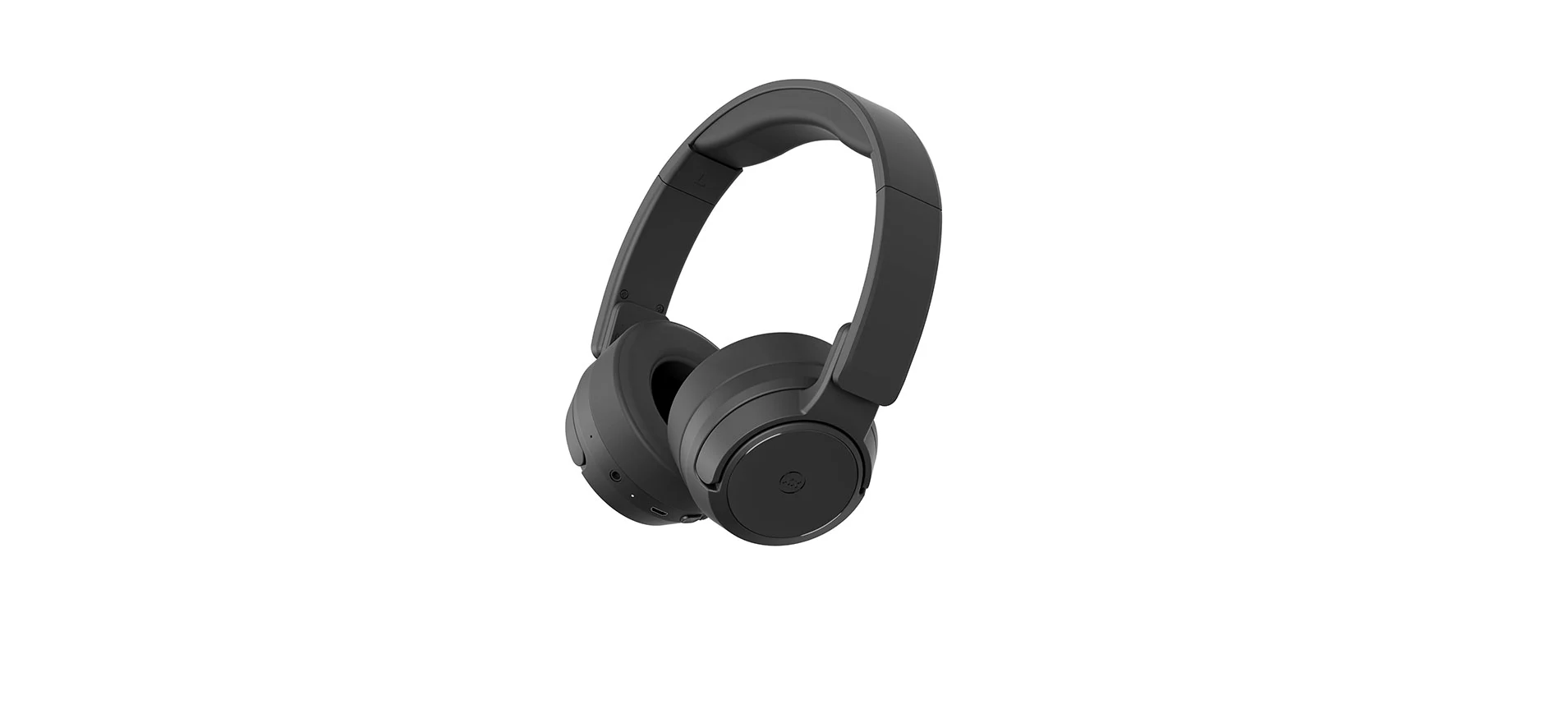

Mixx Audio AX1 On-Ear Wireless Headphones
What’s in the box?
Please read this information carefully before using the “Mixx Audio AX1 On-Ear Wireless Headphones Instructions”
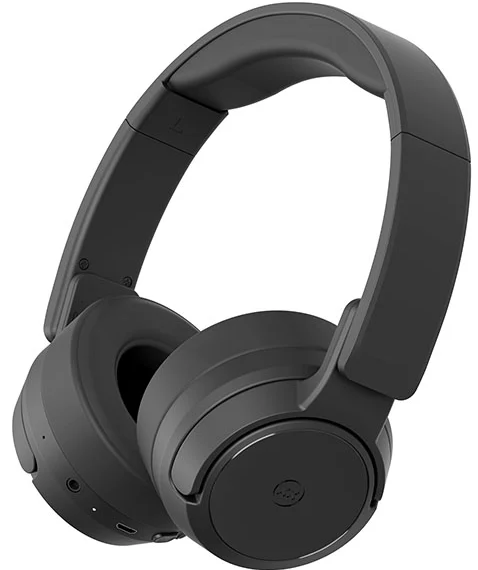
- MIXX AX1 On-Ear Noise Cancelling Wireless Headphones

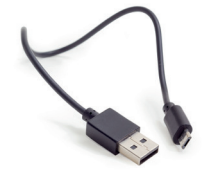
- Micro USB Charging Cable
- 3.5mm Audio Cable
- Travel Friendly
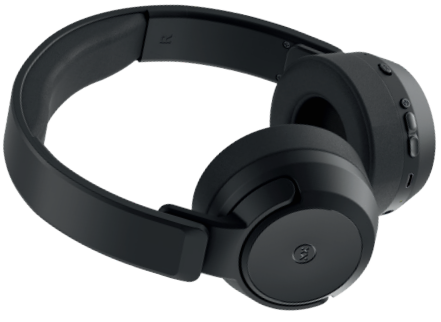

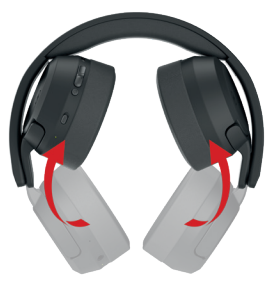
For ease of storage while traveling, swing the MIXX AX1 ear pads up towards the headband. Then you can just pop them in your bag.
Start
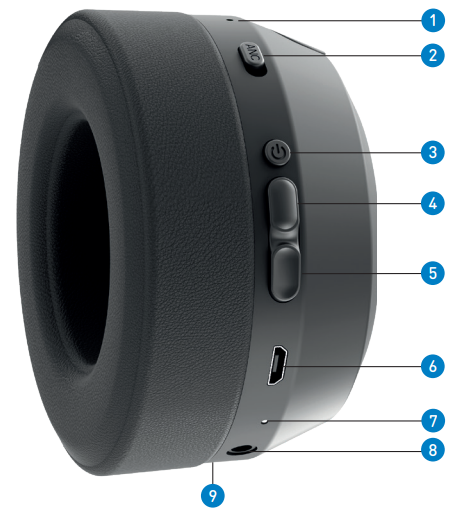
- ANC LED Indicator Light
- ANC Switch
- Multi-function Button
- Volume Up / Previous Track Button
- Volume Down / Skip Track Button
- Micro USB Charging Port
- LED Indicator Light
- 3.5mm Audio Port
- Microphone
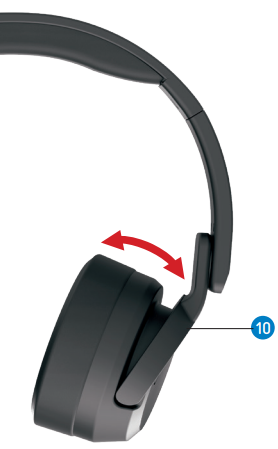
- Tilt Arm
Connecting
- First time pairing
- Press and hold the Multi-function Button to power on your MIXX AX1 wireless headphones until you hear ‘Power on’.
- The headphones will enter pairing mode. This will be confirmed with ‘Pairing’, and the LED Indicator Light will flash WHITE.
- Go to the Bluetooth settings on your audio device to select ‘MIXX AX1’ from the list.
- The headphones have paired successfully once you hear the word ‘Connected’, and the LED Indicator Light remains a solid WHITE. You can now enjoy your music, watch a video, or take a call hands-free.
- Once the initial pairing is complete, your AX1 headphones will automatically reconnect to the last audio device it was paired Mixx Audio AX1 to and will confirm with ‘Power on, connected’.
- If there is no Bluetooth connection after 5 minutes, the headphones will automatically turn off and then confirm with ‘Power off’.
How to Use
How does ANC work?
The innovative technology inside these noise-canceling wireless headphones monitors the ambient background noise around you and reverses the sound wave to cancel out that surrounding noise. This creates a much quieter listening environment.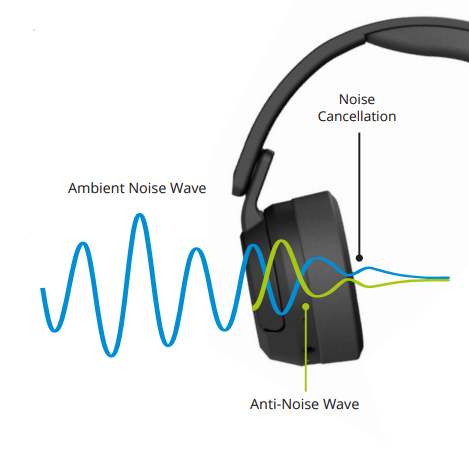
Using ANC
- Slide up the ANC Switch to tune out any unwanted sounds or ambient noise while making your music or video sound better.
- The ANC LED Indicator Light will glow GREEN when the ANC is on.
- You can use ANC to reduce the sound of an engine on a plane, train, or in a noisy office or home environment.
- The ANC LED Indicator Light will turn off when you slide down the ANC Switch to power it off.
- Remember to switch off the ANC when you are no longer using your headphones.
Let’s Stay Charged
- Connect the headphones to a suitable USB wall charger, a computer USB port, or a power bank using the micro USB charging cable supplied.
- The Micro USB Charging Port can be found at the bottom of the right ear pad. Connect the micro USB charging cable to this port and the other end to a suitable power source.
- While charging, the LED Indicator Light will shine RED.
- Once the headphones are fully charged, the LED Indicator Light will turn BLUE. This can take between 1 and 2 hours.
Let’s Go Wired
- The MIXX AX1 headphones are suitable for devices with a 3.5mm audio socket.
- The 3.5mm audio cable supplied provides the flexibility to convert from wireless headphones to wired use.
- Convenient when watching movies on a plane or when there is no Bluetooth connection.
- Insert the 3.5mm audio cable into the 3.5mm Audio Port of your AX1 headphones and the other end into your phone or plane’s 3.5mm audio socket to start listening to your music or movie.
Play
- ANC On / Off
Slide up / down the Switch
- Play / Pause
Short-press the Button
- Volume Up / Down
SShort-Pressthe Buttons
- Previous / Skip Track
Press and hold the Buttons to change tracks
- Activate Siri / Google Assistant
Triple-press the Button
- Answer / End a call
Short Press the Button
- Decline an incoming call
Press and hold the Button
- Redial the last phone number
Double-press the Button
- Power On / Off
Press and hold the Button until you hear ‘Power on’ or ‘Power off”
Need Extra Help?
Common solutions
- Power on the headphones (see the Let’s Play section).
- Check the status of the LED Indicator Light (see Let’s Stay Charged section).
- Charge the headphones (see Let’s stay charged section).
- Move your device closer to the headphones and away from any obstructions or interference.
- Unpair or “forget” the headphones from your current device and pair them to another Bluetooth audio device.
Technical Specifications
- Bluetooth: 5.0
- Wireless range: 10m
- Dynamic driver: 40mm
- Frequency: 20Hz – 20KHz
- Battery capacity: 600mAh
- Charging time: Approx. 3 hours
- Playtime (via Bluetooth): Up to 20 hours
- Playtime (via Bluetooth & ANC): Up to 15 hours
- Weight: 241g
Compatibility
Suitable for most smartphones, tablets, notebooks, or laptops with Bluetooth audio support or a 3.5mm socket.
Let’s Be Safe
You must read this section completely, especially the ‘Warning and Safe Usage’ instructions.
For your protection
Please keep the product out of reach of children and animals. Do not listen to loud music for a long duration of time. Adjust the volume to a comfortable level before listening.
We recommend
To refer all servicing to qualified persons. Servicing may be required when the product has been damaged in any way, does not operate normally, or has been dropped. The operating temperature range for this product is 5º – 40º Celsius.
Customer Services
- Email: support@mixx-io.com
- Website: mixx.io
- Tel: 0844 800 3480
FAQs
Q: How do I pair the Mixx AX1 headphones with my device for the first time?
Ans: Holding down the power button for three seconds will turn on the headphones. The LED light will then cycle between flashing red and blue. Locate “MIXX AX1” in the Bluetooth options on your device, then press to connect.
Q: How long does the battery last on a full charge?
Ans: Depending on usage and volume level, the Mixx AX1 can play for up to 10 hours on a full charge. The charging process takes about two hours.
Q: How will I know when the battery is low?
Ans: When the battery is low, the LED indicator will blink red, and you will hear a voice prompt. To prevent an automated shutdown, it is advisable to charge it as soon as this occurs.
Q: Can I use the headphones while they are charging?
Ans: Yes, you can make calls or listen to music while charging, but doing so could eventually shorten battery life and slow down the charging process.
Q: How do I reset the AX1 headphones?
Ans: Turn off the headphones, then press and hold the volume up (+) and volume down (-) keys simultaneously for five seconds, or until the LED blinks, to reset the headphones. Next, try pairing once more.
Q: Do the AX1 headphones have a built-in microphone for calls?
Ans: For hands-free calling, the AX1 headphones do indeed have an integrated microphone. Press the multi-function button once to answer or end a call.
Q: What is the wireless range of the headphones?
Ans: In open areas, the AX1’s wireless range can reach up to 10 meters (33 ft). This range may be shortened by walls or other device interference.