


 Soundcore Liberty 4 Pro NC Wireless Earbuds


Overview
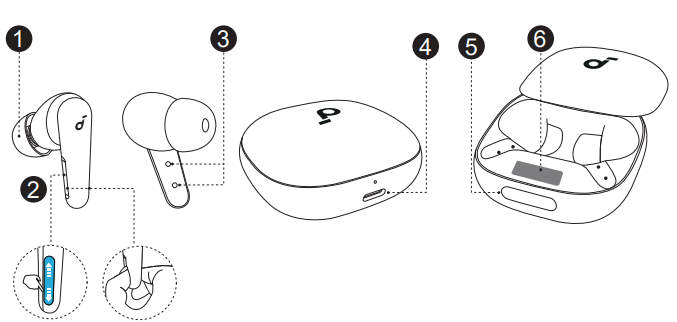
- Ear Tip
- M-size ear tips come attached to the earbuds at the time of purchase.
- Earbud Control Area
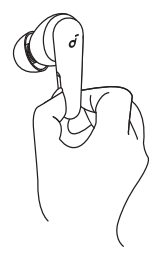
- Slide up and down or squeeze the control area on the earbud stems to manage different functions.
- Charging Contactors
- USB-C Charging Port
- Charging Case Touch Bar
- Control the Smart Display via the touch bar.
- Smart Display
Wearing

- Try different ear tips to find the best fit for your ears.
- Gently place the earbuds into your ear canal and rotate them for a snug fit.
- Take a fit test in the Soundcore app to ensure you get the best active noise-cancelling performance.
Dust, earwax, or other debris can accumulate in the earbuds. To maintain optimal sound quality, regularly clean your earbuds. Use a cotton swab slightly moistened with rubbing alcohol to gently wipe the metal mesh filter under the rubber ear tips. Ensure the alcohol on the metal mesh filter has completely dried before using the ea.r
Power On
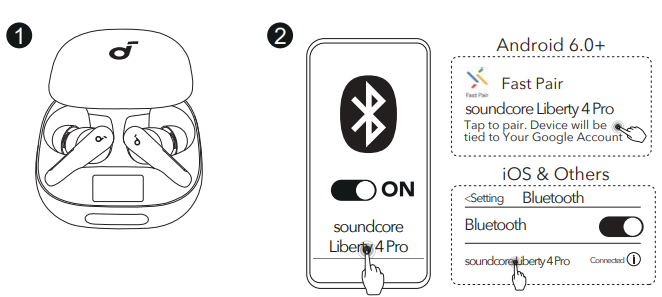
- Slide open the charging case. The earbuds will automatically power on and enter Bluetooth pairing mode. Google Fast Pair: Enjoy instant pairing with your Android smartphone (running Android 6.0 or above) using Google Fast Pair.
- SelectSoundcorere Liberty 4 Pro” on your device’s Bluetooth list to connect. Upon successful connection, the Bluetooth icon on the Smart Display will stay on for 2 seconds and then disappear.
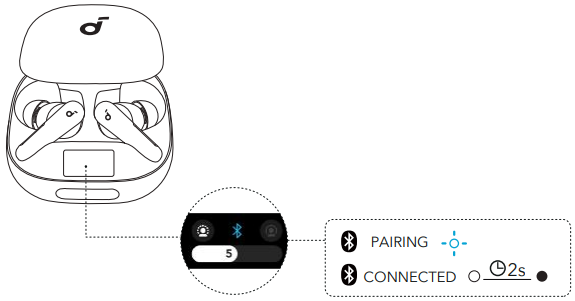
Once connected successfully, the earbuds will automatically reconnect to your device every time you slide open the charging case, as long as you haven’t deleted the pairing history from your device.
Charging
- Place the earbuds in the charging case and close it.
- Ensure the earbuds and the USB-C charging port are fully dry before charging.
- Ensure the earbuds and the USB-C charging port are fully dry before charging.
- Connect the charging case to a power supply using the provided USB-C charging cable. For wireless charging, place the charging case at the center of your wireless charger.
- Recharging the charging case with the earbuds removed takes 2.5 hours via cable and 3.5 hours via wireless charging. A 5-minute charge of the earbuds provides 4 hours of playtime.
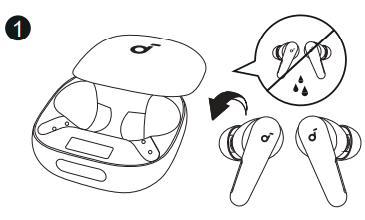

When the battery level of the charging case drops below 10%, it will stop charging the earbuds.
Touch Bar & Smart Display
The touch bar on the charging case provides easy control over ambient sound levels and other functions.
- Slide left or right on the touch bar to adjust ambient sound levels (1 to 10) or access functions.
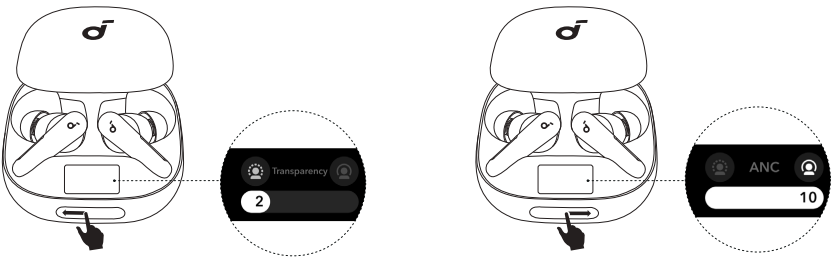
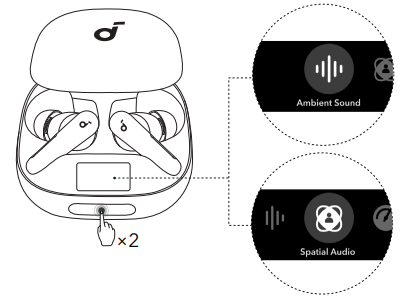
- Double-tap the touch bar to confirm your function selection, or return to the function menu. By default, the menu will only display Ambient Sound Levels. You can add more functions to the menu in the Soundcore app.
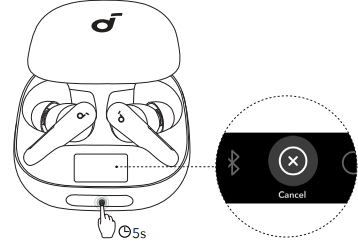
- Tap and hold the touch bar for 5 seconds to choose between Bluetooth pairing mode and resetting the earbuds.
Case Setting
The UI images are for illustration purposes only. Actual display contents may vary based on the software version.

In the Soundcore app, you can determine the functions you wish to appear on the charging case menu. There are a total of five functions available for smart control via the charging case.
Ambient Sound
Adjust the ambient sound levels to suit your environment and preferences, ensuring an optimal listening experience.
Spatial Audio
- Experience immersive 3D sound that adjusts dynamically based on your head movements, providing a more realistic audio experience.
Atmospheric
- Monitor the atmospheric pressure in your surroundings and adjust the noise-canceling effect according to atmospheric pressure changes.
Find Device
- Locate your misplaced earbuds within the Bluetooth range by enabling them to sound alerts.
Remote Camera
- With the camera feature activated on your phone, use the charging case to control your smartphone’s camera remotely.
Dual Connections
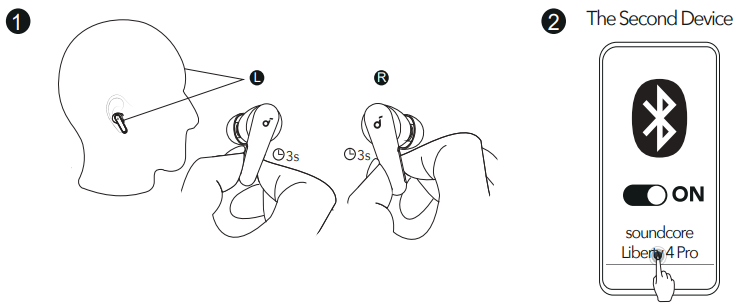
- The Dual Connections feature is enabled by default.
- To connect a second device while one device is already connected, pinch the control area on both earbud stems for 3 seconds until you hear a voice prompt for pairing mode.
- You can then proceed to pair with the second device.
- If you wish to disable Dual Connections, you can do so in the Soundcore app.
- Tap the cogwheel icon in the upper right corner to access Settings, then swipe the Dual Connections toggle switch to the left to turn it off.
Controls
You can customize controls in the Soundcore app.
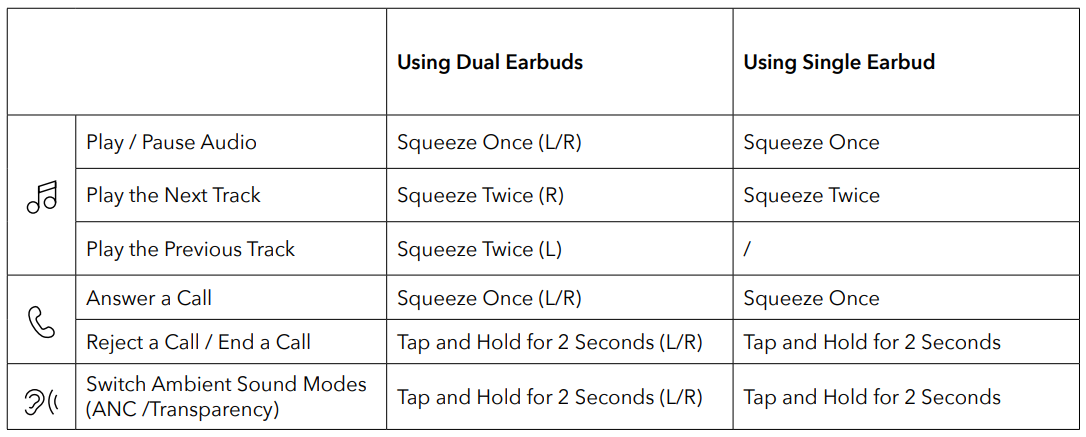

| Using Dual Earbuds | Using a Single Earbud | |
| Increase Volume | Slide Up (L/R) | Slide Up |
| Decrease Volume | Slide Down (L/R) | Slide Down |
Spatial Audio
The UI images are for illustration purposes only. Actual display contents may vary based on the software version.
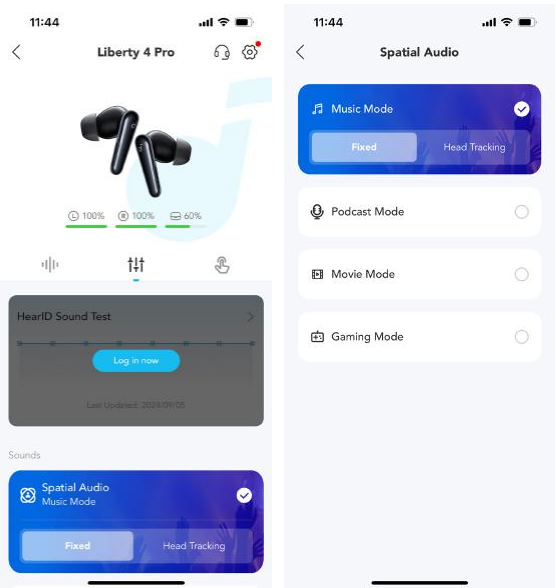
Spatial Audio creates an immersive listening experience by placing sound all around you. You can choose between four Spatial Audio modes in the Soundcore app:
Music Mode
- Head Tracking: Hear surround sound that follows your head movement.
- Fixed: Listen to Spatial Audio without head tracking.
Podcast Mode
Provides an optimized listening experience for clear and focused vocal delivery, ideal for listening to spoken content.
Movie Mode
Enhances your cinematic experience with rich, immersive audio that brings actions to life. Game Mode: Offers precise audio cues for an edge in gaming, allowing you to hear every detail and react quickly.
Ambient Sound
Control with Touch Bar

You can easily switch between different ambient sound levels by sliding left or right on the touch bar.
Control with App
You can select from Noise Cancellation, Normal, or Transparency modes in the Soundcore app.
- ANC (Level 6 to 10)
- Optimize noise cancellation by adapting to your ears and environment.
- Normal
- Enjoy balanced sound without noise cancellation.
- Transparency (Level 1 to 5)
- Stay aware of your surroundings while listening to music.
Easy Chat
The UI images are for illustration purposes only. Actual display contents may vary based on the software version.
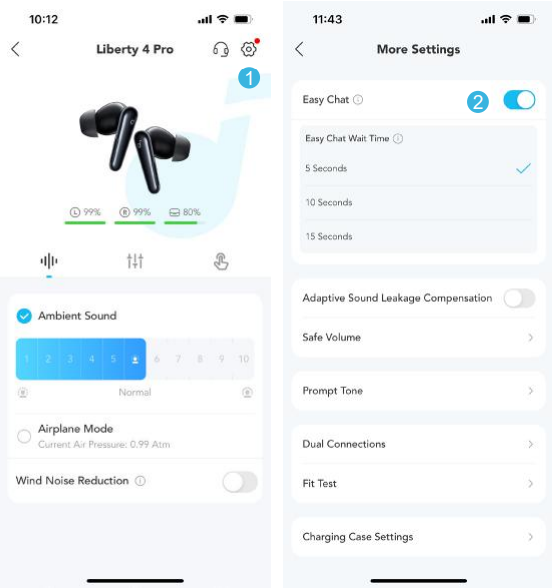
- Upon activation, Easy Chat automatically lowers the volume of music and enables Transparency mode so that you can have face-to-face conversations without removing the earbuds. Easy Chat is only available in ANC mode.
- By default, when you have stopped talking for 5 seconds, your earbuds will automatically exit Easy Chat mode and resume the original ANC level and volume. Additionally, the app allows you to select the durations of 10 seconds and 15 seconds.
LDAC
The UI images are for illustration purposes only. Actual display contents may vary based on the software version.
- Use devices that run on Android 8.0 or later to experience LDAC-quality sound.
- LDAC provides higher sound quality but increases power consumption and reduces playtime.
- Enable LDAC in a low-interference environment to ensure a stable Bluetooth connection.

In the Soundcore app
- Select “Sound Mode”.
- Tap on “Preferred audio quality”.
- If the earbuds are connected to two devices, you will be notified that LDAC is not supported.
- Switching audio codecs takes about 10 seconds. You may be prompted to update the earbuds’ firmware if an update is available.
Wearing Detection
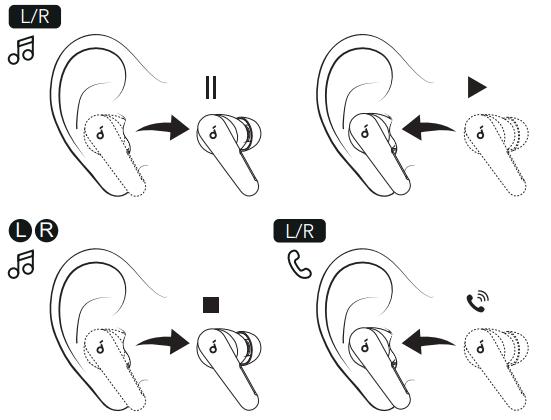
Playback will automatically pause when an earbud is removed and will resume again once you wear it. Wear either earbud to automatically answer an incoming call.
Power Off
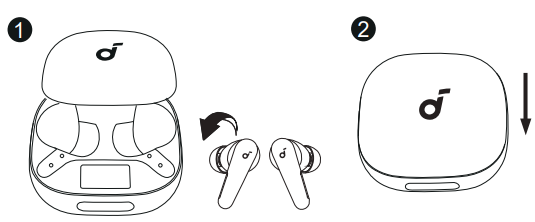
- To power off, return both earbuds to the charging case and close the case.
- When taken out, the earbuds will automatically power off after 30 minutes if they are not connected to any device. The duration can be set in the SoundCo.
Manual Pairing

Bluetooth Pairing
Select this option to manually enter Bluetooth pairing mode.
Reset
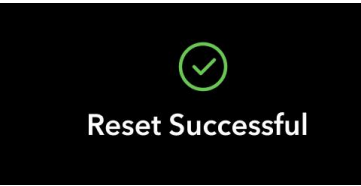
Select this option to restore your device to factory settings if you encounter functionality issues. After selecting and confirming the reset, keep the case open until the process is complete. Upon a successful reset, the Smart Display will show a prompt, and you will hear a notification sound from the charging case.
Firmware Update

You will be notified once a new firmware version for the earbuds or charging case is detected when the earbuds are connected to the app. Ensure the earbuds are in the charging case and the case remains open until the firmware update is complete. During the update, ensure the battery levels of both the earbuds and the charging case are above 20%, and avoid any usage.
App
- Download the Soundcore app to explore ambient sound level adjustment, adaptive EQ settings, Spatial Audio, HearID sound, charging case controls, firmware update, and more exciting features.
- If your earbuds cannot connect with the Soundcore app, try reinstalling the app or updating it to the latest version available in your mobile app store.
Specifications
| Input | 5V 1A |
| Rated Output Power | 20mW |
| Battery Capacity | Earbuds: 56mAh × 2 Charging Case: 580mAh |
| Charging Time | Earbuds: Up to 40 Minutes |
| Playtime (ANC Off) | Up to 10 Hours (40 Hours with Charging Case) |
| Playtime (ANC On) | Up to 7.5 Hours (30 Hours with Charging Case) |
| Driver | 10.5mm and 4.6mm Dynamic Drivers |
| Frequency Response | 14Hz – 40kHz |
| Impedance | 15.3Ω+10.3Ω |
| Waterproof and Dustproof Rating (Earbuds) | IP55 |
| Bluetooth Version | 5.3 |
| Bluetooth Range | 10m |
Customer Support
- Website: https://www.soundcore.com/
- Tel: +1 (800) 988-7973
FAQs
Q: What are Liberty 4 Pro earbuds — and who are they best for?
Strong noise cancellation, high fidelity audio, a long battery life, and sophisticated controls make the Liberty 4 Pro high-end, true wireless in-ear earbuds ideal for everyday use, travel, work, and commuting.
Q: What kind of noise cancellation do they provide?
They employ a seven-sensor adaptive noise cancelling system (six sound sensors plus a barometric pressure sensor) that keeps an eye on the environment and adjusts for the best ANC every 0.3 seconds.
Q: How good is the sound quality? What kind of drivers/codecs do they use?
In order to achieve rich, balanced, high-fidelity sound, Liberty 4 Pro features a dual driver system consisting of a titanium-coated tweeter and a 10.5 mm bass driver, along with a digital crossover and Soundcore’s ACAA acoustic architecture.
Q: What is the battery life and charging performance like?
The earbuds can play music for up to 10 hours on a single charge (ANC off), or somewhat less when ANC is turned on.
Q: Can I use them for calls, meetings, gs, or work-from-phone/video conferencing?
Indeed. Six microphones with wind-filter and noise-reduction technology are included in the Liberty 4 Pro to help provide a cleaner voice during calls, even in busy settings.
Q: Are the earbuds water‑ or sweat‑resistant? Can I use them while commuting or exercising?
They can withstand sweat and mild rain splashes thanks to their IPX5 classification, making them suitable for strolling in light rain, commuting, and light exercise.
Q: Is the fit comfortable and stable for all-day use? What about ear-tip options?
Because of the in-ear design and the availability of several ear-tip sizes to help achieve a good seal, many users and reviewers note that the earbuds are lightweight and quite comfortable.
3 Comments
Your point of view caught my eye and was very interesting. Thanks. I have a question for you. https://www.binance.com/es/register?ref=RQUR4BEO
I don’t think the title of your article matches the content lol. Just kidding, mainly because I had some doubts after reading the article. https://accounts.binance.com/fr-AF/register-person?ref=JHQQKNKN
I don’t think the title of your article matches the content lol. Just kidding, mainly because I had some doubts after reading the article.