



Soundcore Rave 3 AI Party Speaker
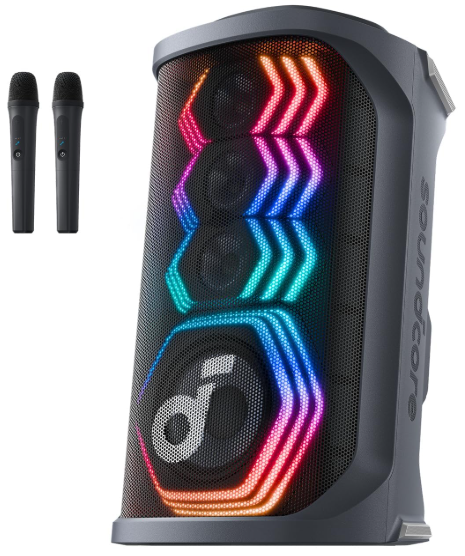
Description
Front & Back
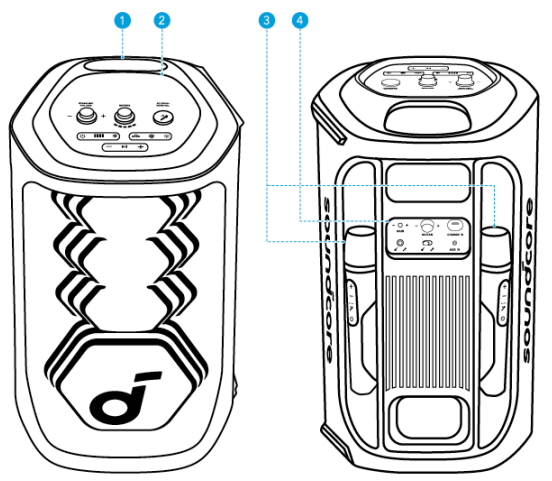
- Handle
- Top Panel
- Wireless Microphones (×2)
- Back Panel
Top Panel
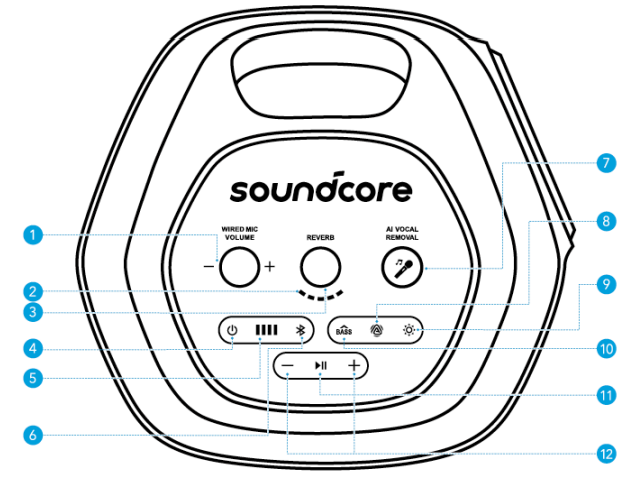
- Wired Mic Volume Control
- Adjust the volume of your wired microphone.
- Reverb Control
- Rotate clockwise / counterclockwise to increase/decrease the amount of reverb applied to your microphone or audio source.
- Reverb Level Indication
- Display the current reverb applied to your microphone or audio source.
- Power Button
- Power on or off the device.
- Battery Indicator
- Display the device’s battery level.
- Bluetooth Button
- Press to enter Bluetooth pairing mode.
- AI Vocal Removal
- Press to remove the original vocals from the song, leaving only the accompaniment.
- AuraCast Button
- Press to enable the AuraCast feature.
- LightShow Button
- Press to turn the light effect on or off.
- BassUp Button
- Press to enhance the low frequency of the audio source.
- Play/Pause Button
- Press once to play/pause the audio source.
- Press twice to skip to the next track.
- Press three times to skip to the previous track.
- Volume Up and Volume Down Buttons
- Press to turn up or down the volume of the audio source.
Back Panel
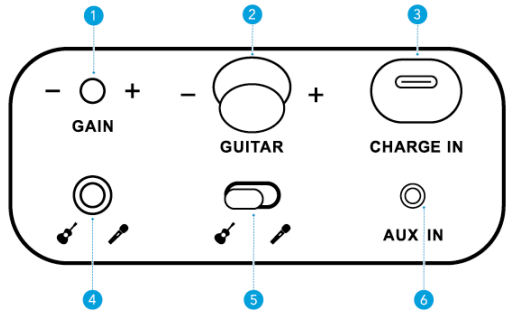
- Gain (Guitar)
- Adjust the gain of the connected guitar.
- Guitar Volume Control
- Rotate clockwise / counterclockwise to increase/decrease the volume of the connected guitar.
- USB-C Charging Port
- Plug in the provided C-C cable to charge the device.
- Guitar / Microphone Socket (6.5mm)
- Connect to a guitar or wired microphone.
- Input Switch Toggle
- Switch to the connected guitar or microphone input.
- AUX IN
- Connect to an external audio device through a 3.5 mm audio cable (not supplied).
Functions
Product information
- Check the product name and software version, or read the user manual.
Firmware update
- You will be informed once a new version of firmware is detected when you connect the speaker to the app.
Battery status
- Indicates the remaining battery level of your speaker.
Volume control
- Adjust the volume level via the app without pressing the buttons on the speaker.
EQ settings
- There are various preset EQ settings you can choose from in the app to optimise your experience while enjoying different music genres.
Soundcore Signature
- Standard EQ mode optimised for well-balanced sound.
Voice
- Voices stand out more clearly from other ambient sounds.
Treble Boost
- High frequencies are enhanced.
Balanced
- No enhancement for high-frequency and low-frequency sounds. Set auto-power-off time: Set an auto-power-off time. The speaker will automatically power off when the time is up.
Voice prompt
- Mute or restore the voice prompt while powering on/off.
Reset
Press and hold the Bluetooth button and volume up button simultaneously for 8 seconds to reset the speaker.
Charging
Charging Your Speaker
Use a certified C-C cable and charger to prevent any damage.
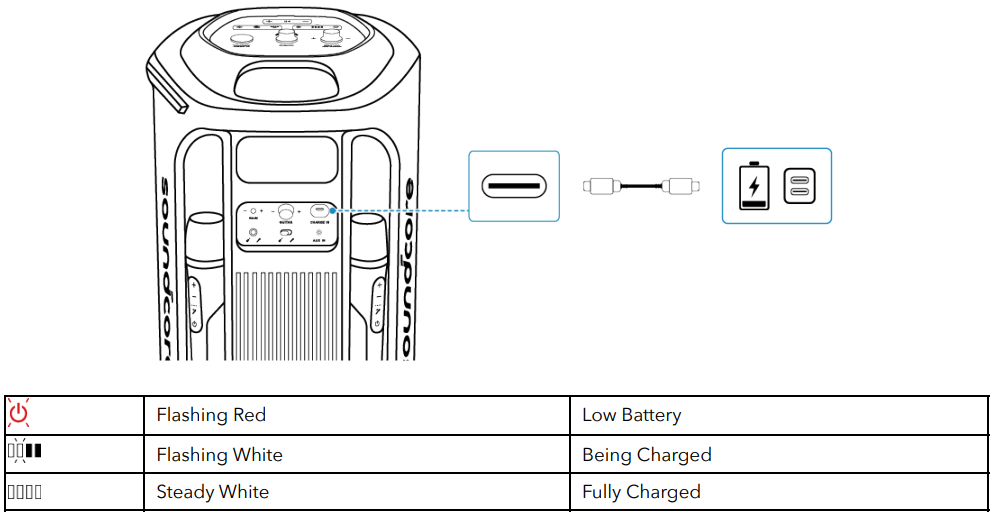
Powering On/Off
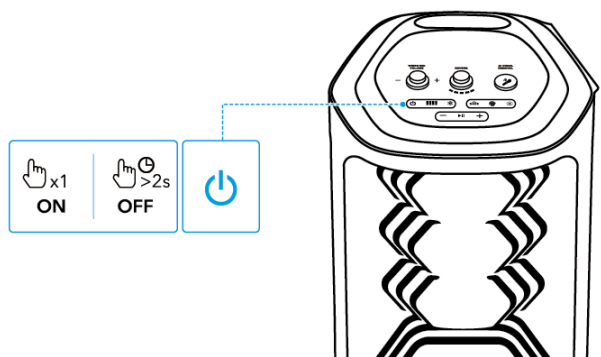
- Press Once Power On
- Press and Hold for 2 Seconds Power Off
- This speaker will power off automatically after 20 minutes of no audio input.
- You can also set an auto-power-off time in the Soundcore app.
Using Your Speaker
Bluetooth Mode
Press the Bluetooth button to enter Bluetooth pairing mode, then select “Soundcore Rave 3” from your device’s Bluetooth list to connect.
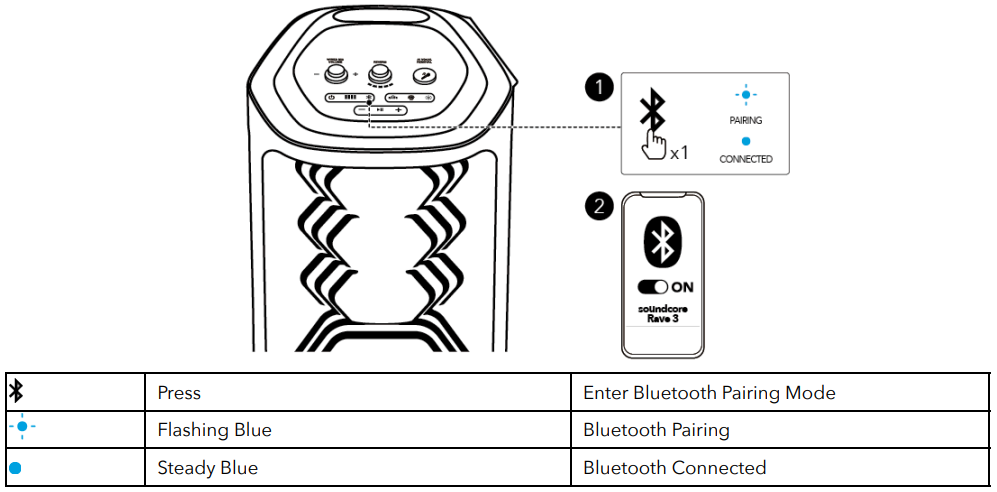
- To re-enter Bluetooth pairing mode, press the Bluetooth button once.
- This speaker can only play music on one mobile device at a time.
- To play from another connected device, pause the device that’s currently active first.
- Each time you power on your speaker, it will automatically connect to your last connected device if available within the Bluetooth range. If not, press the Bluetooth button to enter Bluetooth pairing mode.
TWS (True Wireless Stereo) Mode
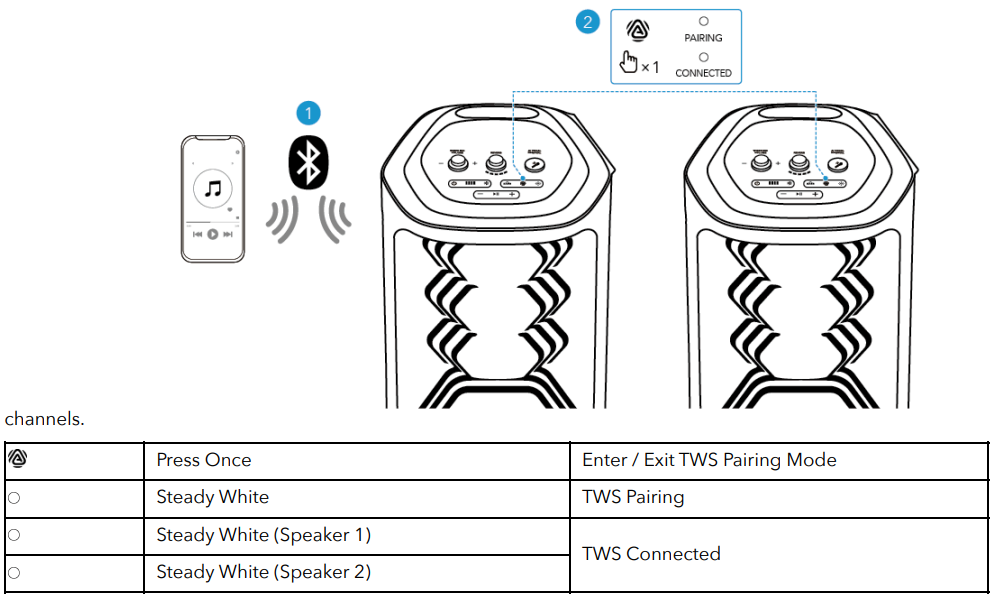
- Two identical Soundcore speakers can pair with each other for stereo sound. Both speakers can play the same audio (one as the left channel and the other as the right channel).
- With one speaker connected to a smartphone or tablet, press the AuraCast button simultaneously on both speakers to enter TWS pairing mode powered by AuraCast technology.
- Upon successful pairing, you will hear a sound prompt. Then double-press the AuraCast button on either speaker to assign the left and right audio channels.
AuraCast
With one speaker connected to a smartphone, press the AuraCast button on up to 10 Soundcore speakers with AuraCast function to synchronise audio and light.
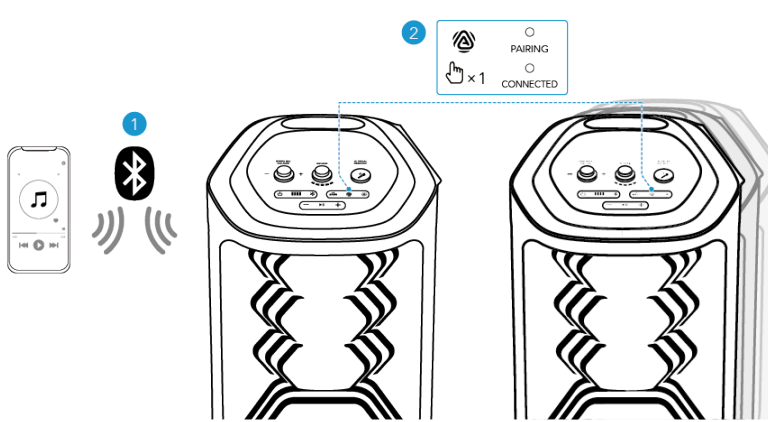

When you enable or disable the AuraCast feature, you will hear a notification sound.
Using the Wireless Microphones
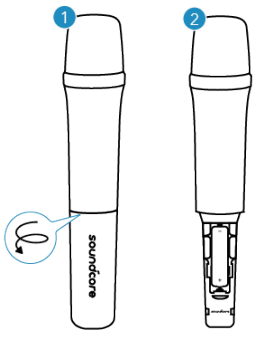
- Unscrew the battery cover.
- Install two AA batteries.
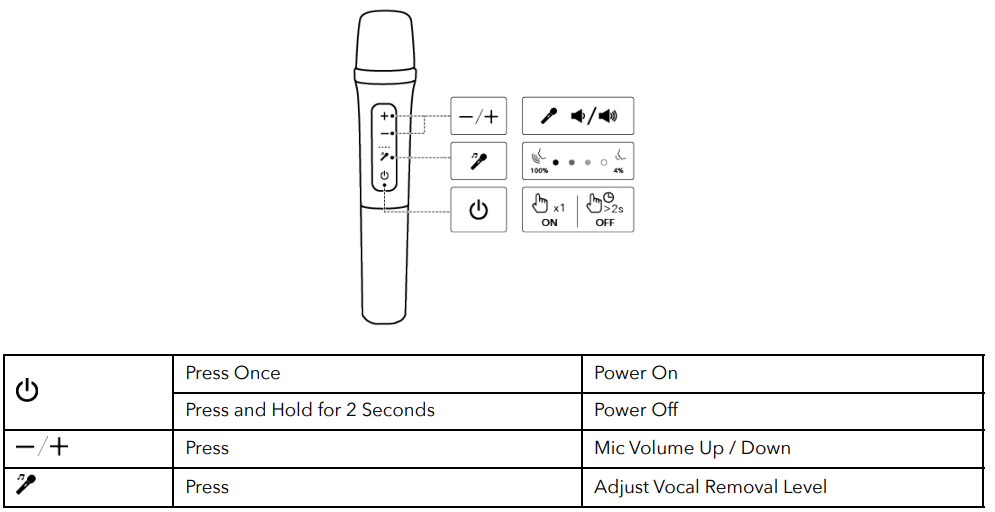
- Once you power on the wireless microphones, they will automatically connect to the speaker.
- The AI VOCAL REMOVAL button on the speaker can remove the original vocal from a song with just one press. The AI Vocal Removal button on the wireless microphone allows for adjustable vocal retention, ranging from 4% to 100%.
- Once the vocal removal level is set on the microphone, the speaker will remember this setting even after restarting. This ensures that when you activate the vocal removal feature on the speaker, the vocal removal effect will match the level set on the microphone.
Guitar / Wired Microphone Connection
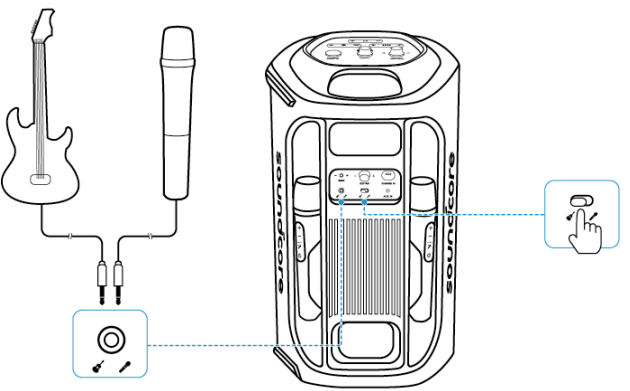
- Connect a microphone or guitar to the speaker through 6.5mm audio cables (not supplied).
- After connecting a microphone or guitar to the speaker, make sure to set the toggle switch to the correct sound input.
LightShow
The LED lights change with the rhythm of the music.
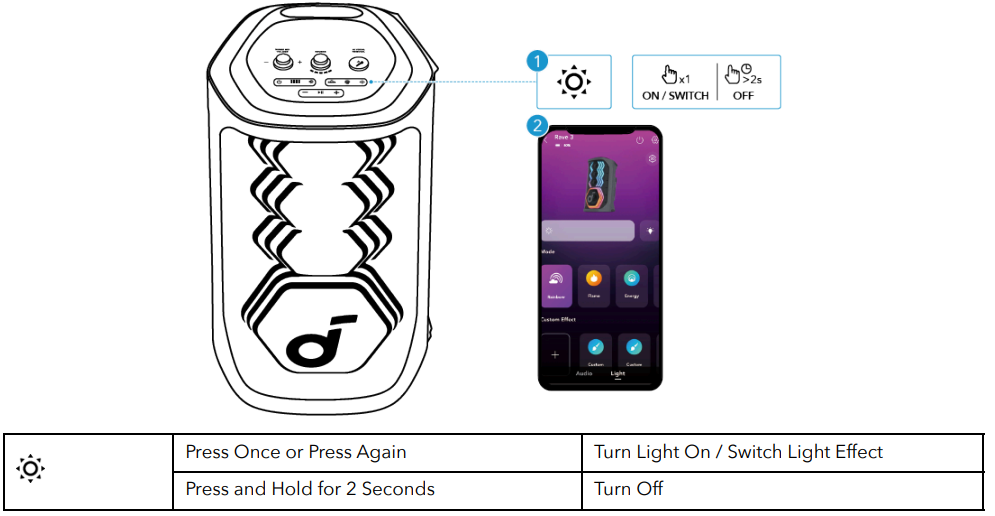
You can also select your preferred light effect or customise the pattern and brightness in the Soundcore app.
Soundcore App
Download the Soundcore app to enhance your experience.
Specification
| Charge Input | 5V⎓3A |
| Battery Capacity | 4900mAH/7.3V |
| Audio Output Power | 160W |
| Speaker Driver | 6.5″ Woofer, 2.5″ Full-Range ×3 |
| Frequency Response | 45Hz-20kHz |
| Charging Time | 6H |
| Play Time (varies by volume level and music content) | Up to 12H |
| Bluetooth Version | 5.3 |
| Bluetooth Range | 50m |
Customer Support
- Website: https://www.soundcore.com/
- Tel: +1 (800) 988-7973
FAQs
Q: What makes the Rave 3 an “AI” party speaker?
With just one push, the Rave 3’s AI-Vocal Removal feature eliminates a song’s original vocals in real time, transforming any song into an instrumental fit for karaoke. This feature is powered by built-in AI vocal processing.
Q: What kind of sound output does it deliver?
With its 200 W output (woofer + full-range drivers), Rave 3 is said to be able to fill big rooms or open interior spaces with its strong and expansive sound.
Q: How long does the battery last — and is it portable?
The speaker can play for up to 12 hours on a full charge (at about 50% volume and without strong bass or lighting effects).
Q: Can I use it outdoors or near water?
The Rave 3 is appropriate for outdoor events, poolside parties, and casual outdoor use because it has an IPX4 water-resistance rating and is resistant to splashes and rain.
Q: Does it include microphones — and can I plug in instruments?
Yes, it includes two wireless mics that allow for MC-style performances, duets, and karaoke.
Q: Can I customize the sound, lighting, or effects?
Absolutely. Through the accompanying app, you can adjust EQ (bass/treble), enable BassUp, select spatial/speaker-array modes, tweak reverb and vocal-enhancer settings, and control a synchronized light show that pulses to the beat.
Q: Can I pair multiple speakers for larger events?
Yes, you can couple two or more compatible speakers for stereo output or wider sound coverage using the speaker’s multi-speaker linking capability via Auracast + TWS mode.
Q: What audio inputs does it support (Bluetooth / AUX / wired)?
Rave 3 has a 3.5 mm AUX input and a 6.35 mm mic/guitar input for cable connections in addition to Bluetooth (v5.3) for wireless streaming.
5 Comments
Your point of view caught my eye and was very interesting. Thanks. I have a question for you.
I don’t think the title of your article matches the content lol. Just kidding, mainly because I had some doubts after reading the article. https://www.binance.com/ro/register?ref=HX1JLA6Z
Thanks for sharing. I read many of your blog posts, cool, your blog is very good.
Your point of view caught my eye and was very interesting. Thanks. I have a question for you.
Your article helped me a lot, is there any more related content? Thanks! https://www.binance.com/register?ref=IXBIAFVY