


 Soundcore Space One Noise-Cancelling Headphones

Wearing
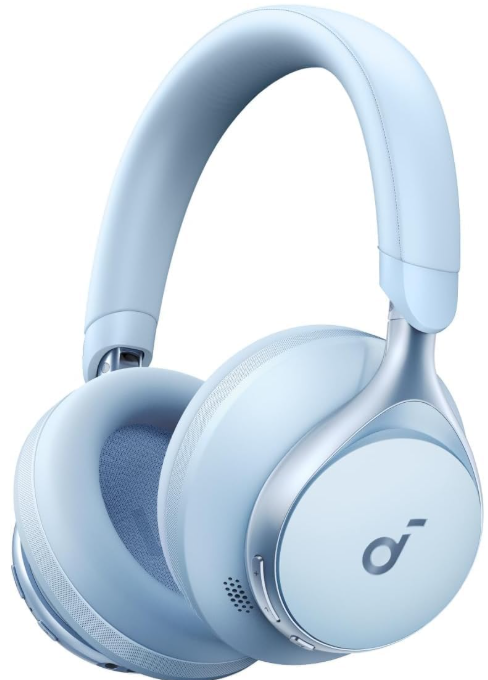
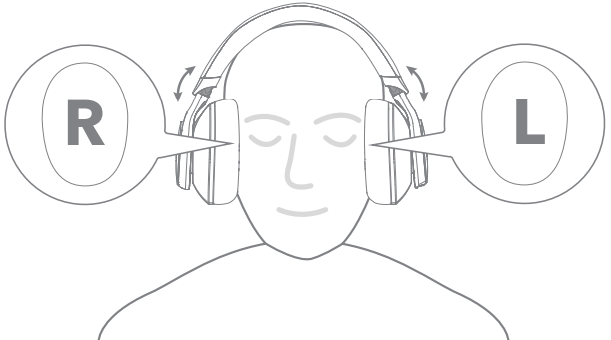
Wear the headphones with the “L” logo on your left ear and the “R” logo on your right ear. Adjust the length of the headband for a comfortable fit.
Charging
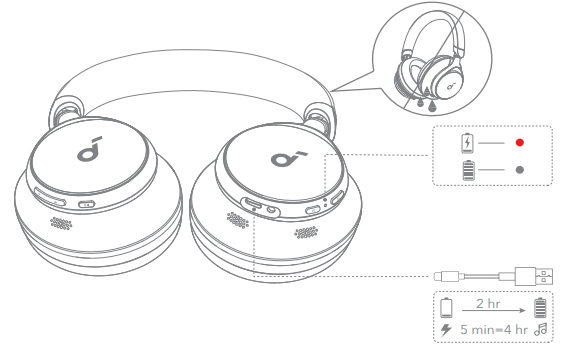
Fully dry the USB port before charging. Do not turn on your headphones while charging. Use a certified USB-C charging cable and charger to prevent any damage.
Power On & Pairing

Auto Pairing
Press and hold the power button for 3 seconds to power on. The headphones will automatically enter Bluetooth pairing mode when connecting for the first time. Select “Soundcore Space One” on your device’s Bluetooth list to connect.
Google Fast Pairing
Enjoy instant pairing with your Android smartphone (running Android 6.0 and above) via Fast Pair enabled by Google. To manually enter Bluetooth pairing mode, when the headphones are powered off, press and hold the power button for 5 seconds to pair.
Dual Connections

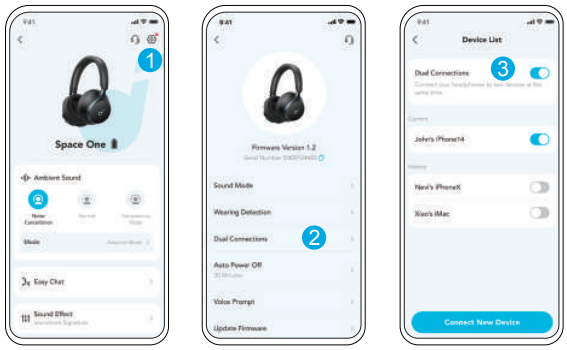
- The headphones can connect with two devices at the same time. When already connected to one device, press the power button twice to pair with another device.
- In the Soundcore app, go to settings and select Dual Connections > Enable Dual Connections > Connect New Device.
Button Controls

You can enable Normal mode in the Soundcore app.

Specification
| Input | 5 V 0,58 A |
| Rated output power | 10mW |
| Battery capacity | 580mAh |
| Charging time | 2 hours |
| Playtime (with ANC off) | Up to 55 hours |
| Playtime (with ANC on) | Up to 40 hours |
| Driver size | 40mm |
| Frequency response | 20Hz – 20kHz |
| Impedance | 16Ω |
| Bluetooth version | 5.3 |
| Bluetooth range | 15m / 49ft |
Noise Cancellation
To reduce ambient noise, switch to noise cancellation (default) via the NC button and customize it in the Soundcore app.
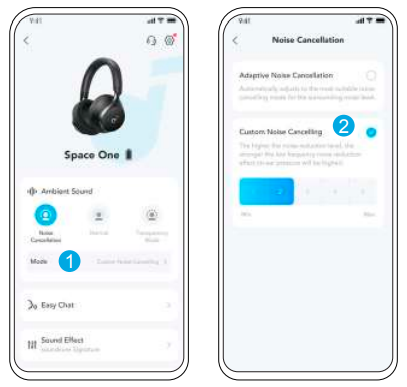
- Adaptive Noise Cancelling: Adjust the level of noise cancellation automatically for various scenarios.
- Custom Noise Cancelling: Set the level of noise cancellation manually.
Transparency
To stay aware of your surroundings while listening to music, switch to transparency mode via the NC button and customize it in the Soundcore app.

- Custom Transparency Mode: Set the level of transparency manually.
Easy Chat
Easy Chat mode automatically lowers the volume of music and amplifies the voice of the person you’re talking to so that you can communicate without taking the headphones off.
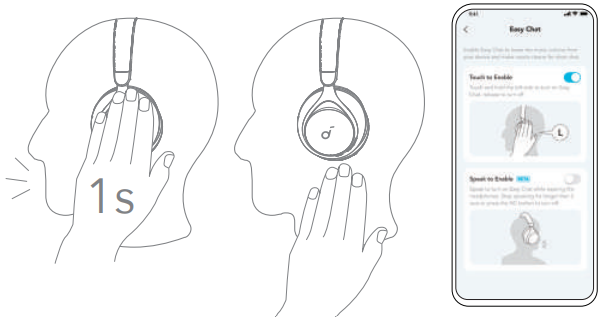
- To activate Easy Chat, hold the left panel for 1 second until you hear a notification sound. Turn off this mode by releasing your hand. (Enabled in app)
- Easy Chat will automatically turn on when you’re talking, and off when you stop talking for 5 seconds. (Beta version is enabled in the app).
Wearing Detection
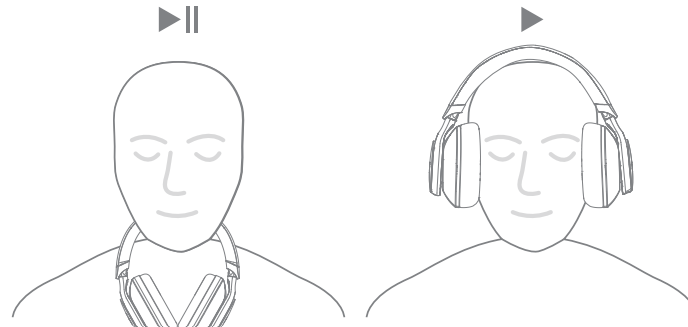
Auto-pause music playback when removing the headphones, wear them again to resume.

- You can enable Wearing Detection in the Soundcore app.
LDAC
Enable LDAC in the Soundcore app for higher-quality audio.
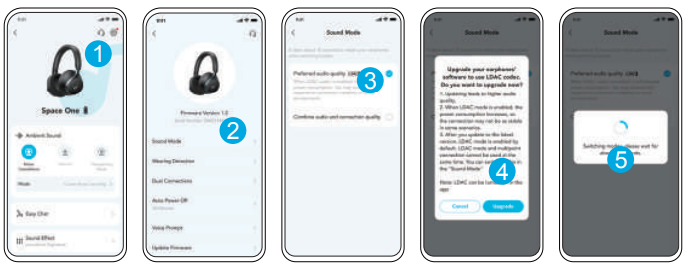
- Only available on devices powered by Android 8.0 or later.
- Use devices powered by Android 8.0 or later to experience
LDAC quality sound. - LDAC provides higher-quality sound and increases power
consumption, and reduces playtime.
Enable LDAC in a low-interference environment to ensure a stable Bluetooth connection.
- Go to settings in the Soundcore app.
- Click on “Sound Mode”.
- Select “Preferred audio quality” to switch to the LDAC codec.
- You will be notified that the headphones do not support LDAC when connected to two devices. Select “Turn on” to continue.
- It takes about 10 seconds to switch audio codecs. You may be requested to update the headphones’ firmware if available.
Wired Listening
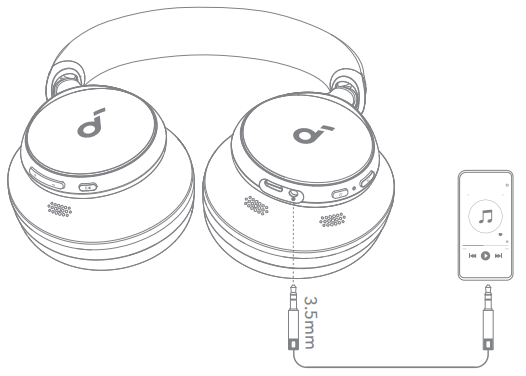
Play audio on an external device by plugging in a 3.5mm AUX cable. Wired listening will automatically turn off Bluetooth mode.
Reset

You might need to reset your headphones if you experience connectivity or function issues. Delete the pairing history from your Bluetooth device first. Press and hold the volume up and power button simultaneously for 5 seconds until the LED flashes red three times.
LED Light
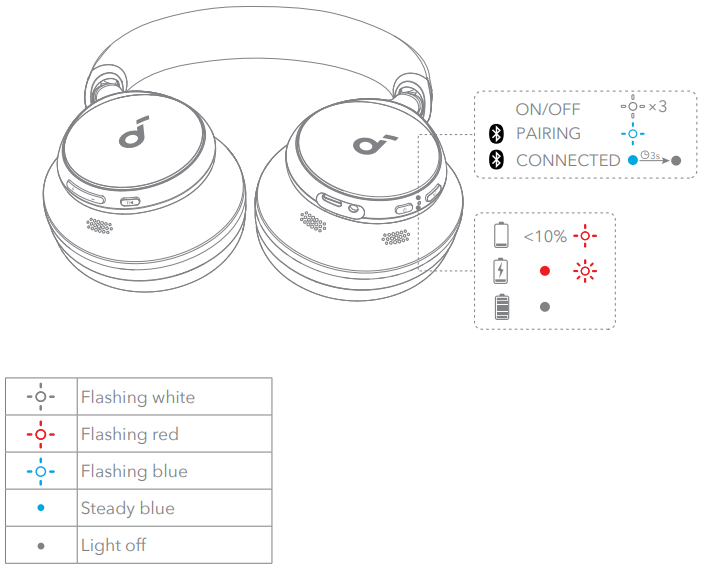
Firmware Update

You will be informed once the new version of firmware is detected when you connect the headphones to the app. Ensure the headphones are powered on and connected to a device until the firmware update is complete. During the update, avoid any usage and ensure stable access to the internet.
- The ‘x’ of SN Code: xxxxxxxxxxxxxxxx is a variable, see the table below.
| Variable ‘x’ | Range of variables | Content |
| Eighth | 8,9, A, B, C… | Denotes the year, 8 means 2018, 9 means 2019, A means 2020, B means 2021, C means 2022, and so on. |
| Ninth and tenth | 01,02,03… | Denotes weeks, 01 means the first week in this year, 02 means the second week in this year, and so on. |
| Eleventh | 1-7 | Denotes date, 1 means Monday, 2 means Tuesday…, 7 means Sunday, and so on. |
| The last five | 00001-99999 | Denotes serial No. |
Hereby, Anker Innovations Limited declares that this device complies with The Product Security and Telecommunications Infrastructure (Security Requirements for Relevant Connectable Products) Regulations 2023.
TCO Certified
- This product is a better choice. It meets all the criteria in TCO Certified, the world’s most comprehensive sustainability certification for IT products.
- Thank you for making a responsible product choice that helps drive progress towards a more sustainable future!
- Criteria in TCO Certified have a life-cycle perspective and balance environmental and social responsibility.
- Conformity is verified by independent and approved verifiers that specialize in IT products, social responsibility, or other sustainability issues.
- Verification is done both before and after the certificate is issued, covering the entire validity period.
- The process also includes ensuring that corrective actions are implemented in all cases of factory non-conformities. And last but not least, to ensure that the certification and independent verification accuracy rate, both TCO Certified and the verifiers are reviewed regularly.
- Read information about TCO Certified, full criteria documents, news, and updates at tcocertified.com.
- On webwebs,ite you’ll also find our Product Finder, which presents a complete, searchable listing of certified products.
App
- Download the Soundcore app to switch ambient sound modes, adjust EQ settings, update firmware, and explore more.
- If your headphones cannot connect with the Soundcore app, reinstall the app or update it to the latest version in your mobile app store.
Customer Support
- Website: https://www.soundcore.com/
- Tel: +1 (800) 988-7973
FAQs
Q: What is Soundcore Space One — and who is it best suited for?
Space One is a pair of over‑ear wireless headphones with adaptive active noise cancelling (ANC), designed for people who want high-quality sound, long battery life, and noise reduction for commuting, travel, work, or everyday listening.
Q: How effective is the noise cancelling on Space One?
The manufacturer claims that Space One’s adaptive ANC can suppress noise up to “98%” in some lab-based testing. It does this by adjusting to ambient noise.
Q: What kind of sound and audio quality can I expect?
Thanks to codecs like LDAC, AAC, and SBC, Space One supports Hi-Res wireless audio and employs 40mm bespoke dynamic speakers.
Q: How long does the battery last on a single charge — both with ANC on and off?
Space One offers up to 40 hours of playing time when ANC is enabled, which is sufficient for lengthy flights, commuting, or workdays.
Q: Are they comfortable for long listening sessions (e.g., travel, work, long commutes)?
Yes, they were made with comfort in mind. They have memory foam earcups that distribute pressure evenly for prolonged usage, a padded headband, and rotating earcups that rotate by roughly 8°.
Q: Can I use these for calls or meetings (phone calls, video calls)?
Indeed, they have integrated microphones for voice chat and phone conversations.
Q: What comes in the box — and how do I maintain them?
The headphones themselves, a USB-C charging cable, a 3.5 mm audio cable (for wired mode), and a travel pouch are all included in the standard Space One package.
Q: Does Space One support spatial audio or surround sound features?
Through the Soundcore App, Space One does really enable 3D Surround Sound, which improves immersion for games, movies, and music.
2 Comments
Can you be more specific about the content of your article? After reading it, I still have some doubts. Hope you can help me.
Your article helped me a lot, is there any more related content? Thanks!