

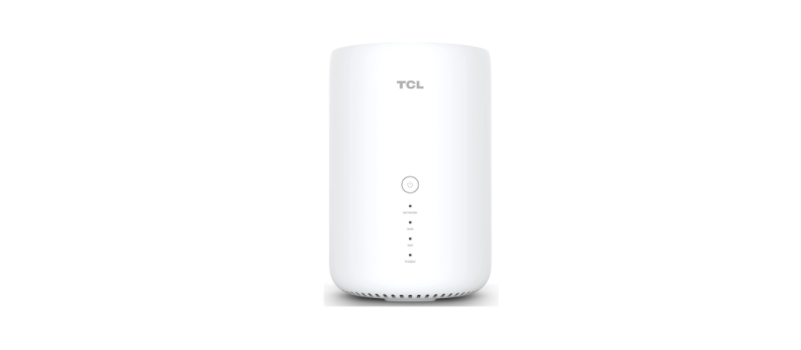
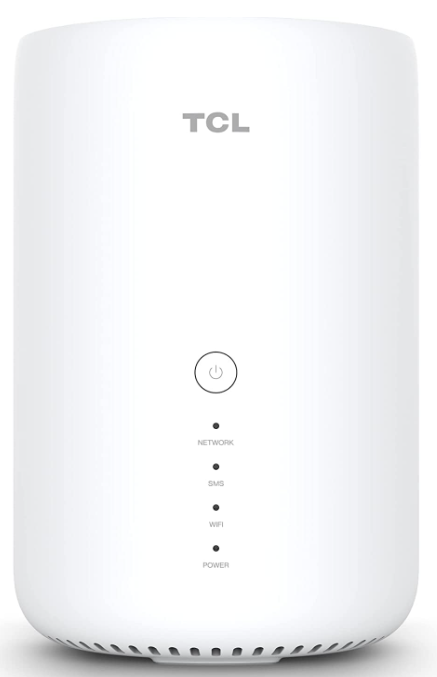
 TCL HH130VM 4G Dual Band Home Station Router

Safety Instructions
- Switch the device off before boarding an aircraft.
- Switch the device off when you are in healthcare facilities, except in designated areas.
- Switch the device off when you are near gas or flammable liquids.
- When this device is switched on, it should be kept at least 20 cm from the body.
- Do not let children use the device and/or play with the device and accessories without supervision.
- If your device is a unibody device, the back cover is not removable.
- If you disassemble your device, the warranty will not apply.
- Always handle your device with care and keep it in a clean and dust-free place.
- The manufacturer’s recommended operating temperature range is -20°C (-4°F) to +45°C (113°F).
- Do not open, dismantle, or attempt to repair your device yourself.
- If your device has a removable cover, note that your device may contain substances that could create an allergic reaction. When the device is switched on, it should be kept at least 15 cm from any medical device such as a pacemaker, a hearing aid, or an insulin pump, etc.
Overview
This device allows you to share a secure mobile broadband internet connection using Wi-Fi or LAN. It provides wired and wireless access for multiple devices, e.g., PCs, mobile gaming devices, smartphones, and tablets, etc.
System requirements
This device is compatible with Wi-Fi devices which support 2.4GHz (802.11b/g/n) or 5GHz (802.11a/n/ac) and works with browsers, including Firefox, Safari, Internet Explorer (9.0 or later), Microsoft Edge, Opera, and Google Chrome.
Device Description
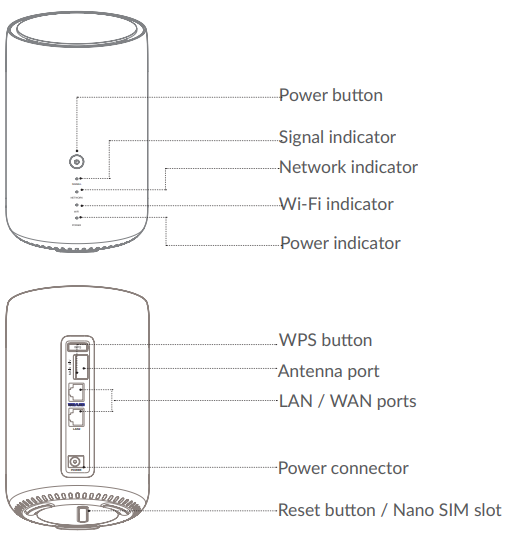 Power Button
- Once connected to a power outlet, your device will automatically power on.
- To power off your device, press and hold the power button for 3 seconds.
- To power on your device, press and hold the power button for 1 second.
WPS Button
- To enable WPS, press and hold the WPS button for 3 seconds.
- The Wi-Fi indicator will start to flash blue.
- Then press the WPS button on the device you wish to connect to within two minutes.
- Your device will automatically assign your network settings to the device you wish to connect to.
Antenna Port
- Install an external antenna to improve signal reception.
LAN/WAN Port
- Used to connect to an internet source or wired devices such as computers or switches.
Reset Button
- Use a paperclip or blunt pin to gently press and hold the reset button for 3 seconds.
- The power indicator will start to flash and turn solid blue once the reset is completed.
- You can also reset the device via the Web UI.
Adapters
- Model: CYCA18-120150E
- Input voltage: 100~240V
- Input AC frequency: 50/60Hz
- Output voltage: 12.0V
- Output current: 1.5A
- Output power: 18W
- Average active efficiency: 85%
- No-load power consumption: 0.075W
Indicator Guide
Signal indicator
- Solid blue: Strong signal.
- Solid yellow: Middle signal.
- Solid red: Weak signal.
- Off: No SIM/Invalid SIM/No service.
Network indicator
- Solid yellow: Connected to 2G.
- Solid green: Connected to 3G.
- Solid blue: Connected to 4G.
- Solid Purple: Connected to an Ethernet network.
- Solid Red: No SIM available, or the device is not registered to the network.
- Flashing yellow: Registered to 2G.
- Flashing green: Registered to 3G.
- Flashing blue: Registered to 4G.
Wi-Fi indicator
- Solid blue: Wi-Fi is enabled
- Flashing blue: WPS connection is available
- Off: Wi-Fi is disabled
Power indicator
- Solid blue: The device is powered on
- Off: The device is powered off
Getting Started With Your Device
Insert a SIM card
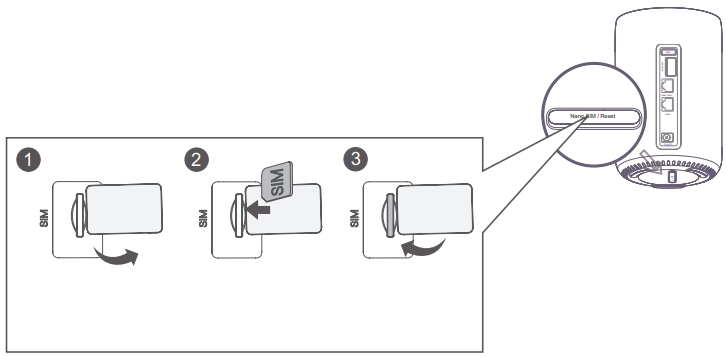
To insert a SIM card into your device, do the following
- Open the SIM slot cover.
- Insert the SIM card into the slot following the SIM direction icon marked beside the SIM slot.
- Close the SIM slot cover.
- Don’t remove the SIM card when your 4G CPE is in use; your device may lose connectivity to the internet.
Connect the Power Adapter
- Follow the illustration below to plug in the power adapter.
- Once connected to a power outlet, your device will automatically power on.
- To prevent interference caused by radio signals, place the device at least one metre away from phones and other electrical devices.

Install the External Antennae
In areas with poor signal reception, connect external antennae to the two ports labelled “MAIN and DIV” to improve signal reception.
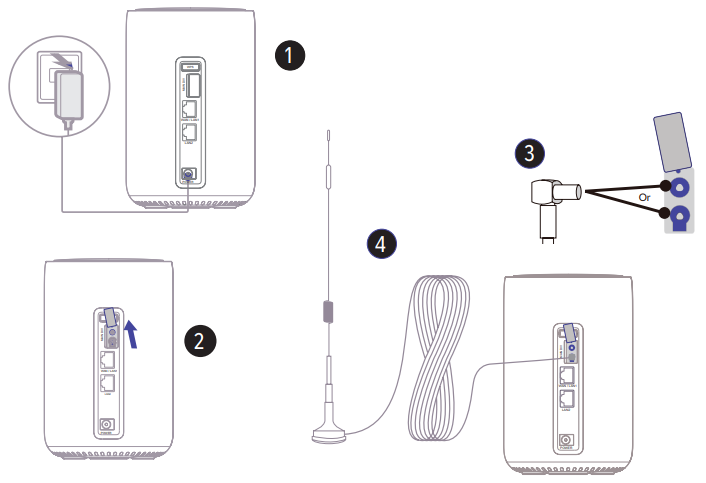
- Power off your device and disconnect it from the power outlet.
- Open the ‘MAIN’ and ‘DIV’ covers on the back side.
- Screw the external antennae fully into the antenna port and keep the external antennae pointed upwards to get a better signal.
- Connect to the power adapter and power on your device.
Access the Wireless Network
To establish a wireless network connection
Steps
- Enable Wi-Fi on your device. When the Wi-Fi indicator is solid blue, Wi-Fi is enabled.
- Record the Wi-Fi name or SSID and Wi-Fi password. The default SSID and Wi-Fi password can be found on the bottom label of your device.
- To prevent unauthorised parties from accessing your Wi-Fi network, it is recommended that you change the SSID and Wi-Fi password from time to time. For more information, refer to “5. Settings”.
- Set up a Wi-Fi connection. Set up a Wi-Fi connection manually:
- Scan for wireless networks from your Wi-Fi-enabled client.
- Connect to the network name that matches the SSID found on the device label.
- When prompted for a password, enter the Wi-Fi password found on the device label (this is case sensitive). Your client will notify you when it is connected.
- Set up a Wi-Fi connection through WPS. For details, see “3.4.2 Connect in WPS mode”.
Connect in WPS Mode
Your client must support WPS. There are 3 ways to set up a WPS connection.
WPS Button
- Press and hold the WPS button for 3 seconds. The Wi-Fi indicator will begin to flash blue.
- Enable WPS on your personal device within 2 minutes.
- Your personal device should then be connected to your device wirelessly.
Via the Start WPS Button in Web UI
- Open the WPS page on your Web UI.
- Go to Settings.> Wi-Fi > WPS.
- Click on Start. WPS.
- Enable WPS on your personal device within 2 minutes.
- Your personal device should then be connected to your device wirelessly.
WPS PIN Code
- Open the WPS page on your Web UI.
- Go to. Settings > Wi-Fi > WPS.
- Switch on the router’s PIN.
- Enter the PIN code on your personal device.
Accessing Web UI
The Web User Interface is compatible with the following browsers:
- Mozilla Firefox
- Safari 13 or later
- Internet Explorer 11 or later
- Microsoft Edge
- Google Chrome
How to Log in to the Home Page
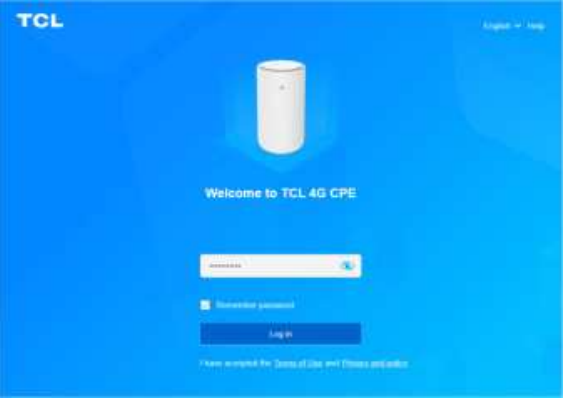
- Open your web browser.
- Log in to change your device’s SSID and password, or change other basic settings.
- You can find your default Wi-Fi password on the label located on the bottom of your device.
Web UI Status Bar Icons
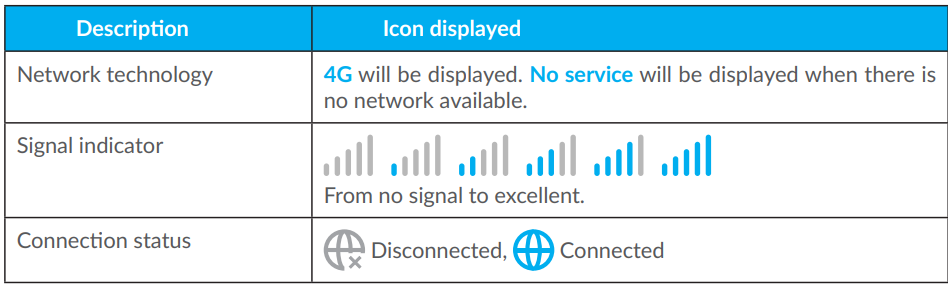
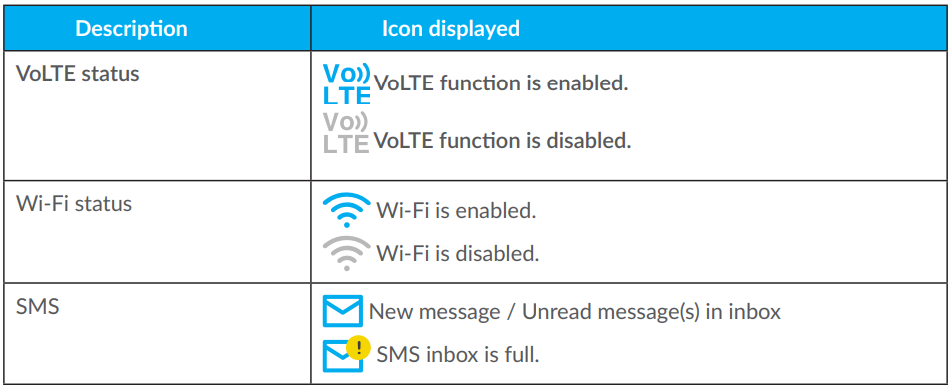
Status
- You can click on Status to view basic information about your device or check various statistics.
- This tab allows you to view your device information, including Internet, LAN, Wi-Fi, WAN and Diagnostics. You can connect, disconnect, or change the SSID of the device here.
Connected devices
- This tab allows you to manage internet access for connected devices and block or unblock devices.
Services
- Navigate to Services and click the tab to display the information you want or change SMS settings as desired.
SMS
- Refer to the following table for the description of each folder under this tab.
| Inbox | Incoming messages are stored in this folder. |
| Outbox | Outgoing messages are stored in this folder. |
| Draft | Unsent messages are stored in this folder. |
| New message | Write a new message in this folder. |
| SMS Settings | Configure SMS settings in this folder. |
Refer to the following table for frequently used operations of SMS messages.
| Send a message | 1. Click SMS New message. 2. Input the recipient’s number and message content. 3. Click Send. |
| Forward a message | 1. Click SMS Settings. 2. Input the recipient’s number, then click Apply. |
| Reply to a message | 1. Click the message you want to reply to. 2. Click Reply. 3. Input the message content, then click Send. |
| Delete a message | 1. Locate the message you want to delete in the Inbox, Sent or Draft folder. 2. Tick the checkbox beside the message you want to delete. 3. Click Delete. |
| Delete all messages | 1. Tick the first checkbox of the checkbox column to select all messages. 2. Click Delete. |
| Enable SMS delivery reports. | Click SMS Settings, then enable SMS report. |
| Disable SMS delivery reports | Click SMS Settings, then disable SMS report. |
Settings
This section allows you to configure the network connection, connection mode, manage WAN, LAN and Wi-Fi settings, and more.
Quick setup
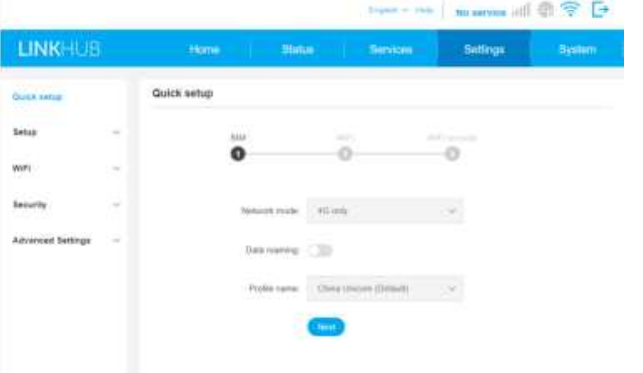
SIM settings
- You can change basic connection settings here and enable or disable data roaming.
Wi-Fi settings
- You can change the 2.4 and 5GHz Wireless network name (SSID), SSID broadcast function, or disable the Wi-Fi.
Wi-Fi security
- You can set up your Wi-Fi security settings and change the Wi-Fi password here.
Setup
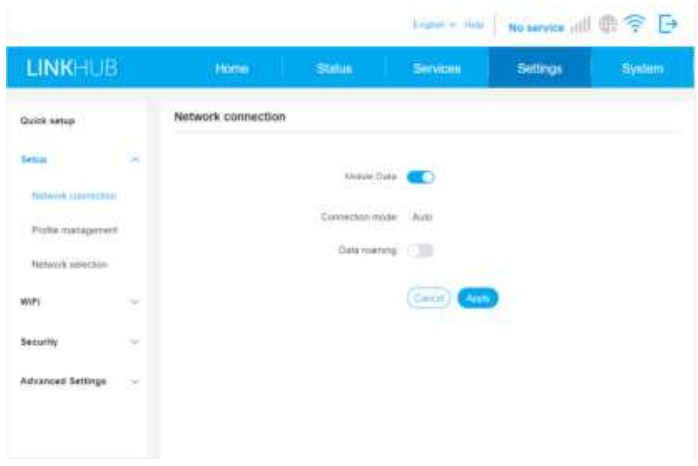
Network Connection
This tab allows you to configure connection mode, data roaming and IP mode.
- Profile Management
- This tab allows you to set up a new APN profile, edit or delete existing profiles.
- To add a new profile
- Click New. Input the correct parameters for your Network Operator. Profile. Name / Dial number / APN are required as a minimum. Click Save.
- To edit a profile
- Select the profile from the Profile management list. Click Edit to change the parameters. Click Save.
- To delete a profile
- Select the profile from the Profile management list. Click Delete. (The default profile cannot be deleted.)
- Set as default
- Select the profile from the Profile management list. Click Set as default.
- Network Selection
- You can set the Network.search.mode to either Auto (4G/3G/2G) or 4G only. Ensure that you click Apply after making any changes.
Wi-Fi Settings
Basic
Configure basic Wi-Fi settings in this option.
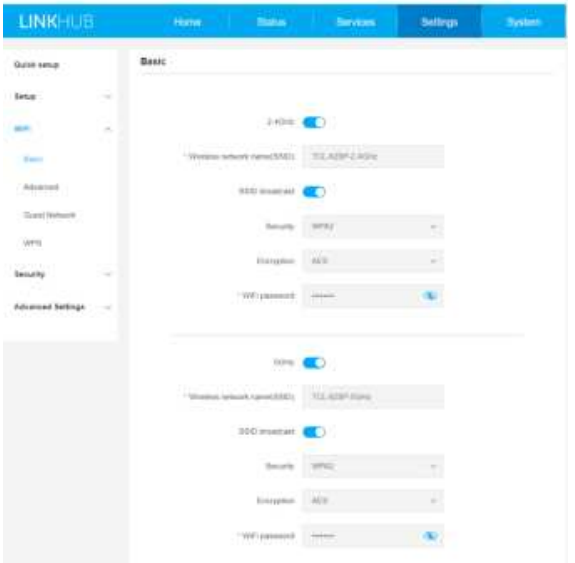
- Wireless network name (SSID)
- This is the name of the wireless network and is used to identify your wireless network. The SSID can be between 1 and 32 characters long.
- SSID Broadcast
- This is enabled by default. If you do choose to disable this, the SSID will no longer be displayed and will need to be entered manually.
- Security
- You can choose the security mode; available options are WPA2, WPA/WPA2, and WPA2/ WPA3.WPA3 or Disabled.
- Encryption
- This is set to AES by default, and the available options are AES or Auto. If security mode is set to WPA3 or WPA2/WPA3, encryption mode can be set to AES only.
Advanced
Configure advanced Wi-Fi settings in this option.
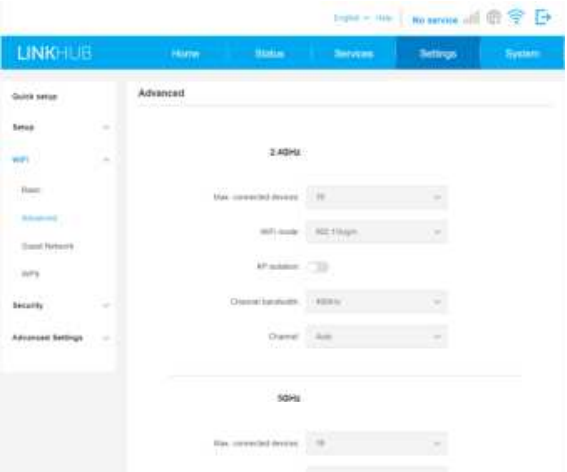
- Wi-Fi Mode
- You can select from the available options via the drop-down menu.
- Channel Bandwidth
- You can select from the available options via the drop-down menu.
- Channel
- Select Auto, and the device will select the best channel for you to use automatically, or you can select a Wi-Fi channel manually.
Guest Network
You can set a duration for which you want the network to transmit. Devices connected to the guest network will not be able to communicate with each other, but will have full access to the Internet.
- Wireless Network Name (SSID)
- The SSID can be between 1 and 32 characters long.
- Duration
- You can set the length of time that the guest network is available to clients to use. The default value is 1 day.
- Security
- You can choose the security mode, available options are WPA2, WPA/WPA2, WPA2/ WPA3, WPA3 or Disabled.
- Wi-Fi Password
- Set the Wi-Fi password for the guest network.
- Time Remaining
- This is the time remaining for the guest network to continue to transmit. Click Extend by 4 hours to add time to the guest network.
WPS
Wi-Fi Protected Setup allows you to connect WPS-compatible clients to your device via push-button or PIN modes. WPS is enabled by default, but can be disabled on this page. See section 3.4.2 for more information on connecting devices using WPS.
Security (SIM PIN Management)
- To Enable a SIM PIN
- When the SIM PIN is disabled, click.
- Enter a SIM PIN that is 4-8 digits long.
- Click Apply.
- To Disable a SIM PIN
- When SIM PIN is enabled, click.
- Enter the current SIM PIN.
- Click Apply.
- To Change a SIM PIN
- When SIM PIN is enabled, click Change SIM PIN.
- Enter the old SIM PIN and confirm the new SIM PIN.
- Click Apply.
Advanced Settings
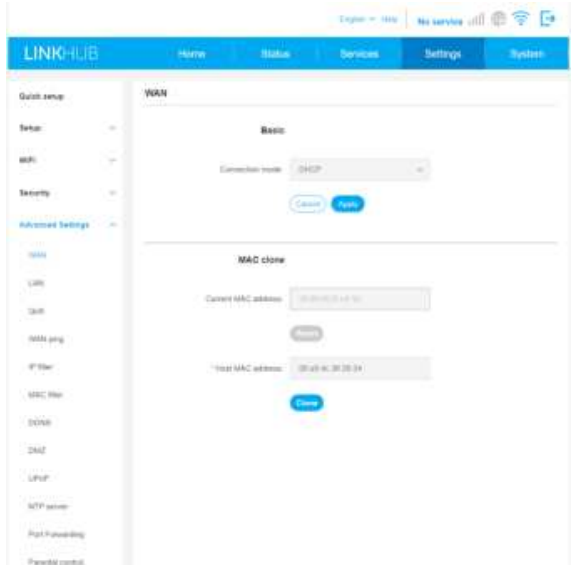
WAN Port
- Basic
- Set up the WAN connection mode and parameters in this option. You can set the connection mode to DHCP, PPPoE, or Static IP.
- DHCP
- Dynamic Host Configuration Protocol (DHCP) is a client /server protocol that automatically provides you with an Internet Protocol (IP) address.
- PPPoE
- PPPoE stands for Point-to-Point Protocol over Ethernet.
- Static IP
- Access the internet using a fixed IP address, subnet mask, gateway IP address and Primary DNS server; these should be provided by your network service provider.
MAC Clone
Click Reset to set a new MAC address. Click Clone to copy your host MAC address.
LAN
- Local area network (LAN) parameters are displayed here.
- The default Gateway address is 192.168.1.1. The default Subnet Mask is 255.255.255.0.
- The DHCP Server will automatically assign IP addresses to devices in the network; it is enabled by default.
QoS
- Quality of Service (QoS) is an advanced feature that prioritises internet traffic for applications, online gaming, Ethernet LAN ports, or specified MAC addresses to minimise the impact of busy bandwidth.
- To access this function, navigate to QoS and enable this function, then configure uplink and downlink bandwidth, and click Apply.
WAN Ping
For improved security, your device will not respond to ping commands when this function is disabled.
IP Filter
By default, any device connected to your device is allowed to access the internet. You can use the IP filter to block specific devices from accessing the internet.
- Disabled
- All connected devices can access the internet.
- Whitelist
- Only devices with an IP address in this list can access the internet.
- Blacklist
- Devices with an IP address in this list cannot access the internet.
MAC Filter
By default, any device connected to your network can connect to your device. You can use the MAC filter to block specific devices from accessing your device by MAC address.
- Disabled
- All connected devices can access the router.
- Whitelist
- Only devices with a MAC address in this list can access the router.
- Blacklist
- Devices with a MAC address in this list cannot access the internet.
DDNS
Dynamic DNS (DDNS) is a method of updating domain names in real time. This service is used to provide a domain name for a device that may change its IP address on the network.
DMZ
If external users cannot access certain network services provided by the LAN, you can enable the DMZ and set an appropriate Host IP address and then click Apply.
UPnP
Universal Plug and Play (UPnP) is a set of networking protocols that allows connected devices to detect each other and establish functional network services for data sharing, communications, and entertainment.
Port Forwarding
Port forwarding allows external users to access applications within the local network (LAN).
Parental control
This function enables the administrator to only allow specific devices to access the internet at particular times and days of the week.
System
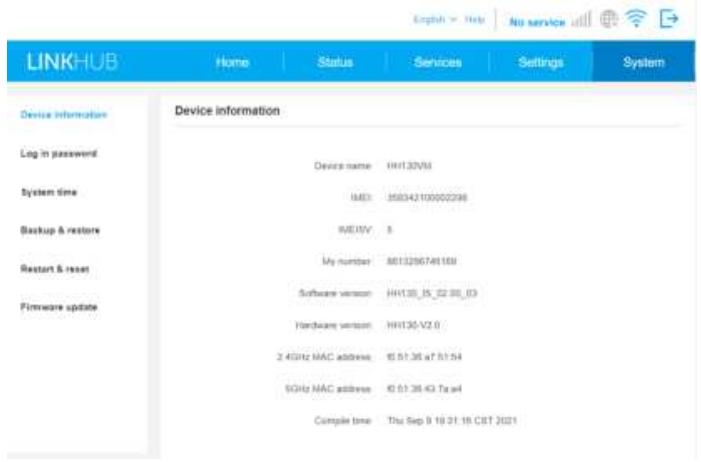
Device Information
You can view information for your device here, such as IMEI, software version and MAC address.
Login Password
- Click on Show to display the password and click on Hide to hide it.
- You can enter a new password and click Apply to apply.
- The length of your login password should be 8 characters, and must contain letters and numbers, including 0-9, a-z, A-Z, “-+!@$#^&*”%/:=;.
- You can find your default Wi-Fi password and also Web-UI password printed on the label located at the bottom of your device.
System Time
You can select the correct time zone here. Daylight saving time will be set automatically, but can be overridden by changing the settings.
Backup & Restore
- How to save the configuration
- Click Backup to backup current device configuration.
- On both Windows and macOS, this is saved to your ‘Downloads’ folder.
- How to restore the configuration
- Click Browse to select a file.
- Click Restore.
Restart and Reset
Click Restart to reboot the device, and click Reset to restore Factory default settings. You can also use the reset button on your device.
Firmware Update
Click Check for update. Your device will check if there is an update available. Once the file has downloaded successfully, you will be able to click Update. Do not power off your device during the update process, as this may damage it.
System Log
The events include successful/failed login, login password change, device restarted, reset to default, configuration restored and firmware updated.
Warranty
- In case of any defect of your device which prevents you from normal use thereof, you must immediately inform your vendor and present your device with your proof of purchase.
- This warranty covers the cost of parts and labour but excludes any other costs. This warranty shall not apply to defectinto your device and/or accessory due to (without any limitation):
- Connection to any equipment not recommended in the TCL user manual; Modification or repair performed by individuals not authorised by TCL Communication Ltd., or its affiliate,s, or your vendor;
- Modification, adjustment or alteration of software or hardware performed by individuals not authorised by TCL Communication Ltd.; Inclement weather, lightning, fire, humidity, infiltration of liquids or foods, chemical products, download of files, crash, high voltage, corrosion, oxidation.
- There are no express warranties, whether written, oral or implied, other than this printed limited warranty or the mandatory warranty provided by your country or jurisdiction.
- In no event shall TCL Communication Ltd. or any of its affiliates be liable for indirect, incidental
or consequential damages of any nature whatsoever, including but not limited to commercial or
financial loss or damage, loss of data or loss of image to the full extent those damages can be
disclaimed by law. - Some countries/states do not allow the exclusion or limitation of indirect, incidental or consequential damages, or limitation of the duration of implied warranties, so the preceding limitations or exclusions may not apply to you.
Trademarks
Other trademarks and trade names are those of their respective owners. HDMI, the HDMI logo, and High-Definition Multimedia Interface are trademarks or registered trademarks of HDMI Licensing LLC.
FCC Statements
This device complies with Part 15 of the FCC Rules. Operation is subject to the following two conditions:
- This device may not cause harmful interference, and this device must accept any interference received, including interference that may cause undesired operation.
- Changes or modifications not expressly approved by the party responsible for compliance could void the user’s authority to operate the equipment.
Radiation Exposure Statement
This equipment complies with FCC radiation exposure limits set forth for an uncontrolled environment. This equipment should be installed and operated with a minimum distance of 20cm between the radiator & your body.
Legal Statement
Due to the various capabilities of products featuring the SmartTV – Services, as well as limitations in the available content, certain features, applications, and services may not be available on all devices or in all territories.
The services and availability of content through SmartTV are subject to change from time to time without prior notice. Such content and services are provided solely for your personal, noncommercial use.
Without limiting the foregoing, unless expressly authorised by the applicable content owner or service provider, you may not modify, copy, republish, upload, post, transmit, translate, sell, create derivative works, exploit, or distribute in any manner or medium any content or services displayed through this device.
Customer Support
- Website: www.tcl.com/au
- Ph: 1300 738 149.