

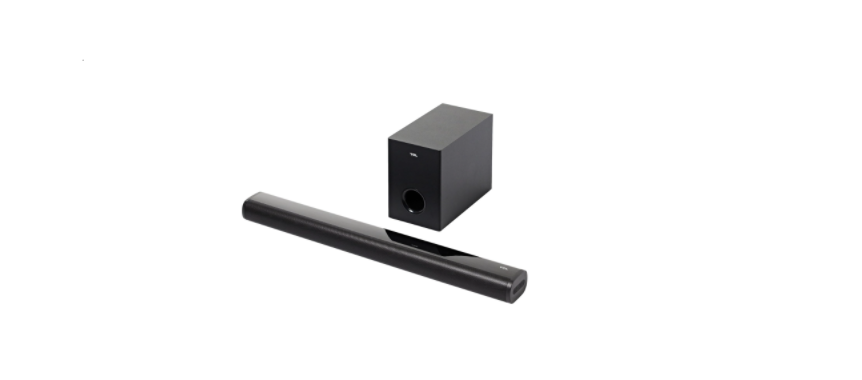

TCL S522W Sound Bar with Wireless Subwoofer
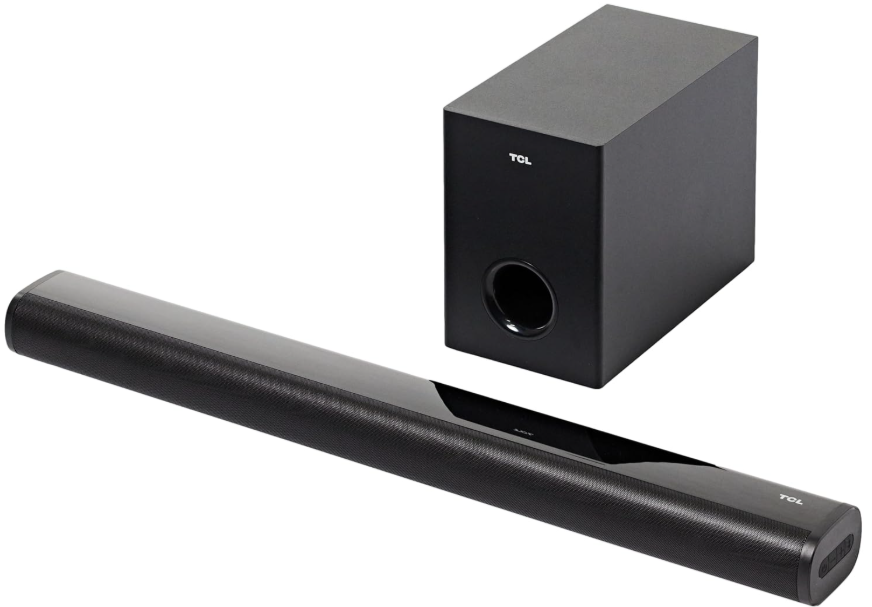
Intoduction
After it is set up and connected, you can experience a super sound quality and state-of-the-art design to best fit your home entertainment system. You are recommended to read through this user manual, which helps you set up, connect, and operate the product easily and properly.
Safety Instructions
- Carefully read and observe all safety instructions in the safety leaflet.
- This sound bar is intended for indoor use only. In case it accidentally gets in contact with small amounts of water, unplug immediately and use a dry cloth to remove the water.
- Unplug the sound bar if it is not used for long periods of time or during lightning storms.
- Only use a lithium CR2025 battery for the remote control.
- In case any of the cables are visibly damaged or pinched, unplug the sound bar and replace the cable.
- Be careful not to sharply bend the HDMI and optical cables, as they may affect the performance.
- Protect your hearing by adjusting to a proper volume.
- Make sure the sound bar is installed on a solid surface or solidly wall-mounted below your TV for the best experience.
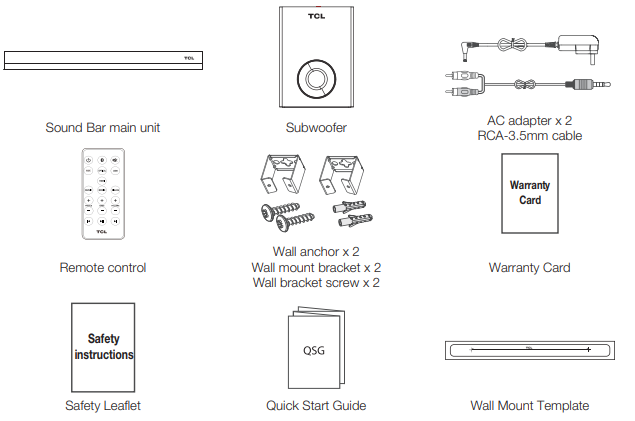
What’s in the box
Button and Jack Definition
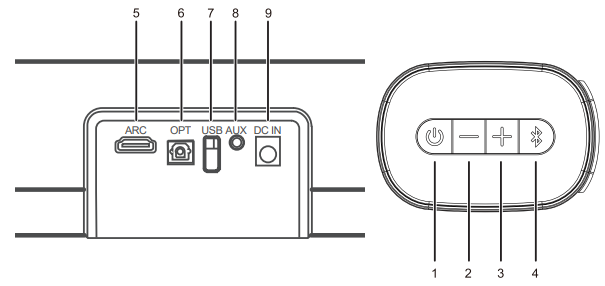
- Press to power on, short press to switch function, long press to power off
- Press the volume down
- Press for volume up
- Press for Bluetooth pairing
- ARC: HDMI ARC
- OPT: Optical input
- USB: USB input
- AUX: 3.5mm connector
- DC IN: DC14V 2A input
Function indicator light
- Red light: in standby mode
- White light: in operation
Remote Control
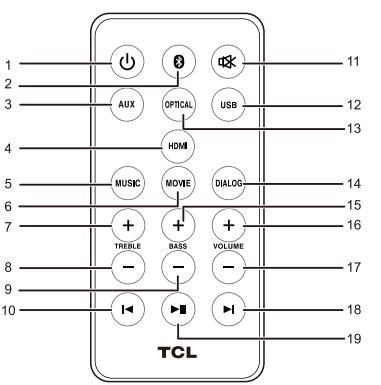
- Press to power on and power off.
- Press to switch to Bluetooth mode, long-press to Bluetooth pairing.
- AUX: Press to switch to AUX mode.
- HDMI: Press to switch to HDMI mode.
- MUSIC: Press to select the MUSIC sound mode.
- MOVIE: Press to select the MOVIE sound mode.
- TREBLE +: Press to increase treble sound (the white light flashes, when the maximum or minimum level white light will be on).
- TREBLE -: Press to decrease treble sound (the white light flashes, when the maximum or minimum level white light will be on).
- BASS -: Press to decrease bass sound (the white light flashes, when the maximum or minimum level white light will be on).
- Press the previous song under Bluetooth, USB, or mode.
- MUTE: Press the mute button and turn on the sound button (white light will flash slowly when muted).
- USB: Press to switch to USB play when insert USB.
- OPTICAL: Press to switch to the Optical input mode.
- DIALOG: Short press to select the DIALOG sound mode.
- NEWS: Press to select the NEWS sound mode.
- VOL +: Press or long-press to increase volume (the white light flashes, when the maximum or minimum level white light will be on).
- BASS +: Press to increase bass (the white light flashes when the maximum or minimum level of white light is reached).
- VOL -: Press or long-press to decrease volume (the white light flashes, when the maximum or minimum level white light will be on). Press the next song under Bluetooth or USB mode. Press to play or pause playing under Bluetooth or USB.
Install the Remote Control
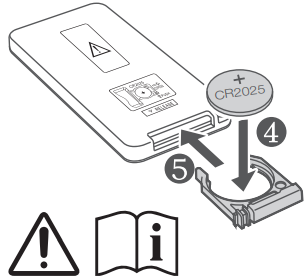
The Remote Control has a pre-installed lithium CR2025 battery. Remove the protective tab to activate the Remote Control battery.
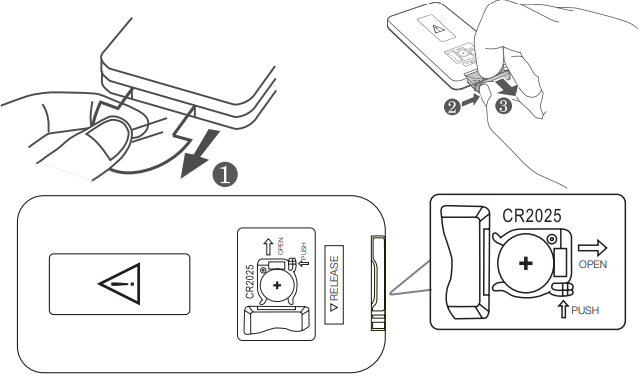
- This product contains a coin cell battery. If the coin cell battery is swallowed, it can cause severe internal burns in just 2 hours and can lead to death.
- Keep new and used batteries away from children. If the battery compartment does not close securely, stop using the product and keep it away from children

- If you think batteries might have been swallowed or placed inside any part of the body, seek immediate medical attention.
Set Up your Sound Bar System
Make sure you read all the safety information before you mount the Sound Bar main unit on the wall. Make sure you use the screws provided or specified by the authorized manufacturer. TCL bears no responsibility for accidents or damage caused by improper wall mounting, and screws installation, or insufficient wall strength, etc. Additional tools (not supplied) are required for installation.
Position Your Sound Bar and Subwoofer
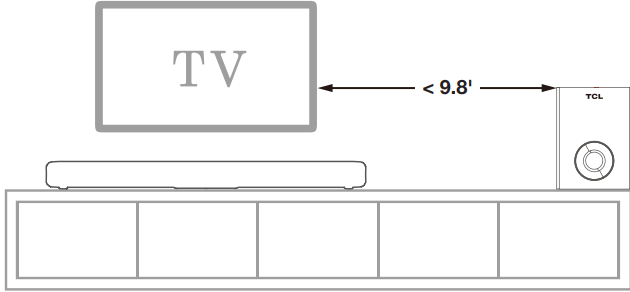
The ideal place to position the Sound Bar main unit is centered underneath your TV. You are recommended to place the Sound Bar main unit onthe top of the cabinet and right below the center of your TV. The distance between the subwoofer and the Sound Bar main unit should be less than 9.8′.
Mount your Sound Bar on the wall
You can choose to mount your Sound Bar main unit on the wall.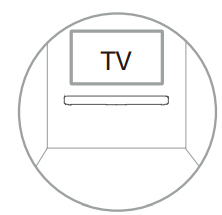
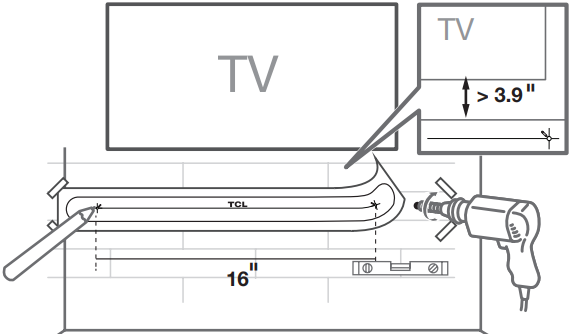
- Place the supplied wall mount template on the wall.
- Make sure the wall mount template is at least 3.9″ below the center of the TV.
- Use a level to make sure the Sound Bar is positioned accurately.
- Use the tape to stick the wall mount template firmly on the wall.
- Mark on the wall using each marking on the template through the mounting holes.
- Take away the wall mount template.
- Drill a screw hole at each marking on the wall.
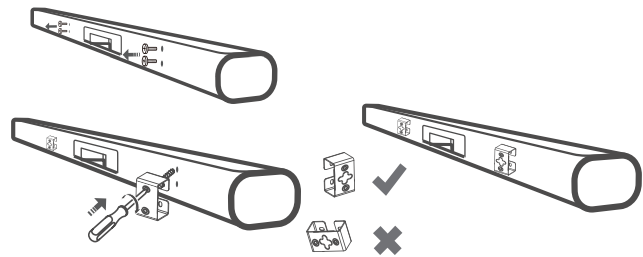
- Take out the screws from the rear of the sound bar, 2 per side.
- Use a screwdriver to attach the mounting brackets to the sound bar.
- Installation complete
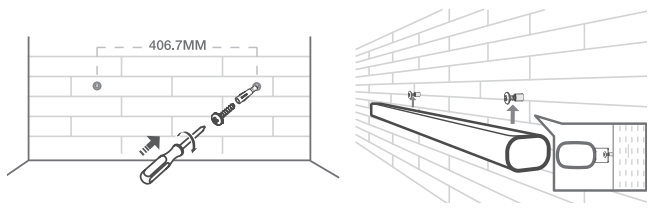
- Insert the supplied wall anchors into 2 screw holes on the wall.
- Insert the supplied screws into the wall anchors.
- Fix and tighten the screws on the wall.
- Hang the Sound Bar main unit on the screws.
Connect your Sound Bar System
After you have fixed the position of the Sound Bar, you can start connecting it to your TV or other devices and listen to the audio through your Sound Bar. Make sure you have muted the audio of your TV or device. For information, check the user manual of your TV or device.
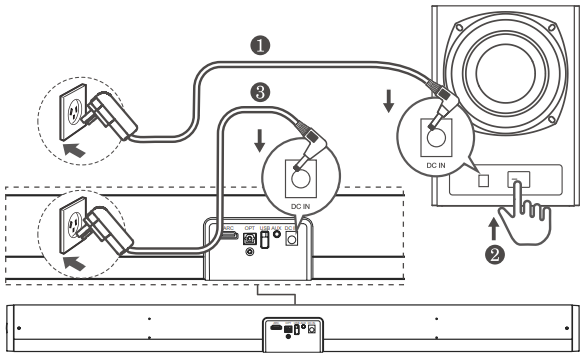
Connect with the AC power adaptors.
Connect the supplied AC power adaptors to the sound bar main unit and subwoofer.
HDMI Cable
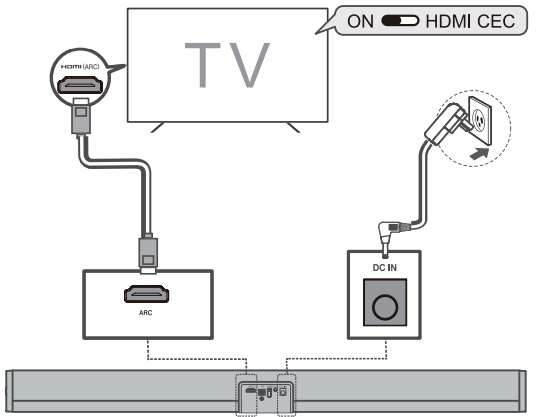
Make sure your TV or device supports the HDMI ARC feature. For information, check the user manual of your TV or device. Connect one end of the HDMI cable to the HDMI ARC input connector on your Sound Bar and another end to the HDMI ARC output connector of your TV or device. To get the best possible audio experience using the HDMI cable, follow the steps given below.
For TCL TV
- Connect the HDMI cable from the HDMI (ARC) interface on the sound bar to the HDMI (ARC/eARC) interface on the TV. Connect the power cord. Enable the CEC function in the settings of the TCL TV
Connect with the optical cable
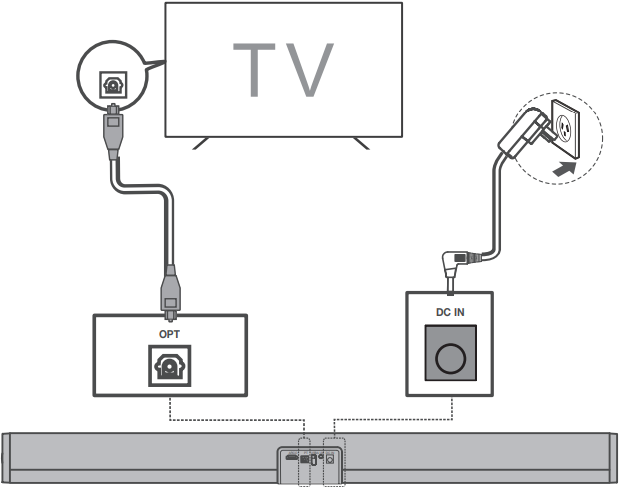
- Remove the protective caps from the optical cable when necessary.
- Connect one end of the optical cable to the optical input connector on your Sound Bar and another end to the optical output connector of your TV or device.
- If there is no sound output from the Sound Bar, try to activate the PCM signal output on your TV or device. PCM is used to convert analog audio signals into digital audio signals in most devices.
- For information on how to activate the PCM signal output, check the user manual of your TV or device.
Directions for setting up your Sound Bar using an optical cable
Do not bend or kink the optical cable (SPDIF) as it is fragile and can easily get damaged and broken.
To get the best possible audio experience using the optical cable:
- Press the Home button on your TCL TV Remote.
- Navigate to the Audio option under Settings.
- Uncheck the “TV speaker enabled” option.
- Under S/PDIF and ARC, select PCM-Stereo.
Connect with a USB disk
- Press the remote control to listen to/pause/ resume the music.
- Press or on the remote control to skip to the previous or next track.
- Press or to increase or decrease the volume level.
Use your Sound Bar system
Get Started
- Make sure you have made all the necessary cable connections before connecting the Sound bar to a wall outlet. The sound bar will enter standby mode, and the indicator will light up in red.
- Make sure the subwoofer is connected to the power, and turn the button to “ON.”
- Press ” ” on the unit or remote control to turn on the sound bar. The Bluetooth indicator will light up.
- Press ” ” on the unit or on the remote control to choose various sources.
Operation Instruction
Bluetooth Mode
After powering on, the machine directly enters Bluetooth mode, along with a voice prompt and white light flash; long press ” ” button on the sound bar, and Bluetooth enters pairing status, with voice prompts and white light flash.
- Put the phone within 9.8′ in distance; Activate the Bluetooth function of the phone, so that the phone starts to search for the Bluetooth device (please refer to the phone instructions for details).
- If the phone reminds you to enter a password, enter “0000” and press the confirm button to match the sound bar to the phone.
- Press the back button of the phone to exit the phone menu. Make sure the distance between the sound bar and the phone is within 32.8, and there are no obstacles.
- Short-press” ” to play and pause music. Short-press” ” or ” ” button to the previous or next song; To disconnect, short-press or long-press the ” ” button on the sound bar.
AUX Mode
After powering on, connect the external audio sources to the AUX jack of the sound bar by using the 3.5mm audio cable, and then press the ” ” button on the sound bar or the “AUX” button on the remote control to switch to “AUX” mode. At this time, music from the external audio sources, such as MP3/CD, can be played. (Please adjust the volume of the external audio source to a comfortable level.)
HDMI Mode
Press the ” ” button on the sound bar or the “HDMI” button on the remote control to switch to ” HDMI” mode. At this point, connect the HDMI cable to the TV set and then to the HDMI IN(ARC) jack on the back of the sound bar. Turn on the TV to power on the sound bar. Directly detect the digital signal transmitted by the TV to decode and restore the music playback. (Control the TV switch, which can control the sound bar switch directly
OPTICAL Mode
Press the ” ” button on the sound bar or the “OPTICAL” button on the remote control to switch to “OPTICAL” mode. At this time, connect the DVD audio and equipment to the Sound bar’s OPT IN jack with the optical cable. This machine decodes optical fiber digital to restore sound through a power amplifier.
USB Mode
After powering on, insert the USB into the USB jack of the sound bar; the sound bar automatically goes to USB playback mode and plays the music from the USB. Press the ” ” button to play and pause the music. Press the” ” or ” ” button to select music up and down.
Volume and Sound effect regulation
- After powering on, in any mode of playback,
- Press or long-press the volume “-” button on the sound bar or remote control to lower the volume.
- Press or long-press the volume “+” button on the sound bar or remote control to raise the volume.
- After powering on, in any mode of playback, Press the remote control to choose sound effect mode.
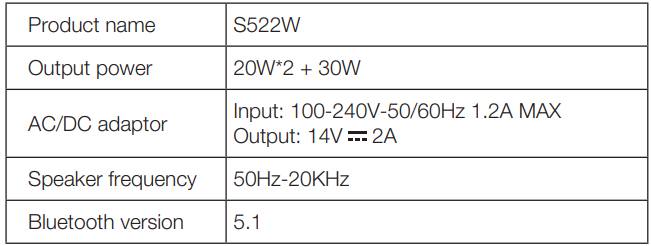
Specification
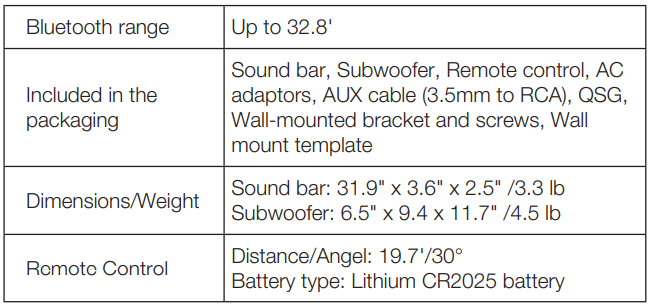
Trademarks
Other trademarks and trade names are those of their respective owners. HDMI, the HDMI logo, and High-Definition Multimedia Interface are trademarks or registered trademarks of HDMI Licensing LLC.
FCC Statements
This device complies with Part 15 of the FCC Rules. Operation is subject to the following two conditions:
- This device may not cause harmful interference, and this device must accept any interference received, including interference that may cause undesired operation.
- Changes or modifications not expressly approved by the party responsible for compliance could void the user’s authority to operate the equipment.
Radiation Exposure Statement
This equipment complies with FCC radiation exposure limits set forth for an uncontrolled environment. This equipment should be installed and operated with a minimum distance of 20cm between the radiator & your body.
Legal Statement
Due to the various capabilities of products featuring the SmartTV – Services, as well as limitations in the available content, certain features, applications, and services may not be available on all devices or in all territories.
The services and availability of content through SmartTV are subject to change from time to time without prior notice. Such content and services are provided solely for your personal, noncommercial use.
Without limiting the foregoing, unless expressly authorised by the applicable content owner or service provider, you may not modify, copy, republish, upload, post, transmit, translate, sell, create derivative works, exploit, or distribute in any manner or medium any content or services displayed through this device.
Customer Support
- Website: www.tcl.com/au
- Ph: 1300 738 149