


 TREBLAB Z7-Pro Noise Cancelling Headphones


Safety Instructions
- Don’t disassemble or modify your headphones for any reason.
- Doing this may cause the headphones to malfunction or become combustible.
- The damage to your device can void your manufacturer’s warranty.
- Do not let your device get wet – liquids can cause serious damage.
- Damage to your device caused by water can void your manufacturer’s warranty.
- Make sure the headset is completely dry before charging.
- Don’t put the device’s LED lights close to humans’ or animals’ eyes
- Do not use your Z7-Pro during a thunderstorm.
- Thunderstorms can cause serious malfunction and increase the risk of electric shock.
Box Content
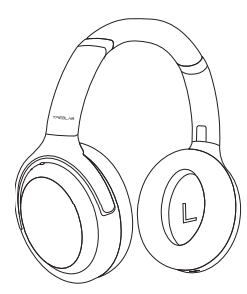
- TREBLAB Z7-Pro headphones
- User’s manual and quick start guide
- TREBLAB sticker
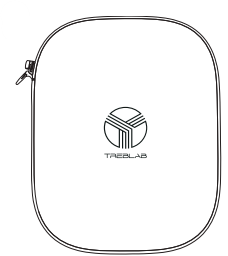
- Carrying case
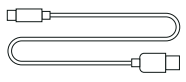
- USB Type-A to USB Type-C cable
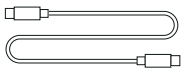
- USB Type-C to USB Type-C cable
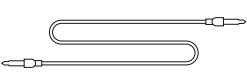
- 3.5 mm audio cable

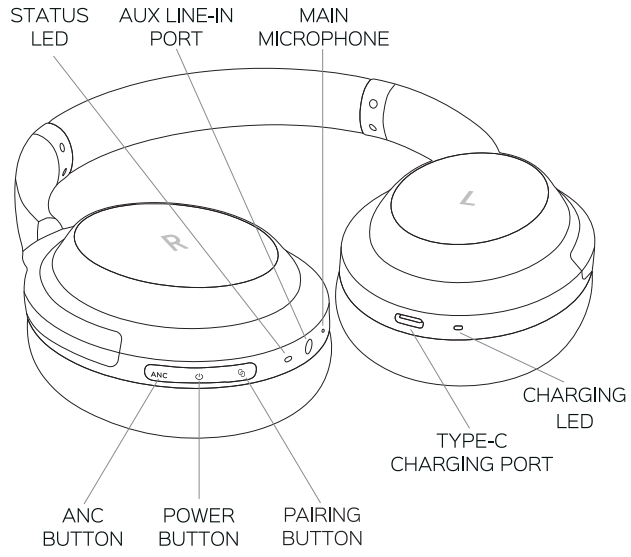
Overview
The over-ear headphones with the Hybrid Active Noise Cancellation technology deliver a superior sound quality and the convenience of hands-free operation.
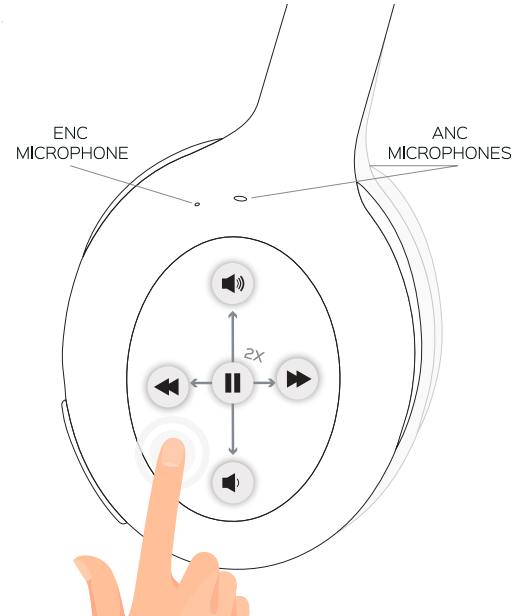
Touch Panel
RIGHT SIDE
Function & Operation
- Power on: Press and hold the POWER button for 3 sec.
- Power off: Press and hold the POWER button for 4 sec.
- Battery Level: Press the POWER button while the headset is on.
- Disconnect Pairing: Press and hold the Pairing button for 3 sec.
- Pause / Play: Double-tap on the Touch panel.
- Volume +: Swipe up on the Touch panel.
- Volume -: Swipe down on the Touch panel.
- Next track: Swipe forward on the Touch panel.
- Previous track: Swipe backward on the Touch panel.
- Answer a phone call: Double-tap on the Touch panel during an incoming call.
- Reject a phone call: Tap and hold on the Touch panel for 3 sec during an incoming call.
- Hang up: Double-tap on the Touch panel during a conversation.
- Voice assistant activation: Tap and hold on the Touch panel for 3 sec (when not on a call)
- Sound mode: Enable Ambient. When ANC mode is on, press the ANC button once.
- Enable ANC: When the ANC and Ambient Sound modes are off, press the ANC button once.
- Disable and ANC modes: When the Ambient Sound mode is on, press the ANC button once.
- Awareness mode: When the headphones are turned on, close the right earcup with your palm.
Setting
Turn On/Off
Press and hold the POWER button for 3 sec. You will hear the sound prompt and, a few seconds later, the “Pairing on” voice prompt. The LED on the right earcup will turn blue and then will start flashing blue/red. In case the headphones have been previously connected to the smart device, instead of “Pairing on”, you will hear the “Connected” voice prompt, and the LED will start flashing blue slowly. Press and hold the POWER button for 4 sec. You will hear the “Power off’ voice prompt. The blue LED will light up for a second and will go off.
Pairing
Make sure the TREBLAB Z7-Pro is charged, and the 3.5 mm audio cable is not plugged in.
- Press and hold the POWER button for 3 sec.
- You will hear the sound prompt and, a few seconds later, the “Pairing on” voice prompt.
- The LED on the right earcup will turn blue and then start flashing blue/red, indicating that Z7-Pro is in the pairing mode.
- Activate the wireless communication function on your smart device and keep it within 3 feet/l meter from the TREBLAB Z7-Pro while pairing.
- Scan/search for available devices in your smart device.
- Select TREBLAB Z7-Pro from the device list.
- If the password is prompted, enter “0000”.
- Once the Z7-Pro is successfully paired and connected, you will hear the “Connected” voice prompt, and the LED will start flashing blue slowly.
You can unpair with the current device and enter the pairing mode manually at any time by pressing and holding the Pairing button for 3 sec.
Multipoint Connection
The TREBLAB Z7-Pro headphones have a multipoint connection. It allows two devices to be connected at the same time. While you won’t receive the input from both devices at the same time, you’ll be able to switch from one device to another seamlessly. To connect the Z7-Pro to the second device:
- Temporarily switch off the wireless mode on the first device the headphones are connected to.
- Repeat pairing steps 2-6 to connect the second device.
- Turn the wireless communication function back on the first device and connect the Z7-Pro again.
When you turn the headphones on, they will try to reconnect to the recently connected device/devices. If the reconnection does not happen automatically, the headphones will try to find the next device in the pairing list. The headphones can save the last 8 devices.
ANC/Ambient Sound Modes
The TREBLAB Z7-Pro headphones feature Hybrid Active Noise Cancellation technology. This technology provides the abilitynot only to decrease the surrounding noise in the ANC mode but also to amplify some frequencies in the Ambient Sound mode to hear voices when using the Z7-Pro headphones.
When the Z7-Pro is turned on, the ANC mode is enabled automatically. To switch to the Ambient Sound mode, press the ANC button once. You will hear the “Ambient sound” voice prompt. To disable both ANC and Ambient Sound modes, press the ANC button once again. You will hear the “Ambient sound and noise cancelling off” voice prompt.
Awareness Mode
When you listen to music, and someone approaches you to talk, you can quickly lower the music volume to the minimum and activate the Ambient Sound feature to keep the conversation going. To do so, cover the right earcup with your palm. Once you release the earcup, the music will go back to the previous volume level, and the Ambient Sound feature will be disabled.
Aux Line Connection
You can connect the TREBLAB Z7-Proto compatible devices using the supplied 3.5 mm audio cable. Plug one end of the 3.5 mm audio cable into the AUX LINE-IN port on the right earphone and plug the other end into the AUX LINE-IN port on your device.
In the AUX mode, you can also use the ANC/Ambient sound features + adjust the volume. To do so, turn on the headphones by pressing and holding the POWER button for 3 sec. Keep in mind that in such a case, the built-in battery will still drain.
Audio Playback
- To pause and resume the playback when connected wirelessly, double-tap on the Touch panel.
- To adjust the volume, swipe up on the Touch panel to raise the volume and swipe down to lower the volume.
- To change tracks on the Z7-Pro headphones, swipe forward on the Touch panel to play the next track and swipe backward to play the previous track.
Phone Calls
The TREBLAB Z7-Prohave 2 dedicated microphones to provide the best calling experience. Audio playback will be paused during the calls.
- To answer a call
- Double-tap on the Touch panel during an incoming call.
- To reject a call
- Tap and hold on the Touch panel for 3 sec during an incoming call.
- To end a call
- Double-tap on the Touch panel during a conversation.
Voice Assistant
The TREBLAB Z7-Pro headphones support the voice assistant activation command. To use any voice assistant while being in the wireless mode, tap and hold the Touch panel for 3 sec. After the sound notification, you can transmit your voicecommands using an in-built mic.
Charging & Battery
- To check the current battery level, press the POWER button when the headphones are turned on.
- You will hear the voice prompt saying the current percentage of the battery left.
- When the battery is running low, you will hear the “Battery Low” voice prompt.
- The LED light will turn RED. It takes up to 2.5 hours to fully charge the Z7-Pro.
- The RED light will turn GREEN when the headphones are fully charged.
- Be sure to use a 5V DC, 1A adapter or charger.
- Using a power source with lower power will increase the overall charging time.
- Unplug Z7-Pro from the charging cable and the cable from the power source when not in use.
- If left unused, a fully charged battery will lose its charge over time.
- We recommend charging the TREBLAB Z7-Pro fully at least twice a month to maintain sufficient battery life.
Specifications
- ANC type: Hybrid (4 microphones)
- Calling: 2 microphones
- Voice assistant activation: Supported by tapping on the touch panel and holding for 3 sec.
- Charging port: Type-C
- Dimensions: 200 x 165 x 80 mm / 7.87 x 6.5 x 3.14 in
- Weight: 244 g / 8.60 oz / 0.53 lb
Reset Factory Settings
- You can reset the Z7-Pro headphones to the factory default settings by cleaning up the pairing list with the last 8 connected to Z7-Pro devices.
- Turn on the TREBLAB Z7-Pro headphones. Press and hold the Pairing button for 5 seconds.
- You will hear the “Factory reset complete” and “Pairing on” voice prompts.
- The device memory is now returned to the factory settings.
Troubleshooting
Doesn’t turn on
- Make sure the headphones are charged. Charge up to 2.5 hours until the battery is fully charged,
- If necessary. Press and hold the POWER button again for 3 sec.
Music is not playing.
- Make sure that the distance between your device and the headphones is less than 30 feet/10 meters.
- Make sure that the distance between your device and the headphones is less than 30 feet /10 meters.
- Make sure your smart device’s Bluetooth mode is on and not plugged into any kind of wired connection.
- Reset your headphones to the factory settings by following the steps from the previous section.
- Make sure that the distance between your device and the headphones is less than 30 feet/10 meters.
- Disconnect the device from your headphones and remove Z7-Pro from your device’s pairing list.
- Reset your headphones to the factory settings by following the steps from the previous section.
- Try to pair again. Make sure your laptop supports a wireless connection.
- If it doesn’t, you will need an external wireless USB adapter compatible with your laptop.
- Make sure that the distance between your device and the headphones is less than 30 feet/10 meters.
- Make sure that nothing is blocking the signal between your device and Z7-Pro.
- Check if the headphones are running out of power.
FCC Statements
This device complies with Part 15 of the FCC Rules. Operation is subject to the following two conditions:
- This device may not cause harmful interference, and this device must accept any interference received, including interference that may cause undesired operation.
Any changes or modifications not expressly approved by the party responsible for compliance could void the user’s authority to operate the equipment.
FCC Interference Statement
- This equipment generates, uses, and can radiate radio frequency energy and, if not installed and used in accordance with the instructions, may cause harmful interference to radio communications.
- However, there is no guarantee that interference will not occur in a particular installation.
- Reorient or relocate the receiving antenna.
- Increase the separation between the equipment and receiver.
- Consult the dealer or an experienced radio/TV technician for help.
RF Exposure Information
- The device has been evaluated to meet the general RF exposure requirements.
- The device can be used in portable exposure conditions without restriction.
Warranty
1 YEAR WARRANTY of Parts and Labour.
Customer Support
- Website: www.treblab.com
- Ph: +1-833-873-2522
FAQs
Q: What makes the TREBLAB Z7-Pro different from other wireless headphones?
Advanced noise cancellation, extended battery life, and rich music quality are all combined in the TREBLAB Z7-Pro’s comfortable, long-lasting design, making it perfect for daily commuting, work, travel, or exercise.
Q: How long does the battery last on a single charge?
With a single charge, the TREBLAB Z7-Pro offers longer playback times.
Q: Are these headphones comfortable for long listening sessions?
Yes, even during lengthy trips, meetings, or gaming sessions, they offer all-day comfort with their ergonomic ear cushions and adjustable headband.
Q: Can I connect the TREBLAB Z7-Pro to multiple devices?
With the Z7-Pro’s Bluetooth multipoint connection functionality, you can move between gadgets like your laptop and phone without having to reconnect.
Q: What Bluetooth version do these headphones use?
These headphones make use of a contemporary Bluetooth standard to guarantee a dependable wireless connection with few disruptions and broader compatibility with laptops, tablets, and smartphones.
Q: Can I use them with a wired connection?
Yes, the TREBLAB Z7-Pro usually has a 3.5mm audio connector that allows you to plug in directly if necessary (particularly helpful when battery power is low).