

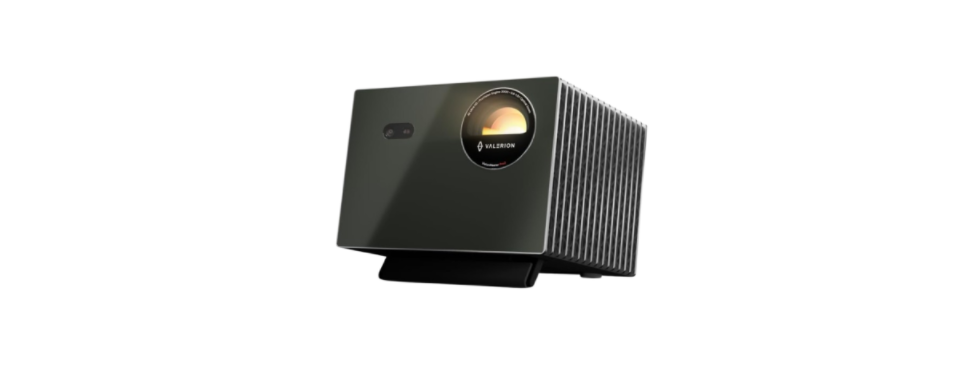

Valerion Vision Master Pro2 Triple Laser Projector
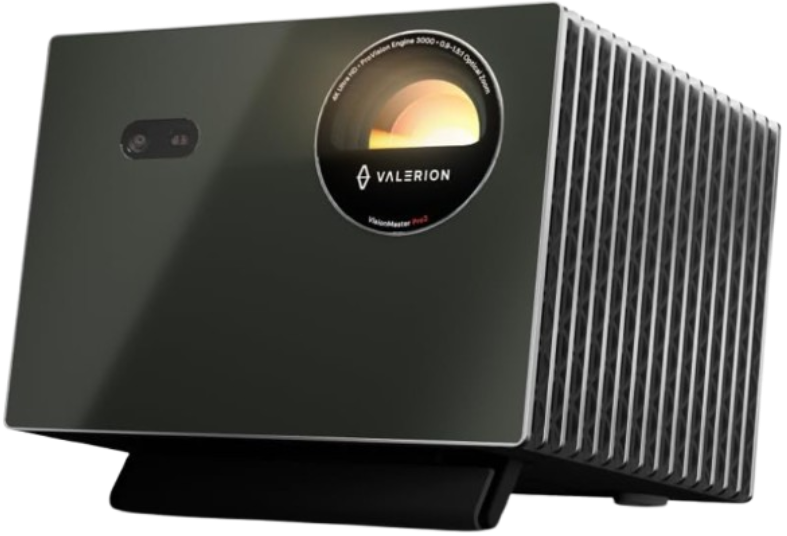
Packing List
Before using this product, please check that all items are included in the box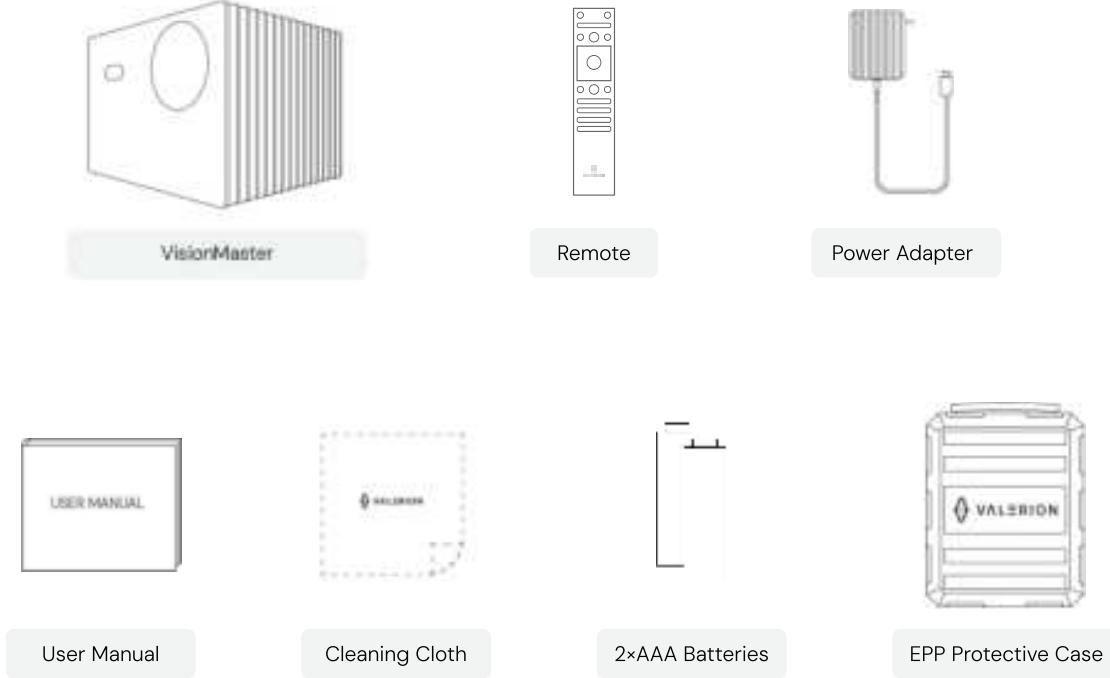
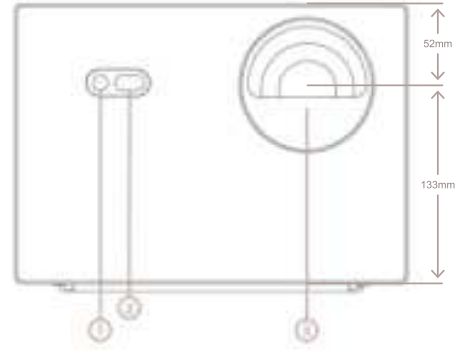
Product Description
- CMOS image senwor module
- ToF sensar
- Lens
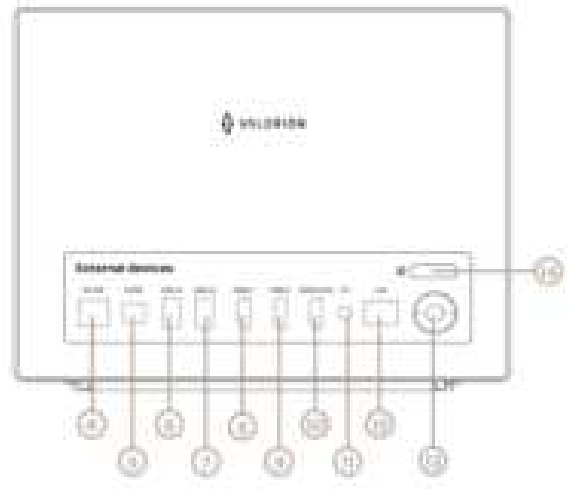
- Power Port
- Optical 5/PDIF
- US8 30
- US8 2. O C
- OMI1
- HDMI 2
- HOMI 3(eARC)
- 3.5 mm AudioOutputt Jack
- LAN
- Power On/Off
- Remote Receiver
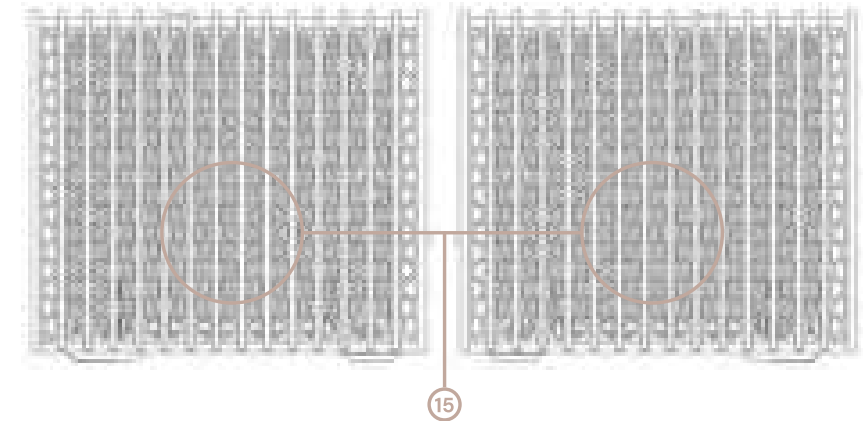
- Heat Dissipation Vent
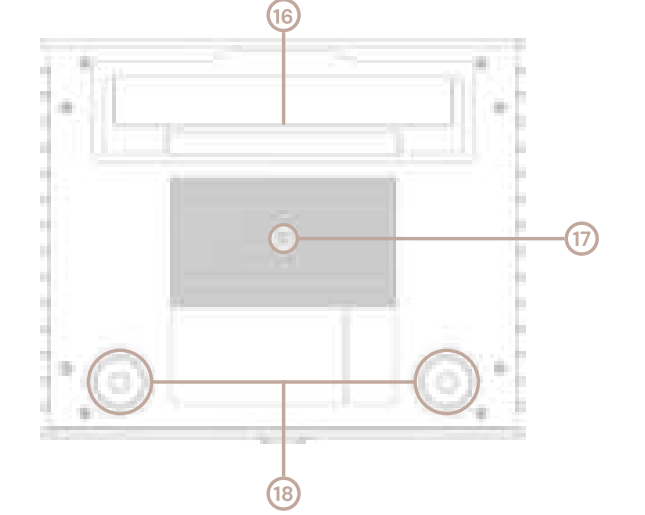
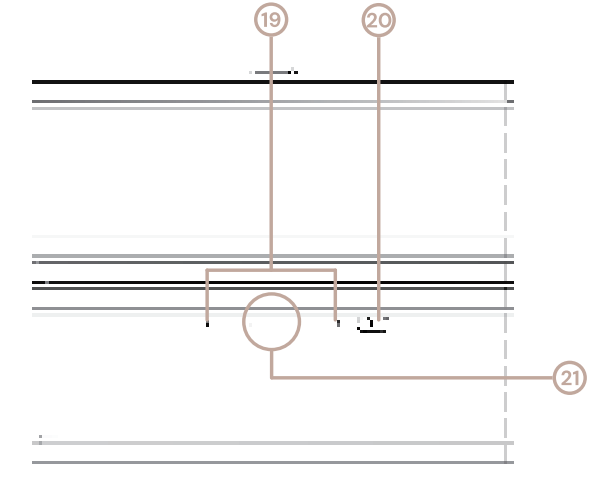
- Adjustable Bottom Support
- Mount Hole M6*8mm
- Rear Foot
- Far Field Google Assistant Mic
- Far Field Google Assistant Switch
- Far Field Google Assistant LED Indicator
Remote Control
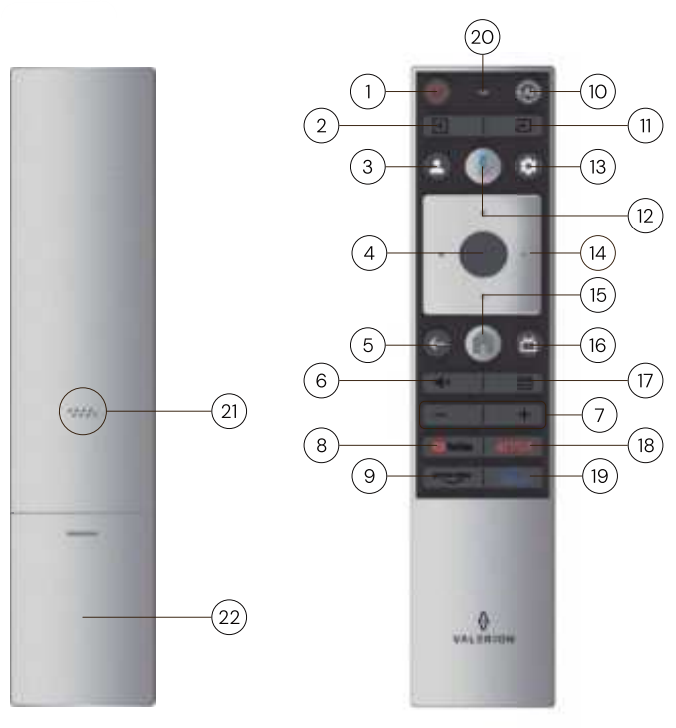
- Power
- Focus
- Profile
- OK
- Back
- Mute
- Volume +-
- YouTube
- Prime video
- Al Feature
- Input
- Assistant
- Settings
- D-pad
- Home
- Live Guide
- Menu
- NETFLIX
- Disney
- Microphone and LED indicator
- Buzzer
- Battery compartment
Operation Guide
POWER ON/OFF
Power the Valerion VisionMaster with attached power adapter, press the VisionMaster’s rear ul button or the remote control’s lul button once to turn it onloftl
Set Up Google TV/Basic TV
- Movies and TV shows from your favorite streaming apps
- Personalized Recommendations
- Google Assistant: Search and control your TV with your voice
- Live TV External devices (e.g., HDMI)
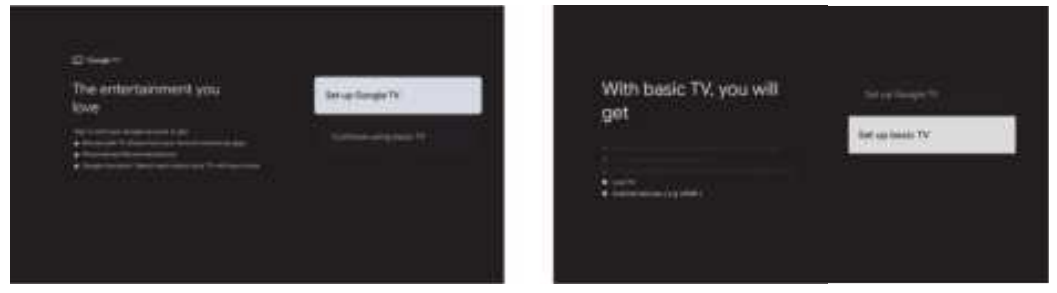
Projection Screen
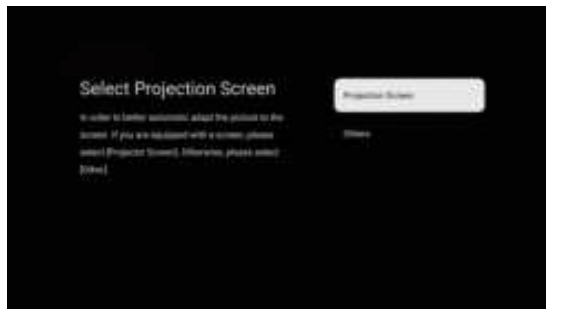
If you are equipped with a screen, you can select [Projection Screen]. It will use [Auto Screen Fit in] to pair with your screen. Otherwise, please select [Other].
Home Page Overview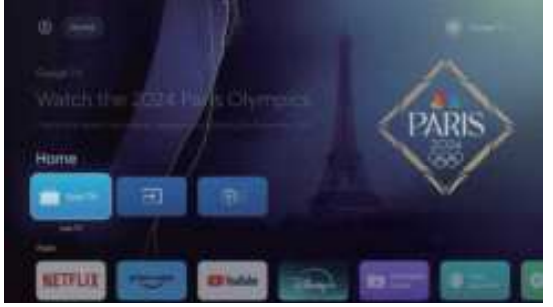
There are 3 sections on the home page. In the upper right corner, you can monitor the External Google Account, Search, and Settings delete comma and add a dash; you can change these settings with the remote control if needed. The middle 3 main menus on the home page, including Live, Signal input, and Settings, are for further operation and management. At the bottom, you will find your favorite Apps making for intuitive and convenient operation. Additionally, the homepage background picture changes dynamically.
Auto Keystone Correction
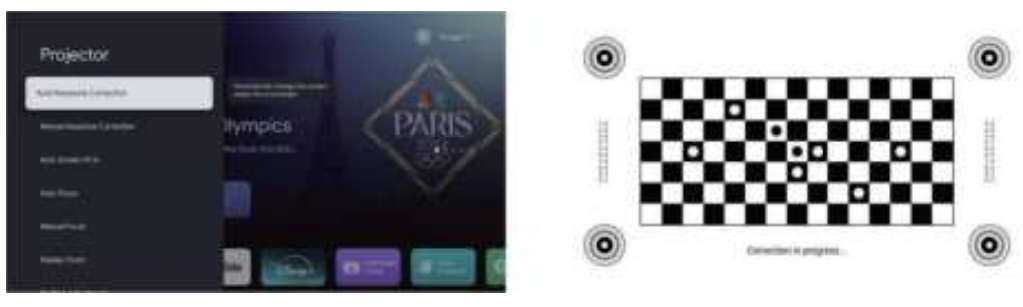
In addition to adjusting the physical position of the device to align the display image with the screen, you can use the Auto Keystone Correction feature to improve the image quality. You can enable this feature by following the menu path: [Settings] → [Projector] → [Auto Keystone Correction].
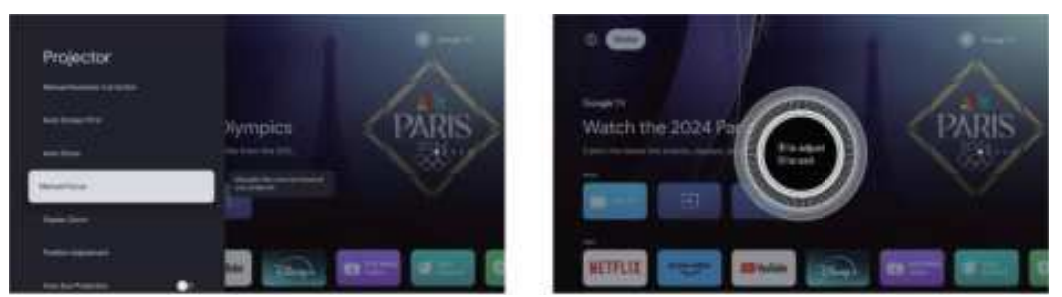
Electric Focus Adjustment
There is no Fixed Focus design in the Valerion VisionMaster product, which allows you to adjust the focus for better image quality at different screen sizes.
- You can use the [Up/Down] button on the remote to achieve the clearest image using the electric focus adjustment feature.
- You can access this function by following the menu path: (Settings) → (Projector) → [Manual Focus], or select [Auto Focus].
Network
Open the function following the menu path: (Settings] → [Network&Internet] → [Your Wi-Fi] [Password):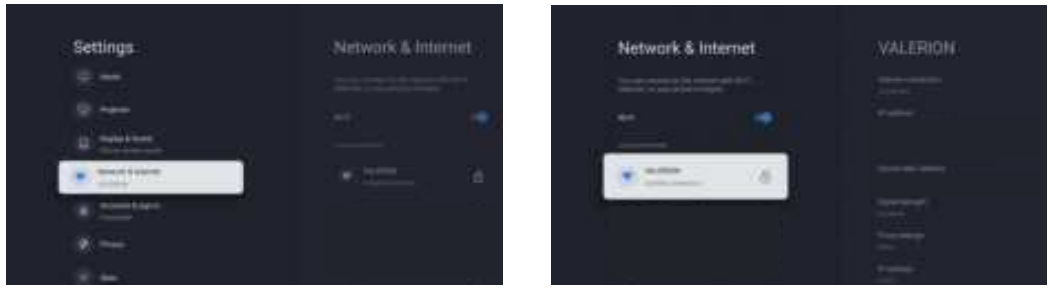
Bluetooth Connection
- Insert 2*AAA batteries in the remote control. When connecting to VisionMaster for the first time, hold down [Home) andthe [Back] button on the remote control to start pairing.
- The red LED means the remote works in IR mode, and the blue LED means the remote works in BT mode.
- Click on Pair accessory in the menu. Put your Bluetooth accessory in pairing mode using the instructions that came with it.
- If you can’t see your Bluetooth accessory in tthe searchlist, please keep it in pairing mode and try to add the accessory again.
How to connect Multipoint headphones.
- Make sure your headphone supports multipoint connections.
- When connecting to VisionMaster for the first time, put the headphones back into pairing mode.
- When you switch media playback between your Vision Master and your phone, you must stop the media or audio on the first device and then start the media or audio on the other device.
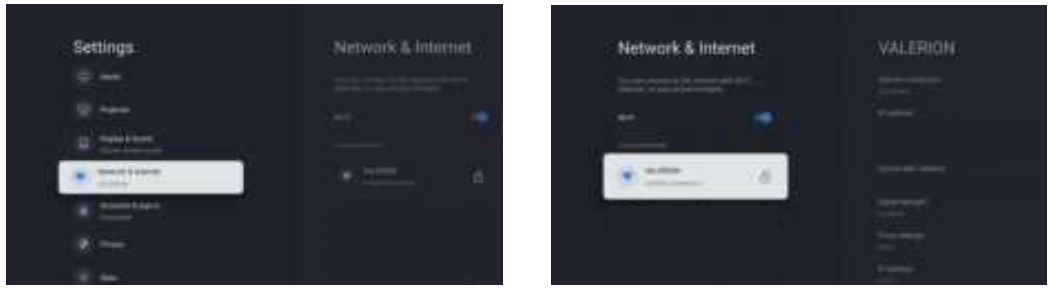
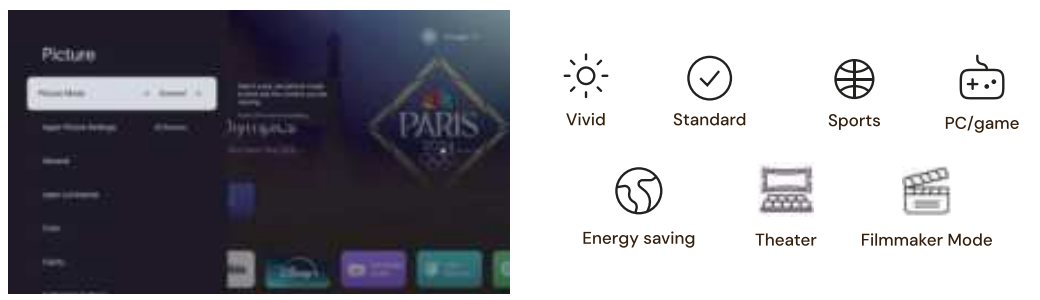
The projector’s picture settings offer various options to help you optimize display performance based on different environments and personal preferences. Below are the main features:
- Vivid Mode-Purpose: Provides a bright and vibrant picture with enhanced colors and contrast.
- Standard Mode–Purpose: Delivers balanced color and brightness for general use.
- Sports Mode-uPurpose Optimizes the image for fast-moving action with vivid colors and reduced blur.
- Game Mode–Purpose: Reduces and enhances image responsiveness for a better gaming experience.
- Energy Saving Mode–Purpose: Reduces the brightness and power consumption of the projector.
- Rilmmaker Mode-Purpose: Preserves the director’s original vision with accurate colors, contrast, and a cinematic look.
Sound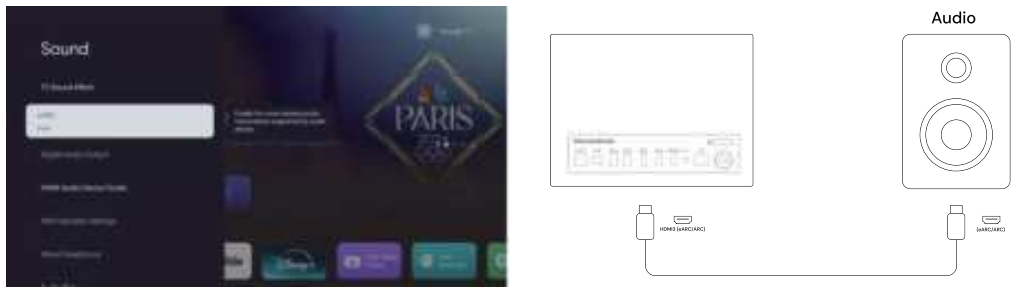
The eARC (Enhanced Audio Return Channel) feature on a projector allows for a higher-quality audio connection between the projector and compatible audio devices, such as soundbars or AV receivers.
Google Assistant
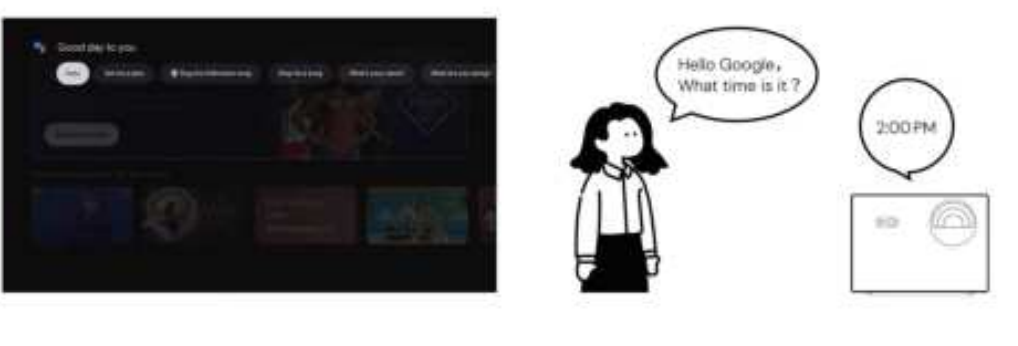
Google Assistant inis powertul Al-driven virtual assistant that allows users to control devices and perfarm varioun tasks through voice commands. With the near-beid voice assistant feature on the remote, you can easily control the projector or other compatible devices by simply pressing the microphone button on the remote and speaking your command, eliminating the need for manual operation. Whether its sdjusting the volume, switching input sources, or searching for content.
Google Assistant responds quickly, offering a convenient user experience. Additionally, the projector has abuilt-inn voice assistant feature on its top panel alowing you to interact with the device directly without using the remote. Just speak your command to the projector, and you can adjust settings, play content, or retrieve information. This design provides a more natural and intuitive way to control the device, enhancing convenience and smart functionality. Whether using the voice assistant on the remote or through the device itself, Google Assistant delivers an exceptional voice control experience.
Apple Home Kit
Apple HomeKit is a framework that allows users to control smart home devices using their Apple devices. Through the Home app on iPhone, iPad, or Mac, users can manage compatible smart lights, thermostats, cameras, locks, and more. HomeKit also supports automation, enabling users to set up routines and triggers based on time, location, or sensor data. Additionally, with Siri integration, users can control their devices with voice commands, making home management more convenient and seamless. Security is a key feature, as HomeKit ensures that data between devices is encrypted for privacy and safety.
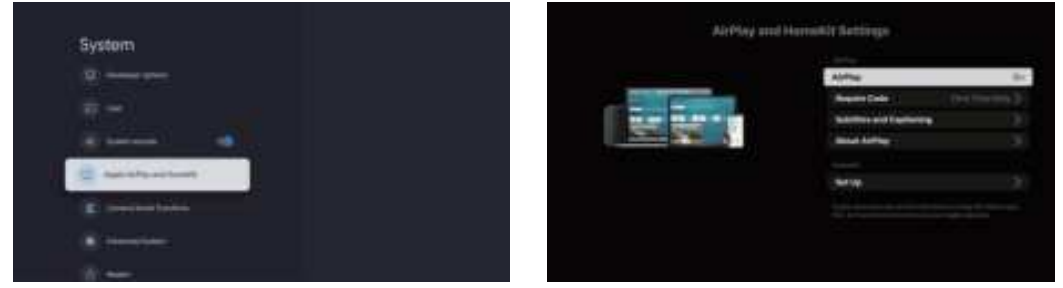
OTA (Over-the-Air) Updates
- What is OTA? OTA (Over-the-Air) updates allow your device, such as a projector, to receive software updates wirelessly through an internet connectior
- Benefits of OTA Updates: Convenience: OTA updates are easy to install. The device will notify you when an update is available, and you can usually download and install it with just a few clicks.
- Features and Fixes: OTA updates ensure your device is always running the latest software, which may include new features, security patches, and bug fixes that improve the device’s performance. No
- Technical Knowledge Required: Users don’t need any technical expertise to install OTA updates, making it accessible to everyone.

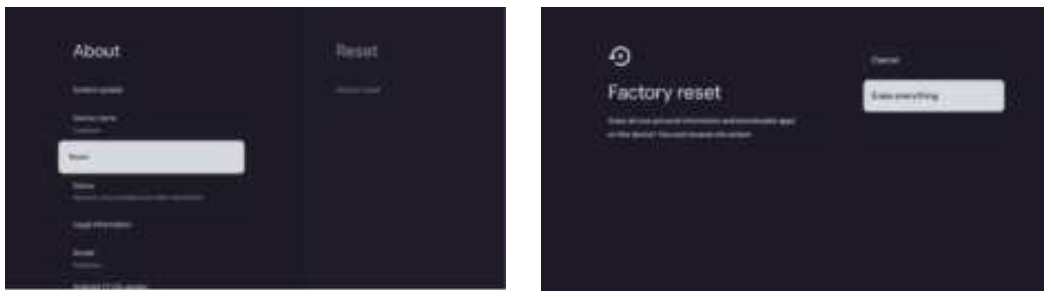
Factory Reset
- What is a Factory Reset? A factory reset is a process that restores a device to its original state, erasing all personal data, settings, and installed applications. This function returns the device to the condition it was in when it first left the factory.
- When to Use a Factory Reset: Troubleshooting: If your device is experiencing issues, such as frequent crashes or software glitches, a factory reset can often resolve these problems by clearing out any corrupted data or software conflicts.
- Before Selling or Giving Away: Performing a factory reset is essential before you sell or give away your device to ensure that all your personal information is completely removed.
- After a Failed Update: If an OTA update fails and causes the device to malfunction, a factory reset can be a way to revert to a stable state.
FCC Notice
Any changes or modifications not expressly approved by the party responsible for compliance could void the user’s authority to operate the equipment. This device complies with Part 15 of the FCC Rules. Operation is subject to the following two conditions:
- This device may not cause harmful interference, and
- This device must accept any interference received, including interference that may cause undesired operation.
This transmitter must not be co-located or operating in conjunction with any other antenna or transmitter. Note: This equipment has been tested and found to comply with the limits for a Class B digital device, pursuant to Part 15 of the FCC Rules. These limits are designed to provide reasonable protection against harmful interference in a residential installation. This equipment generates, uses, and can radiate radio frequency energy, and if not installed and used in accordance with the instructions, may cause harmful interference to radio communications. However, there is no guarantee that interference will not occur in a particular installation. If this equipment does cause harmful interference to radio or television reception, which can be determined by turning the equipment off and on, the user is encouraged to try to correct the interference by one or more of the following measures:
- Reorient or relocate the receiving antenna.
- Increase the separation between the equipment and receiver.
- Consult the dealer or an experienced radio/TV technician for help.
IC Notice
This device contains licence-exempt transmitter(s)/receiver(s) that comply with Innovation, Science and Economic Development Canada’s licence-exempt RSS(s). Operation is subject to the following two conditions:
This device may not cause interference. This device must accept any interference, including interference that may cause undesired operation of the device. This transmitter must not be co-located or operating in conjunction with any other antenna or transmitter.
The device meets the exemption from the routine evaluation limits in section 2.5 of RSS-102, and complies with RSS-102 RF exposure. Users can obtain Canadian information on RF exposure and compliance. The device has been evaluated to meet the general RF exposure requirements. The device can be used in portable exposure conditions without restriction.
Customer Service
- Website: https://www.valerion.com/
- Tel: +1 (888) 891-8839