



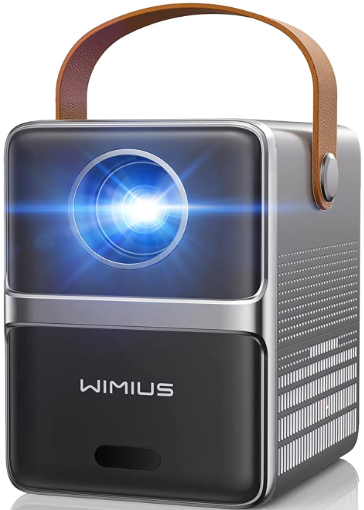
WIMIUS P61 5G WiFi and Bluetooth Projector
Safety Instructions
- When cleaning this projector, please pull out the power cable.
- Use a wet cloth to clean; don’t use any detergent that may damage the unit.
- Please use our recommended accessory. Or it will damage the projector.
- Do not place the projector in a wet environment, like a damp basement or near the swimming pool, etc.
- The ventilation is equipped for the projector to work stably.
- Do not put anything around the vents. Or it will cause the projector to heat up.
- Please make sure the power is within the required power range.
- For thunder day, please unplug the power cable from the projector.
- Due to high voltage inside, please do not open or try to repair the projector by yourself.
- Please ask a professional technician to repair the projector.
- Please make sure the projector is far away from any heat devices, which will damage theprojector.
Accessories
- Projector x 1|
- 3 in 1 AV Cable x 1
- Remote Controller x 1
- HDMI Cable x 1/
- Power Cable x 1
- User Manual x 1
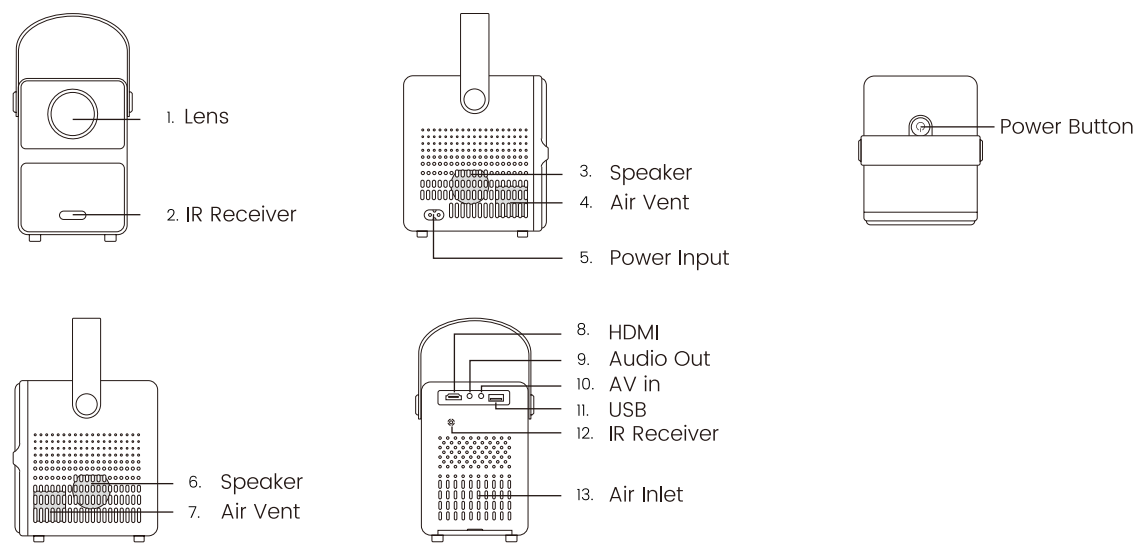
Projector Structure
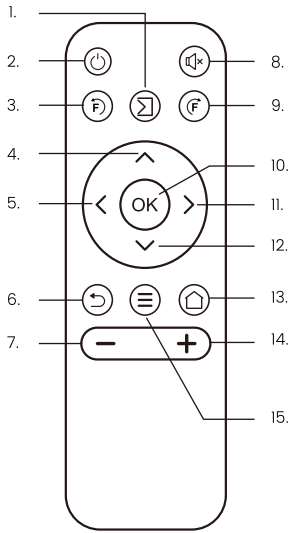
Remote Control Structure
- Play/Pause
- Power Key
- Electric Focus Button
- Up
- Left
- Back
- Volume-
- Mute
- Electric Focus Button
- Ok
- Right
- Down
- Input Source
- Volume +
- Menu
Focus function
Get clear images in just one step: press the electric focus button on the remote control to make the picture clear.

Signal source menu operation
Before using the projector to play videos, please choose the corresponding signal source of your device.
- Operate through the remote control: press.”
- and then press [ T] / [+ ] to confirm.
- For USB, no need to choose the signal source. The machine will detect them automatically.
Wireless Connection
P.S: The fluency of screen mirroring with wireless connection will be affected by the network environment. A bandwidth of 100 Mbps or more is recommended when using screen mirroring. Make sure your mobile device is close to the projector when using a wireless connection. A distance of within 1 meter is recommended.
For los system
- Turn on the WiFi Setting of the projector and click “wireless” to choose your home WiFi.
- Enter the right password, then click “connect.”
- To connect, please wait 3-5 seconds to establish the connection.
- Once connected, it will remember the password of the connected WiFi.
- Turn on the WiFi setting of your iOS mobile device, then connect it to the same home Wifi as the projector.
- Then click”Mcast” (L) as the Input Source of your projector and click the”Airplay” ( La)
- Open the screen of your iOS mobile device and click “Screen Mirroring” to search for the projector, then select “P61 WiFi Projector” from the search results to connect.
- Succeed.
For Android System
To activate this function, your Android device must support Multi-Screen/Wireless display. Names may differ on different devices.
Method
- Then click Mcast ([) as the input source of your projector and click the “miracast ( [b)
- Open the screen of your Android mobile device and click “Screen Mirroring” to search for the projector, then select”P6l Wifi Projector from the search results to connect.
- Succeed
Bluetooth Speaker
- Turn on your Bluetooth speaker.
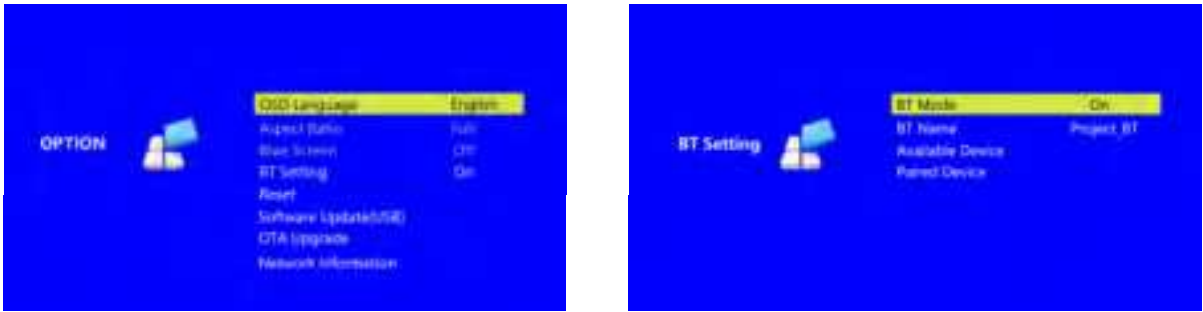
- Turn on the Bluetooth setting of your projector.
- Select your Bluetooth speaker to connect.
- Succeed.
PC
- Connect the projector to the PC with PC by HDMI cable.
- Choose the media signal channel: “HDM”.
- PS: To connect with macbook, an external HDMI to Type-C cable is needed.
Sound bar
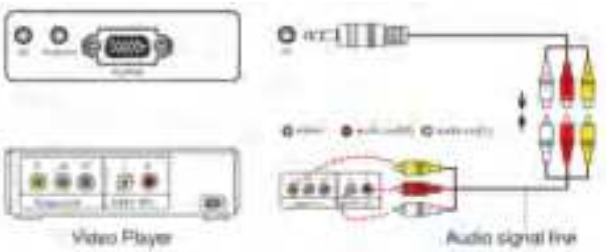
- Use the 3.5mm aux cable to connect to the soundbar.
- Turn on the projector and the sound bar.
- For more details, please get in touch with the seller at support01@wimius.com.
DVD
- Use the AV cable that comes with the projector to connect to the DVD.
- Turn on the projector and DVD player.
USB Multimedia Connecting
- Insert the USB drive into the corresponding interface.
- Choose the video or picture to play.
Installing the Projector
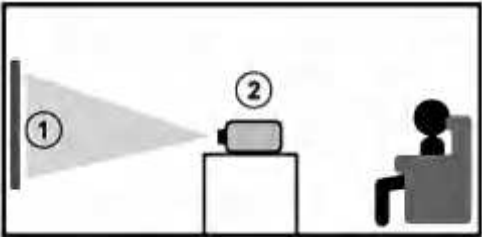
This projector doesn’t have keystone correction, so we suggest putting it on the desk, facing the screen. Kindly please don’t tilt the projector.
 Main Function of the Menu
Picture Menu

Important Notices
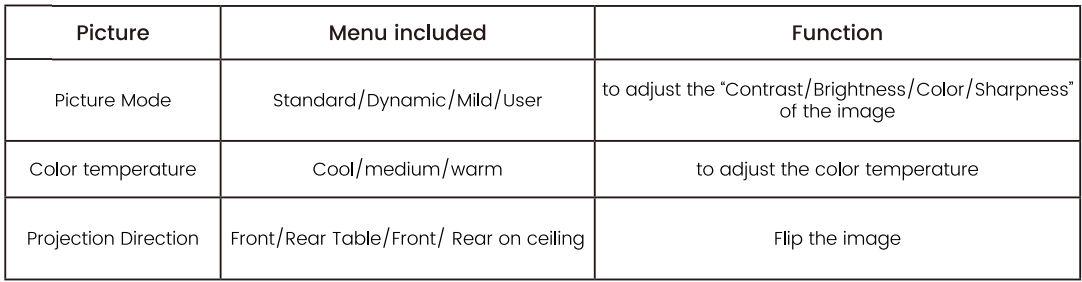
Picture Mode: Only under mo canr”,canould change the Contrast/Brightness/ Color/ Sharpness of the picture.
Sound Menu

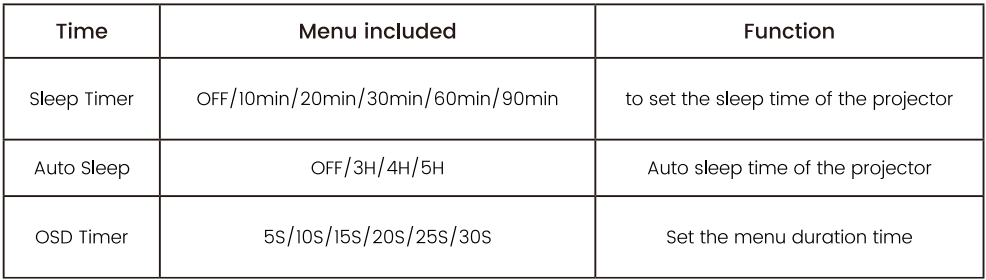
Time Menu

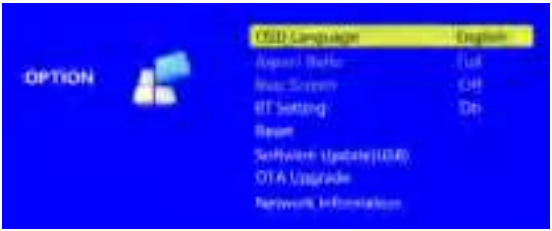
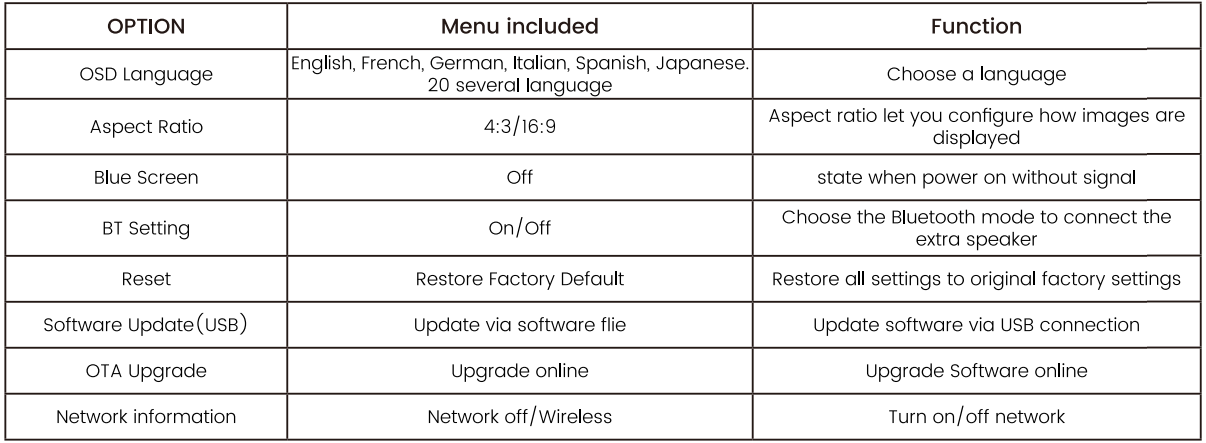
Option Menu
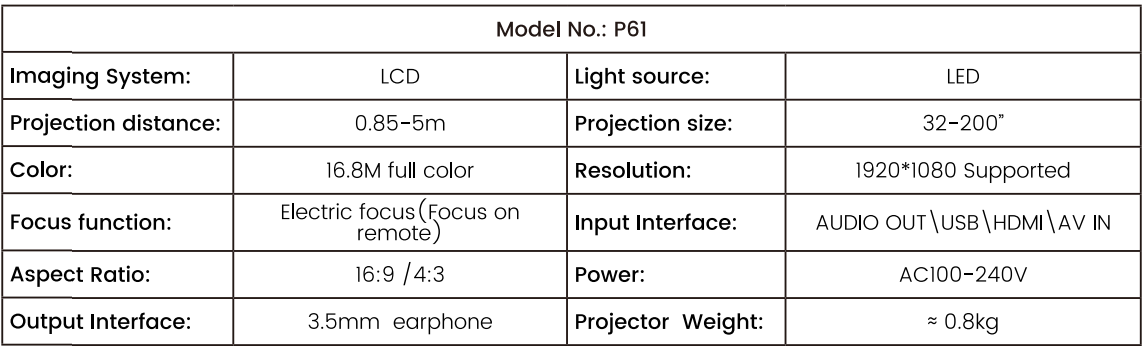
Specifications
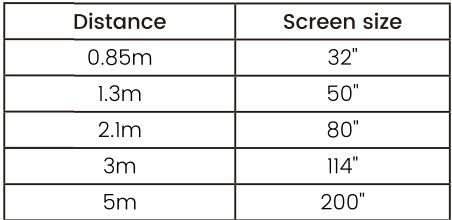
 Projection size chart
Customer Support
- Website: https://store.wimius.com/
- Ph: +86-0755-21019580