

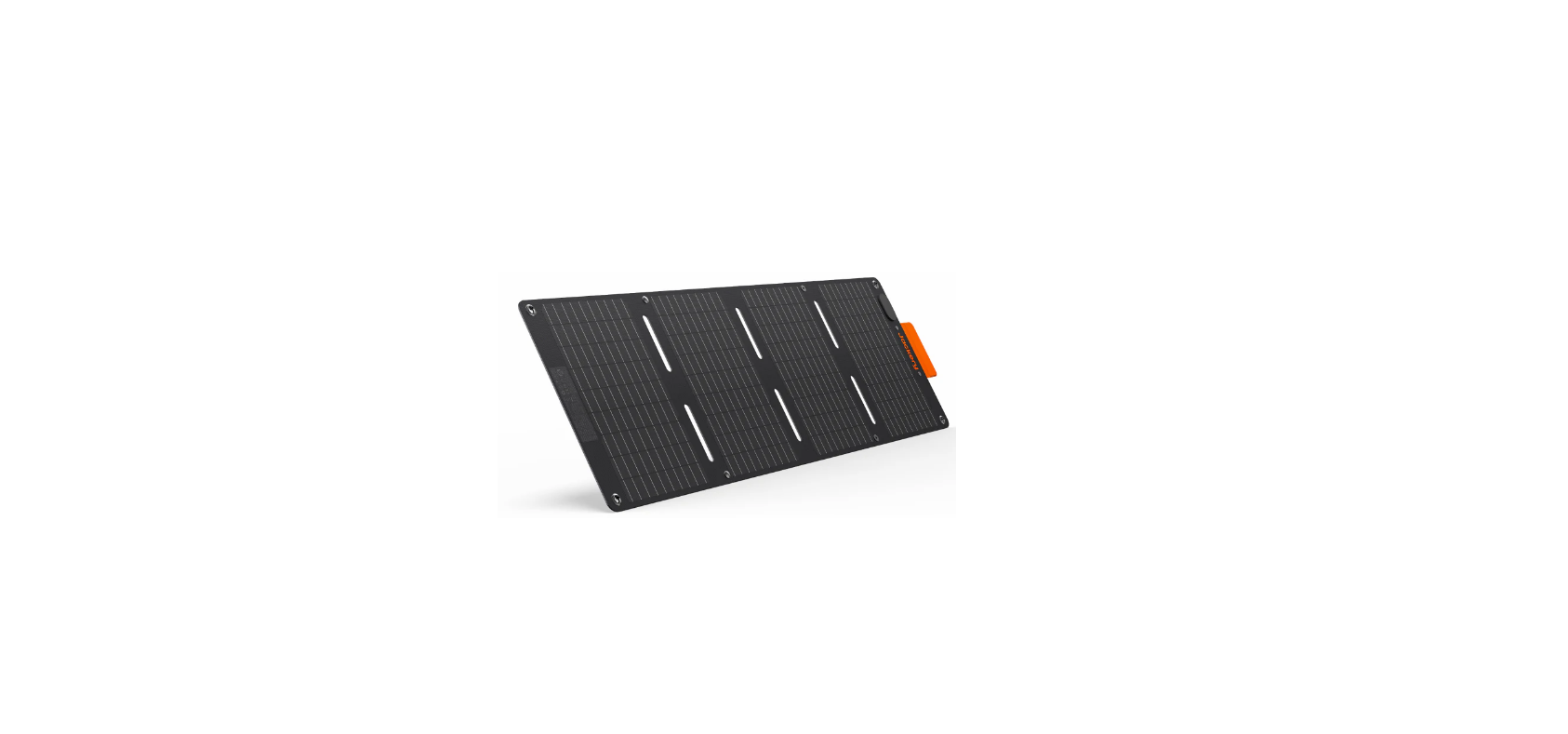

Jackery SolarSaga 40W Mini Solar Panel
Safety Instructions
When using this product, basic precautions should always be followed, including the following:
- Read all the instructions before using the product.
- Do not put fingers or hands into the product.
- Do not operate the power pack with a damaged cord or plug, or a damaged output cable.
- Incorrect reassembly may result in a risk of fire or electric shock.
- If contact accidentally occurs, flush with water.
- If liquid contacts the eyes, additionally seek medical help.
- Liquid ejected from the battery may cause irritation or burns.
- Do not expose a power pack to fire or excessive temperature.
- Exposure to fire or temperature above 130°C may cause an explosion.
- Have servicing performed by a qualified repair person using only identical replacement parts.
Grounding Instructions
This product must be grounded. If it should malfunction or break down, grounding provides a path of least resistance for electric current to jackery explorer 3000 pro reduce the risk of electric shock.
Package List
The car charging cable is sold separately. Please visit the official Jackery website to purchase it or contact Jackery customer service for assistance.
Know Your Product
Product Appearance
LCD Display

Basic Operation
Quiet Charging Mode
When Quiet Charging Mode is activated, the charging power is reduced, the charging speed is slowed down, and noise during charging is significantly reduced (please enable/disable this feature in the Jackery App).
Self-powered Mode
Maximises the use of solar energy and reduces reliance on grid electricity by prioritising stored solar energy, reducing electricity costs (please enable/disable this feature in the app).
Battery Saving Mode
When Battery Saving Mode is activated, the available battery capacity of the product decreases, extending the lifespan of the battery cells (please enable/disable this feature in the app).
Charging Plan
Customise the charging time of the Jackery Explorer 3000. Suitable for situations with fluctuating electricity prices, it allows for charging plans based on peak and off-peak electricity times, reducing electricity costs (Please set in the Jackery App).
Battery Power Indicator
When the product is being charged, the orange circle around the battery percentage will light up in sequence. When charging other devices, the orange circle will stay on.
Energy Saving Mode
To avoid forgetting to turn off the output, which results in battery consumption, the product turns the Energy Saving Mode on by default. This occurs when no device is conn,ected or the connected device is less than or equal to a certain value. (Refer to the table below for more details),The device will automatically turn off all outputs after 12 hours.
To turn off the Energy Saving Mode
Long-press the AC Button and Main Power Button until the Energy Saving Mode icon disappears. In Non-Energy Saving Mode, please remember to turn off the products to avoid battery consumption.
Fault Code
To respond to the feedback quickly, we set up common fault codes F0-FE in the system: If the F8 code appears, please remove the load or unplug the charging plug, the product can restore by itself, if not, please contact after-sales service; If the F9 code appears, please remove the load and the product can recover by itself, if not, please contact after-sales service. In case any other code appears, please contact our after-sales service.
Temperature
If it appears on the screen, do not worry, the battery will restore automatically after cooling. If it is displayed on the screen, do not worry. It will automatically restore after the ambient temperature is restored. This product can function in low-temperature environments ranging from -15℃ to -10℃ (5°F to 14°F), with a maximum output power of 2000W under these conditions.
Main power on/off
Press the “Main Power Button”, and the working indicator lights up, and the LCD is illuminated. When this product does not have any operation for 2 minutes, the product will enter the hibernation state, and the display will turn off automatically. If you need to turn off the main power, please press and hold the “Main Power Button” until the working indicator tu.rns on
The default standby time of this product is 2 hours. If the other power output switch is not turned on, and the product does not have any load input, the product will automatically shut down after 2 hours. The automatic shutdown time can be set on the Jackery App.
AC Output On/Off
Ensure that the main power supply is turned on. Press the AC Button, and the AC Output operation indicator lights up. Then you can connect the equipment that needs AC charging. Press the AC Button again to turn o the AC Output. When the Reset Button pops up, you need to remove the load and press the Reset Button to reset.
DC Output On/Off
Ensure that the main power supply is turned on. Press the DC/USB Button, and the DC Output Power indicator lights up. Then USB/cigarette lighter port Output Ports can be connected to external load devices. Press the DC/USB Button again to turn off the USB/ cigarette lighter port Output.
LCD Screen
| LCD Screen | Turn on | Press the Main Power Button or when there’s a charging input. |
| Turn off | Press the Main Power Button. | |
| The LCD is off automati.cally | If there is no operation in 2 minutes, the product will enter a sleep state. | |
| Always-on Display Mode (undercharging or discharging state) | Turn on | After the display screen lights up, double-click the Main Power Button. |
| Turn off | When the Always-on Display Mode is on, press the Main Power Button. | |
| Always-on Display Mode is off automatically. | During Always-On Display mode, the screen automatically turns off after 2 hours without charging or discharging. |
UPS
Once you have connected the mains and the AC input port of the product via the AC charging cable, you can use the AC output port of the product to power your unit (at this point, the AC power comes from the mains, not the battery of the product). In the event of a sudden loss of mains power, the product can automatically switch to battery mode within 20ms.
This product does not support 0ms switching. Do not connect to equipment with high uninterruptible power requirements, such as data servers and workstations. Please test several times to confirm compatibility before use, and it is recommended to connect to only one device. Do not use more than one unit at a time to avoid triggering the overload protection. Failure to follow these instructions may result in equipment failure or loss of data, for which we cannot be held responsible.
In UPS mode, the unit’s peak output reaches 1440W before power outages. As simultaneous charging/discharging is enabled in Bypass Mode, the actual output power is lower than the rated output power in this mode, but returns to the rated output power during outages.
App Connection
This product supports the connection of the Jackery App for intelligent control and operation. Users can download the Jackery App through the App Store or Google Play. For more information, please refer to the Jackery App User Manual.
Charging
Green energy first: We advocate for using green energy first. This product supports two modes of charging at the same time: solar charging and AC wall charging. When AC wall charging and solar charging are turned on at the same time, the product will give priority to solar charging, and both methods will be used to charge the battery at the maximum permissible power. Fully charge the device before its first use.
AC Wall Outlet
Connect the AC charge cable to the AC input port of the power station and plug it into the wall outlet.

Solar Panels
The Jackery Explorer 3000 has two low-PV input ports, each of which supports direct connection of one 500W or three 200W solar panels at most. If one low-PV input port needs to connect two or more solar panels simultaneously, please refer to the figure below for charging through the solar panel connector (sold separately, not included as standard).

When the two inputs are used at the same time, please make sure to use the same type of solar panel, and the number of solar panels in the two inputs must be the same to avoid damage or charging problems of the equipment due to inconsistent voltages of the two channels.
Car Charger
This product can be charged with a 12V car charger. Ensure that the car charger and the car cigarette lighter provide a good connection. *Please start the vehicle before charging your power station. *If the vehicle is running on bumpy roads, it is forbidden to use the car charger in case it burns due to a poor connection. The Company will not be responsible for any loss caused by non-standard operation.

Jackery App User Manual
To download the App and log in
Search for “Jackery” in Google Play or App Store to install the App. After that, you can register and log in. Alternatively, scan the QR code below to download and install the App.

To add a device
Click the button to add your device.
Long-press the “POWER” button on the device to turn on, the Wi-Fi and Bluetooth icons on the device flash to indicate that the device has jackery explorer 3000 pro entered the network configuration mode, click the “Icon Flashed” button and allow the App to connect to nearby devices and open Bluetooth permissions.
Remarks: After being turned on, if the APP is not connected within 2 hours, the device will automatically turn off Wi-Fi and Bluetooth. Jackery Explorer 3000 pro jackery explorer 3000 pro Now, it is required to press and hold “DC/USB Button” and “AC Button” to turn on Wi-Fi and Bluetooth again.

After clicking the searched device icon, the App automatically connects the device via
Bluetooth. The device owner will share this device with other users through the App Press and hold the Jackery Explorer 3000 pro “POWER Button” and “DC/USB Button” for 3 seconds to reset the device, and then rebind the device.

The above screenshots are for reference only
To unbind the device
Click the Settings button in the Jackery Explorer 3000 Pro upper-right corner of the main interface of the device to enter the settings page, and click the Unbind button at the bottom of the page to unbind the device.
To turn on Wi-Fi & Bluetooth
Wi-Fi & Bluetooth are automatically turned on after the device is on, and the Wi-Fi & Bluetooth icons on the screen light up. Press the DC/USB button and the AC button at the same time until the Wi-Fi & Bluetooth icons on the screen light up.
To turn off Wi-Fi & Bluetooth
Press the DC/USB button and the AC button at the same time until the Wi-Fi & Bluetooth icons on the screen are off ; Wi-Fi & Bluetooth will be automatically turned off if no device is connected within 2 hours.
To reset Wi-Fi & Bluetooth
Press the POWER button and DC/USB button at the same time for 3 seconds to reset Wi-Fi & Bluetooth to factory settings and reboot the system.
Specifications
General
- Product Name: Jackery Explorer 3000
- Model No: JE-3000B
- Capacity: 60Ah / 51.2Vdc (3072Wh)
- Cell Chemistry: LiFePO4
- Weight: About 59.52lbs / 27kg
- Dimensions: 16.4×12.8×12in / 41.6×32.5×30.5cm
- Cycle Life: 4000 cycles to 70%+ capacity
Output Ports
- 4 x AC Output: 120V~ 60Hz, 20A Max, 2400W
- 1 x AC Output: 120V~ 60Hz, 30A Max, 3600W
- AC Total Output: 3600W Max, 7200W surge peak
- 2 x USB-C Output: 100W Max, 5V⎓3A, 9V⎓3A, 12V⎓3A, 15V⎓3A, 20V⎓5A
- 2 x USB-A Output: 18W Max, 5-6V⎓3A, 6-9V⎓2A, 9-12V⎓1.5A
- Cigarette Lighter Port: 12V⎓10A Max
Input Ports
- Charge Mode AC Input: 100V-120V~ 60Hz, 15A Max
- Bypass Mode AC Input/Output: 120V~ 60Hz, 12A Max, 1440W
- DC Input: 2 x DC 8mm Ports: 12-16V (Working Voltage)⎓8A Max, Double to 8A Max; 16-60V (Working Voltage)⎓12A Max, Double to 24A/1000W Max
Temperature
- Charge Temperature: 0°C~45°C(32°F~113°F)
- Discharge Temperature: -15°C~45°C(5°F~113°F) -15°C~-10°C(5°F~14°F) Output Power: 2000W
FCC Statements
This equipment generates, uses, and can radiate radio frequency energy and, if not installed and used according to the instructions, may cause harmful interference to radio communications. However, there is no guarantee that interference will not occur in a particular installation.
- Reorient or relocate the receiving antenna.
- Increase the separation between the equipment and receiver.
- Consult the dealer or an experienced radio/TV technician for help.
Warranty
We only provide our warranty to customers who purchase from the official Jackery website, Jackery-branded third-party platforms, or local authorised dealers. *Warranty period and details may vary according to local laws, regulations, and authorised dealers.
Jackery Inc. warrants to the original consumer purchaser that the Jackery product will be free from defects in workmanship and material under normal consumer use during the applicable warranty period identified in the ‘Warranty Period’ section below, subject to the exclusions set forth below.
This warranty statement sets forth Jackery’s total and exclusive warranty obligation. We will not assume, nor authorise any person to assume for us, any other liability in connection with the sale of our products.
Warranty Period
3 Years Standard Warranty: The standard warranty period for the Jackery Explorer 3000 is 36 months. 2 Years Extended Warranty: To activate the Warranty Extension, you must register your product online or contact our customer service jackery explorer 3000 pro team at hello@jackery.com to extend the standard warranty period.
Exchange
Jackery will replace (at Jackery’s expense) any Jackery product that fails to operate during the applicable warranty period due to a defect in workmanship or material. A replacement product assumes the remaining warranty of the original product.
Limited to Original Consumer Buyer
The warranty on Jackery’s product is limited to the original consumer purchaser and is not transferable to any subsequent owner.
Exclusions
Jackery’s warranty does not apply to: Misused, abused, modified, damaged by accident, or used for anything other than normal consumer use as authorised in Jackery’s current product literature. Attempted repair by anyone other than an authorised facility. Any product purchased through an online auction house. Jackery Inc. reserves the right to the final interpretation of the above customers’ after-sales p.olicy
Customer Service
- Distributed by: 5310 Bunche Dr, Fremont, CA 94538-8301
- Tel: 1-888-502-2236(US)
- Website: www.jackery.com