

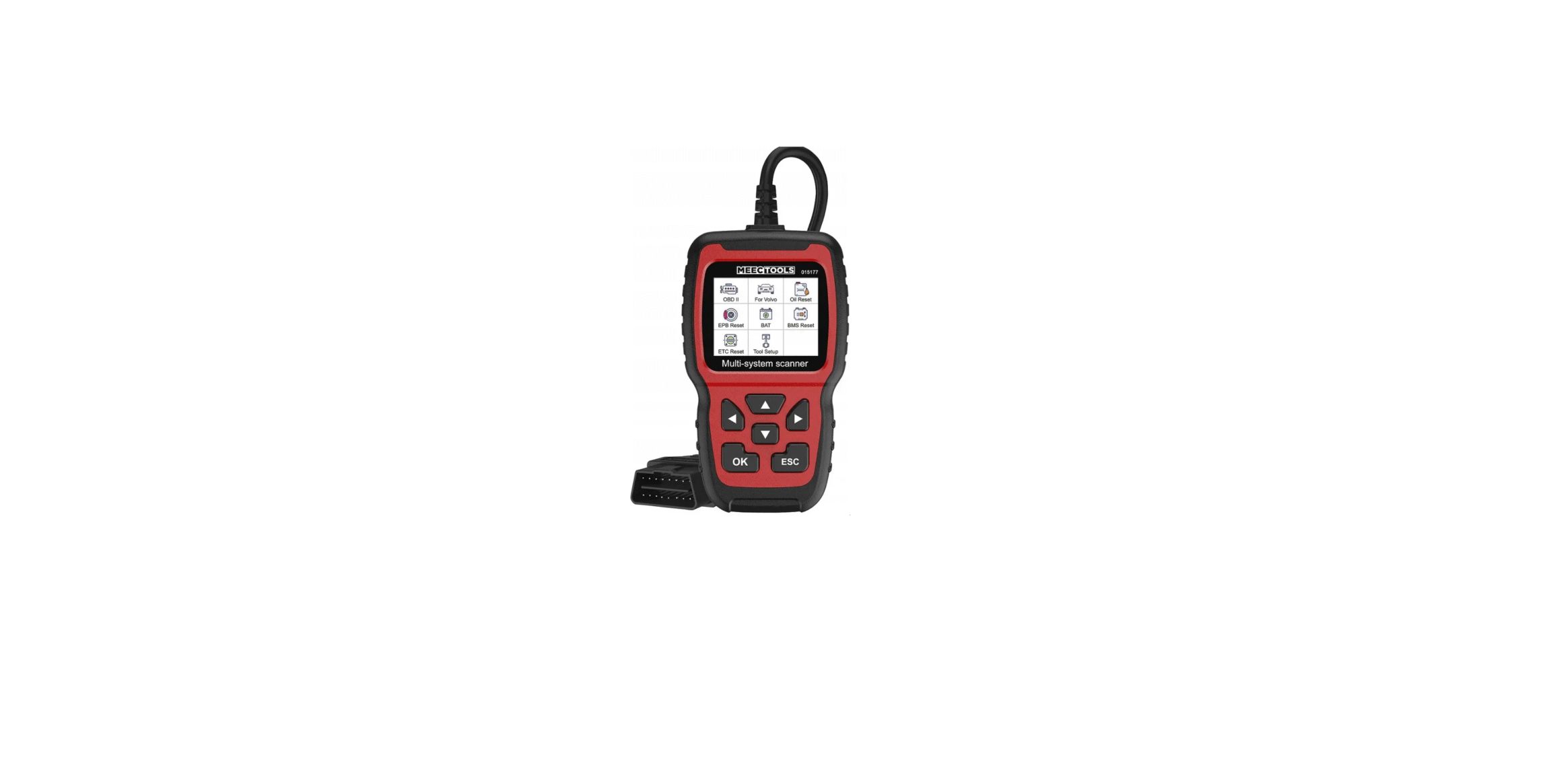

Meec Tools 015177 OBD-II Fault Code Reader

Safety Instructions
- Carry out testing and inspection of vehicles only in a safe working environment and in safe conditions.
- Never attempt to use or read the product while manoeuvring the vehicle – risk of fatal or serious personal injury.
- Wear safety glasses that comply with the requirements of ANSI.
- Work outdoors or in a well-ventilated area – risk of personal and/ or fatal injury from inhalation of exhaust fumes.
- Apply the parking brake. If the vehicle has an automatic gearbox, put it in P (parking; if it has a manual gearbox, put it in neutral.
- Work outdoors or in a well-ventilated area – risk of personal and/or fatal injury from inhalation of exhaust fumes.
- Pay attention to moving parts (fan, auxiliary drive, etc.) when the engine is running – risk of serious personal injury.
- Switch off the ignition before connecting the fault code reader to, or disconnecting it from, the Data Link Connector (DLC).
- Fuel and battery fumes are highly flammable.
- Keep sparks, hot objects, and naked flames away from the battery, fuel system, and fuel fumes to minimise the risk of explosion.
- Do not smoke near the vehicle when testing is in progress.
Technical Data
- Display: (2.4″) 320 x 240 px
- Backlight: Yes
- Adjustable contrast: Yes
- Ambient temperature, in use: 0 to 60°C
- Ambient temperature, storage: –20 to 70°C
- Power supply: 8 – 18 V
- Size: mm
Description
- Backlit display
- Up arrow button to browse up
- Left arrow button to browse to the left
- Button to acknowledge selection/step
- Right arrow button to browse to the right
- Down arrow – to browse down
- Button to cancel selection/step, or to step back in the menus

About the Product
Fault code reader for Volvo models. A useful diagnostic tool with support for on-board diagnostics 2 (OBD-II). Reads vehicle information, resets fault codes, and has smart diagnostic tools and special functions to turn off warning indicators for oil pressure, parking brake (EPB), battery (BMS), and electronic throttle control (ETC). Supplied in n protective case with a carry strap.
About the Fault Codes
The OBD II system stores fault codes (Diagnostic Trouble Codes, DTC) in the vehicle’s computer system. The fault codes provide information on the type of fault and where and in what conditions the fault occurred, which simplifies fault tracing and correction. The OBD II codes consist of a 5-character alphanumeric string. The first character is a letter that indicates which control system has caused the fault.
USE
- Activate ignition.
- Localise the 16-pin diagnostics connector (DLC).
- Connect the fault code reader.
Support & Functions
- The product supports the protocols KWP, CAN, and UDS.
- The product supports all OBDII/EOBD protocols: VPW, PWM, ISO, KWP 2000, and CAN.
- The product supports the following Volvo models:
| Model | Year | |||
| 850 | 1992 – 1997 | |||
| 960 | 1991 – 1997 | |||
| C30 | 2007 – 2013 | |||
| S40 | 1996 – 2012 | |||
| V40 | 1996 – 2004 | |||
| V40 | 2013 – 2018 | |||
| XC40 | 2018 – 2019 | |||
| V50 | 2004 – 2012 | |||
| S60 | 2001 – 2019 | |||
| S60L | 2019 – | |||
| V60 | 2011 – | |||
| XC60 | 2009 – 2019 | |||
| C70 Cabriolet | 1998 – 2005 | |||
| C70 Coupé | 1998 – 2002 | |||
| C70 | 2006 – 2013 | |||
| S70 | 1997 – 2000 | |||
| V70 | 1997 – 2016 | |||
| V70 XC/XC70 | 1997 – 2007 | |||
| V70 XC/XC70 | 2001 – 2007 | |||
| XC70 | 2008 – 2016 | |||
| S80 | 1999 – 2016 | |||
| S90 | 1997 – 1998 | |||
| S90 | 2017 – 2019 | |||
| S90L | 2018 – 2019 | |||
| V90 | 1997 – 1998 | |||
| V90 | 2017 – 2019 | |||
| V90 Cross Country | 2017 – 2019 | |||
| XC90 | 2003 – 2019 | |||
Description
Start image
- Press the OK button on the main menu for Volvo.

- Press Identify the Vehicle
- Select Menu
- Identify the Vehicle
- Manual Select

- The following image is shown.

- Press System Scan. The following display images are shown.

The option System Scan checks faulty systems and shows the number of faults. The option Manual Select checks all supported systems.
System Scan
- Select System Scan and mark ECM “Engine Control Module”. The following image is shown.

- Select Version Information. The following image is shown.

- Select Read Fault Codes. The following image is shown.

- Select Erase Fault Codes and press the OK button to confirm the question “Erase fault codes. Are you sure?” The following information is shown on the display: ” Fault codes erased. Wait 10 seconds. Switch off the ignition and switch on again. Read fault codes to verify”.

- Select Read Datastream and press the OK button. Select View all Items and press the OK button.

- Select View all Items and press the OK button. The following image is shown.

- Select the items and press the OK button.

- The following image is shown.

The option Read Datastream is only available for the engine, transmission, anti-lock brake system (ABS), central electronic module (CEM), and airbags.
Manual Select
Select Manual Select. All supported systems are shown on the display. Select the system to be tested. Select the year of manufacture for the vehicle and press the OK button to go to the selected menu.

On this display, there are the options System Scan, Manual Selection, and Special Functions.
- A system scan of the vehicle can be run with the System Scan option.
- With the Manual Select option, you choose which system to scan.
- The option Special Functions shows which special functions the product supports for the vehicle.

Special Functions
Select Oil Reset. Special functions include resetting after an oil change and BMS, EPB, and ETC resetting.
Example
- The following is an example of resetting after an oil change, etc., resetting.
Oil Reset
- Select Oil Reset. Follow the steps in the display images.
- Resetting the Service Reminder
- Reset the SRI for CEM
- Reset the SRI for DIM
- Ignition On
- The SRL (Service Reminder Lamp) Resetting Finished

ETC reset
- Select ETC reset. The conditions below must be met to match the throttle unit and accelerator pedal.
- Ignition on, engine not started.
- No fault codes in the engine control unit.
- All power consumers switched off.
- Coolant temperature is higher than 85°C.
- Accelerator pedal fully released.

- Press Adaptation Of The Throttle Unit. Follow the steps in the display images. Confirm with OK or cancel with ESC.

- Ignition on
- Check if any fault codes (diagnostic trouble codes) are stored.
- No Diagnostic Trouble Codes must be stored.

- No adaptation can be carried out if there are stored diagnostic trouble codes.

- When all the basic conditions are met, the ignition must be switched on for at least 30 seconds before the adaptation can start. Adaptation takes about 10 seconds.

Adaptation
-
- Ignition off
- Ignition on
- Parameter reading
- Check that the following conditions for adaptation of the throttle unit are met.

Adaptation of the throttle unit is met
-
- The engine switched off, and the ignition was on.
- Battery voltage is higher than 10 V.
- Accelerator pedal fully released.
- Vehicle stationary. FIG. 25 (no vehicle speed signal)

- Engine coolant temperature (ECT) from 5 to 100°C.
- Intake air temperature (IAT) is higher than 5°C.

- Battery voltage: 0 V
- Intake air temperature: 27°C
- Coolant temperature: 48°C
- Adaptation of the throttle unit: not OK

- Adaptation of the throttle unit in progress: yes
Press ESC to exit the function. 
- Adaptation of the throttle unit: OK
- Adaptation of the throttle unit in progress: no

Obidii System
- Use the up and down buttons to mark Meec Tools 015177 OBD-II Fault Code Reader Read Codes in the diagnostic menu and press OK to confirm.

- The fault codes and their significance are shown in the display
- Generic Current
- O2 sensor circuit, low voltage bank 1, sensor 3

Erasure of Fault Codes
- Use the up and down buttons to mark [Erase fault codes] in the diagnostic menu and press OK to confirm.

- A warning message with h confirmation request is shown. Press OK to confirm or ESC to cancel.

- Switch on the ignition, but do not start the engine, and press the OK button to continue.
- Emission-related fault codes have been erased.

I/M Readiness
Use the up and down buttons to mark I/M Readiness in the diagnostic menu and press OK to confirm.
- Read Codes
- Erase Codes
- I/M Readiness
- Data Stream
Vehicle Information
 Data Stream
Use the up and down buttons to mark Data Stream in the diagnostic menu and press OK. 
- View All Items
- Select Items

- Fuel system 1 status
- Fuel system 2 status
- Calculated load value
- Engine coolant temperature
- Short-term fuel trim, bank 1

Vehicle Information
Mark the item Vehicle Information and press OK to show vehicle Meec Tools 015177 OBD-II Fault Code Reader information, for example, le the Vehicle Identification Number, VIN, Calibration ID, CID, and Calibration Verification Number, CVN.

Settings
Select the item Language. Choose between English, French, German, Spanish, Russian, Portuguese, Swedish, Finnish, Norwegian, Dan h and Italian for the user interface.
Language
- Instructions
- Unit of measure
- Background colour
- Feedback on the test result
- Device information

Instructions
Select item Instructions
- Language
- Instructions
- Unit of measure
- Background colour
- Feedback on the test result
- Device information

Unit of Measure
Select the item Unit of Measure. Select unit Metric or Imperial.
- Language
- Instructions
- Unit of measure
- Background colour
- Feedback on test result
- Device information

Background Colour
Select the item Skin Style. Choose between Sky Gray or Gem Blue in the next view.
- Language
- Instructions
- Unit of measure
- Background colour
- Feedback on the test result
- Device information

Feedback
- In the case of impossible test results or other problems using the product, the test results can be sent to the manufacturer with the feedback function. Select the item Feedback The Test Result. The following is shown on the display.y
- Automatic recording is ready; you perform the related functions that require feedback.
- After the execution, disconnect the car and connect to the computer via USB.

- Press the ESC button several times to return to the main menu.

- Select item Update.exe. The following image is shown.

- Click on Feedback.

- Send the file feedback.bin to support@autophlx.com.
Device Information
Select the item Device Information. The following image is shown.

Updating
- Download the updated software at www. www.awww.autophlx.com
- Connect the product to the computer with a USB cable.

- Click on the file driver.
- Click on install driver.bat to install the driver routine.
- Click on Update.exe.

Customer Support
- Website: https://www.jula.se/varumarken/meec-tools/
- Tel: +39-0645652462
FAQs
What vehicles are compatible with the Meec Tools 015177 OBD-II Reader?
The majority of gasoline-powered cars made after 2001 and diesel-powered cars made after 2004 that have an OBD-II (On-Board Diagnostics) port can use this device.
Where do I plug in the OBD-II reader?
Examine the area under the fuse box panel or around the driver’s footwell.
Can it erase all types of warning lights?
No, it mostly resolves emissions and engine-related Check Engine Light (CEL) issues.
What does a “Pending Code” mean?
The problem might turn into a stored (confirmed) code if it continues for several driving cycles.
Does the device need batteries?
No, once attached, it draws electricity from the car’s OBD-II port. There is no need for external batteries or charging.
Can I use the device while the engine is running?
Indeed. Actually, the engine needs to be operating to read Live Data. Even when the engine is not running, the ignition must be in the ON position to read or remove stored codes.
Does the reader support multiple languages?
Indeed, the majority of models include a variety of language choices. In the options menu, you can choose the language you like.
Can I update the device’s software?
For details on how to update, consult the manufacturer’s website or the handbook.