

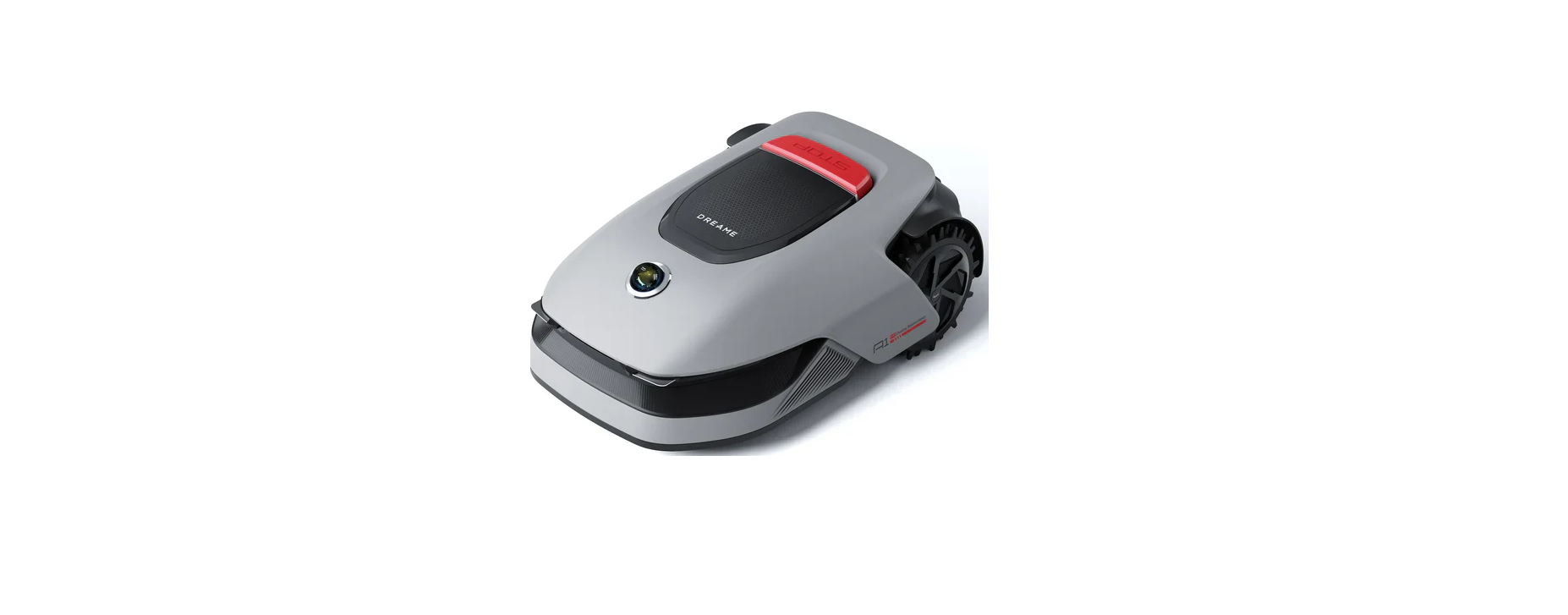

Dreame Roboticmower A1 Pro Lawn Mover

Safety Instructions
- Set the product to OFF before clearing blockages, performing maintenance, or examining the product. If the product vibrates abnormally, inspect it for damage before restarting. Do not use the product if any parts are defective.
- Do not install the main cable in areas where the product will cut. Follow the instructions provided for cable installation.
- Only use the charging station included in the package to charge the product. Incorrect use may result in electric shock, overheating, or corrosive liquid leakage from the battery. In case of electrolyte leakage, flush with water/neutralizing agent and seek medical aid if the corrosive liquid comes into contact with your eyes.
- When connecting the main cable to the power outlet, use a residual-current device (RCD) with a maximum tripping current of 30 mA.
- Only use the original batteries recommended by Dreame. The safety of the product cannot be guaranteed with non-original batteries. Do not use non-rechargeable batteries.
- Keep extension cords away from moving hazardous parts to avoid damage to the cords, which can lead to contact with live parts.
- The illustrations used in this document are for reference only. Please refer to the actual products.
- Never allow children, persons with reduced physical, sensory, or mental capabilities, or lack of experience and knowledge, or people unfamiliar with these instructions to use the machine; local regulations may restrict the age of the operator.
- Do not connect or touch a damaged cable until it is disconnected from the power outlet. If the cable becomes damaged during operation, disconnect the plug from the power outlet. A worn or damaged cable increases the risk of electrical shock and should be replaced by service personnel.
Intended Use
The garden product is intended for domestic lawn mowing. It is designed to mow often, maintaining a
healthier and better-looking lawn than ever before. Depending on the size of your lawn, your mower may be
programmed to operate at any time or frequency. It is impossible for digging, sweeping, or snow cleaning.
What’s in the Box
- LiDAR protective cover
- A1 Pro

- Charging tower (with a 10 m extension cable)

- Baseplate

- Power supply

- Cleaning brush

- Screws × 8, Hex key

- Spare blade × 9

- User manual

- Lint-free cloth

- Quick start guide

Overview

 Lidar
Lidar
- Obtains environmental information and facilitates A1 Pro’s positioning, obstacle avoidance, and sensing of water and dirt. Detection range: 70 m with a 360° horizontal and 59° vertical wide angle.
Installation
- Place the charging station on a level surface near the edge of the lawn and a power outlet. It is recommended to place the charging station in an area with a good Wi-Fi signal strength.
- Use your mobile device to help check the Wi-Fi signal strength of the location. A good Wi-Fi signal strength improves the stability of the connection between A1 Pro and the app.
- Make sure the ground is soft enough to allow screw installation.

- Keep at least 1 m of free space with no obstacles to the left, right, and in front of the charging station. Make sure that the grass around the location is shorter than 6 cm. If the grass is taller, please mow it with a push mower first. Tall grass may make it difficult for A1 Pro to return to the charging station.

Install the charging station.
- Secure the baseplate to the ground with the supplied screws using the hex key.

- Insert the charging tower into the baseplate until you hear the click.

- Insert the cleaning brush into the charging tower by aligning the tongue with the groove.

- Connect the power supply to the extension cable and then connect it to a power outlet. Please keep the power supply at least 30 cm above the ground.

- The LED indicator on the charging station will be constantly blue if there is power.
- Put the A1 Pro in the charging station to charge.
- Make sure the charging contacts on A1 Pro and the charging station are connected correctly.

LED Indicator on the charging station
Blinking/solid red
- The charging station has a problem (for example, a charging current or voltage problem).
- A1 docks in the charging station, but the charging is abnormal (for example, the charging contacts have a short circuit).
Solid blue
- The charging station has power. A1 Pro is not in the charging station.
Blinking green
- A1 Pro is charging in the charging station.
Solid green
- A1 Pro is in the charging station and fully charged.
Preparations before Use
When A1 Pro is turned on for the first time, there are some basic settings to do before A1 Pro is ready to start working.
- Remove the LiDAR protective cover.

- Press the Stop button to open the cover of the control panel. Press and hold the Power button on the control panel for 2 seconds to turn on A1 Pro.

Select the language you prefer
- Turn the knob clockwise to go down and anticlockwise to go up to select your language. Press the knob to confirm.

Set PIN code
- Turn the knob to select a number from 0 to 9. Turn it clockwise to increase the number from 0 to 9, and turn it anticlockwise to decrease the number. Press the knob to set the next digit.
- To modify the previous digit, turn the knob anticlockwise until the number becomes 0 and keep turning it one more time.

Connect the A1 Pro to the internet.
- Please scan the QR code to download the Dreamehome app on your mobile device. After the installation, please create an account and log in.

- You can also download the Dreamehome app from the App Store or Google Play.
Bluetooth Connection
- Enable Bluetooth function on your mobile device.
- Scan the QR code inside the cover or select A1 Pro manually via the App.

- Press and hold the knob on the control panel for 3 seconds, and A1 Pro will enter Bluetooth pairing mode.

- Pair A1 Pro with your mobile device via Bluetooth.
Wi-Fi connection
- Make sure A1 Pro and your mobile device are on the same Wi-Fi network. Please follow the in-app guidance to complete the connection.
How to unbind
- A1 Pro is automatically bound to the Dreamehome account once pairing is successful. Each device can only be bound to one account.
- It cannot be bound to another account at the same time. To pair A1 Pro with a new account, you need to unbind it first.
- You can go to “Device”, and tap More > Delete in the upper right corner to unbind the device.
How to log out
- To log out, go to Me > Settings > Account > Log Out. To delete the account, go to Me > Settings > Account > Delete Account.
Map Your Garden
Before mapping, please check the following
- The battery level of A1 Pro is more than 50%.
- Protective cover of the LiDAR is removed. 6 Map Your Garden.

- A1 Pro correctly docks in the charging station.

Create the boundary
- Tap “Start Creating” via the app, and A1 Pro will check its status and calibrate. It will automatically leave the charging station to do the calibration. Please be careful.

- Remote control A1 Pro to the edge of your lawn and tap “Set Starting Point” to confirm the starting point of the boundary.

- Remote control A1 Pro to move along the edge of your lawn to create the work area. When remotely controlling A1 Pro to create the boundary, please bear in mind:
- Walk within 5 m behind A1 Pro when remotely controlling it.

- Do not create the boundary on a slope that exceeds 27%.

- Avoid creating boundaries inside corridors narrower than 1.5 m.

- If there is a height difference of more than 4 cm between the edge of your lawn and the adjacent ground, please keep A1 Pro at least 10 cm from the edge of your lawn.

- Make sure the turning angles are greater than 90°.

- When A1 Pro returns to the place 1 m near the starting point, you can tap “Close Boundary,ry” and the boundary will automatically be completed.

Set a no-go zone
Though A1 Pro can automatically avoid obstacles, it is still necessary to set areas with a risk of falling, such
as swimming pools and sandpits, as no-go zones. For objects you want to protect (such as a flowerbed, a
trampoline, a vegetable patch, or a naked tree root), please set them as no-go zones. You can remote control
A1 Pro to create no-go zones via the app, or go to “Map Editing” to directly draw or delete no-go zones on
the map.
Set multiple zones
If your lawn is separated by roads or you have several isolated lawns, you can tap “Work zone” in the app
to continue creating a work area via remote control. You can also add, delete, or modify the zones in “Map
Editing” when the map is finished.
Set path
For isolated zones, please create a path to connect them. Isolated zones without a path will be inaccessible
to A1 Pro.

To connect two isolated work zones
If there is overlap space between the new area(s) and the original area, they will be automatically combined.
For isolated areas, please create paths to connect them; otherwise, they will be inaccessible to A1 Pro. Tap “Path” and remote control A1 Pro to create a path.

To connect the work area and the charging station
If your charging station is not in the work area, a path should be created to connect it to the work area. Tap “Path”, and remote control A1 Pro to create a path that allows it to return to the charging station.

Finish map
Tap “Finish Map” when work areas, paths, and no-go zones are completed. A1 Pro should be inside the. map
When the map is finished, you will be prompted to remote control it to move back inside the map.
Operation
Get familiar with the control panel
- Display

- Power on/off
- Back
- StartKnob
- Home

Button & Function
- Power
- Ensure that A1 Pro is outside the charging station. Press and hold the Power button for 2 seconds to turn it on or off.
- Start
- Press the Start button and close the cover in 5 seconds to start mowing. The task will be cancelled if the cover is not closed in 5 seconds.
- Home
- Press the Home button and close the cover in 5 seconds to send the A1 Pro back to the charging station to charge. The task will be cancelled if the cover is not closed in 5 seconds.
- Back
- Press the Back button to go back to the previous page.
- Knob
- Press the knob to confirm the selection in the menus.
- Press and hold the knob for 3 seconds to enable Bluetooth pairing mode on A1 Pro.
- Turn the knob clockwise/anticlockwise to navigate the menu.
- Start + Back
- Press and hold the Start button and the Back button together for 3 seconds to factory reset A1 Pro. The PIN code will not be erased.
- Home + Back
- Press and hold the Home button and the Back button together for 3 seconds to enter the About page in Settings. The About page will disappear in 5 seconds.
- Knob + Back
- Press and hold the knob and Back button together for 3 seconds to reset the PIN code.
- Stop
- the Stop button to open the cover of the control panel and stop A1 Pro. The PIN code must be entered on the control panel to resume the operation of A1 Pro.
Display

It might be updated depending on the software version.
Start mowing for the first time
Tips before mowing
- Use a push mower to mow the grass to a height of no more than 10 cm.
- Clear the obstacles, including debris, leaf piles, toys, wire, and stones, from the lawn. Make sure no children or pets are on the lawn when A1 Pro is mowing.
- Fill in the holes in the lawn.
- Set your mowing preferences in the app in advance (such as mowing efficiency, mowing height, and mowing direction).

- Press the Start button on the control panel and close the top cover in 5 seconds. A1 Pro will leave the charging station and start mowing. You can also tap “Start” in the app to start mowing.
Start via the control panel.
- Press the Stop button to open the cover and enter the PIN code.

- Select “Modes” on the display and press the knob.

- Turn the knob to select the mowing mode.

- Press the Start button and close the top cover in 5 seconds. A1 Pro will start mowing.

Start via the app
- Open the app.
- Select a mowing mode and tap “Start” to start mowing.

Pause
To pause the current mowing task, you can press the Stop button on A1 Pro or tap “Pause” in the app. A1 Pro will be locked and cannot be started directly through the app after the Stop button is pressed. To resume mowing, please enter your preset PIN code on the control panel first.
Resume
To resume the task when A1 Pro is paused, press the Start button on A1 Pro and close the cover in 5 seconds.
A1 Pro will resume the previous mowing task. You can also tap “Continue” in the app to resume the mowing
task.
Return to the charging station.n
To stop the mowing task and send A1 Pro back to the charging station, confirm your PIN code on the control
panel and then press the Home button. Confirm to end the task and close the cover in 5 seconds. A1 Pro will
automatically return to the charging station to charge. You can also tap “Return to Station” in the app to
send A1 Pro back to the charging station.
Dreamehome App
Where can you explore more
Dreamehome App is more than a remote control. There are many things you can do through the appCompletingng various settings remotely, experiencing different mowing modes, editing the map freely, and
adjusting mowing schedules. Moreover, you can view the 3D map of your lawn directly in the app.
Mowing modes
A1 Pro offers various mowing modes. You can switch between modes through the app.
Schedule
After the first map is completed, A1 Pro automatically creates two weekly mowing schedules according to the lawn size, which are “Spr/Sum Schedule” and “Aut /Win Schedule”. You can tap “Schedule” in the app to do detailed schedule settings. With the schedule function, you can completely leave the daily mowing work to A1 Pro. You only need to maintain A1 Pro regularly.
Child lock
If you worry that children may operate A1 Pro, you can enable the “Child Lock” function in the app. With this function enabled, A1 Pro will be locked if no operations are performed for 5 minutes when the cover is open.
Rain protection
If you worry that adverse weather conditions may affect the mowing work, you can enable the “Rain Protection” function in “Settings” on the control panel or in the app. When this function is enabled, A1 Pro automatically pauses mowing and returns to the charging station when it rains. You can set the rain protection time in the app.
Frost protection
When the temperature is below 6 ℃, mowing operations will cause permanent damage to the lawn. The battery will not be able to charge due to self-protection. You can enable the “Frost Protection” function in “Settings” on the control panel or in the app. The function enables A1 Pro to automatically pause mowing and return to the charging station when the ambient temperature is ≤ 6 ℃. It will automatically resume working when the temperature is above 11 ℃.
Lift alarm
With this function enabled, A1 Pro will be locked, and an alarm will go off immediately if it is lifted.
Off-map alarm
With this function enabled, A1 Pro will be locked, and an alarm will go off immediately if it is away from the map.
(This function requires the installation of the Link Module.)
Real-time location
With the Link Module, you can view the current location of A1 Pro in Google Maps.
Maintenance
For better performance and lifespan of A1 Pro, please clean it regularly and replace worn parts according to the frequency below.w
Part & Replacement Frequency
- Blades: Every 6–8 weeks or sooner
- Cleaning brush: Every 12 months or sooner
Cleaning
- Before cleaning, please turn off A1 Pro and unplug the charging station.
- Please make sure the LiDAR protective cover is on the LiDAR before turning the A1 Pro upside down to avoid damage to the LiDAR.
The housing, chassis, and blade disc
- Turn A1 Pro off.

- Put the LiDAR protective cover on the LiDAR.

- Turn A1 Pro upside down.

- Clean the housing, blade disc, and chassis with a hose.

- Use a lint-free cloth to carefully clean the LiDAR sensor.

Charging contacts
Use a clean cloth to clean the charging contacts on the A1 Pro and the charging station. Keep the charging
contacts dry after cleaning.
Replacement of the components
To keep the blades sharp, please replace them regularly. It is recommended to replace the blades every 6–8 weeks or sooner. Please only use Dreame’s original Dreame Roboticmower A1 Pro Lawn Mover blades.
- Turn off A1 Pro.

- Make sure the LiDAR protective cover is on.

- Puthe t A1 Pro on a soft surface and turn it upside down.

- Remove the holder by pressing the button under the blade disc.

- Remove the blade by aligning the hole of the blade with the shaft.

- Remove 3 blades and holders.

- Press the button under the blade disc and align the hole of Dreame Roboticmower A1 Pro Lawn Mover the holder with the shaft to fasten the holders and the blades.

- Make sure the blades can rotate freely.
Replacement of the cleaning brush
When the cleaning brush for the LiDAR sensor wears out, its bristles may fray or deteriorate, affecting its cleaning performance. Please replace the cleaning brush regularly to keep a good cleaning result. It is recommended to replace the cleaning brush every 12 months or sooner.

Battery
For long-term storage, charge A1 Pro every 6 months to protect Dreame Roboticmower A1 Pro Lawn Mover the battery. Battery damage caused by over-discharge is not covered by the limited warranty. Do not charge the battery at an ambient temperature above 45° C (113° F) or below 6° C (43° F). The long-term storage temperature for the battery should be between -10 and 35° C (14 and 95° F). To minimize the damage, the recommended storage temperature for the battery is between 0 and 25° C (32 and 77° F).
Low-power charging mode
With low-power charging mode on, functions not related to charging will be disabled. (Display and network will be turned off.)
- To enable low-power charging mode, press and hold the Start button and Home button together, and press.
Back button 5 times quickly at the same time. You will hear a voice prompt: Low-power charging mode is on. - To disable low-power charging mode, restart A1 Pro or Dreame Roboticmower A1 Pro Lawn Mover press the Power button 5 times quickly to turn off low-power charging mode.
Winter Storage
- A1 Pro
- Charge the battery fully and turn A1 Pro off.
- Clean the A1 Pro thoroughly before putting it into storage in winter.
- Put on the LiDAR protective cover.
- Store A1 Pro in a dry place, at a temperature above 0° C.
- Charging station
Unplug the charging station and store it in a dry and cool place, away from direct sunlight.
Transport
- For long-distance transport, ensure that A1 Pro is turned off. It is recommended to use the original packaging. Put on the LiDAR protective cover.
Specifications

- Charging time applies when A1 Pro automatically Dreame Roboticmower A1 Pro Lawn Mover returns to the charging station at a low battery.
- Requires the installation of the Link module.
- Requires the installation of the Link module.
Troubleshooting

DECLARATION OF CONFORMITY
- Dreame Trading (Tianjin) Co., Ltd. No. 1-1-2112, Financial Dreame Roboticmower A1 Pro Lawn Mover and Trade Center South Zone, 6975 Asia Road, Tianjin Pilot Free Trade Zone (Dongjiang Bonded Port Zone), Tianjin 300461, P.R. China
- On behalf of Dreame declare that the product description is a Robotic Lawnmower. Type MLLA7210. Function Cutting grass
- Hereby, Dreame Trading (Tianjin) Co., Ltd. declares that the radio equipment model Dreame Roboticmower MLLA7210 complies with Directive 2014/53/EU. The full text of the EU declaration of conformity is available.e
- Visit: https://dreametech.zendesk.com
- Ph: 7968864195993-
Customer Service
- Tel: +1 (866) 977-5177
- Website: dreame.support@supernovabrands.co
FAQs
What areas and lawn sizes is the Dreame A1 Pro suitable for?
Depending on the terrain and arrangement, the Dreame A1 Pro can manage medium-to-large lawns, usually up to 2,000 square meters. Although it can handle intricate gardens with several zones, slopes up to 45%, and tight spaces, it performs best in open lawns.
Does the A1 Pro require a perimeter wire installation?
No. The Dreame A1 Pro may be set up wire-free thanks to its Dreame Roboticmower A1 Pro Lawn Mover sophisticated RTK (Real-Time Kinematic) GPS navigation. This eliminates the need for excavating or installing boundary wires; simply use the app to map your lawn, and the mower will take care of the rest.
How does the mower handle obstacles and pets in the yard?
The A1 Pro has cameras and ultrasonic sensors for real-time obstacle avoidance and AI-powered object detection. It can avoid crashes when navigating around toys, trees, garden furniture, and dogs.
Does the mower mulch or collect grass clippings?
By using a mulching technique, the A1 Pro chops grass clippings finely and then replants them in the ground. This fertilises your grass naturally and removes the need for garbage or bagging.
Can it handle uneven or sloped terrain?
Indeed. The A1 Pro ensures a consistent cut on a variety of terrain by adjusting its speed and blade height for uneven surfaces and handling slopes up to 45% (about 24 degrees).
How does the A1 Pro navigate without a wire?
Even in intricate or multi-zone gardens, the mower maps your lawn and mows with extreme precision using a mix of RTK GPS, vision-based AI, and inertial navigation.