

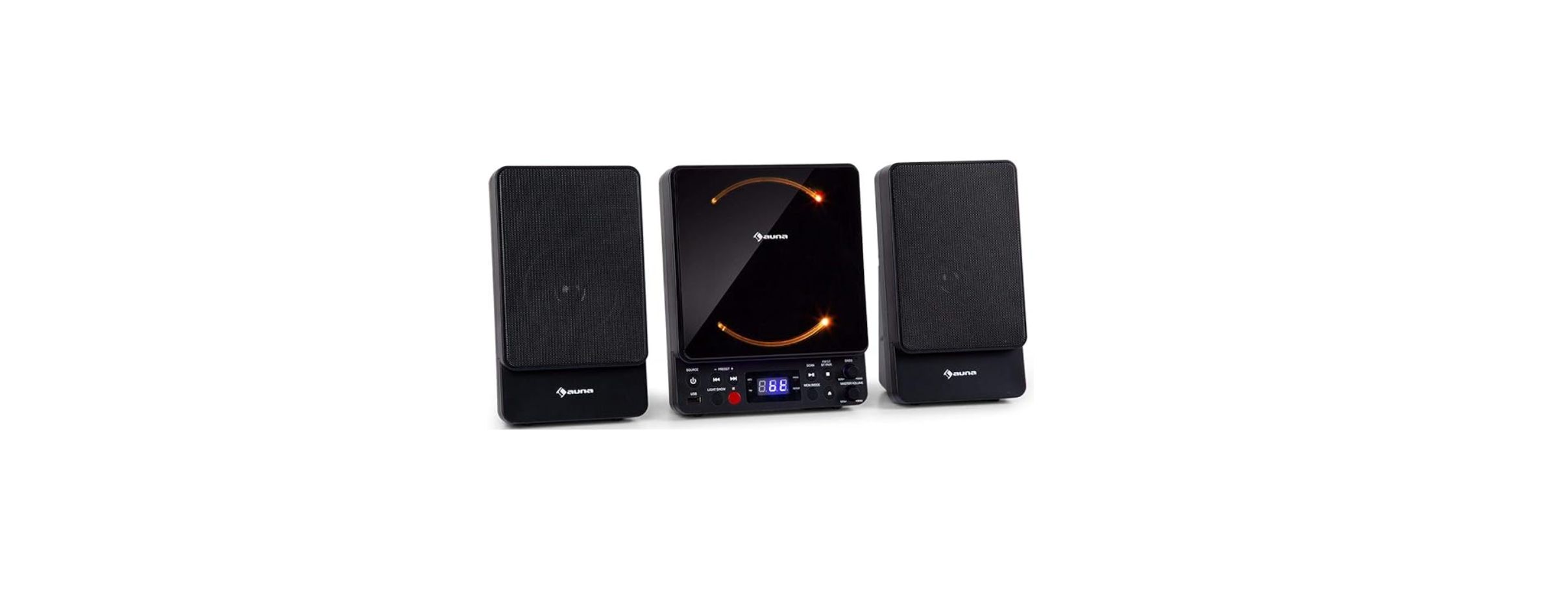

AUNA 10035301 Microstar Vertical System

Safety Instructions
- Lightning – If you are not going to use the device for a long time or if there is a storm, disconnect the plug from the electrical outlet and disconnect the device from the antenna connector.
- Overload – Do not overload power outlets, extension cords, or built-in power outlets, as this may result in a fire or electric shock.
- Foreign objects and liquid – Never push objects of any kind through openings in the device, as they may touch dangerous voltage points or short out parts, which could result in a fire or electric shock. Never spill liquids of any kind on the device.
- Repairs and maintenance – Do not attempt to service this product yourself, as opening or removing covers will expose you to dangerous voltages or other hazards. Leave all maintenance to qualified service personnel.
- Damage requiring service – Disconnect the power plug from the outlet and consult a qualified specialist if any of the following conditions occur:
- If the product has a markedly reduced performance.
- Unauthorized replacement may result in fire, electric shock, or other hazards.
- Heat – Do not place the unit near heat sources such as radiators, heaters, stoves, or other products (including amplifiers).
Description
Front view

Top view
- L-SPEAKER
- CD DOOR
- R-SPEAKER
- STAND BY BUTTON / SOURCE BUTTON
- USB JACK
- SKIP/SEARCH BACKWARD, PRESET- BUTTON
- LIGHT SHOW BUTTON
- SKIP/SEARCH FORWARD PRESET+ BUTTON
- REMOTE SENSOR
- FM INDICATOR
- MP3 INDICATOR
- LED DISPLAY
- PROGRAM INDICATOR
- REPEAT INDICATOR
- PLAY/PAUSE, FM SCAN BUTTON
- MEMORY BUTTON, PLAY MODE BUTTON
- BT PAIR BUTTON / STOP
- CD OPEN/CLOSE BUTTON
- BASS VOLUME
- MASTER VOLUME
- L-SPEAKER OUT JACK
- R-SPEAKER OUT JACK
- AUDIO IN JACK
- PHONE JACK
- FM ANT
- DC IN JACK
Remtoe Control

- STANDBY BUTTON
- RANDOM BUTTON
- PLAY/PAUSE BUTTON
- LIGHT SHOW BUTTON
- SKIP/SEARCH BACKWARD BUTTON
- STOP BUTTON
- INTRO BUTTON
- MUTE BUTTON
- VOL – BUTTON
- OPEN/CLOSE BUTTON
- MODE BUTTON
- REPEAT BUTTON
- MEMORY/PROG BUTTON
- SCAN BUTTON
- SKIP/SEARCH FORWARD BUTTON
- BT PAIR BUTTON
- PRESET – BUTTON
- PRESET+ BUTTON
- VOL + BUTTON
Installing batteries into the remote control
The remote control operates on one CR2025 battery (included). To activate the remote control, remove the insulation tab inserted in the battery compartment. When the operation of the remote control becomes intermittent or unsatisfactory, replace the original battery with a new CR2025 lithium batte..ry
- Slide out the battery holder from the remote control case.
- Replace the 3V CR2025 battery. Be sure the battery is installed correctly. The remote will not work if the battery is installed with the wrong polarity.
- Insert the battery holder back into the battery slot.

Setting
Connecting power
Plug the supplied AC adapter into the DC jack on the rear side of the unit and connect to a standard AC wall socket with 220-240V~ 50/60Hz continuous power supply.
Note: When the unit is not operated for long periods of time, unplug the AC adapter from the unit and the wall outlet.

Control Functions
Power and playback functions
- Functions selector
- Press the SOURCE button on the main unit or the remote control the MODE button. Select CD/USB
- Press the SOURCE Button tothe the USB position to playback MP3 files on a USB flash drive.
- Press the SOURCE button on the remote control or the MODE button repeatedly on the main unit to select the AUX function. You can attach other music sources (iPod, MP3, or other digital audio players) through the AUX IN JACK to your external player’s audio out jack or headphone jack.
- Power ON/OFF button
Press this button to turn the unit ON.
Press and hold this button to turn the unit OFF.
Remote control operation: In Off (standby) mode, tap the POWER Button
on the remote control to turn the unit ON. The unit will turn ON.” - Press the CD/USB PLAY/PAUSE BUTTON to start playing the CD/MP3. The play icon will light steadily.
- STOP. While a selected song is playing, tap this to stop
- Tap once to skip forward to the following song during playback or stop mode.
- Tap once to skip back to the start of the current song during playback or skip back to the previous song during stop mode.
- REPEAT/PROGRAM button REPEAT function During CD/MP3 playback on CD/CD-R/CD-RW/USB Flash Drive
- Tap once for Repeat 1 (REPEAT INDICATOR in LED DISPLAY will flash to playback current song only;
- Tap again for Repeat All (REPEAT INDICATOR will light steadily) to repeat all available tracks on the disc;
- Tap again to cancel Repeat mode (REPEAT INDICATOR will be OFF)
- RANDOM FUNCTION Press the MEM/MODE Button on the main unit or remote control to select RANDOM modes. RANDOM – the tracks on the disc will be played in random sequence.
Program Function
- Press the PROGRAM button once. Program Number 01 will display,y ana d PROGRAM INDICATOR will flash.
- Press the SKIP FORWARD or SKIP BACKWARD button to select the track to be programmed.
- Press the PROGRAM button again to store the selection. The Program number. Will advance to 02 to prompt for the next input.
- You may repeat steps #2 to #3 to program up to 20(CD)/99(MP3) tracks. As soon as you have entered the 20th track, the LED DISPLAY will show “FUL”, indicating that the program is full.
- Press the PLAY button to complete and start program play. Press the STOP button to stop the program from playing.
- You may use the REPEAT function to repeatedly play a certain track (Repeat 1) or all tracks (Repeat All) in the Program Play Mode.
- The CD player will stop when all the programmed tracks have been played through once. To repeat program play, press the PLAY/PAUSE button.
- To cancel program play, press the STOP button twice while program play is running or open the CD DOOR in stop mode.
Up to 20 (CD)/99(MP3) tracks can be programmed. If you attempt to program more than 20(CD)/99(MP3) tracks, “FUL” will appear in the LED DISPLAY.
Program Play mode
When finished programming, tap the PLAY BUTTON to confirm and start program play. The PROG INDICATOR in the LED DISPLAY will light. While playing, you may tap the NEXT or PREV BUTTON to skip to a desired song in the program list. To stop program play temporarily, tap the STOP BUTTON once. The PROG INDICATOR in the LED DISPLAY will remain ON.Tap the PLAY BUTTON to resume program play
Input functions
- DC JACK: Connect the DC plug of the DC5V output AC Adapter (included) to this jack.
- USB JACK: Connect a USB flash drive (FAT32 formatted) up to 32GB (not included) to this jack for playback of MP3 files.
- AUX JACK: Connect the 3.5mm stereo plug of a stereo audio cable (not included) to this jack and the other end to an external audio player for playback.
FM Radio
AUTO Scan (SCAN)
You can use the scan (auto-tune) function to automatically scan for new digital radio stations and remove inactive ones.
- Press and hold the PLAY/SCAN Button for 2 seconds on the main unit or remote control SCAN button to choose “P-xx”. The number of stations found will be displayed during the auto-tune. When the auto-tune has finished, it will tune to the last station that you were listening to. If the last station you were listening to is no longer available, you will tune into the first station in the alphabetical list.
- To manually tune to a specific radio station, tap the or button on either the main unit or the remote control repeatedly.
RECALLING PRESET MEMORY CHANNELS
In radio mode, recall the pre-set channels by pressing the PRESET+ or – Button on the remote control repeatedly. (Note:” P01” will blink in the display if you are programming a preset for the first time)
BT Operation
Bluetooth wireless technology is a short-range radio technology that enables wireless communication between various types of digital devices, such as mobile phones or computers. It operates within a range of about 10meters (30 feet) without the hassle of having to use cables to connect these devices. Since the Bluetooth technology does not require line of sight between the communicating devices, it is not necessary to line up the transmitting device and the receiver, as in the case of infrared technology.
Communication System and Bluetooth Profile of this unit
There are many available Bluetooth Profiles describing the basic communication methods, specific functions, and uses, to enable communication between devices.
This unit supports the following
Communication System: Bluetooth Specification version 5 Bluetooth +Enhanced Data Rate (EDR) Profile: A2DP (Advanced Audio Distribution Profile) A2DP enables audio streaming from an A2DP-equipped Bluetooth stereo audio source device (eg, mobile phone) to this unit. By converting a wireless stereo audio signal to an analogue audio signal, you can enjoy listening to the sound through this speaker system. AVRCP (Audio/Video Remote Control Profile) is a technology that allows a single remote control to control all Bluetooth-enabled Audio Video equipment to which a user has access.
Notes when using the unit with a mobile phone
- Please refer to the operating manual supplied with the mobile phone for details on the operation of your mobile phone while transmitting the sound using a Bluetooth connection.
Pairing Bluetooth devices
- Bluetooth devices need to be initially paired before they can exchange data. Once paired, it is not necessary to pair them again unless:.
Pairing with other Bluetooth source devices
- Press the POWER button on the main unit or the remote control to turn the power on.
- Press the SOURCE button on the main unit or the remote control to select the Bluetooth function. (LED DISPLAY BT blinks)
- Press and hold the BT PAIR button on the main unit or the remote control for 3 seconds or more. THE LED DISPLAY BT PAIR indicator blinks quickly. The unit is now in pairing mode and is ready to be paired with other Bluetooth source devices.
- Perform the pairing procedure on the source device to detect this unit. “MICROSTAR” will appear in the detected devices list (if available) in the source device. (Refer to the source device operating manual for details.)
- Select “MICROSTAR” from the source list. If the Pass code* is required, enter “0000”. *
Listening to the sound
- The mode device Bluetooth functionality is ON.
- Pairing of this unit and the source device is completed.
- unit is in connected mode (pairing indicator (BT) of LED)
- Press the POWER button on the main unit or the remote control to turn the power on.
- Press the SOURCE button on the main unit or the remote control to select the Bluetooth function.
- Start the Bluetooth connection from the Bluetooth AUNA 10035301 Microstar Vertical System stereo audio source device.
- Press the PLAY/PAUSE button (on the main unit, remote control, or source device).
Bass Control
Adjust this to obtain the desired BASS level from the built-in speaker.
MUTE
Press the MUTE Button on the remote control to mute the sound output from the speaker temporarily. Press the MUTE Button again or the VOLUME CONTROL on the remote control to resume normal speaker playback.
LED LIGHT SHOW
The LED light shows inside the CD door and in the lower corners of the unit are created automatically based on the music source being played at the time. Press this AUNA 10035301 Microstar Vertical System LIGHT SHOW button to turn the unit ON position.
CARE AND MAINTENANCE
- Clean your unit with a damp (never wet) cloth. Solvent or detergent should never be used.
- Avoid leaving your unit in hot, humid, or dusty places.
- Keep your unit away from heating appliances and sources of electrical noise, such as fluorescent lamps or motors.
HandlingCDd discs
- If drop-outs or interruptions occur in the music during CD play, or if the CD fails to play at all, its bottom surface may require cleaning. Before playing, fingerprints and dust should be carefully wiped off with a soft cloth. Wipe in a straight motion from the center of the disc to the outside edge with agoodd soft cleaning cloth.
- Never use chemicals, such as record cleaning sprays, antistatic sprays or fluids, benzene or thinner to clean compact discs. These chemicals will permanently damage the plastic surface of the disc.
- Always install the compact disc securely on the disc clampers with the label side facing up. Compact discs can be played on only one side.
- To remove a disc from its storage case, press AUNA 10035301 Microstar Vertical System down on the center of the case and lift the disc out, holding it carefully by the edges.
- Discs should be returned to their cases after use to protect them from dust and scratches.
- To prevent warping the disc, do not expose it to direct sunlight, high humidity, or high temperatures for extended periods of time.
- Do not apply adhesive labels or write anything on either side of the disc. The inks used in felt-tipped pens may damage the surfaces of the disc.
Specifications
| Item number | 10035301, 10035302 |
| AC Operation | AC/DC adapter (Included) |
| Input | AC 230 – 240 V ~ 50/60Hz |
| Output | DC 5 V ⎓ 1.5 A |
| Power stand-by | 0.4 W |
| Speaker Output | 2 W x 2 W (RMS) |
| USB Flash Drive | Support Max 32 GB (FAT32 formatted) |
| AUX IN Jack (x1): | 3.5 mm (stereo) |
| Compact Disc Support | CD/CD-R/CD-RW/MP3 |
| USB file types | MP3 |
| Frequency band | 2400 MHz–2480 MHz |
| BT frequency | 2402 MHz–2480 MHz |
| BT radio-frequency power (max.) | 4 dBm |
Troubleshooting
| Problem | Possible Cause | Solution |
| No power when
POWER ON/OFF BUTTON is pressed |
DC plug of the AC adapter is not plugged into the DC JACK properly. | Re-insert the DC plug of the AC adapter properly. |
| No power when plugged in | The AC outlet may not have power. | Check the outlet with a working lamp or other electrical appliance. |
| No sound | MASTER VOLUME
of this unit is set to a minimum. |
Turn up the MASTER VOLUME. |
| CD player does not work normally, or the “No” appears on the LED DISPLAY. | The disc is inserted upside down. | Insert the disc correctly. |
| The disc is dirty. | Wipe it clean with a soft cloth. | |
| The disc is scratched. | Use a new disc. | |
| The disc is warped. | Use a new disc. | |
| A non-standard disc is inserted. | Only use compatible discs mentioned in this manual. | |
| The lens is dirty. | Clean the optical pickup with a CD lens cleaner. | |
| Moisture has condensed inside the CD deck. | Wait about 20 to 30 minutes to let it dry out. | |
| Noise or sound distortionn on the FM broadcast | Station not tuned properly. | Fine-tune the FM broadcast station. Fully extend the FM wire antenna. |
Disposal
By disposing of it according to the rules, you are protecting AUNA 10035301 Microstar Vertical System the environment and the health of your fellow human beings from negative consequences. For information on AUNA 10006791 388-BT HiFi Stereo System about the recycling and disposal of this product, please contact your local authority or your household waste disposal service.
This product contains batteries. Find out about local regulations for disposing of batteries. By disposing of them according to the rules, you are protecting AUNA 10035301 Microstar Vertical System the environment and the health of your fellow human beings from negative consequences.
Deceleration of Confirmty
- Manufacturer: Chal-Tec GmbH, Wallstrasse 16, 10179 Berlin, Germany.
- Importer for Great Britain: Berlin Brands Group UK AUNA 10006791 388-BT HiFi Stereo System Limited PO Box 42 272 Kensington High Street London, W8 6ND United Kingdom
- Website: use.berlin/10034620
- Tel: (01) 320-0700