

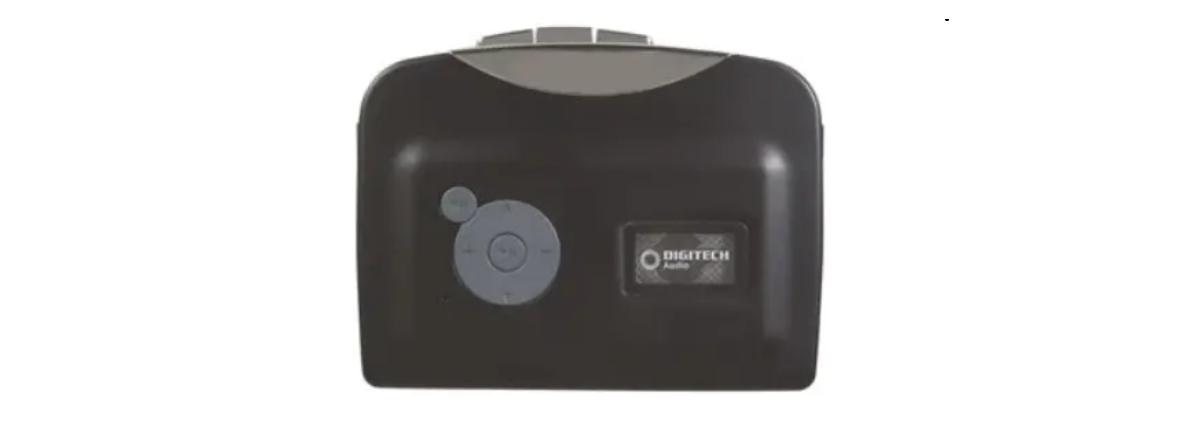

Digitech GE4102 USB Cable & Earphone
Before First use
Prior to using your Digitech GE4102 USB Cable & Earphone, please read all the safety and operating instructions thoroughly. Follow the steps below before using the product. We recommend keeping the original packaging for storing the device when not in use. Find a safe and convenient place to keep this instruction manual for future reference. Unpack the Digitech GE4102 USB Cable & Earphone, but keep all packaging materials until you have ensured it is undamaged and in good working order. Make sure all accessories listed in this manual are included.
Box Content
- 1 x Cassette to MP3 Converter
- 1 x USB cable
- 1 x Earphone (optional)
- 1 x User Manual
For additional Digitech audio devices, you may also check out the Digitech GE4108 Mini Hi-Fi Speaker Boxes Instruction Manual for detailed setup and features.
Product Diagram
Features
Discover the key functions of the Digitech GE4102 USB Cable & Earphone, designed for easy music playback and recording:
- Automatically or manually partition songs.
- Stand-alone, no computer required.
- Plug & play.
- With Playback can check the recorded music on the device.
- Small size, can play, convert anywhere.
Operation
Get a power supply
There are two ways to get power supplied for the device: Use 2 x AA batteries or from any USB port power supply (5V DC adapter, USB from computer, etc), by an USB cable (come with device in package) as below, if the DC adapter doesn’t come with, you can use any USB port 5V DC adapter in your hand, 500mA to 1000mA is ok. There is an AA/USB switch on the top of the device, please put it toh itton the right place according to the way of power supply. (E.g., switch to AA if you use 2 x AA batteries, or switch to a DC adapter)
There are two wrong ways of power supply.
- Use an AA battery, but switch to “USB”; in this way, both cassette and recording/ playback won’t work. Please switch to “AA” to get working.
- Use a DC adapter, but switch to “AA”; in this way, the cassette won’t work, but the recording/playback can work, and the indicator will keep on. Please switch to “USB” mode if you want the device to get to work. Once the power supply is ok, you will see the green indicator is on.
Plug in a USB Flash
Use a USB flash which has enough storage space (about 1MB for 1 1-minute music recording), plug it into the device. Plug directly into the USB port of the device using AA batteries. Plug the female port of the USB cable (see chart 2) into a DC adapter. You can also use a USB card reader a r or A SUSB-HAhA USBrive as storage (Note: some readers or USB drives may have problems when using).
Operate the Cassette
You can use an earphone or a speaker plug to the “AUX” to listen to music when playing or recording music. There are 4 buttons on the top of the device:
Once you press the play button, the cassette starts to wworkYouuu can see the wheel running through the small window. You can set the volume to a level using the like-by-use switch. You may hear the music playing now. Let’s start the next step — recording (converting).
Recording
Recording manually:
When the case is set to play, and aa USBfconnectednnecting, and the din under standby mode (keeps on), and the colour of the indicator is green shows iitmanuSimplyJust simply press the reco,rding button, then the device will start recording (converting) the playing music to MP3 format, the green indicator will quickly turn off. If not, it means not recording, re-plug your USB flash and try again. Press the recording button again to stop recording and save in the atoSB flash.
At the interval between two songs, where you want to save in another short-press, short-press the “Down” button. The flashing green indicator will be off for about 2 seconds quickly flash again to save in another file. If you want to do it at simplyode, simply at standby mode. Press the “Down” button for 3~5 seconds till you see the indicator change from green to blue.
Recording in Auto MoInIn
On auto mode, Cassette to MP3 Converter will detect each interval between two sonI’ll split them into two files. So normally, if you have ononsongs at side A(or B) of your cassette, juthe st put the cassette in and play, then press record and button, after 6 songs, it playautomaticallyautomatic saves 7 mp3 files in your USB flash.(There will be 7 file6-song 6 songs tape, the FV0001~FV0006 will be the effective MP3 files for 6 songs, the last one FV0007 is an empty one due to the short space between the end of the 6th song to the end of the whole tape.) Device will create a new folder name “TAPEMP3” in your USB disk, and save each MP3 name “FV0001 to FV9999”
If you want to switch back to manual mode from auto mode, stop recording (or playback) to standby mode (blue indicator keeps on), long press “Down” button 3~5 seconds, till you see the indicator from blue to green, or simply power off the Cassette to MP3 Converter, then power on again, it will load at default—- manually mode.
Use the AUX Port
You can also record music from other sources with a 3.5mm audio cable (such as: radio, MD players, anything with h audio line out)
Problems in Auto mode
Due to the auto function being based on detecting the level of music: when the level is lower than the setting in firmware, the Cassette to MP3 Converter will take it as space between two songs, there will be a chance tthe o meet the following situations:
- If there is a long pause in a song, the Cassette to MP3 Converter may take it as tw songs, and save 2 files for it.
- If the space between two songs is too short, which the Cassette to MP3 Converter can not detect, it will take them as one song, and save the two songs in one file. When you meet this situation, you can use the Audacity software to find (find the link following to re-power (the unplug AA battery or USB power supply, then re-plug) the device if you unplug the USB flash during recording, otherwise recording and battery are nonot working.
Playback
The device has with playback function so you can easily check the recorded fine. At standby mode, press the playback utthe tthe on, the device will start to play recorded music, and the indicator will slowly be slow flashing. Press the playback button again, it will stop playback and d back to standby mode. During playback, just use the up/down buttons to choose to select the previous or next file. Use the button to turn the volume up and down. You can also copy other fila a e to a USB flash and import it intolug to our device to replay it, but only filthe es in the “TAPEMP3” folder can be played.
Troubleshooting
| Problem Solution | ||
| Press the recording button, nothing happens, indicate to keep on. | USB flash connection problem | Just re-plug and try again |
| USB cable wrong connection, see chart 2, if plug USB male 1 to DC adapter, USB male 2 to device, this is wrong, but you will see the indicator keep on seems working, but the device can not detect the flash in this way, so recording | Connect the CT USB in the right way | |
| USB flash un-working | Change one or fix your USB flash | |
| The indicator is on, but presthe s play button on the cassette doesn’t run. | Batterido does not have much post. | Change the new batteries and use the DC adapter to power the supply. |
| Wrong operation, if you use a USB-C adapter to supply power, but the AA/USB switch is on
“AA” sde, I’ll cause this problem. |
Switch to the right place. | |
| Press the SS Playback button, but no music is playing. | 1. If the indicator is slit ow flathe shing, means device is playing the music, but you can’t hear anything, maybe because the volume level is two low, please try to use “+” to increase volume, if still no lucky, maybe because the source volume is too low when recording, you need record it again after increase volume.
2. If the indicator keeps on, it means not playing. You don’t press the playback button, and again, as sometimes you re,se t but the soft touch button hasn’t been touched. |
|
Specifcations
Here are the detailed specifications of the Digitech GE4102 USB Cable & Earphone, including power options, audio quality, and physical dimensions:
| Converter format | MP3 |
| Power supply | 2 x AA Battery, any USB port power supply
(5V DC adapter, USB from computer, etc.) |
| Format of USB flash | Support FAT, FAT32, exFAT |
| Working time | 1 hour with 2 x AA battery |
| Audio channel | Stereo L/R |
| Bit Rate | 128Kbps |
| Dimensions | 16 x 9.4 x 3.5cm |
| Weight | 145g (without batteries) |
Warranty
The company shall not be liable for any consequential damage as a result of the product’s use in any circuit or assembly. Proof of purchase is considered to be the burden of the consumer. DigiTech reserves the right to make changes to the design and add or improve this product without incurring any obligation to install the same on products previously manufactured.
The foregoing is instead of all other warranties, expressed or implied, and DigiTech neither assumes nor authorises any person to assume any obligation or liability in connection with the sale of this product. In no event shall DigiTech or its dealers be liable for special or consequential damages, or from any delay in the performance of this warranty due to causes beyond their control.
Customer Support
- This warranty is provided by: Electus Distribution
- Address: 46 Eastern Creek Drive, Eastern Creek NSW 2766
- Ph: 1300 738 555
- Website: https://digitech.com/