

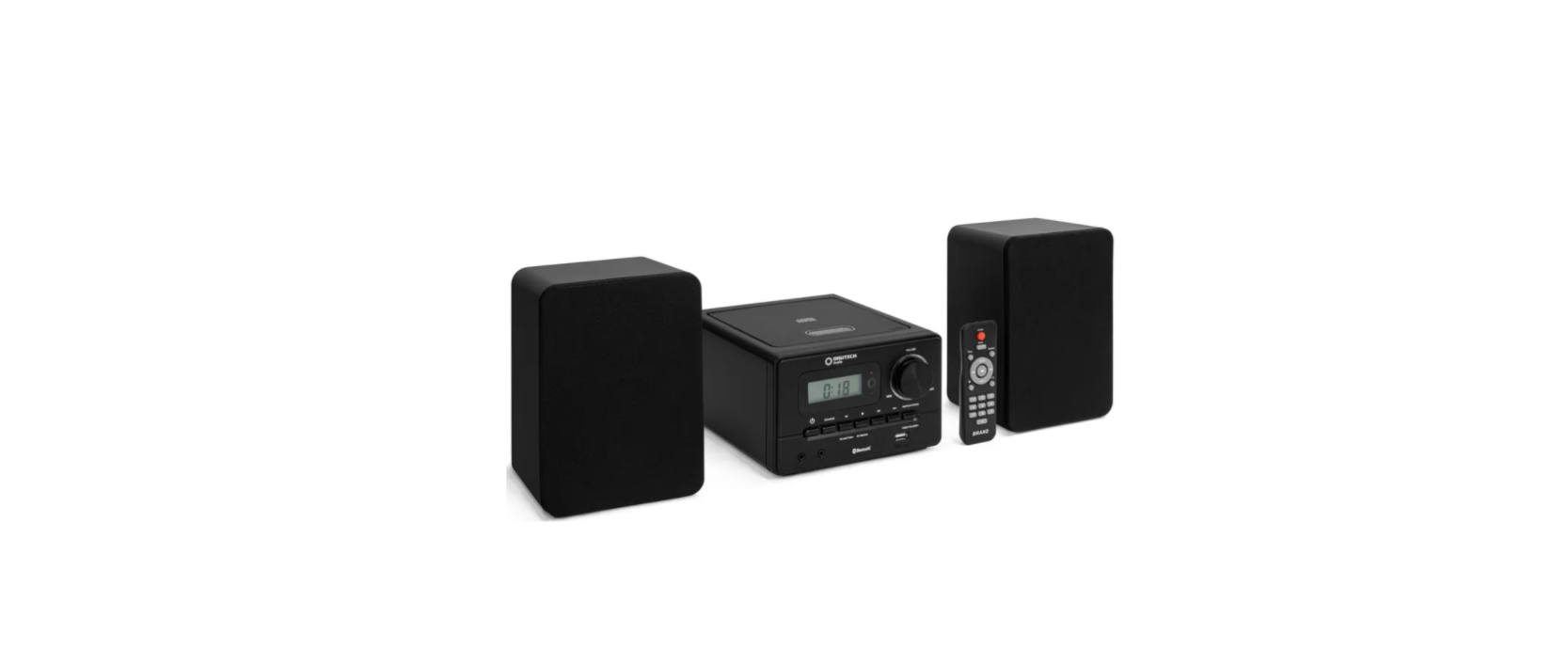

Digitech GE4108 Mini Hi-Fi Speaker Boxes 
Before First Use
Prior to using your Digitech GE4108 Mini Hi-Fi Speaker Boxes, please read all safety and operating instructions thoroughly. Ensure you follow the steps below before using the product. We recommend keeping the original packaging for storing the product when not in use. Find a safe and convenient place to keep this instruction manual for future reference. Unpack the product, but retain all packaging materials until you have confirmed it is undamaged and in good working order. Finally, ensure you have all accessories listed in this manual.
Safety Instructions
Please read the safety instructions carefully before using the product for the first time and keep the instructions for future reference.
- This product is not a toy. Keep it out of reach of children.
- Keep the product out of the reach of children and pets to avoid chewing and swallowing.
- Product operating and storage temperature is from 0 degrees Celsius to 40 degrees Celsius.
- Under and over this temperature might affect the function.
- Never open the product. Touching the inside electrics can cause an electric shock.
- Repairs or service should only be performed by qualified personnel.
- Do not expose to heat, water, moisture, or direct sunlight!
- The unit is not waterproof. If water or foreign objects enter the unit,
- it may result in fire or electric shock. If water or a foreign object enters the unit, stop use immediately.
- Do not use non-original accessories together with the product, as this can make the product’s functionality abnormal.
Overview
Operation
Powering the Music Station
- Take off the cover of the power cord.
- Insert the plug into the power source.
Powering the remote control
- Open the battery compartment on the back of the remote.
- Check the polarity (+/-) inside the battery compartment.
- Insert two AAA (LR03) batteries (NOT INCLUDED) according to the polarity.
- Re-close the battery door.
Time Setting
- Make sure the unit is in Standby mode.
- Press Time on the machine/remote
- Select Time Display in 12-hour or 24-hour mode by using Forward Skip. Press Time to confirm.
- Adjust the hour by Forward / Backward Skip. Confirm by pressing the time button.
Please note that the AM/FM is displayed on the left of the display if you are using 12-hour time display mode only. - Adjust the minute by Forward / Backward Skip. Confirm by pressing the time button.
To Start
Press the Power button on the Unit or the remote to start. The machine supports;
- CD/MP3 disc;
- USB contains MP3 files;
- Bluetooth (Ver. 5.3);
- FM radio (87.5 – 108MHz);
- AM radio (522 – 1620kHz);
- Auxiliary (aux-cord not included).
- The machine remembers the mode and radio station you stopped last time.
- The machine does not memorize the song/music you were listening to last time, either from a disc or a USB
Playing a CD or MP3-CD
- Gently press Open/Close on the CD door to open.
- Load the CD or MP3-CD into the unit, label side up.
- Gently close the CD door by pressing Open/Close on it.
- Select CD Mode by pressing the Source Button on the machine or the Remote
- The unit will automatically read the CD or MP3-CD.
- The machine will start playback from the 1st track of the disc.
- If you want to listen privately, connect your earphones to the earphone jack.
- Adjust the volume by turning the VOLUME knob to your preferred sound level.
- Press the PLAY/PAUSE button to pause the playback anytime you want.
- Press the PAUSE button again to resume playback.
- Press the FORWARD/BACKWARD button to skip to the desired track.
- Press and hold the FORWARD/BACKWARD button to skip to the desired part within the track.
- Press the STOP button at any time to stop playback.
- The total number of tracks will be displayed.
- Press the Repeat/Prog button to select the playback mode during playback
- Repeat: “REP 1” will appear on the LCD, and the unit will repeat playing the current track continuously.
- Repeat Album: “Rep Album” will appear on the LCD, the unit will repeat the current folder continuously (MP3 only)
- Random: “RAN” will appear.
- Prthe ess Repeat/Prog button to program the track while playing back stopped.
- Please see Section “Program Tracks” for details.
- Press and hold the Prog button on the unit while playback to jump to the next available file (MP3 only).
- Only on the remote below~ Press +10 on the remote to skip 10 tracks at one time.
- Enter the number of desired tracks on the number pad of the remote and press the play button to play the desired track
Program Tracks
- Programming can only be done while the music playback is in the STOP condition.
- Press the PROG button, “P01” will be shown on the LCD (For MP3-CD, “000” will be shown on the LCD)
- Press the two SKIP/SEARCH buttons to select the track you wish to program.
- Press the PROG button to save the selected track to the “P01” position.
- Then “P02” & “00” will show on the LCD.
- Repeat steps 3 & 4 to store other tracks in the order they are programmed.
- You can store up to 20 tracks for CD & 99 tracks for MP3-CD.
- Press the PLAY button to begin playing the programmed tracks.
Play Music from a USB
- Press the source button to select USB mode and plug a USB into the slot.
- The machine will start playback from the 1st track of the USB.
- If you want to listen privately, connect your earphones to the Earphones jackAdjust the volume by turning the VOLUME knob to your preferred sound level.
- Press the PLAY/PAUSE button to pause the playback anytime you want.
- Press the PAUSE button again to resume playback.
- Press the FORWARD/BACKWARD button to skip to the desired track.
- Press and hold the FORWARD/BACKWARD button to skip to the desired part within the track.
- Press the STOP button at any time to stop playback.
- Press the Repeat/Prog button to select the playback mode during playback.
- Repeat: “REP 1” will appear on the LCD, and the unit will repeat playing the current track continuously.
- Repeat Album: “Rep Album” will appear on the LCD, the unit will repeat the current folder continuously (MP3 only)
- Random: “RAN” will appear.
- Please see Section “Program Tracks” for details.
- Press and hold the Prog button on the unit while playback to jump to the next available file.
- Only on the remote below~ Press +10 on the remote to skip 10 tracks at one time.
- Enter the number of desired tracks on the number pad of the remote and press the play button to play the desired track
Auxiliary Function
- You may connect the music source (e.g., PC / MP3 player) with the music station through an Aux cable (not included).
- Select Aux mode by pressing the Source button after connecting.
- You are recommended to control the playback through the BT device connected, except volume level at both ends.
Listening to the FM/AM Radio
- Press the source button to select FM/AM mode. The LCD will display the radio frequency you are listening to.
- Press the BACKWARD/FORWARD button for station selection
- Press and hold the BACKWARD/FORWARD button for auto-scanning the next available station
- Select Mono / Stereo Mode by pressing the STOP (ST/MONO) button. “ST” is shown on the display if a stereo signal is received.
- Press and hold the PLAY (Scan/Tun+) button to scan all available radio stations and save all of them.
- Recall saved stations one by one by pressing the button again
- Press the PROG button to save the current station. Select the station to save the frequency by Backward/Forward Skip, and confirm by pressing the PROG button. (not available on remote)
Bluetooth Connection
- Switch to Bluetooth Mode by pressing the source button. “BT” will blink on the display.
- Select “CD-192” on your smartphone or tablet, or other Bluetooth device in the Bluetooth section to connect.
- “BT” will stop blinking on the display with a noticeable sound when the BT device is connected to the music station.
- You are recommended to control playback through the BT device connected except volume level at both ends.
Maintenance, Cleaning, Care & Storage
- Clean with a soft, damp cloth slightly moistened with water or a mild detergent.
- Do not use any chemical cleaners such as alcohol, benzine, or thinners.
- Never leave the music station in direct sunlight or in hot, humid, or dusty places.
- Keep the music station away from heating appliances and sources of electrical noise, such as fluorescent lamps and motors.
Specifications
| Input: | 1 x 3.5mm Aux, USB |
| Outputs | 1 x 3.5mm Aux, RCA (L&R) |
| Audio Sources | CD, Bluetooth®️, AM/FM Radio, 3.5mm |
| Speakers | 2 x 5W |
| CD Compatibility | MP3 CD, CD-R, CD-RW |
| Bluetooth®️ Version | 5.3 |
| BT Transmission Range | Up to 10m |
| AM Frequency | 530-1600KHz |
| FM Frequency | 87.5-108.0MHz |
| USB Capacity | Up to 128GB |
| Remote Control Batteries | 2 x AAA (Not Included) |
| Backup Batteries | 2 x AAA (Not Included) |
| Voltage Input | 230VAC |
| Dimensions | 210(D) x 178(W) x 116(H)mm (CD Player)
200(H) x 138(W) x 120(D)mm (Speakers) |
Warranty
Our Digitech GE4108 Mini Hi-Fi Speaker Boxes are guaranteed to be free from manufacturing defects for a period of 12 months. If your Digitech GE4108 Mini Hi-Fi Speaker Boxes become defective during this period, Electus Distribution will repair, replace, or refund the product if it is faulty or not fit for its intended purpose.
This warranty does not cover a modified product, misuse or abuse contrary to the user instructions or packaging label, change of mind, or normal wear and tear of your Digitech GE4108 Mini Hi-Fi Speaker Boxes.
To claim warranty, you will need to show a receipt or other proof of purchase. The benefits to the customer provided by this warranty are in addition to other rights and remedies under the Australian Consumer Law in relation to the goods or services covered by this warranty, including your Digitech GE4108 Mini Hi-Fi Speaker Boxes.
Customer Support
- This warranty is provided by: Electus Distribution
- Address: 46 Eastern Creek Drive, Eastern Creek NSW 2766
- Ph: 1300 738 555
- Website: https://digitech.com/
1 Comment
Pingback: Digitech GE4102 USB Cable & Earphone User Manual Guide