

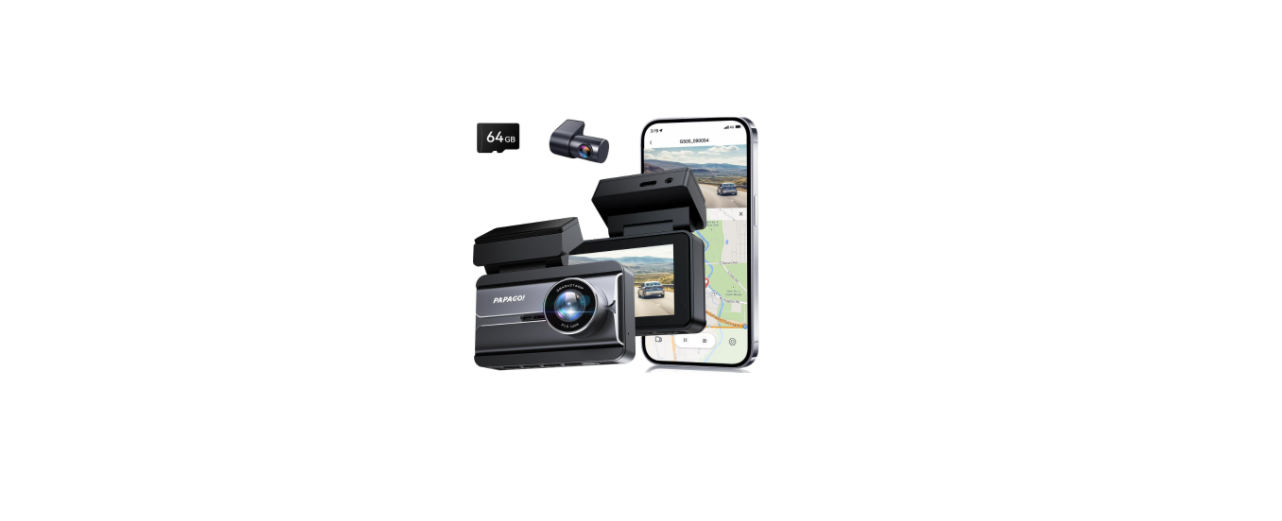

Papago N291S 2K Driving Recorder Camera

Safety Instructions
- Please follow the setup and usage instructions for the Papago N291S 2K Driving Recorder Camera provided in the print material.
- You should not set/install this dash cam at a place that would obstruct or reduce a driver’s view; make sure your use complies with pertinent vehicle codes of your state, province, territory, or country.
- You should post the required notices of recordation to occupants inside the vehicle,
- if voices or other information/signals about in-vehicle activities will be recorded.
- You should not change the dash cam’s settings or mode of operation when the vehicle is in motion.
- The optional driving warning signals, including any visual or audible reminder signals, should not replace your decision-making and judgment that are needed for the proper operation of the vehicle.
- You should not leave the dash cam in a visible spot when no one is inside the vehicle, to avoid attracting break-ins to steal the unit or other property.
- You should avoid extended exposure of the dash cam to direct sunlight or extreme temperatures (either high or low temperature), which tend to degrade or damage the unit and its normal functionality.
- The dash cam unit may have additional functionality, such as transmission and recording of audio or GPS signal, or other identification information.
- If you have privacy concerns about these functions, make sure you follow the instructions to disable these functions.
About Usage
- When using the Papago N291S 2K Driving Recorder Camera, if your vehicle still provides power when the vehicle is off, unplug the device when you plan to have your vehicle parked for a long period of time to avoid draining your vehicle’s battery.
- To avoid file corruption, don’t eject the Micro SD Card immediately after powering off.
- It is recommended to use the provided adapter.
- To enable parking mode, the unit must receive constant power.
Micro SD Card
- Please use a Micro SD card with a size/memory of at least 16GB, Class 10 (up to 128GB).
- Format the Micro SD card before using. To format the card, press When you get to settings — Format
Package Content

Product packaging is subject to change without notice.
Overview

Installation and Removal

- To have a better view, try to install the Papago N291S 2K Driving Recorder Camera in the center of the windshield.
- Make sure the lens is located in a place where the windshield wiper can clean the window to ensure the view is clear.
- Make sure the device is not installed in a place where it will interfere with the safety bag.
- Make sure the device will not be obstructed by the windshield’s sun control film (window tint).
- Clean the area you desire to have the dash cam placed before sticking the Papago N291S 2K Driving Recorder Camera, and DO NOT move the device for 24 hours.
For users interested in a higher-resolution option, the Papago N268 Mini Front 4K Dash Cam offers 4K video recording and a compact design, suitable for front windshield installation.
Start and Go
Power On
Insert the car charger cable into the car’s cigarette lighter and the other end into the Micro-USB port on the device. Make sure to install the MicroSD card into the MicroSD card slot on the device. After turning on, the system will start recording automatically. The LED light will turn flashing when recording mode has started.
Power Off
Press the power button for at least 5 seconds to turn off the device. To avoid breaking down the last file recorded, do not eject the MicroSD card immediately after powering off. If you need to turn it back on, simply hold the power button for at least 3 seconds.
Button Functions

Settings
- Resolution: Set recording resolution.
- Loop Recording: Set the time length of each video section for loop recording.
- EV (Exposure Value): Adjust the value for a better effect in different lighting conditions.
- Audio Recording: Enable or disable audio recording.
- Date Stamp: Enable or disable the date stamp printed on videos.
- G-Sensor: Set the sensitivity of the G-Sensor. Once the G-Sensor detects a sudden impact, the device will automatically lock the file so that it will not be overwritten.
- Plate Number: Set the plate number to be printed on videos.
Parking Mode
Off: No special function after parking the car. If the device receives constant power from the vehicle battery, the device will continue recording as normal.
Motion Detection: When there is no movement for more than 1 minute, the device stops recording and switches to detection mode. Recording restarts when a movement is detected.
Time-lapse Recording (1FPS): When there is no movement for more than 1 minute, the device records one snapshot every second. Recording returns to normal 30fps when a movement is detected.
Vibrate Recording: When activated, the device will be turned on automatically and strecordingna gae video once the G-Sensor detects a sudden impact.
Motion Detection: Set the sensitivity of motion detection. The higher it is, the more sensitive a movement can be detected.
- Flip Rear Camera: Flip the view of the rear camera.
- WiFi: Turn on/off the WiFi function.
- Boot with WiFi: Enable it to boot the device with Wifi on.
- APP: Scan the QR code to download the APP.
- Date/Time: Set date and time.
- Beep Sound: Enable or disable the key button sound.
- Power On Sound: Enable or disable power-on music.
- Language: Set display language.
- Frequency: Set anti-flicker frequency.
- Screen Saver: Set the screen saver time.
- Format: Press OK to format the MicroSD card. All data on the MicroSD card will be deleted.
- Default Settings: Restore all settings to the default settings.
Using APP
- Scan the QR code to download the APP

- Enter settings and enable WiFi. Or, long-press the “ ” button for 3 seconds to turn on WiFi.
- Connect to the WiFi on your phone.
WiFi name: PAPAGO-N291S-xxxx
Password: 12345678 - Launch the APP and connect the device.
- You can browse videos/photos and configure DVR settings with the APP now.
FCC Statements
This device complies with part 15 of the FCC Rules. Operation is subject to the following two conditions: (1) This device may not cause harmful interference, and (2) this device must accept any interference received, including interference that may cause undesired operation.
Any Changes or modifications not expressly approved by the party responsible for compliance could void the user’s authority to operate the equipment. This equipment generates and uses can radiate radio frequency energy and, if not installed and used in accordance with the instructions, may cause harmful interference to radio communications.
However, there is no guarantee that interference will not occur in a particular installation.
- Reorient or relocate the receiving antenna.
- Increase the separation between the equipment and receiver.
- Connect the equipment into an outlet on a circuit different from that to which the receiver is connected. –
- Consult the dealer or an experienced radio/TV technician for help.
RF warning for Mobile device
This equipment complies with FCC radiation exposure limits set forth for an uncontrolled environment. This equipment should be installed and operated with a minimum distance of 20cm between the radiator & your body
1 Comment
Pingback: Papago VP668 Multifunctional Dash Cam Guide | Setup & Features