



Bang & Olufsen BeoSound 5 Digital Music System
Operation
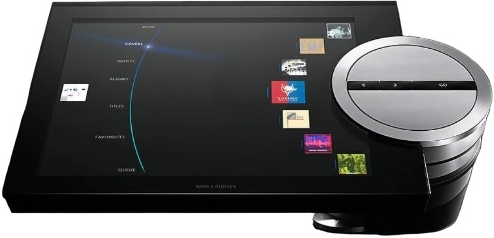
The music system is designed for close-up operation. You can browse music and stations and make selections.

Depending on which source you are using and which view you are in, you get different options when you press and hold GO while an item is highlighted.
N.music
- REMOVE … Remove album, artist or track from views and lists. ADD TO … Add item to favourites. If you do not want a specific track to be included in the playlist generated by MOTS, you must add it to the EXCLUDE LIST.
N.radio
- REMOVE … Remove station. ADD TO … Add station to favourites. Coloured lists and numbered favourites
- REMOVE … Remove the album, artist, track or station from a list. CLEAR LIST … Remove everything from the list in question.
Play Queue
- REMOVE … Remove the track from the play queue. CLEAR QUEUE … Remove everything from the play queue. ADD TO … Add item to favourites.
- If you do not want a specific track to be included in the playlist generated by MOTS, you must add it to the EXCLUDE LIST.
Exclude List
- REMOVE … Remove item from the exclude list to include it in MOTS again. CLEAR LIST … Remove everything from the exclude list.
Ripping
- While ripping a CD, the tracks appear individually in the ripping list. The ripped tracks can be selected for playback.
Recently Added
- This list contains all tracks recently added to the internal hard disk.
- The list is sorted in the order the albums have been added to the hard disk.
- Tracks added by means of the CD Ripping Device, as well as tracks transferred from a connected computer, are included in the list.
- If you use Beo5 or Beo6, it must be configured for use with the music system. Contact your retailer.

- When your Beo6 remote control is configured for two-way communication and connected to your wireless network, you can browse the music on your music system with the remote control.
- You can see what is currently playing and change tracks or add to your play queue. Your music system must also be connected to your network. For further information about connecting Beo6 to a wireless network, refer to its own Guide.
- When you want to operate BeoSound 5 wirelessly with Beo6, you must wait for Beo6 to connect to the wireless network. If you place Beo6 in the charger, the playing screen remains on. You can still operate BeoSound 5.
Browse N.music on Beo6
The cover of the track currently playing is shown on Beo6, and you can browse through your music collection to add tracks to the play queue or to make a new MOTS seed. When you make a new MOTS seed, playback of the track is interrupted as soon as the new MOTS queue is generated.
Browse Music
- Touch the button activating your music source (e.g. N.MUSIC). To switch on the product, you must be within IR range.
- Choose the button for the sorting you wish to use: ALBUM or ARTIST.
- Choose a letter to bring up a list of Albums or artists starting with this letter. Albums and Artists are sorted alphabetically.
- Slide your finger across the screen (from top to bottom or vice versa) to move from one screen to the next.
- Press shortly to select.
- Press and hold to bring up options for the chosen item.
Add to the Play Queue
- Press and hold the item to bring up the option QUEUE.
- Press the QUEUE button to add the track to the play queue.
Use a Track as Mots Seed
- Press and hold the item to bring up the option MOTS.
- Press the MOTS symbol to use the track as an MOTS seed. In all lists, you can press and hold an item to bring up the screen with options for that item.
The cover from the most recently played track is shown to the left. The cover to the right serves as inspiration for new music.
Press a letter to see the list of Albums or Artists.
To return to the “letter keyboard”, press a letter to the left on the screen.
Press the cover on the “Playing” screen to bring up the Play Queue.
The music system can also be operated with the Beo4 remote control
Store your preferred sound settings. When you store a sound setting, your system starts playing at this level every time you switch it on. Sound settings are preset from the factory to neutral values, which suit most listening situations. When you connect BeoLab 5 speakers to the music system, this must be set up in the SPEAKER TYPE menu. The SOUND menu is not available when your music system is set to Option 0.
Adjust Volume, Bass, or Treble
You can preset levels for sound volume, bass, treble and balance. The loudness feature compensates for the human ear’s lack of sensitivity to high and low frequencies. These frequencies are boosted at low volume levels so that low music becomes more dynamic.
Make Sound Settings
- Use the pointer to highlight MODE.
- Turn the wheel to select SETTINGS and press GO.
- Use the pointer to highlight SOUND.
- Turn the wheel to select the sound element you wish to adjust: VOLUME, BALANCE, BASS, TREBLE, LOUDNESS or SPEAKER TYPE, and press GO. The current value is the ‘wheel focus’ upon entry.
- Turn the wheel to adjust the sound setting and press GO to store.
While adjusting the sound, the speakers react according to the adjustment. Volume 0 mutes the sound. It is not possible to store volume level 0 or volume levels above 75. If your music system is set to Option 0, the volume display on the music system always shows maximum volume.
Change Language and Time Zone
You can change the display language of your music system at any time. Once a language is chosen, all menus and display messages are shown in this language.
The music system may restart when you change the language. You must make sure the time zone is set correctly if your BeoSound 5 is to be part of a Play Timer.. You can change the display language of your music system to your liking.
Change Language
- Use the pointer to highlight MODE.
- Turn the wheel to select SETTINGS and press GO.
- Use the pointer to highlight SYSTEM SETTINGS.
- Turn the wheel to select LANGUAGE and press GO.
- Turn the wheel to select the language you want and press GO.
- Use the pointer to leave the menu.
Set the Correct Time Zone
- Use the pointer to highlight MODE.
- Turn the wheel to select SETTINGS, and press GO.
- Use the pointer to highlight SYSTEM SETTINGS.
- Turn the wheel to select TIME ZONE, and press GO.
- Turn the wheel to select the correct time zone, and press GO.
- Use the pointer to leave the menu.
You can select your preferred language in the SYSTEM SETTINGS menu. The current display language is shown upon entry, here;

System Updates
Manual Software Update
- You can choose to update software manually or set the system to update software automatically.
- The system restarts when you update the software.
Update Software Manually
- Use the pointer to highlight MODE.
- Turn the wheel to select SETTINGS and press GO.
- Use the pointer to highlight MAINTENANCE.
- Turn the wheel to select UPDATE SOFTWARE and press GO.
- The display shows the Bang & Olufsen logo and the message.
- Checking for new software – Press GO to cancel appears.
- When the software update is completed, the message ‘Download 100% complete‘ appears on the display.
- If no new software is available, the message ‘No new software update available’ appears on the display.
- Switch the system to standby for the software update to take effect.
- NOW, ow when you highlight an item in any list, for example, Artist view for N.Music, you also get the option to delete items when you press and hold the GO button
Automatic Software Update
- Use the pointer to highlight MODE.
- We recommend that you leave the automatic software update setting on.
- Turn the wheel to select SETTINGS and press GO.
- Use the pointer to highlight MAINTENANCE.
- Turn the wheel to select AUTOMATIC SOFTWARE UPDATE. Press GO,
- Select YES or NO and press GO to store. The setting is enabled from the factory.
- Use the pointer to leave the menu.
Ejecct Disc
If your music system is equipped with the optional CD Ripping Device, you can use this function to eject a loaded disc. This may be useful if you have loaded a disc but decide not to rip it at present.
Eject a Loaded Disc
- Use the pointer to highlight MODE.
- Turn the wheel to select SETTINGS, and press GO.
- Use the pointer to highlight MAINTENANCE.
- Turn the wheel to select EJECT DISC, and press GO.
For information on how to make settings for the optional CD Ripping Device, see “Service settings”.
Service Settings
In the SERVICE SETTINGS menu, you can increase the internet radio buffer time and disable the MOTS function. You can set the optional CD-Rip to decide if ripping should take place automatically and if the CD being ripped should play automatically while being ripped. You can also bring up the “hidden” menus to select music storage.
N.radio Buffer
If the sound seems to drop out when you listen to internet radio, you can optimise reception from a poor internet connection or a poor netradio stream by increasing the buffer time.
- Use the pointer to highlight MODE.
- Turn the wheel to select SETTINGS and press GO.
- Use the pointer to highlight SERVICE SETTINGS.
- Turn the wheel to select N.RADIO BUFFER and press GO.
- Turn the wheel to select a buffer length in seconds and press GO.
- Bang & Olufsen cannot vouch for the quality othe f the net radio stations available from programme providers.
Disable Mots
The MOTS function automatically uses the last track in your play queue to generate a series of similar tracks. MOTS is enabled from the factory. However, if you only want to listen to music you have actively selected, you can disable the MOTS function.
- Use the pointer to highlight MODE.
- Turn the wheel to select SETTINGS and press GO.
- Use the pointer to highlight SERVICESETTINGS.
- Turn the wheel to select DISABLE MOTS and press GO.
- Turn the wheel to select YES and press GO.
When MOTS is disabled, music only plays when you have manually added it to the play queue. For more information about MOTS, see “MOTS”.
CD Ripping Device start up The CD Ripping Device is set to start up when you operate the BeoSound 5 either by turning the wheel, moving the lever or pressing one of the buttons. You can change this setting so the CD Ripping Device is always switched on when the BeoSound 5 is switched on.
- Use the pointer to highlight MODE.
- Turn the wheel to select SETTINGS and press GO.
- Use the pointer to highlight SERVICE SETTINGS.
- Turn the wheel to select CD RIPPING DEVICE and press GO.
- Turn the wheel to select ALWAYS ON and press GO.
With the factory setting ‘MANUAL ON’, the CD Ripping Device will not switch on if you operate BeoSound 5 with a remote control or from a link room. You must operate the BeoSound 5 close-up to switch the CD Ripping Device on.
Auto-rip
When the optional CD Ripping Device is connected, you can set it up to start ripping automatically when you load an audio CD. When a CD is ripped, metadata is transferred automatically, if available. If no metadata is available, these can be added manually and transferred via a connected computer.
- Use the pointer to highlight MODE.
- Turn the wheel to select SETTINGS and press GO.
- Use the pointer to highlight SERVICE SETTINGS.
- Turn the wheel to select AUTO-RIP and press GO.
- Turn the wheel to select ON and press GO.
If you select OFF, ripping will only start when you confirm it. CDs are ripped in WMA Lossless format. Only standard CDs with uncompressed content can be ripped.
Auto-play
When you rip an audio CD, you can set the system up to play the CD as soon as it is ripped. The music system will start playing the first track on the CD as soon as it has been ripped.
- Use the pointer to highlight MODE.
- Turn the wheel to select SETTINGS and press GO.
- Use the pointer to highlight SERVICE SETTINGS.
- Turn the wheel to select AUTO-PLAY and press GO.
- Turn the wheel to select ON and press GO.
You can select a different source, album, artist or track at any time while ripping a CD. However, you cannot step in tracks on the CD you are ripping before each track is ripped.
Music Server
In a setup with, for example, the BeoSound 5 Encore, you can also set the BeoSound 5 to act as a music server, allowing other devices to access its contents.
- Use the pointer to highlight MODE.
- Turn the wheel to select SETTINGS.
- Press twice and press GO.
- Use the pointer to highlight SERVICE SETTINGS.
- Turn the wheel to select MUSIC SERVER and press GO.
- Turn the wheel to select YES and press GO.
When the MUSIC SERVER function is activated, the system will not enter ‘suspend’ mode, and the hard disk will not switch off.
Rebuild Music Server
This option is only available if the internal hard disk is used as a music server. If, for some reason, the music stored on the internal hard disk does not appear for browsing, you can make a new scan of the music on the internal hard disk.
- Use the pointer to highlight MODE.
- Turn the wheel to select SETTINGS.
- Press twice and press GO.
- Use the pointer to highlight SERVICE SETTINGS.
- Turn the wheel to select REBUILD MUSIC SERVER and press GO.
- Turn the wheel to select YES and press GO.
The system can be set up in a network, either with a wired or a wireless connection. For the most reliable network connection, Bang & Olufsen recommends making a wired connection. Bang & Olufsen also recommends the use of a separate router and access point – a Network Link router – to ensure the most reliable playback of digital music. The installation and setting up of the BeoSound should always be made by a Bang & Olufsen installer. For more information about Bang & Olufsen network setup, contact your retailer.r
Network Link Router
- The BeoSound 5 must be connected to the Network Link router.
- This can be a wired or a wireless connection.
- When using the internal hard disk, we recommend a wired connection.
- A wireless solution requires a wireless USB network adaptor, which must be purchased separately.
- Once connected, BeoSound 5 can play back music stored on a NAS also connected to the Network Link router.
- When using a NAS, music must, of course, be available on the NAS.
See Network Information
- Use the pointer to highlight MODE on your music system.
- Turn the wheel to select SETTINGS and press GO.
- Use the pointer to highlight NETWORK INFO.
- You can now see the settings made for your network connection.
- For information about changing host hostname or password, see the next page.
To Change Network Settings
- Use the pointer to highlight MODE.
- Turn the wheel to select SETTINGS.
- Press twice and press GO.
- Turn the wheel to select NETWORKSETTINGS and press GO.
- Bring up the setting you wish to change and press GO.
- Follow the instructions on the screen and press GO to store your changes.

- Before you start using your system, you must connect it to the internet and make the music sources you wish to use available.
- Your music system has multiple sources for your music experience – internet radio, music from a source connected to BeoMaster 5 via line-in (optional accessory required), your BeoMaster 5 or even a Network
- Attached Storage device (NAS). Your retailer can help you set up the system and make sources available.
- If the internal hard disk is used, music must be transferred to the BeoMaster 5 to be played.
- This is done via a PC or MAC using the dedicated BeoConnect software, or via the optional CD Ripping Device.

Play Internet Radio
- To listen to the radio, the music system must be connected to the internet, and you must register through the BeoConnect software. Refer to the BeoConnect guide for more information.
- To be connected to the internet and you must register through the BeoConnect software.
- Refer to the BeoConnect guide for more information. Activate internet radio … > Use the pointer to highlight MODE. > Turn the wheel to select N.RADIO and press GO. > Select the station you want to listen to and press GO to play.
- If you have renamed N.RADIO to RADIO for easy Beo4 navigation, you must select RADIO instead. For more information, see “Change source names”.
- There may be a slight delay before the sound appears. The time depends on the internet connection speed, the length of the N.
- The radio buffer and the performance of the radio station are connected. For more information, see “N.Radio buffer”. You can add your favourite radio stations to a favourite list to allow for quick selection.

Play Music from the N.music Source
- Your music system allows you to access your digital music storage on your network. The digital music storage can be either the internal hard disk or a selected range of standard NAS devices.
- Your Bang & Olufsen retailer must make the installation for you. If you switch off the music storage (NAS), you will not be able to play music from the storage.
- When the storage is switched on again, your music system will automatically reconnect to the music storage.
Activate N.music
- Use the pointer to highlight MODE.
- Turn the wheel to select N.MUSI and press GO*.
- Select the music you want to listen to and press GO to start playback.
- If you have renamed N.MUSIC to CD or A. MEM for easy Beo4 navigation, you must select CD or A.MEM instead. For more information, see “Change source names”.
Music Storage
From the factory, your music system is set up to play music from the internal hard disk. However, you can change this to a NAS device if available and if your system is set up for it. For more information, see “Music storage”
How to Make Music Available
- Calculation of a large music collection takes days.
- In order to access music on your NAS, you must enable UPnP/DLNA on the NAS device.
- Bang & Olufsen have tested and verified your music system on several high-end NAS devices.
- To obtain the best possible performance, only the verified NAS devices are recommended.
For More Information, Contact Your Retailer
- Additional music from aa line-in connection. You can listen to music from an external device on the speakers of your music system.
- A USB-C audio interface is required for connection. This must be purchased separately.
- Using a Bluetooth device with BeoSound 5 also requires a Bluetooth receiver connected to the USB audio interface; this is also an optional accessory.
- Further options are available for listening to music from external devices.
- Contact your Bang & Olufsen retailer for more information.
- This type of connection can only be used when the BeoSound 5 AUDIO MASTER setting is YES.

The music device you connect is the source A.AUX on BeoSound 5. The source can be activated but not operated directly on the BeoSound or via remote control.
Activate Aux Source
- Use the pointer to highlight MODE.
- Turn the wheel to select A.AUX and press GO.
- Now operate the connected device as usual.
This type of connection can only be used when the eoSound 5 AUDIO MASTER setting is YES.

The music device you connect appears as the source A.AUX on BeoSound 5. The source A.AUX interrupts any other source currently active on BeoSound 5. The source cannot be operated directly on the BeoSound or via remote control, nor can it be activated on BeoSound 5 or via remote control.
- Establish communication
- iwithBBeoSoun d from your device.
- Now operate the connected device as usual.
Coloured Lists
- Each of the four coloured lists is a playlist which can contain several tracks, albums, artists or radio stations. When you add to a coloured list, the item is added.
To Make a Coloured List
- Find the track, album or station you want to add to a coloured list, then press and hold GO.
- Turn the wheel to select a colour. Release GO.
- You can now select the coloured list in the FAVOURITES menu or by pressing the appropriate colour on your Bang & Olufsen remote control.
- Four coloured lists are available for each source, i.e. red, green, yellow and blue for the radio source and music source, respectively.
Numbered Favourites
- Each numbered favourite can contain either one radio station or one track.
- When you assign a new item to a number already in use, it will replace the previous item.
To Make a Numbered Favourite
- Find the item you want to give a number to, then press and hold GO.
- Turn the wheel to select a number.
- Release GO.
- You can now select the numbered favourite in the FAVOURITES menu or by pressing the appropriate number on your Bang & Olufsen remote control.
- Selecting a numbered favourite for N.RADIO (RADIO) switches to the radio station assigned to this number.
MOTS
- MOTS makes it convenient to find music for a certain situation or to just start playing. You only need to pick one song, and then MOTS automatically creates a list of similar music.
One Source at a Time
- MOTS uses the music source currently selected to generate a play queue.
- MOTS uses only one source at a time.
Mots Calculations
- MOTS calculations are based on sound, dynamics, and rhythmic aspects and searches across parameters such as artist, album and genre.

Mots Analysis
- When you have transferred all your music to the internal hard disk, the MOTS function needs time to analyse the music collection before it can generate a play queue.
- As a rulthanalysissis takes 15 seconds per track. When a NAS server is used as music storage, the music on the NAS is also analysed. Analysis only takes place while the system is in standby.
- Added tracks can therefore only be part of a MOTS queue when the product has been in standby long enough to analyse all tracks.
The Roles Menu
- Your music system can take part in a Timer programmed on an audio or video master in your link setup.
- This means that if you activate the function in your music system, the speakers connected to your music system will start playing at the programmed time.
- In the ROLES menu, you can change which remote control button should activate the music and radio playback. From the factory, the N.MUSIC button activates the music playback from BeoMaster 5 (or another music server you have chosen).
- The N.RADIO button activates the radio from the internet. On Beo4, both buttons are found in the LIST menu.
- If you have a Beo4 and use the sources often, we recommend that you change the source names and have the CD or A.
- The MEM button activates the N.MUSIC, and the RADIO button activates the N.RADIO source instead.
Activate Play Timer
- Use the pointer to highlight MODE.
- Turn the wheel to select SETTINGS and press GO.
- Use the pointer to highlight ROLES.
- Turn the wheel to select PLAY TIMER and press GO.
- Turn the wheel to select ON and press GO.
- Use the pointer to leave the menu.

Audio Master
The setting in the AUDIO MASTER menu determines if the BeoSound 5 acts as the audio master in your setup. The setting affects the “role” the BeoSound 5 has in your setup and which menus are available.
- Use the pointer to highlight MODE.
- Turn the wheel to select SETTINGS and press GO.
- Use the pointer to highlight ROLES.
- Turn the wheel to select AUDIOMASTER and press GO.
- Turn the wheel to select the appropriate setting for your setup and press GO to store.
AM Option
- Use the pointer to highlight MODE.
- Turn the wheel to select SETTINGS and press GO.
- Use the pointer to highlight ROLES.
- Turn the wheel to select AM OPTION and press GO.
- Turn the wheel to select the appropriate Option for your setup and press GO to store.
Option Settings
Option 0. Used when your music system is connected to your video system and no speakers are connected directly to your music system.
Option 1. Used when your music system is set up on its Bang & Olufsen BeoSound 5 Digital Music System own or connected to a video system, and when speakers are connected to your music system.
Option 2. Used when your music system is set up in one room and connected to a system setup in another room.
Option 5. Used when your music system is set up in a link Bang & Olufsen BeoSound 5 Digital Music System room, which also comprises a Bang & Olufsen television.
Option 6. Used when your music system is set up in a link Bang & Olufsen BeoSound 5 Digital Music System room without a Bang & Olufsen television.
Change Source Names
For easier access to the N.MUSIC source by remote control, you can set the system to activate the N.MUSIC source via the CD button.
- Use the pointer to highlight MODE.
- Turn the wheel to select SETTINGS and press GO.
- Use the pointer to highlight ROLES.
- Turn the wheel to select either CD, A.MEM or N.MUSIC and press GO.
- Make changes for the N.RADIO source as well, if you want.
- Press GO to store.
Delay
- Use the pointer to highlight MODE.
- Turn the wheel to select SETTINGS.
- Press twice and press GO.
- Use the pointer to highlight ROLES.
- Turn the wheel to select DELAY and press GO.
- Make settings for the necessary delay.
- Press GO to store.
If you want to make your music system start up faster, you Bang & Olufsen BeoSound 5 Digital Music System can shorten the start-up time; however, this increases the standby power consumption of the system. You can shorten the start-up time by changing the setting in the POWER SAVING menu to OFF.
Default Power Consumption
- Use the pointer to highlight MODE.
- Turn the wheel to select SETTINGS.
- Press twice and press GO.
- Use the pointer to highlight SYSTEM SETTINGS and press GO.
- Turn the wheel to select POWER SAVING and press GO.
- Turn the wheel to select AUTOMATIC or OFF and press GO.
- Use the pointer to leave the menu. The SYSTEM SETTINGS menu also contains a DEBUG LOGGING menu.
You can shorten the start-up time by changing the setting Bang & Olufsen BeoSound 5 Digital Music System in the POWER SAVING menu to OFF.
Change the Default Power Consumption
- Use the pointer to highlight MODE.
- Turn the wheel to select SETTINGS.
- Press twice and press GO.
- Use the pointer to highlight SYSTEM SETTINGS and press GO.
- Turn the wheel to select POWER SAVING and press GO.
- Turn the wheel to select AUTOMATIC or OFF and press GO.
- Use the pointer to leave the menu. The SYSTEM Bang & Olufsen BeoSound 5 Digital Music System SETTINGS menu also contains a DEBUG LOGGING menu.

- You can change the standby power consumption in the SYSTEM SETTINGS menu.
Maintainance
From the menu, you can activate the clean-up function to delete unwanted tracks from the internal hard disk. Note that even though you delete items from the internal hard disk, they reappear if you transfer them to the hard disk again.
You can also update the product software and read about the latest software in your product. The advanced menu SUBMIT LOGS TO BANG & OLUFSEN collects the product’s error logs and sends them compressed to Bang & Olufsen over the Internet. .
Clean-Up Function
You use the clean-up function to delete tracks, albums Bang & Olufsen BeoSound 5 Digital Music System or artists permanently from the internal hard disk. To use the clean-up function, you must switch it on while N. Music is active.
Switch Clean-Up On
- Use the pointer to highlight MODE.
- Turn the wheel to select SETTINGS, and press GO.
- Use the pointer to highlight MAINTENANCE.
- Turn the wheel to select CLEAN-UP, and press GO.
- Turn the wheel to select ON, and press GO.
No, when you highlight an item in any list, for example, Artist view for N.Music, you also get the option to delete items when you press and hold the GO button.
Music Storage
If you use a NAS as music storage, you must set up BeoSound 5 for it.
- Use the pointer to highlight MODE.
- Turn the wheel to select SETTINGS.
- Press twice and press GO.
- Use the pointer to highlight SERVICE SETTINGS.
- Turn the wheel to select MUSIC STORAGE and press GO.
- Turn the wheel to select BeoMaster 5 (internal hard disk) or a connected server and press GO.
Bang & Olufsen recommends the use of specific Bang & Olufsen BeoSound 5 Digital Music System Network Attached Storage devices. Contact your Bang & Olufsen retailer for further information.
Warranty
- The BeoConnect software must be installed on the computer connected to the BeoMaster 5. Connections and setting up should be made by an authorised Bang & Olufsen installer.
- The Guide for BeoConnect for Windows is included with the software, but can also be downloaded here: www.bang-olufsen.com/guides
FCC Rules
This equipment generates, uses, and can radiate radio frequency energy and, if not installed and used in accordance with the instructions, may cause harmful interference to radio communications. However, there is no guarantee that interference will not occur in a particular installation.
- Reorient or relocate the receiving antenna.
- Increase the separation between the equipment and receiver.
- Consult the dealer or an experienced radio/TV technician for help.
Customer Support
- Visit: http://www.bang-olufsen.com
- Ph:+45 96841122
- Timing: 9:00 – 12:00
- Company name: Bang & Olufsen UK Ltd
- Company address: 7 Albemarle Street, London, W1S 4HQ, United Kingdom
FAQs
What is the Bang & Olufsen BeoSound 5?
Designed for audiophiles, the BeoSound 5 is a high-end digital music system with many connectivity choices, digital audio playback, and multi-room streaming. It enables smooth playback from streaming services, networked media, USB, and CDs.
Can BeoSound 5 play music in multiple rooms?
Indeed. The BeoSound 5 can transmit synchronised music across your house when used with other Bang & Olufsen multi-room devices.
Where can I download the official BeoSound 5 user manual?
You can get the BeoSound 5 Use Manual by searching for the BeoSound 5 model on the Bang & Olufsen website.
Can I use BeoSound 5 with non-Bang & Olufsen speakers?
Through line-out connections, yes. For the finest sound reproduction, use an amplifier of superior quality. Third-party speakers might not have some functions, such as multi-room connectivity or volume synchronisation.