

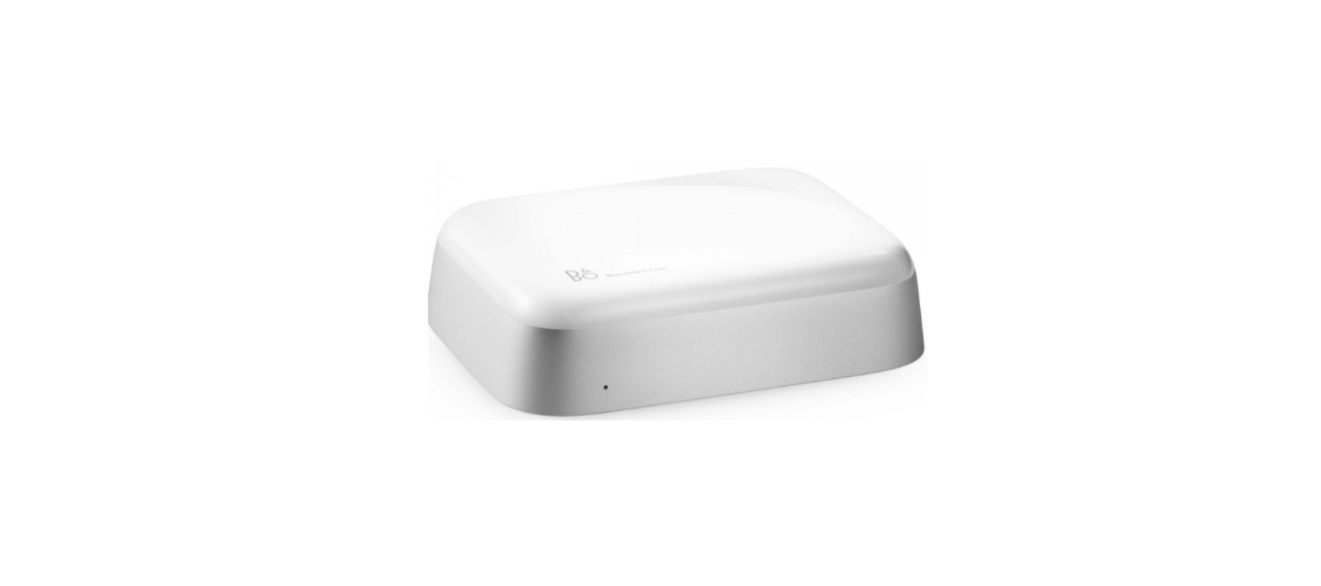

Bang & Olufsen Beoconnect Core TV Speaker Hub

Your Beoconnect Core is much more than a streaming box: it will carry your Bang & Olufsen products into the future. In this guide, you will find information about the daily use of your Beoconnect Core and connected products, as well as detailed descriptions of the features and functions.

When Setting Up
- Before connecting any cables or devices to Beoconnect Core, make sure that everything is switched off and disconnected from the mains.
- Use the Bang & Olufsen App to connect your Beoconnect Core to the internet. Once Beoconnect Core is connected, it will search for available software updates.
- Automatic software updates can be configured in the Bang & Olufsen App.
- The only cable included is a localised power cable.

Sources
With the Beoconnect Core, you can stream your favourite music by using the following sources.
- Bang & Olufsen Radio
- Use the Bang & Olufsen App to select stations and set favourites.
- Beolink, AirPlay, and Chromecast
- Streaming from a device and multiroom capabilities.
- Spotify, Tidal, and Deezer Connect
- Streaming via cloud and options to set favourites.
- Bluetooth 5.3
- For streaming audio and connecting a Beoremote One BT or Beoremote Halo.
- Wi-Fi
- IEEE802.11 b/a/g/n/ac/ax
- Line/Optical-in
- 3.5 mm combo-jack for analogue or digital connection to music players.
- Power Link
- For connection to most Beolab speakers.
- COMM
- For connection to a Beosound Shape.
- Ethernet
- Cabled connection to your home network.
- HDMI eARC
- 3rd party TVs with ARC/eARC
- USB-C
- For a digital audio connection to Beolab 50/90 or to connect audio from a computer.
Customise Your Sound

- Adjust the sound and get the most out of your speakers and Beoconnect Core by using the Bang & Olufsen app. With Sound Modes, you can curate the sound to your liking. Beoconnect Core includes the Optimal Sound Mode from the start. But custom Sound Modes can be saved for later from Beosonic and activated from the list.
- To delete a saved Sound Mode, tap on it and swipe left to reveal the delete button.
- To edit a saved Sound Mode, press and hold the Sound Mode you wish to edit.
Beosonic

Advanced digital sound algorithms developed by our acoustics team allow you to explore different audio spaces by simply moving the circle around.
Beosound Shape modes
With Beosound Shape, you can choose between three different ways of listening. All three sound modes remix the left and right channels according to the number of speakers in the actual setup.
Band on the Wall
- When using the “Band on the Wall” sound mode, the location of the lead vocal stays in the same position, and the remaining parts of the mix will be distributed around, no matter the position of the listener.
Social
- When using the “Social” sound mode, the location of the lead vocal stays in front of the listener, and the remaining parts of the mix will be distributed around, no matter the position of the listener.
Stereo
- When using the “Stereo” sound mode, the location of the lead vocal will appear in the closer outermost speaker, like in the traditional stereo setup. As opposed to the traditional stereo setup, the remaining speakers will enhance the sound stage between the speakers. This sound mode is intended to be used when Beosound Shape is part of a multichannel surround setup, i.e., as a rear speaker.
Favourities
- Beoconnect Core supports Favourites through the Bang & Olufsen App or a paired remote control that has Favourite buttons (MyButtons).
- On your product page in the Bang & Olufsen App, go to Radio and then Search to pick a station. Tap the More icon to assign it to a favourite.
- The buttons are pre-programmed with the most popular radio stations in your area and can be easily customised to your preferences: switch to other stations using Bang & Olufsen Radio or access playlists through Spotify Connect, Deezer Connect, or Tidal Connect.
- To save a favourite, begin playing either the radio or a playlist on your Beoconnect Core. Then press and hold the Favorite button that you wish to assign the favourite to on the remote control for two seconds.
- A confirmation sound will indicate that your selection has been saved. In the Bang & Olufsen app, press and hold the Favourite button to save the currently playing radio station or playlist to that button. Once saved, simply access your favourite with a short press of the button.

Connect to Speaker Via Power Link
By using a stereo Power Link connection, you can transform your Beolab speakers into streaming speakers of today. Beoconnect Core has one Power Link (RJ45) output socket that can connect any two Beolab loudspeakers with a Power Link input. There are two ways to connect via Power Link.
- Daisy-chain
- If your speakers have two Power Link sockets, you can connect from Beoconnect Core to the first speaker and then from the first speaker to the second speaker.
- Splitter
- Connect a Power Link splitter cable to Beoconnect Core, and then connect both speakers to the splitter.
After connecting your speakers via Power Link, connect all devices to the mains and continue setup in the Bang & Olufsen App. Once you have connected your Beoconnect Core to your network, you need to configure your connected speakers and make sure that the left and right roles are correctly set. Contact your Bang & Olufsen retailer for the right set of cables for your speakers and preferred setup.
External Audio Source
- The above illustration shows how you can add Beolab speakers to a music source. The 3.5 mm jack on Beoconnect Core can be used to connect any line-level analogue or digital (Optical) audio source so that it will play through the connected speakers. Contact your Bang & Olufsen retailer for the right set of cables to connect your device.
- If you wish to connect a turntable, a RIAA preamplifier is required, either built into the turntable or externally between it and your Beoconnect Core.

Third-Party TV
- Beoconnect Core can connect to most non-Bang & Olufsen TVs, allowing sound from your preferred shows to play through connected speakers.
- Simply link Beoconnect Core to your TV using an HDMI cable, plugging one end into the HDMI eARC port on Beoconnect Core and the other into the HDMI eARC/ARC port on your TV. Look for the labeled ports on your TV to locate the right one.
- Once connected, Beoconnect Core will synchronize with your TV, switching on and entering standby mode along with it. You can adjust the volume using your TV remote.
- You might need to configure your TV to send out stereo sound (PCM) only. Beoconnect Core cannot decode surround sound formats, such as Dolby Atmos, which are the default on some televisions.

Connect to Beolab 50 or 90
Beolab 50 and 90 loudspeakers can be connected to the USB-C port to create a fully digital signal chain from the source to the loudspeaker. Use a USB-C to USB-B 2.0 cable between Beoconnect Core and the primary speaker. Connect the primary and secondary speakers via the DPL (RJ45) sockets. After connecting the speakers via USB, connect all devices to the mains and continue setup in the Bang & Olufsen App. After connecting Beoconnect Core to your network, you will see an option to enable Beolab 50 or 90 in the control screen.
Connect to Beosound Shape
- Update your Beosound Shape with the Beoconnect Core for improved sound quality and direct digital connection to the amplifiers.
- A bracket is needed when installing Beoconnect Core in a Beosound Shape setup. Connect an RJ45 Cat7 cable from the “COMM” socket on Beoconnect Core to the “COMM In” socket on the primary Beosound Shape amplifier.
- When replacing the Beosound Core in an existing Beosound Shape setup with the Beoconnect Core, make sure to disconnect Beosound Shape from the mains. Then connect all the cables between the Beoconnect Core and the primary amplifier. Afterwards, connect both the amplifier and the Beoconnect Core to the mains. Make sure to switch on the amplifier first and then the Beoconnect Core.
- Once switched on, continue the setup in the Bang & Olufsen App. Make sure to have the Design ID of your unique Beosound Shape design ready, as you need to enter it into the app to finalise the setup.

Bracket Solution
For mounting the Beoconnect Core inside a Beosound Shape tile, the Beoconnect Core Bracket is required. The same bracket can be used for wall mounting your Beoconnect Core. For further instructions, see the guide included with the Beoconnect Core Bracket.
Multiroom
Make the whole house come together. Beoconnect Core can link to other speakers in a multiroom system and let multiple speakers across your home play the same content at the same time. You can enjoy multiroom in several different ways:
Beolink Multiroom

- Beolink Multiroom is Bang & Olufsen’s own multiroom system. It can distribute almost anything* playing on your Beoconnect Core to other Bang & Olufsen speakers and televisions on the same network.
- To listen to what’s playing on Beoconnect Core on another speaker, press and hold [play/ pause] on that speaker (for two seconds) to join the experience.
- To join an ongoing experience on Beoconnect Core, use the Join function on the paired Bang & Olufsen remote control, or use the Bang & Olufsen app to see which products are playing and add more to the ongoing experience.
Apple AirPlay
- To create a multiroom experience with AirPlay, select multiple speakers from the sound output menu on your Apple device. Beoconnect Core can also play together with speakers from other brands that support AirPlay.
Chromecast built-in
- You can use the Google Home app on your smartphone to create speaker groups and then cast content to these speakers via Chromecast.

Wi-Fi Setup Mode

- You can connect your Beoconnect Core to a new wireless Bang & Olufsen Beoconnect Core TV Speaker Hub network or reset the connection by pressing and holding the Setup button on the back of the Beoconnect Core for 2 seconds.
- You will hear a sound prompt, and the status indicator will start flashing amber.
- In the product settings of the Bang & Olufsen app, select Re-Setup to connect the speaker to Wi-Fi.
- To cancel Wi-Fi setup and connect back to the previous network, press and hold the button again.
Factory Reset
You can restore factory settings by pressing and holding the setup button on the back of your
Beoconnect Core for 8 seconds. Your Beoconnect Core will begin the reset process, and after approximately one minute, your Beoconnect Core will be ready for first-time setup again.
Daily Use

Use your mobile device to control Beoconnect Core through the Bang & Olufsen Beoconnect Core TV Speaker Hub, the Bang & Olufsen App, or connect a Bang & Olufsen remote control for your preferred content sources or services.
Bluetooth
- To pair a new device, press the Setup button shortly. When the light starts pulsing blue, go to
the Bluetooth settings on your device and select your Beoconnect Core. Once connected, you
are ready to play. - If your device has already been paired, you can reconnect it from the Bluetooth settings on
your device without going through pairing again.
Light Indicator

The light indicator is located in the front of Beoconnect Core, and shows the status of the product..
Indication Status
White
- Solid: Connected to the network, ready for use
- Flashing: Starting up
- Pulsing: slowly. Playback paused
Blue
- Solid (5 sec): Connected / Bluetooth paired
- Pulsing: Open for Bluetooth pairing
Red
- Solid: Static error*
- Flashing: Transient error, e.g., overheating
Amber
- Solid: No network connection, connection lost
- Flashing: Ready for network setup
- Pulsing: Connecting to the network
Green
- Pulsing: Software update in progress – wait until the light turns solid white again.
Download The Bang & Olufsen App
- To set up your Beoconnect Core, download the Bang & Olufsen App from your designated
App store.

- In the app, you can set up your product and get the full Bang & Olufsen experience.
- Unlock the full product experience of audio personalisation, product support, network connection, automatic software update, SST, S, and new features at your fingertips.
- If the app is unable to detect your product, Bang & Olufsen Beoconnect Core TV Speaker Hub, please ensure that Bluetooth and Wi-Fi are enabled on your device.

- Also, make sure to allow the Bang & Olufsen app to search for devices on the local network.
- Go to “Settings”, select the “Bang & Olufsen” app, and enable “Bluetooth” and “Local Network” or set the permissions for your device to access nearby devices on the other operating system.
FCC Rules
This equipment generates, uses, and can radiate radio frequency energy and, if not installed and used in accordance with the instructions, may cause harmful interference to radio communications. However, there is no guarantee that interference will not occur in a particular installation.
- Reorient or relocate the receiving antenna.
- Increase the separation between the equipment and receiver.
- Consult the dealer or an experienced radio/TV technician for help.
Customer Support
- Visit: http://www.bang-olufsen.com
- Ph:+45 96841122
- Timing: 9:00 – 12:00
- Company name: Bang & Olufsen UK Ltd
- Company address: 7 Albemarle Street, London, W1S 4HQ, United Kingdom
FAQs
What is the BeoConnect Core?
Your Bang & Olufsen Beosound speakers may wirelessly connect to your TV thanks to the BeoConnect Core, a TV speaker hub. It turns both wireless and wired speakers into a comprehensive home entertainment system with excellent sound quality.
Can the BeoConnect Core be hidden behind the TV?
Indeed, the Core is small enough to fit beneath or below your television. Make sure there is enough airflow to dissipate heat.
Can I use the BeoConnect Core with non-Bang & Olufsen speakers?
No, the BeoConnect Core is made especially to function with speakers made by Beolab and Beosound. Support is not available for non-Bang & Olufsen speakers.
Is the BeoConnect Core compatible with gaming consoles?
Yes, you can use the Core to transmit audio from gaming consoles to your TV.
Does the BeoConnect Core support multiple TV inputs?
Yes, you can use a hardware input selector or an app to swap between different TV audio sources. Analogue, optical, and HDMI inputs are all compatible.
Can I use the Core to stream music independently of the TV?
No, the purpose of the BeoConnect Core is to serve as a TV audio hub. Using the Bang & Olufsen app to stream music requires a direct connection to your Beosound speakers.
Is the BeoConnect Core energy efficient?
Yes, while not in use for prolonged periods of time, it will automatically switch to low-power mode and has a low standby power consumption.