



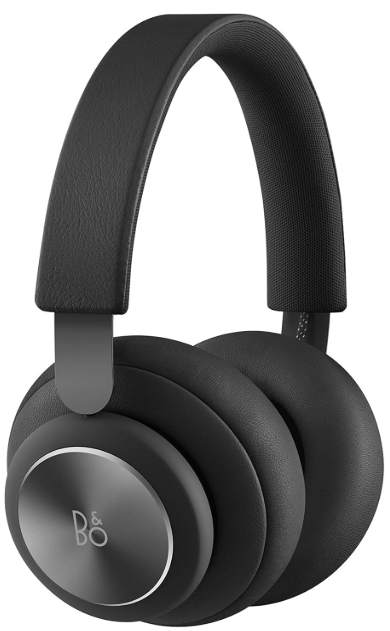
Bang & Olufson Beoplay H4 2nd Gen Headphone
Introduction
They are an experience that merges timeless luxury with cutting-edge sound. Journey through decades of history and immerse yourself in a limitless sonic world. They are your companion for all the future tunes and sounds yet to be discovered.
Before Using First Time
- When you put on your Beoplay H100, it will switch on automatically.
- Alternatively, you can switch them on by pressing the button on either earcup.
- The Beoplay H100 is automatically in Bluetooth pairing mode when switched on for the first time, shown by the light indicator on the right earcup pulsing white.
- When in pairing mode, they will appear in the Bang & Olufsen App or in the Bluetooth settings of your device, where they can be selected.
- To switch off your Beoplay H100, simply take them off your head.
- They will switch off after 5 seconds.
- This behavior can be adjusted using the B&O app.
- Alternatively, you can press and hold either button for 3 seconds, and an off tone will be heard.
- Your headphones will last up to three months in sleep mode outside the pouch.
- Inside the pouch, they will last more than a year if they are fully charged.
Media Operations
Use the glass touch surfaces and the buttons on each earcup to operate your Beoplay H100. Most gestures will work on both sides; however, the dials on each earcup have different functions.
- Press on either glass surface to play or pause.
- Swipe forward or backward on either glass surface for the next or previous track.
- Rotate the dial on the right earcup to adjust the volume.
- Press and hold either button (5 sec.) to initiate Bluetooth pairing.
- Press either button to toggle between ANC and TrueTransparency™.
- Rotate the left dial to fine-tune the level of ANC and TrueTransparency™.
- Place your palm on the glass interface to quickly listen to your surroundings.
- Lift one or both earcups to pause your content. Put them on again to resume.
- Double-press either button to switch between connected devices (this feature will not be available from launch).
Call Operations
Use the glass touch surface and the button on each earcup to operate your Beoplay H100. Most gestures will work on both sides; however, the dials on each earcup have different functions.
- Press on either glass surface to accept a call.
- Swipe forward or backward on either glass surface to reject a call.
- Rotate the dial on the right earcup to adjust volume.
- Press and hold the button (5 sec.) to initiate Bluetooth pairing.

- Rotate the left dial to fine-tune the level of ANC and TrueTransparency™.
- Place your palm on the glass surface to quickly listen to your surroundings.
- Double-press either button to switch between connected devices (this feature will not be available from launch).

Beoplay H100 supports multipoint, which means that you can actively connect to two devices at the same time.
Store Your Headphones

- Use the provided leather pouch to safely store your Beoplay H100. Crafted from premium materials, the pouch ensures durability and protection.
- Be careful when placing your Beoplay H100 in or removing it from the pouch to protect the leather on the earcups and the aluminium.
- This will help maintain the leather quality over time and may significantly extend its lifespan.
- Your headphones will last up to three months in sleep mode outside the pouch.
- Inside the pouch, they will last more than a year if they are fully charged.
Charging

- You can charge your Beoplay H100 using the included USB-C to USB-C cable and use it while charging.
- A full charge takes around 1 hour. When in a hurry, charging for just 5 minutes will get you up to 5 hours of battery.
- When fully charged, the light indicator turns solid green.
- If the battery level is below 5%, the light indicator turns red, and a sound prompt is heard.
User Experience Key
A versatile set of features provides intelligent interaction options. With Beoplay H100, we introduce
- Improved first-time setup with iOS and Android devices
- Customisable User interface
- Customisable ANC and TrueTransparency™
- Multipoint
- Spatial Audio

Bluetooth Pairing
- You can pair your Beoplay H100 with a new device by pressing and holding either button for 5 seconds.
- Continue holding while hearing the switching off tone until you hear the Bluetooth tone and the light indicator starts pulsing white.
- Go to Bluetooth settings on your portable device (phone, tablet, or computer). Select Beoplay H100 to connect.
- Alternatively, if already set up in the Bang & Olufsen App, you can go to the product settings, select Bluetooth pairing, and follow the steps in the app.
- When your headphones switch on, they will automatically connect to the most recently connected Bluetooth device, if available.
Factory Reset
You can restore factory settings by pressing and holding the buttons on the right and left earcup at the same time for 10 seconds until the light indicator turns solid orange. This will initiate the reset process, and after a few seconds, your Beoplay H100 will be ready first-time setup again. Remember to forget your Beoplay H100 in the Bluetooth settings on your device and pair it again.
Background Update

- To update the software of your Beoplay H100, open the Bang & Olufsen App and initiate the update, if available.
- It will then update in the background, and you can use the headphones while they are updating.
- The Bang & Olufsen App needs to remain open during the update.
Light Indicator
The light indicator shows the status of the product
Indication Status
White
- Solid (3 sec.): Connected / Bluetooth paired
- Pulsing: Open for Bluetooth pairing
- Solid (1 sec.): Switching off
Red
- Pulsing: Microphones muted
Orange
- Solid: Factory reset after 10 seconds
- Pulsing: Connected to power, charging
Green
- Pulsing: Software update in progress – wait until the indicator turns solid white
- Solid: Connected to power, fully charged.
Battery Status
Remove your Beoplay H100 from your head to check the battery status or press either button when the headphones are removed from your head. The light indicator is turned, when you are wearing the Beoplay H100.
The colour reflects the following status.
- Whit, more than 20% battery
- OrOrang from0% to 5% battery
- Re less than 5% battery
Sound Features
Listening Modes is a feature that consists of a wide range of controls that allow you to adjust the sound to your personal preference or to optimise the current listening experience. Listening Modes can be selected and customised on the Beoplay H100 product page in the Bang & Olufsen App. For each Listening Mode, you can define the following parameters:
Beosonic
- Advanced digital sound algorithms developed by our acoustics team let you explore different audio spaces by simply moving the circle around.
Hi-Res Codec
- Your Beoplay H100 supports Hi-Res studio-quality content via USB-C audio up to 24 bits/ 96 kHz.
Wind Protection
- When enabled in the Bang & Olufsen app, the Wind Protection feature automatically reduces wind-induced distortion.
- This feature consists of a combination of a passive, physical filter and a customised wind detection algorithm, which detects and then suppresses the noise.

Moreover, for crystal-clear voice transmission during phone calls, we employ advanced machine learning algorithms for the speech microphones.
Sources
You have multiple options for playing music on your Beoplay H100 through the following sources.
Bang & Olufsen Radio
- Radio stations are available through the Bang & Olufsen App, where you can also set Favourites.
Bluetooth 5.3
- Streaminis g available out of the box.
Line-in
- Lets you play music through a cabled connection using the USB-C to mini-jack cable included in the box. Note that some operation gestures are limited when using Line-in.
USB-C
- Lets you play music or take calls through a cabled connection using the USB-C to USB-C cable included in the box.

Spatial Audio
- Beoplay H100 comes equipped with Bang & Olufsen Spatial Audio, which provides two key benefits.
- Firstly, the auditory cues that are usually lost when listening to sound over headphones are restored digitally, delivering a more natural listening experience that mimics how we hear sound in the real world. Secondly,
- Head Tracking anchors the sound stage to your phone or tablet’s screen, ensuring that head movements contribute to the listening experience when consuming audio-visual content.
- Bang & Olufsen Spatial Audio supports all audio formats, including stereo, Dolby Atmos, and voice calls. To learn more, please refer to the Bang & Olufsen Spatial Audio technical guide.
- You can also enable or disable Spatial Audio or Head Tracking in the Bang & Olufsen App. However, note that Head Tracking without enabling Spatial Audio is not possible.
Head Tracking
- This new feature utilises a combination of sensors, gyroscopes, and surround sound audio to create a virtual 3D space, where the sound is anchored and adjusts dynamically with the movement of your head.
Earsense
- This technology enhances the listening experience with two features:
Real-Time Bass Adaptation
- With the built-in microphones positioned in front of the drivers, Earsense captures and analyzes the music right at your ears.
- This allows for real-time bass adjustments, ensuring optimal sound quality tailored to the fit of your Beoplay H100.
Environmental Noise Analysis
- Earsense uses the outside microphones to analyse the Bang & Olufsen Beoplay H100 Premium Headphones characteristics of ambient noise.
- The technology intelligently adjusts the Active Noise Cancellation to match your surroundings and to be most efficient.

Active Noise Cancellation
The innovative, TrueTransparency™ algorithm seamlessly adjusts the volume of your surroundings, giving you full control of your listening experience.
Full True Transparency Mode
- This feature lets you hear your surroundings as if you weren’t wearing headphones.
- It is ideal for situations where awareness matters – whether you’re walking down a busy street or working in an open office.
Reduce ambient noise
-
- The dial on the left earcup lets you fine-tune the level of transparency while maintaining a natural and balanced listening experience.
- This means that you can adjust the level to Bang & Olufsen Beoplay H100 Premium Headphones fully reduce ambient noise during music listening.
- To activate and toggle between ANC and TrueTransparency™, press the button on either earcup.
- Keep turning until a sound feedback indicates that you have reached the maximum level.

Longevity
Beoplay H100 does not age. They evolve. Quality materials last. When a new feature comes out, simply update your headphones and experience it. They are future-proof. This brings the concept of circular design to the front. Individual parts can be replaced or serviced easily: The battery, the cushions, the inner headband, the glass surfaces, and even the drivers and circuit boards. This is our answer to longevity.

Accessories
You can replace the ear cushions and the inner headband Bang & Olufsen Beoplay H100 Premium Headphones yourself. These are available for purchase from a retailer and our online store. For instructions on how to replace the ear cushions or inner headband, please refer to the respective guides. If you need service for other parts on your Beoplay H100, please reach out to your nearest retailer or contact our Customer Care here.
Warranty
We stand by our quality and care, which is why we extend the warranty of your Beoplay H100 from three to five years when you join Beocare. Beocare is Bang & Olufsen’s extended warranty program.
Download The Bang & Olufsen App
- To set up your Beoplay H100, follow the instructions on the welcome card included in the packaging or download the Bang & Olufsen App from your designated App Store.

- In the app, you can set up your product and get the full Bang & Olufsen experience of audio personalisation, product support, automatic software updates, and new features at your fingertips.
- For the first-time setup in the app, place your smartphone over the included welcome card.
- The welcome card contains a built-in NFC chip, similar to those used in contactless payments.
- If your device supports NFC, a prompt will appear on your iOS device to guide you through the setup process. If you have an Android™ device, it will link Bang & Olufsen Beoplay H100 Premium Headphones directly to the App Store.
Customer Support
- Visit: http://www.bang-olufsen.com
- Ph:+45 96841122
- Timing: 9:00 – 12:00
- Company name: Bang & Olufsen UK Ltd
- Company address: 7 Albemarle Street, London, W1S 4HQ, United Kingdom
FAQs
What devices are compatible with the Beoplay H4 2nd Gen?
All Bluetooth-capable gadgets, such as laptops, tablets, smartphones, and Bluetooth audio transmitters, can be used with the Beoplay H4 (2nd Generation). For wired Bang & Olufson Beoplay H4 2nd Gen Headphone connections, you can also utilise the 3.5 mm audio cable that comes with the device.
Can I pair the headphones with more than one device?
Indeed. Multi-device pairing is supported by the Beoplay H4 2nd Gen. It will connect to one device at a time, but it can remember up to eight. Disconnect the current device and choose the headphones on a different one to swap devices.
How long does the battery last?
When fully charged, the integrated rechargeable battery can play music for up to 19 hours. Depending on Bluetooth usage and noise level, battery life may change.
How do I charge the headphones?
Attach the USB-C cable that comes with it to a power source. When charging, the LED turns amber; when fully charged, it turns green. It takes about two and a half hours to fully charge.
Can I use the headphones while charging?
Indeed. While the headphones are charging via USB-C, you can use the 3.5 mm audio wire to listen to music.
Do the Beoplay H4 2nd Gen have Active Noise Cancellation (ANC)?
No, ANC is not a characteristic of the H4 2nd Gen. For immersive music, the soft memory foam ear cushions offer efficient passive noise isolation.
Can I use voice assistants with the H4?
Indeed. Siri and Google Assistant are compatible with the headphones. To use the voice assistant on your linked device, press and hold the centre button.
How do I reset the headphones?
For ten seconds, simultaneously press and hold the Power and Bluetooth buttons until the LED flashes blue and red. Next, pair your device again.