



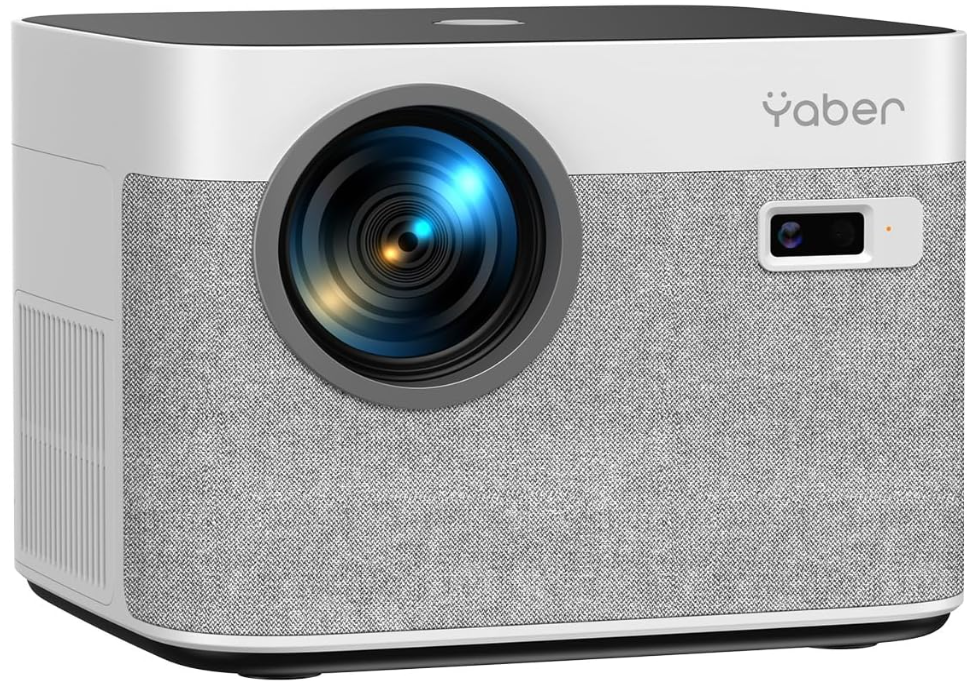
YABER U11 Portable Smart LED Projector
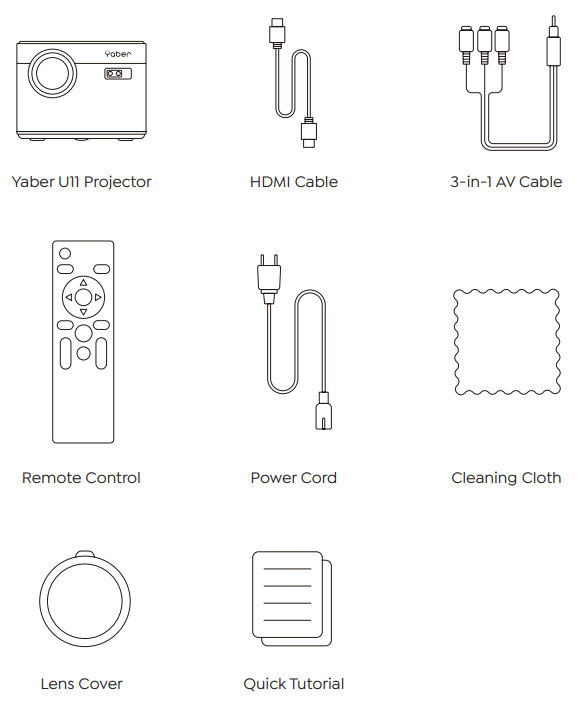
Package List 
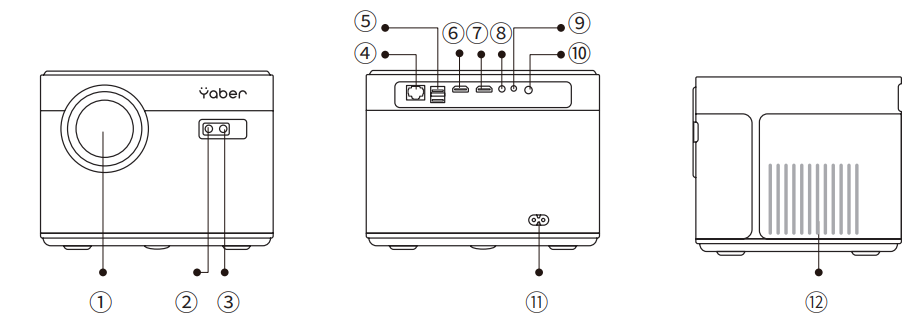
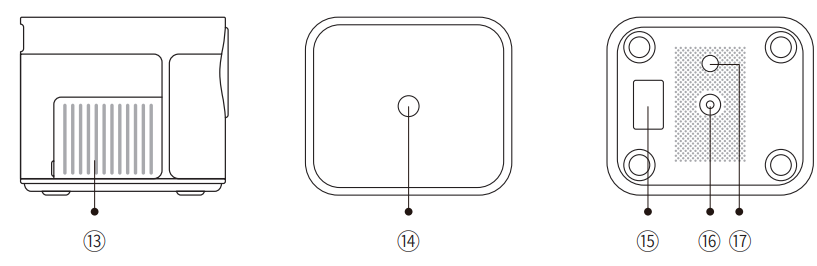
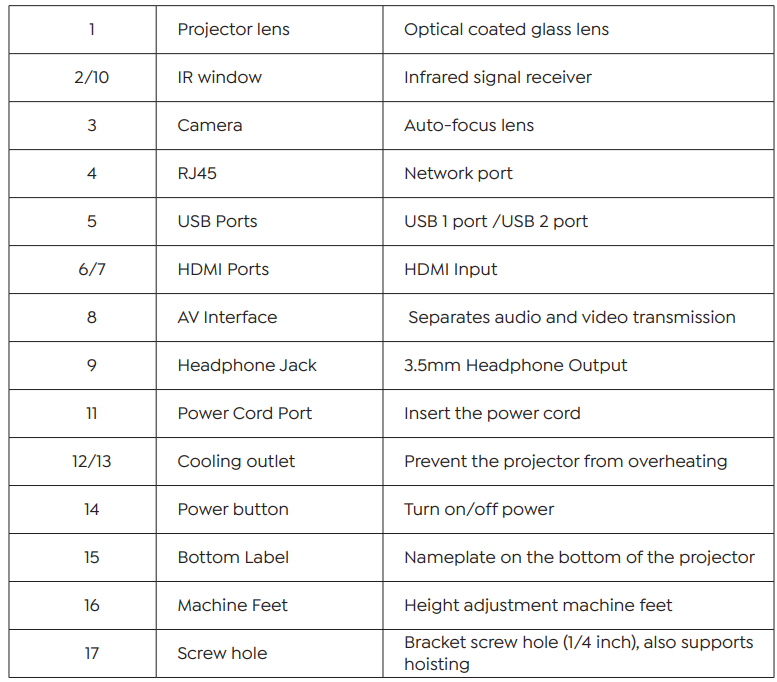
Projector Overview 


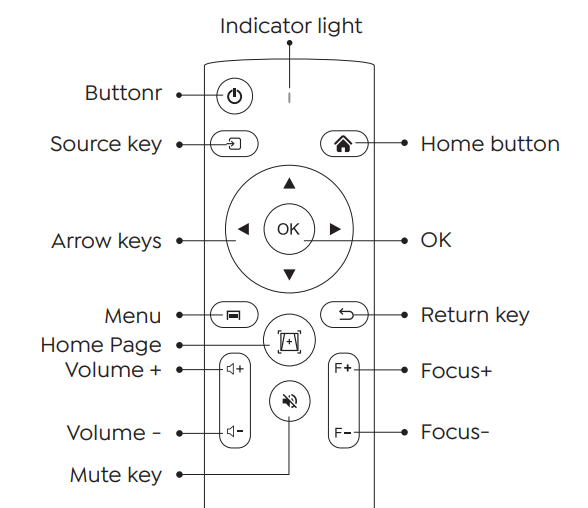
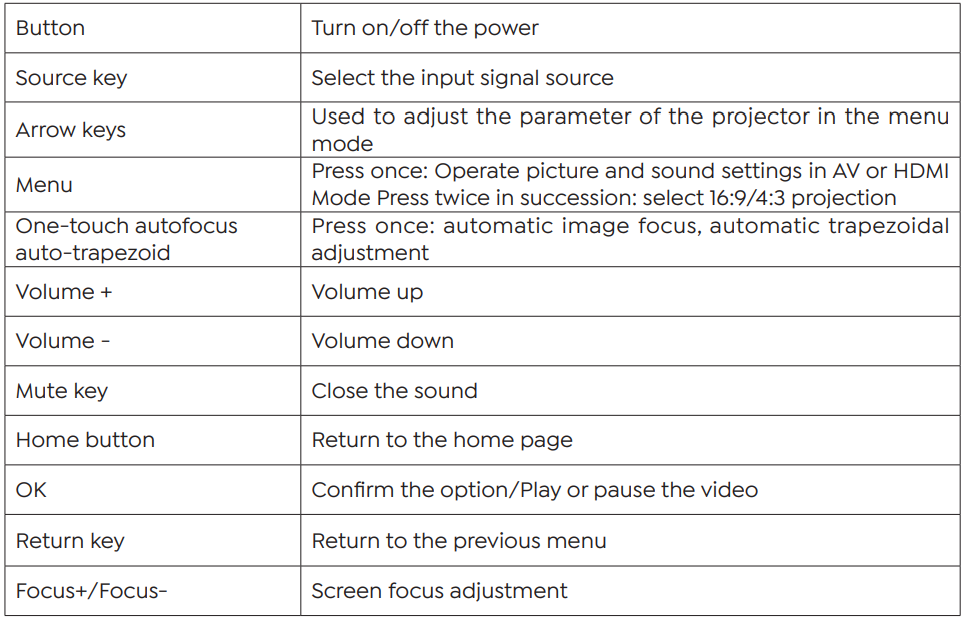
Remote Control 

Installation
Installation Method 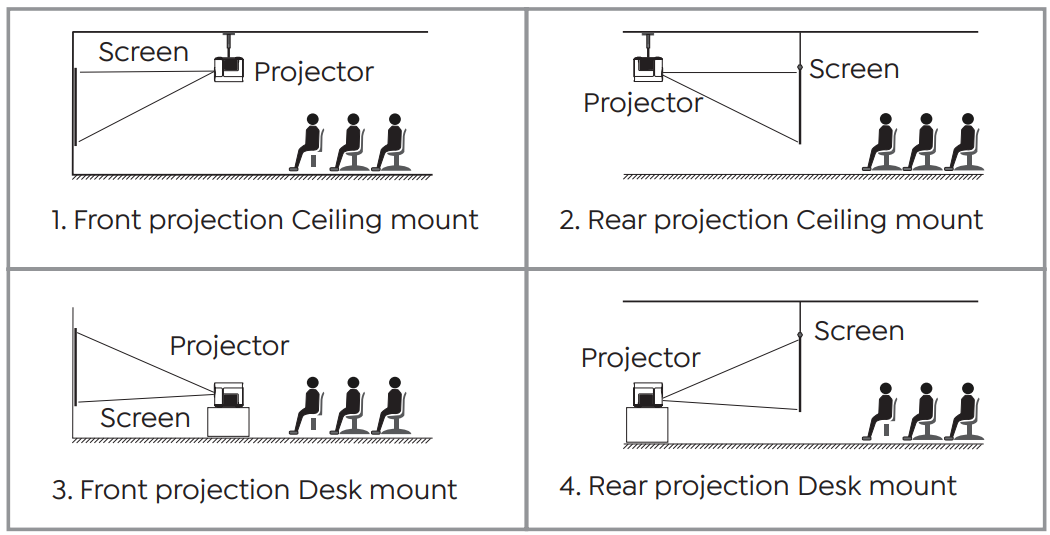
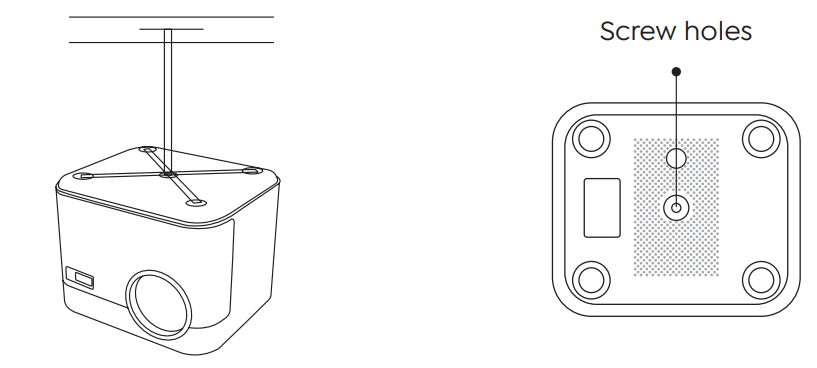
The projector can be hung on the ceiling with a special hanger frame and placed on a stable desk to project the image according to the operating environment and requirements. The installation method is as follows:
Projection Distance and Size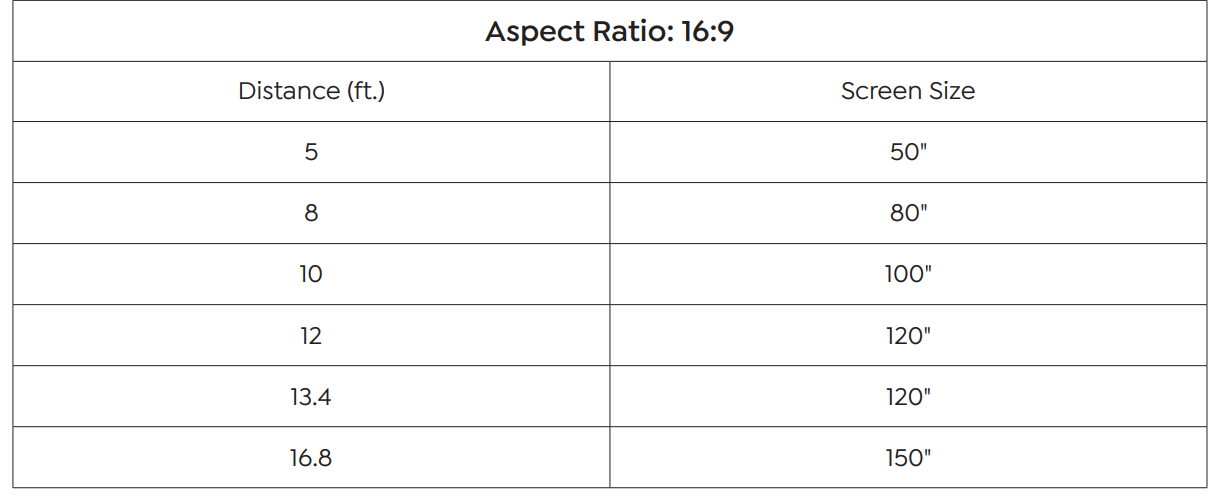
The recommended projection distance is about 8ft-10ft. The image size depends on the distance between the projector and the screen; there may be 3% deviation among the above-listed data. Different settings cause various distances.
Install on the Ceiling
Use The Projector
Turn on/off the projector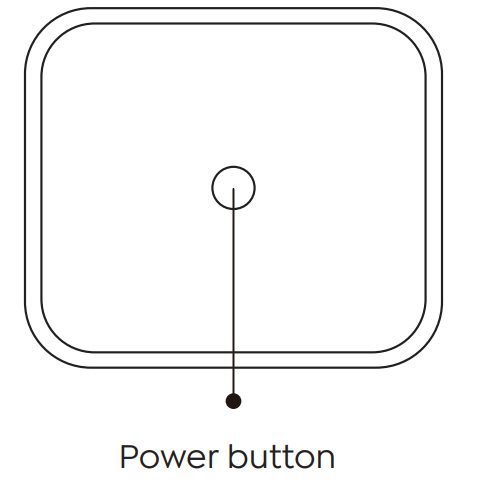
Connect the projector to the power supply. The projector will enter the standby state, and the signal indicator light on the cover will be red. Power on: Press the power button on the body or the power button on the remote control, and the indicator light turns blue to enter the working state. Shutdown: In the working state, press the power button on the body, or the power button on the remote control,
Focus Adjustment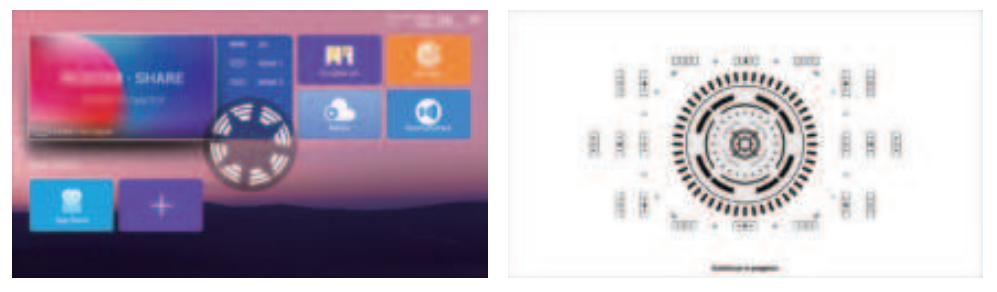
When starting the U11 projector for the first time, please wait patiently for 2-3 seconds; the projector will automatically adjust the focus. If the image is not clear, you can press the focus button “F+”, “F-” to adjust the focal length of the lens, and click or long-press the focus button until the image is clear.
Keystone Correction Adjustment
When the U11 projector is started for the first time, the projector will automatically perform keystone correction. Or you can also use the digital 4P keystone correction of the projector to change the image to be rectangular (vertical and horizontal). Please refer topage xxx of this manual.
Setting Up The Projector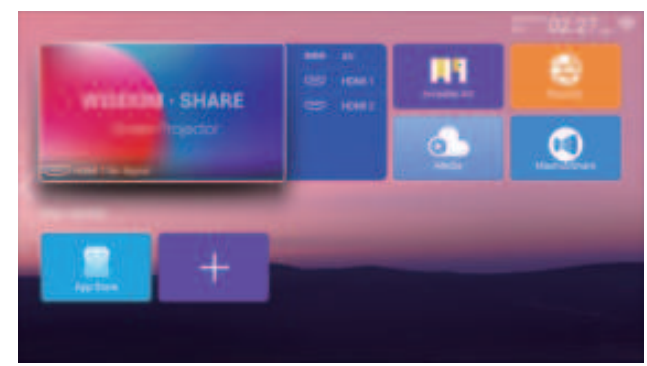
The projector’s home page is as follow.
Select The Insert Signal Source
Select the desired insert signal source (AV/HDMI1/HDMI2) on the hohomepageSB Disk Input Mode
- Insert the USB Disk, select the icon [Media]
- Select the option [All/Video/Audio/Image]
- Select the desired file (or folder to enter the subfolder) in the USB disk, then press the [OK] button to play it.

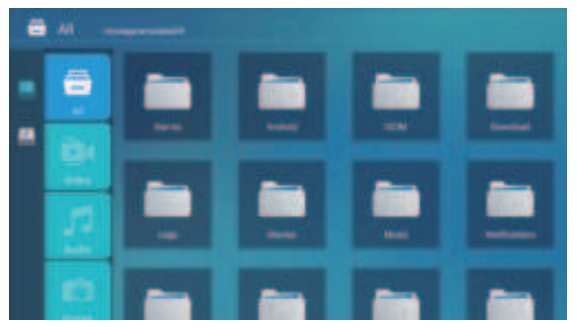
Please confirm whether your USB disk meets the following formats.
- NTFS: 64G If it is not, please format the USB disk. Before you format the USB disk, if you have anythingon your USB disk, make sure to back up everything. After these steps, everything will be lost forever.
How to convert a USB disk format to FAT32 format?
- Plug your USB disk into the computer’s USB port.
- Open up File Explorer and right-click on the drive.
- In the File System dropdown, please choose the FAT32 format.
- Click Start and close this window when finished. If the problem is still not solved, please send your problem to this email: aftersales@yaber.
Play Interface
Click the “OK” button to get the play interface.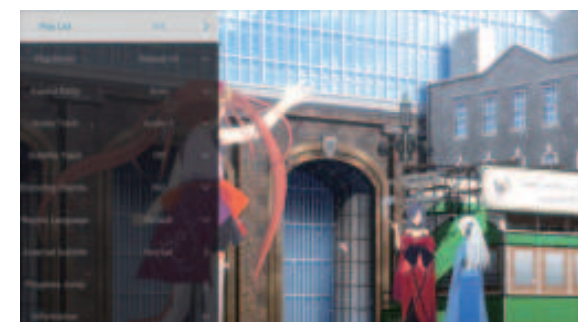
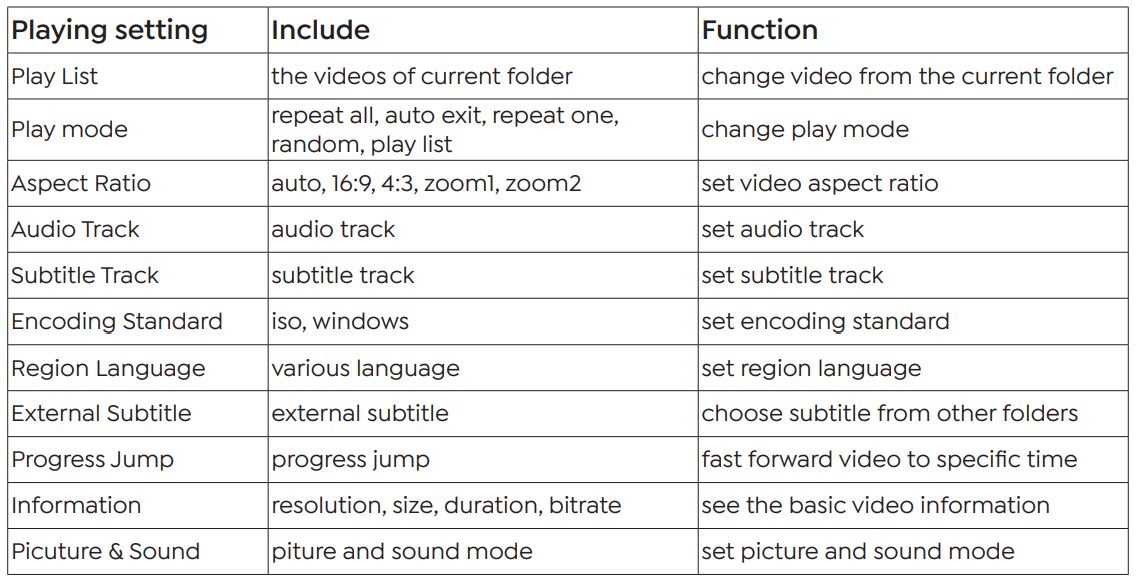
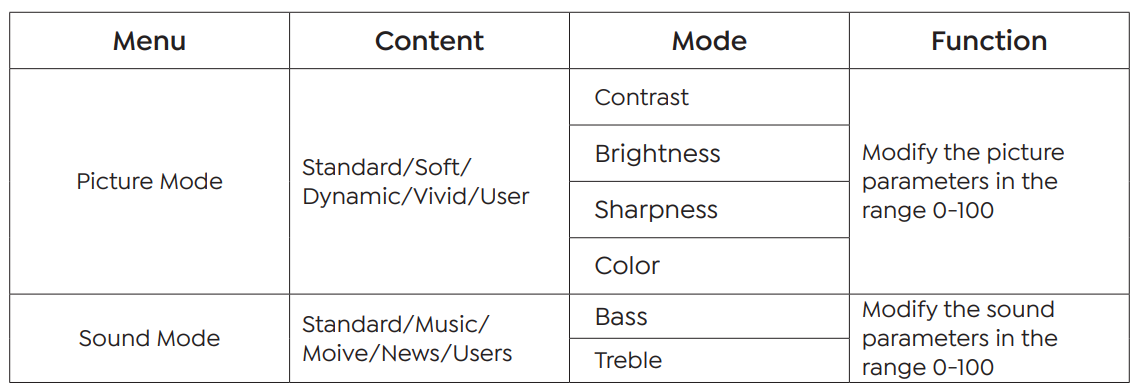
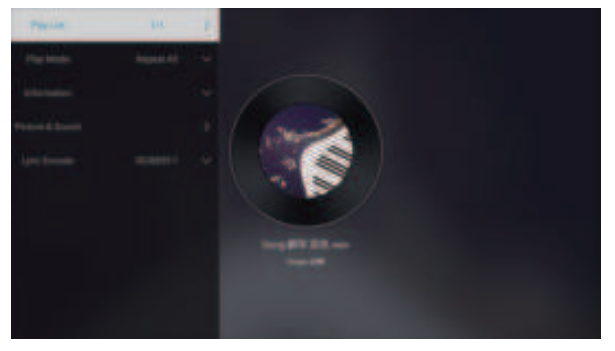
Music Play Interface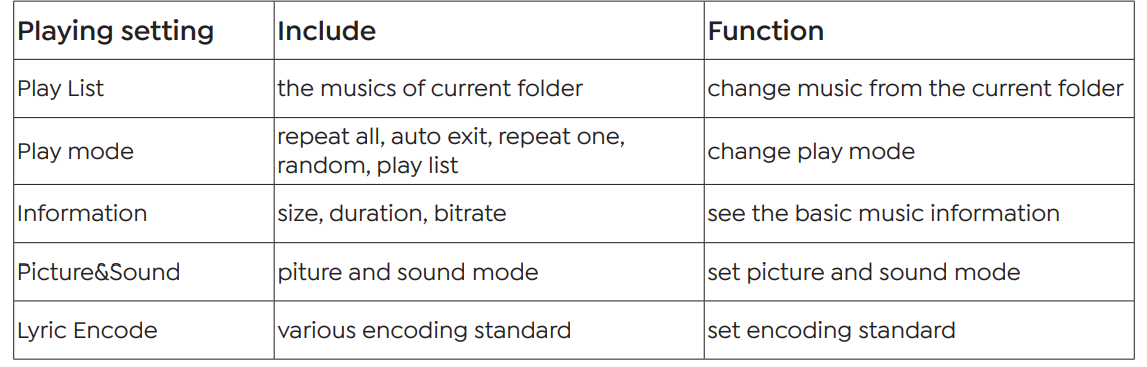
Picture Play Interface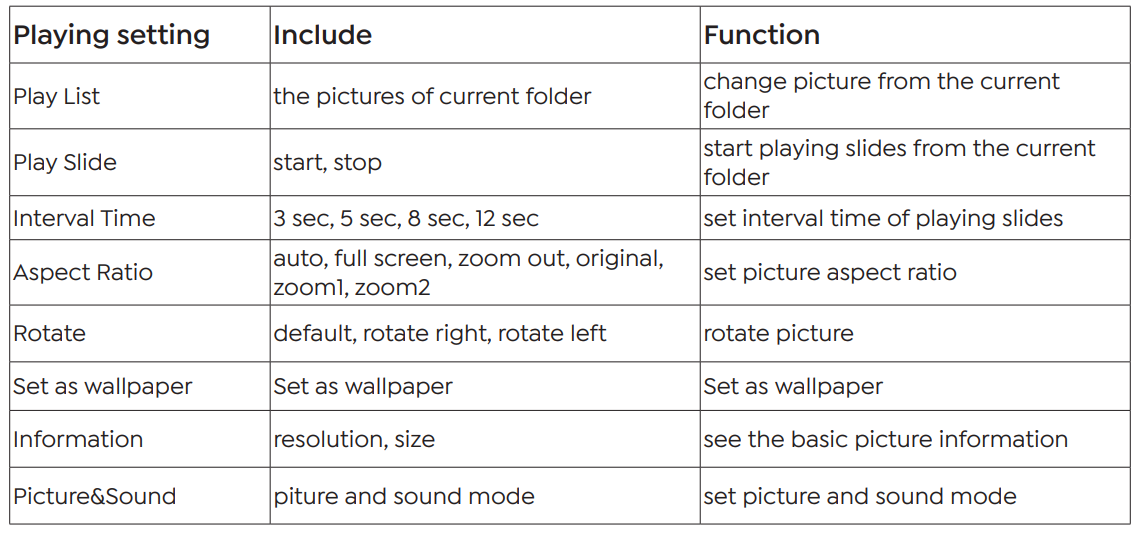
WiFi Setting
Wireless Connection
Warming Tips:
- The fluency of screen mirroring with wireless connection will be affected by the network environment. A bandwidth of 100 Mbpss or more is recommendedwhen using screen mirroring.
- Make sure your mobile device is close to the projector when using a wireless connection. A distance of within 1 meter is recommended.
- Some mobile devices may not support screen mirroring due to the compati- bility.
- Any questions, please feel free to contact us via aftersales@yaber.com.
iOS Cast (for iOS Devices)
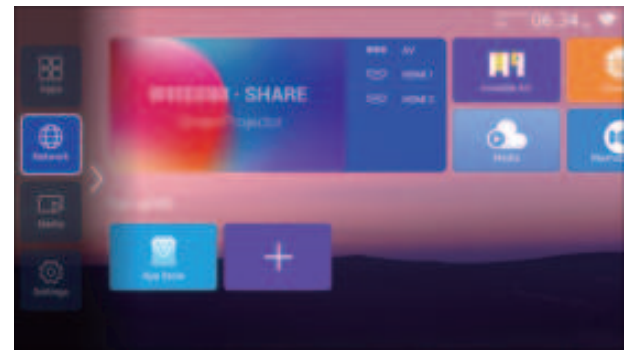
- Go to the home page — Press the left button – Select the [ Network ] menu – Select [ Wireless Net Mode ] – Select your home Wi-Fi from the list – Connect the Yaber U11 projector to your home Wi-Fi

- Open the [ Control Center ] on your iOS device – Select the [ Screen Mirroring ] function Select and connect the iOS Cast receiver named [TV-XXXX ] – your iOS device screen will be displayed on the projection screen after 3 seconds.
Maxhub Share (for Android Devices)
- Make sure the Yaber U11 projector and your Android device are connected to the same Wi-Fi; operations refer to [1] and [2] from iOS Cast (for iOS Device)

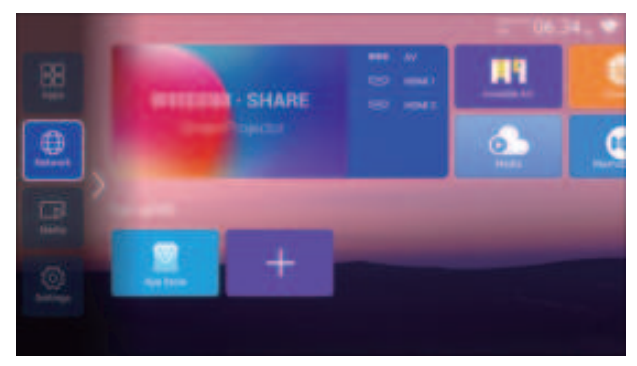
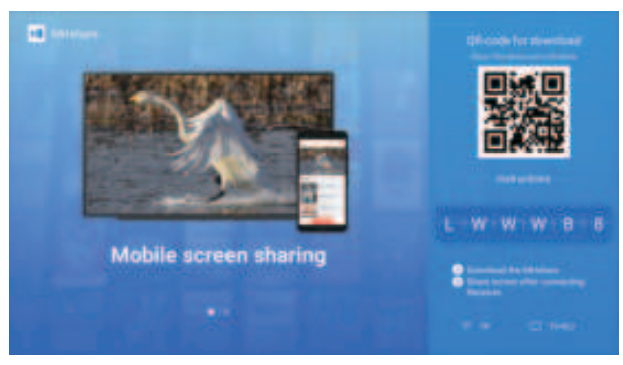
- Go to home – Select the [ Maxhub Share ] app – Press the OK button to enter the [ Maxhub Share ] app.
- Open the [Maxhub Share] app on your Android device – Select the TV named [TV-XXXX] -Your Android device screen will be ddisplayedon the projection screen after 3 seconds.

Bluetooth Setting
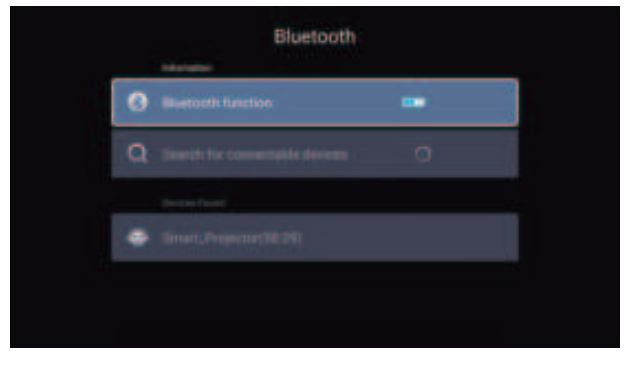
Go to the home page – – Select the [Settings] menu – – Select the [ Bluetooth ] Option – – Open the Bluetooth function and your Bluetooth device – – Scan the Bluetooth devices nearby automatically
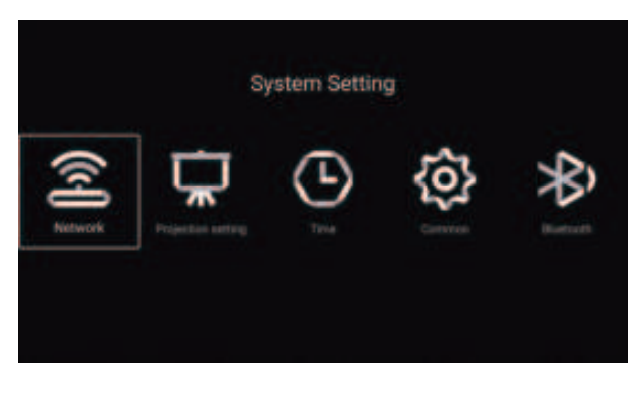
Projector System Setting
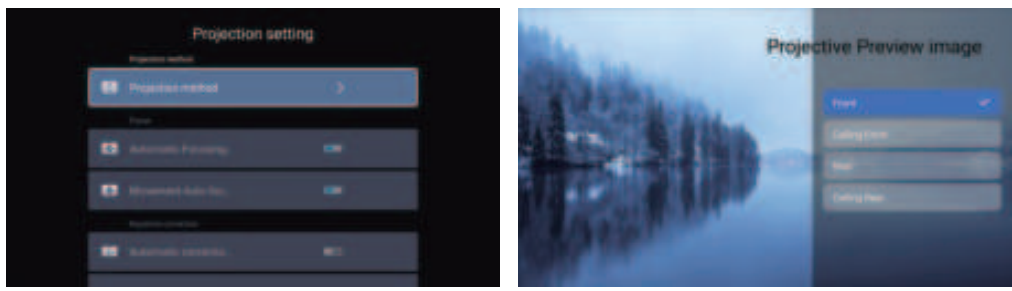
Projection Mode
Focus 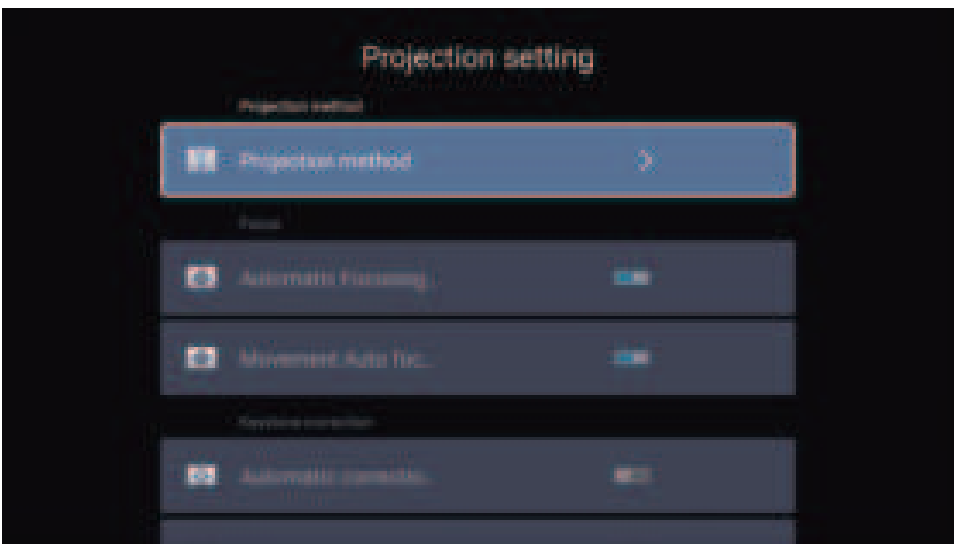
Automatic Focusing after boo
Turn on this button when you start the projector. Please wait patiently for 2-3 seconds; the projector will automatically focus after powering on.
Movement Auto focus
Turn on this button, and the projector will automatically focus when changing the position.
Keystone Correction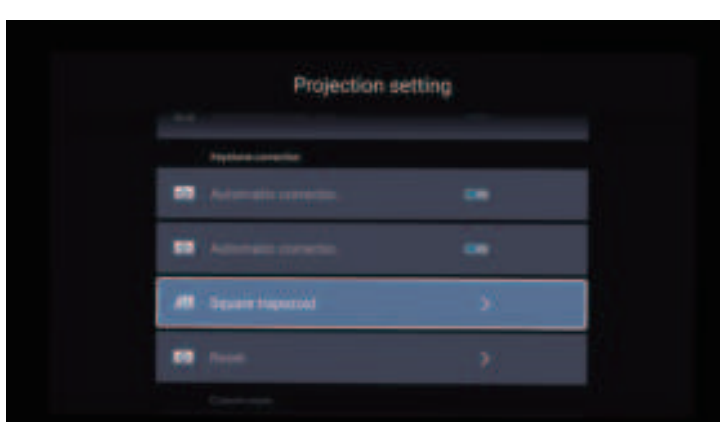
Automatic Correction after boot
Turn on this button when you start the projector. Please wait patiently for 2-3 seconds; the projector will adjust the keystone automatically.
Automatic Correction after boot
Turn on this button when you start the projector. Please wait patiently for 2-3 seconds; the projector will adjust the keystone automatically.
Automatic Correction after displacement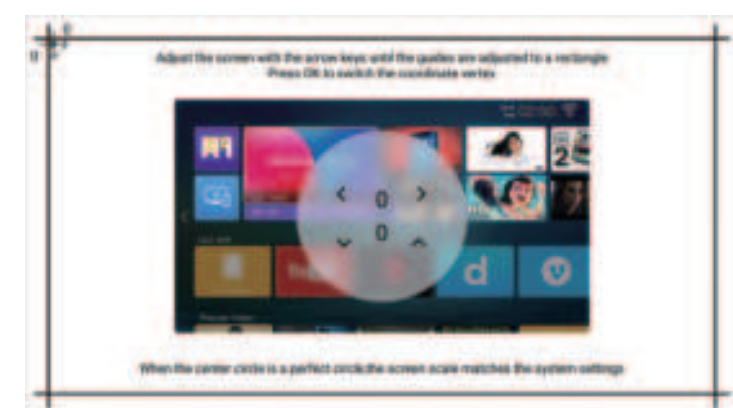
Turn on this button, and the projector will automatically perform keystone correction when changing the
position.
Zoom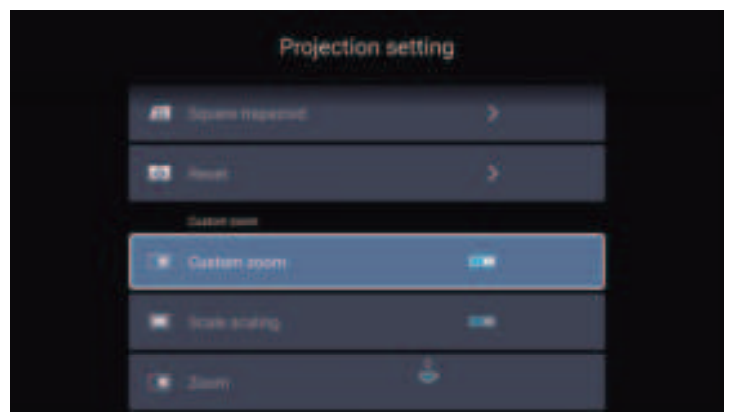
Select the [ Custom Zoom ] option, press the “OK” button on the remote controller to enter the submenu [ Scale scaling ], press the “OK” key to select this button to enter a three-level menu [ Zoom ]. You can adjust the projection size by adjusting the parameters. The zoom range is 50%—100%.
System Update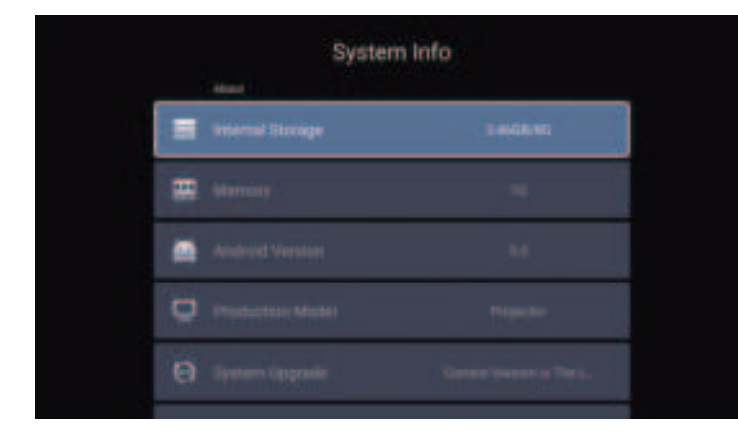
Go to home page – – Select the [ Setting ] menu – – Select the [ System Info ] Option – – Select the [ System Upgrade ]
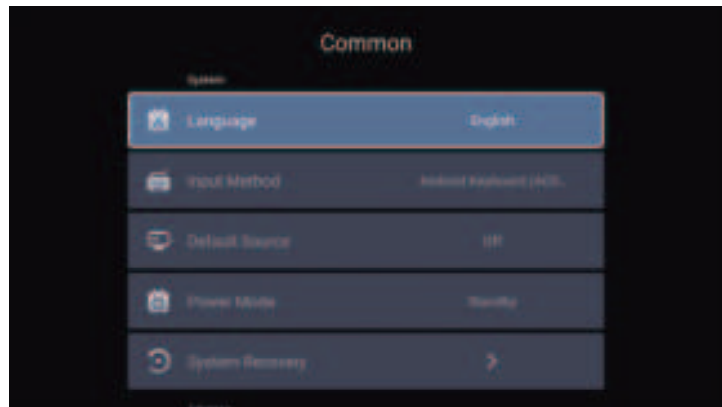
Common

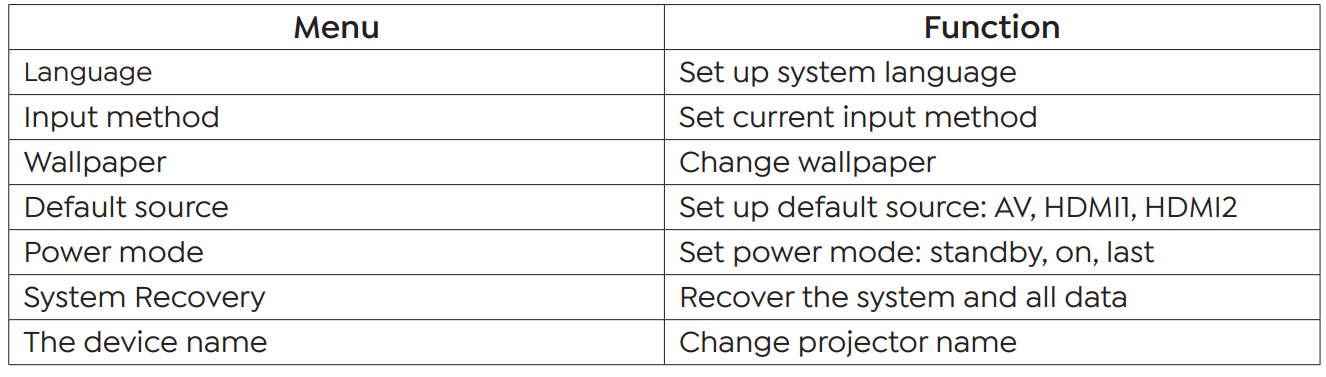
Signal Lines Connection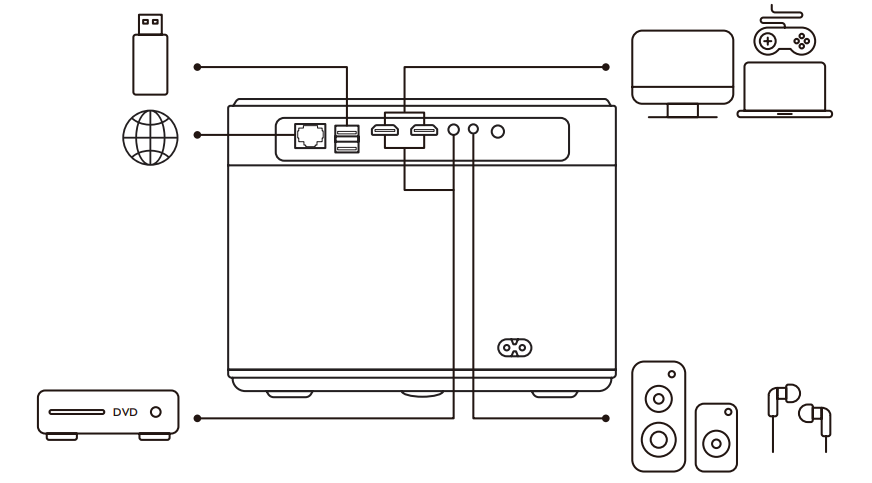
Yaber U11 projector has 7 interfaces, HDMI port*2/ USB port*2/ 3.5mm headphone output*1/ Network port*1/ AV port*1, please select the correct port to connect your device (PC, DVD Player, Fire TV stick, TV box, Sound bar, USB disk, PS4et c.)
Connect the Devices via the HDMI ports..
- Connect your Fire TV stick (or PC, TV box, P, S4, et.) to the HDMI port of the projector;
- Enter the home page to select the corresponding HDMI as the signal source.

- Turn on your DVD player and the projector.
- Connect to the Playeraver and the projector with the HDMI cable.
- Enter the home page to select the corresponding HDMI as the signal source.

Connect to the Computer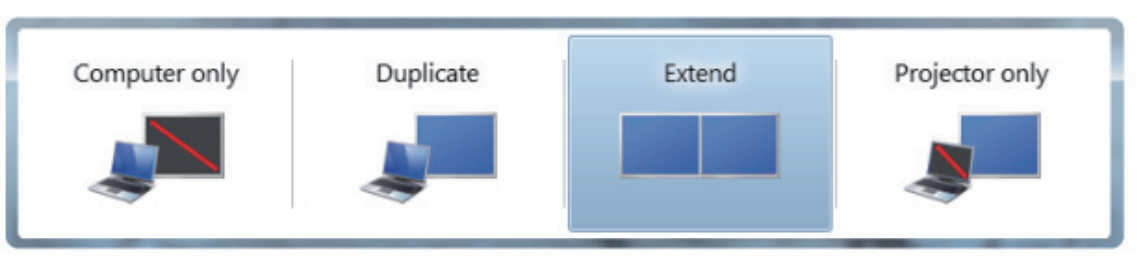
- Connect to the computer and the Ull projector with the HDMI cable (Included).
- Select the HDMI source to project any files on your computer.
- On your laptop, hold down the “Win+P” keys to change your display mode.
- Computer only: it is the default option – only displays on the main monitor.
- Duplicate: makes all of the monitors display the same thing, duplicating the desktop on each monitor.
- Extend: makes all of your monitors act like one big monitor,r extending the desktop across all of them.
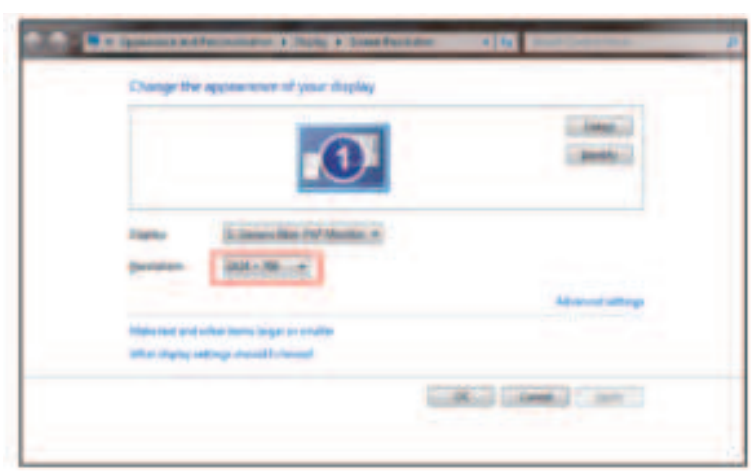
- Step: Start > Control Panel > Appearance and Personalization > Adjust Screen Resolution
Warranty
Thank you so much for your purchase and support. We providea 3-year warranty for the U11 projector. If you have any questions, please feel free to contact us via aftersales@yaber.com
Yaber Lifetime Professional Support
Dear customer,
I appreciate your support of YABER! Before using your projector, please take a moment to read through the manual thoroughly. Should you encounter any issues, simply email aftersales@yaber.com with your order number and a brief explanation of the problem. Our team will respond within 24 hours with a fast and effective solution.
Many common issues, such as signal or sound problems, failed Bluetooth or WiFi connections, dark spots, or choppy animations, can often be resolved through simple adjustments to the settings. Rest assured that all of our projectors have undergone a rigorous 100% inspection and packaging process before shipping.
If you have any further questions or concerns, please don’t hesitate to contact us. We welcome the opportunity to improve and guarantee that we will work with you to find a satisfactory solution.
- Thank you for your understanding and for choosing YABER!
- Best regards, TheYABER Service Team.
Customer Support
- Website: www.yaberglobal.com
- Address: Yaber 4F Building B Bantian International Center, #5 Huancheng South Rd. Shenzhen, Guangdong 518129 China.