



Harman Kardon Onyx Studio Wireless Speaker
Introduction
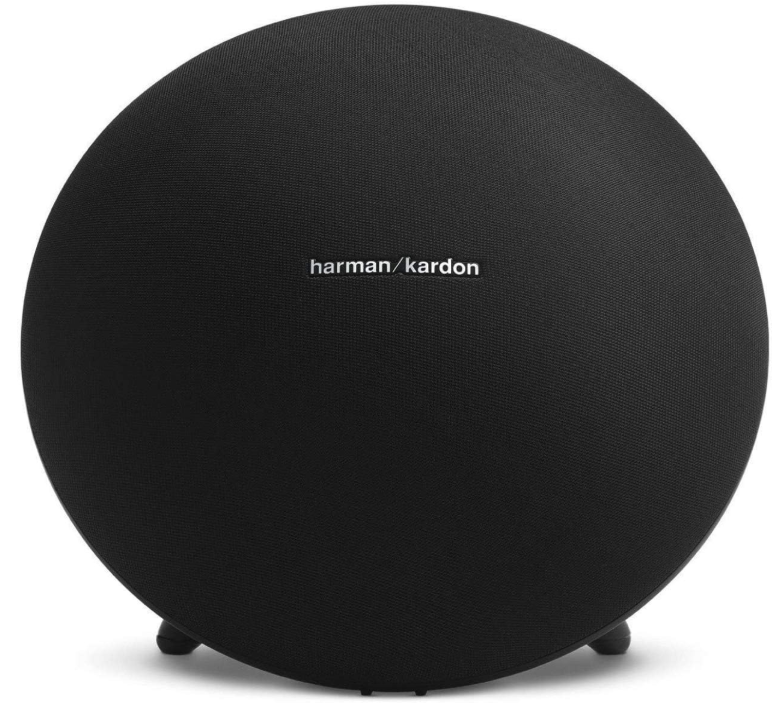
Thank you for purchasing the Harman Kardon Onyx Studio. HK Onyx Studio is a premium wireless speaker with an iconic design and comes with a rechargeable built-in battery that allows you to stream music from any smartphone, tablet, or other wireless devices through Bluetooth®.
HK Onyx Studio is a 4-speaker, advanced acoustic platform, and its dual passive radiators deliver a truly fantastic sound experience with a balanced soundstage and powerful bass response.
Description and Features
Design and Performance
- Dual passive radiators provide deep bass.
- The built-in rechargeable battery offers up to 5 continuous hours of playtime.
Wireless Connection
Wireless connectivity allows you to place the speaker in any part of the room without having to worry about friends and family tripping over cables. The HK Onyx Studio supports almost every popular wireless device via Bluetooth.
Included Items
The HK Onyx Studio speaker system’s complete accessories consist of:
- HK Onyx Studio speaker
- One AC power adaptor

- Regional power cable
- Quick Start Guide
- Safety sheet
- Warranty Card (for some specific countries)
Controls and Connections
This section will help you identify the controls that are provided on the Onyx Studio top and rear panels
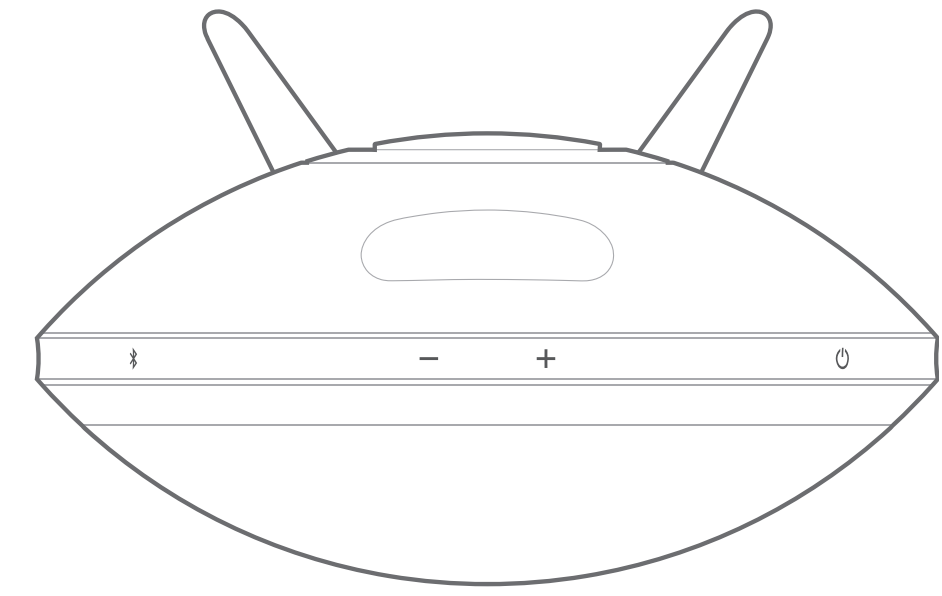
Top Panel Controls
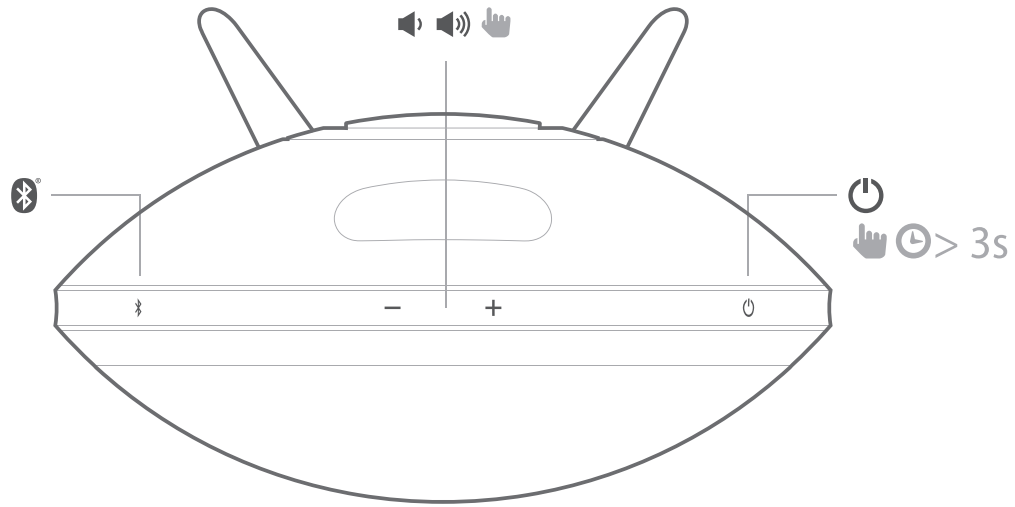
The following control buttons are available on the top panel:
- Power button
- Volume Controls
- Bluetooth
Power Button
This button, when pressed, turns the HK Onyx Studio ON or OFF and has an LED to indicate the power mode. The two power modes are:
- Operational mode
- OFF mode
When the system is in OFF mode (Power LED is not lit), press the power button for more than 3 seconds to switch on the system. The power LED turns white when the system is turned on. To turn the speaker off, press the Power button for more than 3 seconds.
When powered by the battery, the speaker will go into off mode automatically after 30 minutes if no music stream is detected. The power LED will be turned off. To turn the speaker on, press the power button for more than 3 seconds.
Volume Controls
- Press the (-) button to decrease the volume
- Press the (+) button to increase the volume
Bluetooth
This button helps you pair your system with Harman Kardon Onyx Studio Wireless Speaker other devices. The system enters Bluetooth pairing mode automatically when it is turned on.
Rear Panel Connections
The connections on the rear panel are:
- USB Port (For service use)
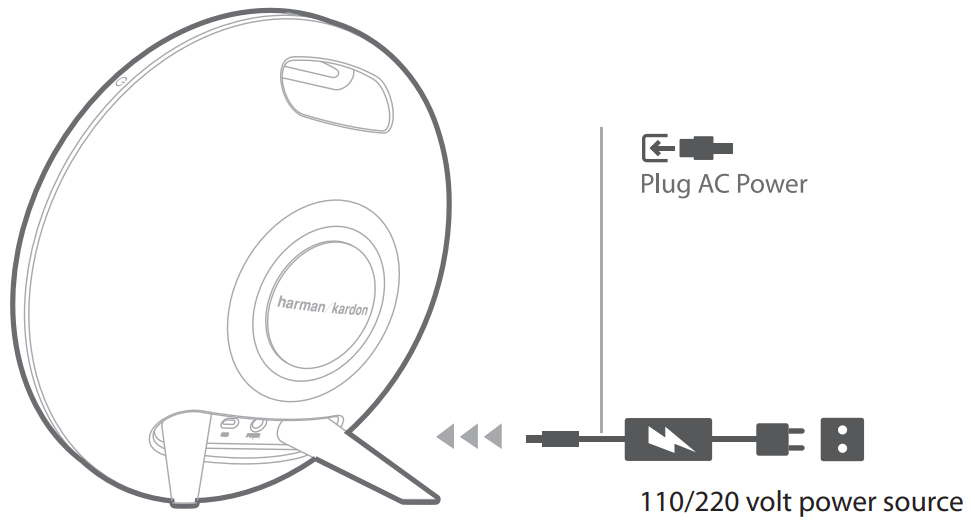
- Power DC input
USB Port
- The USB port is used to upgrade software for service purposes.
Power DC Input
- Connect the AC power adapter to this port to charge the built-in battery.
LED Indications
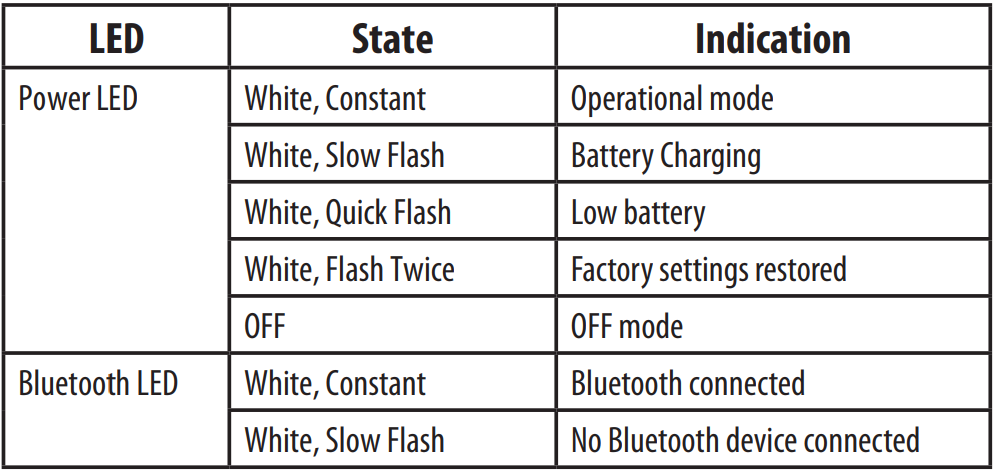
The LEDs present on the top panel indicate Harman Kardon Onyx Studio Wireless Speaker the status of the speaker unit. Refer to the table below to get a fair idea of the speaker LED indications.
Operation
Switching ON and OFF
The power button on the top panel of the speaker allows you to set your speaker to any of the following power modes:
- Operational mode – White constant LED illumination
- Off mode – No illumination
To change the power mode
- Long press: Off mode – to enter operational mode
- Long press: Operational mode – to enter off mode
Adjusting Volume
The volume buttons on the top panel allow Harman Kardon Onyx Studio Wireless Speaker you to increase or decrease volume. Adjust volume using the Volume Up (“+”) and Volume Down (“–”) buttons located on top of the unit.
- Short press – Increase/decrease volume by 1 step
- Press and hold – Increase/ decrease volume continuously (1 step per 0.2 second)
Connecting Bluetooth & Playing Music through Bluetooth
- Press the Power button. The LED will illuminate white.
The speaker enters pairing mode when it is switched on. - If the speaker has been paired with any source before, press and hold the Bluetooth button for at least 2.5 seconds.
- Perform a new device search on your Bluetooth-capable device.
- Select HK Onyx Studio on the device’s pairing list and enter the password as 0000.
- The device will be paired to HK Onyx Studio automatically.
- If pairing is successful, the Bluetooth LED will change to white.
- Control playback from your Bluetooth-capable device.
Specifications
- No of channels 4
- Transducers 2 X 3″ woofers, 2 X ¾” tweeters, 2 x passive radiators
- Bi-amplification 4 X 15W
- Maximum SPL 95dB @ 1m
- Power requirement 100 – 240 V AC, 50/60 Hz
- Power adaptor 19V, 2.0A
- Built-in battery 3.7V, 2600mAh, Cylindrical Lithium Ion Rechargeable Battery
- Power consumption 38W Maximum <1W stand by
- Speaker impedance 4 ohms per speaker
- Frequency Response 60Hz – 20kHz
- Frequency range 2402MHz ~ 2480MHz
- Transmitter power <4dBm
- Modulation GFSK/ /4-DQPSK/8-DPSK
- Wireless Bluetooth 3.0 A2DP v1.3 AVRCP v1.5
- Dimensions (Dia x W x H) 280mm X 161mm X 260mm
Troubleshooting
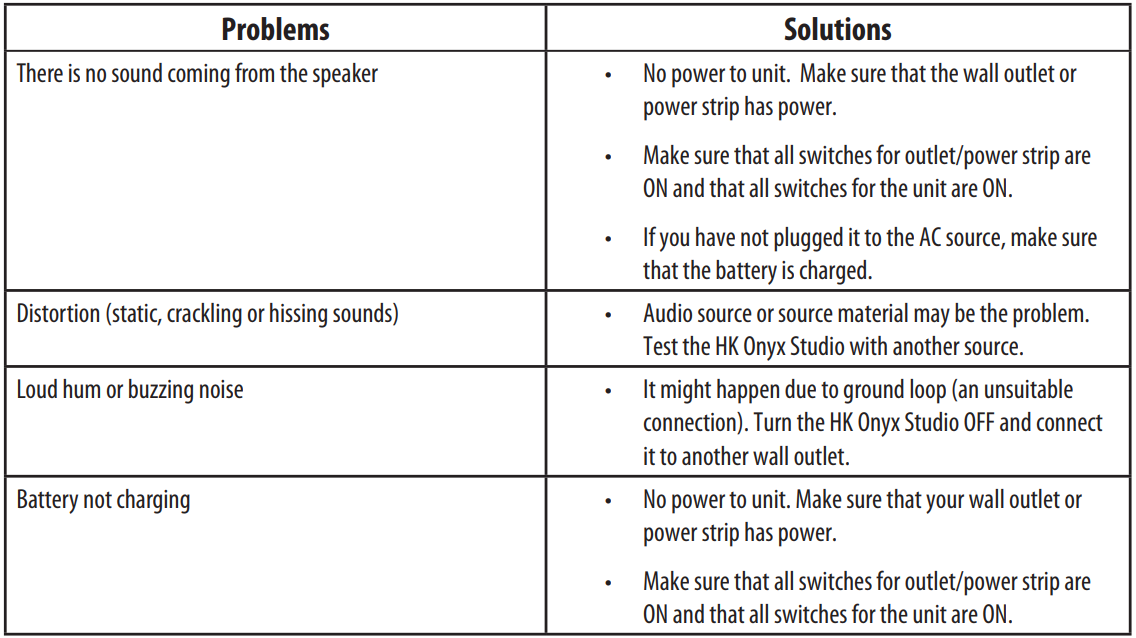
If your Harman Kardon Onyx Studio is not performing the way you think it should, check if the problem is covered in this section before calling your dealer or contacting a Harman Kardon representative.
Customer Service
- Address: Open Source, Gregor Krapf-Gunther, Parking 3, 85748 Garching bei Munchen, Germany.
- Website: www.harmankardon.com.
- Tel: (800) 422-8027
- Timings: Mon – Fri – 9:00 am 11:00 pm (ET) Sat – Sun – 9:00 am 5:00 pm
© 2013 HARMAN International Industries, Incorporated. All rights reserved.
1 Comment
Pingback: Harman Kardon ENCHANT Compact Wireless Speaker