

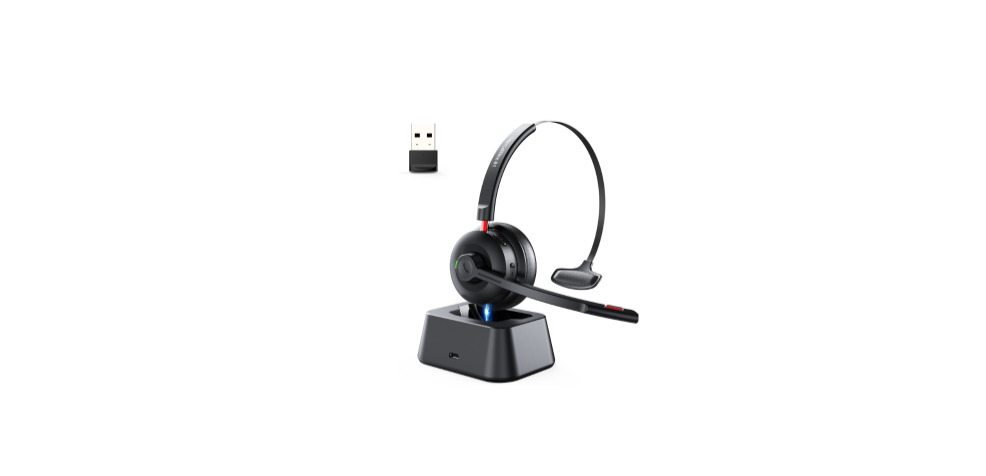
Tribit BTH80 CallElite 81 Wireless Headset
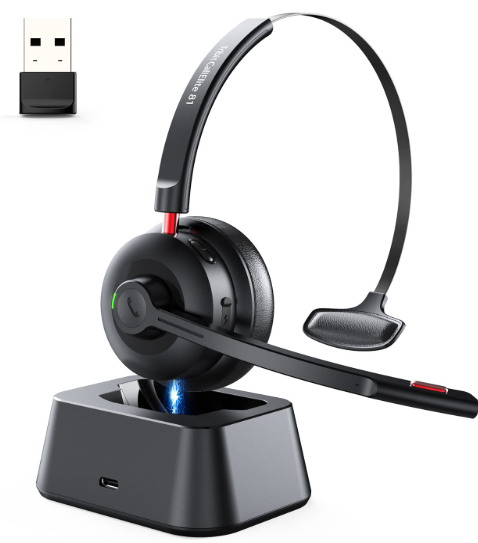
Package Contents
Description
- Volume –
- Volume +
- MFB button
- LED Indicator
- USB-C Charging Port (headset jack)
- USB-C Charging Port (charging base)
- MIC Bar
- Mute button
- USB Dongle
Power On / Off
- Power on: Press and hold the MFB button for 2s until there is a prompt voice “Power on”. The green LED indicator will glow steadily for 2s.
- Power off: Press and hold the MFB button for 4s until there is a prompt voice “Power off”. The red LED indicator will flash for 1s and then turn off.
Bluetooth Connection
- Press and hold the MFB button for 4 seconds until the green LED indicator flashes, and then the headset will automatically enter Bluetooth pairing mode. The red /green indicator lights will flash alternately.
- Open the Bluetooth menu on your phone and refresh the Bluetooth device list, then select the audio device named “Tribit CallElite 81” to begin pairing.
Mute Button
- In the conversation state, short-press the mute button, and there is a prompt voice “Mute on”.
- Then the conversation will be muted.
- In the mute state, short-press the mute button, and there is a prompt voice “Mute off”.
- Then the conversation will be restored to normal.
- The mute function is only valid during conversation.
- When you put someone on mute, they aren’t able to hear anything you’re saying, but you can still hear them.
- For any third-party software, you may probably set the mute function on the device it connects to.
| Increase the volume | Short press + button |
| Decrease the volume | Short press – button |
| Next track | Press and hold the + button for 2s |
| Previous track | Press and hold the button for 2s |
| Play / Pause | Short press MFB button |
| Answer / End a call | Short press MFB button |
| Reject an incoming call | Press and hold the MFB button for 1s |
| Activate / Turn off Siri | Press and hold the MFB button for 2s |
|
Clear the pairing list. |
Press and hold the MFB and + buttons for 4s in the power-on state simultaneously to clear the pairing list, and then the headset will automatically go back to pairing mode. |
Voice Prompt
| Power on | Power on |
| Power off | Power off |
| Pairing | Pairing |
| Successfully connects to your phone | Connected |
| Bluetooth disconnection | Disconnected |
| Low battery reminder | Battery low |
Charging Instruction
- Charge the headset directly. Connect one end of the USB-C charging cable to a 5V power adapter (not included), and the other end to the headset. The red LED indicator will glow steadily during charging, while it will change to a steady green after the headset is fully charged.

- Charge the headset at the charging base. Connect one end of the USB-C charging cable to a 5V power adapter (not included), and the other end to the charging base.
- The red LED indicator will glow steadily during charging, while it will change to a steady green after the headset is fully charged.
USB Dongle
- For the first use, please insert the dongle into the USB interface of your computer to power it on.
- It will auto-enter the pairing state (blue indicator flashing).
- Power on the wireless headset, and try to get the headset as close as possible to the dongle, and then it will auto-connect to the dongle successfully in about 30 seconds.
- If it has ever been paired, the headset will auto-connect to the dongle each time it is powered on.
- After that, you can listen to music or chat with others if your computer is playing music or in an online conversation.
Specifications
| Frequency Range | 2.402GHz ~ 2.480GHz |
| Max. Transmission Power | ≦ 6dBm |
FCC Statement
Changes or modifications not expressly approved by the party responsible for compliance could void the user’s authority to operate the equipment. This equipment has been tested and found to comply with the limits for a Class B digital device, pursuant to Part 15 of the FCC Rules. These limits are designed to provide reasonable protection against harmful interference in a residential installation.
This equipment generates uses and can radiate radio frequency energy and, if not installed and used in accordance with the instructions, may cause harmful interference to radio communications. However, there is no guarantee that interference will not occur in a particular installation.
- Reorient or relocate the receiving antenna.
- Increase the separation between the equipment and receiver.
- Consult the dealer or an experienced radio/TV technician for help.
This device complies with part 15 of the FCC rules. Operation is subject to the following two conditions. This device may not cause harmful interference. This device must accept interference received, including interference that may cause undesired operation.
IC Caution
This device complies with Industry Canada licence-exempt RSS standard(s). Operation is subject to the following two conditions
- This device may not cause interference, and
- This device must accept any interference, including interference that may cause undesired operation of the device.
EU Declaration of Conformity
Hereby, Thousandshores Deutschland GmbH declares that the radio equipment type Portable Wireless Speaker TS-BTS20 complies with Directive 2014/53/EU. To get the full text of the EU declaration of conformity, http://files.
Disposal
Valuable raw materials can be reused by recycling.
- Unplug the appliance from the mains.
- Cut through the power cord.
- Close the main gas tap.
- Dispose of the appliance in an environmentally friendly manner.
Information about current disposal methods is available from your specialist dealer or local authority. This appliance is labelled in accordance with European Directive 2012/19/EU concerning used electrical and electronic appliances (waste electrical and electronic equipment – WEEE). The guideline determines the framework for the return and recycling of used appliances as applicable throughout the EU.
Customer Service
- Website: https://tribit.com/
- Ph: +91 9810348155
FAQs
Q: What kind of headset is the CallElite 81?
A single-ear (mono) wireless Bluetooth headset, the CallElite 81 is intended for long work sessions, meetings, and phone calls. It has a rotating boom microphone and can be connected to devices via Bluetooth or the USB dongle that comes with it (for PCs without Bluetooth).
Q: What devices is it compatible with?
It uses Bluetooth 5.0 to connect to any Bluetooth-capable device, including laptops, tablets, and smartphones. The plug-and-play USB dongle makes it simple to connect to PCs without Bluetooth without the need to install extra drivers.
Q: How good is the call/audio quality and noise cancellation?
The headset’s Qualcomm cVc 8.0 AI-powered noise-cancelling microphone helps ensure clear speech communication in noisy situations and busy offices by reducing background noise.
Q: How long does the battery last? How quickly does it charge?
The headset may be used for approximately 50 hours (talk or audio) on a single charge.
Q: Can I connect the headset to two devices at once (multipoint)?
Yes, the CallElite 81 can connect to two Bluetooth devices at once, so you may switch between your laptop and phone, for instance, without having to re-pair.
Q: Is it comfortable for long wear (e.g., full workday)?
The headset is made to be used for extended periods of time and is incredibly light (~70 g). You can use it comfortably on either side thanks to its 270° rotating mic arm and customisable ear location.