

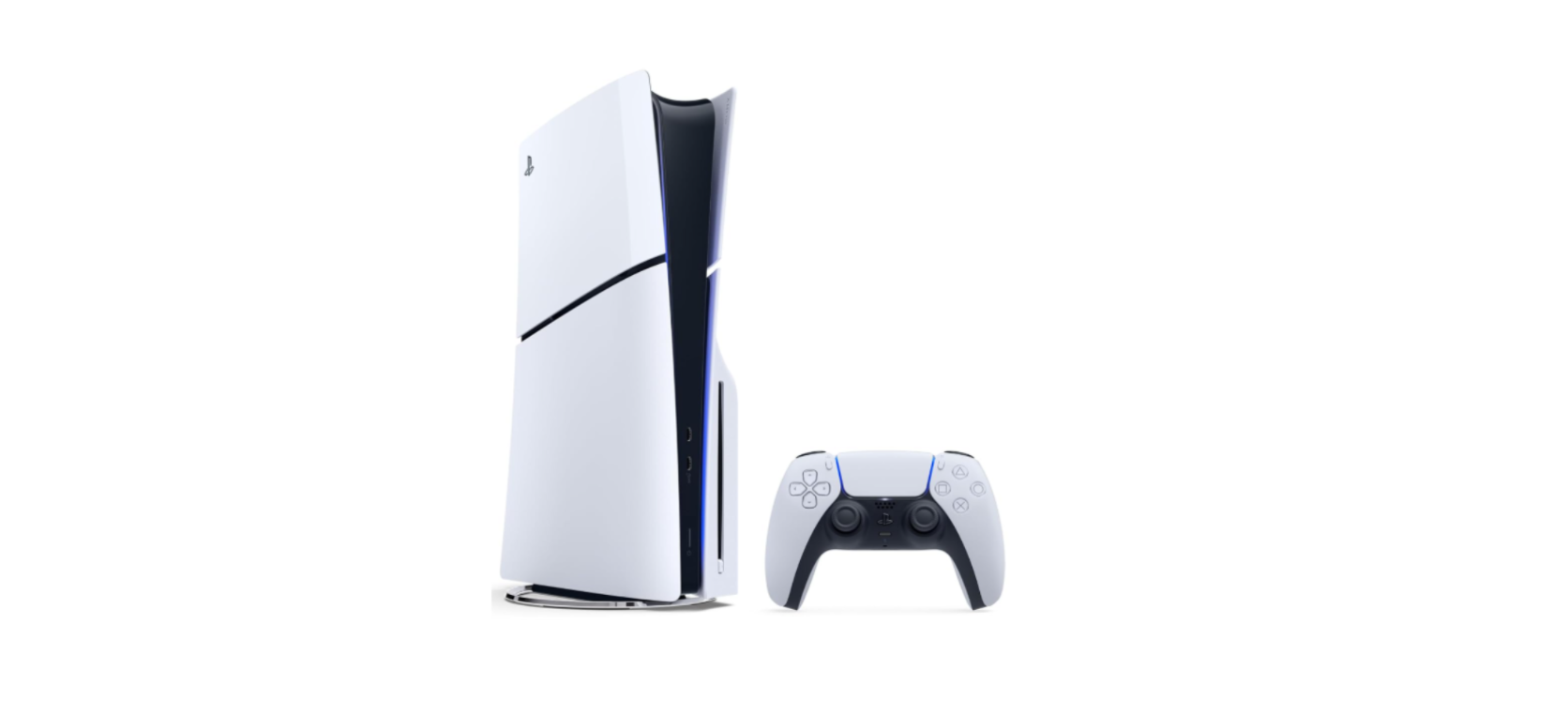

Sony CFI-2115 PlayStation 5 Disc Edition Console
Safety Instructions
Before using this product, carefully read this manual and retain it for future reference. Parents and guardians of children should read this manual and make sure that children follow all safety precautions. This product has been designed with the greatest safety concern. However, any electrical device, if used improperly, has the potential for causing fire, electrical shock, or personal injury. Observe all warnings, precautions, and instructions. Stop use and unplug the AC power cord immediately if the product functions in an abnormal manner, produces unusual sounds or smells, or becomes too hot to touch. Keep body parts away from fan blades.
- Avoid prolonged continuous use of this product.
- Generally, we recommend that you take 15-minute breaks for every hour of play.
- Avoid playing when you are tired or need sleep.
- If the condition persists, consult a doctor.
- If you experience any of the following health problems, discontinue use of the console immediately.
- If symptoms persist, consult with your doctor.
- To disable the features, select Settings > Accessories from the home screen.
Photosensitivity
A very small percentage of individuals may experience epileptic seizures or blackouts when exposed to certain light patterns or flashing lights. Exposure to certain patterns or backgrounds on a television screen or when playing video games may trigger epileptic seizures or blackouts in these individuals.
These conditions may trigger previously undetected epileptic symptoms or seizures in persons who have no history of prior seizures or epilepsy. If you, or anyone in your family, has an epileptic condition or has had seizures of any kind, consult your doctor before playing. Use and handling of video games to reduce the likelihood of a seizure.
- Use in a well-lit area and keep as far away as possible from the television screen.
- Avoid large screen televisions. Use the smallest television screen available.
- Avoid prolonged use of the PlayStation®5 console. Take a 15-minute break during each hour of play.
- Avoid playing when you are tired or need sleep.
Radio Waves
Radio waves may affect electronic equipment or medical devices (for example, pacemakers), which may cause malfunctions and possible injuries.
- If you use a pacemaker or other medical device, consult your doctor or the manufacturer of your medical device before using the wireless networking feature (Bluetooth® and wireless LAN).
- Do not use the wireless networking feature in the following locations:
- Areas where wireless network use is prohibited, such as in hospitals.
- Abide by the medical institution’s regulations when using the console on their premises.
- Areas near fire alarms, automatic doors, and other types of automated equipment.
Magnets & Medical Devices
These products have magnets which may interfere with pacemakers, defibrillators,s and programmable shunt valves or other medical devices. Do not place these products close to such medical devices or persons who use such medical devices. Consult your doctor before using these products if you use such medical devices.
Volume Level
Permanent hearing loss may occur if headsets or headphones are used at high volume. Set the volume to a safe level. Over time, increasingly loud audio may start to sound normal, al but can actually be damaging your hearing. If you experience ringing, discomfort in your ears, or muffled speech, stop listening and have your hearing checked. The louder the volume, the sooner your hearing could be affected. To protect your hearing:
- Limit the amount of time you use the headset or headphones at high volume.
- Avoid raising the volume to block out noisy surroundings.
- Lower the volume if you can’t hear people speaking near you.
Coin Cell Battery
The console contains a non-user-replaceable coin cell battery, which should only be replaced by a qualified person. At the end of life, the console should be recycled following local regulations. The battery in this product is a 3V CR2032 coin cell.
- Even used batteries may cause severe injury or death.
- Call a local poison control center for treatment information.
- Do NOT dispose of batteries in household trash or incinerate.
- Non-rechargeable batteries are not to be recharged.
- Do not force discharge, recharge, disassemble, heat above 60 °C (140 °F), or incinerate.
- Doing so may result in injury due to venting, leakage, or explosion, resulting in chemical burns.
Lithium-Ion Battery
The controller contains a lithium-ion rechargeable battery. Do not handle damaged or leaking lithium-ion batteries. If the built-in battery fluid leaks, stop using the product immediately and contact the appropriate PlayStation customer service helpline,e which can be found within the accompanying documentation.
If the material gets into the eyes, do not rub. Immediately flush the eyes with clean water and seek medical attention. If the material comes into contact with the skin or clothes, immediately rinse the affected area with clean water and consult your doctor. Do not allow the battery to come into
contact with fire or subject it to extreme temperatures, es such as in direct sunlight, in a vehicle exposed to the sun, or near a heat source. Never attempt to open, crush, heat, or set fire to the controller or the battery. Do not leave the battery charging for a prolonged period of time when the controller is not in use.
Moisture Condensation
If the console is brought directly from a cold location to a warm one, moisture may condense inside the console. Should this occur, the console may not operate properly. In this case, turn off and unplug the console until the moisture evaporates (this may take several hours). If the console still does not operate properly, please contact customer support.
High Temperature Message
If the console becomes too hot, you will see a notification message on your screen. Continued use while the message is displayed may cause the console to become non-operational. If you see the message, turn off the console and wait until it cools down.
After the console cools down, move it to a well-ventilated location that is not subject to high temperatures. Check that the console vents are not blocked, and if you installed an M.2 SSD in the console, make sure the heat-dissipation parts haven’t detached from the M.2 SSD. See the User’s Guide (page 18) for more information on heat-dissipation parts.
Motion Sensor
When using the motion sensor function of the controller, be cautious of the following points. If the controller hits a person or object, it may cause accidental injury or damage.
- Before using the motion sensor function, make sure you have enough space to move around.
- Firmly grip the controller to prevent it from slipping out of your grasp and causing damage or injury.
- If using a controller that is connected to the PS5® console with a USB cable, make sure there is enough space for the cable so that the cable will not hit a person or object.
Light Bar
Do not stare at the light bar on the controller when it is blinking. Stop using the controller immediately if you experience any discomfort or pain.
Liquid, dust, smoke, steam, and heat
- Always ensure the product and its connectors are free of liquid, excess dust, and small particles.
- Do not leave the product in the following areas during use, storage, or transportation.
- Areas exposed to smoke or steam. Areas with high humidity, dust, or cigarette smoke
- Areas near heating appliances, areas exposed to direct sunlight, or areas that retain heat
AC Power Cord and Cables
- Do not use the cord or cables if they are damaged or modified.
- Do not touch the plug or connector with wet hands.
- Do not expose the cord or cables to heat or place them near heating appliances.
- Do not place heavy items on the cord or cables.
- Do not pull or bend the cord or cables with excessive force.
- Do not plug in the AC power cord to a voltage transformer or inverter.
- When unplugging, hold the cord by the plug and pull straight out of the socket. Never pull by the cord, and do not pull out at an angle.
Set Up and Handling
- Do not use the console in a closed cabinet or other locations where heat may build up.
- Doing so may cause the console to overheat and may lead to fire, injury, or malfunction.
- Any TV or component connected to the console must be functioning properly and free of defects.
- Do not touch the console or connected cables or accessories during an electrical storm.
- Do not place the console or accessories on surfaces that are unstable, tilted, or subject to vibration.
- Use the included horizontal stand feet to set the console in the horizontal position.
- When setting up or carrying the console, be careful to securely hold the main body of the console.
- Do not move the console or adjust its position when the power indicator is lit or blinking.
- Data may be lost or corrupted, or the console may be damaged.
- Do not stand on or put objects on the console, and do not stack the console with other devices.
- Do not allow bodily contact with the console or air from the console vents for an extended period of time while in use. Extended contact under these conditions may cause low-temperature burns.
Power off
- Do not turn off the console while data is being saved on or loaded from the SSD or USB drives.
- Do not unplug the AC power cord from the electrical outlet until the power indicator has turned off.
- If you unplug the AC power cord while the power indicator is lit or blinking, data may be lost or corrupted, or the console may be damaged.
Use of the Cover
Do not use the console without the cover. Doing so may cause fire, electrical shock, or malfunction. Do not remove the cover of the console immediately after use. The main unit of your PS5 console may still be hot immediately after use, and continued handling with the cover off may cause burns. If you need to remove the cover, turn off your PS5 console, unplug the AC power cord and cables, and wait for it to cool down.
Compatibility
Controllers intended for use with PlayStation®, PlayStation®2, and PlayStation®3 consoles, such as the analog controllers (DUALSHOCK® and DUALSHOCK®2) and the DUALSHOCK®3 wireless controller, are not compatible with the PS5 console. The DUALSHOCK®4 wireless controller is compatible with PlayStation®4 format software on the PS5 console, but not with PS5 format software on the PS5 console.
Let’s Get Started
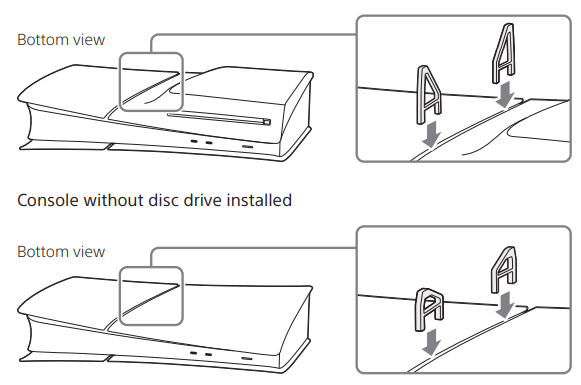
- Insert the horizontal stand feet into the hole in the grooves of the PlayStation®5 console.
- Always attach the feet to your PS5® console before use.
- Place your console on a soft cloth spread over a flat surface before attaching the feet.
- Console with disc drive installed

- Connect the HDMI cable and the AC power cord. Use the included cables.
- Make all connections before plugging the AC power cord into an electrical outlet.
- The following illustrations all show the console with the disc drive installed.

- Turn on your TV and set the input to HDMI.
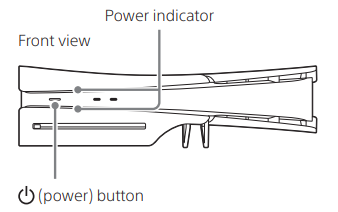
- Turn on your PS5 console by pressing the power) Button.
- The power indicator blinks blue and then turns white.

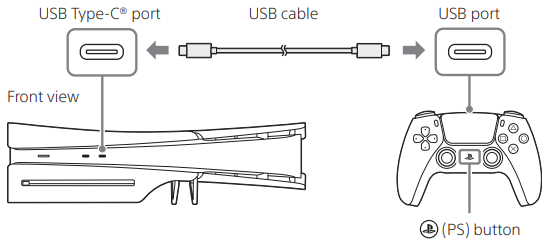
- Connect your DualSense® wireless controller to your console and press the (PS) button.
- To pair your controller, connect it with a USB cable to the USB port on your console.
- When you press the (PS) button, the controller turns on

- Make it your own. You’re almost done! Follow the on-screen instructions to complete the initial setup.

- You can go back and change any of your settings by selecting Settings from the home screen.
- When used by children, guardians can set restrictions as needed.
- You can expand the storage of your PS5 console by installing a commercially\ available M.2 SSD.
- For more details about M.2 SSDs, see the User’s Guide (page 18).
Remove and Attach the Covers
Remove the covers when performing maintenance on your console, or when installing an M.2 SSD or disc drive. Place your console on a soft cloth spread over a flat surface before removing or attaching the covers. Illustrations show the console with a disc drive installed.
- Each cover has a different shape. To ensure you attach the cover in the correct position, use the marks on the inside of the cover as a guide (see illustration on the right).
- All covers can be removed and attached in the same way.
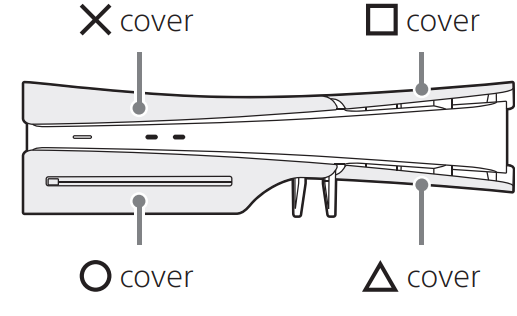
- Go to the control center and select Power > Turn Off PS5.
- The screen goes blank, the power indicator flashes white, and then turns off.
- Unplug the AC power cord and cables, and then wait for the PS5 console to cool down.
- The main unit of your console is hot immediately after use.
- Place the console with the bottom facing up and the front side facing you, and then remove the feet.
- Remove the cover. Slightly lift the cover away from the console to detach its clips and remove it.

- Attach the cover. Align the cover’s clips with the corresponding holes on the console and push in until you hear a “cli.ck.”

- Attach the feet, plug in the AC power cord and cables, and then turn on the power.
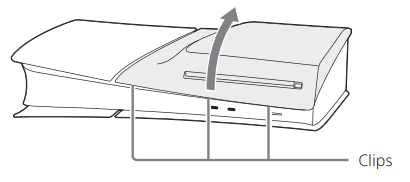
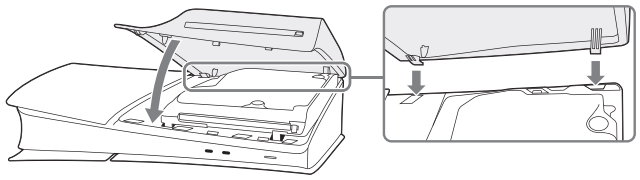
Attach or Remove the Disc Drive
If you have purchased a console without a disc drive installed, attach the disc drive (sold separately) to play disc-based games, Blu-ray Disc™, and DVDs.
- Place your console on a soft cloth spread over a flat surface before attaching your disc drive.
- Remove the cover (page 10). For safety warnings or details about removing or attaching covers, see “Remove and attach cover.

- Align the disc drive’s clips with the 2 holes (marked with ), and then firmly push in until you hear a “click”.

- Attach the cover (page 10). Make sure to attach the cover for consoles with the disc drive installed.
- Attach the feet (long), plug in the AC power cord and cables, and then turn on the power.
- Make sure to attach the feet for consoles with the disc drive installed.
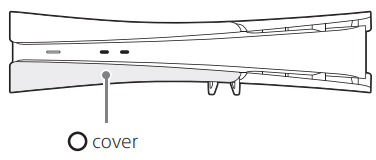
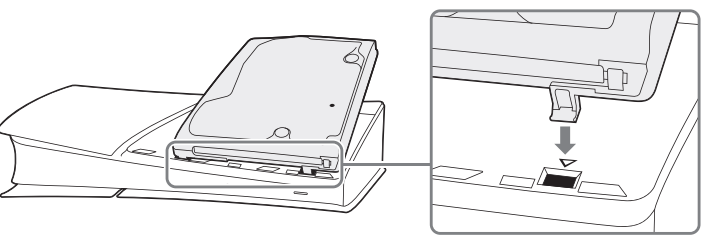
Remove the disc drive.
Place your console on a soft cloth spread over a flat surface before removing your disc drive.
- For safety warnings or details about removing or attaching covers.
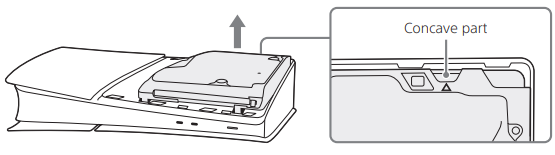
- Use your finger to lift the concave part of the disc drive and remove it.

- Attach the cover (page 10). Make sure to attach the cover for consoles without a disc drive installed.
- Attach the feet (short), plug in the AC power cord and cables, and then turn on the power.
- Make sure to attach the feet for consoles without a disc drive installed.
Using the Device
Never disassemble or modify the console or accessories. Use the console and accessories according to the instructions in the product documentation. No authorization for the analysis or modification of the console or accessories, or the analysis and use of its circuit configurations, is provided. There are no user-serviceable components inside the console. Additionally, there is a risk of electrical shock and, when a disc drive is attached, exposure to laser radiation.
Network
- A broadband connection is required to access the internet.
- You are responsible for the internet service fees.
- Using the wrong type of cord or cable can cause more electrical current than necessary to flow through the LAN port, which may lead to heat build-up, fire, or malfunction.
Wireless networking feature
- The frequencies used by the wireless networking feature of this product are the 2.4 GHz (WLAN, Bluetooth)/5 GHz (WLAN) ranges.
Handling the Controller
- Charge in an environment where the temperature range is between 10 °C and 30 °C (50 °F and 86 °F). Charging may not be as effective when performed in other environments.
- The battery has a limited lifespan. Battery duration will gradually decrease with repeated usage and age. Battery life also varies depending on the storage method, usage state, environment, and other factors.
- When the controller is not used for an extended period of time, it is recommended that you fully charge it at least once a year in order to maintain battery functionality.
Care Instruction
For safety, be sure to unplug the AC power cord from the electrical outlet when you care for your console. Cabinet (the plastic parts of the console and controller)
- Wipe down with a soft, dry cloth.
- Do not rest or store your controller or headset on top of your console.
- Vents: Do not block any vents. To maintain good ventilation, follow the guidelines below:
- Place the console at least 10 cm (4 in) away from a wall surface.
- Do not place on a carpet or rug with long fibers.
- Do not place in a narrow or cramped space.
- Do not cover with a cloth.
Disc handling (Only when the console has a disc drive installed)
- Do not touch the playable side of the disc with your hand when holding the disc.
- Do not expose the disc to high temperatures, high humidity, or direct sunlight.
- If you are not using the disc for an extended period of time, store it in its case.
- Use a soft cloth to lightly wipe the disc from the center to the outer edges.
- Do not use substances such as benzene, paint thinner, record cleaner, or anti-static
spray because it may damage the disc.
Specifications
Design and specifications are subject to change without notice. Depending on the software version in use, the console may operate differently from what is described in this manual.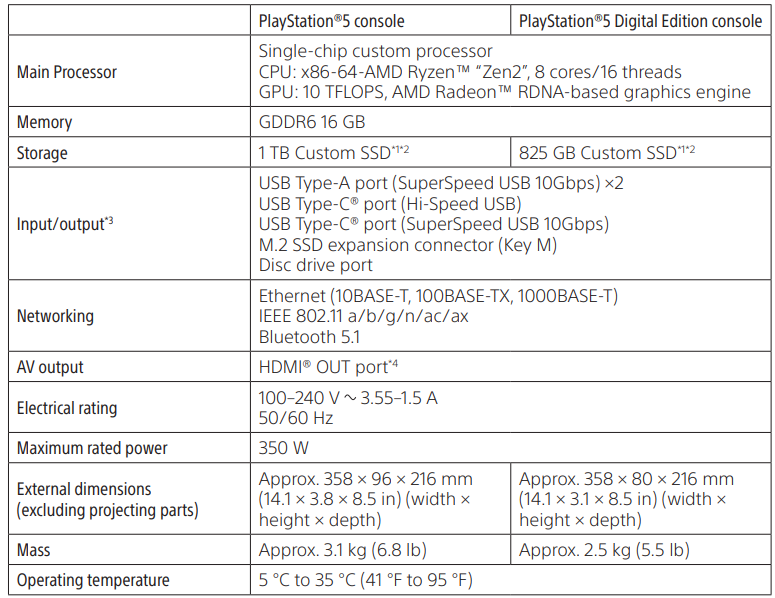
- SSD capacity calculated using base 10 mathematics (1 GB = 1,000,000,000 bytes).
- Functionality of all connected devices is not guaranteed. Use the included HDMI cable.
DualSense® wireless controller 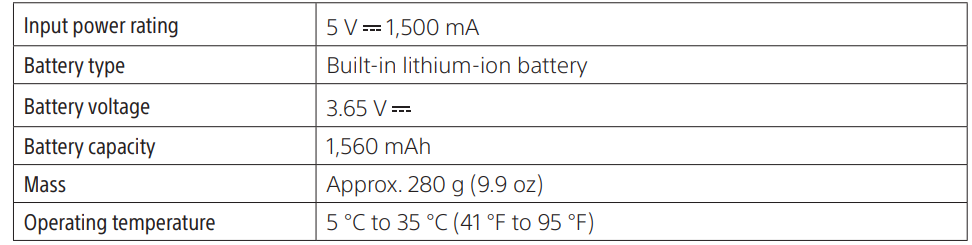
Disc drive (Only when the console has a disc drive installed) 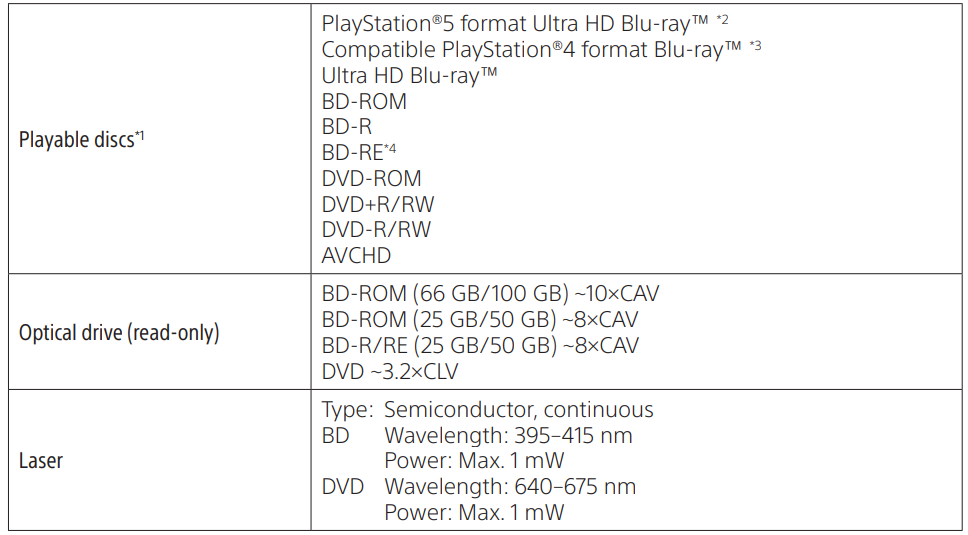
- Some functionalities available on the PS4® console may be absent when played on a PS5 console.
- Your PS5 console may need to be updated to the latest system software.
- Internet connection required. Playback of BD-RE ver. 1.0 discs are not supported
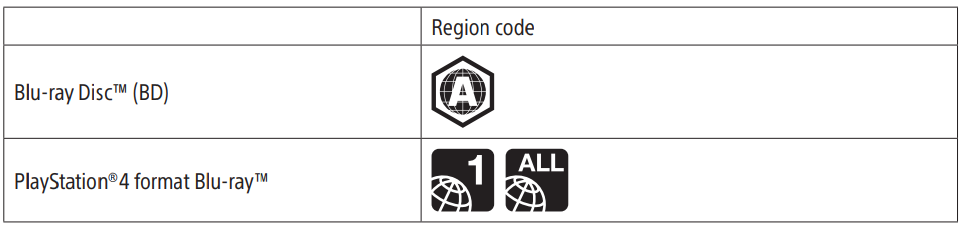
Region Codes
Depending on the disc, a region code that is based on the geographic region where the disc is distributed may be assigned. The DVD region code is set to the code of the DVD played for the first time. The region codes set on the console are as follows.
Included HDMI cable and USB cable HDMI cable Company: SONY Part No.: 1-008-483-**, 1-012-034-** USB cable Company: SONY Part No.: 1-018-350-**, 1-018-351-** * represents a number between 0 and 9.
System Software
By updating the system software of the console, you can enjoy additional features and enhanced security. Always update to the latest version. If you cannot update over the internet, you can use a game disc or a USB drive instead.
Warranty
Sony Interactive Entertainment LLC (“SIE”) warrants to the original purchaser (“you”) that the PS5 console hardware, which includes components contained in the retail box with this hardware (“Product”), will be free from material defects in material and workmanship for a period of one year from the original date of purchase (the “Warranty Period”). This warranty is valid only in the United States and Canada.
This warranty gives you specific legal rights. You may also have other rights which vary from state to state or province to province. The warranty offered by SIE on this Product is the same whether or not you register your product.
Service policy
You must visit playstation.com/service or call 1-800-345-7669 to receive a return authorization and shipping instructions. You understand and acknowledge that any time SIE services this Product (either within the Warranty Period or under a separate service arrangement), SIE may need to provide certain services to ensure this Product functions properly and according to SIE guidelines and specifications.
These services may include the installation of the latest system software or firmware updates, or the service or replacement of the PS5 console’s storage, or the PS5 console with a new or factory recertified product. You acknowledge and agree that some services may change your current settings, cause a removal of cosmetic stickers or console skins, cause a loss of data or content, or cause some loss of functionality.
You should also remove any peripherals, non-PS5 console components, and any content that you consider proprietary, private, or confidential before you send in your PS5 console for service. SIE is not liable for damages resulting from your failure to comply with the foregoing or any instructions that SIE provides to you.
After SIE services the Product and returns it to you or returns a factory-recertified product to you under this warranty, this warranty applies to the returned product for the longer of (i) 90 days from the date that SIE ships the Product or the factory-recertified product or (ii) the original Warranty Period. Except as this Limited Hardware Warranty and Liability provides, SIE is not liable for any direct and indirect, consequential, or special damages, including any damages that may arise from loss of data or functionality. The foregoing limitation applies to the extent permitted by law.
Compliance Information
FCC and ISED notice
This equipment complies with FCC/ISED radiation exposure limits set forth for an uncontrolled environment and meets the FCC radio frequency (RF) Exposure Guidelines and RSS-102 of the ISED radio frequency (RF) Exposure rules.
Supplier’s Declaration of Conformity
- Trade Name: SONY
- Model No. : CFI-2115
- Responsible Party: Sony Electronics Inc.
- Address: 16535 Via Esprillo, San Diego, CA 92127 U.S.A.
Copyright and Trademarks
“PlayStation”, “PS5”, “PS4”, “DualSense”, and “DUALSHOCK” are registered trademarks or trademarks of Sony Interactive Entertainment Inc. “SONY” and “ ” are registered trademarks or trademarks of Sony Group Corporation. AMD Radeon and AMD Ryzen are trademarks of Advanced Micro Devices, Inc.
Other trademarks and trade names are those of their respective owners. Blu-ray Disc™, Blu-ray,™ and Ultra HD Blu-ray™ are trademarks of the Blu-ray Disc Association. The terms HDMI, HDMI High-Definition Multimedia Interface, HDMI Trade Dress, and the HDMI Logos are trademarks or registered trademarks of HDMI Licensing Administrator, Inc. The SuperSpeed USB 10Gbps Trident logo is a registered trademark of USB Implementers Forum, Inc. All other trademarks are the property of their respective owners.
Further Information
User’s Guide
Find out about everything your PS5 console can do. Learn how to configure settings and how to use each function. To see the User’s Guide, you’ll need an internet connection. From your PS5 console’s home screen, go to Settings > Guide & Tips, Health & Safety, and Other Information > Guide and Tips > User’s Guide.
Disposal
For the Customers in Europe
The recycling of materials will help to conserve natural resources. For more detailed information about the recycling of this product, please contact your local Civic Office, your household waste disposal service, or the shop where you purchased the product.
Notice for the customers in the countries applying EU Directives > Manufacturer: Sony Corporation, 1-7-1 Konan Minato-ku, Tokyo, 108-0075 Japan. For EU product compliance: Sony Belgium, bijkantoor van Sony Europe Limited, Da Vincilaan 7-D1, 1935
For the customers in the Republic of India
Reduction in the Use of Hazardous Substances in Electrical & Electronic Equipment. This product and its components, consumables, parts, or spares comply with the hazardous substances restriction of India’s E-Waste (Management) Rules. The maximum allowable concentrations of the restricted substances are 0.1% by weight in homogenous materials for Lead, Mercury, Hexavalent Chromium, Polybrominated Biphenyls (PBB) and Polybrominated Diphenyl Ethers (PBDE), and 0.01% by weight in homogenous materials for Cadmium, except for the exemptions specified in Schedule II of the aforesaid Rules.
Customer Service
- Website: https://www.sony.com/
- Ph: 800-326-9551