

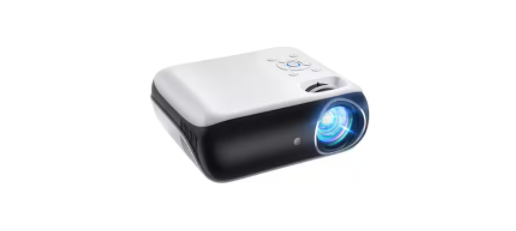
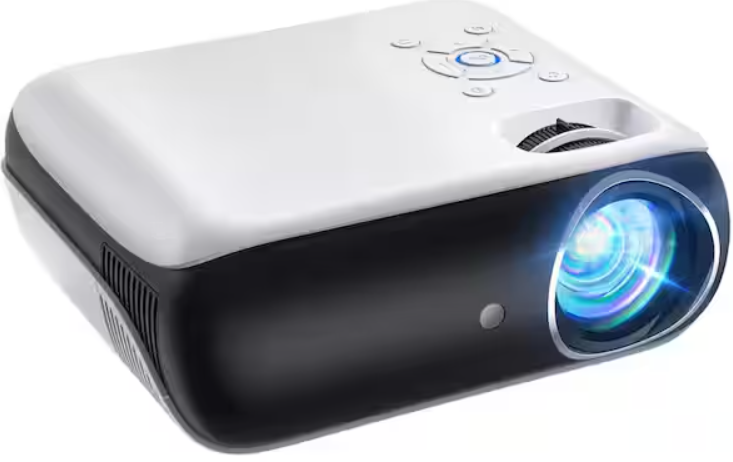
 HAPPRUN H1 Portable 1080P Bluetooth Projector

Safety Instructions
- Do not look directly into the lens while the projector is running, as strong light may damage your eyes.
- Keep the projector and accessories out of the reach of children.
- Please ensure that the projector’s working environment is dry and well-ventilated.
- To prevent electric shock, please keep the projector out of the rain and away from moisture.
- It is recommended to switch off the projector after it has run for 6 hours non-stop.
- Do not press hard on the projector, as it may damage the product.
- Do not throw, hit, or shake the projector to avoid damaging the circuit board.
- Any questions after receiving the projector, please contact us.
- We will quickly and correctly solve your problem within 24 hours and give you a satisfactory answer.
Package Contents
- AV cable * 1
- HDMI cable * 1
- Power cord * 1
- Remote control * 1
- Projector screen * 1
- User Manual * 1
Projector Description
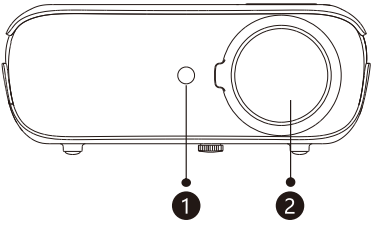
- IR Receiver
- Lens

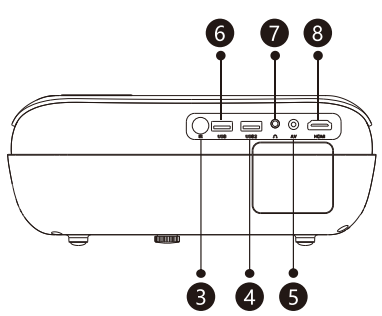
- IR Receiver
- USB2 Port
- AV Port
- USB Port
- Headphone Jack
- DMI Port

- Cooling Window

- Power Jack
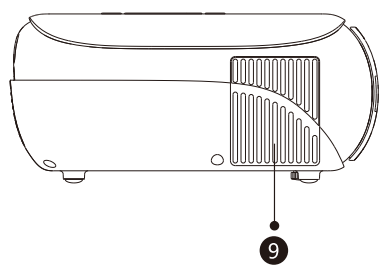
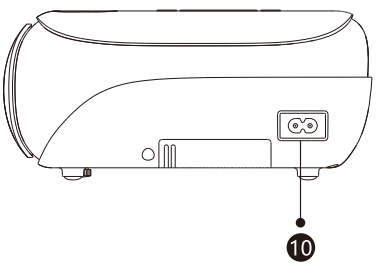
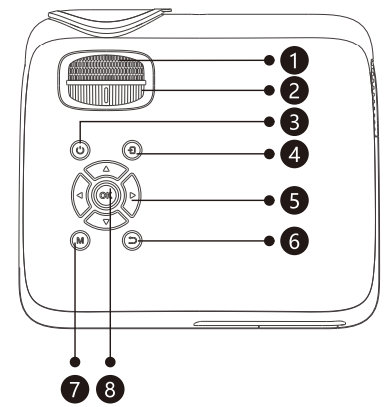
- Focusing
- Keystone Correction
- Power Key
- Source Key
- Arrow Keys
- Return Key
- Menu Key
- 0K Key

- Bottom Label
- Hanger Fixing Screw Holes
- Hole for Stand (1/4 inch)
- Height Adjustment Machine Feet
- Dust-Proof Net
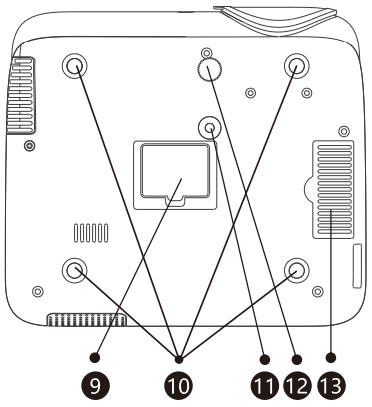
Remote Control Button Function
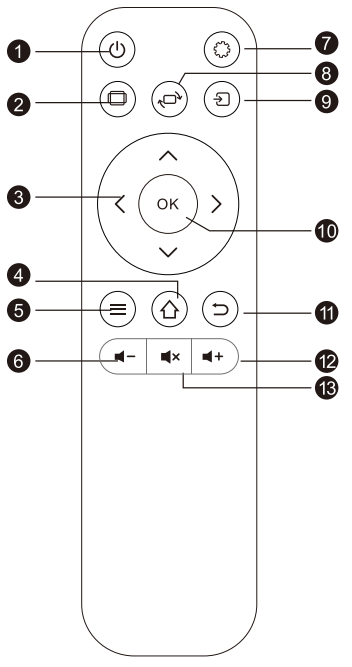
- Power
- Aspect Ratio
- Arrow Keys
- Home
- Menu
- Volume Down
- Menu
- Screen Flip
- Source
- Enter
- Return
- Volume Up
- Mute
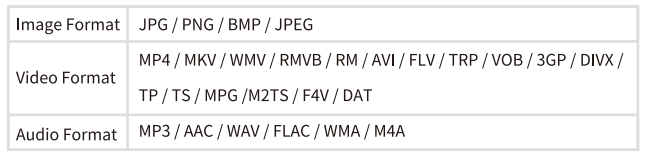
Multimedia Supported Formats
Power
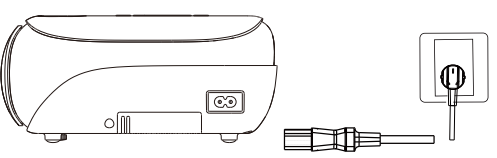
- Plug the power cord into a power outlet.
- Press the button “U” on the projector or on the remote control.
Focus
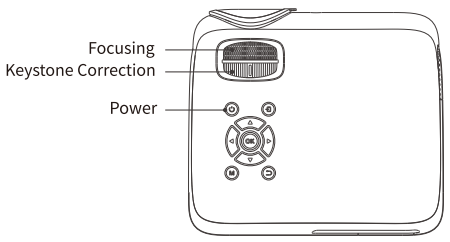
Let the projector be perpendicular to the wall, with the Focusing button to make the picture clear. When focusing, you can broadcast programs to help you finish focus.
Keystone Correction
In a different angle, you put the projector, the projection will be deformed like a trapezoid, use the keystone correction to make it correct.
Connection
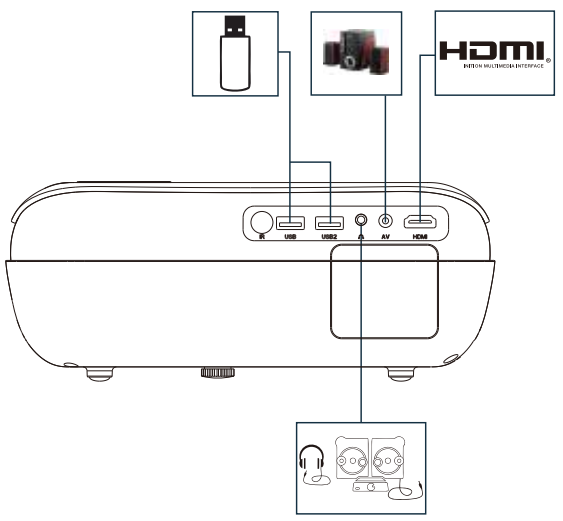
Add: Different brand laptop output keys are as follows.
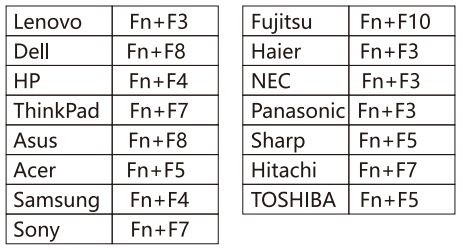
Connect the Smartphones
When connecting to a smartphone, please purchase an HDMI conversion cable (for smartphones) separately. (Note: If you purchase the wrong HDMI conversion cable, you will not be able to project the screen of your smartphone normally. Please contact us for any questions.)
Connecting to iPhone / iPad
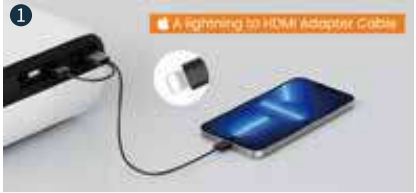
You need an extra Lightning to HDMI adapter to connect your iOS device to the projector. (HDMI adapter not included)
- Plug the HDMI plug of the HDMI conversion cable into the “HDMI” port of the projector.

- Insert the USB plug of the HDMI conversion cable into the USB port of the projector.

- Plug the lightning terminal into your iPhone / iPad.

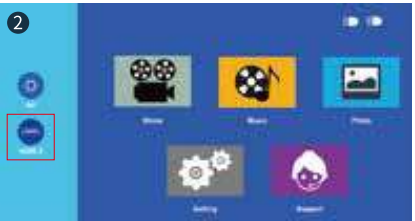
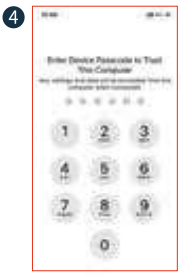
- Select “HDMI” on the screen with the arrow keys on the remote control or projector.

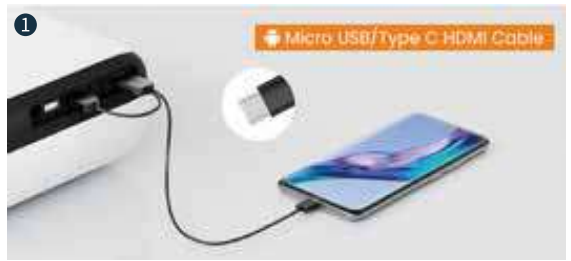
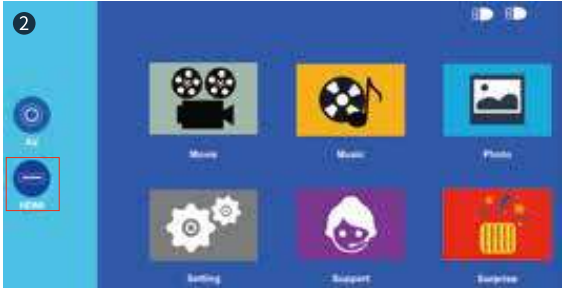
- Select “Trust” on the iPhone / iPad screen and enter the passcode. Then you will see the iPhone / iPad screen.
Connect the Smartphones
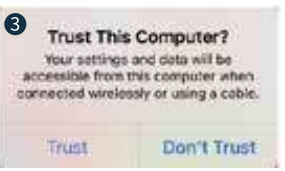
When connecting to an Android smartphone You need to buy a Micro USB/ Type C to HDMI adapter to connect your Android device. ( HDMI adapter not included)
- Plug the HDMI plug of the HDMI conversion cable into the “HDMI” port of the projector.

- Insert the USB plug of the HDMI conversion cable into the USB port of the projector.

- Insert the lightning terminal / Type-C terminal into your smartphone.
- Select “HDMI” on the screen with the arrow keys on the remote control or projector.
- Then the smartphone screen will be displayed.
Connecting
USB drive
- Different from other devices, when you connect a USB drive, you don’t need to click “E” to select the USB signal source; you can directly select the file you want to play on the main menu.
- To play a video stored in a USB drive, select “Movie” on the main menu and press the “OK”.
- To play a picture, music, or text stored in a USB drive, select” Photo”/ “Music”/”Text” on the main menu, and press the “OK”.
AV video devices
- Use the 3 in Ivideo cable (Included in the package) to connect with AV.
- Choose the media signal channel: “AV”.
Connect a 3.5mm audio device.s
- Support 3.5mm earphones and other cable sound devices.
Bluetooth Settings
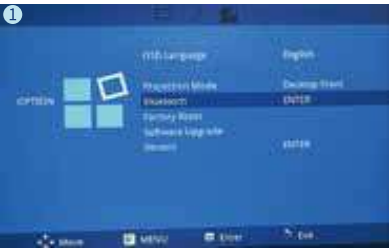
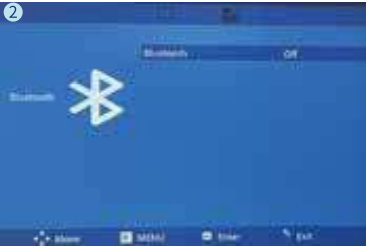
The Bluetooth function is only compatible with audio output devices such as soundbars and Bluetooth speakers.
- Click “Bluetooth”.

- Set Bluetooth on / off on the ” < / >” of the projector or remote control.

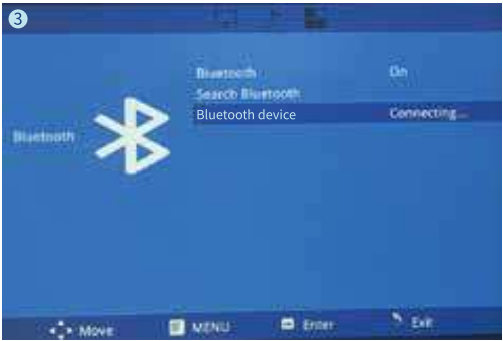
- Search for Bluetooth on the audio output device.

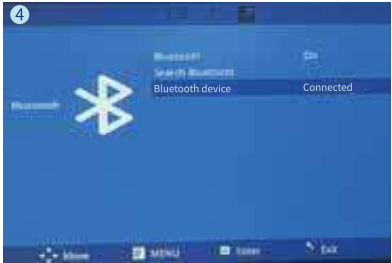
- Connect the Bluetooth of the audio output device.

- The Bluetooth connection is complete.

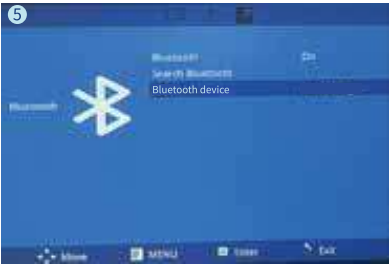
Connecting Netflix, Prime Video, Hulu,
- It works with YouTube, Chrome, Safari, facetime when you connect it to a smartphone directly. And it doesn’t support playing protected video via the app when you connect it to your smartphone directly. (Netflix, Prime Video, Hulu, etc.)
- Due to these video have an encryption protocol, the projector has no right tobe recognized when it is connected directly to the phone via the USB interface. You can try to play a protected video via a browser when connected to your iPhone.
- But it works with Netflix, Amazon Prime Video, or any othercopyrightedt videos when connecting this projector to a laptop, Fire TV Stick, Roku, or Chromecast. The reason why theFire TV Stick or other HDMI device can play Netflix is that the HDMI interface encryption protocol includes Netflix’s.
- Last but not least, this projector does not support Dolby sound. So there will be no sound when you play Dolby sound video (Amazon Fire TV, Netflix, Blu-ray movies, and so on). In this case, please kindly turn off the Dolby sound on your device or apps.
- The instructions for your reference to turn off the Dolby sound (Settings > Display & Sounds > Audio > Dolby Digital Output > and then turn Dolby Digital (OFF)
Projector Settings
Please set the option related to “Image” on this screenn Zoom settings
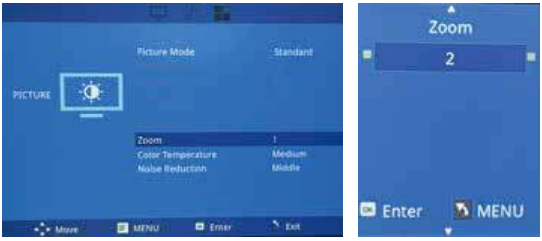
- Click “Menu” on the projector or “Menu” on the remote control to move to thsettingsng menu.
- Click “Zoom” and set the zoom with ” < / > ” on the projector or remote control.
Color Temperature Setting
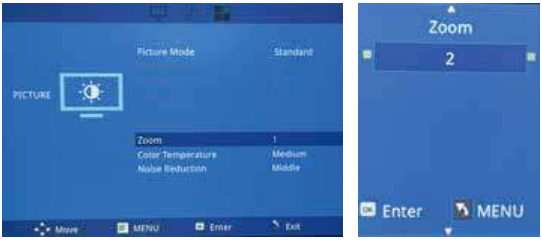
The “medium”, “wa, rm” and “cold” temperature modes default for different color preferences.
Projector Settings
Noise Reduction Settings
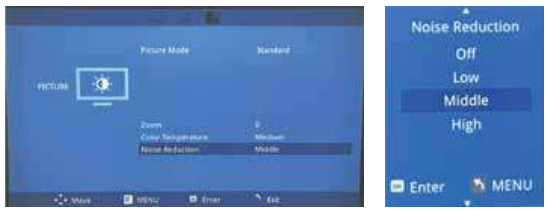
Set screen noise reduction effect (medium/high/off/low)
Set Voice-related options on this screen
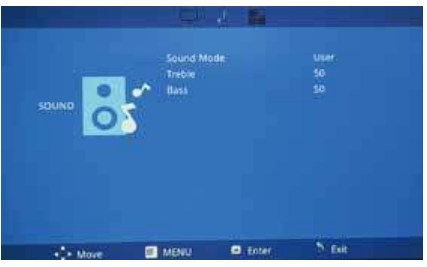
- Audio: Audio Mode/Treble/Bass.
Projector Settings
Please set options related to “Settings” on this screen
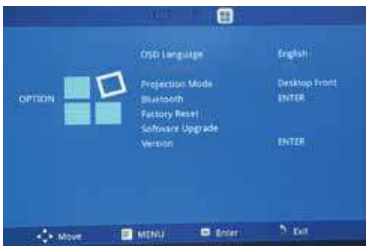
- Click “Menu” on the projector or “Menu” on the remote control to move to the settings menu.
- Use Left and Right on the projector or remote control to move to Settings.
Language Settings
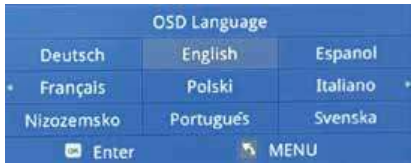
- Set the language on your system (there are 23 languages). The initial setting is English.
- Use “^/Y/</>” on the projector or remote control to search for the language.
Projector Settings
Projection Mode
Adjust the image upside down. You can get the desired image by clicking the “OK” key.
Reset to Default
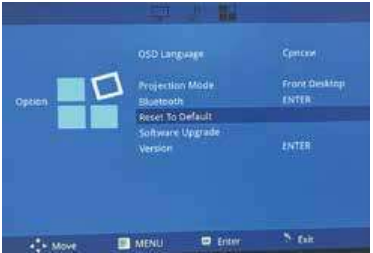
Please choose “Reset to Default”, click “ok”, and return to the shipping default setting.
Specifiction
- Model: Multimedia Projector
- Lamp: LED
- Image System: LCD
- Language: English, total 25Languages
- Resolution: 1920X1080p
- Input Voltage: 220V~ 50Hz 1A
- Weight: 1.57 KG
- Working Temp: 0-35°C
- Input Port: HDMI / USB / AV
- Output Port: Headphone
- Aspect Ratio: 16:9 / 4:3
- Size: 240X210X96mm
- Operation Mode: Manual / Remote Control
Customer Support
- Website: @happrunlife.com.
- Tel: 1-888-986-2646.
FAQs
Q: Is native 1080P resolution supported by the HAPPRUN H1?
The HAPPRUN H1 offers a crisp, improved viewing experience that is ideal for home entertainment, outdoor films, and informal presentations. It supports 1080P Full HD input.
Q: Are speakers integrated into the projector?
Indeed. Built-in stereo speakers make the HAPPRUN H1 ideal for outdoor or small space use. External speakers can be connected via audio cable or Bluetooth for a more immersive experience.
Q: What is the maximum size of the projection screen?
You can have a cinematic experience at home thanks to the projector’s large screen support. The size of the screen is determined by the projection distance, providing a variety of space-specific setup options.
Q: How portable is the HAPPRUN H1?
It is lightweight and small, making it simple to carry, store, or move between rooms or outdoor spaces. It was designed with portability in mind.
Q: Does the projector need a complex setup?
Not at all. With the plug-and-play capability of the HAPPRUN H1, you can set it up and begin watching in a matter of minutes.
Q: Is it possible to link my smartphone to the projector?
Indeed. Smartphones can be connected via screen mirroring devices or HDMI (with adapters). A Lightning-to-HDMI adapter is necessary for iOS devices. Wireless casting devices or USB-C to HDMI can be utilised with Android phones.